> ## Documentation Index
> Fetch the complete documentation index at: https://documentation.onesignal.com/llms.txt
> Use this file to discover all available pages before exploring further.
# Amazon:生成 Amazon API 密钥
> 分步指南
所有 **Amazon** 应用程序都需要 Amazon API 密钥。
## 要求:
* 一个 Amazon 应用程序。
* 一个 [Amazon Developer 账户](https://developer.amazon.com/login.html)。
* 一个 [OneSignal 账户](https://onesignal.com/)(如果您还没有的话)。
登录您的 [Amazon Developer 帐户](https://developer.amazon.com/login.html)并选择您的应用。
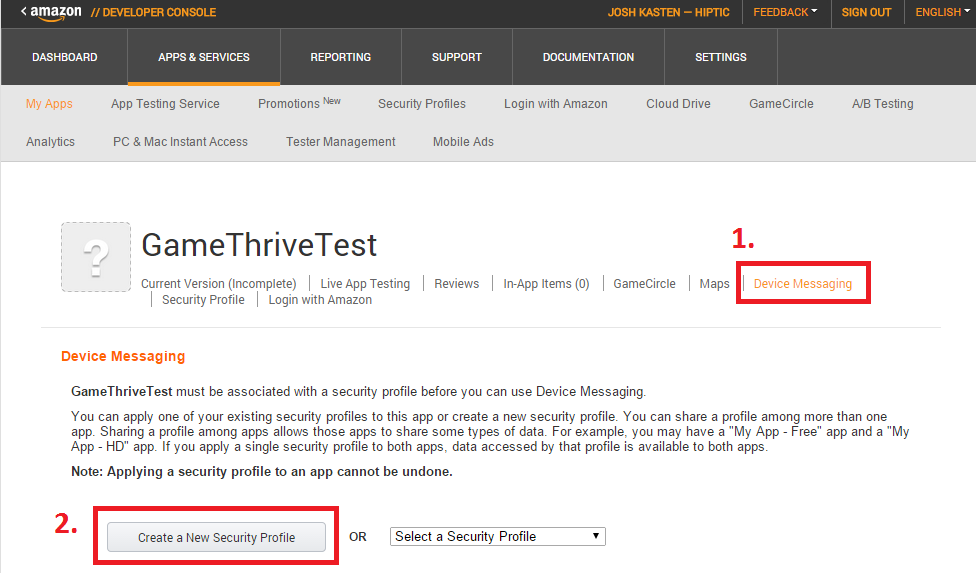
点击 **Device Messaging** 选项卡,然后点击 **Create a New Security Profile**。
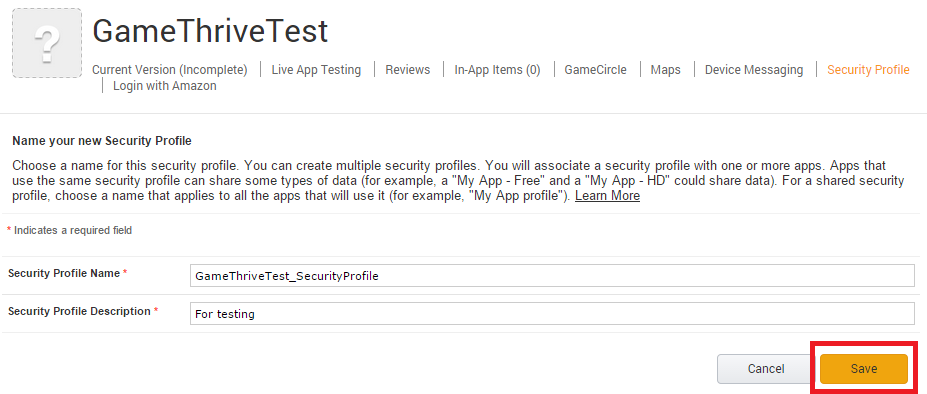
 为您的安全配置文件提供所需的名称和描述,然后点击保存。
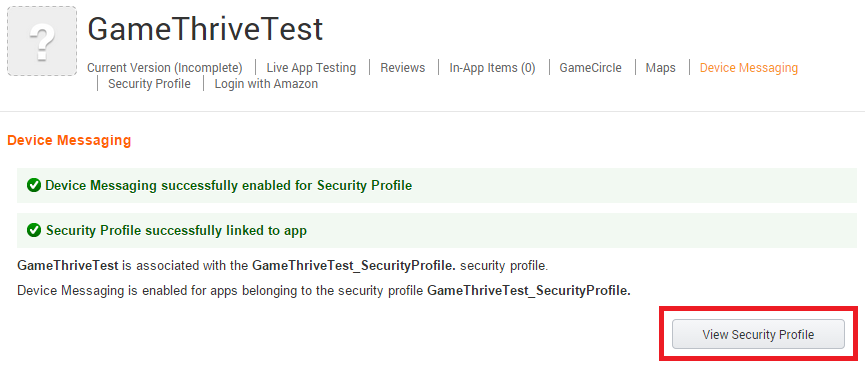
 您应该会收到一系列成功消息。接下来,点击**查看安全配置文件**继续。
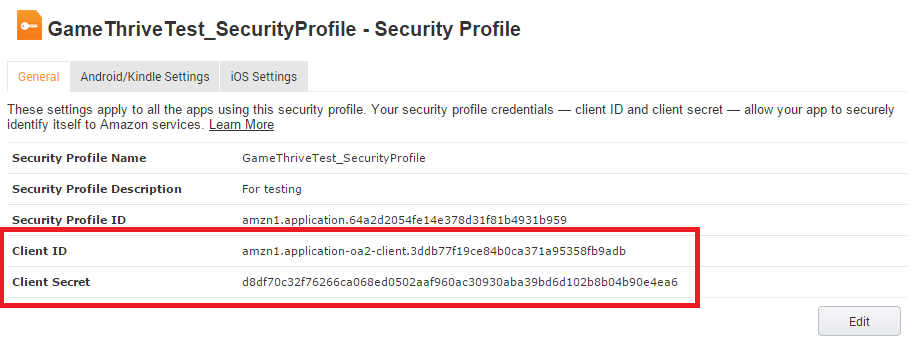
 然后您将看到一个设置页面,列出您的**客户端 ID** 和**客户端密码**。保持此页面开放,因为您在步骤 2 中将需要此信息。
 在 OneSignal 仪表板中,从“所有应用”页面选择您的应用,然后转到设置。在原生应用平台下,点击 Amazon Fire。
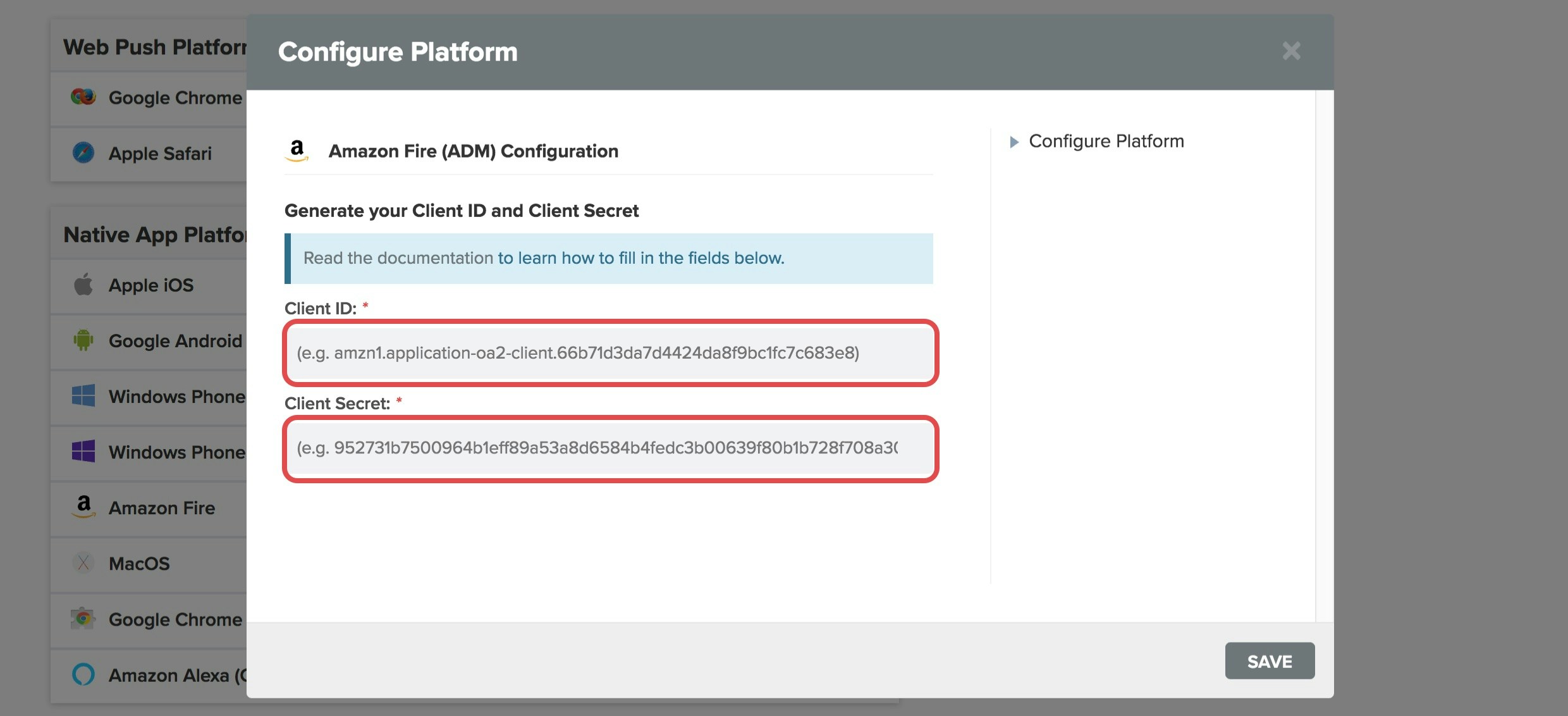
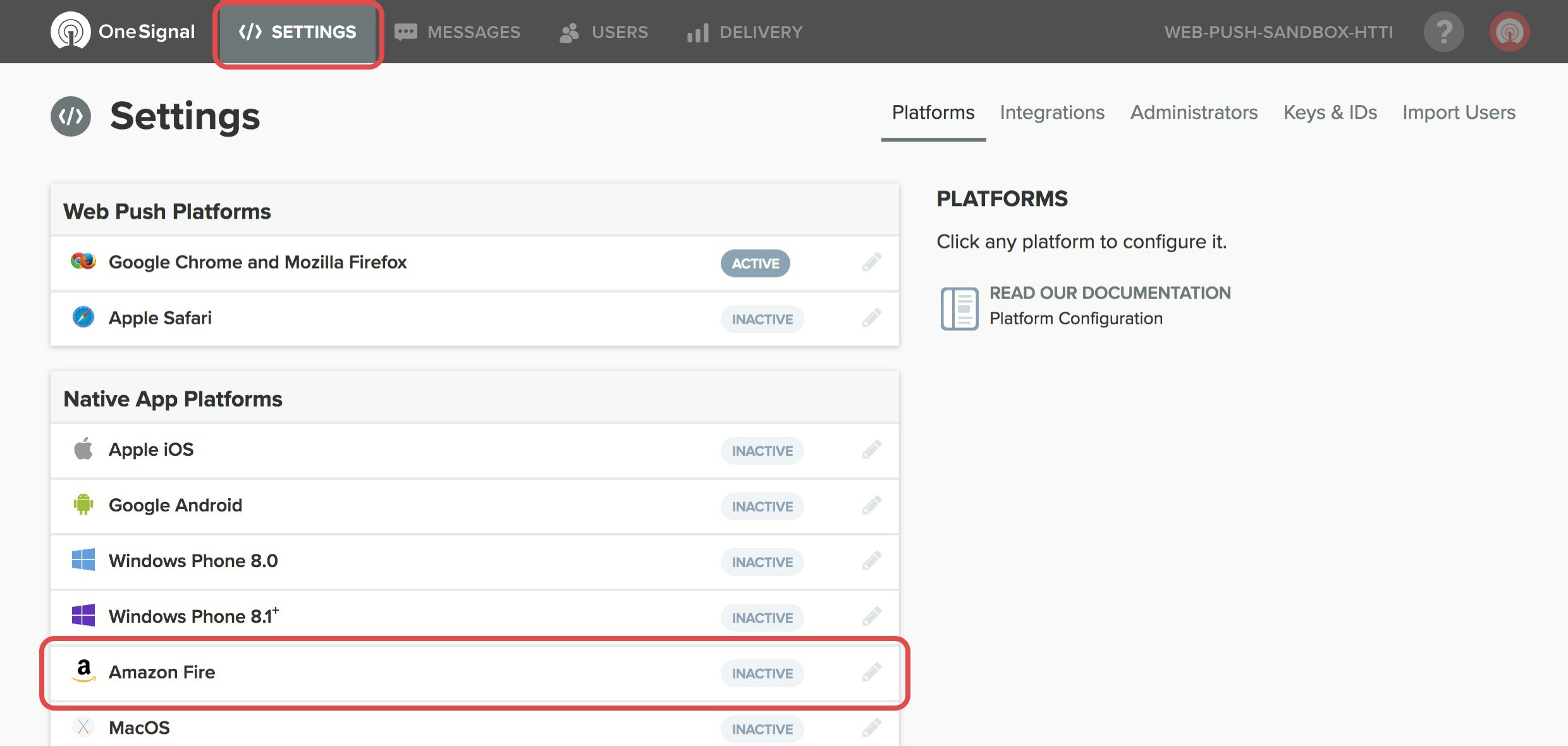 将您的客户端 ID 和客户端密码粘贴到字段中,然后点击保存。
 在将您的应用发布到 Amazon App Store 之前,需要按照以下步骤测试推送通知。
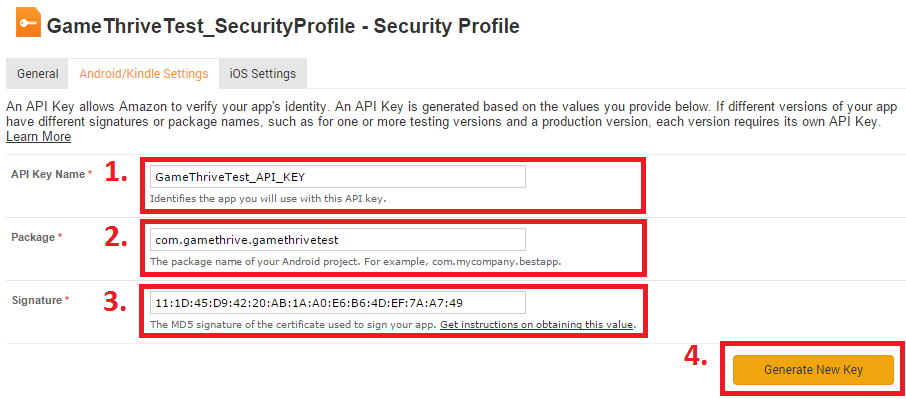
返回您应用的 Amazon 安全配置文件页面,并选择 **Android/Kindle 设置**选项卡。
为 **API 密钥名称**输入您喜欢的任何名称。
输入您的 Android 包名。**注意**:包名区分大小写。
输入您用于签名 APK 文件的 Android Keystore 的 MD5 签名。请参阅 [Amazon 的说明](https://developer.amazon.com/public/apis/engage/login-with-amazon/docs/android_app_signatures.html) 来获取此值。
我们建议不使用默认的调试 keystore,但如果您使用,请确保使用您的生产 keystore 再次执行此操作,或让 Amazon 为您签名应用。
完成后,点击 **Generate New Key**。
在将您的应用发布到 Amazon App Store 之前,需要按照以下步骤测试推送通知。
返回您应用的 Amazon 安全配置文件页面,并选择 **Android/Kindle 设置**选项卡。
为 **API 密钥名称**输入您喜欢的任何名称。
输入您的 Android 包名。**注意**:包名区分大小写。
输入您用于签名 APK 文件的 Android Keystore 的 MD5 签名。请参阅 [Amazon 的说明](https://developer.amazon.com/public/apis/engage/login-with-amazon/docs/android_app_signatures.html) 来获取此值。
我们建议不使用默认的调试 keystore,但如果您使用,请确保使用您的生产 keystore 再次执行此操作,或让 Amazon 为您签名应用。
完成后,点击 **Generate New Key**。
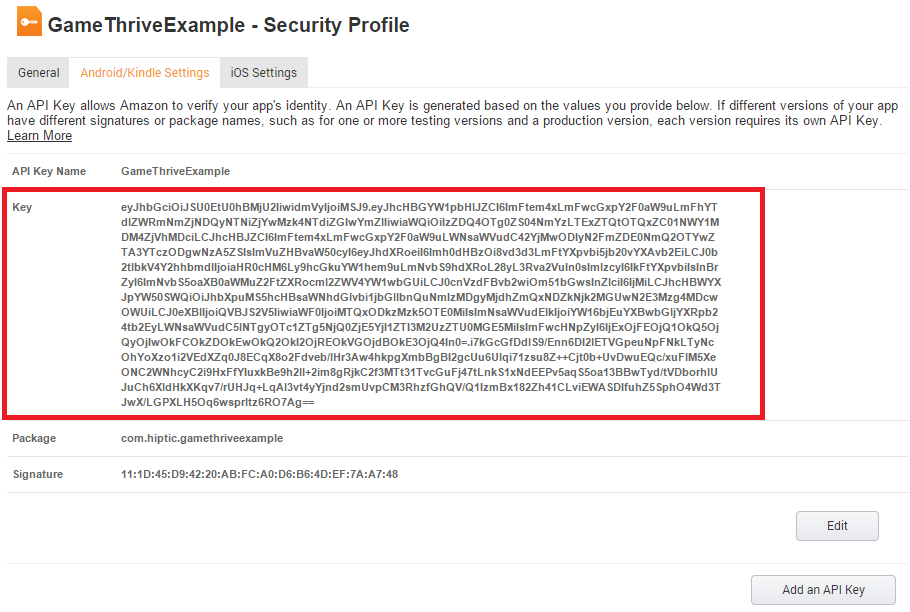
 复制结果中显示的**密钥**并将其保存到名为 `api_key.txt` 的新文件中。
构建应用时,此文件需要位于 APK 根目录中的 `/assets/` 中。
有关此文件放置的更多详细信息,可以在我们的 [Amazon SDK 设置](./amazon-sdk-setup) 文档中找到。
复制结果中显示的**密钥**并将其保存到名为 `api_key.txt` 的新文件中。
构建应用时,此文件需要位于 APK 根目录中的 `/assets/` 中。
有关此文件放置的更多详细信息,可以在我们的 [Amazon SDK 设置](./amazon-sdk-setup) 文档中找到。
 \*\*完成!\*\*您现在有了一个从您的应用程序发送推送通知的密钥。🥳
接下来,在您的应用程序中安装 OneSignal SDK。如果您需要帮助,我们有一个指南:
* [Amazon SDK Setup](./amazon-sdk-setup)
***
\*\*完成!\*\*您现在有了一个从您的应用程序发送推送通知的密钥。🥳
接下来,在您的应用程序中安装 OneSignal SDK。如果您需要帮助,我们有一个指南:
* [Amazon SDK Setup](./amazon-sdk-setup)
***