> ## Documentation Index
> Fetch the complete documentation index at: https://documentation.onesignal.com/llms.txt
> Use this file to discover all available pages before exploring further.
# Google Sheets 与事件流集成
> 本指南介绍设置 OneSignal 的事件 Webhooks 与自定义 Google Sheets 文档连接所需的步骤,以分析 OneSignal 生成的消息事件。
## 启用事件流
为您的 OneSignal 应用程序启用[事件流](./event-streams),这是付费计划的附加功能。如果您无法访问此功能,请随时联系您的成功经理或客户经理以获取更多信息。
## 创建应用脚本部署
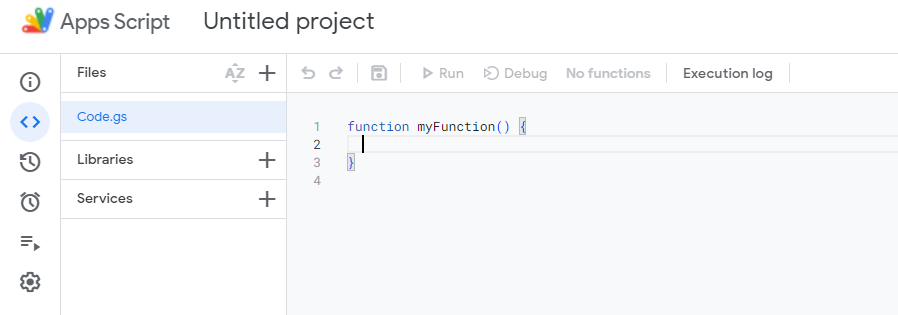
在您希望添加 OneSignal 消息事件的 Google Sheet 中导航到 **扩展 > Apps Script**。接下来,在代码编辑器中,将现有代码替换为以下内容:
 ```javascript javascript theme={null}
function doPost(e) {
// Log the full request for debugging purposes
Logger.log("Request received: " + JSON.stringify(e));
const sheet = SpreadsheetApp.getActiveSpreadsheet().getActiveSheet();
let jsonData;
try {
// Log the postData.contents before parsing
Logger.log("Post Data Contents: " + e.postData.contents);
// Attempt to parse the JSON data
jsonData = JSON.parse(e.postData.contents);
} catch (error) {
// Log the error and return an error response
Logger.log("Failed to parse JSON: " + error);
return ContentService.createTextOutput(
JSON.stringify({ status: "error", message: "Invalid JSON" }),
).setMimeType(ContentService.MimeType.JSON);
}
// Check if the sheet is empty and set headers if necessary
if (sheet.getLastRow() === 0) {
sheet.appendRow([
"User ID",
"Event ID",
"Event",
"Message ID",
"Message Name",
"Message Title",
"Message Contents",
"Template ID",
"Subscription ID",
"Subscription Device Type",
"Source",
"Original Timestamp",
]);
}
// Prepare the row data from the JSON object
const row = [
jsonData.user_id || "",
jsonData.event_id || "",
jsonData.event || "",
jsonData.properties ? jsonData.properties.message_id || "" : "",
jsonData.properties ? jsonData.properties.message_name || "" : "",
jsonData.properties ? jsonData.properties.message_title || "" : "",
jsonData.properties ? jsonData.properties.message_contents || "" : "",
jsonData.properties ? jsonData.properties.template_id || "" : "",
jsonData.properties ? jsonData.properties.subscription_id || "" : "",
jsonData.properties
? jsonData.properties.subscription_device_type || ""
: "",
jsonData.properties ? jsonData.properties.source || "" : "",
jsonData.originalTimestamp || "",
];
try {
// Append the new row to the sheet
sheet.appendRow(row);
} catch (error) {
// Log the error if appending the row fails
Logger.log("Failed to append row: " + error);
return ContentService.createTextOutput(
JSON.stringify({ status: "error", message: "Failed to append row" }),
).setMimeType(ContentService.MimeType.JSON);
}
// Return a success response
return ContentService.createTextOutput(
JSON.stringify({ status: "success" }),
).setMimeType(ContentService.MimeType.JSON);
}
```
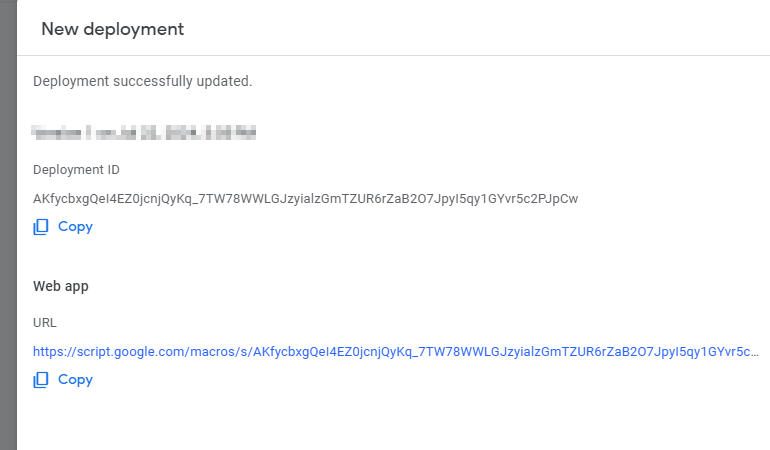
接下来,部署您的项目。点击右上角的 Deploy,并选择"Web App"作为部署类型。提供描述并选择谁可以访问项目;我们将选择"Anyone"以生成下一步所需的 URL。
```javascript javascript theme={null}
function doPost(e) {
// Log the full request for debugging purposes
Logger.log("Request received: " + JSON.stringify(e));
const sheet = SpreadsheetApp.getActiveSpreadsheet().getActiveSheet();
let jsonData;
try {
// Log the postData.contents before parsing
Logger.log("Post Data Contents: " + e.postData.contents);
// Attempt to parse the JSON data
jsonData = JSON.parse(e.postData.contents);
} catch (error) {
// Log the error and return an error response
Logger.log("Failed to parse JSON: " + error);
return ContentService.createTextOutput(
JSON.stringify({ status: "error", message: "Invalid JSON" }),
).setMimeType(ContentService.MimeType.JSON);
}
// Check if the sheet is empty and set headers if necessary
if (sheet.getLastRow() === 0) {
sheet.appendRow([
"User ID",
"Event ID",
"Event",
"Message ID",
"Message Name",
"Message Title",
"Message Contents",
"Template ID",
"Subscription ID",
"Subscription Device Type",
"Source",
"Original Timestamp",
]);
}
// Prepare the row data from the JSON object
const row = [
jsonData.user_id || "",
jsonData.event_id || "",
jsonData.event || "",
jsonData.properties ? jsonData.properties.message_id || "" : "",
jsonData.properties ? jsonData.properties.message_name || "" : "",
jsonData.properties ? jsonData.properties.message_title || "" : "",
jsonData.properties ? jsonData.properties.message_contents || "" : "",
jsonData.properties ? jsonData.properties.template_id || "" : "",
jsonData.properties ? jsonData.properties.subscription_id || "" : "",
jsonData.properties
? jsonData.properties.subscription_device_type || ""
: "",
jsonData.properties ? jsonData.properties.source || "" : "",
jsonData.originalTimestamp || "",
];
try {
// Append the new row to the sheet
sheet.appendRow(row);
} catch (error) {
// Log the error if appending the row fails
Logger.log("Failed to append row: " + error);
return ContentService.createTextOutput(
JSON.stringify({ status: "error", message: "Failed to append row" }),
).setMimeType(ContentService.MimeType.JSON);
}
// Return a success response
return ContentService.createTextOutput(
JSON.stringify({ status: "success" }),
).setMimeType(ContentService.MimeType.JSON);
}
```
接下来,部署您的项目。点击右上角的 Deploy,并选择"Web App"作为部署类型。提供描述并选择谁可以访问项目;我们将选择"Anyone"以生成下一步所需的 URL。
 ## 创建事件流
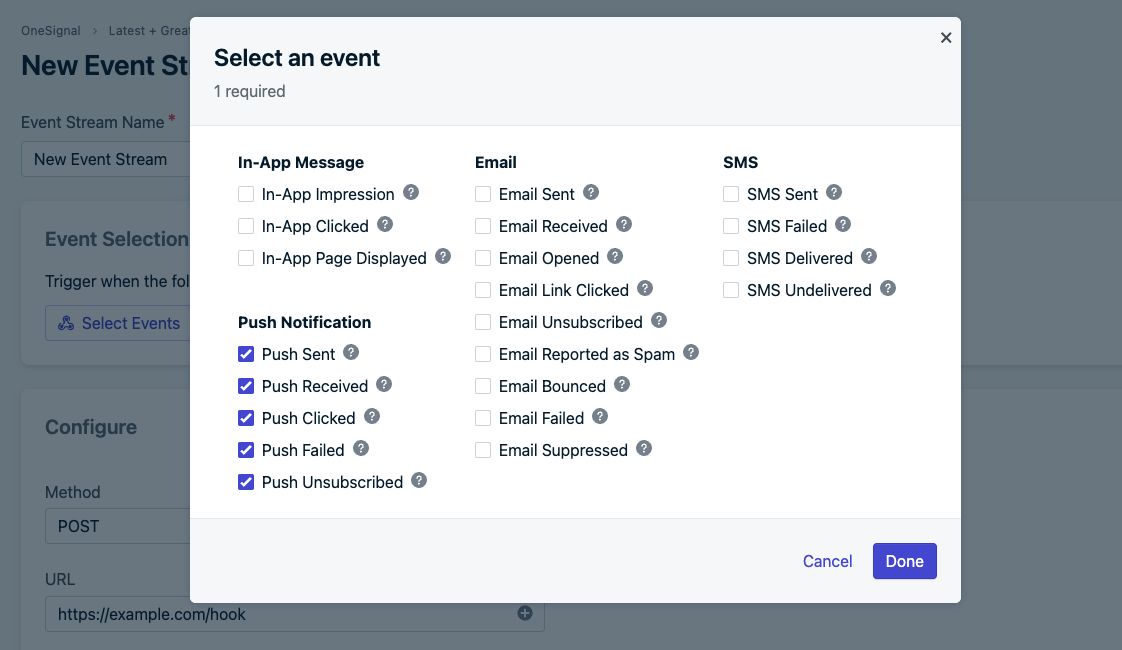
从 OneSignal 仪表板,导航到 **设置 > 事件流(需要附加功能)**。从那里,创建一个新的事件流并选择"当以下任何事件发生时触发"。在弹窗中选择您想要与 Google Sheets 同步的消息事件。在下面的示例中,我们捕获所有推送通知事件。
## 创建事件流
从 OneSignal 仪表板,导航到 **设置 > 事件流(需要附加功能)**。从那里,创建一个新的事件流并选择"当以下任何事件发生时触发"。在弹窗中选择您想要与 Google Sheets 同步的消息事件。在下面的示例中,我们捕获所有推送通知事件。
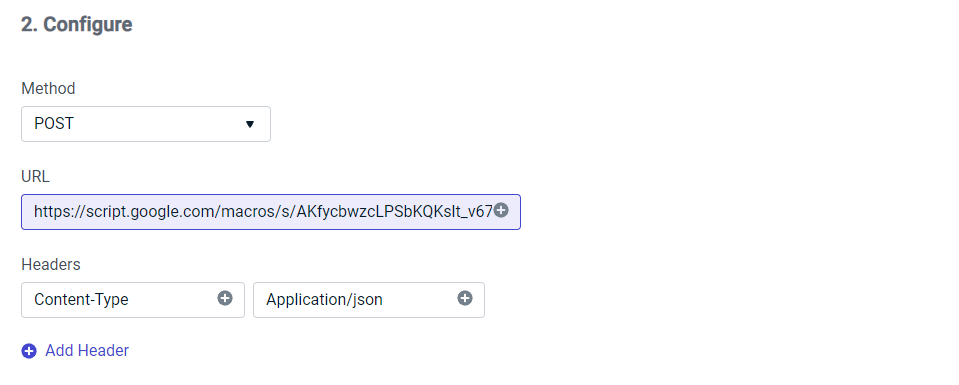
 接下来,在配置步骤中,选择 POST,粘贴前一步的 URL,并创建一个接受 JSON 的标头。
 之后,在步骤 3 下拉菜单中选择"Custom Body"并复制/粘贴以下代码。您可以更改要同步的属性和事件,如下面的示例所示。有关事件流事件属性的更多信息,请访问我们的[文档](./event-streams#personalization)
```json json theme={null}
{
"user_id": "{{ event.external_user_id }}",
"event_id": "{{ event.id }}",
"event": "{{ event.kind }}",
"properties": {
"message_id": "{{ message.id }}",
"message_name": "{{ message.name }}",
"message_title": "{{ message.title.en }}",
"message_contents": "{{ message.contents.en }}",
"template_id": "{{ message.template_id }}",
"subscription_id": "{{ event.subscription_id }}",
"subscription_device_type": "{{ event.subscription_device_type }}",
"source": "onesignal"
},
"originalTimestamp": "{{ event.datetime }}"
}
```
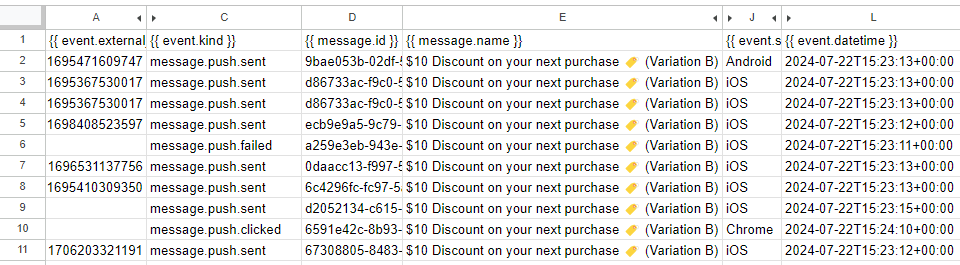
最后,选择"保存并激活"以将选定的消息事件同步到 Google Sheet。以下是上述示例代码的呈现示例:
之后,在步骤 3 下拉菜单中选择"Custom Body"并复制/粘贴以下代码。您可以更改要同步的属性和事件,如下面的示例所示。有关事件流事件属性的更多信息,请访问我们的[文档](./event-streams#personalization)
```json json theme={null}
{
"user_id": "{{ event.external_user_id }}",
"event_id": "{{ event.id }}",
"event": "{{ event.kind }}",
"properties": {
"message_id": "{{ message.id }}",
"message_name": "{{ message.name }}",
"message_title": "{{ message.title.en }}",
"message_contents": "{{ message.contents.en }}",
"template_id": "{{ message.template_id }}",
"subscription_id": "{{ event.subscription_id }}",
"subscription_device_type": "{{ event.subscription_device_type }}",
"source": "onesignal"
},
"originalTimestamp": "{{ event.datetime }}"
}
```
最后,选择"保存并激活"以将选定的消息事件同步到 Google Sheet。以下是上述示例代码的呈现示例:
 ***
***