> ## Documentation Index
> Fetch the complete documentation index at: https://documentation.onesignal.com/llms.txt
> Use this file to discover all available pages before exploring further.
# iOS:图像轮播推送通知
> 如何使用 Swift 在 OneSignal iOS 推送通知中实现图像轮播。
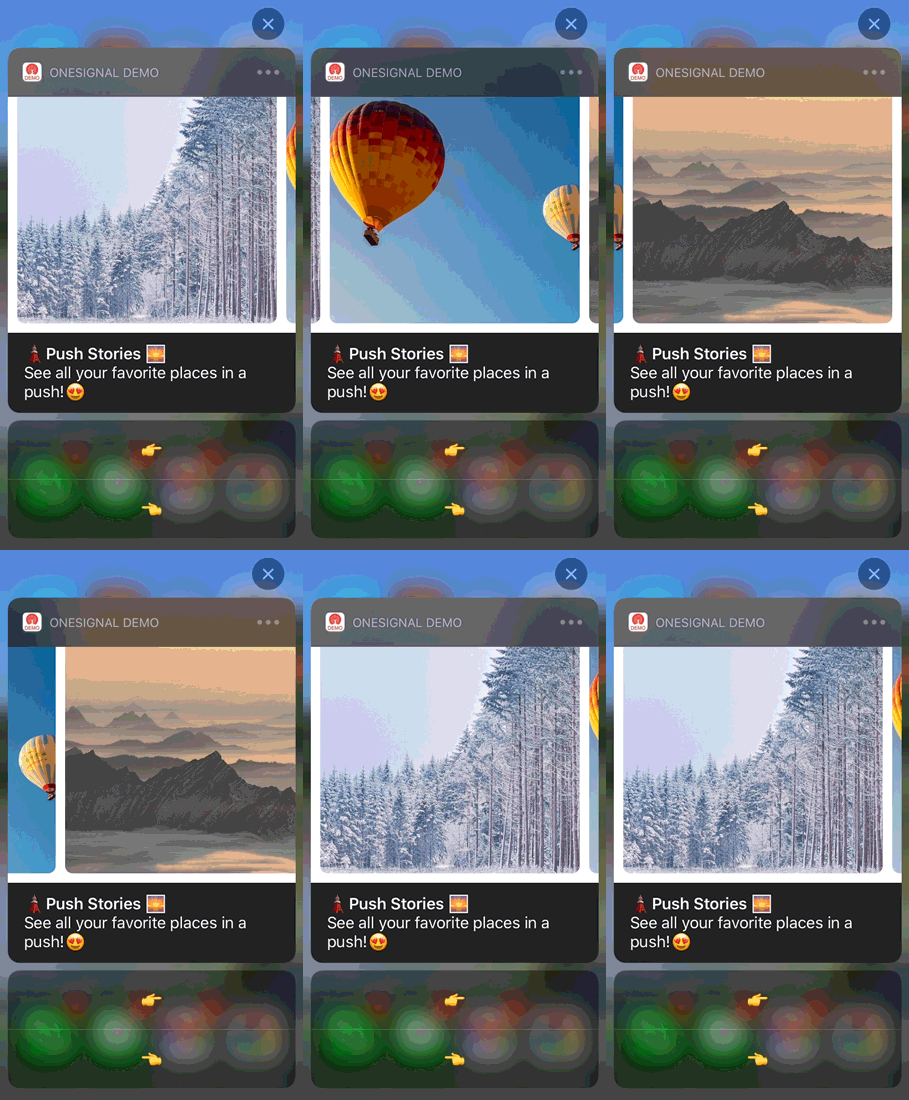
iOS 提供了一个 [UNNotificationContentExtension](https://developer.apple.com/documentation/usernotificationsui/unnotificationcontentextension?language=objc) 协议作为通知内容应用扩展的入口点。这可以用来为您的应用通知显示自定义界面。本示例指南说明如何使用它在 iOS 通知中创建轮播。
 ## 1. 添加通知内容扩展
在 Xcode 中,选择 File > New > Target...
选择"通知内容扩展"
在弹出的窗口中确认选择
选择激活以进行调试
## 2. 向您的应用添加代码
从 Github [下载 OSNotificationContentExtension](https://github.com/jfishman1/OSNotificationContentExtension),并用 Github 中的相同文件替换 Xcode 项目中的 `OSNotificationContentExtension`。
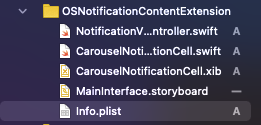
您应该看到添加了以下文件:
## 1. 添加通知内容扩展
在 Xcode 中,选择 File > New > Target...
选择"通知内容扩展"
在弹出的窗口中确认选择
选择激活以进行调试
## 2. 向您的应用添加代码
从 Github [下载 OSNotificationContentExtension](https://github.com/jfishman1/OSNotificationContentExtension),并用 Github 中的相同文件替换 Xcode 项目中的 `OSNotificationContentExtension`。
您应该看到添加了以下文件:
 ## 3. 设置您的通知类别
此示例在 AppDelegate.swift 的 `didFinishLaunchingWithOptions` 中[声明可操作的通知类型](https://developer.apple.com/documentation/usernotifications/declaring_your_actionable_notification_types)。
```swift Swift theme={null}
func application(_ application: UIApplication, didFinishLaunchingWithOptions launchOptions: [UIApplication.LaunchOptionsKey: Any]?) -> Bool {
//START Authorize OS Notification Carousel Category
if #available(iOS 10.0, *) {
let options: UNAuthorizationOptions = [.alert]
UNUserNotificationCenter.current().requestAuthorization(options: options) { (authorized, error) in
if authorized {
let categoryIdentifier = "OSNotificationCarousel"
let carouselNext = UNNotificationAction(identifier: "OSNotificationCarousel.next", title: "👉", options: [])
let carouselPrevious = UNNotificationAction(identifier: "OSNotificationCarousel.previous", title: "👈", options: [])
let carouselCategory = UNNotificationCategory(identifier: categoryIdentifier, actions: [carouselNext, carouselPrevious], intentIdentifiers: [], options: [])
UNUserNotificationCenter.current().setNotificationCategories([carouselCategory])
}
}
}
//END Authorize OS Notification Carousel Category
return true
}
```
## 4. 发送推送通知
当[发送推送消息](./push)时,您可以设置 iOS 类别和自定义数据。
### iOS 类别
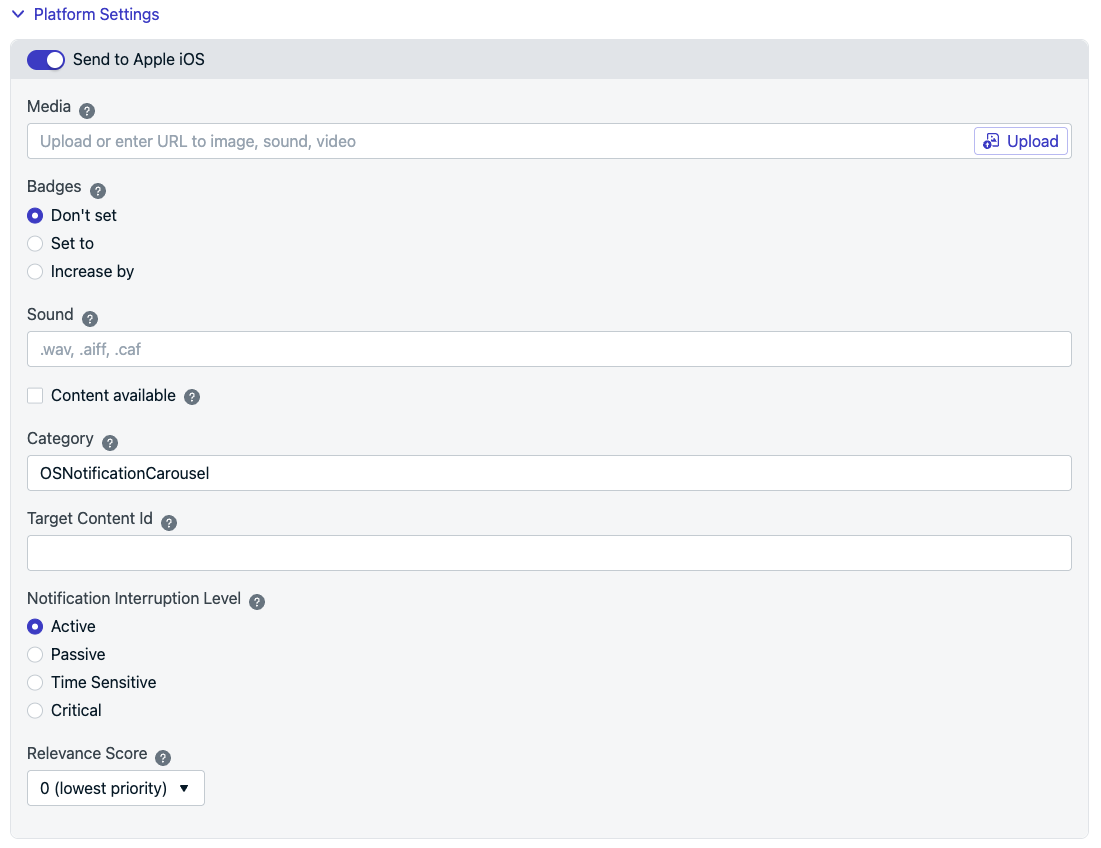
使用 `OSNotificationCarousel` 作为 iOS 类别:
在"平台设置" > **发送到 Apple iOS** > "类别"下设置
## 3. 设置您的通知类别
此示例在 AppDelegate.swift 的 `didFinishLaunchingWithOptions` 中[声明可操作的通知类型](https://developer.apple.com/documentation/usernotifications/declaring_your_actionable_notification_types)。
```swift Swift theme={null}
func application(_ application: UIApplication, didFinishLaunchingWithOptions launchOptions: [UIApplication.LaunchOptionsKey: Any]?) -> Bool {
//START Authorize OS Notification Carousel Category
if #available(iOS 10.0, *) {
let options: UNAuthorizationOptions = [.alert]
UNUserNotificationCenter.current().requestAuthorization(options: options) { (authorized, error) in
if authorized {
let categoryIdentifier = "OSNotificationCarousel"
let carouselNext = UNNotificationAction(identifier: "OSNotificationCarousel.next", title: "👉", options: [])
let carouselPrevious = UNNotificationAction(identifier: "OSNotificationCarousel.previous", title: "👈", options: [])
let carouselCategory = UNNotificationCategory(identifier: categoryIdentifier, actions: [carouselNext, carouselPrevious], intentIdentifiers: [], options: [])
UNUserNotificationCenter.current().setNotificationCategories([carouselCategory])
}
}
}
//END Authorize OS Notification Carousel Category
return true
}
```
## 4. 发送推送通知
当[发送推送消息](./push)时,您可以设置 iOS 类别和自定义数据。
### iOS 类别
使用 `OSNotificationCarousel` 作为 iOS 类别:
在"平台设置" > **发送到 Apple iOS** > "类别"下设置
 使用 `ios_category` [API 参数](/reference/push-notification)设置。
### 自定义数据
OneSignal 没有为每个通知上传多个图像的选项。
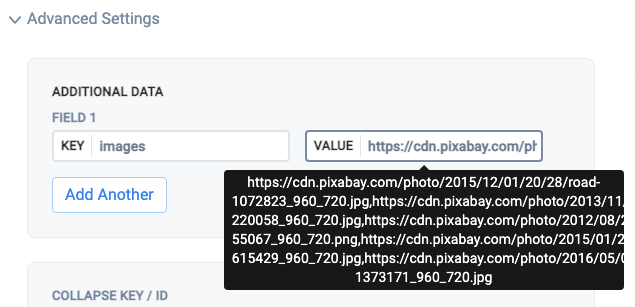
相反,您必须列出用逗号 `,` 分隔的图像 URL
在"高级设置" > "附加数据"下设置
对于"键",设置 `images`,对于"值",设置逗号分隔的 URL 列表(不带引号)。
使用 `ios_category` [API 参数](/reference/push-notification)设置。
### 自定义数据
OneSignal 没有为每个通知上传多个图像的选项。
相反,您必须列出用逗号 `,` 分隔的图像 URL
在"高级设置" > "附加数据"下设置
对于"键",设置 `images`,对于"值",设置逗号分隔的 URL 列表(不带引号)。
 示例,复制粘贴:
```text text theme={null}
https://cdn.pixabay.com/photo/2015/12/01/20/28/road-1072823_960_720.jpg,https://cdn.pixabay.com/photo/2013/11/28/10/36/road-220058_960_720.jpg,https://cdn.pixabay.com/photo/2012/08/27/14/19/mountains-55067_960_720.png,https://cdn.pixabay.com/photo/2015/01/28/23/35/landscape-615429_960_720.jpg,https://cdn.pixabay.com/photo/2016/05/05/02/37/sunset-1373171_960_720.jpg
```
像这样使用 `data` [API 参数](/reference/push-notification):
```json json theme={null}
data: {
"images" : "https://cdn.pixabay.com/photo/2015/12/01/20/28/road-1072823_960_720.jpg,https://cdn.pixabay.com/photo/2013/11/28/10/36/road-220058_960_720.jpg,https://cdn.pixabay.com/photo/2012/08/27/14/19/mountains-55067_960_720.png,https://cdn.pixabay.com/photo/2015/01/28/23/35/landscape-615429_960_720.jpg,https://cdn.pixabay.com/photo/2016/05/05/02/37/sunset-1373171_960_720.jpg"
}
```
### 发送推送
收到推送后,您需要长按或向左滑动并点击"查看"来展开通知,具体取决于 iOS 版本。
### 扩展阅读
* [Apple 文档:声明您的可操作通知类型](https://developer.apple.com/documentation/usernotifications/declaring_your_actionable_notification_types)
* [Ahmet Keskin 的有用 Medium 文章](https://medium.com/nsistanbul/carousel-notification-in-ios-5a1e8239d786)
***
示例,复制粘贴:
```text text theme={null}
https://cdn.pixabay.com/photo/2015/12/01/20/28/road-1072823_960_720.jpg,https://cdn.pixabay.com/photo/2013/11/28/10/36/road-220058_960_720.jpg,https://cdn.pixabay.com/photo/2012/08/27/14/19/mountains-55067_960_720.png,https://cdn.pixabay.com/photo/2015/01/28/23/35/landscape-615429_960_720.jpg,https://cdn.pixabay.com/photo/2016/05/05/02/37/sunset-1373171_960_720.jpg
```
像这样使用 `data` [API 参数](/reference/push-notification):
```json json theme={null}
data: {
"images" : "https://cdn.pixabay.com/photo/2015/12/01/20/28/road-1072823_960_720.jpg,https://cdn.pixabay.com/photo/2013/11/28/10/36/road-220058_960_720.jpg,https://cdn.pixabay.com/photo/2012/08/27/14/19/mountains-55067_960_720.png,https://cdn.pixabay.com/photo/2015/01/28/23/35/landscape-615429_960_720.jpg,https://cdn.pixabay.com/photo/2016/05/05/02/37/sunset-1373171_960_720.jpg"
}
```
### 发送推送
收到推送后,您需要长按或向左滑动并点击"查看"来展开通知,具体取决于 iOS 版本。
### 扩展阅读
* [Apple 文档:声明您的可操作通知类型](https://developer.apple.com/documentation/usernotifications/declaring_your_actionable_notification_types)
* [Ahmet Keskin 的有用 Medium 文章](https://medium.com/nsistanbul/carousel-notification-in-ios-5a1e8239d786)
***