> ## Documentation Index
> Fetch the complete documentation index at: https://documentation.onesignal.com/llms.txt
> Use this file to discover all available pages before exploring further.
# 2-step authentication
> Set up, manage, and recover 2-step authentication (2FA) for your OneSignal account, including recovery codes, transferring to a new device, and regaining access if locked out.
## Overview
Protect your OneSignal account with 2-step authentication (2FA). Once enabled, you enter a time-sensitive 6-digit code from an authenticator app each time you log in.
**Save your recovery codes immediately after setup.** Recovery codes are shown only once and are the only way to log back in if you lose access to your authenticator app. If you lose both, you must email `support@onesignal.com` and **CC a team member who can verify your identity** to regain access.
If you're locked out right now, jump to [Recover access if locked out](#recover-access-if-locked-out).
***
## Set up or reconfigure 2-step authentication
Use this flow whether you're enabling 2FA for the first time, moving it to a new device, or replacing a lost setup after logging in with a recovery code. The steps are identical. The button is labeled **Enable** the first time and **Reconfigure** after that.
Set up your authenticator on a **personal device you control long-term**, not a shared or temporary test device. If you lose access to that device and your recovery codes, you will be locked out of your account.
### Step 1: Choose an authenticator app
Any TOTP (Time-based One-Time Password) compatible app works. Choose one that supports cloud backup or multi-device sync to avoid losing access if you switch phones:
* **Google Authenticator** (recommended, supports [cloud backup](https://support.google.com/accounts/answer/1066447)): [Android](https://play.google.com/store/apps/details?id=com.google.android.apps.authenticator2) | [iOS](https://apps.apple.com/us/app/google-authenticator/id388497605)
* **Microsoft Authenticator**: [Android](https://play.google.com/store/apps/details?id=com.azure.authenticator) | [iOS](https://apps.apple.com/us/app/microsoft-authenticator/id983156458)
* **Authy** (supports multi-device sync): [authy.com](https://authy.com/download/)
* **1Password**, **Bitwarden**, or any other TOTP app
### Step 2: Open Account Management
Sign in normally. If you can't sign in, see [Recover access if locked out](#recover-access-if-locked-out).
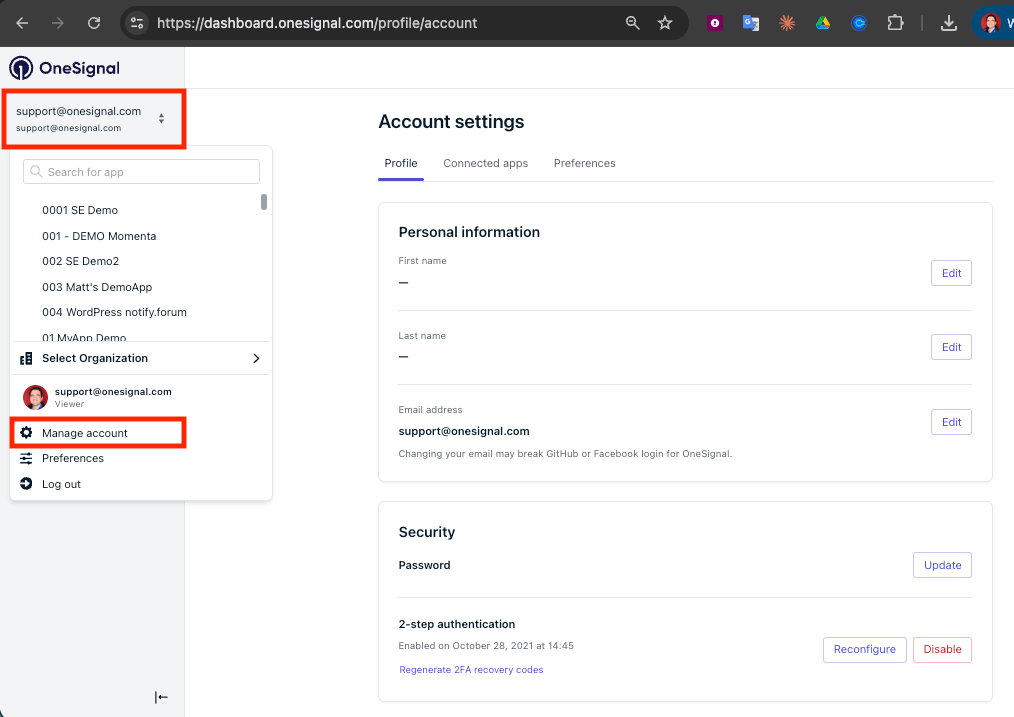
Navigate to [Account Management](https://dashboard.onesignal.com/profile) or click **your email drop-down > Manage account**.
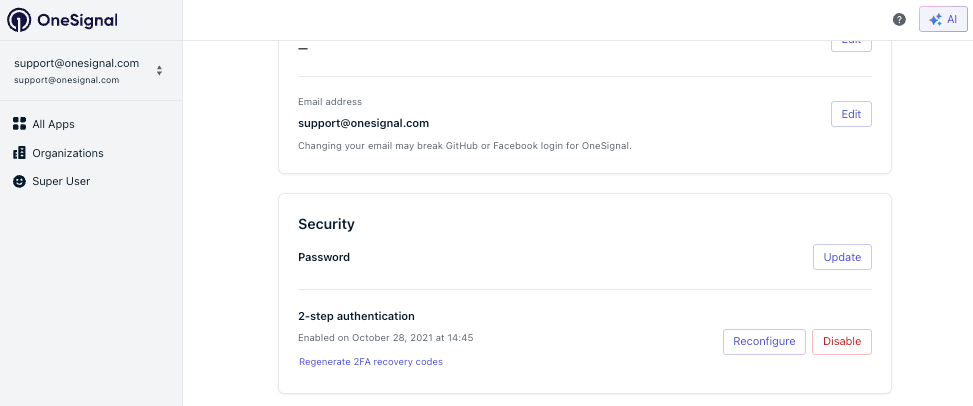
 Scroll to the **2-Step Authentication** section. Click **Enable** for first-time setup, or **Reconfigure** to move 2FA to a new device or replace a lost setup.
 ### Step 3: Connect your authenticator app
On the **Enable 2-Step Authentication** screen, scan the QR code with your authenticator app or copy the **Secret Key** to enter it manually.
### Step 3: Connect your authenticator app
On the **Enable 2-Step Authentication** screen, scan the QR code with your authenticator app or copy the **Secret Key** to enter it manually.
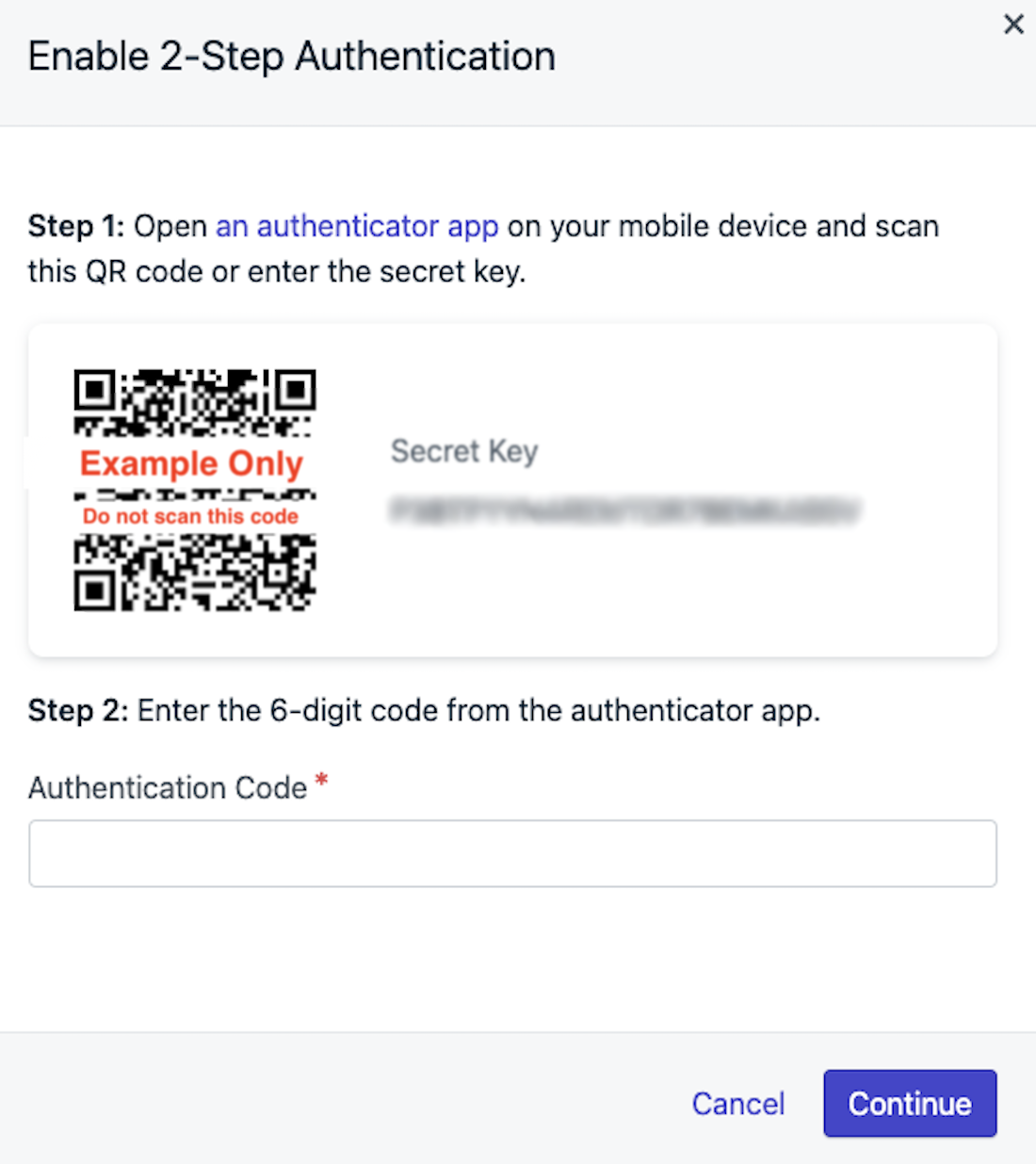 If entering the key manually in your authenticator app, choose the option to **Enter a setup key** and name the entry something memorable like `OneSignal_[your_email]`.
Your authenticator app generates a new 6-digit code every 30 seconds. Enter the current code in OneSignal to verify the connection.
If the code fails, wait 30 seconds and try the next one. If it still fails, confirm the Secret Key was entered correctly and try again.
### Step 4: Save your recovery codes
OneSignal displays **10 one-time recovery codes** after a successful setup or reconfigure. Each code can only be used **once** to log in if you lose access to your authenticator app.
If entering the key manually in your authenticator app, choose the option to **Enter a setup key** and name the entry something memorable like `OneSignal_[your_email]`.
Your authenticator app generates a new 6-digit code every 30 seconds. Enter the current code in OneSignal to verify the connection.
If the code fails, wait 30 seconds and try the next one. If it still fails, confirm the Secret Key was entered correctly and try again.
### Step 4: Save your recovery codes
OneSignal displays **10 one-time recovery codes** after a successful setup or reconfigure. Each code can only be used **once** to log in if you lose access to your authenticator app.
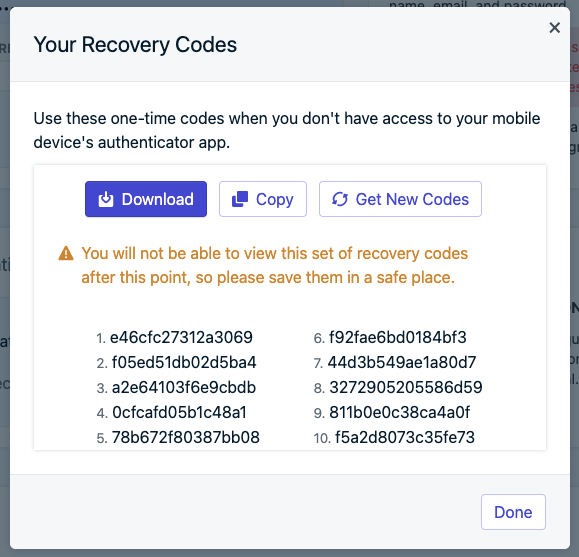 **Recovery codes are shown only once.** Download or copy them now and store them in a password manager or another secure location. Reconfiguring 2FA invalidates the previous set, so always save the fresh codes after a reconfigure.
***
## Recover access if locked out
If you can't sign in because you don't have your authenticator app, follow the path that matches what you still have access to.
### If you have a recovery code
1. Enter your email and password on the OneSignal login page.
2. On the 2FA verification screen, choose the option to enter a recovery code instead of a 6-digit code.
3. Enter one of your saved recovery codes. Each code works only once, so cross it off your list after use.
Recovery codes run out. Follow [Set up or reconfigure 2-step authentication](#set-up-or-reconfigure-2-step-authentication) right after you log in. Reconfiguring invalidates all old recovery codes and generates a fresh set.
If you keep logging in with recovery codes instead of reconfiguring, you will run out and be locked out again.
### If you don't have recovery codes
Email `support@onesignal.com` and **CC a team member who can verify your identity**. The team member must have access to the OneSignal account and will need to confirm your access before our Support Team can reset your 2FA.
If no one else on your team has access to the OneSignal account, the Support Team will guide you through alternative verification (such as confirming billing or domain ownership).
After your 2FA is reset, log in and follow [Set up or reconfigure 2-step authentication](#set-up-or-reconfigure-2-step-authentication) immediately. Save the new recovery codes this time.
***
## Enforce 2FA for all team members
Organization Admins can require every team member to use 2FA. See [Team members](./manage-team-members) for role details.
Go to [Organizations](https://dashboard.onesignal.com/organization) in the left sidebar and select your organization.
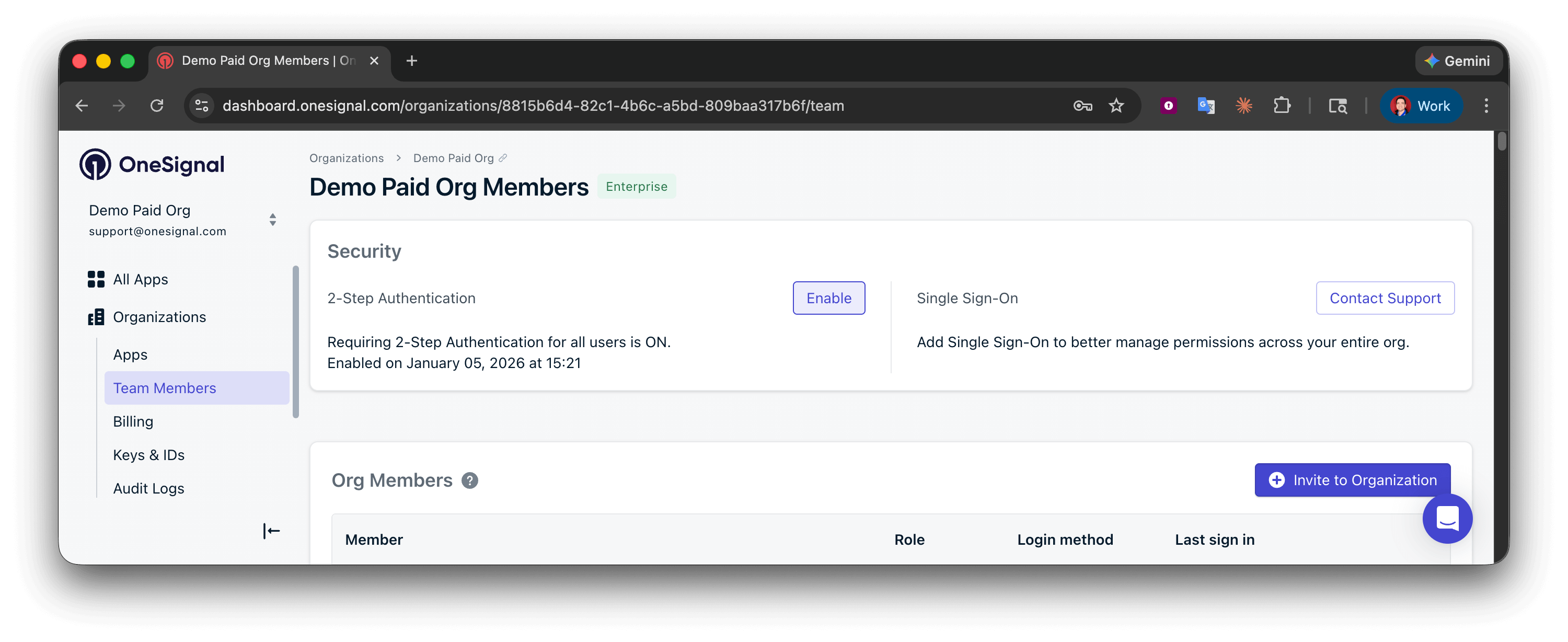
Under **Team Members > Security**, click **Enable**.
**Recovery codes are shown only once.** Download or copy them now and store them in a password manager or another secure location. Reconfiguring 2FA invalidates the previous set, so always save the fresh codes after a reconfigure.
***
## Recover access if locked out
If you can't sign in because you don't have your authenticator app, follow the path that matches what you still have access to.
### If you have a recovery code
1. Enter your email and password on the OneSignal login page.
2. On the 2FA verification screen, choose the option to enter a recovery code instead of a 6-digit code.
3. Enter one of your saved recovery codes. Each code works only once, so cross it off your list after use.
Recovery codes run out. Follow [Set up or reconfigure 2-step authentication](#set-up-or-reconfigure-2-step-authentication) right after you log in. Reconfiguring invalidates all old recovery codes and generates a fresh set.
If you keep logging in with recovery codes instead of reconfiguring, you will run out and be locked out again.
### If you don't have recovery codes
Email `support@onesignal.com` and **CC a team member who can verify your identity**. The team member must have access to the OneSignal account and will need to confirm your access before our Support Team can reset your 2FA.
If no one else on your team has access to the OneSignal account, the Support Team will guide you through alternative verification (such as confirming billing or domain ownership).
After your 2FA is reset, log in and follow [Set up or reconfigure 2-step authentication](#set-up-or-reconfigure-2-step-authentication) immediately. Save the new recovery codes this time.
***
## Enforce 2FA for all team members
Organization Admins can require every team member to use 2FA. See [Team members](./manage-team-members) for role details.
Go to [Organizations](https://dashboard.onesignal.com/organization) in the left sidebar and select your organization.
Under **Team Members > Security**, click **Enable**.
 Select **Require 2-Step Authentication for all users**, then click **Continue**.
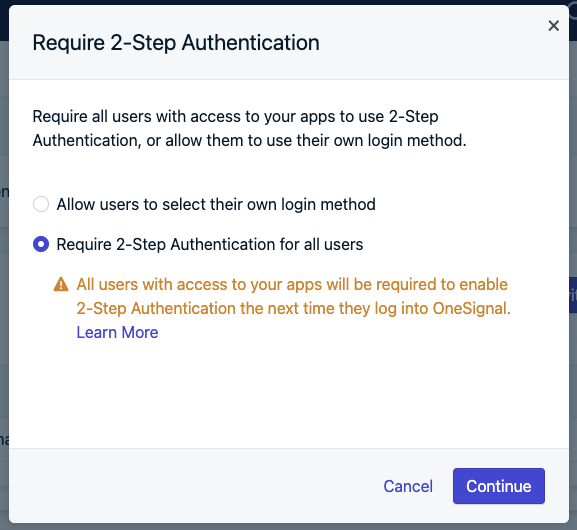 Future invitations require new users to set up 2FA before accessing the organization or its apps. Existing users without 2FA must set it up on their next login.
***
## Disable 2FA
You may not disable 2FA if your organization requires it. Contact your [Organization Admin](./manage-team-members) or `support@onesignal.com` if needed.
Follow Steps 1 and 2 of [Set up or reconfigure 2-step authentication](#set-up-or-reconfigure-2-step-authentication). If 2FA is currently enabled, the **2-Step Authentication** section gives you the option to disable it.
***
## FAQ
### I'm locked out of my account, how do I get back in?
See [Recover access if locked out](#recover-access-if-locked-out). If you have a recovery code, use it to log in and then reconfigure 2FA immediately. If you don't, email `support@onesignal.com` and CC a team member who can verify your identity.
### Why am I getting an error?
Try these in order:
* Wait for the next 30-second code cycle and try again
* Check your device's "Time & Date" settings are using automatic time synchronization and not manually set to a different time.
* Disable browser extensions that block scripts or third-party requests (ad blockers, privacy extensions)
* Allow `*.onesignal.com` in any tracking-protection or content-blocker settings
* Hard refresh the page
* Try a different browser
Still having issues? Email `support@onesignal.com` and **CC a team member who can verify your identity**.
### Why do I keep getting asked for a recovery code every time I log in?
Your authenticator app is no longer generating valid codes for your OneSignal account. This usually happens when the app was on a device you no longer have. Each recovery code is single-use, so you will eventually run out. To fix this permanently, [reconfigure 2FA on a device you currently use](#set-up-or-reconfigure-2-step-authentication) after logging in.
### I forgot my password
[Reset your password](https://dashboard.onesignal.com/password-reset). Password reset is separate from 2FA. You still need your authenticator app or a recovery code after resetting your password.
### Can I use OAuth with 2FA?
Yes. Follow the same setup flow after logging in via OAuth.
### Does OneSignal support Okta?
Yes, there are two options:
1. Your Okta admin can add OneSignal as an app using [Secure Web Authentication (SWA)](https://help.okta.com/en/prod/Content/Topics/Apps/Apps_Overview_of_Managing_Apps_and_SSO.htm). See the [OneSignal integration on Okta](https://www.okta.com/integrations/onesignal/) for setup. OneSignal's 2FA is separate from Okta.
2. Talk to our [Sales team](https://www.onesignal.com/contact) to discuss setting this up based on your plan.
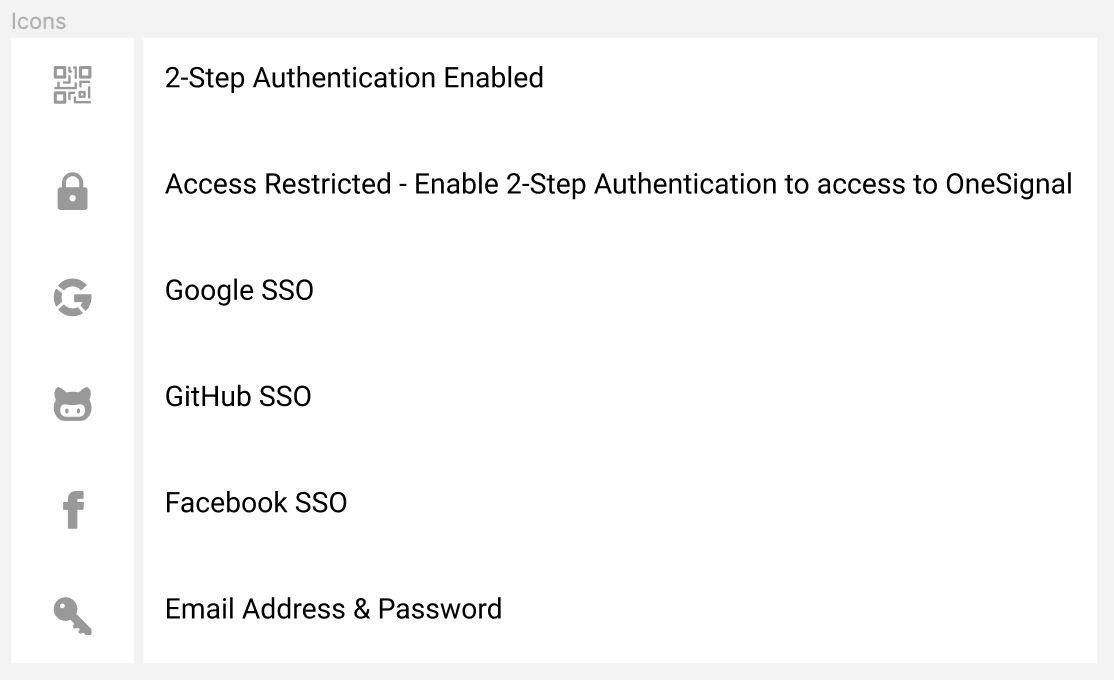
### What do the login method icons mean?
Future invitations require new users to set up 2FA before accessing the organization or its apps. Existing users without 2FA must set it up on their next login.
***
## Disable 2FA
You may not disable 2FA if your organization requires it. Contact your [Organization Admin](./manage-team-members) or `support@onesignal.com` if needed.
Follow Steps 1 and 2 of [Set up or reconfigure 2-step authentication](#set-up-or-reconfigure-2-step-authentication). If 2FA is currently enabled, the **2-Step Authentication** section gives you the option to disable it.
***
## FAQ
### I'm locked out of my account, how do I get back in?
See [Recover access if locked out](#recover-access-if-locked-out). If you have a recovery code, use it to log in and then reconfigure 2FA immediately. If you don't, email `support@onesignal.com` and CC a team member who can verify your identity.
### Why am I getting an error?
Try these in order:
* Wait for the next 30-second code cycle and try again
* Check your device's "Time & Date" settings are using automatic time synchronization and not manually set to a different time.
* Disable browser extensions that block scripts or third-party requests (ad blockers, privacy extensions)
* Allow `*.onesignal.com` in any tracking-protection or content-blocker settings
* Hard refresh the page
* Try a different browser
Still having issues? Email `support@onesignal.com` and **CC a team member who can verify your identity**.
### Why do I keep getting asked for a recovery code every time I log in?
Your authenticator app is no longer generating valid codes for your OneSignal account. This usually happens when the app was on a device you no longer have. Each recovery code is single-use, so you will eventually run out. To fix this permanently, [reconfigure 2FA on a device you currently use](#set-up-or-reconfigure-2-step-authentication) after logging in.
### I forgot my password
[Reset your password](https://dashboard.onesignal.com/password-reset). Password reset is separate from 2FA. You still need your authenticator app or a recovery code after resetting your password.
### Can I use OAuth with 2FA?
Yes. Follow the same setup flow after logging in via OAuth.
### Does OneSignal support Okta?
Yes, there are two options:
1. Your Okta admin can add OneSignal as an app using [Secure Web Authentication (SWA)](https://help.okta.com/en/prod/Content/Topics/Apps/Apps_Overview_of_Managing_Apps_and_SSO.htm). See the [OneSignal integration on Okta](https://www.okta.com/integrations/onesignal/) for setup. OneSignal's 2FA is separate from Okta.
2. Talk to our [Sales team](https://www.onesignal.com/contact) to discuss setting this up based on your plan.
### What do the login method icons mean?
 ***
## Related pages
Manage roles, permissions, and 2FA enforcement for your organization.
Configure SAML-based SSO for your organization.
***
## Related pages
Manage roles, permissions, and 2FA enforcement for your organization.
Configure SAML-based SSO for your organization.