> ## Documentation Index
> Fetch the complete documentation index at: https://documentation.onesignal.com/llms.txt
> Use this file to discover all available pages before exploring further.
# A/B Testing
> Optimize your push and email messaging with OneSignal's A/B testing to improve engagement and campaign performance.
A/B Testing helps you optimize messages by testing up to **10 variants** and evaluating performance based on metrics like open rates and click-through rates. This allows you to improve user engagement and make data-driven messaging decisions.
Marketers focused on Lifecycle and Growth can use insights from A/B tests to make impactful improvements that align with broader business goals. Whether you’re testing push notifications or emails, A/B testing allows you to experiment with different designs, copy, calls-to-action (CTAs), and more. For example, test whether:
* A push with an image outperforms text-only
* A CTA like “Claim Offer” works better than “Get Started”
* A short subject line gets more opens than a longer one
***
## Plan availability
* **Pro & Enterprise Plans**: Up to **10 variants**
* **Free & Growth Plans**: **2 variants**
[Compare Plans](https://onesignal.com/pricing)
***
## How A/B Testing works
A/B testing is only available when sending through the dashboard. It is not available with the API.
To create A/B tests with Journeys, use [Journey Split Branches](./journeys-overview#split-branches).
When creating [push](./push) and [email](./email-messaging) campaigns through the dashboard, click the **A/B Test** button and **Add Variant** to create additional tests.
Your Audience (included and excluded segments) will be all the users eligible for the campaign.
After you create the variants, you can select a portion of your audience to receive randomized variants i.e. 25% means 25% of the segment(s) selected will randomly receive one of the variants. A message with 2 variants (A & B) targeting 25% will have 12.5% of the audience get variant A and another 12.5% get variant B. A message with 10 variants (A-J) targeting 25% will have 2.5% of the users get each variant.
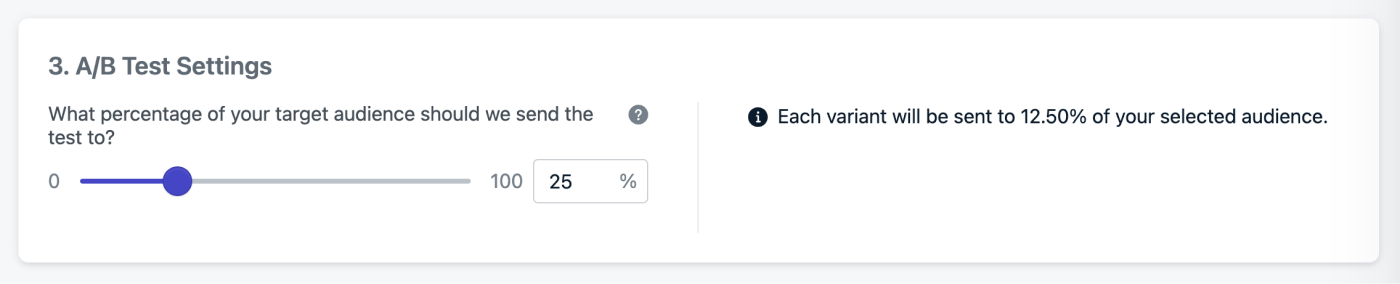 By default, 25% of your audience receives the A/B test. For valid results, each variant must receive enough users. The more variants you use, the larger your test group must be.
If you set 100%, the message will be sent evenly to all users in the audience and eliminates the ability to send the "winner" to remaining users.
## Select a Winner
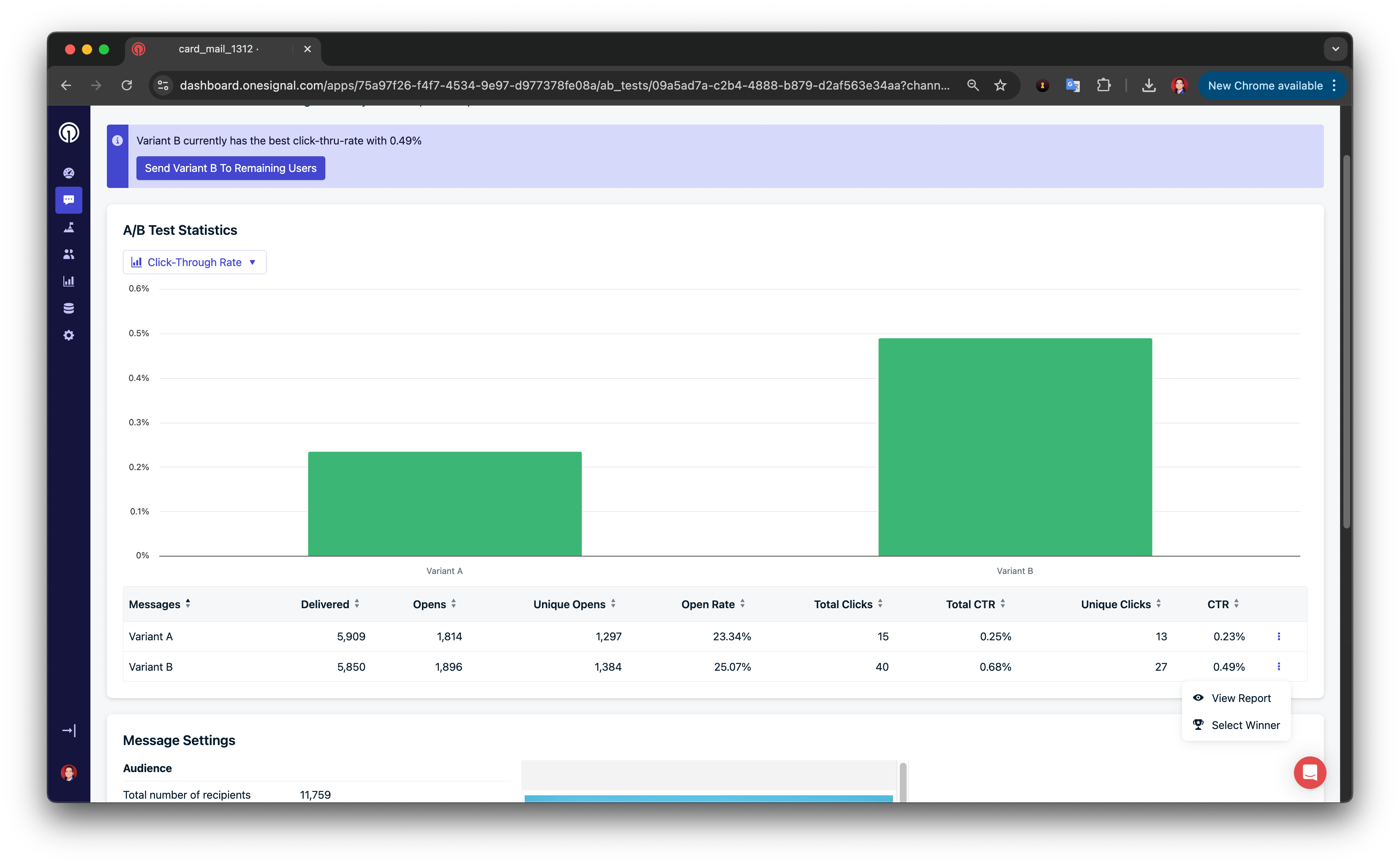
Messages that are sent as A/B tests will be marked as such under the **Messages Tab**. Click into the report for each test to see the full report or view the variant-specific reports.
We provide some statistics for you to view the performance and choose a winner. The below screenshot describes how to view different stats and select a winning variant. We will then send the winner variant to all the remaining members of your target audience.
By default, 25% of your audience receives the A/B test. For valid results, each variant must receive enough users. The more variants you use, the larger your test group must be.
If you set 100%, the message will be sent evenly to all users in the audience and eliminates the ability to send the "winner" to remaining users.
## Select a Winner
Messages that are sent as A/B tests will be marked as such under the **Messages Tab**. Click into the report for each test to see the full report or view the variant-specific reports.
We provide some statistics for you to view the performance and choose a winner. The below screenshot describes how to view different stats and select a winning variant. We will then send the winner variant to all the remaining members of your target audience.
 ***
## Platform-specific instructions
### Create a Push A/B Test
1. Go to **Messages > Push > New Push**
2. Name your message (e.g., "Push AB Test - CTA Button")
3. Select your segment(s)
4. Click the **A/B Test** button
***
## Platform-specific instructions
### Create a Push A/B Test
1. Go to **Messages > Push > New Push**
2. Name your message (e.g., "Push AB Test - CTA Button")
3. Select your segment(s)
4. Click the **A/B Test** button
 5. Add variants
* Click **Add Variant** to duplicate and edit each new version.
* Only change **one variable** at a time for meaningful insights.
5. Add variants
* Click **Add Variant** to duplicate and edit each new version.
* Only change **one variable** at a time for meaningful insights.
 6. A/B Test settings
Select the percentage of your target audience that should receive each variant. See [How A/B Testing works](#how-a%2Fb-testing-works) for more details.
The percentage is applied to the total audience, evenly distributed across each variant. Examples:
* 25% of a message with 2 variants will sent 12.5% to each variant.
* 25% of a message with 10 variants will sent 2.5% to each variant.
* 50% of a message with 2 variants will sent 25% to each variant.
* 50% of a message with 3 variants will sent 16.67% to each variant.
* 100% of a message with 2 variants will sent 50% to each variant.
* 100% of a message with 4 variants will sent 25% to each variant.
Any percentage other than 100% will allow you to select a winner.
7. Review results
View results under **Messages > Push > A/B Tests Tab**. Click any test to view variant-specific reports.
8. [Select a Winner](#select-a-winner)
Use performance metrics to manually select a winner.
### Create an Email A/B Test
1. Go to **Messages > Email > New Email**
2. Name your message (e.g., "Email AB Test - Subject Line")
3. Select your segment(s)
4. Click the **A/B Test** button
6. A/B Test settings
Select the percentage of your target audience that should receive each variant. See [How A/B Testing works](#how-a%2Fb-testing-works) for more details.
The percentage is applied to the total audience, evenly distributed across each variant. Examples:
* 25% of a message with 2 variants will sent 12.5% to each variant.
* 25% of a message with 10 variants will sent 2.5% to each variant.
* 50% of a message with 2 variants will sent 25% to each variant.
* 50% of a message with 3 variants will sent 16.67% to each variant.
* 100% of a message with 2 variants will sent 50% to each variant.
* 100% of a message with 4 variants will sent 25% to each variant.
Any percentage other than 100% will allow you to select a winner.
7. Review results
View results under **Messages > Push > A/B Tests Tab**. Click any test to view variant-specific reports.
8. [Select a Winner](#select-a-winner)
Use performance metrics to manually select a winner.
### Create an Email A/B Test
1. Go to **Messages > Email > New Email**
2. Name your message (e.g., "Email AB Test - Subject Line")
3. Select your segment(s)
4. Click the **A/B Test** button
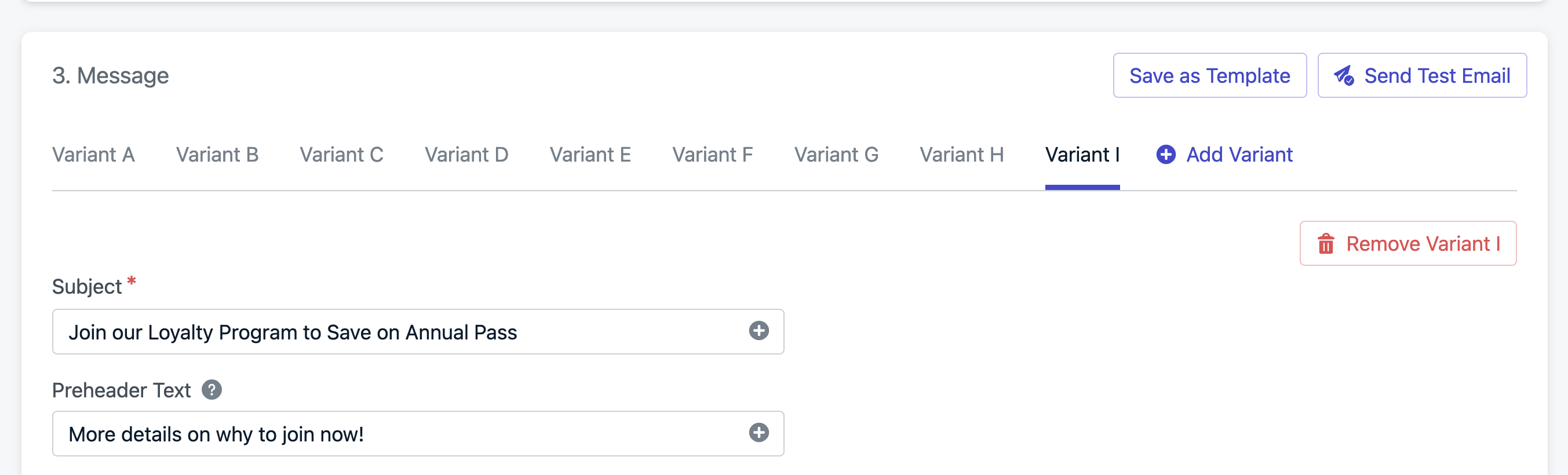
 5. Add variants
* Click **Add Variant** to duplicate and edit each new version.
* Only change **one variable** at a time for meaningful insights.
5. Add variants
* Click **Add Variant** to duplicate and edit each new version.
* Only change **one variable** at a time for meaningful insights.
 6. A/B Test settings
Select the percentage of your target audience that should receive each variant. See [How A/B Testing works](#how-a%2Fb-testing-works) for more details.
The percentage is applied to the total audience, evenly distributed across each variant. Examples:
* 25% of a message with 2 variants will sent 12.5% to each variant.
* 25% of a message with 10 variants will sent 2.5% to each variant.
* 50% of a message with 2 variants will sent 25% to each variant.
* 50% of a message with 3 variants will sent 16.67% to each variant.
* 100% of a message with 2 variants will sent 50% to each variant.
* 100% of a message with 4 variants will sent 25% to each variant.
Any percentage other than 100% will allow you to select a winner.
7. Review results
View results under **Messages > Email > A/B Tests Tab**. Click any test to view variant-specific reports.
8. [Select a Winner](#select-a-winner)
Use performance metrics to manually select a winner.
***
## Best practices for A/B Testing
### Understand benchmarks
Review past performance data so you can evaluate test success meaningfully.
### Set a goal and hypothesis
Clearly define what you're testing and what success looks like.
### Change one variable at a time
Control your experiment by isolating variables like:
* Subject lines
* Layouts
* CTA copy
* Length of copy
* Images
* Offers
* Emojis
* Colors
* Fonts
* Icons
* GIFs
### Use controls
Include your "usual" version as a baseline for measuring improvements.
Create control groups by tagging users randomly and exclude that segment. You can [Export user data](./exporting-data) and create a segment from the CSV [import](./import).
### Test simultaneously
Send all variants at the same time to avoid timing bias.
### Continue testing
Iterate based on results to continuously optimize message performance.
***
## FAQ
### Can I A/B test different segments?
Not within the standard message form. However, you can test different segments using [Journeys](./journeys-overview) with **Split Branches** and **Yes/No Branches**.
### Can I automatically select a winner?
Not yet. You must manually choose the winning variant or use 100% to send all variants.
***
You're done! You can now test different variants of your messages and select a winner.
Need help?
Chat with our Support team or email `support@onesignal.com`
Please include:
* Details of the issue you're experiencing and steps to reproduce if available
* Your OneSignal App ID
* The External ID or Subscription ID if applicable
* The URL to the message you tested in the OneSignal Dashboard if applicable
* Any relevant [logs or error messages](/docs/en/capturing-a-debug-log)
We're happy to help!
***
6. A/B Test settings
Select the percentage of your target audience that should receive each variant. See [How A/B Testing works](#how-a%2Fb-testing-works) for more details.
The percentage is applied to the total audience, evenly distributed across each variant. Examples:
* 25% of a message with 2 variants will sent 12.5% to each variant.
* 25% of a message with 10 variants will sent 2.5% to each variant.
* 50% of a message with 2 variants will sent 25% to each variant.
* 50% of a message with 3 variants will sent 16.67% to each variant.
* 100% of a message with 2 variants will sent 50% to each variant.
* 100% of a message with 4 variants will sent 25% to each variant.
Any percentage other than 100% will allow you to select a winner.
7. Review results
View results under **Messages > Email > A/B Tests Tab**. Click any test to view variant-specific reports.
8. [Select a Winner](#select-a-winner)
Use performance metrics to manually select a winner.
***
## Best practices for A/B Testing
### Understand benchmarks
Review past performance data so you can evaluate test success meaningfully.
### Set a goal and hypothesis
Clearly define what you're testing and what success looks like.
### Change one variable at a time
Control your experiment by isolating variables like:
* Subject lines
* Layouts
* CTA copy
* Length of copy
* Images
* Offers
* Emojis
* Colors
* Fonts
* Icons
* GIFs
### Use controls
Include your "usual" version as a baseline for measuring improvements.
Create control groups by tagging users randomly and exclude that segment. You can [Export user data](./exporting-data) and create a segment from the CSV [import](./import).
### Test simultaneously
Send all variants at the same time to avoid timing bias.
### Continue testing
Iterate based on results to continuously optimize message performance.
***
## FAQ
### Can I A/B test different segments?
Not within the standard message form. However, you can test different segments using [Journeys](./journeys-overview) with **Split Branches** and **Yes/No Branches**.
### Can I automatically select a winner?
Not yet. You must manually choose the winning variant or use 100% to send all variants.
***
You're done! You can now test different variants of your messages and select a winner.
Need help?
Chat with our Support team or email `support@onesignal.com`
Please include:
* Details of the issue you're experiencing and steps to reproduce if available
* Your OneSignal App ID
* The External ID or Subscription ID if applicable
* The URL to the message you tested in the OneSignal Dashboard if applicable
* Any relevant [logs or error messages](/docs/en/capturing-a-debug-log)
We're happy to help!
***