> ## Documentation Index
> Fetch the complete documentation index at: https://documentation.onesignal.com/llms.txt
> Use this file to discover all available pages before exploring further.
# Abandoned cart tutorial
> Recover lost sales with abandoned cart notifications using OneSignal by tracking cart activity, building targeted segments, and sending timely reminders with Journeys.
## Overview
Abandoned carts are one of the highest-impact opportunities to recover lost revenue. Most users who abandon a cart still intend to purchase — they just need a timely reminder.
This guide shows you how to build an **automated abandoned cart Journey** in OneSignal that:
* Detects cart activity
* Waits for a short period of inactivity
* Sends a personalized reminder
* Stops messaging immediately after purchase or cart removal
You can implement this using either:
* Custom Events (recommended for most implementations)
* Tags (simpler, limited to track 1 item instead of multiple)
The right choice depends on the data you want to show in the message and where that data comes from.
**What you will build**
By the end of this guide, you will have:
* Cart activity sent to OneSignal (via Tags or Custom Events)
* A clear, **code-defined** abandonment signal
* Message templates that personalize cart data
* A Journey that:
* Starts when an abandonment signal is received
* Waits before sending
* Sends abandoned cart messages
* Exits immediately when the cart is emptied or purchased
* Re-enters the Journey if the user still has items in their cart within a specific time period
* Analytics to measure message and revenue performance
**How abandoned carts are modeled**
This guide assumes you are tracking "cart updated" actions, meaning each time a user adds or removes items from their cart. This could be a single item like a subscription to your content or multiple items like a shopping cart.
Once OneSignal receives a `cart_updated` event or tag:
* The user becomes eligible to enter the Journey
* A wait period gives them time to return naturally
* Messages are sent only if they do not exit
* The user exits immediately when the cart is emptied
***
## Setup
### Step 1: Plan your cart data and source
Decide **what cart information you want to show** and **where that data comes from**.
Common cart data includes:
* Product name, image, price, and quantity
* Number of items in the cart
* A deep link back to the cart
Your data source determines how you send events:
| Data source | Recommended method |
| -------------------- | ------------------------------- |
| App or website | OneSignal Frontend SDK |
| Backend or database | OneSignal REST API |
| Third-party platform | Integration-based Custom Events |
By the end of this step, you know **what data you will send** and **how you will send it**.
### Step 2: Send cart activity to OneSignal
When the cart state changes, send the updated cart data to OneSignal so the activity can be tracked.
This guide uses the event or tag `cart_updated` to track cart activity and at least one property.
Select the method you chose in Step 1:
Send a `cart_updated` Custom Event each time the cart changes. Include product properties when items are in the cart and omit them when the cart is emptied.
| Reference | Description |
| ---------------------------------------------------- | ------------------------------------------------------------------------------------------------------------------------ |
| `trackEvent` method | Send via Frontend SDK ([Mobile SDK](./mobile-sdk-reference#custom-events), [Web SDK](./web-sdk-reference#custom-events)) |
| [Custom Events API](/reference/create-custom-events) | Send via REST API |
| [Integrations](./integrations) | Send via integration |
**Frontend SDK `trackEvent` method example**
```javascript Cart Updated theme={null}
OneSignal.User.trackEvent("cart_updated", {
product_name: "24 Pack of Acorns",
product_image: "https://i.imgur.com/ssPCfbC.png",
product_price: 12.99,
product_quantity: 1,
cart_url: "https://yourdomain.com/cart"
});
```
```javascript Cart Emptied theme={null}
OneSignal.User.trackEvent("cart_updated");
```
**Custom Events API example**
```json Cart Updated theme={null}
{
"events": [
{
"name": "cart_updated",
"properties": {
"product_name": "24 Pack of Acorns",
"product_image": "https://i.imgur.com/ssPCfbC.png",
"product_price": "$12.99",
"product_quantity": "1",
"cart_url": "https://yourdomain.com/username/cart"
},
"external_id": "ID_OF_THE_USER"
}
]
}
```
```json Cart Emptied theme={null}
{
"events": [
{
"name": "cart_updated",
"external_id": "ID_OF_THE_USER"
}
]
}
```
Set tags when items are in the cart and remove them when the cart is emptied.
These examples set the `cart_updated` tag to a Unix timestamp (in seconds) representing when the cart was last updated. You can also use a boolean value (true/false), but a timestamp provides more flexibility with [Time Operators](./time-operators).
| Reference | Description |
| ----------------------------------------- | ---------------------------------------------------------------------------------------------------------------- |
| `addTags` / `removeTags` | Send via Frontend SDK ([Mobile SDK](./mobile-sdk-reference#data-tags), [Web SDK](./web-sdk-reference#data-tags)) |
| [Update User API](/reference/update-user) | Send via REST API |
**Frontend SDK `addTags` / `removeTags` methods example**
```javascript Cart Updated theme={null}
OneSignal.User.addTags({
cart_updated: unix_timestamp_seconds,
product_name: "24 Pack of Acorns",
product_image: "https://i.imgur.com/ssPCfbC.png",
product_price: "$12.99",
product_quantity: "1",
cart_url: "https://yourdomain.com/username/cart"
})
```
```javascript Cart Emptied (remove tags) theme={null}
OneSignal.User.removeTags([
"cart_updated", "product_name", "product_image", "product_price", "product_quantity", "cart_url"
])
```
**Update User API example**
```json Cart Updated theme={null}
{
"properties": {
"tags": {
"cart_updated": 1779305030, // Unix timestamp in seconds
"product_name": "24 Pack of Acorns",
"product_image": "https://i.imgur.com/ssPCfbC.png",
"product_price": "$12.99",
"product_quantity": "1",
"cart_url": "https://yourdomain.com/username/cart"
}
}
}
```
```json Cart Emptied (remove tags) theme={null}
{
"properties": {
"tags": {
"cart_updated": "",
"product_name": "",
"product_image": "",
"product_price": "",
"product_quantity": "",
"cart_url": ""
}
}
}
```
Cart activity is now being sent to OneSignal. Each time the cart changes, OneSignal receives the updated data needed to trigger and personalize messages.
***
### Step 3: Create abandoned cart message templates
Create message templates that reference cart data dynamically.
For more details on the concepts used in this section, see:
* [Liquid syntax](./using-liquid-syntax)
* [Message Personalization](./message-personalization)
* [Templates](./templates)
Reference event properties using liquid syntax format:
```liquid Liquid theme={null}
{{journey.event.name.properties.property_name | default: "fallback_value"}}
```
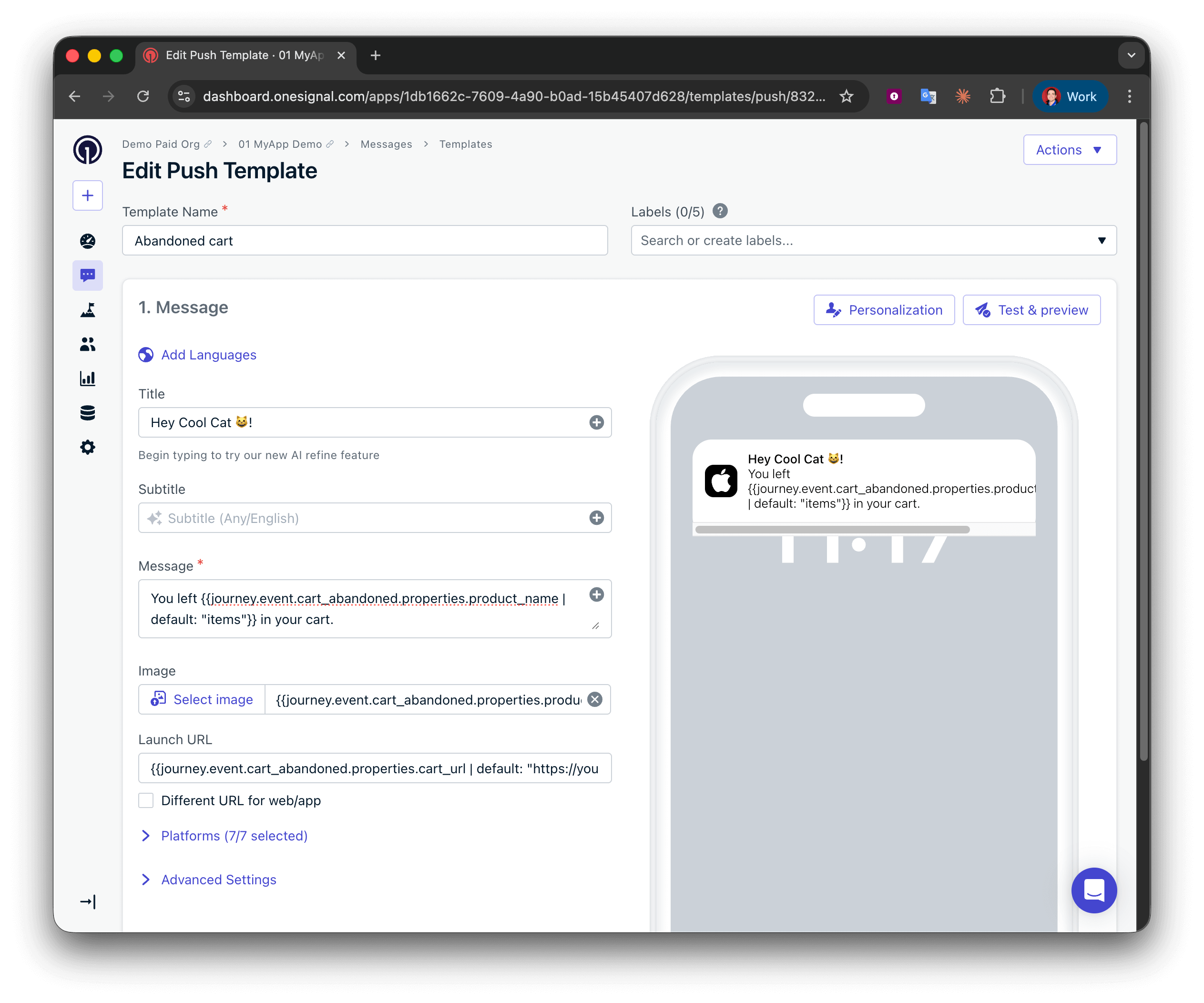
**Message**:
```liquid Liquid theme={null}
You left {{journey.event.cart_updated.properties.product_name | default: "items"}} in your cart.
```
**Image**:
```liquid Liquid theme={null}
{{journey.event.cart_updated.properties.product_image | default: "https://i.imgur.com/ssPCfbC.png"}}
```
**Launch URL**:
```liquid Liquid theme={null}
{{journey.event.cart_updated.properties.cart_url | default: "https://yourdomain.com/cart"}}
```
The image will not display if `product_image` is not a **direct**, **publicly accessible** image URL.
If your `product_image` is the name of an image file available online, you can reference the image using the following format:
`https://yourdomain.com/images/{{journey.event.cart_updated.properties.product_image | default: "stock_image"}}.png`
 Reference tag properties using liquid syntax format:
```liquid Liquid theme={null}
{{tag_key | default: "fallback_value"}}
```
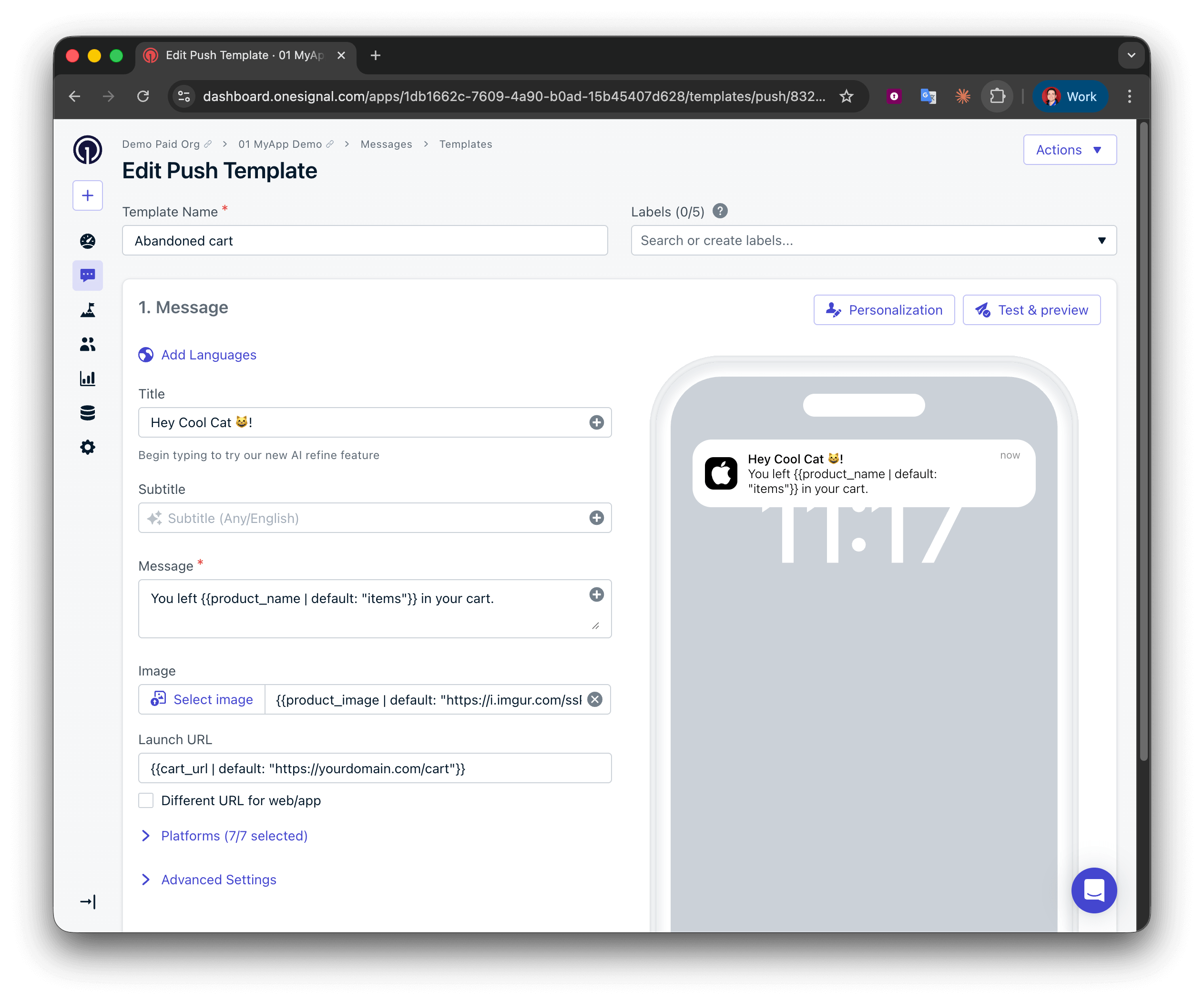
**Message**:
```liquid Liquid theme={null}
You left {{product_name | default: "items"}} in your cart.
```
**Image**:
```liquid Liquid theme={null}
{{product_image | default: "https://i.imgur.com/ssPCfbC.png"}}
```
**Launch URL**:
```liquid Liquid theme={null}
{{cart_url | default: "https://yourdomain.com/cart"}}
```
The image will not display if `product_image` is not a **direct**, **publicly accessible** image URL.
If your `product_image` is the name of an image file available online, you can reference the image using the following format:
`https://yourdomain.com/images/{{product_image | default: "stock_image"}}.png`
Reference tag properties using liquid syntax format:
```liquid Liquid theme={null}
{{tag_key | default: "fallback_value"}}
```
**Message**:
```liquid Liquid theme={null}
You left {{product_name | default: "items"}} in your cart.
```
**Image**:
```liquid Liquid theme={null}
{{product_image | default: "https://i.imgur.com/ssPCfbC.png"}}
```
**Launch URL**:
```liquid Liquid theme={null}
{{cart_url | default: "https://yourdomain.com/cart"}}
```
The image will not display if `product_image` is not a **direct**, **publicly accessible** image URL.
If your `product_image` is the name of an image file available online, you can reference the image using the following format:
`https://yourdomain.com/images/{{product_image | default: "stock_image"}}.png`
 **Need email examples, help, or more inspiration?**
Complete guide to using Custom Events in Journeys. Includes event storage, Journey configuration, abandoned cart example, best practices, and troubleshooting.
Complete guide to using Properties and Tags in Journeys. Includes event storage, Journey configuration, abandoned cart example, best practices, and troubleshooting.
### Step 4: Create abandoned cart Segment (Tags only)
This step is only required if you are using Tags to track cart activity. If you are using Custom Events, you can skip this step.
The Segment will determine who can enter the Journey. See [Segments](./segmentation) for more details.
Add two filters to the Segment:
1. **User Tag** — `cart_updated` `exists`
2. **Last Session** — `less than` `7` `days ago` - Adjust the time period as desired
**Need email examples, help, or more inspiration?**
Complete guide to using Custom Events in Journeys. Includes event storage, Journey configuration, abandoned cart example, best practices, and troubleshooting.
Complete guide to using Properties and Tags in Journeys. Includes event storage, Journey configuration, abandoned cart example, best practices, and troubleshooting.
### Step 4: Create abandoned cart Segment (Tags only)
This step is only required if you are using Tags to track cart activity. If you are using Custom Events, you can skip this step.
The Segment will determine who can enter the Journey. See [Segments](./segmentation) for more details.
Add two filters to the Segment:
1. **User Tag** — `cart_updated` `exists`
2. **Last Session** — `less than` `7` `days ago` - Adjust the time period as desired
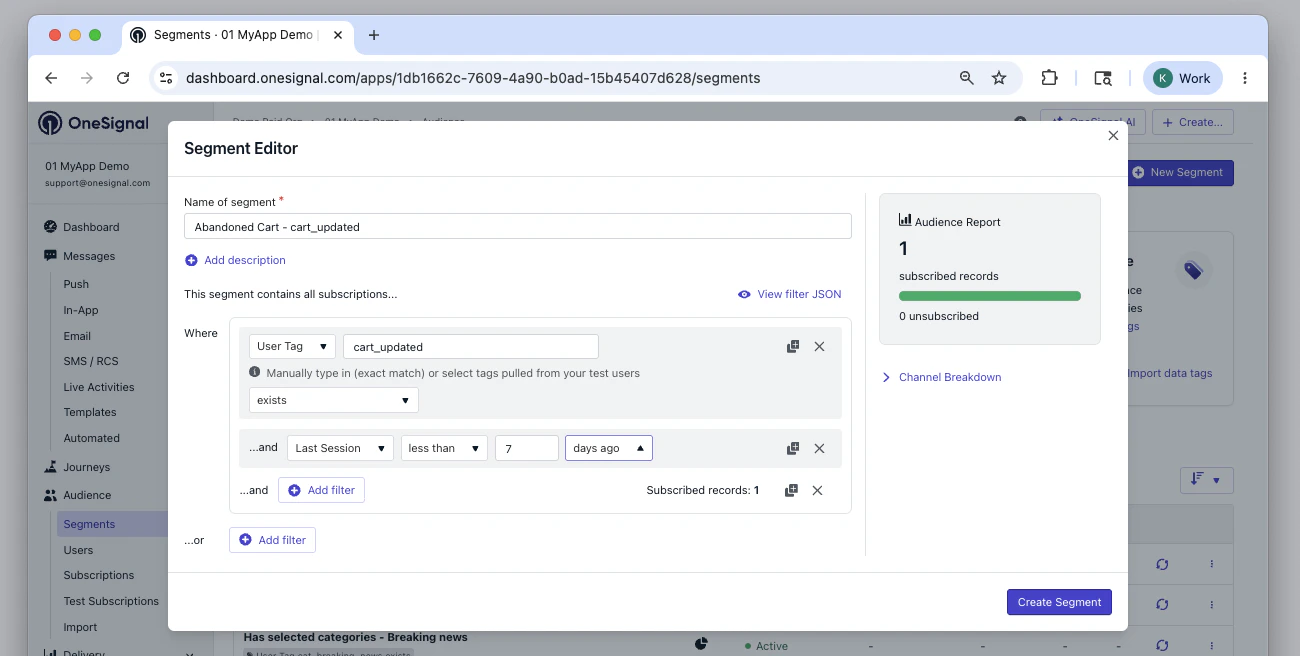 You can now track users that update their cart and have visited the app or website in the last 7 days.
Users are automatically removed from the segment when either of the following conditions are met:
* After 7 days have passed since they last visited the app/website
* When the `cart_updated` tag is removed
### Step 5: Create the abandoned cart Journey
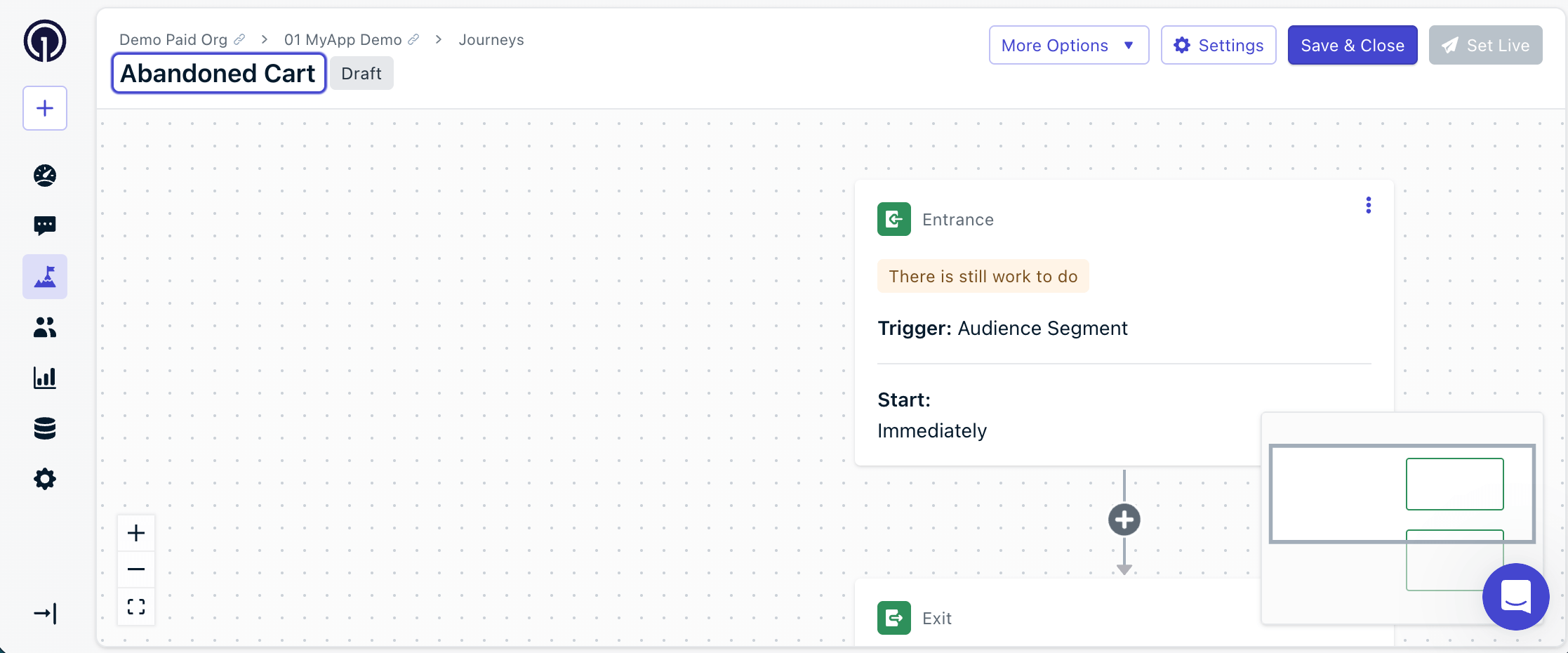
Create a Journey that reacts to cart activity. See [Journeys](./journeys-overview) for more details.
You can now track users that update their cart and have visited the app or website in the last 7 days.
Users are automatically removed from the segment when either of the following conditions are met:
* After 7 days have passed since they last visited the app/website
* When the `cart_updated` tag is removed
### Step 5: Create the abandoned cart Journey
Create a Journey that reacts to cart activity. See [Journeys](./journeys-overview) for more details.
 #### Journey settings
Review the [Journey Settings](./journeys-settings) guide for more details on Entry, Exit, and Re-entry rules.
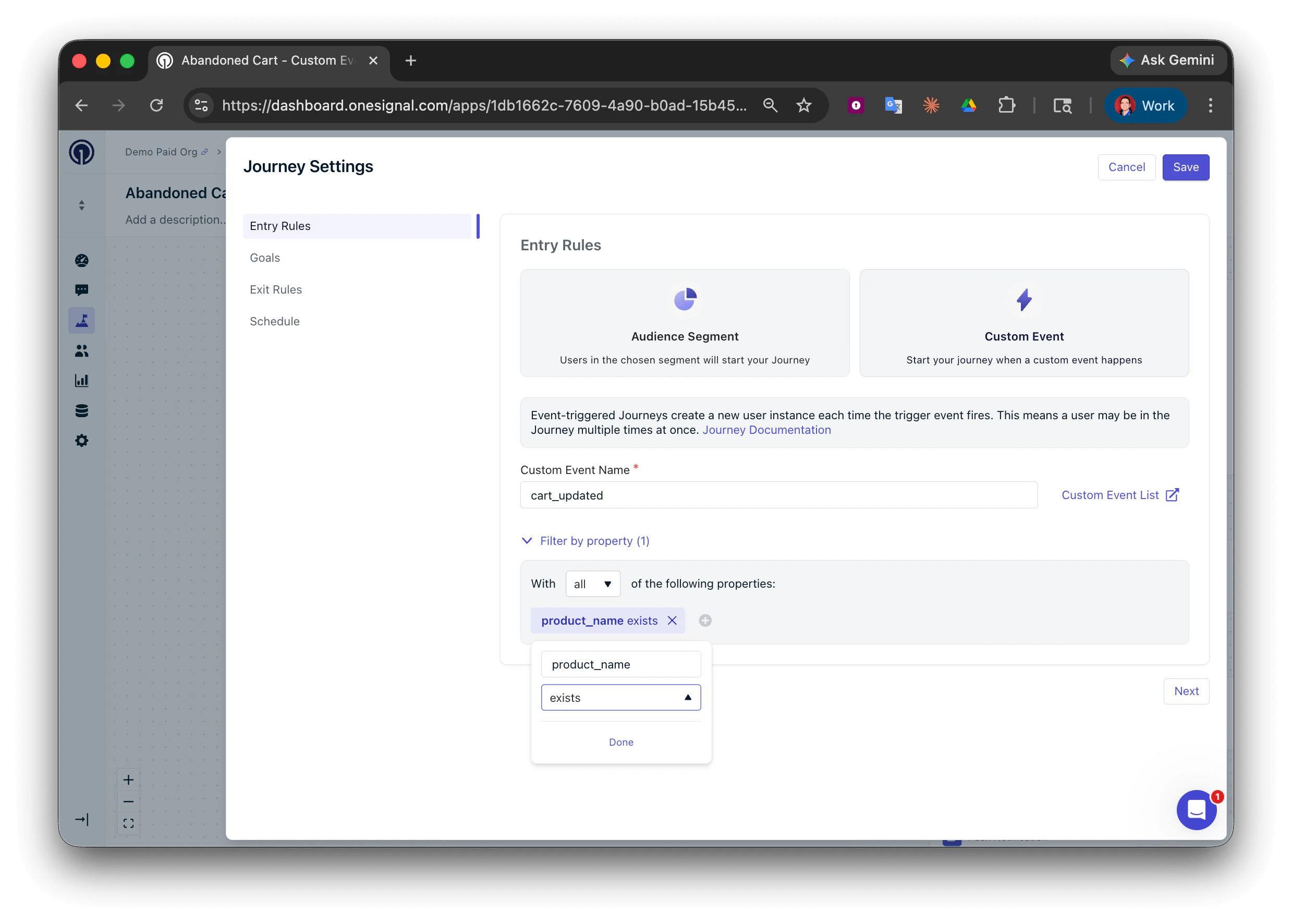
**Entry Rules**:
* Select **Custom Event**
* Custom Event Name: `cart_updated`
* Filter by property: With **all** of the following properties: `product_name` **exists**
Using Custom Events allows individual users to enter Journeys multiple times.
Use properties to filter users so they only enter when a specific property exists.
#### Journey settings
Review the [Journey Settings](./journeys-settings) guide for more details on Entry, Exit, and Re-entry rules.
**Entry Rules**:
* Select **Custom Event**
* Custom Event Name: `cart_updated`
* Filter by property: With **all** of the following properties: `product_name` **exists**
Using Custom Events allows individual users to enter Journeys multiple times.
Use properties to filter users so they only enter when a specific property exists.
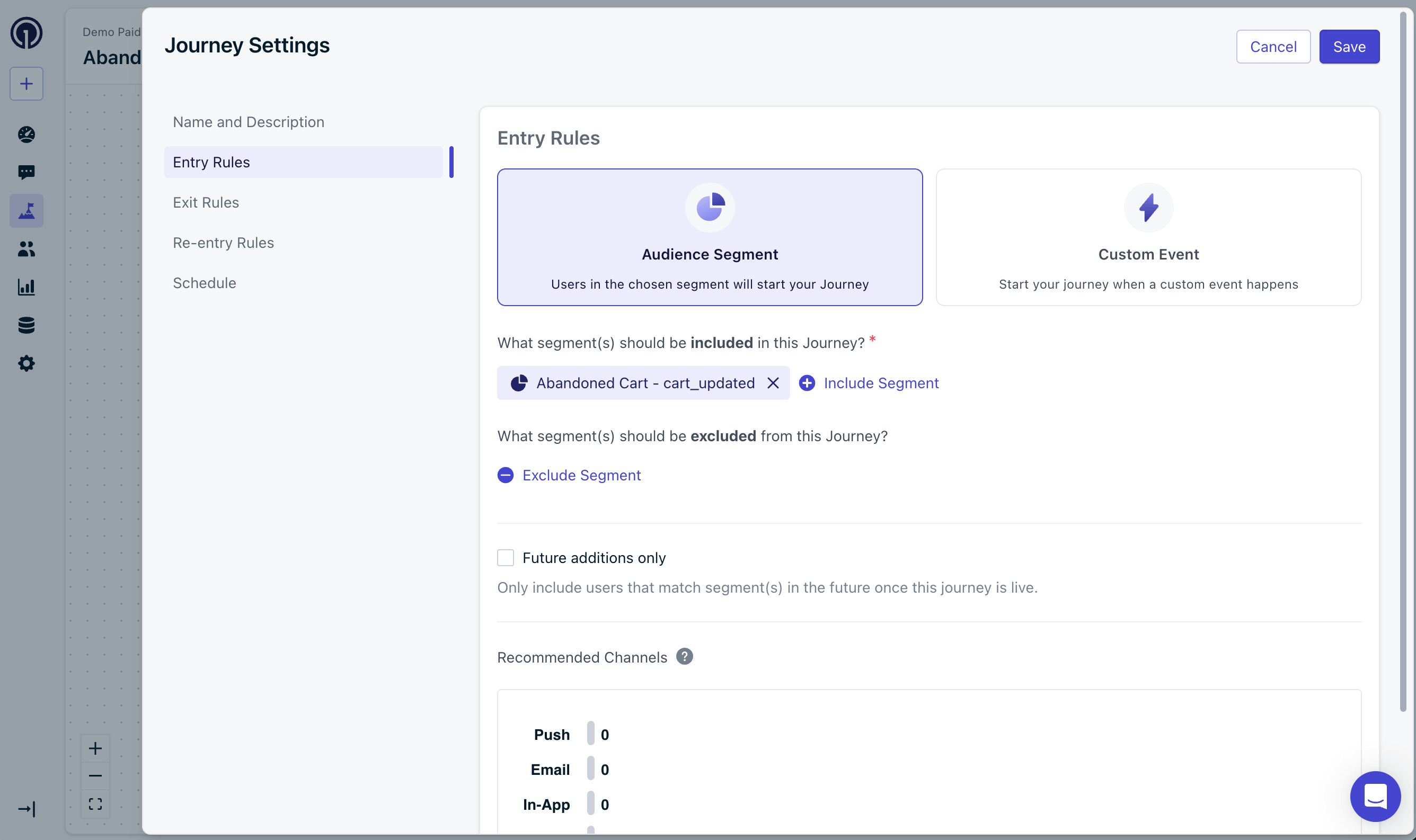
 * Select **Audience Segment**
* Include Segment: **Abandoned Cart - cart\_updated**
* Select **Audience Segment**
* Include Segment: **Abandoned Cart - cart\_updated**
 **Exit Rules**:
Users should exit the Journey when they empty their cart or complete the Journey.
* Select **Meet a certain condition**
* Check **Exit when custom event condition occurs**
* Custom Event Name: `cart_updated`
**Exit Rules**:
Users should exit the Journey when they empty their cart or complete the Journey.
* Select **Meet a certain condition**
* Check **Exit when custom event condition occurs**
* Custom Event Name: `cart_updated`
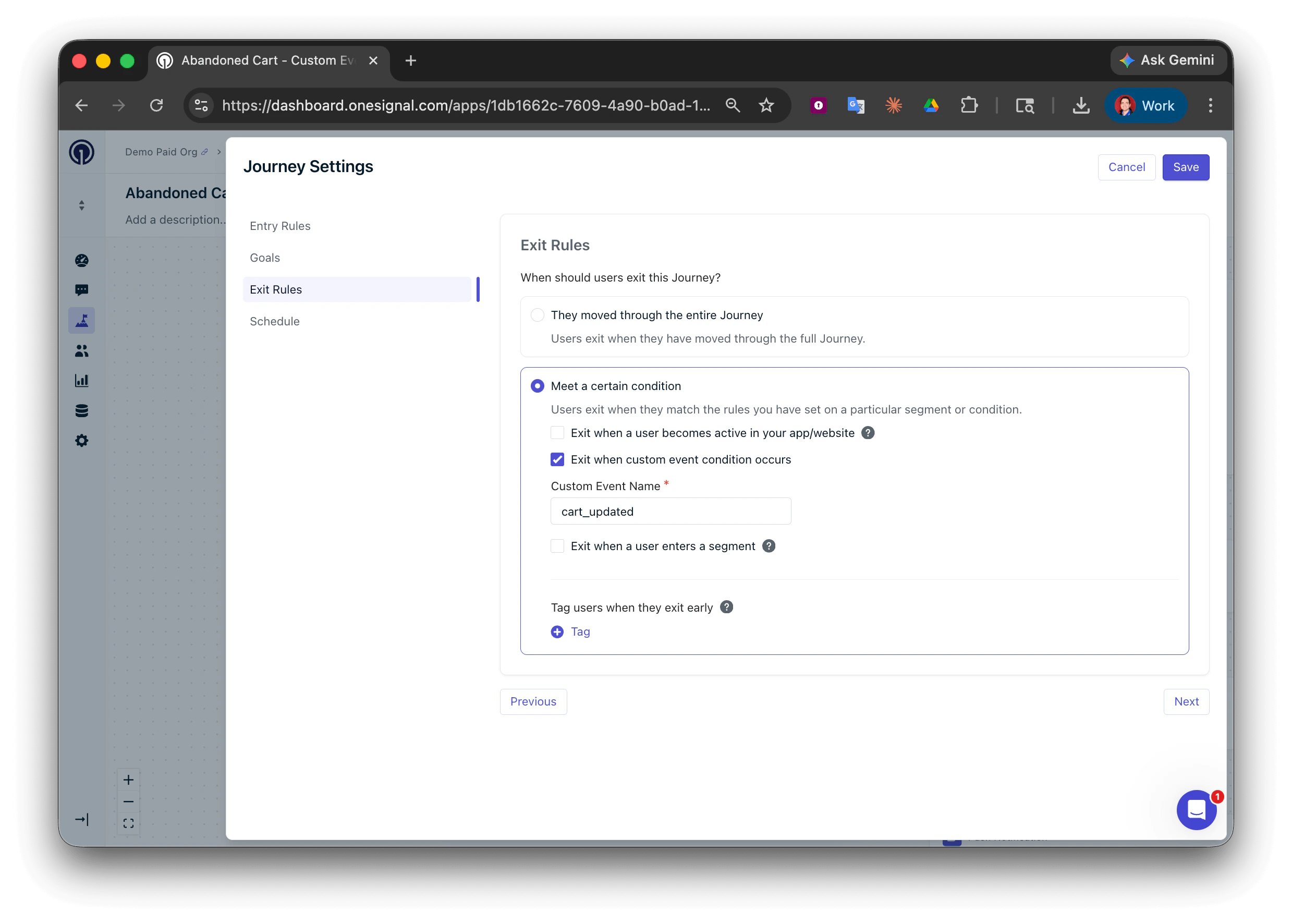 This configuration uses the same Custom Event name (`cart_updated`) for both entry and exit rules.
This allows the user to only be in the Journey once at a time. Each time they update their cart, that instance of the user will exit and a new instance of the same user will enter the Journey. **This is why it is important to use properties to filter users within the Entry Rules.**
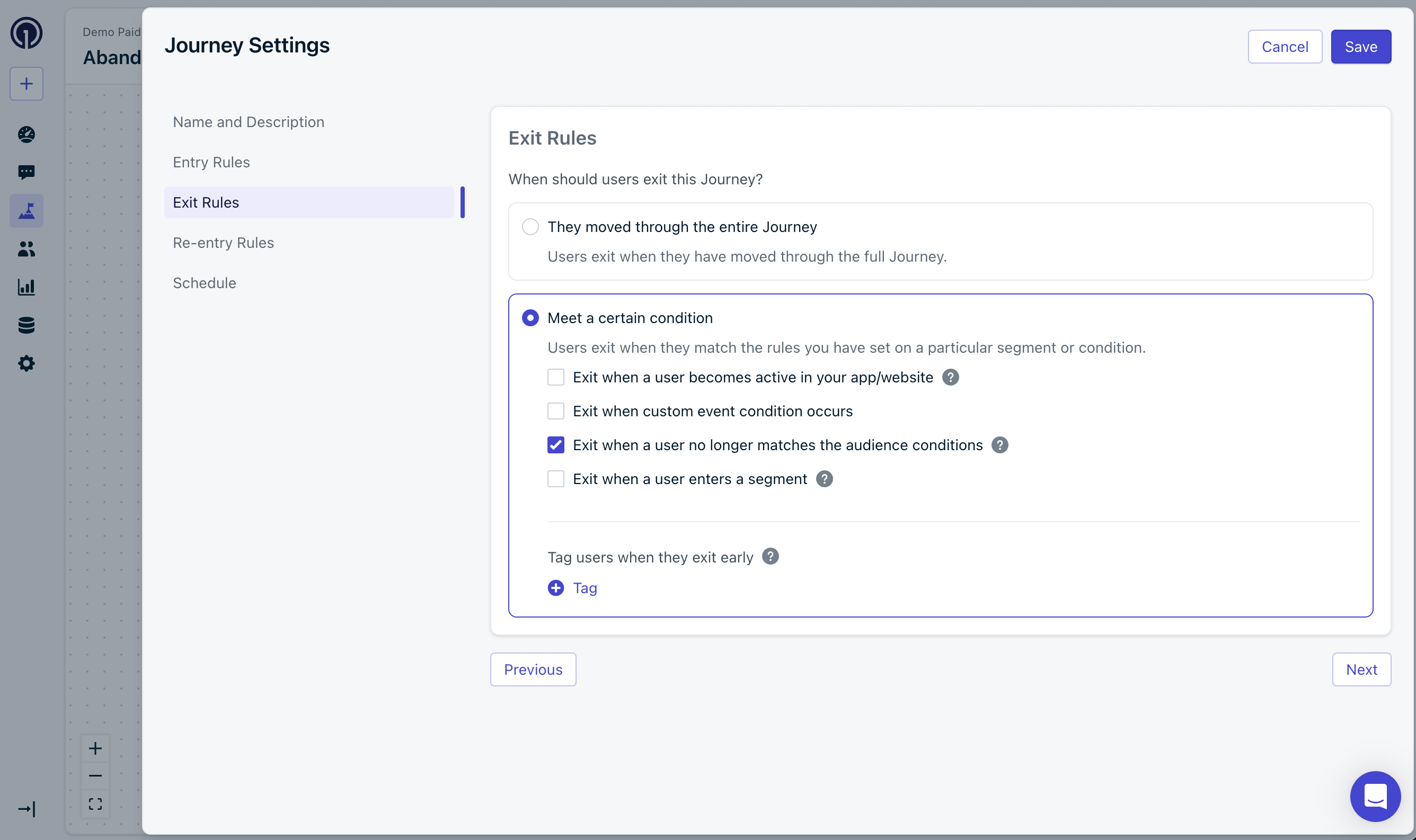
* Select **Meet a certain condition**
* Check **Exit when a user no longer matches the audience conditions**
This configuration uses the same Custom Event name (`cart_updated`) for both entry and exit rules.
This allows the user to only be in the Journey once at a time. Each time they update their cart, that instance of the user will exit and a new instance of the same user will enter the Journey. **This is why it is important to use properties to filter users within the Entry Rules.**
* Select **Meet a certain condition**
* Check **Exit when a user no longer matches the audience conditions**
 Users will exit the Journey when either:
* They leave the segment.
* They complete the Journey.
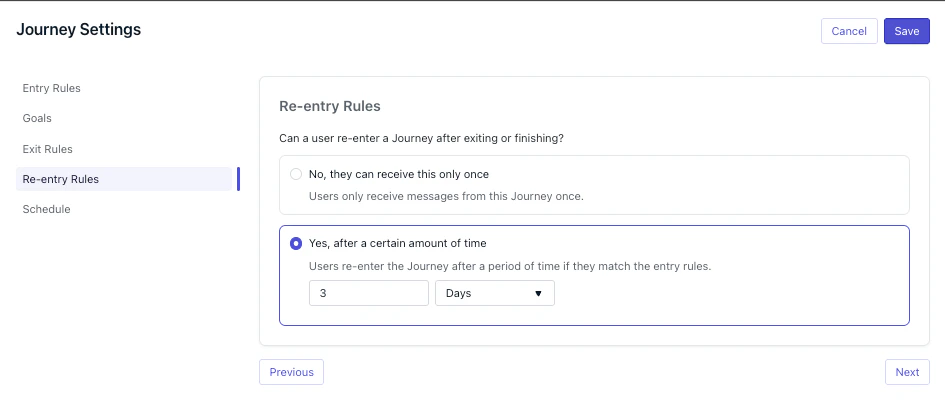
**Re-entry Rules** (Tags only):
* Select **Yes, after a certain amount of time**
* Set the re-entry time to `3` `Days` - Adjust the time period as desired
Users will exit the Journey when either:
* They leave the segment.
* They complete the Journey.
**Re-entry Rules** (Tags only):
* Select **Yes, after a certain amount of time**
* Set the re-entry time to `3` `Days` - Adjust the time period as desired
 If you have followed this guide completely so far, then users will:
1. Enter the Journey when they abandon/update their cart
2. Exit the Journey when they empty their cart or complete the Journey.
3. Be eligible to re-enter the Journey:
* **Custom Events**: Each time the `cart_updated` event is performed
* **Tags**: After 3 days have passed since they last exited the Journey and are in the segment.
#### Journey steps
Users will enter the Journey based on your Entry Rules. This typically happens within a few minutes after the event/tag is received.
Users will flow through the Journey step-by-step until they reach the end or an Exit Rule is met.
A basic abandoned cart Journey does two things:
1. Gives the user enough time to empty their cart (make a purchase or remove items manually)
2. If they do not, sends a message reminding them about the items in their cart
Achieve this by first adding a **Wait** step to the Journey.
* Set the wait time to be as long as you want. We recommend setting it to `1` or `2` `hours` so you can message them while they still have the intent to purchase.
Add a **Message** step.
* Select the **Abandoned Cart** Push Notification template you created in Step 3.
If you have followed this guide completely so far, then users will:
1. Enter the Journey when they abandon/update their cart
2. Exit the Journey when they empty their cart or complete the Journey.
3. Be eligible to re-enter the Journey:
* **Custom Events**: Each time the `cart_updated` event is performed
* **Tags**: After 3 days have passed since they last exited the Journey and are in the segment.
#### Journey steps
Users will enter the Journey based on your Entry Rules. This typically happens within a few minutes after the event/tag is received.
Users will flow through the Journey step-by-step until they reach the end or an Exit Rule is met.
A basic abandoned cart Journey does two things:
1. Gives the user enough time to empty their cart (make a purchase or remove items manually)
2. If they do not, sends a message reminding them about the items in their cart
Achieve this by first adding a **Wait** step to the Journey.
* Set the wait time to be as long as you want. We recommend setting it to `1` or `2` `hours` so you can message them while they still have the intent to purchase.
Add a **Message** step.
* Select the **Abandoned Cart** Push Notification template you created in Step 3.
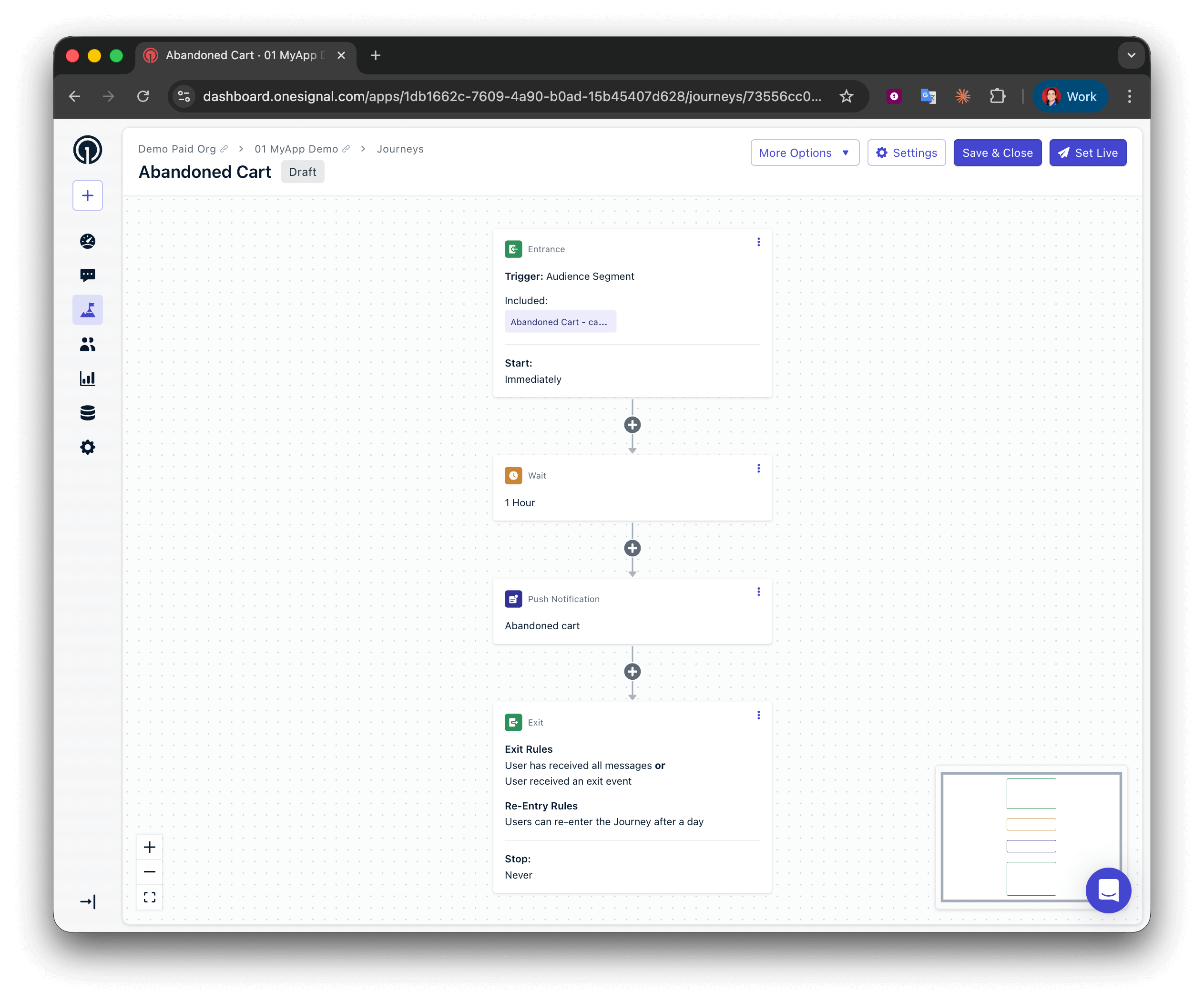 Basic Abandoned Cart Journey is now configured.
When a user enters the Journey, they will wait for 1 hour. If they do not exit the Journey, they will receive the abandoned cart push notification.
## Advanced Journey Setup
Extend the Journey to send more messages over time for higher recovery rates.
### Message sequence
A common high-performing cadence is:
1. Send the first message after 1 hour (completed in this guide).
2. Add another **Wait** step for 1 day and send a second message (\~24 hours since they updated their cart).
3. Add another **Wait** step for 2 days and send a third message (\~72 hours since they updated their cart).
#### Message types and content
Depending on which channels you set up with OneSignal, you will achieve better results using an omnichannel approach.
1. This guide shows how to send a push notification message after the first hour. This is used as a helpful reminder to try capturing the sale while the user may still be online.
2. Consider using both a push and email for your 2nd message. Use this second message to highlight benefits and social proof with light urgency to encourage them to purchase.
3. For the final message of the sequence, use an email or maybe an SMS (depending on the use case) as a "last call". Consider using a discount code or other incentive to encourage them to purchase.
### Fallback messages
OneSignal's Journeys provide **Wait Until** branching logic that you can use to check if a message was confirmed delivered, clicked or opened and if not performed within a certain time period, send a fallback message.
This is extremely helpful for users who may have unsubscribed from a specific message channel. More details on how to setup fallback messages can be found in our [Fallback Messages](./push-fallback-method) guide.
### Track performance
[Journey analytics](./journeys-analytics) can be used to track how the Journey as a whole is performing. You can also track each message performance using [Template analytics](./template-analytics).
#### Track revenue with Outcomes
To track revenue from this Journey, you can use [Custom Outcomes](./custom-outcomes).
When a purchase is made, you can send the event as a "Custom Outcome" to track the revenue associated with the specific message sent.
Custom Outcomes can be sent via the [Mobile SDK](./mobile-sdk-reference#outcomes) or [Web SDK](./web-sdk-reference#outcomes).
```javascript Example: Send purchase outcome via frontend SDK theme={null}
// Example: capture total price and item count at checkout
const checkoutPriceTotal = document.querySelector(".checkout-price-total").innerText;
const checkoutItemsTotal = document.querySelector(".checkout-items-total").innerText;
function updateOSOnCartPurchase(checkoutPriceTotal, checkoutItemsTotal) {
const purchasePriceTotal = parseFloat(checkoutPriceTotal);
const purchasedItemCount = parseInt(checkoutItemsTotal);
OneSignalDeferred.push(function (OneSignal) {
OneSignal.Session.sendOutcome("Purchase", purchasePriceTotal);
OneSignal.Session.sendOutcome("Purchased Item Count", purchasedItemCount);
});
}
const submitPurchaseButton = document.querySelector(".submit-payment");
if (submitPurchaseButton) {
submitPurchaseButton.addEventListener("click", () => {
updateOSOnCartPurchase(checkoutPriceTotal, checkoutItemsTotal);
});
}
```
Outcomes can attribute revenue to messages users clicked or were influenced by within a defined attribution window.
You have successfully implemented an abandoned cart Journey. When you are ready to start sending messages, select **Set Live**.
## FAQ
### Should I use Custom Events or Tags for cart tracking?
Custom Events are recommended for most implementations. They support richer data, allow property-based filtering in Journey entry rules, and automatically handle re-entry when the same event fires again. Tags work for simpler use cases where you only need to track whether a cart exists, but require manual segment creation and re-entry configuration.
### How long should I wait before sending the first reminder?
One to two hours is a common starting point. This gives the user enough time to return on their own while the purchase intent is still fresh. Test different wait times and use [Journey analytics](./journeys-analytics) to find what works best for your audience.
### What happens if a user updates their cart while in the Journey?
With Custom Events, the user exits the current Journey instance (because `cart_updated` fires as an exit condition) and immediately re-enters with the updated event data. With Tags, the user stays in the same Journey instance because the tag still exists — they only re-enter after exiting and waiting for the re-entry period.
Need help?
Chat with our Support team or email `support@onesignal.com`
Please include:
* Details of the issue you're experiencing and steps to reproduce if available
* Your OneSignal App ID
* The External ID or Subscription ID if applicable
* The URL to the message you tested in the OneSignal Dashboard if applicable
* Any relevant [logs or error messages](/docs/en/capturing-a-debug-log)
We're happy to help!
Basic Abandoned Cart Journey is now configured.
When a user enters the Journey, they will wait for 1 hour. If they do not exit the Journey, they will receive the abandoned cart push notification.
## Advanced Journey Setup
Extend the Journey to send more messages over time for higher recovery rates.
### Message sequence
A common high-performing cadence is:
1. Send the first message after 1 hour (completed in this guide).
2. Add another **Wait** step for 1 day and send a second message (\~24 hours since they updated their cart).
3. Add another **Wait** step for 2 days and send a third message (\~72 hours since they updated their cart).
#### Message types and content
Depending on which channels you set up with OneSignal, you will achieve better results using an omnichannel approach.
1. This guide shows how to send a push notification message after the first hour. This is used as a helpful reminder to try capturing the sale while the user may still be online.
2. Consider using both a push and email for your 2nd message. Use this second message to highlight benefits and social proof with light urgency to encourage them to purchase.
3. For the final message of the sequence, use an email or maybe an SMS (depending on the use case) as a "last call". Consider using a discount code or other incentive to encourage them to purchase.
### Fallback messages
OneSignal's Journeys provide **Wait Until** branching logic that you can use to check if a message was confirmed delivered, clicked or opened and if not performed within a certain time period, send a fallback message.
This is extremely helpful for users who may have unsubscribed from a specific message channel. More details on how to setup fallback messages can be found in our [Fallback Messages](./push-fallback-method) guide.
### Track performance
[Journey analytics](./journeys-analytics) can be used to track how the Journey as a whole is performing. You can also track each message performance using [Template analytics](./template-analytics).
#### Track revenue with Outcomes
To track revenue from this Journey, you can use [Custom Outcomes](./custom-outcomes).
When a purchase is made, you can send the event as a "Custom Outcome" to track the revenue associated with the specific message sent.
Custom Outcomes can be sent via the [Mobile SDK](./mobile-sdk-reference#outcomes) or [Web SDK](./web-sdk-reference#outcomes).
```javascript Example: Send purchase outcome via frontend SDK theme={null}
// Example: capture total price and item count at checkout
const checkoutPriceTotal = document.querySelector(".checkout-price-total").innerText;
const checkoutItemsTotal = document.querySelector(".checkout-items-total").innerText;
function updateOSOnCartPurchase(checkoutPriceTotal, checkoutItemsTotal) {
const purchasePriceTotal = parseFloat(checkoutPriceTotal);
const purchasedItemCount = parseInt(checkoutItemsTotal);
OneSignalDeferred.push(function (OneSignal) {
OneSignal.Session.sendOutcome("Purchase", purchasePriceTotal);
OneSignal.Session.sendOutcome("Purchased Item Count", purchasedItemCount);
});
}
const submitPurchaseButton = document.querySelector(".submit-payment");
if (submitPurchaseButton) {
submitPurchaseButton.addEventListener("click", () => {
updateOSOnCartPurchase(checkoutPriceTotal, checkoutItemsTotal);
});
}
```
Outcomes can attribute revenue to messages users clicked or were influenced by within a defined attribution window.
You have successfully implemented an abandoned cart Journey. When you are ready to start sending messages, select **Set Live**.
## FAQ
### Should I use Custom Events or Tags for cart tracking?
Custom Events are recommended for most implementations. They support richer data, allow property-based filtering in Journey entry rules, and automatically handle re-entry when the same event fires again. Tags work for simpler use cases where you only need to track whether a cart exists, but require manual segment creation and re-entry configuration.
### How long should I wait before sending the first reminder?
One to two hours is a common starting point. This gives the user enough time to return on their own while the purchase intent is still fresh. Test different wait times and use [Journey analytics](./journeys-analytics) to find what works best for your audience.
### What happens if a user updates their cart while in the Journey?
With Custom Events, the user exits the current Journey instance (because `cart_updated` fires as an exit condition) and immediately re-enters with the updated event data. With Tags, the user stays in the same Journey instance because the tag still exists — they only re-enter after exiting and waiting for the re-entry period.
Need help?
Chat with our Support team or email `support@onesignal.com`
Please include:
* Details of the issue you're experiencing and steps to reproduce if available
* Your OneSignal App ID
* The External ID or Subscription ID if applicable
* The URL to the message you tested in the OneSignal Dashboard if applicable
* Any relevant [logs or error messages](/docs/en/capturing-a-debug-log)
We're happy to help!