> ## Documentation Index
> Fetch the complete documentation index at: https://documentation.onesignal.com/llms.txt
> Use this file to discover all available pages before exploring further.
# AI message composer
> Use OneSignal's built in AI to write and adjust push notifications to suit your needs and send the right message quickly and easily
The OneSignal **AI Message Composer** helps you quickly generate and fine-tune push notification content using a simple prompt. It’s designed to help you strike the right tone and messaging for your audience—whether you're starting from scratch or optimizing an existing message.
With just one prompt, the AI can generate a complete push notification or enhance your current text. You can continue refining your message by selecting predefined tone styles or entering additional instructions to get closer to your desired output.
## Creating a New Push Notification with AI
In the OneSignal dashboard, click **"+ Create"**, select **"Push"**, then choose **"AI-generated Push"**.
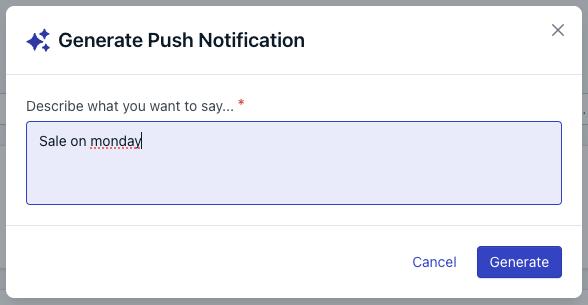
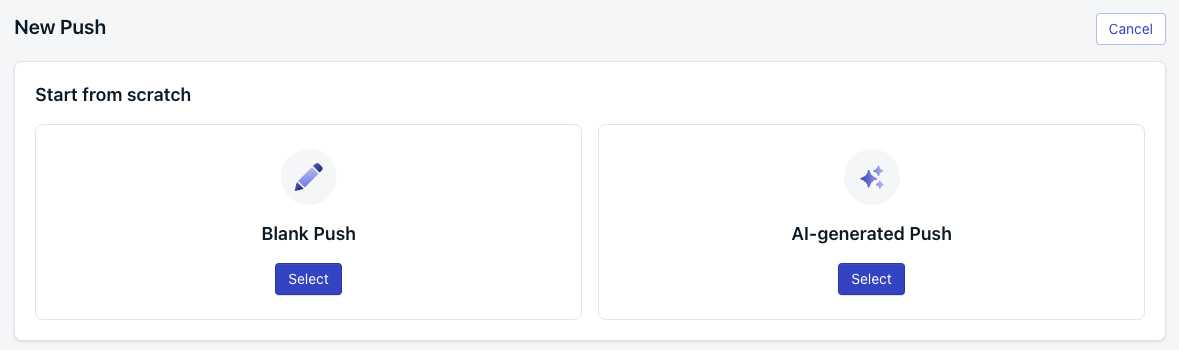 Enter a description of what you want to say, or choose from the predefined prompt suggestions. Then click **"Generate"** to create the initial message.
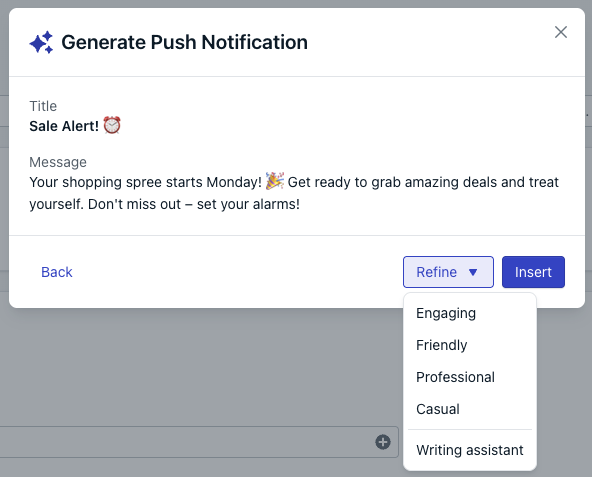
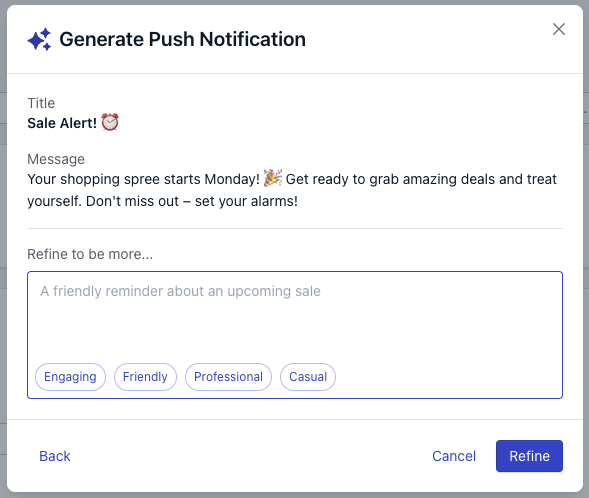
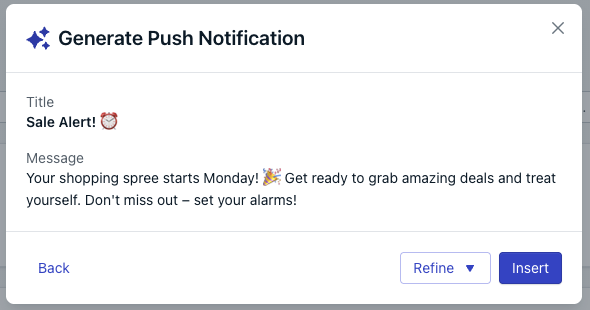 To adjust tone or content, click **"Refine"**. You can choose from preset
tonal options or select **"Writing Assistant"** to enter a custom prompt for
further refinements.
To adjust tone or content, click **"Refine"**. You can choose from preset
tonal options or select **"Writing Assistant"** to enter a custom prompt for
further refinements.
 Once you're satisfied with the message or ready to make final manual edits,
click **"Insert"** to add the AI-generated content to your notification.
Add any additional content or adjust settings as needed. Then complete the usual steps to send your push notification.
## Editing an Existing Push Notification with AI
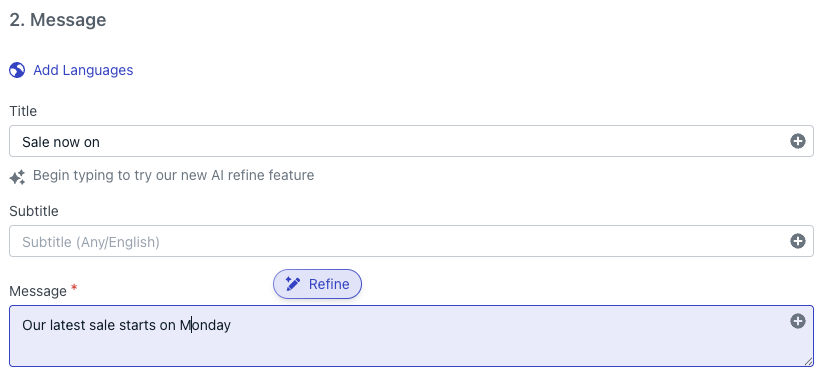
While editing an existing push, begin typing in the **Title** or **Message** field. This will reveal the option to refine your message using the AI composer.
Once you're satisfied with the message or ready to make final manual edits,
click **"Insert"** to add the AI-generated content to your notification.
Add any additional content or adjust settings as needed. Then complete the usual steps to send your push notification.
## Editing an Existing Push Notification with AI
While editing an existing push, begin typing in the **Title** or **Message** field. This will reveal the option to refine your message using the AI composer.
 Need help?
Chat with our Support team or email `support@onesignal.com`
Please include:
* Details of the issue you're experiencing and steps to reproduce if available
* Your OneSignal App ID
* The External ID or Subscription ID if applicable
* The URL to the message you tested in the OneSignal Dashboard if applicable
* Any relevant [logs or error messages](/docs/en/capturing-a-debug-log)
We're happy to help!
Need help?
Chat with our Support team or email `support@onesignal.com`
Please include:
* Details of the issue you're experiencing and steps to reproduce if available
* Your OneSignal App ID
* The External ID or Subscription ID if applicable
* The URL to the message you tested in the OneSignal Dashboard if applicable
* Any relevant [logs or error messages](/docs/en/capturing-a-debug-log)
We're happy to help!