> ## Documentation Index
> Fetch the complete documentation index at: https://documentation.onesignal.com/llms.txt
> Use this file to discover all available pages before exploring further.
# iOS: App Clip Support
> Learn how to enable and configure OneSignal push notifications in iOS App Clips. Covers setup steps, limitations, and support for advanced experiences like Target-Content-ID.
## OneSignal support for App Clips
OneSignal supports sending push notifications to iOS App Clips. Since App Clips have a separate bundle identifier, they require their own push configuration. Follow the steps below to properly configure your App Clip with OneSignal and understand current limitations.
***
## Setup
### 1. Create a new app for your App Clip
You must create a separate app in the OneSignal Dashboard for your App Clip. This is because:
* App Clips use a different bundle identifier from the main app.
* Apple requires a distinct APNs certificate or Key for each unique bundle ID.
Make sure your App Clip bundle ID has its own APNs authentication configured
in Apple Developer Console and linked in OneSignal.
### 2. Set up OneSignal in your App Clip
Follow the standard OneSignal [iOS SDK setup guide](./ios-sdk-setup), but skip the Notification Service Extension step:
* ✅ Do: Add the OneSignal SDK to your App Clip target.
* ❌ Skip: Notification Service Extension — App Clips do not support this capability.
### 3. Enable ephemeral push permission
Add the following to your App Clip’s `Info.plist` to automatically enable 8-hour push notification permissions when the App Clip is opened:
```xml theme={null}
NSAppClip
NSAppClipRequestEphemeralUserNotification
```
{" "}
 {" "}
This ephemeral permission expires after 8 hours unless the user disables it earlier.
You can also request indefinite push permission upon launch, similar to full apps.
Refer to [Apple’s documentation](https://developer.apple.com/documentation/appclip/enabling-notifications-in-app-clips) for full guidance.
### 4. Support advanced App Clip experiences
To target specific App Clip experiences with notifications:
1. In the OneSignal Dashboard, open **Settings > iOS platform configuration**.
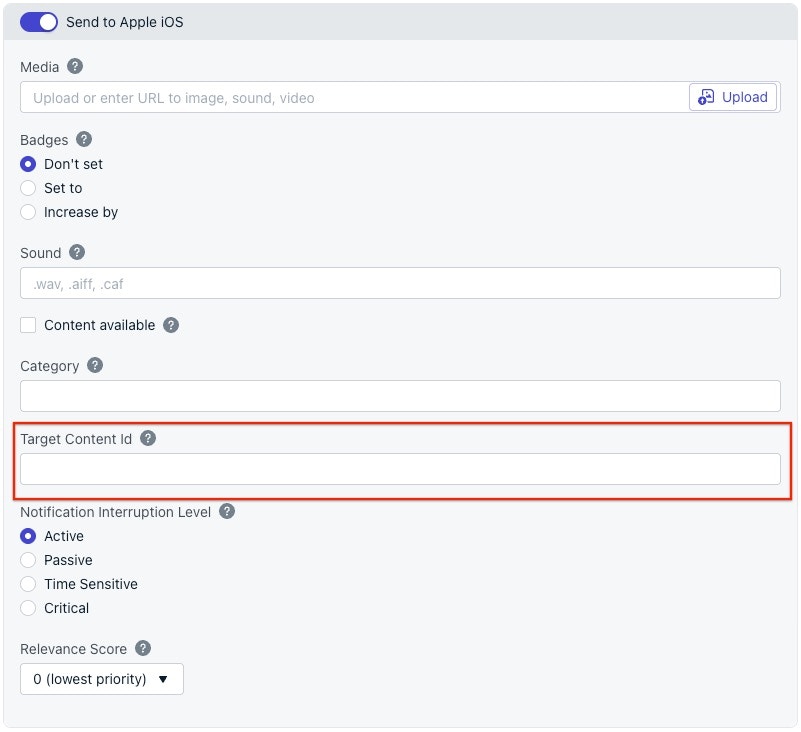
2. Add a value to the **Target-Content-ID** field. This should be the experience URL you configured in App Store Connect.
{" "}
{" "}
This ephemeral permission expires after 8 hours unless the user disables it earlier.
You can also request indefinite push permission upon launch, similar to full apps.
Refer to [Apple’s documentation](https://developer.apple.com/documentation/appclip/enabling-notifications-in-app-clips) for full guidance.
### 4. Support advanced App Clip experiences
To target specific App Clip experiences with notifications:
1. In the OneSignal Dashboard, open **Settings > iOS platform configuration**.
2. Add a value to the **Target-Content-ID** field. This should be the experience URL you configured in App Store Connect.
{" "}
 {" "}
Learn more in Apple’s guide to [Creating an App Clip](https://developer.apple.com/documentation/app_clips/creating_an_app_clip), which covers Associated Domains and Target-Content-ID usage.
***
## App Clip limitations
Due to iOS platform restrictions, the following limitations apply to App Clips:
* Ephemeral permission duration: Only lasts 8 hours. To send notifications beyond this, request full push permission.
* No Notification Service Extension support:
* ❌ No rich media (images, videos, etc.)
* ❌ No custom action buttons (only predefined categories allowed)
* Location access is limited:
* App Clips cannot request Always location access.
* They can request When In Use, which expires at 4:00 a.m. the next day.
***
{" "}
Learn more in Apple’s guide to [Creating an App Clip](https://developer.apple.com/documentation/app_clips/creating_an_app_clip), which covers Associated Domains and Target-Content-ID usage.
***
## App Clip limitations
Due to iOS platform restrictions, the following limitations apply to App Clips:
* Ephemeral permission duration: Only lasts 8 hours. To send notifications beyond this, request full push permission.
* No Notification Service Extension support:
* ❌ No rich media (images, videos, etc.)
* ❌ No custom action buttons (only predefined categories allowed)
* Location access is limited:
* App Clips cannot request Always location access.
* They can request When In Use, which expires at 4:00 a.m. the next day.
***