> ## Documentation Index
> Fetch the complete documentation index at: https://documentation.onesignal.com/llms.txt
> Use this file to discover all available pages before exploring further.
# Apps, Organizations, & Accounts
> Add, rename, move, and delete OneSignal apps and organizations. Understand the relationship between accounts, apps, and organizations.
When you sign up at [OneSignal.com](https://onesignal.com), a user account is created and tied to your email address. With your account, you can create, manage, or be invited to multiple **Apps** and **Organizations**.
If your company already has a OneSignal App or Organization, email the account admin to request an invite. Share the [Manage Team Members](./manage-team-members) guide to help them give you access.
***
## OneSignal account structure
Your email address is used to log in to your OneSignal account. From there, you can access the **Apps** and **Organizations** in which you are a [Team Member](./manage-team-members).
### Apps vs. Organizations
* A **OneSignal App** holds user and messaging data for a single project, across all platforms (web, iOS, Android, email, etc.). Each app exists within a single Organization.
* A **OneSignal Organization** is a container for managing multiple apps, billing, and team permissions.
You can have:
* Unlimited apps (free to create)
* Multiple organizations (free or paid)
* Apps for separate environments (e.g., dev, staging, production)
* Different access levels per app or organization
***
## Access levels and roles
OneSignal supports two levels of access:
### App-level access
* Access to only the specific app(s) a user is invited to.
* Cannot view billing or upgrade plan settings.
### Organization-level access
* Access to all apps within the organization.
* Only **Admin** roles can manage billing and upgrades.
### User roles
Access can be further scoped by roles:
#### Organization Roles
| Role | Best for | Access summary |
| ----------- | -------------------------- | ----------------------------------------------------------------------------------------------------------------------------------------------------------------------------- |
| Admin | Developers, Owners | Full control over all org settings, billing, and messaging. Automatically includes all App Admin privileges across every app in the org |
| Finance | Finance teams | View org settings, apps, members, and billing. Edit billing. No app-level permissions |
| Operations | Ops teams | View access across all apps plus manage suppressions and sender identities |
| Editor | Marketers, PMs | Full messaging workflow: create segments, build and send messages, manage webhooks and imports. Cannot modify underlying user or subscription records, or change app settings |
| Composer | Content writers, Designers | Create and edit messages, templates, segments, and journeys. Cannot send, activate, or delete most content. No export access |
| Viewer | Analysts, Read-only users | View-only access across all apps. Cannot edit, send, or export |
| Team Member | Minimal access users | Can view the org and its apps list. No app-level permissions on its own. Access is layered on through app-level role assignments |
#### App Roles
| Role | Best for | Access summary |
| ---------- | --------------------------- | -------------------------------------------------------------------------------------------------------------------- |
| Admin | App owners, Lead developers | Full control over the app including settings, keys, integrations, and team management |
| Operations | Ops teams | View access across app features plus manage suppressions and sender identities |
| Editor | Marketers, PMs | Create, edit, send, and delete messages and related content. Manage webhooks and imports. Cannot change app settings |
| Composer | Content writers | Create and edit messages, templates, and segments. Cannot send or activate. No export access |
| Viewer | Read-only users | View-only access to app data. Cannot edit, send, or export |
Invite users, assign roles, and manage access at the app or organization level.
***
## Managing your user account
Enable [two-factor authentication](./2-step-authentication) to add an extra layer of security to your account. See [Data collection & security FAQ](./data-questions) for details.
### User preferences
You can customize how the dashboard looks and displays information from the **Preferences** page. Access it from the account/app dropdown in the top right, or go directly to [dashboard.onesignal.com/profile/preferences](https://dashboard.onesignal.com/profile/preferences).
Available preferences:
* **Date format** — choose day-first (DD/MM) or month-first (MM/DD) display.
* **Time format** — choose 12-hour or 24-hour clock display.
* **Table density** — choose compact or comfortable row spacing in tables.
* **Dark mode (beta)** — enable an early dark mode theme across the dashboard.
Preferences are saved to your browser's local storage. They are per-browser and do not sync across devices or other browsers.
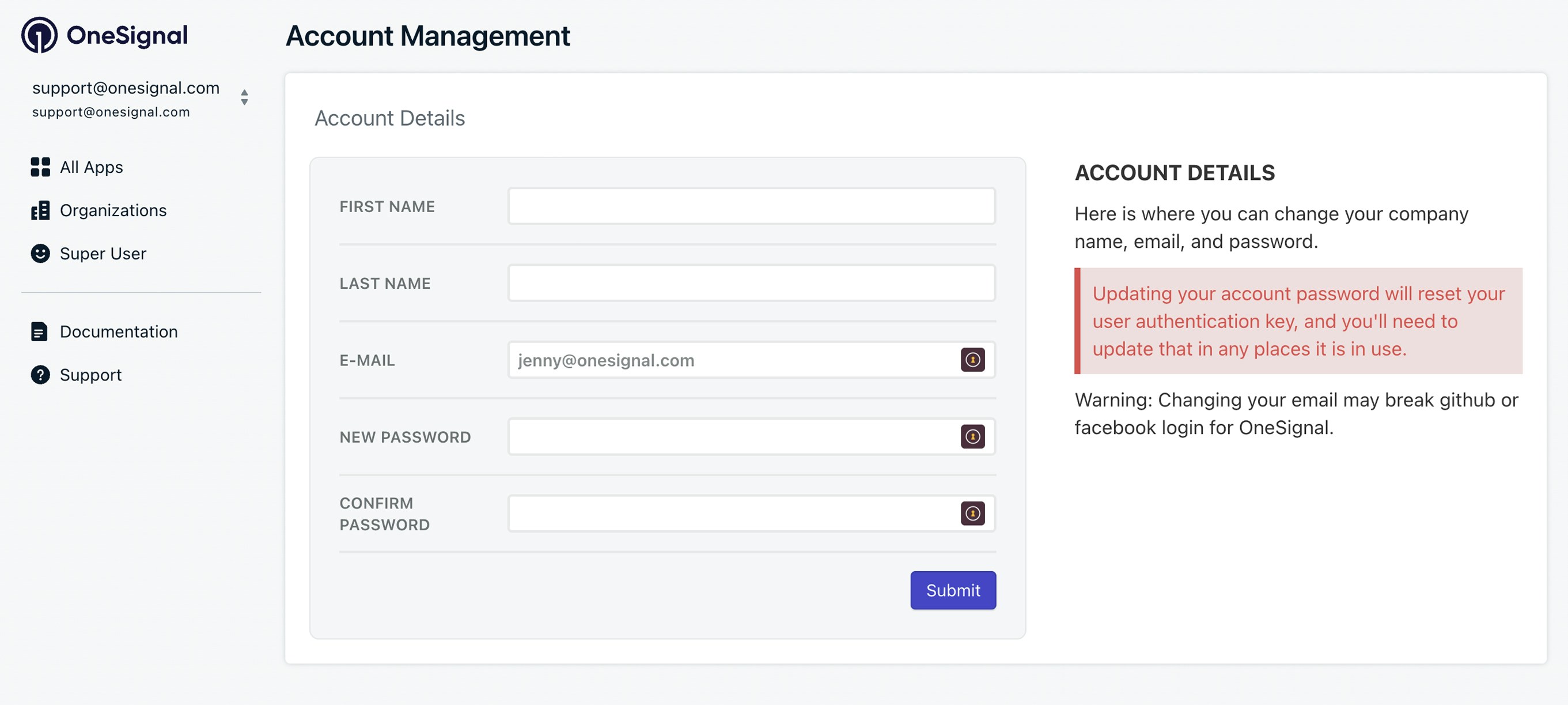
### Reset password or email
1. Navigate to [Account Management](https://dashboard.onesignal.com/profile) or click **your email drop-down > Manage Account**.
2. Add your Email, New Password, and Confirm Password.
3. Click **Submit**.
 ### Delete your account
Deleting your user account only removes your email from OneSignal. It does not delete apps or downgrade paid plans. Be sure to [Downgrade your plan](./billing-faq) if needed.
To delete:
1. Navigate to [Account Management](https://dashboard.onesignal.com/profile) or click **your email drop-down > Manage Account**.
2. Scroll down to **Delete Account**.
3. If you don't have the option to delete your account, contact `ar@onesignal.com`.
***
## Manage apps
* **Create an app**:
* Log in at [onesignal.com](https://onesignal.com) and click **New App/Website**.
* Or use the [Create an App API](/reference/create-an-app).
* **Rename an app**:
* From the dashboard **All Apps** page, click **Options > Rename** next to the app.
* Or use the [Update an App API](/reference/update-an-app)
* **Find App ID**:
* See [Keys & IDs](./keys-and-ids).
* **Delete an app**:
* You can delete apps within Free organizations and under 5,000 total subscriptions from the **All Apps** page via **Options > Delete**.
* For larger apps, contact `support@onesignal.com`.
***
## Manage organizations
Enable [two-factor authentication](./2-step-authentication) at the organization level to require all team members to use 2FA.
* **Create an organization**:
* Visit the **Organizations** page or click **New Organization** in the dashboard (no paid plan required).
* **Rename an organization**:
* In **Organizations**, click **Options > Rename** next to the organization.
* **Find Org ID**:
* Go to **Organizations**, select your organization, and copy the UUID from the address bar. Example: `https://dashboard.onesignal.com/organizations/THE_ORG_ID/apps`
* **Delete an organization**:
* Go to **Organizations**, click **Options > Remove**.
* You must move the apps out of the organization before deleting it.
* If you need assistance, contact `support@onesignal.com` with the Org ID you want to delete.
### Add or move apps between organizations
* **Add app to organization**:
* Go to **Organizations > select your Organization > Move Apps Into Organization**.
* Select your apps and click **Move Apps**.
* You need:
* Admin access to the source Organization (where the app currently lives)
* Admin access to the destination Organization (where you want to move it)
* Admin access to the App itself
* The app must currently belong to a Free Organization (apps in paid organizations cannot be moved self-service).
When moving an app between two organizations, you must be an Admin on both. Being an Admin on the destination Organization and the app is not enough. You also need Admin access to the source Organization. If you are unsure who the source Organization admin is, contact `support@onesignal.com` with your App ID and we can help identify them.
If you need assistance, email `support@onesignal.com` with:
* The App ID(s) you want to move
* The Org ID to move them to.
* You must contact Support from an email with Admin access to the Apps and Organization.
***
## FAQ
### Where can I see when my app was created?
Use the [View App](/reference/view-an-app) or [View Apps](/reference/view-apps) API to get the `created_at` timestamp.
### Why do I see limitations on a paid plan?
Your app might not be assigned to the correct paid Organization. Follow [Add or move apps between organizations](#add-or-move-apps-between-organizations) to move your app to the paid org. If you need help, see the support contact details in that section.
### What are the best practices for agencies?
Agencies can manage client apps using one of two approaches:
1. **Centralized billing**
Use a single Organization to manage and pay for all client apps.
2. **Client-managed billing**
Each client sets up their own Organization and handles their own billing.
You can mix paid and free apps by assigning them to the appropriate Organization.
Need help? [Contact our Sales Team](https://onesignal.com/contact).
### How can we access analytics, messages, and users across multiple Apps?
OneSignal does not have a single cross-app dashboard view. Each app's data is accessed separately. Here are the recommended approaches for working across apps:
* **Analytics** — Use [Event Streams](./event-streams) to route message delivery and engagement data from each app to a centralized analytics platform like Snowflake, BigQuery, or Amplitude.
* **Messaging** — Use the [Create message API](/reference/create-message) to send messages to multiple apps in parallel from your backend. You can also create [Templates](./templates) once and copy them across apps using the [Copy template API](/reference/copy-template-to-another-app).
* **Users** — Use the [REST API](/reference/view-user) to query user data per app. If you need a unified view across apps, export Subscription records per app via [CSV export](/reference/csv-export) or stream events via Event Streams to an external data warehouse.
### How do we change our dashboard timezone?
Dashboard graphs display in UTC and cannot be changed. All other dates and times use your browser's timezone. To change the displayed timezone, update the timezone setting in your browser or operating system.
To change how dates and times are formatted (day-first vs. month-first, 12h vs. 24h), use [User preferences](#user-preferences).
***
## Related pages
Invite users, assign roles, and manage access at the app or organization level.
Find your App ID, REST API key, and other credentials.
Enable 2FA for your account or require it for your organization.
Manage plans, billing, and subscriptions across organizations.
### Delete your account
Deleting your user account only removes your email from OneSignal. It does not delete apps or downgrade paid plans. Be sure to [Downgrade your plan](./billing-faq) if needed.
To delete:
1. Navigate to [Account Management](https://dashboard.onesignal.com/profile) or click **your email drop-down > Manage Account**.
2. Scroll down to **Delete Account**.
3. If you don't have the option to delete your account, contact `ar@onesignal.com`.
***
## Manage apps
* **Create an app**:
* Log in at [onesignal.com](https://onesignal.com) and click **New App/Website**.
* Or use the [Create an App API](/reference/create-an-app).
* **Rename an app**:
* From the dashboard **All Apps** page, click **Options > Rename** next to the app.
* Or use the [Update an App API](/reference/update-an-app)
* **Find App ID**:
* See [Keys & IDs](./keys-and-ids).
* **Delete an app**:
* You can delete apps within Free organizations and under 5,000 total subscriptions from the **All Apps** page via **Options > Delete**.
* For larger apps, contact `support@onesignal.com`.
***
## Manage organizations
Enable [two-factor authentication](./2-step-authentication) at the organization level to require all team members to use 2FA.
* **Create an organization**:
* Visit the **Organizations** page or click **New Organization** in the dashboard (no paid plan required).
* **Rename an organization**:
* In **Organizations**, click **Options > Rename** next to the organization.
* **Find Org ID**:
* Go to **Organizations**, select your organization, and copy the UUID from the address bar. Example: `https://dashboard.onesignal.com/organizations/THE_ORG_ID/apps`
* **Delete an organization**:
* Go to **Organizations**, click **Options > Remove**.
* You must move the apps out of the organization before deleting it.
* If you need assistance, contact `support@onesignal.com` with the Org ID you want to delete.
### Add or move apps between organizations
* **Add app to organization**:
* Go to **Organizations > select your Organization > Move Apps Into Organization**.
* Select your apps and click **Move Apps**.
* You need:
* Admin access to the source Organization (where the app currently lives)
* Admin access to the destination Organization (where you want to move it)
* Admin access to the App itself
* The app must currently belong to a Free Organization (apps in paid organizations cannot be moved self-service).
When moving an app between two organizations, you must be an Admin on both. Being an Admin on the destination Organization and the app is not enough. You also need Admin access to the source Organization. If you are unsure who the source Organization admin is, contact `support@onesignal.com` with your App ID and we can help identify them.
If you need assistance, email `support@onesignal.com` with:
* The App ID(s) you want to move
* The Org ID to move them to.
* You must contact Support from an email with Admin access to the Apps and Organization.
***
## FAQ
### Where can I see when my app was created?
Use the [View App](/reference/view-an-app) or [View Apps](/reference/view-apps) API to get the `created_at` timestamp.
### Why do I see limitations on a paid plan?
Your app might not be assigned to the correct paid Organization. Follow [Add or move apps between organizations](#add-or-move-apps-between-organizations) to move your app to the paid org. If you need help, see the support contact details in that section.
### What are the best practices for agencies?
Agencies can manage client apps using one of two approaches:
1. **Centralized billing**
Use a single Organization to manage and pay for all client apps.
2. **Client-managed billing**
Each client sets up their own Organization and handles their own billing.
You can mix paid and free apps by assigning them to the appropriate Organization.
Need help? [Contact our Sales Team](https://onesignal.com/contact).
### How can we access analytics, messages, and users across multiple Apps?
OneSignal does not have a single cross-app dashboard view. Each app's data is accessed separately. Here are the recommended approaches for working across apps:
* **Analytics** — Use [Event Streams](./event-streams) to route message delivery and engagement data from each app to a centralized analytics platform like Snowflake, BigQuery, or Amplitude.
* **Messaging** — Use the [Create message API](/reference/create-message) to send messages to multiple apps in parallel from your backend. You can also create [Templates](./templates) once and copy them across apps using the [Copy template API](/reference/copy-template-to-another-app).
* **Users** — Use the [REST API](/reference/view-user) to query user data per app. If you need a unified view across apps, export Subscription records per app via [CSV export](/reference/csv-export) or stream events via Event Streams to an external data warehouse.
### How do we change our dashboard timezone?
Dashboard graphs display in UTC and cannot be changed. All other dates and times use your browser's timezone. To change the displayed timezone, update the timezone setting in your browser or operating system.
To change how dates and times are formatted (day-first vs. month-first, 12h vs. 24h), use [User preferences](#user-preferences).
***
## Related pages
Invite users, assign roles, and manage access at the app or organization level.
Find your App ID, REST API key, and other credentials.
Enable 2FA for your account or require it for your organization.
Manage plans, billing, and subscriptions across organizations.