> ## Documentation Index
> Fetch the complete documentation index at: https://documentation.onesignal.com/llms.txt
> Use this file to discover all available pages before exploring further.
# Badges
> Manage app icon badge counts for push notifications on iOS, Android, and Huawei, including auto-clearing, API control, and native badge logic.
Badges are the little numbered dots that appear on your mobile app icon. They help capture user attention and can influence engagement behavior. On iOS in particular, badges require additional setup and offer flexible control, as outlined below.
For Android Web Push notifications, the badge refers to the small icon shown on notifications—not the app icon—and can be customized. See [Web Push Badges](./push#badges).
***
## Android badges
Android app icon badge behavior can be managed through [Android notification categories](./android-notification-categories). You can control whether a category (channel) displays a badge and set badge behavior on a per-category basis.
***
## Huawei badges
On Huawei devices, a badge can be displayed as a number or a dot on the app icon, depending on the user's device settings. Badges help indicate unread messages or pending actions, encouraging users to open the app. OneSignal lets you control Huawei badge counts directly through the dashboard or API.
The badge displays on the app icon as either a **numeric count** or a **dot**, depending on the user's device setting (**Settings > Notifications > App icon badges**). Your API call controls the underlying count; the device decides the visual style.
**Parameters**
| Parameter | Type | Range | Description |
| ---------------------- | ------- | ----- | -------------------------------------------------------------------------------------------------------------------------------------------------------------------- |
| `huawei_badge_class` | string | — | **(Required)** Fully qualified class name of your app's launcher Activity (e.g., `com.example.myapp.MainActivity`). Tells the Huawei system which app icon to badge. |
| `huawei_badge_set_num` | integer | 0–99 | Sets the badge to an exact number. `0` clears the badge. |
| `huawei_badge_add_num` | integer | 1–99 | Increments the existing badge count by this amount. |
**Behavior rules**
* `huawei_badge_class` is required for any badge operation.
* If both `huawei_badge_set_num` and `huawei_badge_add_num` are provided, `huawei_badge_set_num` takes priority.
* If neither is provided (but `huawei_badge_class` is set), the badge count increments by 1 by default.
**Send Huawei push with badges**
1. Go to **Messages > Push** or **Templates**
2. Under **Platform Settings > Send to Huawei Android > Badge**
3. Choose either:
* **Don't set** — badge is not affected by this notification
* **Set to** — sets the badge to a specific number (0–99)
* **Increase by** — increments the existing badge count (1–99)
Use the following parameters in the [Create message](/reference/create-message) API:
* `huawei_badge_class` — *(string, required for badge)* The fully qualified class name of the app's launcher activity (e.g., `"com.example.myapp.MainActivity"`)
* `huawei_badge_set_num` — *(integer, 0–99)* Sets the badge count to this exact number. Set to `0` to clear the badge.
* `huawei_badge_add_num` — *(integer, 1–99)* Increments the existing badge count by this number. If omitted along with `huawei_badge_set_num`, defaults to incrementing by 1.
**Set badge to a specific number:**
```json theme={null}
{
"huawei_badge_class": "com.example.myapp.MainActivity",
"huawei_badge_set_num": 5
}
```
**Increment badge by a specific amount:**
```json theme={null}
{
"huawei_badge_class": "com.example.myapp.MainActivity",
"huawei_badge_add_num": 1
}
```
**Clear the badge:**
```json theme={null}
{
"huawei_badge_class": "com.example.myapp.MainActivity",
"huawei_badge_set_num": 0
}
```
**Clearing badges**
Huawei does **not** automatically clear the badge when a user opens the app or taps a notification. To clear the badge, you have two options:
* **Via the API or dashboard**: Send a notification with `huawei_badge_set_num` set to `0` (or use **Set to > 0** in the dashboard). This can be a [data/background notification](./data-notifications) if you don't want a visible notification to appear.
* **Via client-side code**: Your app can clear the badge locally using the Huawei badge API. This requires the `com.huawei.android.launcher.permission.CHANGE_BADGE` permission in your `AndroidManifest.xml`. See [Huawei's badge development guide](https://developer.huawei.com/consumer/en/doc/hmscore-guides/android-badging-0000001050042083) for implementation details.
The `huawei_badge_set_num` parameter requires EMUI 10.0.0 or later and Push SDK 10.1.0 or later. On older devices, only `huawei_badge_add_num` is supported.
***
## iOS badges
To ensure badge counts increment correctly on iOS, you must configure:
* The `OneSignalNotificationServiceExtension`
* App Groups
See [Mobile SDK setup](./mobile-sdk-setup) for full instructions.
By default, the OneSignal SDK will:
1. Clear the app icon badge when the app is opened.
2. Remove notifications from the Notification Center.
If you want to retain notifications and manage badge logic manually (e.g., using your own counter or syncing state across devices), you can disable this automatic behavior.
**Common use cases for manual badge control**
* Reset badge when the app launches or resumes
* Increment badge when a notification is received in the foreground
* Decrement when a message is read or dismissed
* Sync badge state across devices or app extensions via App Groups or your backend
### Disable automatic notification and badge clearing
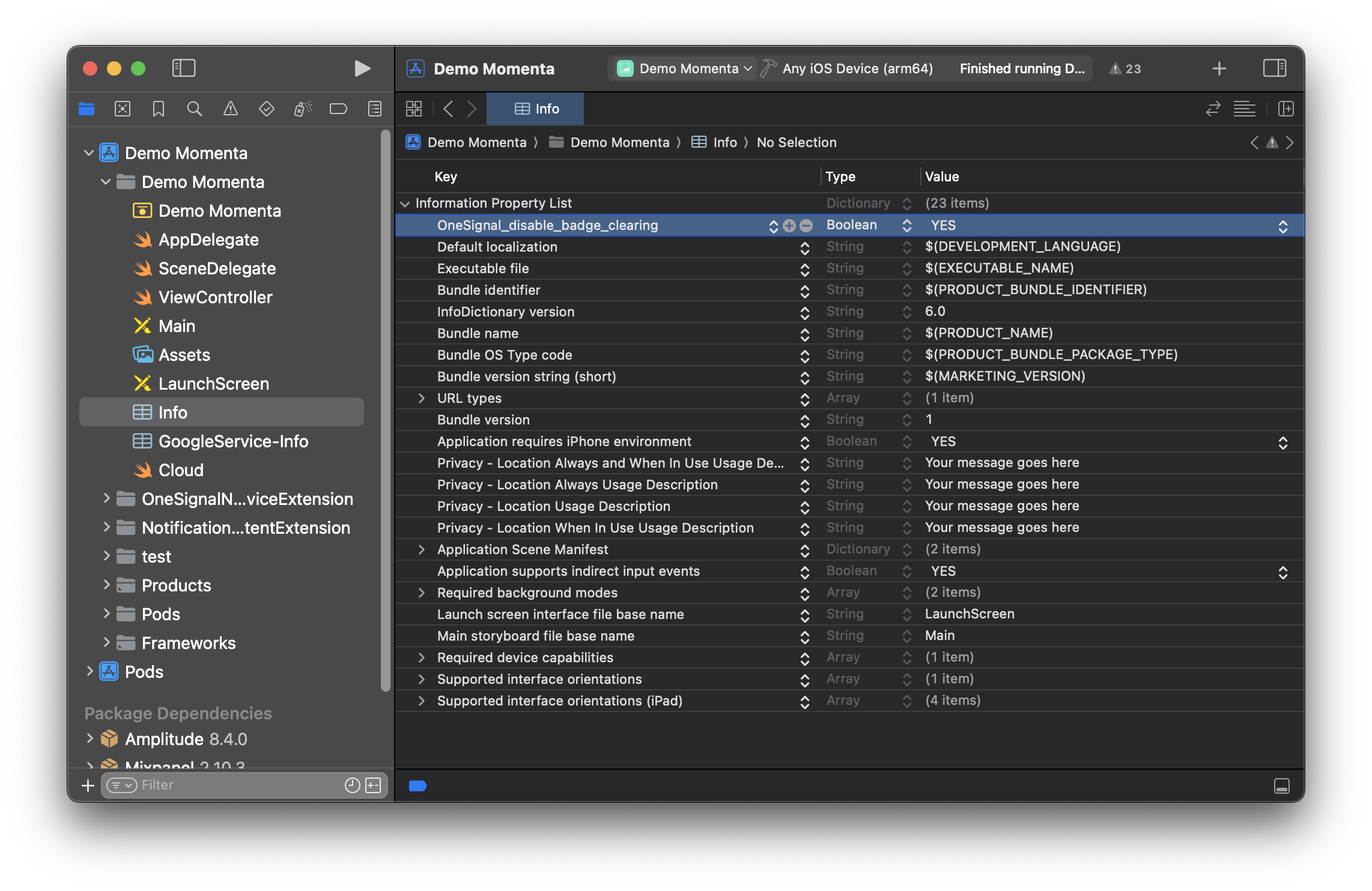
In your app's `info.plist`, add the Key: `OneSignal_disable_badge_clearing` with Boolean type to Value `YES`
 ```xml theme={null}
OneSignal_disable_badge_clearing
```
This prevents the SDK from automatically removing notifications or resetting the badge when the app opens.
#### iOS native badge management
If you disable OneSignal's automatic badge clearing, you can use Apple's native APIs to control badge behavior.
Apple deprecated `UIApplication.shared.applicationIconBadgeNumber` in iOS 17. You should now use the following methods from the [UserNotifications framework](https://developer.apple.com/documentation/UserNotifications/UNUserNotificationCenter/setBadgeCount\(_:withCompletionHandler:\)):
**Set badge count**
To set the badge on the app icon to a specific value:
```swift theme={null}
import UserNotifications
import UIKit
if #available(iOS 17.0, *) {
UNUserNotificationCenter.current().setBadgeCount(5) { error in
if let error = error {
print("Failed to set badge count: \(error.localizedDescription)")
} else {
print("Badge count updated successfully.")
}
}
} else {
UIApplication.shared.applicationIconBadgeNumber = 5
}
```
**Get current badge count**
iOS does not provide a method to retrieve the current badge count from the system. You must keep track of the badge count in your app's state (for example, using `UserDefaults`, your app's data model, or syncing with your backend).
```swift theme={null}
// Example: Store and retrieve badge count using UserDefaults
let badgeCount = UserDefaults.standard.integer(forKey: "badgeCount")
// Update badge count as needed
UserDefaults.standard.set(badgeCount, forKey: "badgeCount")
```
**Increment or decrement badge**
You must manage badge logic manually, as relative changes (like +1 or -1) are not supported in payloads. Update your stored badge count and then set it:
```swift theme={null}
// Example: Increment badge count and update system badge
let currentCount = UserDefaults.standard.integer(forKey: "badgeCount")
let updatedCount = max(0, currentCount + 1)
UserDefaults.standard.set(updatedCount, forKey: "badgeCount")
if #available(iOS 17.0, *) {
UNUserNotificationCenter.current().setBadgeCount(updatedCount)
} else {
UIApplication.shared.applicationIconBadgeNumber = updatedCount
}
```
**Clear badge**
To remove the badge entirely:
```swift theme={null}
if #available(iOS 17.0, *) {
UNUserNotificationCenter.current().setBadgeCount(0)
} else {
UIApplication.shared.applicationIconBadgeNumber = 0
}
```
### Send iOS push with badges
You can set the badge count in the OneSignal dashboard or using the API.
1. Go to **Messages > Push** or **Templates**.
2. Under **Platform Settings > Send to Apple iOS > Badges**.
3. Choose either:
* Set to a specific number.
* Increase by a relative amount.
```xml theme={null}
OneSignal_disable_badge_clearing
```
This prevents the SDK from automatically removing notifications or resetting the badge when the app opens.
#### iOS native badge management
If you disable OneSignal's automatic badge clearing, you can use Apple's native APIs to control badge behavior.
Apple deprecated `UIApplication.shared.applicationIconBadgeNumber` in iOS 17. You should now use the following methods from the [UserNotifications framework](https://developer.apple.com/documentation/UserNotifications/UNUserNotificationCenter/setBadgeCount\(_:withCompletionHandler:\)):
**Set badge count**
To set the badge on the app icon to a specific value:
```swift theme={null}
import UserNotifications
import UIKit
if #available(iOS 17.0, *) {
UNUserNotificationCenter.current().setBadgeCount(5) { error in
if let error = error {
print("Failed to set badge count: \(error.localizedDescription)")
} else {
print("Badge count updated successfully.")
}
}
} else {
UIApplication.shared.applicationIconBadgeNumber = 5
}
```
**Get current badge count**
iOS does not provide a method to retrieve the current badge count from the system. You must keep track of the badge count in your app's state (for example, using `UserDefaults`, your app's data model, or syncing with your backend).
```swift theme={null}
// Example: Store and retrieve badge count using UserDefaults
let badgeCount = UserDefaults.standard.integer(forKey: "badgeCount")
// Update badge count as needed
UserDefaults.standard.set(badgeCount, forKey: "badgeCount")
```
**Increment or decrement badge**
You must manage badge logic manually, as relative changes (like +1 or -1) are not supported in payloads. Update your stored badge count and then set it:
```swift theme={null}
// Example: Increment badge count and update system badge
let currentCount = UserDefaults.standard.integer(forKey: "badgeCount")
let updatedCount = max(0, currentCount + 1)
UserDefaults.standard.set(updatedCount, forKey: "badgeCount")
if #available(iOS 17.0, *) {
UNUserNotificationCenter.current().setBadgeCount(updatedCount)
} else {
UIApplication.shared.applicationIconBadgeNumber = updatedCount
}
```
**Clear badge**
To remove the badge entirely:
```swift theme={null}
if #available(iOS 17.0, *) {
UNUserNotificationCenter.current().setBadgeCount(0)
} else {
UIApplication.shared.applicationIconBadgeNumber = 0
}
```
### Send iOS push with badges
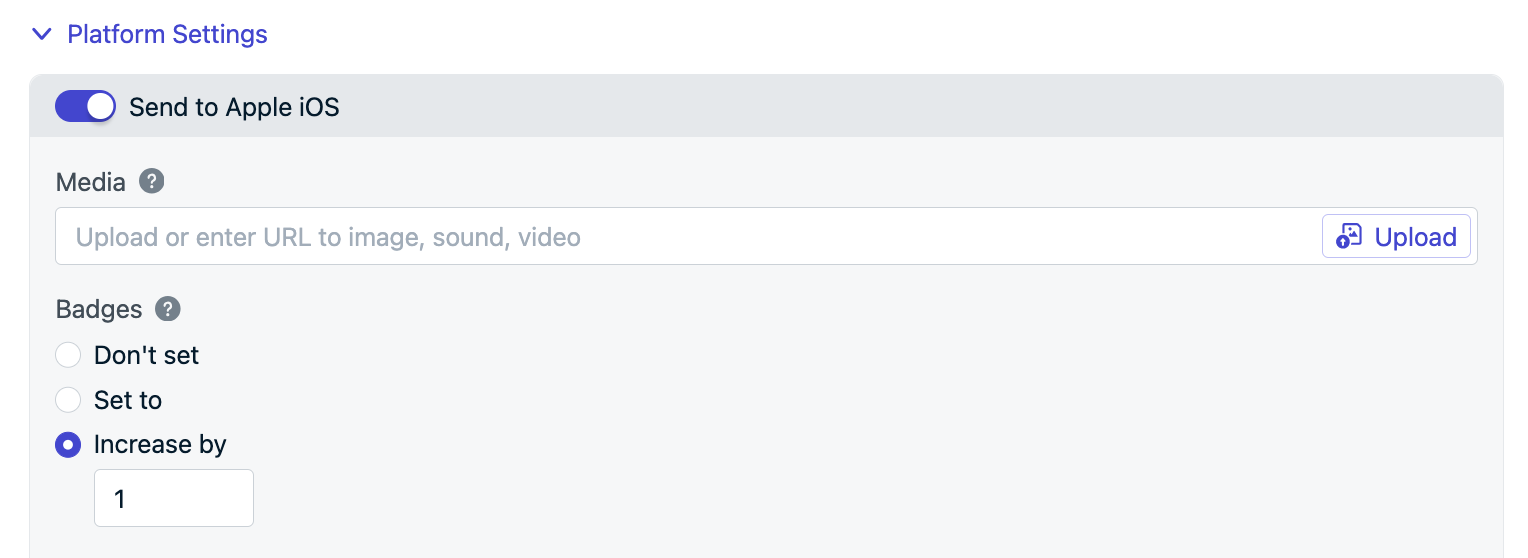
You can set the badge count in the OneSignal dashboard or using the API.
1. Go to **Messages > Push** or **Templates**.
2. Under **Platform Settings > Send to Apple iOS > Badges**.
3. Choose either:
* Set to a specific number.
* Increase by a relative amount.
 Use the following parameters in the [Create message](/reference/create-message) API:
* `ios_badgeType` — Set to `SetTo` or `Increase`.
* `ios_badgeCount` — The number to set or increase by.
```json theme={null}
{
"ios_badgeType": "Increase",
"ios_badgeCount": 1
}
```
When sending iOS push notifications, the badge count changes based on these options.
If the app is open, the badge count resets unless you [disable automatic badge clearing](#disable-automatic-notification-and-badge-clearing).
***
## FAQ
### Why isn't my badge count incrementing on iOS?
Ensure you have configured the `OneSignalNotificationServiceExtension` and App Groups. Without these, badge counts cannot increment correctly. See [Mobile SDK setup](./mobile-sdk-setup) for full instructions.
### How do I clear badges on Huawei?
Send a notification with `huawei_badge_set_num` set to `0`, or use **Set to > 0** in the dashboard. You can also use a [data/background notification](./data-notifications) to clear badges without showing a visible notification. Alternatively, clear the badge client-side using the Huawei badge API.
### Can I set badges for web push?
No. App icon badges are only supported on iOS, Android, and Huawei. For Android web push, the "badge" refers to the small icon shown on the notification itself — see [Web Push Badges](./push#badges).
***
## Related pages
Control badge display and behavior per notification channel on Android.
Set up Huawei push messaging with OneSignal.
Full reference for push notification features including web push badges.
Configure the OneSignal SDK including badge prerequisites for iOS.
Use the following parameters in the [Create message](/reference/create-message) API:
* `ios_badgeType` — Set to `SetTo` or `Increase`.
* `ios_badgeCount` — The number to set or increase by.
```json theme={null}
{
"ios_badgeType": "Increase",
"ios_badgeCount": 1
}
```
When sending iOS push notifications, the badge count changes based on these options.
If the app is open, the badge count resets unless you [disable automatic badge clearing](#disable-automatic-notification-and-badge-clearing).
***
## FAQ
### Why isn't my badge count incrementing on iOS?
Ensure you have configured the `OneSignalNotificationServiceExtension` and App Groups. Without these, badge counts cannot increment correctly. See [Mobile SDK setup](./mobile-sdk-setup) for full instructions.
### How do I clear badges on Huawei?
Send a notification with `huawei_badge_set_num` set to `0`, or use **Set to > 0** in the dashboard. You can also use a [data/background notification](./data-notifications) to clear badges without showing a visible notification. Alternatively, clear the badge client-side using the Huawei badge API.
### Can I set badges for web push?
No. App icon badges are only supported on iOS, Android, and Huawei. For Android web push, the "badge" refers to the small icon shown on the notification itself — see [Web Push Badges](./push#badges).
***
## Related pages
Control badge display and behavior per notification channel on Android.
Set up Huawei push messaging with OneSignal.
Full reference for push notification features including web push badges.
Configure the OneSignal SDK including badge prerequisites for iOS.