> ## Documentation Index
> Fetch the complete documentation index at: https://documentation.onesignal.com/llms.txt
> Use this file to discover all available pages before exploring further.
# Google BigQuery
> Export messaging event data to BigQuery and import custom events from BigQuery to trigger personalized campaigns.
## Overview
The OneSignal + BigQuery integration supports two powerful data pipelines:
* **Export**: Automatically send messaging event data (push, email, SMS, in-app) from OneSignal to BigQuery for analysis and reporting.
* **Import**: Sync custom user events from your BigQuery datasets to OneSignal to trigger automated Journeys and personalized messaging.
Together, these integrations give you complete control over user engagement data, powering advanced analytics and real-time behavior-driven messaging.
***
## Export OneSignal events to BigQuery
Send messaging performance and engagement events (e.g., sends, opens, clicks) to BigQuery to:
* Build custom dashboards and reports
* Track delivery and engagement trends across channels
* Combine OneSignal data with other business data for analysis
**Requirements**
* Access to [Event Streams](/docs/en/event-streams) for outbound message events (Plan limitations and overages apply)
* Access to [Custom Events](/docs/en/custom-events) for inbound event syncing (Plan limitations and overages apply)
* [Updated Account Plan](https://onesignal.com/pricing) (not available on free apps)
- Google Cloud Platform project with **billing enabled**
- BigQuery enabled in your GCP project
- Service account with BigQuery write permissions
**Setup Steps**
### 1. Create a Service Account
After you login, ensure the proper project is selected.
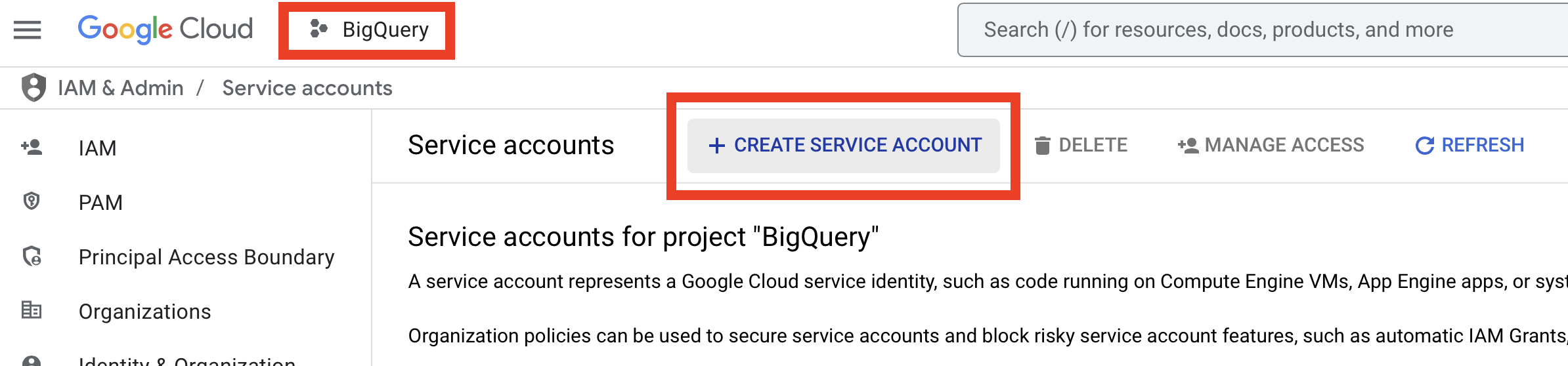 Visit the [Create Service Account page](https://console.cloud.google.com/iam-admin/serviceaccounts/create) and click **Create Service Account.**
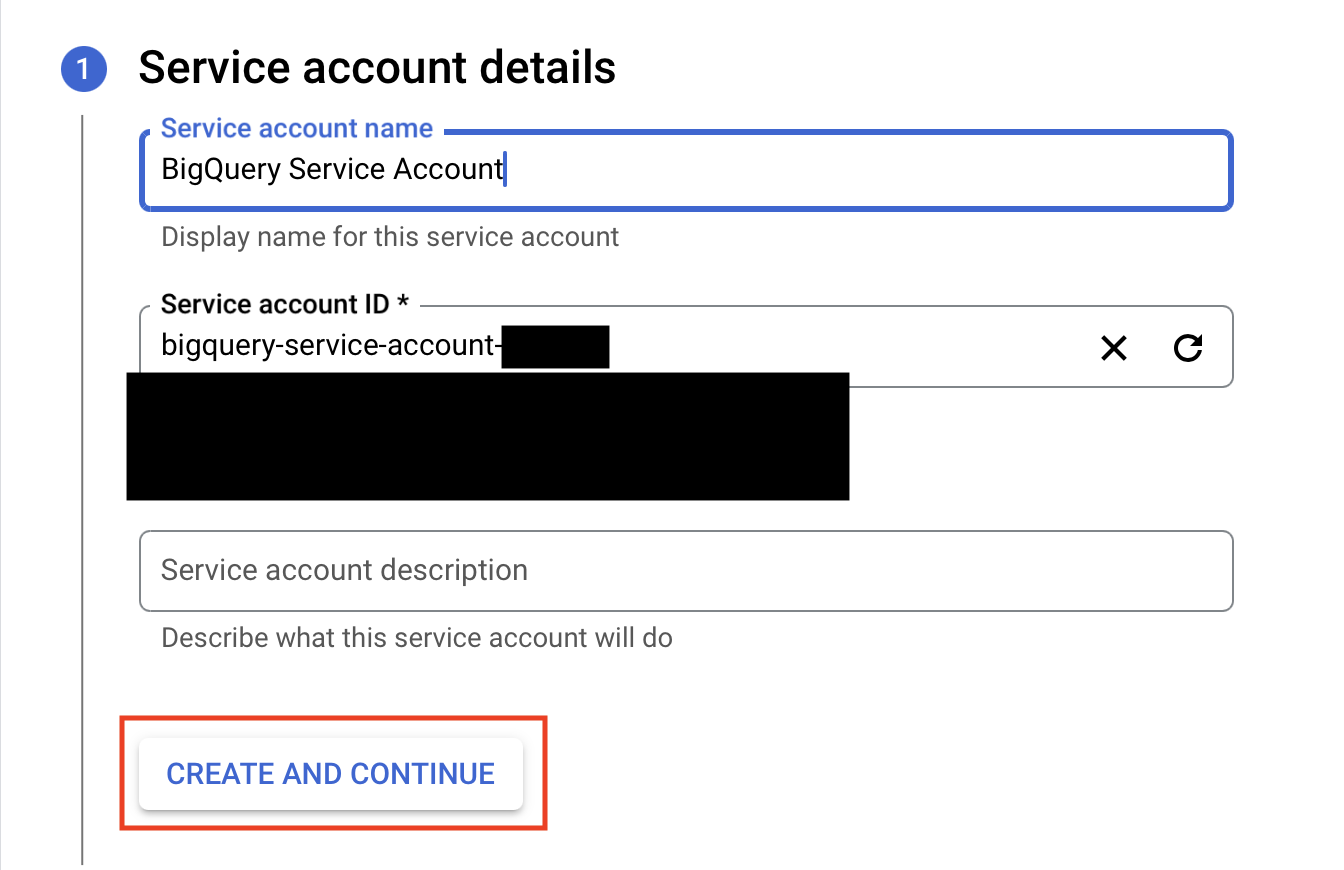
Give it any name and service account ID you choose.
Visit the [Create Service Account page](https://console.cloud.google.com/iam-admin/serviceaccounts/create) and click **Create Service Account.**
Give it any name and service account ID you choose.
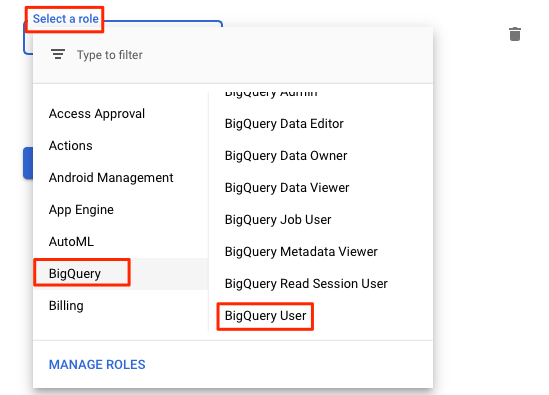
 Give the service account the **BigQuery User** role. If you want to sync data to an existing dataset, you must also grant the service account **BigQuery Data Owner** on that dataset. See [Roles and permissions](#roles-and-permissions).
 For existing datasets, the service account will need the [bigquery.dataOwner role](#how-can-i-assign-a-big-query-data-owner-role-to-the-service-account) ("BigQuery Data Owner"). If the dataset is not yet created, only the "BigQuery User" role is needed.
Go to your new service account > **Keys** > **Add Key** > **Create new key** > select JSON. Save the file.
You’ll paste the entire contents of this JSON key file into OneSignal to activate the integration.
#### Roles and permissions
The minimum role required to sync OneSignal events into BigQuery is **BigQuery User**. This role allows OneSignal to:
* Run, enumerate, and cancel its own jobs, including update jobs
* Read, query, and enumerate all datasets within a project
* Create new datasets within the project and grant the `bigquery.dataOwner` role for these new datasets
These permissions are required because OneSignal can create its own datasets. They do not allow OneSignal to modify datasets it does not own.
To sync data to an existing dataset in your BigQuery project, created by another user or service account, you must grant the service account the `bigquery.dataOwner` role for that dataset.
To grant the `bigquery.dataOwner` role for an existing dataset:
1. Log in to the [BigQuery console](https://console.cloud.google.com/bigquery).
2. In the Explorer pane, locate the dataset where you want to sync your data.
3. Click **View actions** > **Share** > **Manage Permissions** for the dataset.
4. Click **Add principal**.
5. In the **New principals** field, enter the service account you want to use for your destination.
6. In the **Role** drop-down menu, select **BigQuery Data Owner**.
7. Click **Save**.
### 2. Activate the Integration in OneSignal
* **Sync Frequency**: As often as every 15 minutes
* **Dataset/Table Names**: Must only contain lowercase letters, numbers and underscores, and cannot begin with a number.
* **Event Types**: Select specific message events (e.g., sent, opened, clicked)
* **Note:** You can select multiple event types or update selected events at a later time.
Initial data sync can take 15–30 minutes to appear in BigQuery.
While you wait, send messages via push, email, in-app, or SMS to trigger the events selected.
### 3. View Data in BigQuery
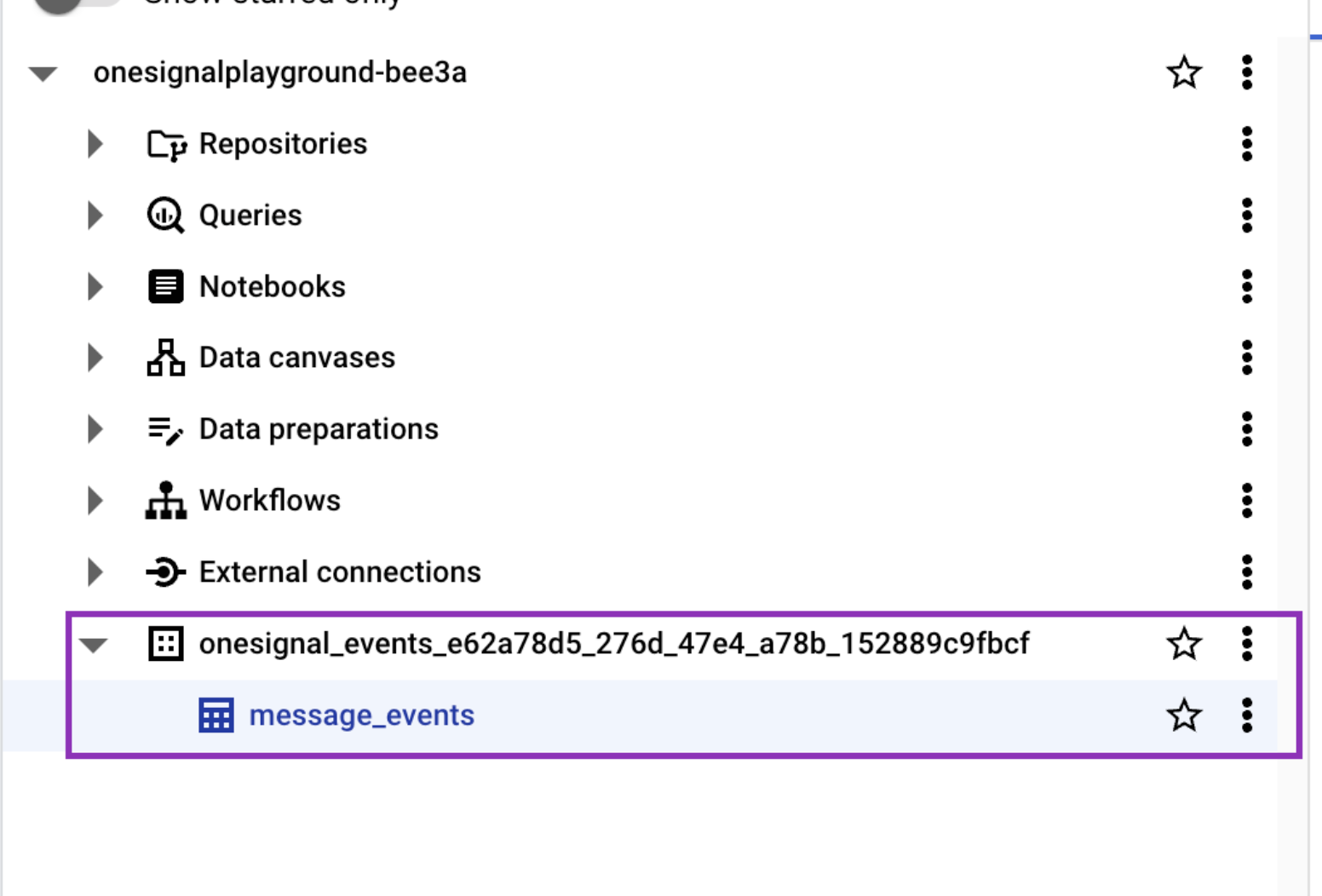
Open your BigQuery console and locate the dataset (e.g., `onesignal_events_`) to explore synced message events.
For existing datasets, the service account will need the [bigquery.dataOwner role](#how-can-i-assign-a-big-query-data-owner-role-to-the-service-account) ("BigQuery Data Owner"). If the dataset is not yet created, only the "BigQuery User" role is needed.
Go to your new service account > **Keys** > **Add Key** > **Create new key** > select JSON. Save the file.
You’ll paste the entire contents of this JSON key file into OneSignal to activate the integration.
#### Roles and permissions
The minimum role required to sync OneSignal events into BigQuery is **BigQuery User**. This role allows OneSignal to:
* Run, enumerate, and cancel its own jobs, including update jobs
* Read, query, and enumerate all datasets within a project
* Create new datasets within the project and grant the `bigquery.dataOwner` role for these new datasets
These permissions are required because OneSignal can create its own datasets. They do not allow OneSignal to modify datasets it does not own.
To sync data to an existing dataset in your BigQuery project, created by another user or service account, you must grant the service account the `bigquery.dataOwner` role for that dataset.
To grant the `bigquery.dataOwner` role for an existing dataset:
1. Log in to the [BigQuery console](https://console.cloud.google.com/bigquery).
2. In the Explorer pane, locate the dataset where you want to sync your data.
3. Click **View actions** > **Share** > **Manage Permissions** for the dataset.
4. Click **Add principal**.
5. In the **New principals** field, enter the service account you want to use for your destination.
6. In the **Role** drop-down menu, select **BigQuery Data Owner**.
7. Click **Save**.
### 2. Activate the Integration in OneSignal
* **Sync Frequency**: As often as every 15 minutes
* **Dataset/Table Names**: Must only contain lowercase letters, numbers and underscores, and cannot begin with a number.
* **Event Types**: Select specific message events (e.g., sent, opened, clicked)
* **Note:** You can select multiple event types or update selected events at a later time.
Initial data sync can take 15–30 minutes to appear in BigQuery.
While you wait, send messages via push, email, in-app, or SMS to trigger the events selected.
### 3. View Data in BigQuery
Open your BigQuery console and locate the dataset (e.g., `onesignal_events_`) to explore synced message events.
 ## Message events and properties
### Message event kinds
**Property:** `event_kind`
**Type:** `String`
The kind of message and event (e.g. `message.push.received`, `message.push.sent`).
| Message Event (OneSignal) | `event_kind` | Description |
| :-----------------------: | :------------------------------: | -------------------------------------------------------------------------- |
| Push Sent | `message.push.sent` | Push notification successfully sent. |
| Push Received | `message.push.received` | Delivered push (see [Confirmed receipt](/docs/en/confirmed-delivery)). |
| Push Clicked | `message.push.clicked` | User clicked the push. |
| Push Failed | `message.push.failed` | Delivery failure. See message reports. |
| Push Unsubscribed | `message.push.unsubscribed` | User unsubscribed from push. |
| In-App Impression | `message.iam.impression` | In-App message shown. |
| In-App Clicked | `message.iam.clicked` | In-App message clicked. |
| In-App Page Viewed | `message.iam.page_displayed` | In-App page shown. |
| Email Sent | `message.email.sent` | Email delivered. |
| Email Received | `message.email.received` | Email accepted by recipient's mail server. |
| Email Opened | `message.email.opened` | Email opened. See [Email Reports](/docs/en/email-message-reports). |
| Email Link Clicked | `message.email.clicked` | Link in email clicked. |
| Email Unsubscribed | `message.email.unsubscribed` | Recipient unsubscribed. |
| Email Reported As Spam | `message.email.reported_as_spam` | Marked as spam. See [Email Deliverability](/docs/en/email-deliverability). |
| Email Bounced | `message.email.bounced` | Bounce due to permanent delivery failure. |
| Email Failed | `message.email.failed` | Delivery failed. |
| Email Suppressed | `message.email.suppressed` | Suppressed due to suppression list. |
| SMS Sent | `message.sms.sent` | SMS sent. |
| SMS Delivered | `message.sms.delivered` | SMS successfully delivered. |
| SMS Failed | `message.sms.failed` | SMS failed to deliver. |
| SMS Undelivered | `message.sms.undelivered` | SMS rejected or unreachable. |
### Event data schema
For each message event generated by a user, the following metadata will be attached to the record.
| Column Name | Type | Description |
| :---------------------------------------------: | :------------: | ------------------------------------------------------------ |
| `event_id` | UUID | Unique identifier for the event |
| `event_timestamp` | Timestamp | Time of event occurrence |
| `event_kind` | String | The [Event Kind](#message-event-kinds) |
| `subscription_device_type` | String | Device type (e.g., iOS, Android, Web, Email, SMS) |
| `language` | String | Subscription language code |
| `version` | String | Integration version |
| `device_os` | String | Device operating system version |
| `device_type` | Number | Numeric device type |
| `token` | String | Push token, phone number, or email |
| `subscription_id` | UUID | Subscription ID |
| `subscribed` | Boolean | Subscription status |
| `onesignal_id` | UUID | OneSignal user ID |
| `last_active` | String | Last active timestamp |
| `sdk` | String | OneSignal SDK version |
| `external_id` | String | External user ID that should match the integration user ID |
| `app_id` | UUID | App ID from OneSignal |
| `template_id` | UUID | Template ID (if applicable) |
| `message_id` | UUID | Message batch/request ID |
| `message_name` | String | Name of the message |
| `message_title` | String | Message title (English only) |
| `message_contents` | String | Truncated message body (English only) |
| `failure_reason` | String | Reason for failure (for push failed and email failed events) |
| `_created`, `_id`, `_index`, `_fivetran_synced` | *Internal use* | Fivetran sync metadata |
### Notes
* Syncs after saving/activating may take an additional 15-30 minutes to complete.
* Deactivating may still result in one final sync after deactivation.
* To ensure efficient data synchronization, our system automatically creates and manages staging datasets. These datasets, named with a pattern like `fivetran_{two random words}_staging`, temporarily store data during processing before it's integrated into your main schema. These staging datasets are essential for maintaining a streamlined workflow and should not be deleted, as they will be automatically recreated.
***
## Import events from BigQuery
Send behavioral event data from BigQuery to OneSignal to:
* Trigger Journeys based on user activity
* Personalize messaging based on behavioral data
**Requirements**
* Access to [Event Streams](/docs/en/event-streams) for outbound message events (Plan limitations and overages apply)
* Access to [Custom Events](/docs/en/custom-events) for inbound event syncing (Plan limitations and overages apply)
* [Updated Account Plan](https://onesignal.com/pricing) (not available on free apps)
- GCP project with BigQuery and event data tables
- Service account with read permissions
- Event data tables containing behavioral data in BigQuery datasets
**Setup Steps**
OneSignal will generate a service account automatically when you create the connection. Alternatively, you can provide your own service account key JSON file.
If creating your own service account, ensure it has the required permissions listed below.
The OneSignal service account needs these BigQuery IAM roles:
* **`bigquery.dataViewer`** - Read access to datasets and tables containing event data
* **`bigquery.jobUser`** - Permission to create jobs for data queries
* **`bigquery.metadataViewer`** - Project-level metadata access (recommended)
Grant permissions using the Google Cloud Console or CLI:
```bash theme={null}
gcloud projects add-iam-policy-binding YOUR_PROJECT_ID \
--member serviceAccount:ONESIGNAL_SERVICE_ACCOUNT_EMAIL \
--role roles/bigquery.dataViewer
gcloud projects add-iam-policy-binding YOUR_PROJECT_ID \
--member serviceAccount:ONESIGNAL_SERVICE_ACCOUNT_EMAIL \
--role roles/bigquery.jobUser
```
In OneSignal, go to **Data > Integrations** and click **Add Integration**.
## Message events and properties
### Message event kinds
**Property:** `event_kind`
**Type:** `String`
The kind of message and event (e.g. `message.push.received`, `message.push.sent`).
| Message Event (OneSignal) | `event_kind` | Description |
| :-----------------------: | :------------------------------: | -------------------------------------------------------------------------- |
| Push Sent | `message.push.sent` | Push notification successfully sent. |
| Push Received | `message.push.received` | Delivered push (see [Confirmed receipt](/docs/en/confirmed-delivery)). |
| Push Clicked | `message.push.clicked` | User clicked the push. |
| Push Failed | `message.push.failed` | Delivery failure. See message reports. |
| Push Unsubscribed | `message.push.unsubscribed` | User unsubscribed from push. |
| In-App Impression | `message.iam.impression` | In-App message shown. |
| In-App Clicked | `message.iam.clicked` | In-App message clicked. |
| In-App Page Viewed | `message.iam.page_displayed` | In-App page shown. |
| Email Sent | `message.email.sent` | Email delivered. |
| Email Received | `message.email.received` | Email accepted by recipient's mail server. |
| Email Opened | `message.email.opened` | Email opened. See [Email Reports](/docs/en/email-message-reports). |
| Email Link Clicked | `message.email.clicked` | Link in email clicked. |
| Email Unsubscribed | `message.email.unsubscribed` | Recipient unsubscribed. |
| Email Reported As Spam | `message.email.reported_as_spam` | Marked as spam. See [Email Deliverability](/docs/en/email-deliverability). |
| Email Bounced | `message.email.bounced` | Bounce due to permanent delivery failure. |
| Email Failed | `message.email.failed` | Delivery failed. |
| Email Suppressed | `message.email.suppressed` | Suppressed due to suppression list. |
| SMS Sent | `message.sms.sent` | SMS sent. |
| SMS Delivered | `message.sms.delivered` | SMS successfully delivered. |
| SMS Failed | `message.sms.failed` | SMS failed to deliver. |
| SMS Undelivered | `message.sms.undelivered` | SMS rejected or unreachable. |
### Event data schema
For each message event generated by a user, the following metadata will be attached to the record.
| Column Name | Type | Description |
| :---------------------------------------------: | :------------: | ------------------------------------------------------------ |
| `event_id` | UUID | Unique identifier for the event |
| `event_timestamp` | Timestamp | Time of event occurrence |
| `event_kind` | String | The [Event Kind](#message-event-kinds) |
| `subscription_device_type` | String | Device type (e.g., iOS, Android, Web, Email, SMS) |
| `language` | String | Subscription language code |
| `version` | String | Integration version |
| `device_os` | String | Device operating system version |
| `device_type` | Number | Numeric device type |
| `token` | String | Push token, phone number, or email |
| `subscription_id` | UUID | Subscription ID |
| `subscribed` | Boolean | Subscription status |
| `onesignal_id` | UUID | OneSignal user ID |
| `last_active` | String | Last active timestamp |
| `sdk` | String | OneSignal SDK version |
| `external_id` | String | External user ID that should match the integration user ID |
| `app_id` | UUID | App ID from OneSignal |
| `template_id` | UUID | Template ID (if applicable) |
| `message_id` | UUID | Message batch/request ID |
| `message_name` | String | Name of the message |
| `message_title` | String | Message title (English only) |
| `message_contents` | String | Truncated message body (English only) |
| `failure_reason` | String | Reason for failure (for push failed and email failed events) |
| `_created`, `_id`, `_index`, `_fivetran_synced` | *Internal use* | Fivetran sync metadata |
### Notes
* Syncs after saving/activating may take an additional 15-30 minutes to complete.
* Deactivating may still result in one final sync after deactivation.
* To ensure efficient data synchronization, our system automatically creates and manages staging datasets. These datasets, named with a pattern like `fivetran_{two random words}_staging`, temporarily store data during processing before it's integrated into your main schema. These staging datasets are essential for maintaining a streamlined workflow and should not be deleted, as they will be automatically recreated.
***
## Import events from BigQuery
Send behavioral event data from BigQuery to OneSignal to:
* Trigger Journeys based on user activity
* Personalize messaging based on behavioral data
**Requirements**
* Access to [Event Streams](/docs/en/event-streams) for outbound message events (Plan limitations and overages apply)
* Access to [Custom Events](/docs/en/custom-events) for inbound event syncing (Plan limitations and overages apply)
* [Updated Account Plan](https://onesignal.com/pricing) (not available on free apps)
- GCP project with BigQuery and event data tables
- Service account with read permissions
- Event data tables containing behavioral data in BigQuery datasets
**Setup Steps**
OneSignal will generate a service account automatically when you create the connection. Alternatively, you can provide your own service account key JSON file.
If creating your own service account, ensure it has the required permissions listed below.
The OneSignal service account needs these BigQuery IAM roles:
* **`bigquery.dataViewer`** - Read access to datasets and tables containing event data
* **`bigquery.jobUser`** - Permission to create jobs for data queries
* **`bigquery.metadataViewer`** - Project-level metadata access (recommended)
Grant permissions using the Google Cloud Console or CLI:
```bash theme={null}
gcloud projects add-iam-policy-binding YOUR_PROJECT_ID \
--member serviceAccount:ONESIGNAL_SERVICE_ACCOUNT_EMAIL \
--role roles/bigquery.dataViewer
gcloud projects add-iam-policy-binding YOUR_PROJECT_ID \
--member serviceAccount:ONESIGNAL_SERVICE_ACCOUNT_EMAIL \
--role roles/bigquery.jobUser
```
In OneSignal, go to **Data > Integrations** and click **Add Integration**.
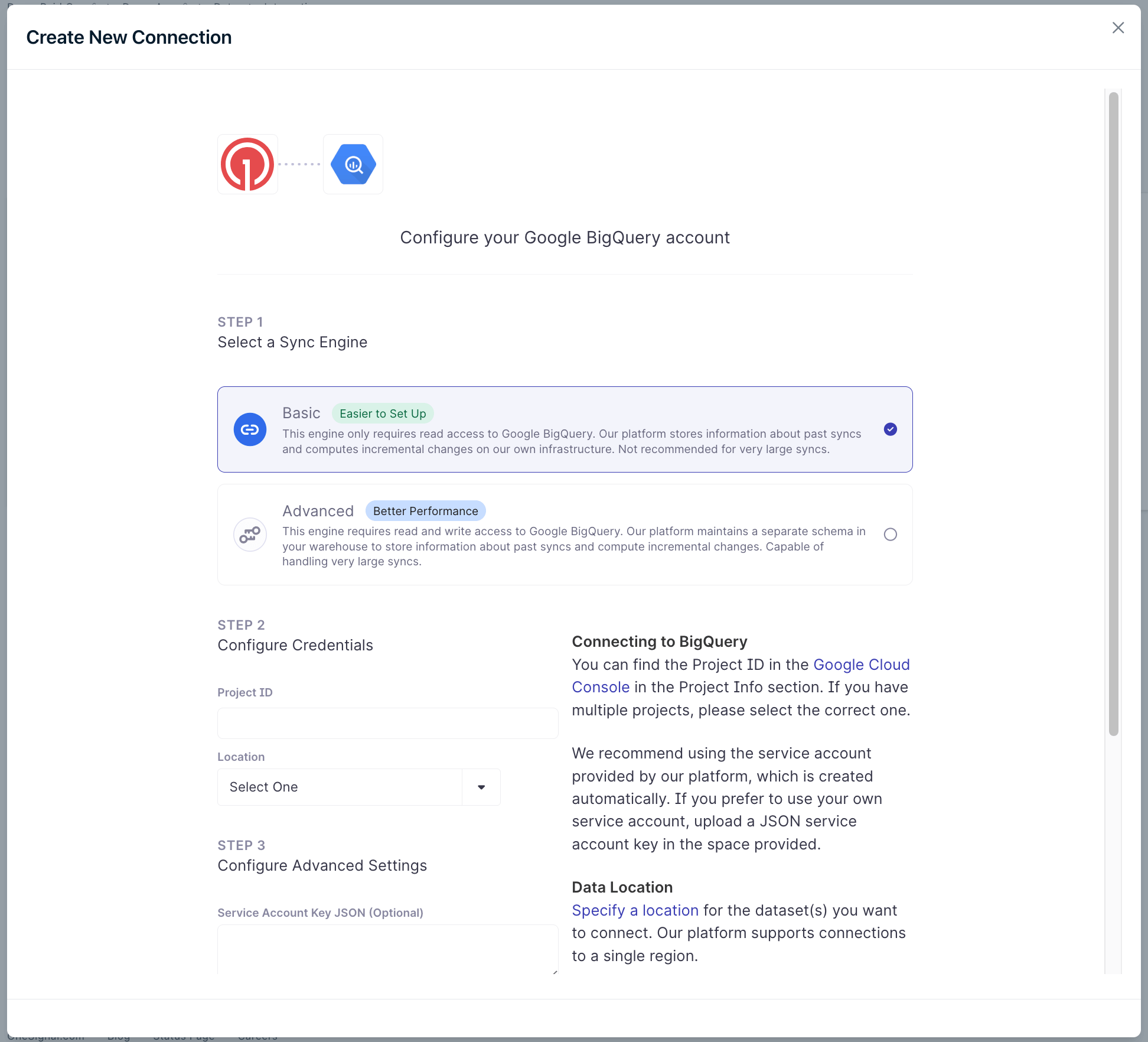 * **Sync Engine**: Advanced sync is recommended for large datasets or complex event data queries. You can start with basic sync and switch to advanced sync later if needed.
* **Google Cloud Project ID**: Your GCP project containing BigQuery datasets
* **Dataset Region**: Location where your BigQuery datasets are stored
* **Service Account Key** (optional): JSON key file if using your own service account
Specify the BigQuery dataset and table containing your event data:
* **Dataset**: BigQuery dataset name (e.g., `analytics_events`)
* **Table/View**: Table or view containing event records
* **Event Query**: Optional SQL query to filter or transform event data
Your event table should contain columns for:
* Event name/type
* User identifier
* Event timestamp
* Additional event properties
Click **Test Connection** to verify OneSignal can access your BigQuery project and read event data.
***
### Event data mapping
The BigQuery integration recognizes three dedicated fields. All other columns are collected into the `properties` object on the custom event.
| OneSignal Field | BigQuery Column | Description | Required |
| ----------------- | ----------------- | ----------------------------------- | -------- |
| `name` | `event_name` | Event identifier | Yes |
| `external_id` | `external_id` | User identifier | Yes |
| `idempotency_key` | `event_id` | Prevents duplicate event processing | No |
| `properties` | All other columns | Mapped as JSON key-value pairs | No |
### Advanced configuration
#### Custom SQL Queries
Use custom SQL to filter or transform event data before syncing to OneSignal:
```sql theme={null}
SELECT
event_name,
user_id,
event_timestamp,
STRUCT(
product_id,
purchase_amount,
category
) as payload
FROM `project.dataset.events`
WHERE event_timestamp >= TIMESTAMP_SUB(CURRENT_TIMESTAMP(), INTERVAL 7 DAY)
```
#### Cross-Project Access
If your event data spans multiple BigQuery projects, grant the OneSignal service account access to each project containing referenced tables or views.
Your BigQuery connection region must match the specific table region for optimal performance.
***
## FAQ
### Why is my sync failing?
There are a few common reasons why your sync may be failing:
* The service account does not have the required permissions
* The source dataset is too large for a basic sync and you need to use advanced sync
Review the above setup steps and ensure you have followed them correctly. If you still have issues, please contact `support@onesignal.com`.
### Why do I see multiple message IDs for the same content?
This typically occurs when a message template is reused across multiple sends or triggered flows.
### How often does OneSignal sync data?
Both export and import integrations can sync as frequently as every 15 minutes.
### Can I use BigQuery views?
Yes. Just make sure the service account has access to all referenced tables in the view.
### How can I assign a Big Query Data Owner role to the service account?
1. Log in to the BigQuery console
2. In the Explorer pane, locate the dataset where you want to sync your data
3. Click View actions>Share>Manage Permissions for the dataset
4. Click Add principal
5. In the New principals field, enter the service account you want to use for your destination
6. In the Role drop-down menu, select BigQuery Data Owner
7. Click Save
***
## Related Resources
* [Creating service account keys in GCP](https://cloud.google.com/iam/docs/creating-managing-service-account-keys#creating)
* [OneSignal Journeys documentation](./journeys-overview)
* [OneSignal Data Export documentation](./exporting-data)
***
* **Sync Engine**: Advanced sync is recommended for large datasets or complex event data queries. You can start with basic sync and switch to advanced sync later if needed.
* **Google Cloud Project ID**: Your GCP project containing BigQuery datasets
* **Dataset Region**: Location where your BigQuery datasets are stored
* **Service Account Key** (optional): JSON key file if using your own service account
Specify the BigQuery dataset and table containing your event data:
* **Dataset**: BigQuery dataset name (e.g., `analytics_events`)
* **Table/View**: Table or view containing event records
* **Event Query**: Optional SQL query to filter or transform event data
Your event table should contain columns for:
* Event name/type
* User identifier
* Event timestamp
* Additional event properties
Click **Test Connection** to verify OneSignal can access your BigQuery project and read event data.
***
### Event data mapping
The BigQuery integration recognizes three dedicated fields. All other columns are collected into the `properties` object on the custom event.
| OneSignal Field | BigQuery Column | Description | Required |
| ----------------- | ----------------- | ----------------------------------- | -------- |
| `name` | `event_name` | Event identifier | Yes |
| `external_id` | `external_id` | User identifier | Yes |
| `idempotency_key` | `event_id` | Prevents duplicate event processing | No |
| `properties` | All other columns | Mapped as JSON key-value pairs | No |
### Advanced configuration
#### Custom SQL Queries
Use custom SQL to filter or transform event data before syncing to OneSignal:
```sql theme={null}
SELECT
event_name,
user_id,
event_timestamp,
STRUCT(
product_id,
purchase_amount,
category
) as payload
FROM `project.dataset.events`
WHERE event_timestamp >= TIMESTAMP_SUB(CURRENT_TIMESTAMP(), INTERVAL 7 DAY)
```
#### Cross-Project Access
If your event data spans multiple BigQuery projects, grant the OneSignal service account access to each project containing referenced tables or views.
Your BigQuery connection region must match the specific table region for optimal performance.
***
## FAQ
### Why is my sync failing?
There are a few common reasons why your sync may be failing:
* The service account does not have the required permissions
* The source dataset is too large for a basic sync and you need to use advanced sync
Review the above setup steps and ensure you have followed them correctly. If you still have issues, please contact `support@onesignal.com`.
### Why do I see multiple message IDs for the same content?
This typically occurs when a message template is reused across multiple sends or triggered flows.
### How often does OneSignal sync data?
Both export and import integrations can sync as frequently as every 15 minutes.
### Can I use BigQuery views?
Yes. Just make sure the service account has access to all referenced tables in the view.
### How can I assign a Big Query Data Owner role to the service account?
1. Log in to the BigQuery console
2. In the Explorer pane, locate the dataset where you want to sync your data
3. Click View actions>Share>Manage Permissions for the dataset
4. Click Add principal
5. In the New principals field, enter the service account you want to use for your destination
6. In the Role drop-down menu, select BigQuery Data Owner
7. Click Save
***
## Related Resources
* [Creating service account keys in GCP](https://cloud.google.com/iam/docs/creating-managing-service-account-keys#creating)
* [OneSignal Journeys documentation](./journeys-overview)
* [OneSignal Data Export documentation](./exporting-data)
***