> ## Documentation Index
> Fetch the complete documentation index at: https://documentation.onesignal.com/llms.txt
> Use this file to discover all available pages before exploring further.
# Usage & billing
> OneSignal billing overview covering invoices, payment methods, plan changes, usage metrics, and cost management for all plan types.
For plan features and pricing tiers, see the public [Pricing page](https://onesignal.com/pricing).
This guide explains:
* How to complete common billing tasks
* What affects your invoice amount
* How usage is calculated
* How to manage or reduce costs
* How billing relates to Apps and Organizations
***
## Common billing tasks
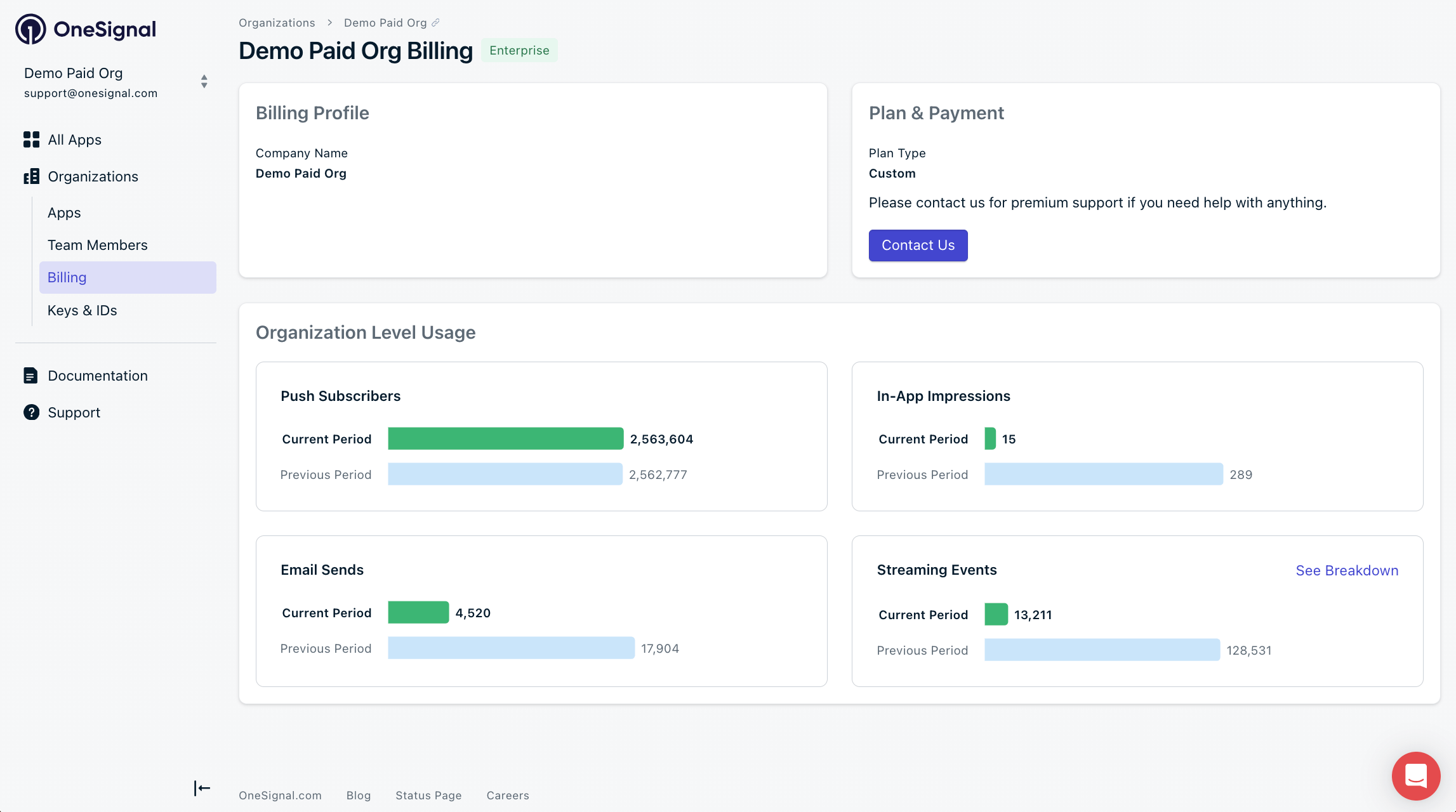
View your Organization's Billing and Usage within **Organizations > Billing**.
You must be an Organization Admin to view the billing page. See [Manage Team Members](./manage-team-members) and ask an Org Admin to add you as a Billing Contact. You can also view App-level usage in **Settings > Usage**.
 ### Download an invoice
**Self-serve (Growth & legacy plans)**
1. Go to **Organizations > Billing**.
2. Under **Invoices**, select the invoice.
3. Click **Download**.
The invoice downloads immediately as a PDF.
**Professional & Enterprise (contract plans)**
Email `ar@onesignal.com` with:
* Full company name
* Billing email (if available)
* Organization ID (found in **Organizations > Keys & IDs**)
***
### Update your payment method
**Self-serve (Growth & legacy plans)**
1. Go to **Organizations > Billing**.
2. Next to **Payment Method**, click **Update**.
3. Enter your updated payment details and **Save**.
Your updated payment method appears immediately in the billing page.
**Professional & Enterprise (contract plans)**
1. Open the secure billing portal from your **Billing Welcome Email**.
2. Enter your updated payment details.
3. Save changes.
If you cannot find the billing portal link, email `ar@onesignal.com` with:
* Full company name
* Billing email (if available)
* Organization ID (found in **Organizations > Keys & IDs**)
***
### Change billing information
**Self-serve (Growth & legacy plans)**
1. Go to **Organizations > Billing**.
2. Next to **Billing Profile**, click **Edit**.
3. Enter your updated billing information and **Save**.
Your updated billing information appears immediately in the billing page.
**Professional & Enterprise (contract plans)**
1. Open the secure billing portal from your **Billing Welcome Email**.
2. Enter your updated billing information.
3. Save changes.
If you cannot find the billing portal link, email `ar@onesignal.com` with:
* Full company name
* Billing email (if available)
* Organization ID (found in **Organizations > Keys & IDs**)
***
### Upgrade your plan
If you need higher limits or additional features, [contact our Sales team](https://onesignal.com/contact).
***
### Downgrade to Free
**Self-serve (Growth & legacy plans)**
1. Go to **Organizations > Billing**.
2. Select **Change Plan**.
3. Click the **Free** plan.
4. Confirm the downgrade.
You will continue on the same plan until the end of your current billing cycle.
Paid features are removed at the end of your current billing cycle.
**Professional & Enterprise (contract plans)**
Contract plans must follow agreement terms. Contact your Account Manager or `ar@onesignal.com` to discuss changes.
***
### Reactivate a suspended account
Self-serve accounts are disabled after **three failed payment attempts**.
To reactivate:
1. Pay any outstanding invoices.
2. Allow up to one business day for reactivation.
If your account is not restored, email `support@onesignal.com` with:
* Full company name
* Billing email (if available)
* Organization ID (found in **Organizations > Keys & IDs**)
***
## What affects your invoice amount?
Your invoice is based on one or more of the following:
* Active **Mobile Monthly Active Users (MAU)**
* Active **Web Push Subscribers**
* **Email sends**
* **In-App message impressions**
* **Event Streams volume**
* **Custom Event storage**
To confirm your pricing model, go to **Organizations > Billing**.
You will see either:
* **Mobile MAU + Web Push Subscribers** (current pricing model)
* **Push Subscribers** (legacy plans only)
***
## How billing is calculated
### Monthly Active Users (MAU)
A Monthly Active User (MAU) is a mobile push subscription active within the last 30 days, regardless of current subscription status.
* Each active subscription counts separately.
* One user with two active subscriptions counts as **2 MAU**.
Billing is calculated in **increments of 10 MAU**, rounded **down** to the nearest multiple of 10.
See [Subscriptions](./subscriptions) for more details.
### Web Push Subscribers
Users who subscribed to receive web push notifications from a supported web browser.
* Each subscribed browser counts separately.
* One user subscribed on two browsers counts as **2 subscribers**.
Billing is calculated in **increments of 10 subscribers**, rounded **down** to the nearest multiple of 10.
See [Subscriptions](./subscriptions) for more details.
***
### Push Subscribers (legacy plans only)
Push Subscriber pricing includes total subscribed mobile and web push subscriptions.
To reduce subscriber count, remove users via the dashboard or API. See [Delete Users](./delete-users).
To migrate from Push Subscriber pricing to MAU pricing, [contact our Sales team](https://onesignal.com/contact).
***
## Messaging usage
### Email sends
You are billed for emails that leave OneSignal, including:
* Delivered
* Bounced
* Most Failures
Exceptions:
* **Invalid ESP credentials**
* **Delivery Error**
***
### RCS
RCS messages are billed per message segment based on the message type:
| Type | Audience | Description |
| -------------- | ------------- | --------------------------------------------------------------------------------------------------------------------------------------------------------------------------------------------------------------------------------- |
| **Rich** | US | Text-only messages — cannot include a title. Can include actions such as replies, dials, or links, but link actions must open in a new tab. Messages longer than 160 characters are broken into segments and charged per segment. |
| **Rich Media** | US | Messages with media, cards with titles and/or actions that open in a web view (not a new tab), and carousel content. |
| **Basic** | International | Text messages up to 160 UTF-8 characters. Does not include any actions, media, or carousels. |
| **Single** | International | Text messages greater than 160 UTF-8 characters, up to the max message length of 3,072 characters. Can also include actions, media, or carousels. |
For more on RCS message types, see [Rich Communication Services (RCS)](./rcs-messaging#types-of-rcs-messages).
***
### In-App impressions
Counts each display of an [in-app message](./in-app-messages-setup) in mobile apps.
This metric does not include push notifications or email.
***
## Event-related billing
Event billing includes both **delivery volume** and **storage volume**.
### Event Streams (delivery volume)
Includes:
* [Event Streams](./event-streams)
* Webhooks
* Integration destinations
Events delivered through integrations count toward your monthly limit.
| Plan | Active Event Streams | Monthly Event Limit |
| ------------ | -------------------- | ------------------- |
| Free | 1 | Up to 1,000 events |
| Growth | 3 | Up to 10,000 events |
| Professional | Custom | Based on volume |
| Enterprise | Custom | Based on volume |
Webhooks are a type of Event Stream destination. Events delivered through webhooks and integrations count toward your Event Streams monthly event limit.
***
### Custom Events (storage volume)
Custom Events storage is different from Event Streams. **Event Streams** send message data (delivery, clicks, failures) **out** of OneSignal to external destinations like webhooks and integrations. **Custom Events** are sent **into** OneSignal from your app or backend systems to power Segments, Journeys, and analytics. They have separate billing and separate plan limits.
[Custom Events](./custom-events) are billed based on the number of events **stored** per month. Each plan includes a monthly storage allotment; overages are charged at your contracted unit rate.
By default, all events are stored with unlimited retention. You can adjust the retention period per event type at any time.
Each plan includes:
| Plan | Included Stored Events / Month |
| ---------- | ------------------------------ |
| Growth | 1M |
| Pro | 5M |
| Enterprise | 10M |
### How retention affects Custom Event cost
* Retention is measured per event name.
* Default retention is **unlimited**.
* Minimum retention is **30 days**.
* Billing is based on stored events at the end of the billing cycle.
* Shorter retention reduces billable stored events.
To adjust retention, go to **Data > Custom Events** in the OneSignal dashboard, then select the **Event Storage** tab. From there you can set retention per event name. Changes take effect at the next billing cycle.
Events received through integrations (e.g., Amplitude, Segment) also count toward your stored event total.
***
## Analytics data retention
Dashboard reporting data — including message delivery reports, conversion metrics, and template analytics — is retained based on your plan:
| Plan | Retention period |
| ------------ | ---------------- |
| Free | 30 days |
| Growth | 90 days |
| Professional | 1 year |
| Enterprise | 2 years |
See the [Pricing page](https://onesignal.com/pricing) for more details on plan features.
## Message event retention
Message event data powers [segment filters](./segmentation#message-event-filters), letting you target users based on how they interacted with your messages. How far back that data is available depends on your plan:
| Plan | Message event retention |
| ------------ | ----------------------- |
| Growth | 30 days |
| Professional | 60 days |
| Enterprise | 90 days |
The segment filter UI shows a time window of up to 90 days, but queries beyond your plan's retention period will not return results.
***
## FAQ
### How can I manage or reduce costs?
You can reduce billing by:
**If you are on MAU pricing:**
* Reduce duplicate mobile subscriptions or limit the number of subscriptions per user.
* Use our [SDK privacy methods](./mobile-sdk-reference#privacy) to delay SDK initialization and subscription creation until you are ready to create a subscription for the user.
**If you rely heavily on email:**
* Send to more targeted segments.
* Clean inactive and invalid email addresses.
**If you use Custom Events:**
* Shorten retention periods.
* Consolidate similar event names.
**If you use Event Streams:**
* Audit integrations.
* Reduce unnecessary events.
For volume discounts (for example, more than 50k MAU or 250k emails per month), [contact our Sales team](https://onesignal.com/contact).
### How is billing related to Apps and Organizations?
* You can create unlimited apps and organizations.
* Apps are not billed individually.
* Billing occurs at the **Organization level**.
* You can create multiple Organizations to:
* Separate apps that you want to be billed for vs those you do not want to be billed for.
* Add apps for different brands, clients, or environments.
* Example: a "Free" Organization for development or testing and a "Paid" Organization for production.
See [Apps & Organizations](./apps-organizations).
### When am I charged?
* **Self-serve (Growth & legacy plans)**: Monthly on the same calendar date you started.
* **Professional & Enterprise (contract plans)**: According to your contract terms.
### Can I cancel anytime?
* **Self-serve (Growth & legacy plans)**: Yes. Downgrade to Free.
* **Professional & Enterprise (contract plans)**: Contract terms apply.
### Can I pay by invoice?
**Custom Professional and Enterprise (contract plans)** can be paid by invoice. Ask your Account Manager or [contact our Sales team](https://onesignal.com/contact).
### Can someone else request invoices?
* **Self-serve (Growth & legacy plans)**: Only [Org Admins](./manage-team-members) can view and edit billing information in the Organization Billing page.
* **Professional & Enterprise (contract plans)**: Email `ar@onesignal.com` with:
* Full company name
* Billing email (if available)
* Organization ID (found in **Organizations > Keys & IDs**)
### How do I add or remove billing contacts?
See [Manage Team Members](./manage-team-members) to remove team members from accessing the App and/or Organization.
To remove a billing contact, email `ar@onesignal.com` with:
* Full company name
* Billing email (if available)
* Organization ID (found in **Organizations > Keys & IDs**)
### What payment methods are accepted?
Visa, MasterCard, American Express, Discover, Diners Club International, JCB, and PayPal.
Payments are processed by Recurly using 128-bit SSL. OneSignal does not store your card details.
**Currency**
We currently accept USD only.
### How does deleting subscriptions affect my bill?
For **web push**, billing is calculated based on number of subscriptions, so deleting subscriptions before the end of your billing cycle will lower your bill.
For **mobile push**, billing is calculated based on monthly active users. Deleting a subscription that has been active in your current billing cycle before the end of the cycle will lower your bill.
For **in-app messages, SMS, and Email**, billing is not based on your subscription count, so deleting subscriptions will not affect these parts of your bill.
***
## Related pages
Manage apps, organizations, and how billing is structured across them.
Add or remove team members and control access to billing.
How mobile and web push subscriptions are counted toward billing.
Compare plan features and pricing tiers.
### Download an invoice
**Self-serve (Growth & legacy plans)**
1. Go to **Organizations > Billing**.
2. Under **Invoices**, select the invoice.
3. Click **Download**.
The invoice downloads immediately as a PDF.
**Professional & Enterprise (contract plans)**
Email `ar@onesignal.com` with:
* Full company name
* Billing email (if available)
* Organization ID (found in **Organizations > Keys & IDs**)
***
### Update your payment method
**Self-serve (Growth & legacy plans)**
1. Go to **Organizations > Billing**.
2. Next to **Payment Method**, click **Update**.
3. Enter your updated payment details and **Save**.
Your updated payment method appears immediately in the billing page.
**Professional & Enterprise (contract plans)**
1. Open the secure billing portal from your **Billing Welcome Email**.
2. Enter your updated payment details.
3. Save changes.
If you cannot find the billing portal link, email `ar@onesignal.com` with:
* Full company name
* Billing email (if available)
* Organization ID (found in **Organizations > Keys & IDs**)
***
### Change billing information
**Self-serve (Growth & legacy plans)**
1. Go to **Organizations > Billing**.
2. Next to **Billing Profile**, click **Edit**.
3. Enter your updated billing information and **Save**.
Your updated billing information appears immediately in the billing page.
**Professional & Enterprise (contract plans)**
1. Open the secure billing portal from your **Billing Welcome Email**.
2. Enter your updated billing information.
3. Save changes.
If you cannot find the billing portal link, email `ar@onesignal.com` with:
* Full company name
* Billing email (if available)
* Organization ID (found in **Organizations > Keys & IDs**)
***
### Upgrade your plan
If you need higher limits or additional features, [contact our Sales team](https://onesignal.com/contact).
***
### Downgrade to Free
**Self-serve (Growth & legacy plans)**
1. Go to **Organizations > Billing**.
2. Select **Change Plan**.
3. Click the **Free** plan.
4. Confirm the downgrade.
You will continue on the same plan until the end of your current billing cycle.
Paid features are removed at the end of your current billing cycle.
**Professional & Enterprise (contract plans)**
Contract plans must follow agreement terms. Contact your Account Manager or `ar@onesignal.com` to discuss changes.
***
### Reactivate a suspended account
Self-serve accounts are disabled after **three failed payment attempts**.
To reactivate:
1. Pay any outstanding invoices.
2. Allow up to one business day for reactivation.
If your account is not restored, email `support@onesignal.com` with:
* Full company name
* Billing email (if available)
* Organization ID (found in **Organizations > Keys & IDs**)
***
## What affects your invoice amount?
Your invoice is based on one or more of the following:
* Active **Mobile Monthly Active Users (MAU)**
* Active **Web Push Subscribers**
* **Email sends**
* **In-App message impressions**
* **Event Streams volume**
* **Custom Event storage**
To confirm your pricing model, go to **Organizations > Billing**.
You will see either:
* **Mobile MAU + Web Push Subscribers** (current pricing model)
* **Push Subscribers** (legacy plans only)
***
## How billing is calculated
### Monthly Active Users (MAU)
A Monthly Active User (MAU) is a mobile push subscription active within the last 30 days, regardless of current subscription status.
* Each active subscription counts separately.
* One user with two active subscriptions counts as **2 MAU**.
Billing is calculated in **increments of 10 MAU**, rounded **down** to the nearest multiple of 10.
See [Subscriptions](./subscriptions) for more details.
### Web Push Subscribers
Users who subscribed to receive web push notifications from a supported web browser.
* Each subscribed browser counts separately.
* One user subscribed on two browsers counts as **2 subscribers**.
Billing is calculated in **increments of 10 subscribers**, rounded **down** to the nearest multiple of 10.
See [Subscriptions](./subscriptions) for more details.
***
### Push Subscribers (legacy plans only)
Push Subscriber pricing includes total subscribed mobile and web push subscriptions.
To reduce subscriber count, remove users via the dashboard or API. See [Delete Users](./delete-users).
To migrate from Push Subscriber pricing to MAU pricing, [contact our Sales team](https://onesignal.com/contact).
***
## Messaging usage
### Email sends
You are billed for emails that leave OneSignal, including:
* Delivered
* Bounced
* Most Failures
Exceptions:
* **Invalid ESP credentials**
* **Delivery Error**
***
### RCS
RCS messages are billed per message segment based on the message type:
| Type | Audience | Description |
| -------------- | ------------- | --------------------------------------------------------------------------------------------------------------------------------------------------------------------------------------------------------------------------------- |
| **Rich** | US | Text-only messages — cannot include a title. Can include actions such as replies, dials, or links, but link actions must open in a new tab. Messages longer than 160 characters are broken into segments and charged per segment. |
| **Rich Media** | US | Messages with media, cards with titles and/or actions that open in a web view (not a new tab), and carousel content. |
| **Basic** | International | Text messages up to 160 UTF-8 characters. Does not include any actions, media, or carousels. |
| **Single** | International | Text messages greater than 160 UTF-8 characters, up to the max message length of 3,072 characters. Can also include actions, media, or carousels. |
For more on RCS message types, see [Rich Communication Services (RCS)](./rcs-messaging#types-of-rcs-messages).
***
### In-App impressions
Counts each display of an [in-app message](./in-app-messages-setup) in mobile apps.
This metric does not include push notifications or email.
***
## Event-related billing
Event billing includes both **delivery volume** and **storage volume**.
### Event Streams (delivery volume)
Includes:
* [Event Streams](./event-streams)
* Webhooks
* Integration destinations
Events delivered through integrations count toward your monthly limit.
| Plan | Active Event Streams | Monthly Event Limit |
| ------------ | -------------------- | ------------------- |
| Free | 1 | Up to 1,000 events |
| Growth | 3 | Up to 10,000 events |
| Professional | Custom | Based on volume |
| Enterprise | Custom | Based on volume |
Webhooks are a type of Event Stream destination. Events delivered through webhooks and integrations count toward your Event Streams monthly event limit.
***
### Custom Events (storage volume)
Custom Events storage is different from Event Streams. **Event Streams** send message data (delivery, clicks, failures) **out** of OneSignal to external destinations like webhooks and integrations. **Custom Events** are sent **into** OneSignal from your app or backend systems to power Segments, Journeys, and analytics. They have separate billing and separate plan limits.
[Custom Events](./custom-events) are billed based on the number of events **stored** per month. Each plan includes a monthly storage allotment; overages are charged at your contracted unit rate.
By default, all events are stored with unlimited retention. You can adjust the retention period per event type at any time.
Each plan includes:
| Plan | Included Stored Events / Month |
| ---------- | ------------------------------ |
| Growth | 1M |
| Pro | 5M |
| Enterprise | 10M |
### How retention affects Custom Event cost
* Retention is measured per event name.
* Default retention is **unlimited**.
* Minimum retention is **30 days**.
* Billing is based on stored events at the end of the billing cycle.
* Shorter retention reduces billable stored events.
To adjust retention, go to **Data > Custom Events** in the OneSignal dashboard, then select the **Event Storage** tab. From there you can set retention per event name. Changes take effect at the next billing cycle.
Events received through integrations (e.g., Amplitude, Segment) also count toward your stored event total.
***
## Analytics data retention
Dashboard reporting data — including message delivery reports, conversion metrics, and template analytics — is retained based on your plan:
| Plan | Retention period |
| ------------ | ---------------- |
| Free | 30 days |
| Growth | 90 days |
| Professional | 1 year |
| Enterprise | 2 years |
See the [Pricing page](https://onesignal.com/pricing) for more details on plan features.
## Message event retention
Message event data powers [segment filters](./segmentation#message-event-filters), letting you target users based on how they interacted with your messages. How far back that data is available depends on your plan:
| Plan | Message event retention |
| ------------ | ----------------------- |
| Growth | 30 days |
| Professional | 60 days |
| Enterprise | 90 days |
The segment filter UI shows a time window of up to 90 days, but queries beyond your plan's retention period will not return results.
***
## FAQ
### How can I manage or reduce costs?
You can reduce billing by:
**If you are on MAU pricing:**
* Reduce duplicate mobile subscriptions or limit the number of subscriptions per user.
* Use our [SDK privacy methods](./mobile-sdk-reference#privacy) to delay SDK initialization and subscription creation until you are ready to create a subscription for the user.
**If you rely heavily on email:**
* Send to more targeted segments.
* Clean inactive and invalid email addresses.
**If you use Custom Events:**
* Shorten retention periods.
* Consolidate similar event names.
**If you use Event Streams:**
* Audit integrations.
* Reduce unnecessary events.
For volume discounts (for example, more than 50k MAU or 250k emails per month), [contact our Sales team](https://onesignal.com/contact).
### How is billing related to Apps and Organizations?
* You can create unlimited apps and organizations.
* Apps are not billed individually.
* Billing occurs at the **Organization level**.
* You can create multiple Organizations to:
* Separate apps that you want to be billed for vs those you do not want to be billed for.
* Add apps for different brands, clients, or environments.
* Example: a "Free" Organization for development or testing and a "Paid" Organization for production.
See [Apps & Organizations](./apps-organizations).
### When am I charged?
* **Self-serve (Growth & legacy plans)**: Monthly on the same calendar date you started.
* **Professional & Enterprise (contract plans)**: According to your contract terms.
### Can I cancel anytime?
* **Self-serve (Growth & legacy plans)**: Yes. Downgrade to Free.
* **Professional & Enterprise (contract plans)**: Contract terms apply.
### Can I pay by invoice?
**Custom Professional and Enterprise (contract plans)** can be paid by invoice. Ask your Account Manager or [contact our Sales team](https://onesignal.com/contact).
### Can someone else request invoices?
* **Self-serve (Growth & legacy plans)**: Only [Org Admins](./manage-team-members) can view and edit billing information in the Organization Billing page.
* **Professional & Enterprise (contract plans)**: Email `ar@onesignal.com` with:
* Full company name
* Billing email (if available)
* Organization ID (found in **Organizations > Keys & IDs**)
### How do I add or remove billing contacts?
See [Manage Team Members](./manage-team-members) to remove team members from accessing the App and/or Organization.
To remove a billing contact, email `ar@onesignal.com` with:
* Full company name
* Billing email (if available)
* Organization ID (found in **Organizations > Keys & IDs**)
### What payment methods are accepted?
Visa, MasterCard, American Express, Discover, Diners Club International, JCB, and PayPal.
Payments are processed by Recurly using 128-bit SSL. OneSignal does not store your card details.
**Currency**
We currently accept USD only.
### How does deleting subscriptions affect my bill?
For **web push**, billing is calculated based on number of subscriptions, so deleting subscriptions before the end of your billing cycle will lower your bill.
For **mobile push**, billing is calculated based on monthly active users. Deleting a subscription that has been active in your current billing cycle before the end of the cycle will lower your bill.
For **in-app messages, SMS, and Email**, billing is not based on your subscription count, so deleting subscriptions will not affect these parts of your bill.
***
## Related pages
Manage apps, organizations, and how billing is structured across them.
Add or remove team members and control access to billing.
How mobile and web push subscriptions are counted toward billing.
Compare plan features and pricing tiers.