> ## Documentation Index
> Fetch the complete documentation index at: https://documentation.onesignal.com/llms.txt
> Use this file to discover all available pages before exploring further.
# Web push browser behavior
> Learn how to unsubscribe from notifications and understand how browsers handle web push subscriptions.
This guide explains how to manage web push [subscriptions](./subscriptions) and how subscription status is affected by both user action and browser behavior.
***
## Understand push permissions
Users must give your website permission to send them push notifications. It is not possible to receive push notifications without explicitly granting the site permission using the system-level permission prompt.
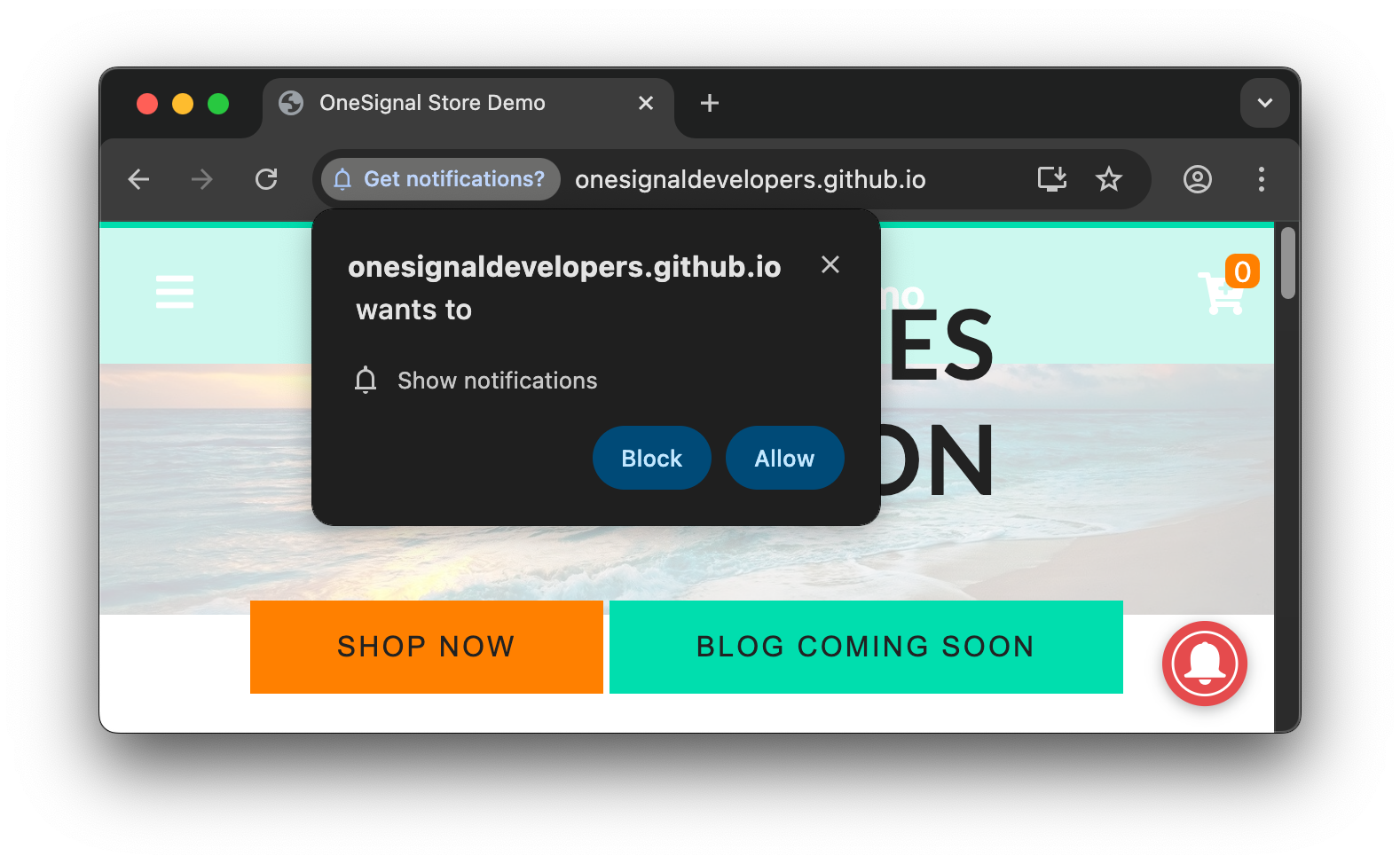 Permissions can be either:
* **Default**: permission has not been granted to denied.
* **Granted**: you allowed the website to send you notifications.
* **Denied**: you blocked the website to send you notifications. This can be a temporary block if you clicked the **x** to close the prompt repeatedly or a permanent block if you clicked **Block** or toggled off permission in the browser settings.
For more details on the native system-level permission prompt and/or any of the OneSignal prompts, see [Web permission prompts](./permission-requests).
***
## How to unsubscribe from web notifications
You can unsubscribe from web push notifications in three ways:
### Unsubscribe within browser settings
You can manage or remove notification permissions directly in browser settings. Here are quick-access URLs and official docs to learn more:
* **Chrome**: `chrome://settings/content/notifications` ([Learn more on Chrome's docs](https://support.google.com/chrome/answer/3220216?hl=en\&co=GENIE.Platform%3DDesktop\&sjid=12874758545589453111-NA))
* **Edge**: `edge://settings/content/notifications` ([Learn more on Microsoft's docs](https://www.microsoft.com/en-us/edge/learning-center/how-to-turn-off-block-browser-notifications?form=MA13I2))
* **Firefox**: `about:preferences#privacy` scroll to Permissions > Notifications > Settings ([Learn more on Mozilla's docs](https://support.mozilla.org/en-US/kb/push-notifications-firefox))
* **Safari**: Settings > Websites > Notifications ([Learn more on Safari's docs](https://support.apple.com/guide/safari/customize-website-notifications-sfri40734/16.1/mac/13.0))
On these pages, just click the options to remove or block the website(s) you don't want notifications from.
### Unsubscribe while on the website
**Reset permission**
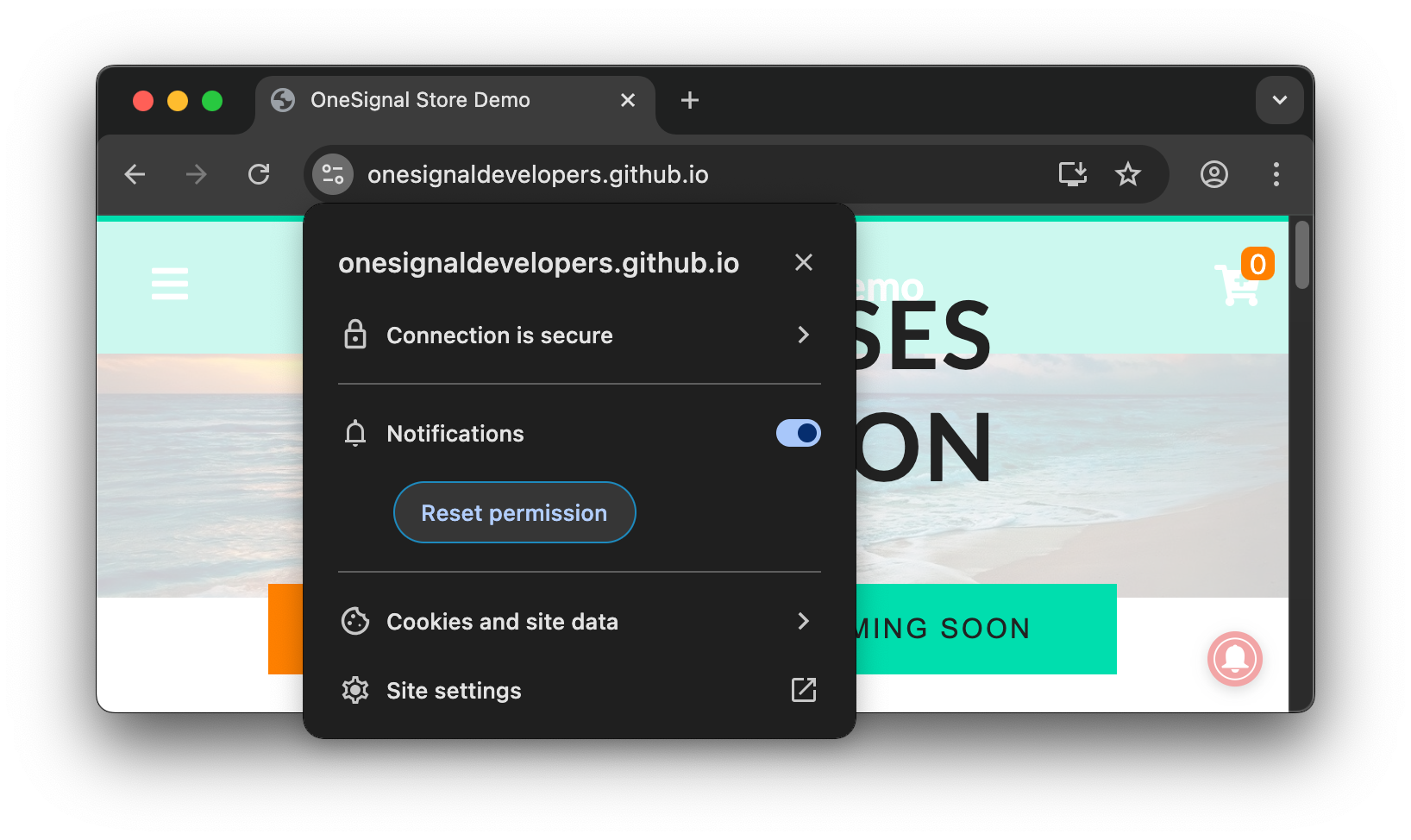
Most browsers have a "lock" or "settings" icon next to the URL. Clicking it reveals site-specific permissions where users can disable push notifications.
Permissions can be either:
* **Default**: permission has not been granted to denied.
* **Granted**: you allowed the website to send you notifications.
* **Denied**: you blocked the website to send you notifications. This can be a temporary block if you clicked the **x** to close the prompt repeatedly or a permanent block if you clicked **Block** or toggled off permission in the browser settings.
For more details on the native system-level permission prompt and/or any of the OneSignal prompts, see [Web permission prompts](./permission-requests).
***
## How to unsubscribe from web notifications
You can unsubscribe from web push notifications in three ways:
### Unsubscribe within browser settings
You can manage or remove notification permissions directly in browser settings. Here are quick-access URLs and official docs to learn more:
* **Chrome**: `chrome://settings/content/notifications` ([Learn more on Chrome's docs](https://support.google.com/chrome/answer/3220216?hl=en\&co=GENIE.Platform%3DDesktop\&sjid=12874758545589453111-NA))
* **Edge**: `edge://settings/content/notifications` ([Learn more on Microsoft's docs](https://www.microsoft.com/en-us/edge/learning-center/how-to-turn-off-block-browser-notifications?form=MA13I2))
* **Firefox**: `about:preferences#privacy` scroll to Permissions > Notifications > Settings ([Learn more on Mozilla's docs](https://support.mozilla.org/en-US/kb/push-notifications-firefox))
* **Safari**: Settings > Websites > Notifications ([Learn more on Safari's docs](https://support.apple.com/guide/safari/customize-website-notifications-sfri40734/16.1/mac/13.0))
On these pages, just click the options to remove or block the website(s) you don't want notifications from.
### Unsubscribe while on the website
**Reset permission**
Most browsers have a "lock" or "settings" icon next to the URL. Clicking it reveals site-specific permissions where users can disable push notifications.
 **OneSignal prompts**
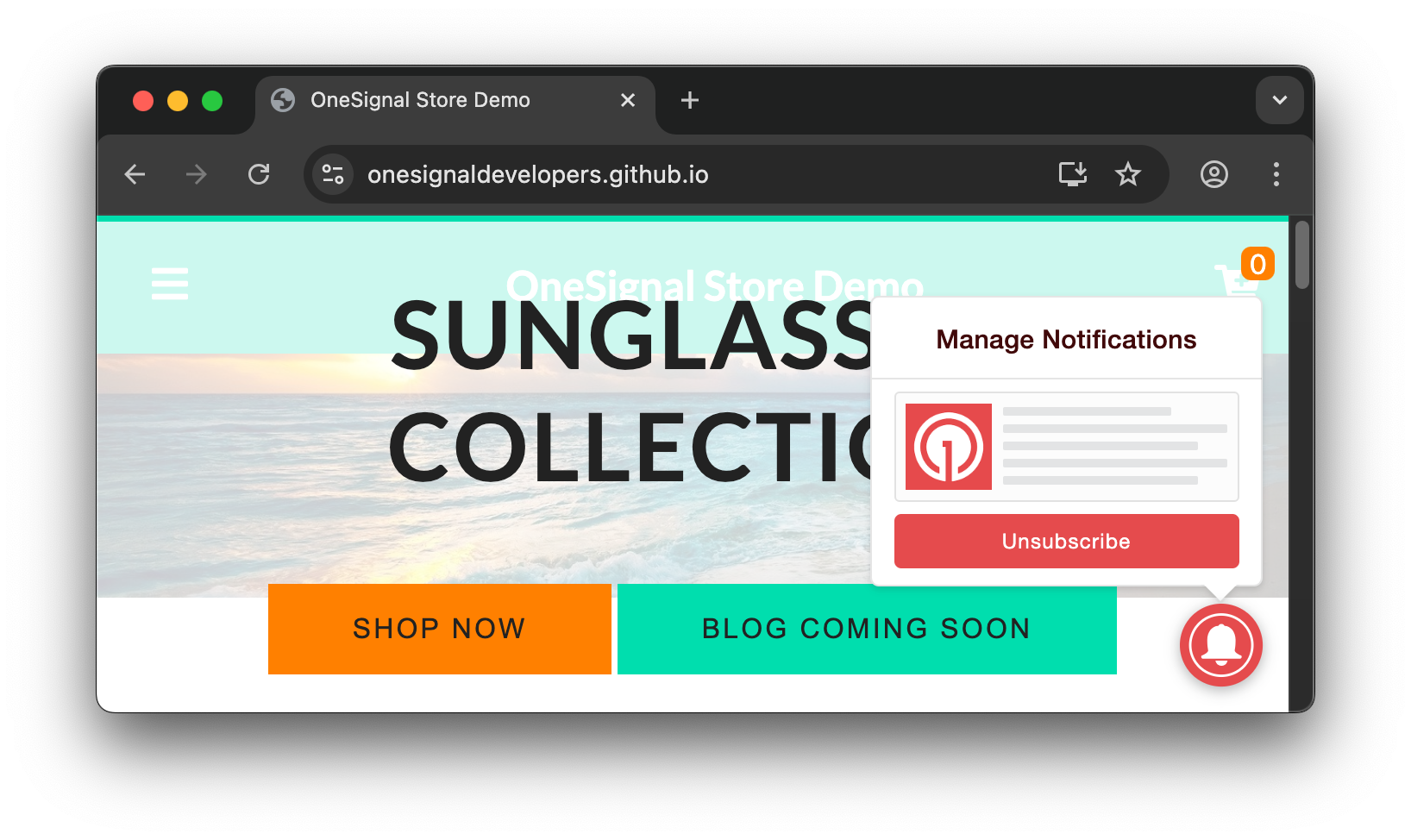
If the website contains the OneSignal [Bell Prompt](./permission-requests) or [Custom Link prompt](./permission-requests) users can unsubscribe directly via those UI elements and be able to resubscribe using the same as desired.
**OneSignal prompts**
If the website contains the OneSignal [Bell Prompt](./permission-requests) or [Custom Link prompt](./permission-requests) users can unsubscribe directly via those UI elements and be able to resubscribe using the same as desired.
 ### Deleting browser data, clearing cookies and site data
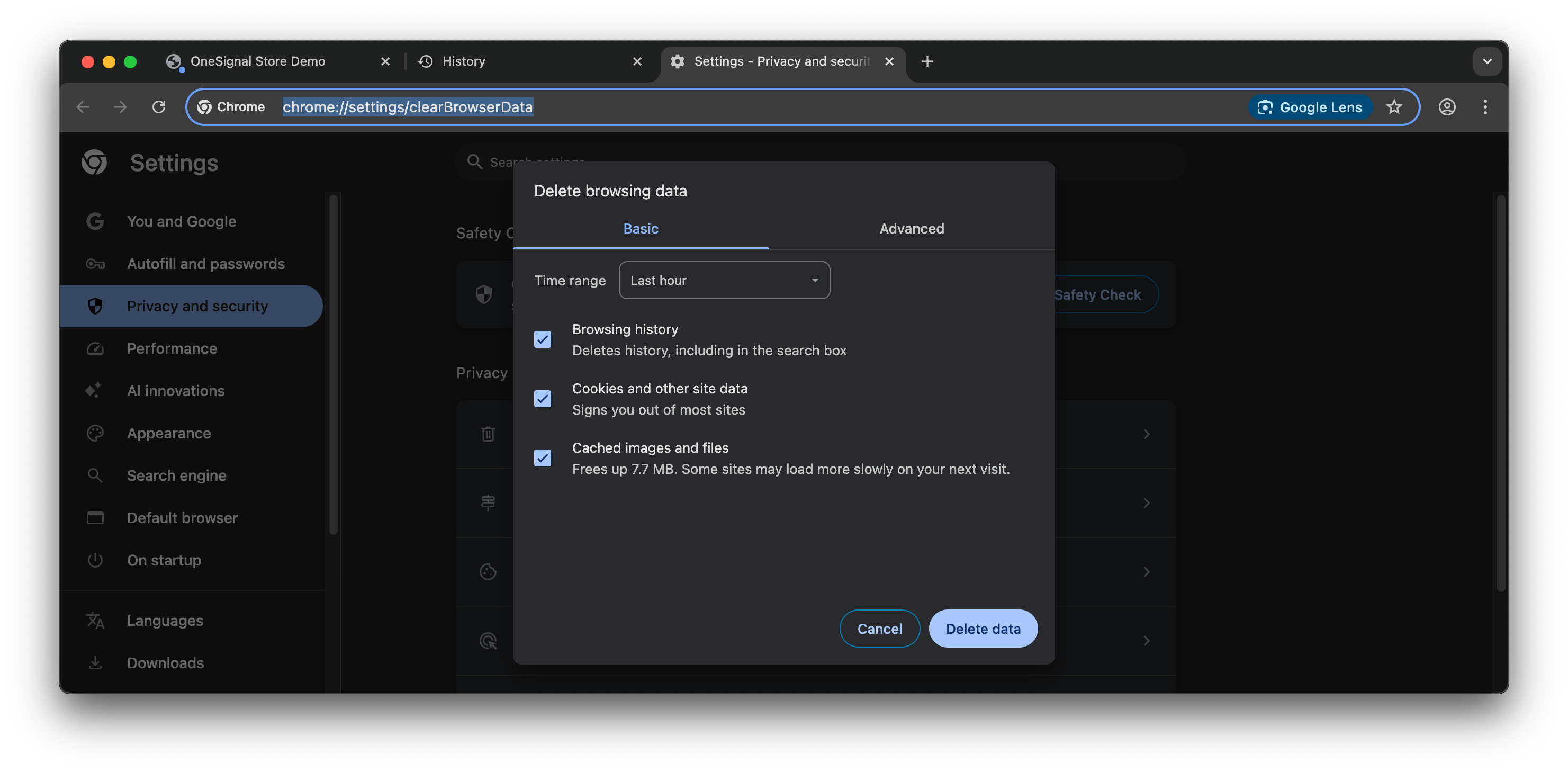
If you delete history and/or delete your cookies and site data, it will temporarily prevent notifications from showing. However, if you don't remove push permissions from the site, you may be automatically re-subscribed and start getting notifications again upon returning to the site.
### Deleting browser data, clearing cookies and site data
If you delete history and/or delete your cookies and site data, it will temporarily prevent notifications from showing. However, if you don't remove push permissions from the site, you may be automatically re-subscribed and start getting notifications again upon returning to the site.
 ***
## How to test your permission prompts
These steps explain how to test your prompt and subscription flow like a first time visitor.
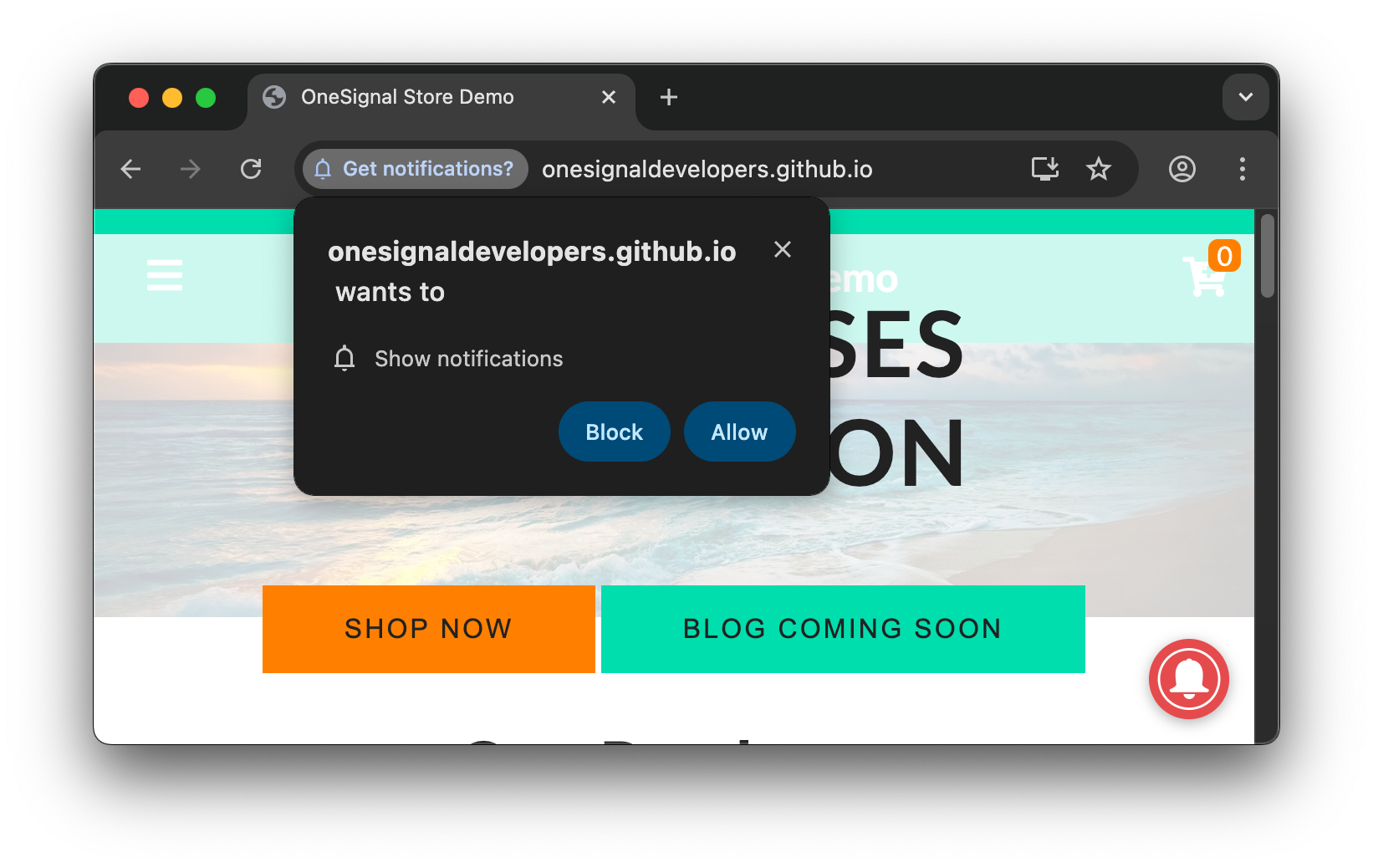
**Do not use an incognito, private, or guest browser setting.** This example uses Chrome version 135 on macOS but the flow should be relatively the same for most browsers.
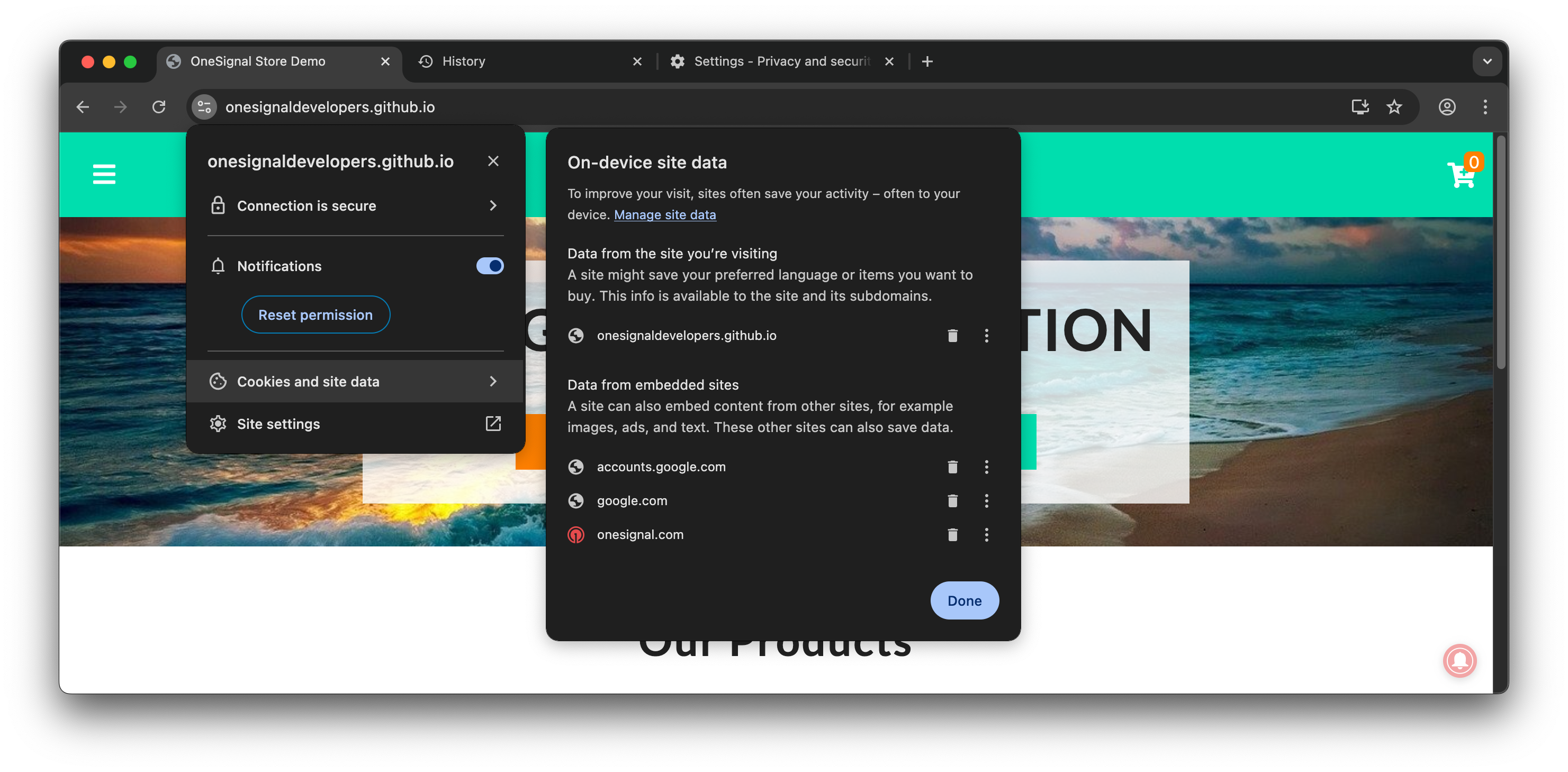
Click the site settings or lock icon next to the site URL and select **Reset permission** or remove permissions for Notifications.
Skip to the next step if you don't see this permission option.
***
## How to test your permission prompts
These steps explain how to test your prompt and subscription flow like a first time visitor.
**Do not use an incognito, private, or guest browser setting.** This example uses Chrome version 135 on macOS but the flow should be relatively the same for most browsers.
Click the site settings or lock icon next to the site URL and select **Reset permission** or remove permissions for Notifications.
Skip to the next step if you don't see this permission option.
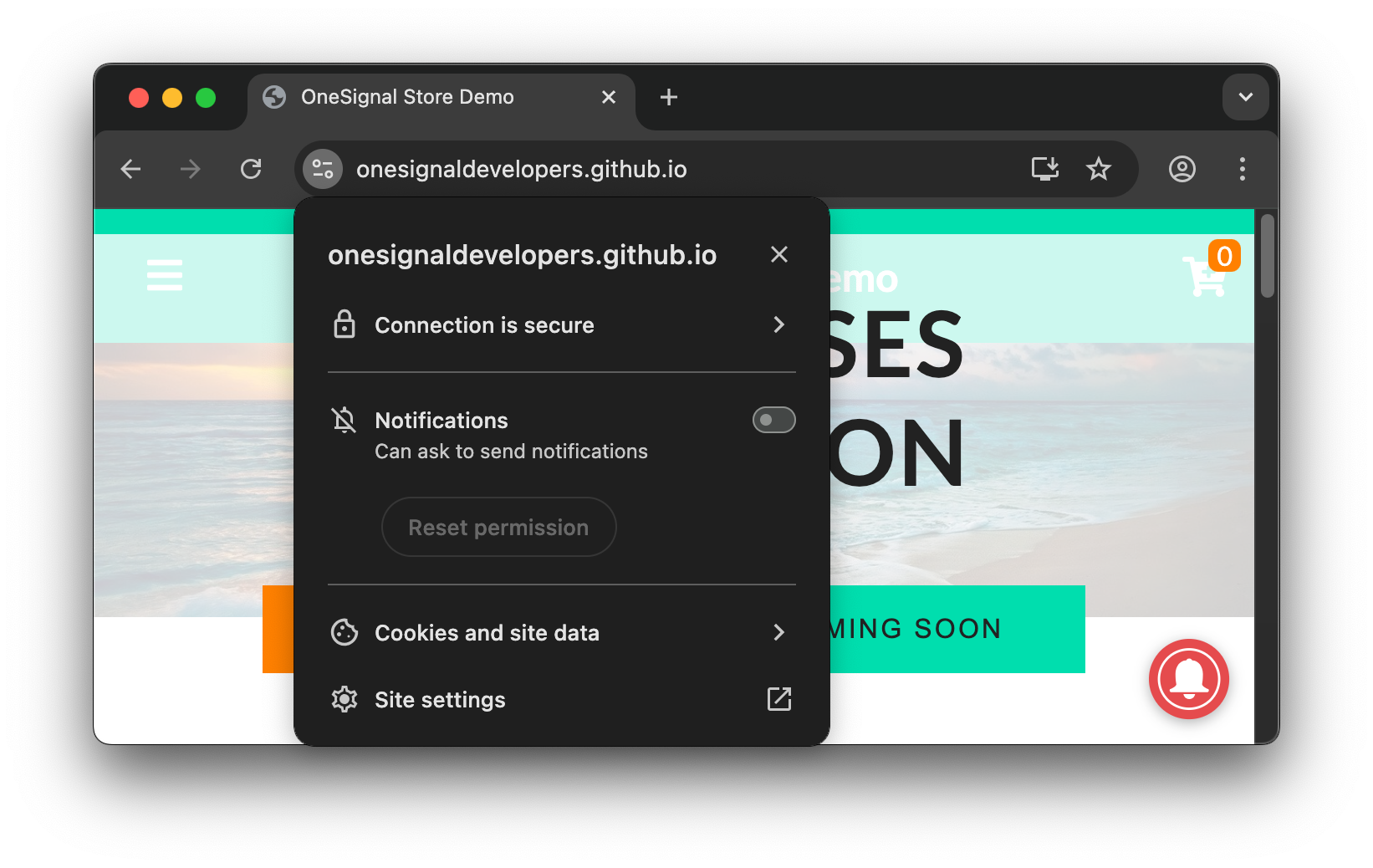 Click **Cookies and site data > Manage on-device site data** or follow the browser's flow to see your site's data option.
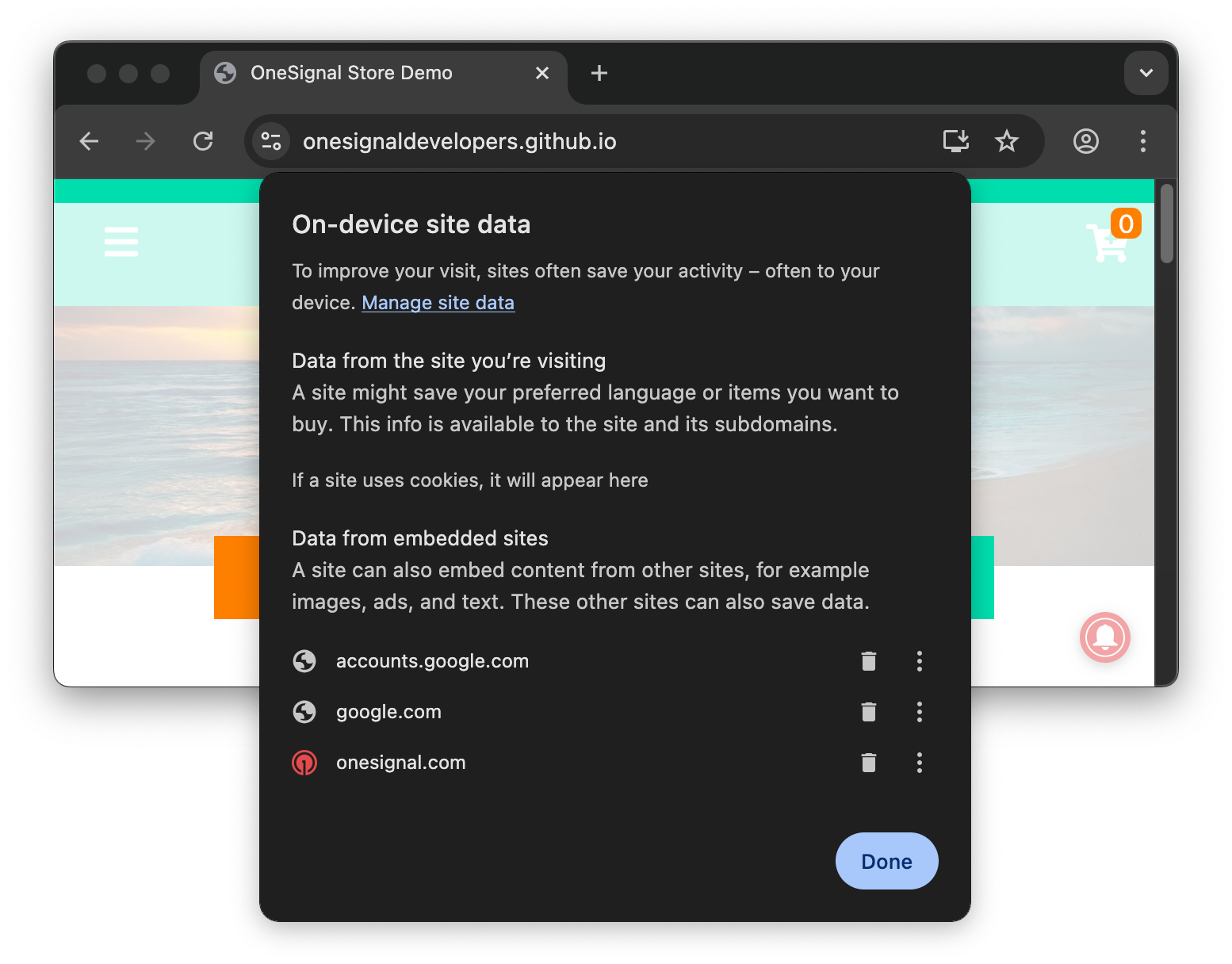
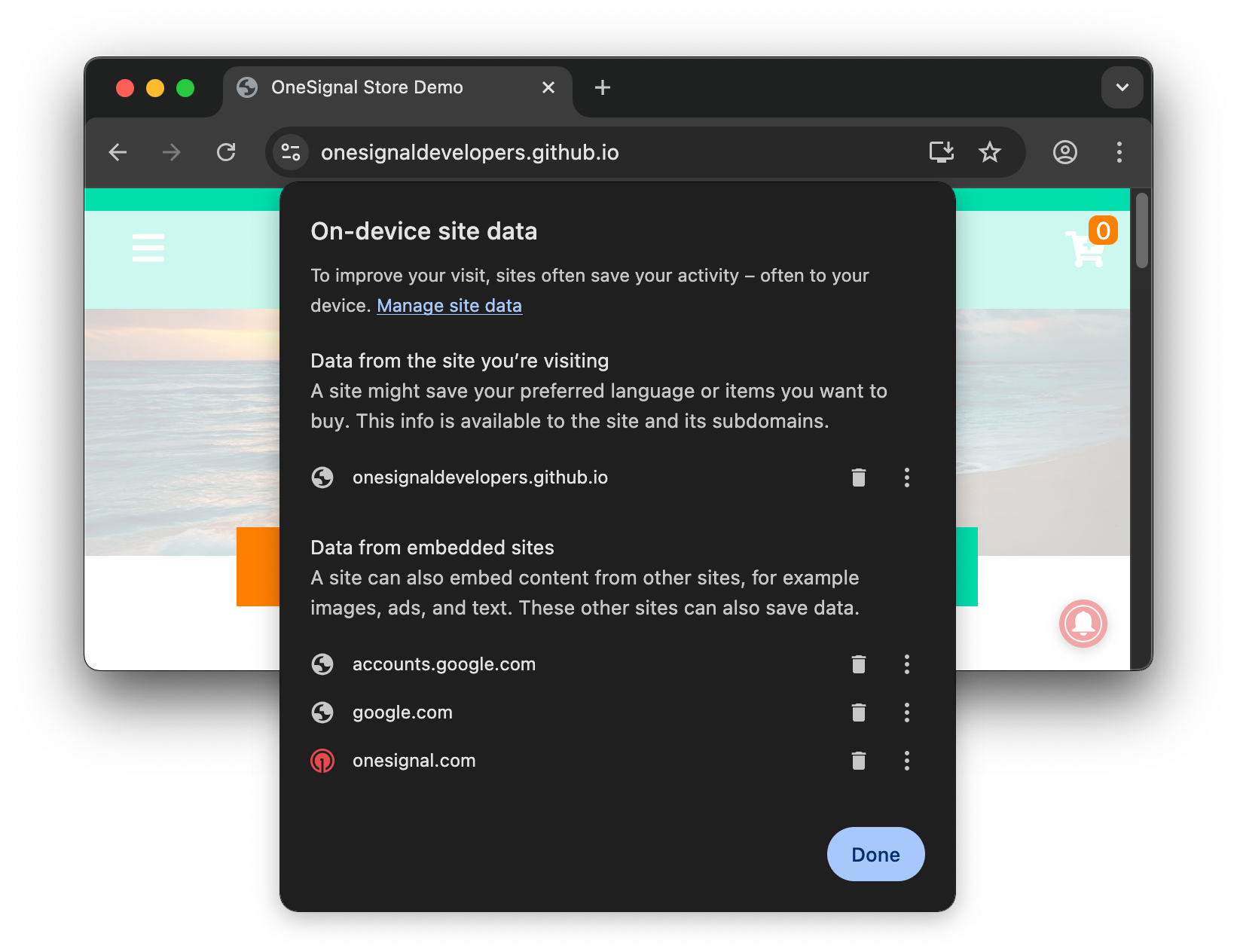 Delete the data for your site and exit the settings to get back to your site.
 Usually you can just right click the screen and press **Inspect**.
If you do not see the prompt or don't know the steps, see [Web permission prompts](./permission-requests).
Usually you can just right click the screen and press **Inspect**.
If you do not see the prompt or don't know the steps, see [Web permission prompts](./permission-requests).
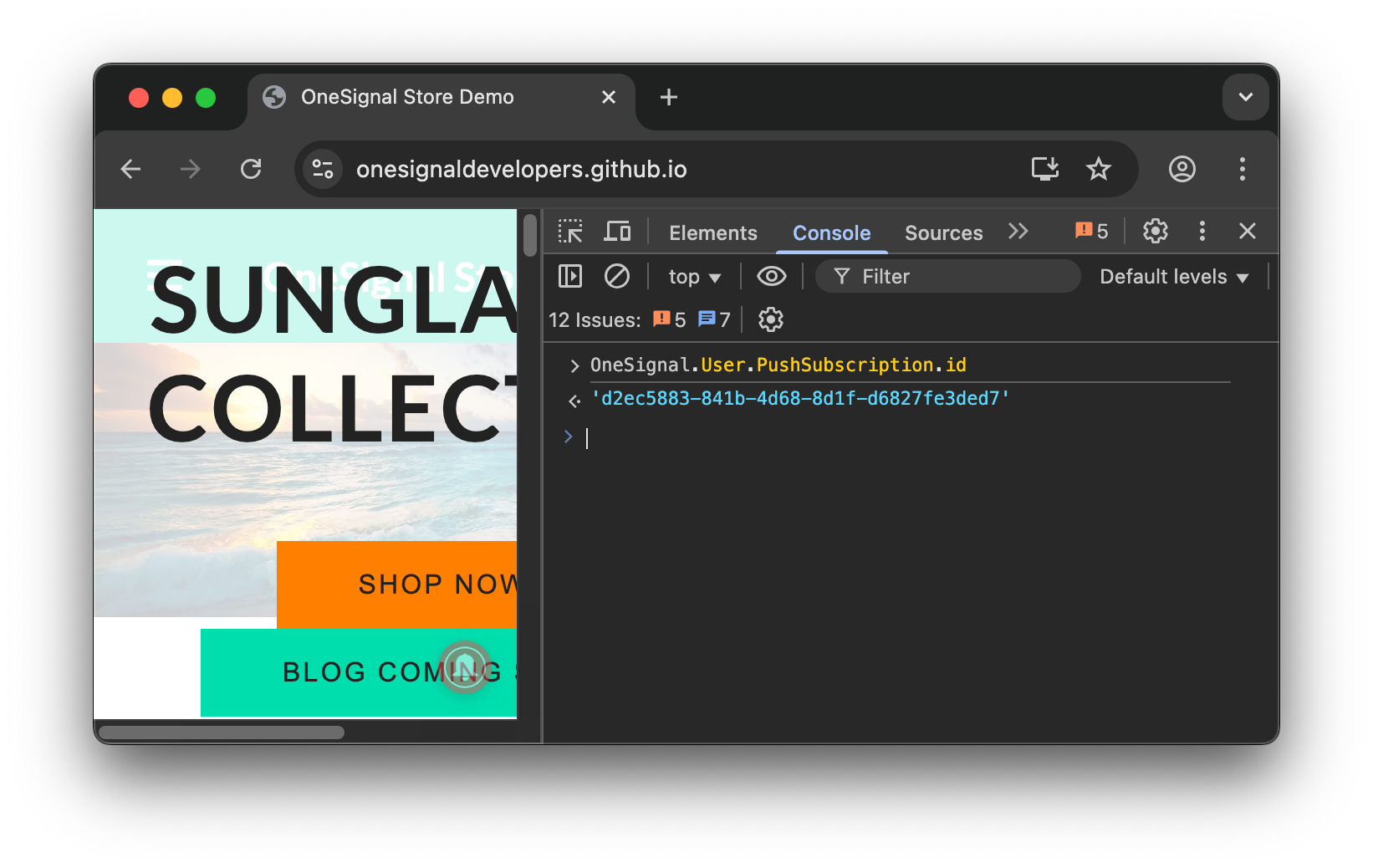
 If you see anything in red related to OneSignal, see our [Web SDK troubleshooting](./troubleshooting-web-push) docs.
In the **Console** type or copy-paste this code: `OneSignal.User.PushSubscription.id`
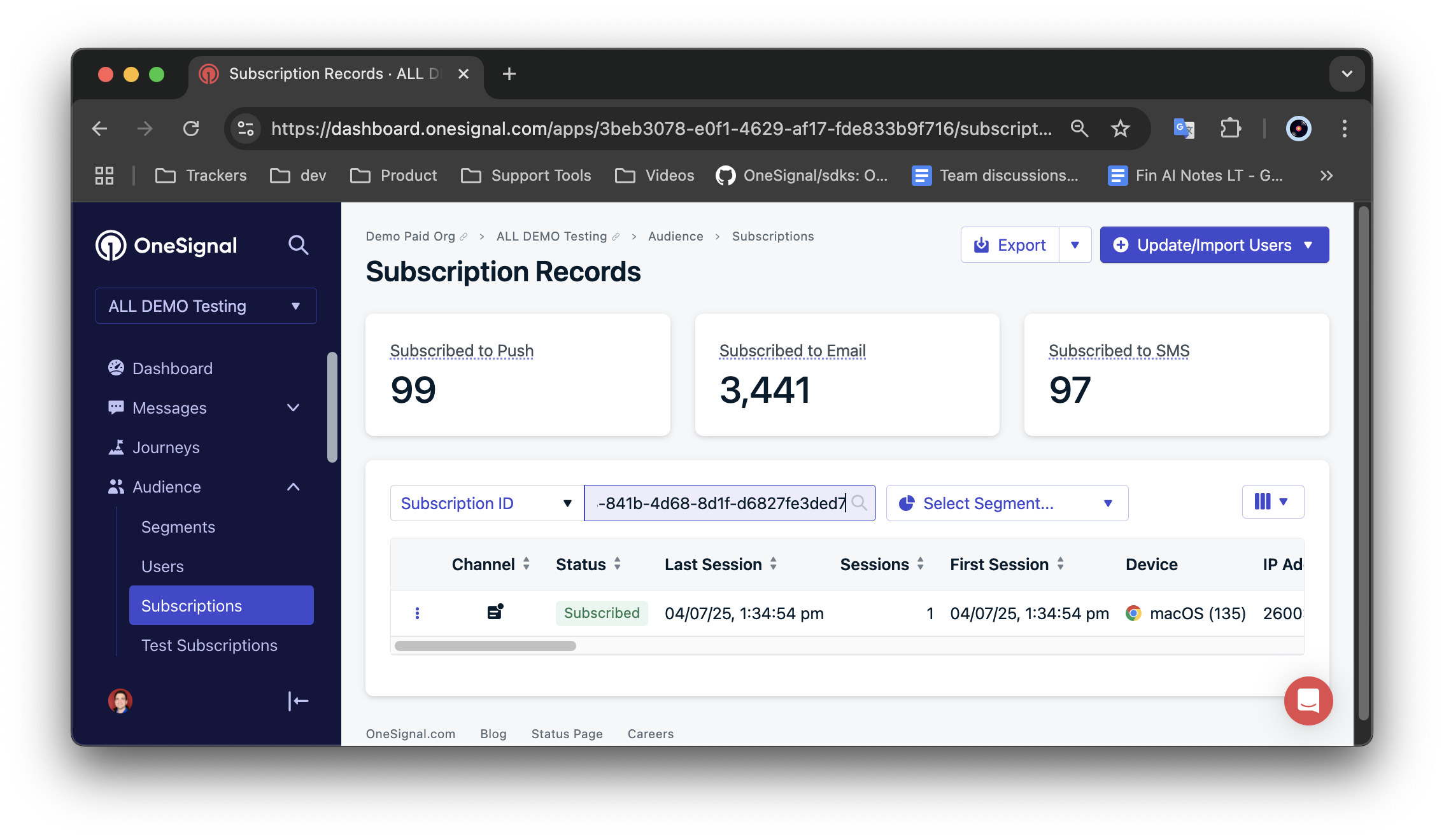
1. This will log your OneSignal subscription ID. Copy-paste this into your OneSignal Dashboard Audience > Subscriptions tab.
2. If a subscription ID was not logged in the console, then you are not successfully subscribed. Please see [Web SDK troubleshooting](./troubleshooting-web-push) for details.
If you see anything in red related to OneSignal, see our [Web SDK troubleshooting](./troubleshooting-web-push) docs.
In the **Console** type or copy-paste this code: `OneSignal.User.PushSubscription.id`
1. This will log your OneSignal subscription ID. Copy-paste this into your OneSignal Dashboard Audience > Subscriptions tab.
2. If a subscription ID was not logged in the console, then you are not successfully subscribed. Please see [Web SDK troubleshooting](./troubleshooting-web-push) for details.
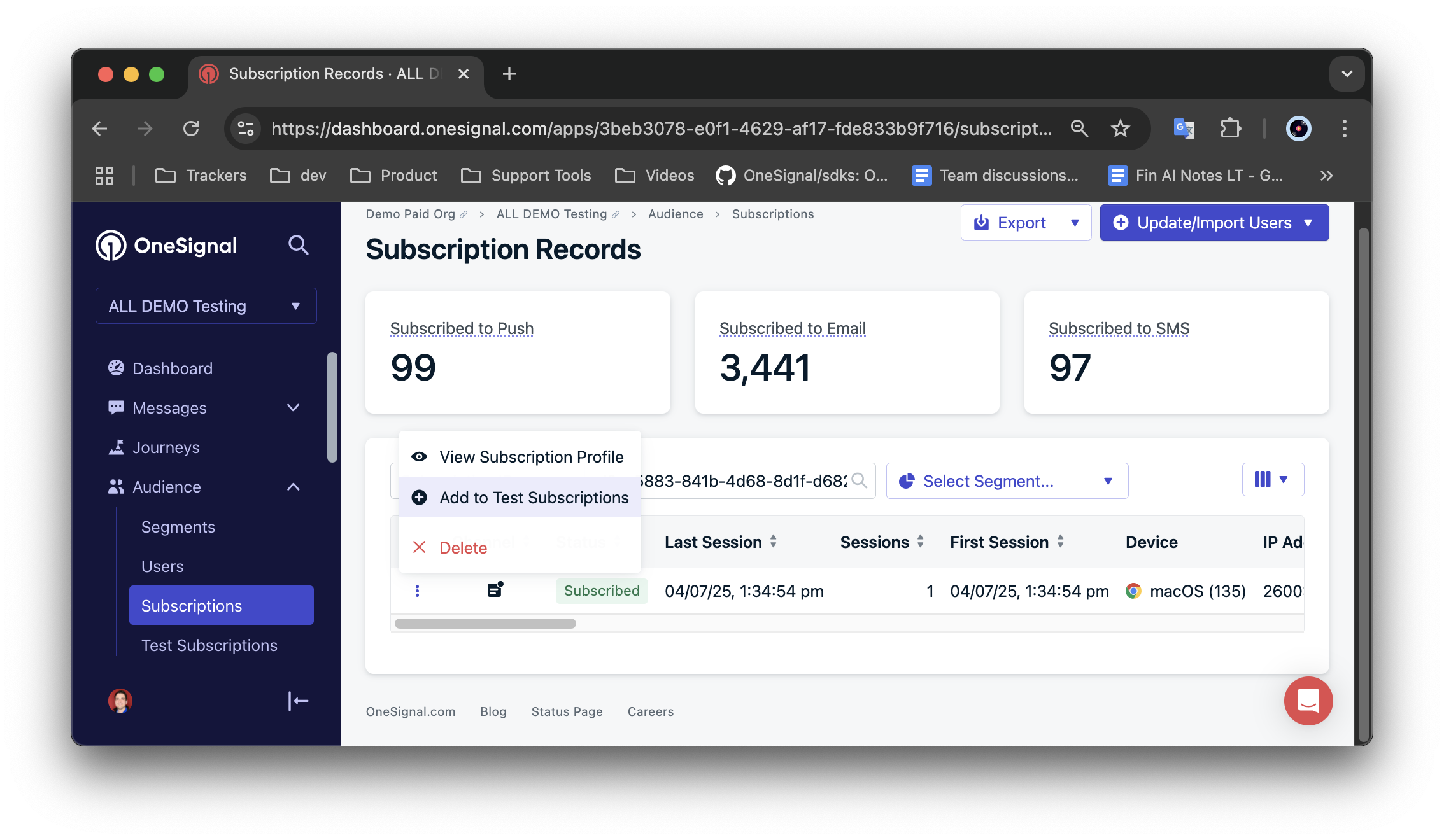 See [Push](./push) for more details if needed.
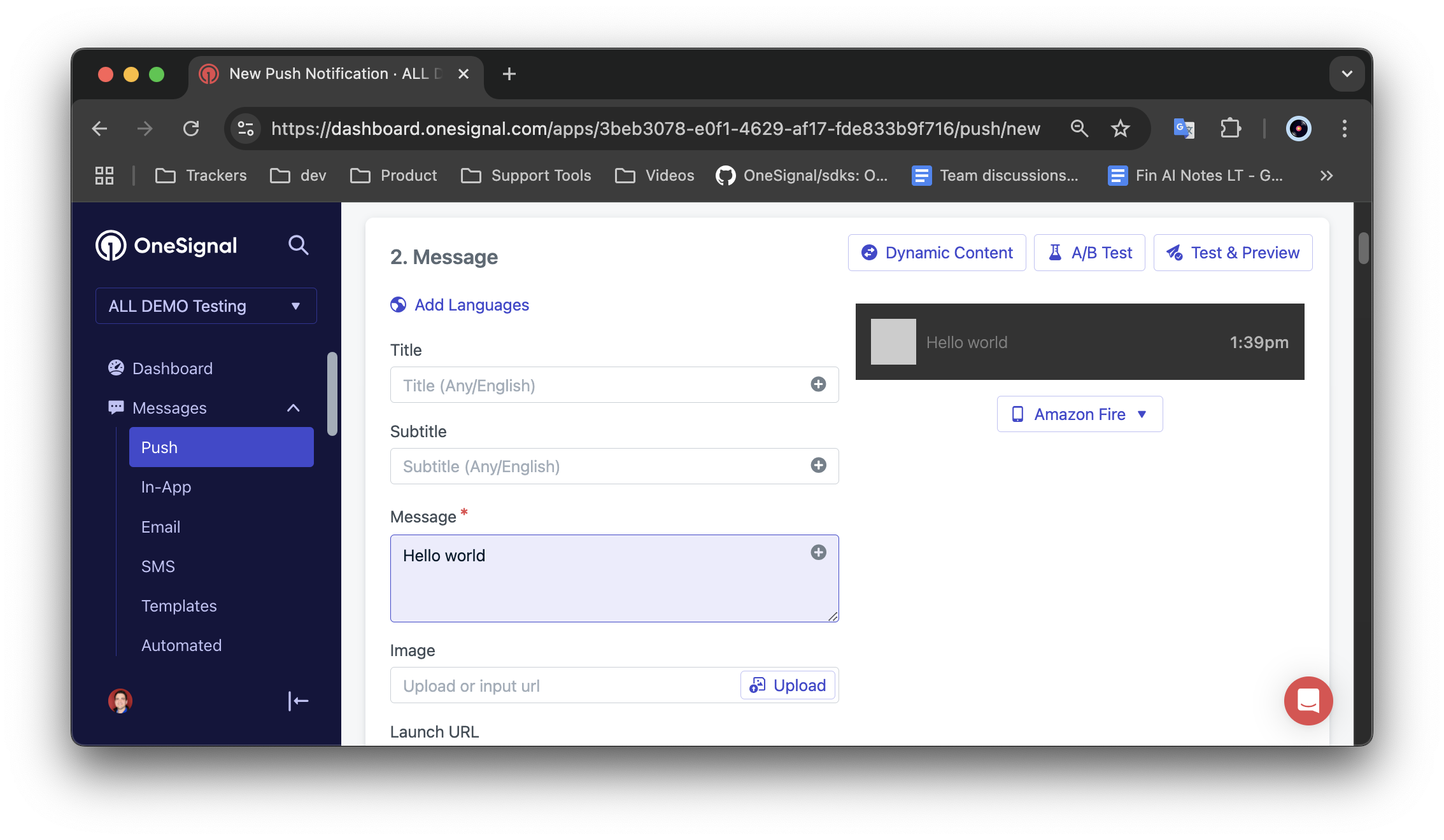
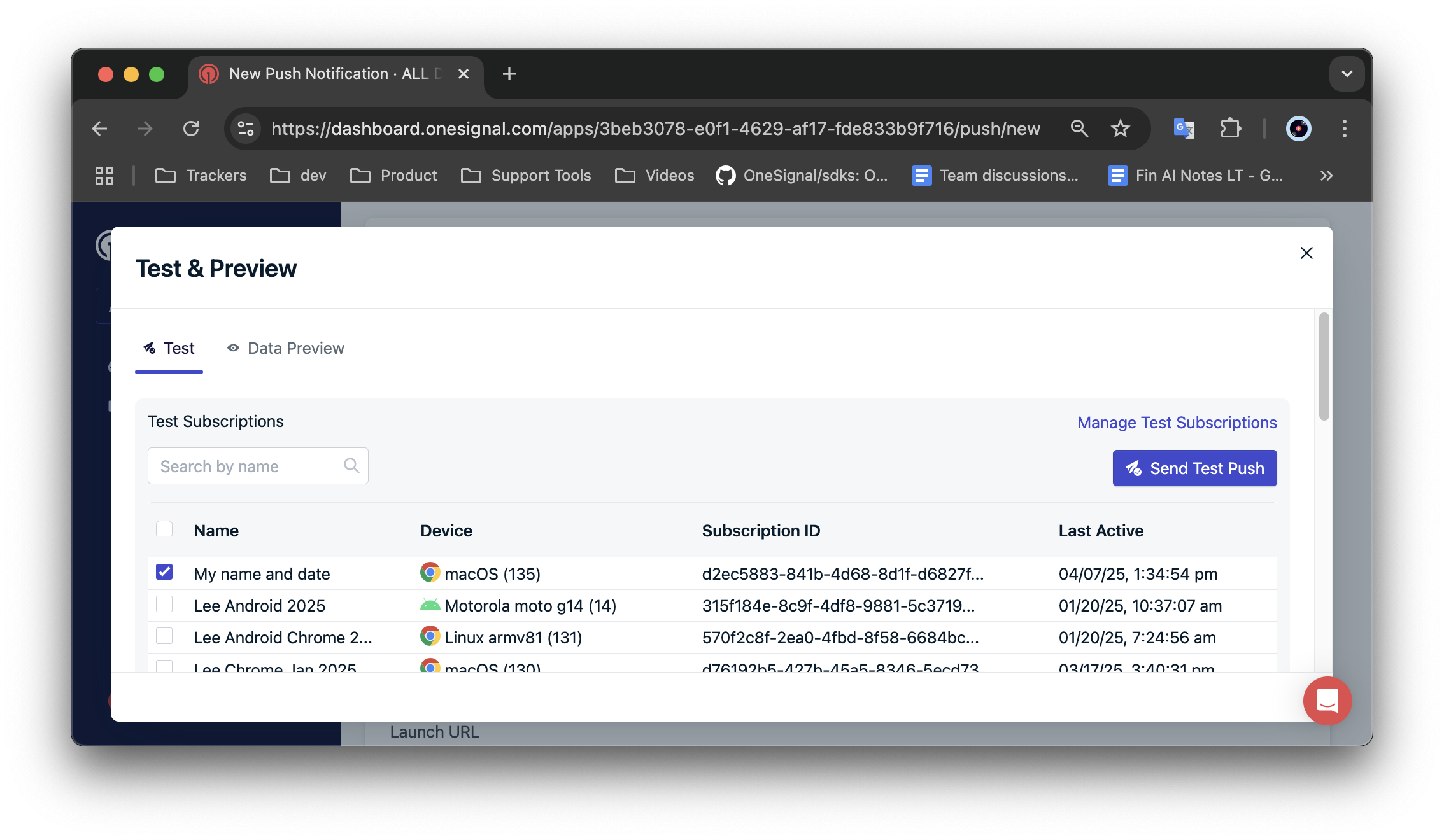 If you did not receive a push, see [Web push: Notifications not shown](./notifications-not-shown-web-push) for further debugging.
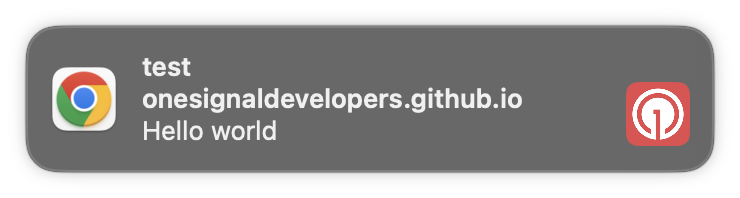 You have successfully setup web push with OneSignal. Next steps:
* [Web push setup](./web-push-setup) - additional non-developer web setup steps.
* [Web SDK setup](./web-sdk-setup) - developer web SDK setup steps.
* [Web SDK troubleshooting](./troubleshooting-web-push) - troubleshooting if you see errors in the console or not getting a subscription ID.
* [Web push: Notifications not shown](./notifications-not-shown-web-push) - troubleshooting notifications not displaying on your device.
***
### Receiving Notifications When the Browser is Closed
Browsers behave differently across platforms. Please refer to the table below for support for receiving notifications even when the browser is closed.
| Browser Name | Android | Windows | macOS |
| ----------------- | ------- | ------- | ----- |
| Chrome / Chromium | Yes | Yes | No |
| Firefox | Yes | Yes | No |
| Safari | N/A | N/A | Yes |
| Opera | Yes | Yes | No |
| Edge | Yes | Yes | No |
**Chrome** - Chrome runs as a background process by default even when all the windows are closed. As long as the background process is running, notifications will still be received. If the Chrome background process is not running, notifications will not be received.
**Firefox** - On Mac OS X, the process still exists even if windows are closed, and a notification can be received if all windows are closed (as long as there is still a dot in the dock showing Firefox is still running). On Windows, the process exits after all windows are closed so notifications cannot be received unless a Firefox window is still open.
**Safari** - Safari does not have to be running to receive notifications, as they are sent directly to the operating system. The user still has to sign up for Safari web notifications, but after that they will be received even when Safari is completely closed.
Subscribers have up to 3 days to retrieve the last known missing notification before messages expire permanently.
For example, suppose a subscriber was supposed to receive a Firefox web push notification, but Firefox was closed. If the subscriber opens Firefox within 3 days, the subscriber will receive only the last known web push notification that didn't expire. If the subscriber opens Firefox after 3 days, the web push notification sent more than 3 days ago will not be received.
***
You have successfully setup web push with OneSignal. Next steps:
* [Web push setup](./web-push-setup) - additional non-developer web setup steps.
* [Web SDK setup](./web-sdk-setup) - developer web SDK setup steps.
* [Web SDK troubleshooting](./troubleshooting-web-push) - troubleshooting if you see errors in the console or not getting a subscription ID.
* [Web push: Notifications not shown](./notifications-not-shown-web-push) - troubleshooting notifications not displaying on your device.
***
### Receiving Notifications When the Browser is Closed
Browsers behave differently across platforms. Please refer to the table below for support for receiving notifications even when the browser is closed.
| Browser Name | Android | Windows | macOS |
| ----------------- | ------- | ------- | ----- |
| Chrome / Chromium | Yes | Yes | No |
| Firefox | Yes | Yes | No |
| Safari | N/A | N/A | Yes |
| Opera | Yes | Yes | No |
| Edge | Yes | Yes | No |
**Chrome** - Chrome runs as a background process by default even when all the windows are closed. As long as the background process is running, notifications will still be received. If the Chrome background process is not running, notifications will not be received.
**Firefox** - On Mac OS X, the process still exists even if windows are closed, and a notification can be received if all windows are closed (as long as there is still a dot in the dock showing Firefox is still running). On Windows, the process exits after all windows are closed so notifications cannot be received unless a Firefox window is still open.
**Safari** - Safari does not have to be running to receive notifications, as they are sent directly to the operating system. The user still has to sign up for Safari web notifications, but after that they will be received even when Safari is completely closed.
Subscribers have up to 3 days to retrieve the last known missing notification before messages expire permanently.
For example, suppose a subscriber was supposed to receive a Firefox web push notification, but Firefox was closed. If the subscriber opens Firefox within 3 days, the subscriber will receive only the last known web push notification that didn't expire. If the subscriber opens Firefox after 3 days, the web push notification sent more than 3 days ago will not be received.
***