> ## Documentation Index
> Fetch the complete documentation index at: https://documentation.onesignal.com/llms.txt
> Use this file to discover all available pages before exploring further.
# Getting a Debug Log
> Learn how to capture detailed debug logs from your mobile app using the OneSignal SDK. This guide walks through enabling verbose logging, reproducing issues, and sharing logs for troubleshooting push notification issues across Android and iOS platforms.
Capturing a debug log is the most effective way to troubleshoot mobile SDK and push notification issues. This guide will help you generate debug logs for your iOS and Android app and share logs with our Support Team if needed.
## Requirements
To capture a debug log, make sure you have:
* A device that can reproduce the issue
* Access to the app's developer tools
* OneSignal Mobile SDK version **5.0.0 or higher**
If you're using an earlier SDK version, refer to [Version 9.0
docs](/v9.0/docs/capturing-a-debug-log) for instructions.
## Step-by-step instructions
### 1. Enable verbose logging
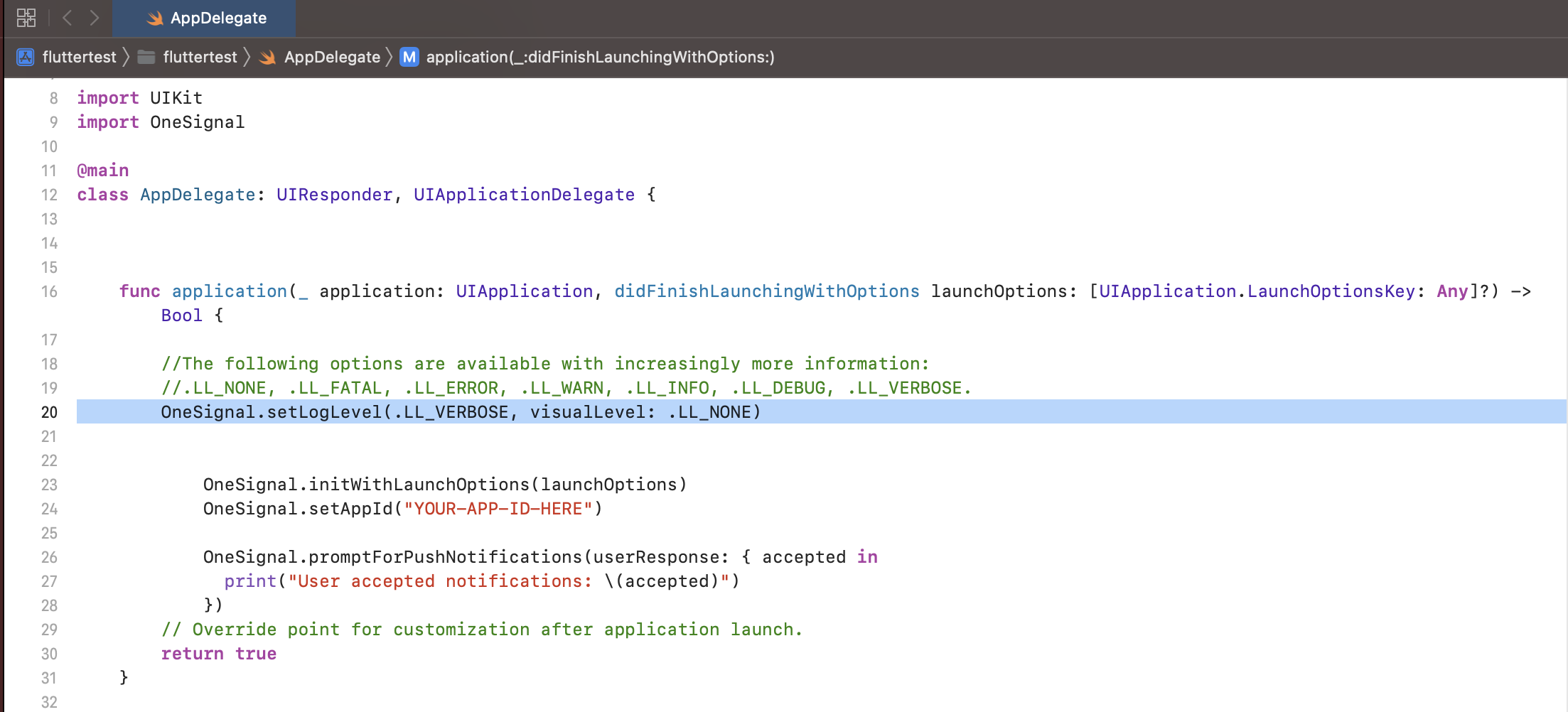
Add the `VERBOSE` log level call to your app **before** initializing the OneSignal SDK. This ensures detailed diagnostic information is captured for every OneSignal operation.
```Java Java theme={null}
// LogLevel: NONE | FATAL | ERROR | WARN | INFO | DEBUG | VERBOSE
OneSignal.getDebug().setLogLevel(OneSignal.LOG_LEVEL.VERBOSE);
```
```Kotlin Kotlin theme={null}
// LogLevel: .None | .Fatal | .Error | .Warn | .Info | .Debug | .Verbose
OneSignal.Debug.logLevel = LogLevel.Verbose
```
```objectivec Objective-C theme={null}
// LogLevel: ONE_S_LL_NONE | ONE_S_LL_FATAL | ONE_S_LL_ERROR | ONE_S_LL_WARN | ONE_S_LL_INFO | ONE_S_LL_DEBUG | ONE_S_LL_VERBOSE
[OneSignal.Debug setLogLevel:ONE_S_LL_VERBOSE];
```
```Swift Swift theme={null}
OneSignal.Debug.setLogLevel(.LL_VERBOSE)
```
```csharp C# theme={null}
// LogLevel: None | Fatal | Error | Warn | Info | Debug | Verbose
OneSignal.Debug.LogLevel = LogLevel.Verbose;
```
```javascript React Native theme={null}
OneSignal.Debug.setLogLevel(6);
```
```Text Flutter theme={null}
OneSignal.Debug.setLogLevel(OSLogLevel.verbose);
```
```javascript Cordova/Ionic theme={null}
// 0 = None, 1 = Fatal, 2 = Errors, 3 = Warnings, 4 = Info, 5 = Debug, 6 = Verbose
window.plugins.OneSignal.Debug.setLogLevel(6);
```
Set the log level *before* calling `OneSignal.init` to ensure all SDK activity
is logged.
### 2. Reproduce the issue
With verbose logging enabled, reproduce the issue on a physical device or emulator connected to Android Studio or Xcode.
### 3. Capture and Share the Logs
Once the issue is reproduced, review the logs to see if it helps diagnose the issue.
If you need assistance, copy-paste the entire log from start to end and send them to OneSignal Support as a `.txt` file.
Include all relevant reproduction steps, screenshots, and other details.
#### Platform-specific instructions
### Android Studio
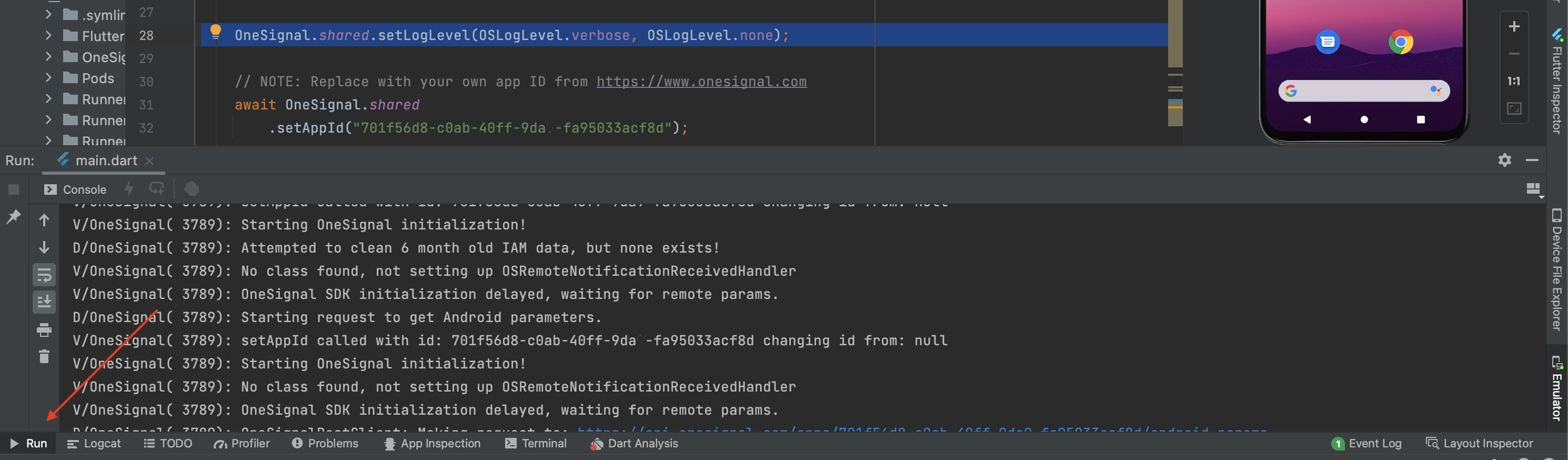
1. Open the Run tab in the bottom panel. (If not visible, go to **View > Tool Windows > Run**)
2. Run the app on a connected device or emulator.
3. Reproduce the issue.
4. Select all log output (` Ctrl + A` or `Cmd + A`) and copy it.
5. Paste it into a `.txt` file.
6. Send the file to OneSignal Support with steps to reproduce.
📎 [Sample Log (Google Drive)](https://drive.google.com/file/d/1XphR4u4CRtUO37X6VZzzeyLUhq5pRMYw/view?usp=sharing)
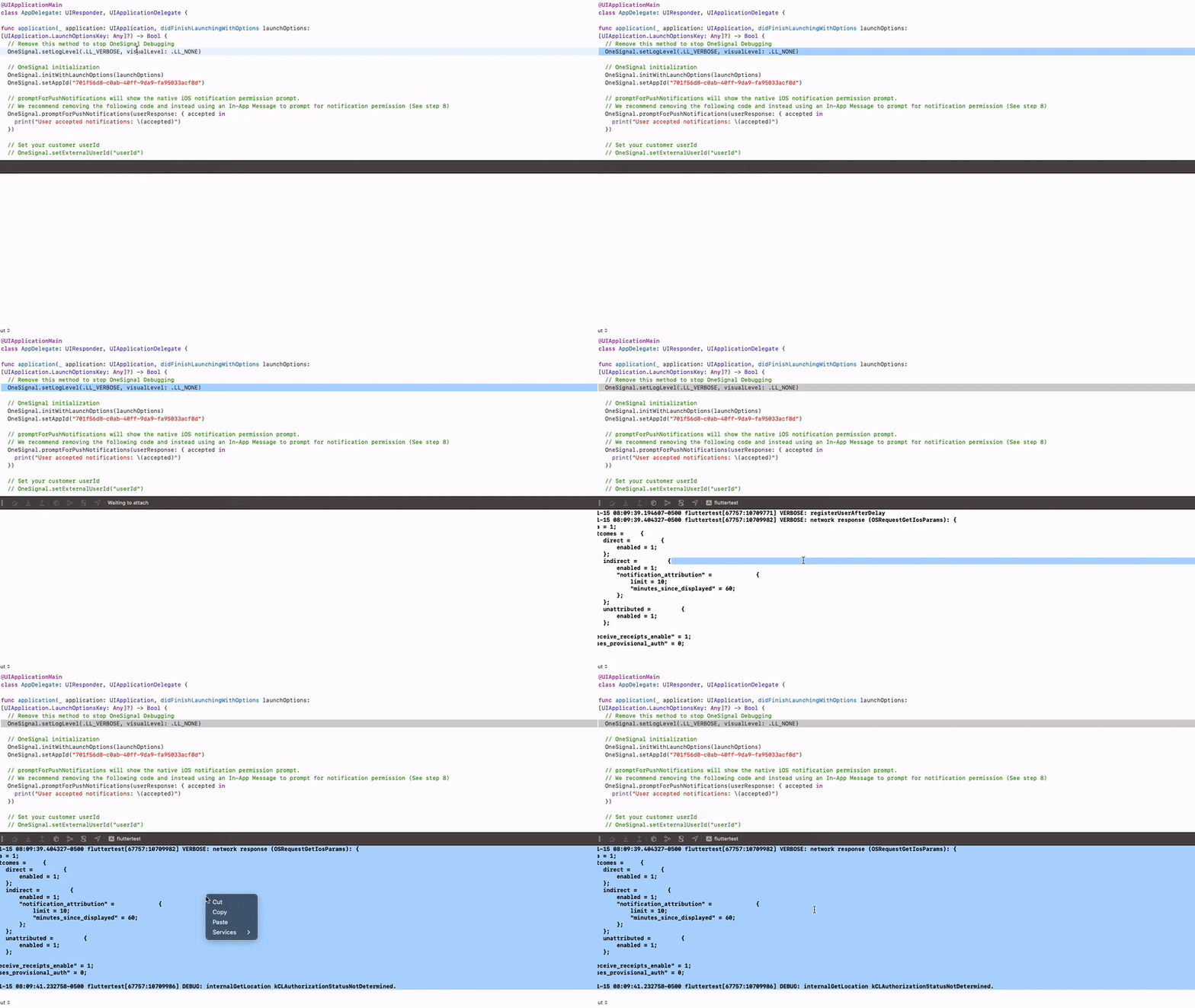
### Xcode
**Important:** Crashes must occur while the device is **not connected** to
your Mac. Plug it in **after** reproducing the crash.
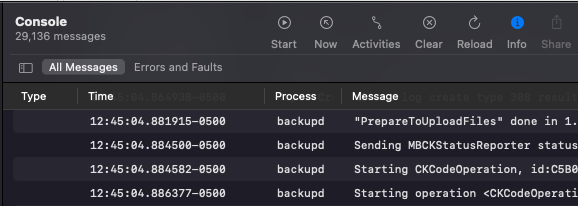
1. Open **Window > Devices and Simulators** in Xcode.
2. Select your device and click **Open Console**.
3. Filter by **All Messages** in the dropdown.
4. Reproduce the issue.
5. Select all output (`Cmd + A`) and copy (`Cmd + C`).
6. Paste into a `.txt` file.
7. Send the file to OneSignal Support with steps to reproduce.
#### Advanced use cases
If your app encounters issues while running in the background, or if you cannot attach a debugger, you can enable offline logging to capture logs directly on the device.
To enable offline logging, add the following code before initializing the OneSignal SDK
```Swift AppDelegate theme={null}
import Darwin
import os.Log
// ... rest of imports
extension OSLog {
private static var subsystem = Bundle.main.bundleIdentifier!
static let test = OSLog(subsystem: subsystem, category: "Test")
}
class AppDelegate: UIResponder, UIApplicationDelegate {
func application(_ application: UIApplication, didFinishLaunchingWithOptions launchOptions: [UIApplication.LaunchOptionsKey: Any]? = nil) -> Bool {
/* LOGGING REDIRECT */
if true { // if no terminal is attached to stderr
let documentsUrl = FileManager.default.urls(for: .documentDirectory, in: .userDomainMask).first!
let logfileUrl = documentsUrl.appendingPathComponent("out.log")
logfileUrl.withUnsafeFileSystemRepresentation { path in
guard let path = path else {
return
}
print("redirect stderr and stderr to: \(String(cString: path))")
let file = fopen(path, "a")
assert(file != nil, String(cString: strerror(errno)))
let fd = fileno(file)
assert(fd >= 0, String(cString: strerror(errno)))
let result1 = dup2(fd, STDERR_FILENO)
assert(result1 >= 0, String(cString: strerror(errno)))
let result2 = dup2(fd, STDOUT_FILENO)
assert(result2 >= 0, String(cString: strerror(errno)))
os_log("* os_log: Test", log: OSLog.test, type: .debug)
print("* print: Test")
NSLog("* NSLog: Test")
}
}
// ... OneSignal initialization and any existing code
/* LOGGING CALL */
os_log("os_log: Test", log: OSLog.test, type: .debug)
print("print: Test")
NSLog("NSLog: Test")
return true
}
}
```
Run the app on the device with the new code added, ideally just before reproducing the issue to reduce the amount of logged output
Plug the device into your computer and open Xcode.
Navigate to "Window → Devices and Simulators" and click on the name of the app you added the logging to.
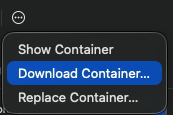
Click the settings icon and select "Download Container".
You should now have access to the folder where you've chosen to download it, and inside of the /Documents folder, you'll see the "out.log" file containing the logs captured while offline.
***
 ### 3. Capture and Share the Logs
Once the issue is reproduced, review the logs to see if it helps diagnose the issue.
If you need assistance, copy-paste the entire log from start to end and send them to OneSignal Support as a `.txt` file.
Include all relevant reproduction steps, screenshots, and other details.
### 3. Capture and Share the Logs
Once the issue is reproduced, review the logs to see if it helps diagnose the issue.
If you need assistance, copy-paste the entire log from start to end and send them to OneSignal Support as a `.txt` file.
Include all relevant reproduction steps, screenshots, and other details.
 #### Platform-specific instructions