> ## Documentation Index
> Fetch the complete documentation index at: https://documentation.onesignal.com/llms.txt
> Use this file to discover all available pages before exploring further.
# Confirmed receipt
> Confirmed receipt tracks when a device receives a push notification sent through OneSignal. Covers requirements, platform limitations, and troubleshooting for iOS, Android, Huawei, and Web.
Confirmed receipt (also known as "Confirmed Delivery") tracks when a device actually **receives** a push notification sent from OneSignal. When the OneSignal SDK on the device receives a push, it sends a **confirmation receipt** back to OneSignal containing the notification ID and the device's [Subscription ID](./subscriptions). This lets you see exactly which Subscriptions received which notifications.
In your OneSignal Dashboard, "Confirmed receipt" appears in the [Push Notification Message Reports](./push-notification-message-reports). For all delivery and engagement metrics, see the [Analytics Metrics Glossary](./analytics-metrics-glossary).
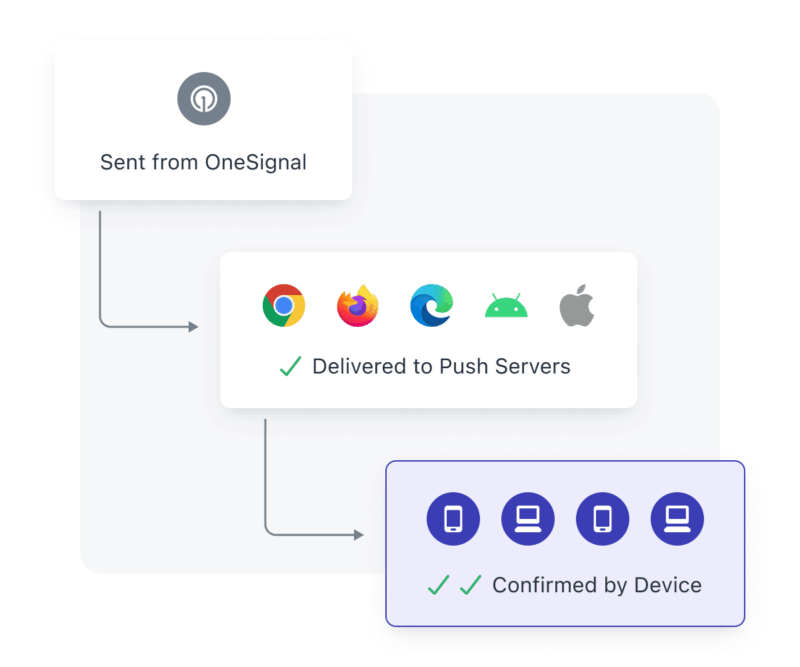 Confirmed receipt is different from "Delivered." Platform push services (APNs, FCM, ADM, HMS) report whether a notification was accepted by the service — not whether the device actually received it. Confirmed receipt is the device-side confirmation.
***
## Requirements
* Available only on **paid plans**. [Compare plans](https://onesignal.com/pricing).
* Complete the [Web SDK Setup](./web-sdk-setup) and/or [Mobile SDK Setup](./mobile-sdk-setup).
* Confirmed receipt only works if the device has the OneSignal SDK installed.
* **Not supported** for subscriptions created via API only.
### Platform limitations
#### iOS
* Requires both the **Notification Service Extension** and **App Group** to be set up correctly.
* Push notifications must include the `mutable-content` key set to `1`. This is set automatically by OneSignal. Make sure you are not explicitly setting `mutable_content: false`.
* APNs keeps only **one message per app** when offline. If multiple pushes are sent while offline, only the latest is delivered.
#### Huawei
* Supported only for the `data` [Huawei message type](/reference/push-notification#body-huawei-msg-type).
* For the `message` type, Huawei provides receipt data only in their own dashboard.
#### Web
* Safari does **not** support confirmed receipt.
***
## Troubleshooting confirmed receipt
If you are not receiving push notifications at all, see [Notifications not showing](./notifications-show-successful-but-are-not-being-shown) first.
### iOS
Confirmed receipt on iOS requires two things working together:
1. A **Notification Service Extension** (NSE) that runs OneSignal code when a push arrives
2. An **App Group** shared between your main app target and the NSE target so they can exchange data
If either is missing or misconfigured, the device receives the push but never reports it back to OneSignal.
#### Verify your iOS setup
In Xcode, check that you have a **OneSignalNotificationServiceExtension** target listed under your project targets. If it does not exist, follow [Step 2 of the iOS SDK Setup](./ios-sdk-setup#step-2-add-a-notification-service-extension-nse).
Open the NSE's `NotificationService.swift` (or `.m`) file. It must call `OneSignalExtension.didReceiveNotificationExtensionRequest` inside `didReceive(_:withContentHandler:)`. If the file still contains Apple's default template code, replace it with the [OneSignal NSE code](./ios-sdk-setup#step-2-add-a-notification-service-extension-nse).
Select your **NSE target > General > Frameworks and Libraries** (or **Build Phases > Link Binary With Libraries**). Verify that `OneSignalExtension` is listed. The main app target uses `OneSignalFramework`, but the NSE target must use `OneSignalExtension` — these are different packages.
The OneSignal SDK uses an App Group to share data between your main app and the NSE. There are two ways to configure this — pick the one that matches your setup.
1. Select your **main app target > Signing & Capabilities > App Groups**.
2. Confirm the App Group.
If your App Group is `group.YOUR_MAIN_APP_BUNDLE_ID.onesignal` — where `YOUR_MAIN_APP_BUNDLE_ID` is your main app target's Bundle Identifier (found under **General > Identity**), then follow the Default App Group tab. Otherwise, follow the Custom App Group tab.
1. Select your **NSE target > Signing & Capabilities > App Groups**.
2. Confirm the **exact same** App Group is listed. If missing, add it via **+ Capability > App Groups** and select the same group.
A common mistake is using the NSE's bundle identifier instead of the main app's:
* **Correct:** `group.YOUR_MAIN_APP_BUNDLE_ID.onesignal`
* **Wrong:** `group.YOUR_MAIN_APP_BUNDLE_ID.OneSignalNotificationServiceExtension.onesignal`
Your main app target and NSE target should have the same App Group identifier.
Use this option if your App Group identifier does not follow the `group.YOUR_MAIN_APP_BUNDLE_ID.onesignal` format.
1. Select your **main app target > Signing & Capabilities > App Groups**.
2. Confirm your custom App Group is listed.
3. Select the `Info.plist` of your main app target and add the following key:
```xml theme={null}
OneSignal_app_groups_key
group.your-custom-group-name
```
Replace `group.your-custom-group-name` with your actual App Group name.
4. Select your **NSE target > Signing & Capabilities > App Groups**.
5. Confirm the **exact same** custom App Group is listed. If missing, add it via **+ Capability > App Groups** and select the same group.
6. Select the `Info.plist` of your NSE target and add the following key:
```xml theme={null}
OneSignal_app_groups_key
group.your-custom-group-name
```
Replace `group.your-custom-group-name` with your actual App Group name.
Your main app target and NSE target should have the same App Group identifier.
If you use `.xcconfig` files for build settings, verify the App Group is not being overridden or omitted in those files.
Select your **NSE target > General > Minimum Deployments**. This value must match your main app target's minimum deployment. A mismatch can prevent the NSE from running on certain OS versions.
Select your **main app target > Build Phases > Embed App Extensions**. Make sure **"Copy only when installing" is unchecked**. If checked, the NSE is not embedded during development builds, so it never runs when testing.
Select your **NSE target > Info** tab and expand the `NSExtension` key. Confirm it contains:
```xml theme={null}
NSExtensionPointIdentifier
com.apple.usernotifications.service
NSExtensionPrincipalClass
$(PRODUCT_MODULE_NAME).NotificationService
```
If your NSE is written in Objective-C, use `NotificationService` instead of `$(PRODUCT_MODULE_NAME).NotificationService`.
OneSignal automatically sets `mutable-content: 1` in the push payload, which tells iOS to invoke the NSE. If you send pushes via the [REST API](/reference/push-notification), verify you are not explicitly setting `mutable_content: false`. Without `mutable-content`, iOS does not run the NSE and confirmed receipt cannot fire.
Add this line temporarily inside `didReceive` before the OneSignal call:
```swift theme={null}
bestAttemptContent.body = "[Modified] " + bestAttemptContent.body
```
Send yourself a test push. If the notification body starts with `[Modified]`, the NSE is running correctly. If it does not, revisit the steps above — the NSE is not being invoked. Remove this line after testing.
For advanced NSE debugging with Xcode Console logs, see [Debugging the iOS Notification Service Extension](./service-extensions#debugging-the-ios-notification-service-extension).
### Android
* If notifications are not displaying, see [Mobile push troubleshooting](./notifications-show-successful-but-are-not-being-shown).
* If notifications show but confirmed receipt is missing, a custom Android Service Extension may be blocking it. Check the [Android Service Extension guide](./service-extensions#android-service-extension).
### Web
* Safari is not supported.
* For other browsers, ensure migration to **v16 SDK** is complete:
* Correct SDK init:
```html theme={null}
```
* Correct Service Worker reference:
```html theme={null}
importScripts("https://cdn.onesignal.com/sdks/web/v16/OneSignalSDK.sw.js");
```
***
## FAQ
### Why are my confirmed receipt numbers low or missing?
The most common causes are setup issues (especially on iOS), inactive devices, and platform limitations.
1. **iOS misconfiguration:** The Notification Service Extension or App Group is missing or incorrect. See [Troubleshooting confirmed receipt on iOS](#ios).
2. **Inactive or abandoned devices:** Devices that are offline or no longer in use do not receive pushes or send confirmed receipt events. See [How do I handle inactive devices?](#how-do-i-handle-inactive-devices).
3. **Platform limitations:** Huawei `message` type and Safari do not support confirmed receipt.
4. **Android force quit:** Some device manufacturers treat swiping the app away as a force quit, which stops SDK events. See [Mobile push not shown guide](./notifications-show-successful-but-are-not-being-shown).
### How do I handle inactive devices?
Devices that are offline or abandoned do not receive push notifications or send confirmed receipt events. This is common when users replace or abandon devices.
To re-engage inactive users:
* Use **Audience Activity** to resend to users who did not confirm receipt.
* Create [Segments](./segmentation) based on **Last Session** (for example, inactive for 90+ days).
* Combine with a [Re-engagement Journey](./journeys-examples#re-engagement-campaign) to win them back.
* Periodically target inactive users to prune unreachable devices.
See [When do push Subscription statuses update?](./subscriptions#when-do-push-subscription-statuses-update) for more details on how OneSignal updates subscription status.
### Why does confirmed receipt show but the notification doesn't appear?
A confirmed receipt event means the device received the push payload. In rare cases, the notification may not display.
Possible causes:
* **Missed notification:** Send yourself a test push via [Find and set Test Users](./test-users) to rule this out.
* **iOS Focus Mode:** "Do Not Disturb," "Sleep," or other [Focus modes](./ios-focus-modes-and-interruption-levels) delay or group notifications. You may have dismissed a grouped notification without seeing it.
* **App code suppressing display:**
* `event.preventDefault()` in the [foreground lifecycle listener](./mobile-sdk-reference#addforegroundlifecyclelistener-push) or [Notification Service Extension](./service-extensions) stops the notification from displaying.
* Calls to [`removeDeliveredNotifications(withIdentifiers:)`](https://developer.apple.com/documentation/usernotifications/unusernotificationcenter/removedeliverednotifications\(withidentifiers:\)) or [`removeAllDeliveredNotifications()`](https://developer.apple.com/documentation/usernotifications/unusernotificationcenter/removealldeliverednotifications\(\)) remove notifications after they arrive.
* **Push payload settings:**
* Ensure `priority` is set to high. See [Push priority](./push#priority).
* [`collapse_id`](./push#collapse_id) replaces older pushes with newer ones using the same ID.
***
## Related pages
Review delivery, engagement, and confirmed receipt metrics for each push.
Definitions for every delivery and engagement metric in OneSignal.
Add the Notification Service Extension and App Group required for iOS.
Customize notification behavior on iOS and Android with service extensions.
Need help?
Chat with our Support team or email `support@onesignal.com`
Please include:
* Details of the issue you're experiencing and steps to reproduce if available
* Your OneSignal App ID
* The External ID or Subscription ID if applicable
* The URL to the message you tested in the OneSignal Dashboard if applicable
* Any relevant [logs or error messages](/docs/en/capturing-a-debug-log)
We're happy to help!
Confirmed receipt is different from "Delivered." Platform push services (APNs, FCM, ADM, HMS) report whether a notification was accepted by the service — not whether the device actually received it. Confirmed receipt is the device-side confirmation.
***
## Requirements
* Available only on **paid plans**. [Compare plans](https://onesignal.com/pricing).
* Complete the [Web SDK Setup](./web-sdk-setup) and/or [Mobile SDK Setup](./mobile-sdk-setup).
* Confirmed receipt only works if the device has the OneSignal SDK installed.
* **Not supported** for subscriptions created via API only.
### Platform limitations
#### iOS
* Requires both the **Notification Service Extension** and **App Group** to be set up correctly.
* Push notifications must include the `mutable-content` key set to `1`. This is set automatically by OneSignal. Make sure you are not explicitly setting `mutable_content: false`.
* APNs keeps only **one message per app** when offline. If multiple pushes are sent while offline, only the latest is delivered.
#### Huawei
* Supported only for the `data` [Huawei message type](/reference/push-notification#body-huawei-msg-type).
* For the `message` type, Huawei provides receipt data only in their own dashboard.
#### Web
* Safari does **not** support confirmed receipt.
***
## Troubleshooting confirmed receipt
If you are not receiving push notifications at all, see [Notifications not showing](./notifications-show-successful-but-are-not-being-shown) first.
### iOS
Confirmed receipt on iOS requires two things working together:
1. A **Notification Service Extension** (NSE) that runs OneSignal code when a push arrives
2. An **App Group** shared between your main app target and the NSE target so they can exchange data
If either is missing or misconfigured, the device receives the push but never reports it back to OneSignal.
#### Verify your iOS setup
In Xcode, check that you have a **OneSignalNotificationServiceExtension** target listed under your project targets. If it does not exist, follow [Step 2 of the iOS SDK Setup](./ios-sdk-setup#step-2-add-a-notification-service-extension-nse).
Open the NSE's `NotificationService.swift` (or `.m`) file. It must call `OneSignalExtension.didReceiveNotificationExtensionRequest` inside `didReceive(_:withContentHandler:)`. If the file still contains Apple's default template code, replace it with the [OneSignal NSE code](./ios-sdk-setup#step-2-add-a-notification-service-extension-nse).
Select your **NSE target > General > Frameworks and Libraries** (or **Build Phases > Link Binary With Libraries**). Verify that `OneSignalExtension` is listed. The main app target uses `OneSignalFramework`, but the NSE target must use `OneSignalExtension` — these are different packages.
The OneSignal SDK uses an App Group to share data between your main app and the NSE. There are two ways to configure this — pick the one that matches your setup.
1. Select your **main app target > Signing & Capabilities > App Groups**.
2. Confirm the App Group.
If your App Group is `group.YOUR_MAIN_APP_BUNDLE_ID.onesignal` — where `YOUR_MAIN_APP_BUNDLE_ID` is your main app target's Bundle Identifier (found under **General > Identity**), then follow the Default App Group tab. Otherwise, follow the Custom App Group tab.
1. Select your **NSE target > Signing & Capabilities > App Groups**.
2. Confirm the **exact same** App Group is listed. If missing, add it via **+ Capability > App Groups** and select the same group.
A common mistake is using the NSE's bundle identifier instead of the main app's:
* **Correct:** `group.YOUR_MAIN_APP_BUNDLE_ID.onesignal`
* **Wrong:** `group.YOUR_MAIN_APP_BUNDLE_ID.OneSignalNotificationServiceExtension.onesignal`
Your main app target and NSE target should have the same App Group identifier.
Use this option if your App Group identifier does not follow the `group.YOUR_MAIN_APP_BUNDLE_ID.onesignal` format.
1. Select your **main app target > Signing & Capabilities > App Groups**.
2. Confirm your custom App Group is listed.
3. Select the `Info.plist` of your main app target and add the following key:
```xml theme={null}
OneSignal_app_groups_key
group.your-custom-group-name
```
Replace `group.your-custom-group-name` with your actual App Group name.
4. Select your **NSE target > Signing & Capabilities > App Groups**.
5. Confirm the **exact same** custom App Group is listed. If missing, add it via **+ Capability > App Groups** and select the same group.
6. Select the `Info.plist` of your NSE target and add the following key:
```xml theme={null}
OneSignal_app_groups_key
group.your-custom-group-name
```
Replace `group.your-custom-group-name` with your actual App Group name.
Your main app target and NSE target should have the same App Group identifier.
If you use `.xcconfig` files for build settings, verify the App Group is not being overridden or omitted in those files.
Select your **NSE target > General > Minimum Deployments**. This value must match your main app target's minimum deployment. A mismatch can prevent the NSE from running on certain OS versions.
Select your **main app target > Build Phases > Embed App Extensions**. Make sure **"Copy only when installing" is unchecked**. If checked, the NSE is not embedded during development builds, so it never runs when testing.
Select your **NSE target > Info** tab and expand the `NSExtension` key. Confirm it contains:
```xml theme={null}
NSExtensionPointIdentifier
com.apple.usernotifications.service
NSExtensionPrincipalClass
$(PRODUCT_MODULE_NAME).NotificationService
```
If your NSE is written in Objective-C, use `NotificationService` instead of `$(PRODUCT_MODULE_NAME).NotificationService`.
OneSignal automatically sets `mutable-content: 1` in the push payload, which tells iOS to invoke the NSE. If you send pushes via the [REST API](/reference/push-notification), verify you are not explicitly setting `mutable_content: false`. Without `mutable-content`, iOS does not run the NSE and confirmed receipt cannot fire.
Add this line temporarily inside `didReceive` before the OneSignal call:
```swift theme={null}
bestAttemptContent.body = "[Modified] " + bestAttemptContent.body
```
Send yourself a test push. If the notification body starts with `[Modified]`, the NSE is running correctly. If it does not, revisit the steps above — the NSE is not being invoked. Remove this line after testing.
For advanced NSE debugging with Xcode Console logs, see [Debugging the iOS Notification Service Extension](./service-extensions#debugging-the-ios-notification-service-extension).
### Android
* If notifications are not displaying, see [Mobile push troubleshooting](./notifications-show-successful-but-are-not-being-shown).
* If notifications show but confirmed receipt is missing, a custom Android Service Extension may be blocking it. Check the [Android Service Extension guide](./service-extensions#android-service-extension).
### Web
* Safari is not supported.
* For other browsers, ensure migration to **v16 SDK** is complete:
* Correct SDK init:
```html theme={null}
```
* Correct Service Worker reference:
```html theme={null}
importScripts("https://cdn.onesignal.com/sdks/web/v16/OneSignalSDK.sw.js");
```
***
## FAQ
### Why are my confirmed receipt numbers low or missing?
The most common causes are setup issues (especially on iOS), inactive devices, and platform limitations.
1. **iOS misconfiguration:** The Notification Service Extension or App Group is missing or incorrect. See [Troubleshooting confirmed receipt on iOS](#ios).
2. **Inactive or abandoned devices:** Devices that are offline or no longer in use do not receive pushes or send confirmed receipt events. See [How do I handle inactive devices?](#how-do-i-handle-inactive-devices).
3. **Platform limitations:** Huawei `message` type and Safari do not support confirmed receipt.
4. **Android force quit:** Some device manufacturers treat swiping the app away as a force quit, which stops SDK events. See [Mobile push not shown guide](./notifications-show-successful-but-are-not-being-shown).
### How do I handle inactive devices?
Devices that are offline or abandoned do not receive push notifications or send confirmed receipt events. This is common when users replace or abandon devices.
To re-engage inactive users:
* Use **Audience Activity** to resend to users who did not confirm receipt.
* Create [Segments](./segmentation) based on **Last Session** (for example, inactive for 90+ days).
* Combine with a [Re-engagement Journey](./journeys-examples#re-engagement-campaign) to win them back.
* Periodically target inactive users to prune unreachable devices.
See [When do push Subscription statuses update?](./subscriptions#when-do-push-subscription-statuses-update) for more details on how OneSignal updates subscription status.
### Why does confirmed receipt show but the notification doesn't appear?
A confirmed receipt event means the device received the push payload. In rare cases, the notification may not display.
Possible causes:
* **Missed notification:** Send yourself a test push via [Find and set Test Users](./test-users) to rule this out.
* **iOS Focus Mode:** "Do Not Disturb," "Sleep," or other [Focus modes](./ios-focus-modes-and-interruption-levels) delay or group notifications. You may have dismissed a grouped notification without seeing it.
* **App code suppressing display:**
* `event.preventDefault()` in the [foreground lifecycle listener](./mobile-sdk-reference#addforegroundlifecyclelistener-push) or [Notification Service Extension](./service-extensions) stops the notification from displaying.
* Calls to [`removeDeliveredNotifications(withIdentifiers:)`](https://developer.apple.com/documentation/usernotifications/unusernotificationcenter/removedeliverednotifications\(withidentifiers:\)) or [`removeAllDeliveredNotifications()`](https://developer.apple.com/documentation/usernotifications/unusernotificationcenter/removealldeliverednotifications\(\)) remove notifications after they arrive.
* **Push payload settings:**
* Ensure `priority` is set to high. See [Push priority](./push#priority).
* [`collapse_id`](./push#collapse_id) replaces older pushes with newer ones using the same ID.
***
## Related pages
Review delivery, engagement, and confirmed receipt metrics for each push.
Definitions for every delivery and engagement metric in OneSignal.
Add the Notification Service Extension and App Group required for iOS.
Customize notification behavior on iOS and Android with service extensions.
Need help?
Chat with our Support team or email `support@onesignal.com`
Please include:
* Details of the issue you're experiencing and steps to reproduce if available
* Your OneSignal App ID
* The External ID or Subscription ID if applicable
* The URL to the message you tested in the OneSignal Dashboard if applicable
* Any relevant [logs or error messages](/docs/en/capturing-a-debug-log)
We're happy to help!