> ## Documentation Index
> Fetch the complete documentation index at: https://documentation.onesignal.com/llms.txt
> Use this file to discover all available pages before exploring further.
# Create a custom email unsubscribe page
> Learn how to replace OneSignal's default unsubscribe link with a branded, multi-language, and personalized email preferences page, while maintaining compliance and tracking.
## Overview
OneSignal provides a [default email-compliant unsubscribe experience](./unsubscribe-links-email-subscriptions) that injects a link into your email templates so users can unsubscribe with ease and their [subscription statuses](./subscriptions) are updated in real-time. If you want full control over branding, copy, and fields (such as category opt-outs), you can replace the default link with your own custom page and use the OneSignal API to unsubscribe or update user preferences.
This guide explains how to add your own custom unsubscribe page to emails (removing the default OneSignal link) and which of our APIs to use to unsubscribe the user's email Subscription.
If you want to add more functionality to your custom unsubscribe page (like opt out of specific email categories instead of all), this is detailed in our [Preference Center](./preference-center) tutorial.
***
## Remove OneSignal's default unsubscribe link
OneSignal automatically inserts a special link in the format `[unsubscribe_url]` to your email templates. This URL unsubscribes the user from all emails in OneSignal. See [Email Unsubscribe Links](./unsubscribe-links-email-subscriptions) for details.
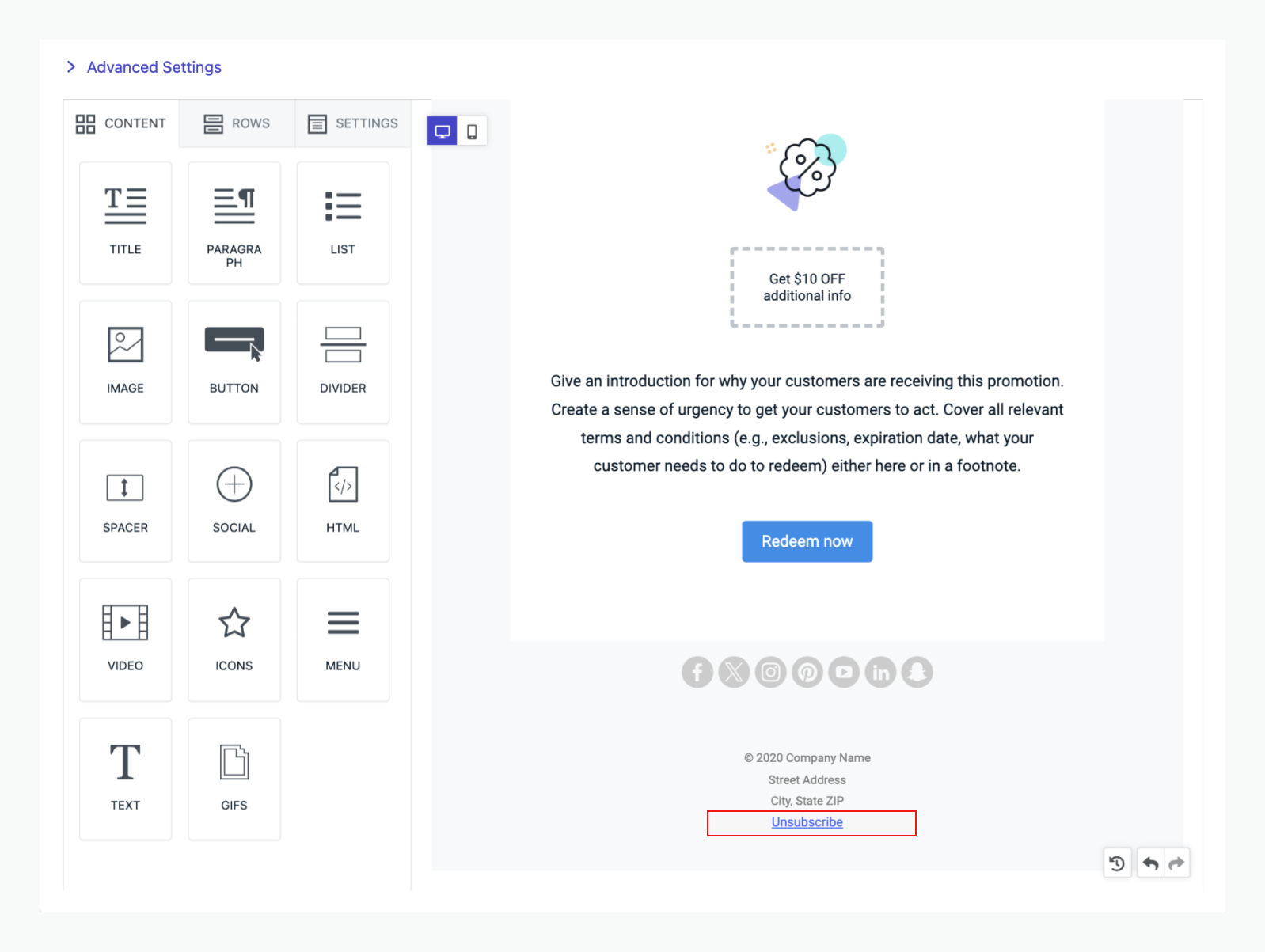
To use your own page, **locate and remove the default link** in your template.
In the drag-and-drop editor, the default link may appear nested like:
 ```html theme={null}
Unsubscribe
```
***
## Add your custom unsubscribe link
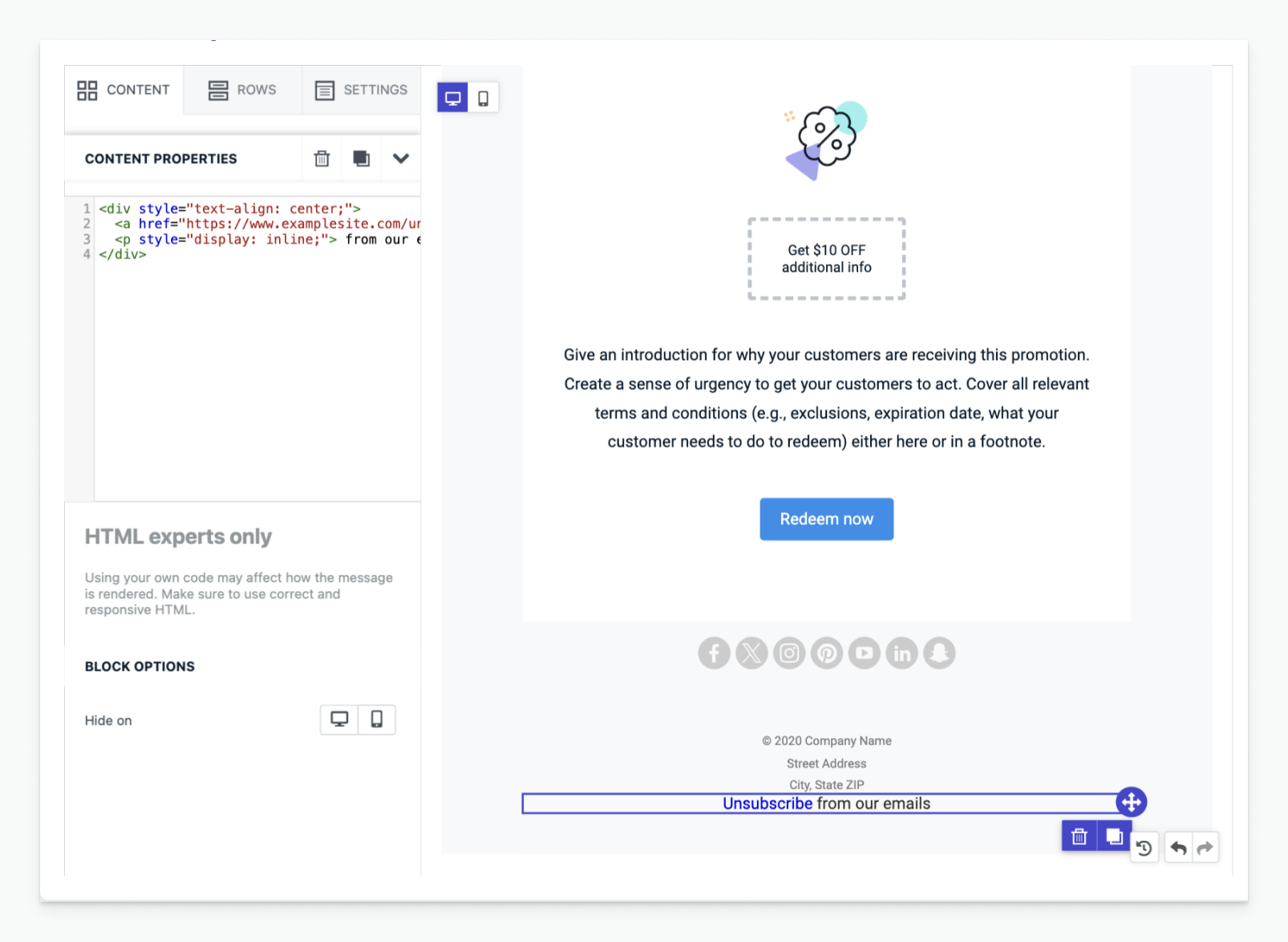
Now that you have removed our special link, you can replace it with your own URL.
Many times, these links require some additional data to be passed to your page. Use [Liquid variables](./message-personalization) to pass OneSignal data to your page.
Common parameters:
| Parameter | Description |
| -------------------------------- | ------------------------------------- |
| `subscription.email` | Subscriber’s email address |
| `subscription.external_id` | User’s external ID |
| `app.id` | OneSignal App ID |
| `message.id` | ID of the email notification |
| `subscription.language` | Preferred language (for localization) |
| `subscription.unsubscribe_token` | Security token for API verification |
**Example URL:**
```liquid theme={null}
https://examplesite.com/unsubscribe?app_id={{app.id}}¬ification_id={{message.id}}&email={{subscription.email}}&language={{subscription.language}}&token={{subscription.unsubscribe_token}}
```
```html HTML theme={null}
```
```html theme={null}
Unsubscribe
```
***
## Add your custom unsubscribe link
Now that you have removed our special link, you can replace it with your own URL.
Many times, these links require some additional data to be passed to your page. Use [Liquid variables](./message-personalization) to pass OneSignal data to your page.
Common parameters:
| Parameter | Description |
| -------------------------------- | ------------------------------------- |
| `subscription.email` | Subscriber’s email address |
| `subscription.external_id` | User’s external ID |
| `app.id` | OneSignal App ID |
| `message.id` | ID of the email notification |
| `subscription.language` | Preferred language (for localization) |
| `subscription.unsubscribe_token` | Security token for API verification |
**Example URL:**
```liquid theme={null}
https://examplesite.com/unsubscribe?app_id={{app.id}}¬ification_id={{message.id}}&email={{subscription.email}}&language={{subscription.language}}&token={{subscription.unsubscribe_token}}
```
```html HTML theme={null}
```
 ### Disable click tracking
Unsubscribe clicks are generally not used for engagement metrics. If you want to disable link tracking, you can add the `data-disable-tracking="true"` attribute to your link like this:
```html HTML theme={null}
Unsubscribe
```
**Provider-specific attributes:**
| Provider | Attribute |
| --------- | ------------------------------ |
| OneSignal | `data-disable-tracking="true"` |
| Mailgun | `disable-tracking=true` |
| SendGrid | `clicktracking=off` |
| Mandrill | `mc:disable-tracking` |
***
## Hosting your custom unsubscribe page
Deploy a web page that:
* Reads query parameters from the unsubscribe link.
* Displays user-friendly opt-out or preference options.
* Sends the unsubscribe or update request to OneSignal via API.
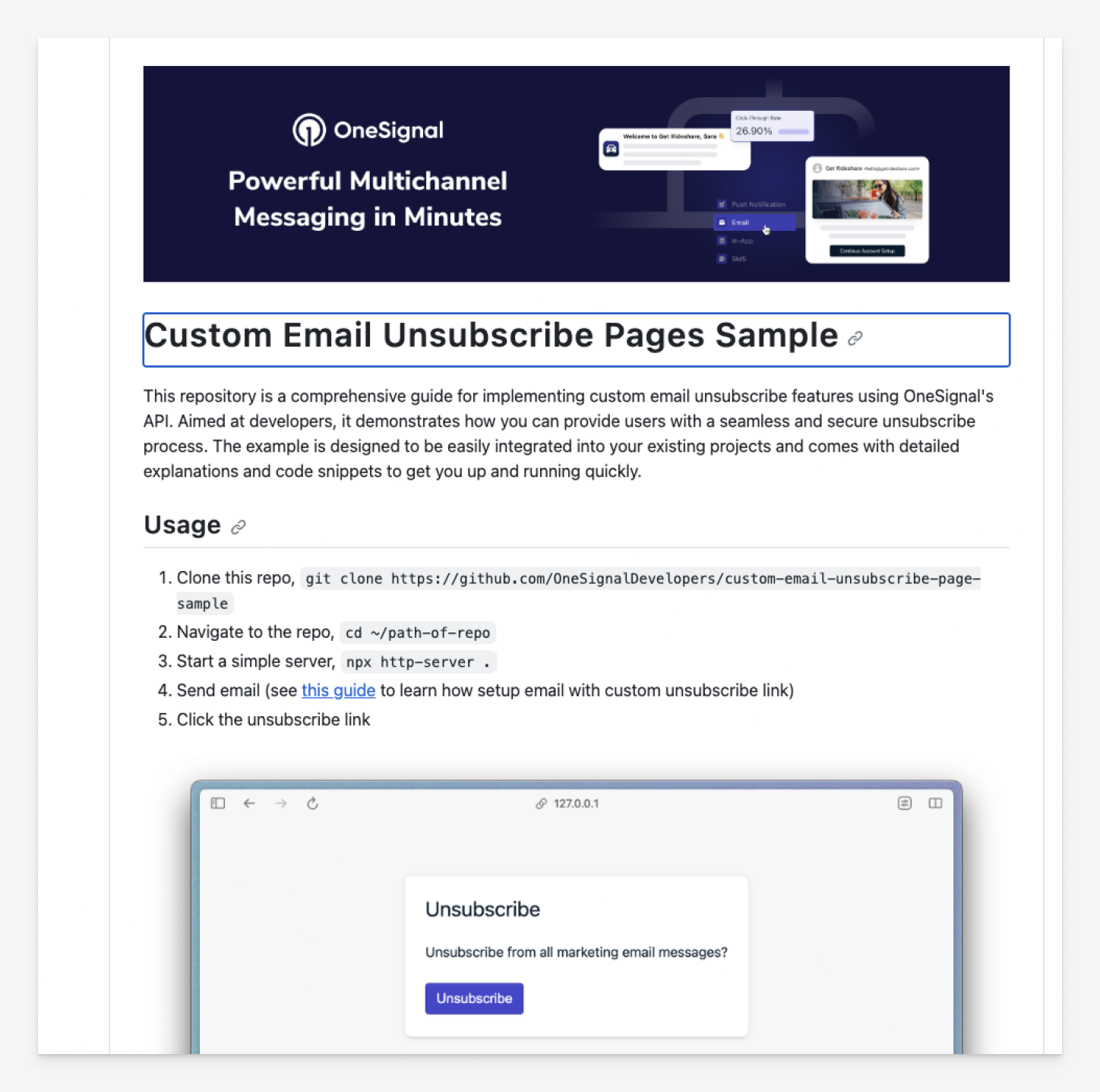
We provide a working [GitHub sample project](https://github.com/OneSignalDevelopers/custom-email-unsubscribe-page-sample) you can fork and deploy.
### Disable click tracking
Unsubscribe clicks are generally not used for engagement metrics. If you want to disable link tracking, you can add the `data-disable-tracking="true"` attribute to your link like this:
```html HTML theme={null}
Unsubscribe
```
**Provider-specific attributes:**
| Provider | Attribute |
| --------- | ------------------------------ |
| OneSignal | `data-disable-tracking="true"` |
| Mailgun | `disable-tracking=true` |
| SendGrid | `clicktracking=off` |
| Mandrill | `mc:disable-tracking` |
***
## Hosting your custom unsubscribe page
Deploy a web page that:
* Reads query parameters from the unsubscribe link.
* Displays user-friendly opt-out or preference options.
* Sends the unsubscribe or update request to OneSignal via API.
We provide a working [GitHub sample project](https://github.com/OneSignalDevelopers/custom-email-unsubscribe-page-sample) you can fork and deploy.
 ***
## Calling the OneSignal API
Depending on your use case, you can use the following APIs to unsubscribe or update user preferences:
* [Update Subscription by Token](/reference/update-subscription-by-token)
* [Unsubscribe Email with Token](/reference/unsubscribe-with-token)
* [Update User](/reference/update-user)
This API is most commonly used when you have the user's email address and just want to subscribe or unsubscribe them from all emails.
**Required query parameters:**
* `app_id`
* `token`
**Authentication required**
* Call this API from your server.
Use this API if you want to track which specific email caused the unsubscribe. This uses the email message ID to track the unsubscribe. See [Unsubscribe Email with Token](/reference/unsubscribe-with-token) API for more details.
**Required query parameters:**
* `app_id`
* `notification_id`
* `token`
**Optional parameters:**
* `email`
* `language`
**Example JavaScript:**
```javascript JavaScript theme={null}
const unsubscribeURL = (href) => {
const unsubscribeURL = new URL(href)
const appID = unsubscribeURL.searchParams.get("app_id")
const notificationID = unsubscribeURL.searchParams.get("notification_id")
const unsubscribeToken = unsubscribeURL.searchParams.get("token")
const language = unsubscribeURL.searchParams.get("language")
const email = unsubscribeURL.searchParams.get("email")
return {
unsubscribeURL: `https://api.onesignal.com/apps/${appID}/notifications/${notificationID}/unsubscribe?token=${unsubscribeToken}`,
meta: { language, email },
}
}
```
Update the user's preferences using the [Update User](/reference/update-user) API.
**Required query parameters:**
* `app_id`
* `alias_id` - The user's external ID is recommended.
**Authentication required**
* Call this API from your server.
***
You should now be equipped with everything you need to know about creating a custom unsubscribe page.
***
***
## Calling the OneSignal API
Depending on your use case, you can use the following APIs to unsubscribe or update user preferences:
* [Update Subscription by Token](/reference/update-subscription-by-token)
* [Unsubscribe Email with Token](/reference/unsubscribe-with-token)
* [Update User](/reference/update-user)
This API is most commonly used when you have the user's email address and just want to subscribe or unsubscribe them from all emails.
**Required query parameters:**
* `app_id`
* `token`
**Authentication required**
* Call this API from your server.
Use this API if you want to track which specific email caused the unsubscribe. This uses the email message ID to track the unsubscribe. See [Unsubscribe Email with Token](/reference/unsubscribe-with-token) API for more details.
**Required query parameters:**
* `app_id`
* `notification_id`
* `token`
**Optional parameters:**
* `email`
* `language`
**Example JavaScript:**
```javascript JavaScript theme={null}
const unsubscribeURL = (href) => {
const unsubscribeURL = new URL(href)
const appID = unsubscribeURL.searchParams.get("app_id")
const notificationID = unsubscribeURL.searchParams.get("notification_id")
const unsubscribeToken = unsubscribeURL.searchParams.get("token")
const language = unsubscribeURL.searchParams.get("language")
const email = unsubscribeURL.searchParams.get("email")
return {
unsubscribeURL: `https://api.onesignal.com/apps/${appID}/notifications/${notificationID}/unsubscribe?token=${unsubscribeToken}`,
meta: { language, email },
}
}
```
Update the user's preferences using the [Update User](/reference/update-user) API.
**Required query parameters:**
* `app_id`
* `alias_id` - The user's external ID is recommended.
**Authentication required**
* Call this API from your server.
***
You should now be equipped with everything you need to know about creating a custom unsubscribe page.
***