> ## Documentation Index
> Fetch the complete documentation index at: https://documentation.onesignal.com/llms.txt
> Use this file to discover all available pages before exploring further.

# Cross-platform Live Activity SDK setup

> Learn how to implement Live Activities in OneSignal's Wrapper SDKs like React Native, Flutter, Unity, Cordova, and more, with support for Push To Start and Default Live Activity Type.

Live Activities are a relatively new iOS feature and require native implementation, which can pose challenges when using cross-platform frameworks like React Native, Flutter, Unity, Cordova, etc. To simplify the process, OneSignal's SDK includes functionality that minimizes native code requirements, enabling streamlined Live Activity integration across supported platforms.

## Requirements

* The latest version of our SDK.
* iOS 16.1+ and iPadOS 17+
* Use a [.p8 APNs key](./ios-p8-token-based-connection-to-apns). Apple doesn't support p12 certificates with Live Activities.
* Xcode 14 or higher

## Setup

### 1. Setup our SDK

Ensure that you've set up the most recent version of our Mobile SDK on your app. Live Activities are not available for websites or with our Web SDK.

<Columns cols={2}>
  <Card href="./unity-sdk-setup">
    <div style={{ display: 'flex', alignItems: 'flex-start', gap: '1rem' }}>
      <div style={{ flexShrink: 0, width: '40px', height: '40px', display: 'flex', alignItems: 'center', justifyContent: 'center' }}>
        <img src="https://mintcdn.com/onesignal/4HyuQPBpu-4xjmQC/images/docs/cms/Docs/docs-unity.png?fit=max&auto=format&n=4HyuQPBpu-4xjmQC&q=85&s=4f65e7750194bcbdc08b8f1549d27eb5" style={{ maxWidth: '100%', maxHeight: '100%', objectFit: 'contain' }} width="96" height="96" data-path="images/docs/cms/Docs/docs-unity.png" />
      </div>

      <div>
        <div style={{ fontWeight: '600', fontSize: '1.1rem', marginBottom: '0.25rem' }}>
          Unity
        </div>

        <div>
          Cross-platform SDK guide for Unity-based mobile apps.
        </div>
      </div>
    </div>
  </Card>

  <Card href="./react-native-sdk-setup">
    <div style={{ display: 'flex', alignItems: 'flex-start', gap: '1rem' }}>
      <div style={{ flexShrink: 0, width: '40px', height: '40px', display: 'flex', alignItems: 'center', justifyContent: 'center' }}>
        <img src="https://mintcdn.com/onesignal/4HyuQPBpu-4xjmQC/images/docs/cms/Docs/docs-react.png?fit=max&auto=format&n=4HyuQPBpu-4xjmQC&q=85&s=dddbb392fdea1f20e0d9e20e6d90098a" style={{ maxWidth: '100%', maxHeight: '100%', objectFit: 'contain' }} width="96" height="96" data-path="images/docs/cms/Docs/docs-react.png" />
      </div>

      <div>
        <div style={{ fontWeight: '600', fontSize: '1.1rem', marginBottom: '0.25rem' }}>
          React Native & Expo
        </div>

        <div>
          Setup instructions for React Native and Expo environments.
        </div>
      </div>
    </div>
  </Card>

  <Card href="./flutter-sdk-setup">
    <div style={{ display: 'flex', alignItems: 'flex-start', gap: '1rem' }}>
      <div style={{ flexShrink: 0, width: '40px', height: '40px', display: 'flex', alignItems: 'center', justifyContent: 'center' }}>
        <img src="https://mintcdn.com/onesignal/4HyuQPBpu-4xjmQC/images/docs/cms/Docs/docs-flutter.png?fit=max&auto=format&n=4HyuQPBpu-4xjmQC&q=85&s=09904d15d1b7bd1c5f902a6101c13a22" style={{ maxWidth: '100%', maxHeight: '100%', objectFit: 'contain' }} width="96" height="96" data-path="images/docs/cms/Docs/docs-flutter.png" />
      </div>

      <div>
        <div style={{ fontWeight: '600', fontSize: '1.1rem', marginBottom: '0.25rem' }}>
          Flutter
        </div>

        <div>
          SDK guide for Flutter apps using Dart.
        </div>
      </div>
    </div>
  </Card>

  <Card href="./capacitor-sdk-setup">
    <div style={{ display: 'flex', alignItems: 'flex-start', gap: '1rem' }}>
      <div style={{ flexShrink: 0, width: '40px', height: '40px', display: 'flex', alignItems: 'center', justifyContent: 'center' }}>
        <img src="https://mintcdn.com/onesignal/4HyuQPBpu-4xjmQC/images/docs/cms/Docs/docs-ionic.png?fit=max&auto=format&n=4HyuQPBpu-4xjmQC&q=85&s=b9e33554d01ff7413f11f9bbf1f4a1b2" style={{ maxWidth: '100%', maxHeight: '100%', objectFit: 'contain' }} width="96" height="96" data-path="images/docs/cms/Docs/docs-ionic.png" />
      </div>

      <div>
        <div style={{ fontWeight: '600', fontSize: '1.1rem', marginBottom: '0.25rem' }}>
          Ionic & Ionic Capacitor
        </div>

        <div>
          Setup for Ionic and Capacitor hybrid mobile apps.
        </div>
      </div>
    </div>
  </Card>

  <Card href="./net-sdk-setup">
    <div style={{ display: 'flex', alignItems: 'flex-start', gap: '1rem' }}>
      <div style={{ flexShrink: 0, width: '40px', height: '40px', display: 'flex', alignItems: 'center', justifyContent: 'center' }}>
        <img src="https://mintcdn.com/onesignal/F6GiolM7XhfdYah_/images/docs/cms/Docs/docs-logo-dotnet.svg?fit=max&auto=format&n=F6GiolM7XhfdYah_&q=85&s=89024e079243d091d9bd6fda0493242d" style={{ maxWidth: '100%', maxHeight: '100%', objectFit: 'contain' }} width="48" height="48" data-path="images/docs/cms/Docs/docs-logo-dotnet.svg" />
      </div>

      <div>
        <div style={{ fontWeight: '600', fontSize: '1.1rem', marginBottom: '0.25rem' }}>
          .NET MAUI
        </div>

        <div>
          Guide for integrating with .NET MAUI apps.
        </div>
      </div>
    </div>
  </Card>

  <Card href="./huawei-sdk-setup">
    <div style={{ display: 'flex', alignItems: 'flex-start', gap: '1rem' }}>
      <div style={{ flexShrink: 0, width: '40px', height: '40px', display: 'flex', alignItems: 'center', justifyContent: 'center' }}>
        <img src="https://mintcdn.com/onesignal/4HyuQPBpu-4xjmQC/images/docs/cms/Docs/docs-huawei.png?fit=max&auto=format&n=4HyuQPBpu-4xjmQC&q=85&s=d15371678eda8514d135b2d4cc51a56a" style={{ maxWidth: '100%', maxHeight: '100%', objectFit: 'contain' }} width="96" height="96" data-path="images/docs/cms/Docs/docs-huawei.png" />
      </div>

      <div>
        <div style={{ fontWeight: '600', fontSize: '1.1rem', marginBottom: '0.25rem' }}>
          Huawei Android Native
        </div>

        <div>
          SDK setup for Huawei devices using HMS push services.
        </div>
      </div>
    </div>
  </Card>
</Columns>

### 2. Add the new `setupDefault` method

In order to tell the OneSignal SDK to manage the LiveActivity lifecycle for the `DefaultLiveActivityAttributes` type, you can call the `setupDefault` method. This method allows you to use both the [Start Live Activity](/reference/start-live-activity) and [Update Live Activity](/reference/update-live-activity-api) APIs to start/update/end the Default Live Activity.

<CodeGroup>
  ```javascript React Native/Expo theme={null}
  import { OneSignal } from 'react-native-onesignal'

  //Push To Start
  OneSignal.LiveActivities.setupDefault()

  //Launching the Live Activity from within the app (not needed for push to start)
  const activityId = "my_activity_id"
  const attributes = { title: "Sample Title" } ;
  const content = { message: { en: "message" } };
  OneSignal.LiveActivities.startDefault(activityId, attributes, content);

  ```

  ```csharp Unity theme={null}
  using OneSignalSDK;

  //Push To Start
  OneSignal.LiveActivities.SetupDefault();

  //Launching the Live Activity from within the app (not needed for push to start)
  string activityId = "my_activity_id";

  OneSignal.LiveActivities.StartDefault(
    activityId,
    new Dictionary<string, object>() {
        { "title", "Welcome!" }
    },
    new Dictionary<string, object>() {
        { "message", new Dictionary<string, object>() {
            { "en", "Hello World!"}
        }},
    });
  ```

  ```javascript Cordova/Ionic theme={null}
  /*Cordova*/

  //Push To Start
  window.plugins.OneSignal.LiveActivities.setupDefault();

  //Launching the Live Activity from within the app (not needed for push to start)
  const activityId = "my_activity_id";
  const attributes = { title: "Sample Title" };
  const content = { message: { en: "message" } };
  window.plugins.OneSignal.LiveActivities.startDefault(
    activityId,
    attributes,
    content
  );

  /*Ionic/Capacitor*/
  import OneSignal from "onesignal-cordova-plugin";

  //Push To Start
  OneSignal.LiveActivities.setupDefault();

  //Launching the Live Activity from within the app (not needed for push to start)
  const activityId = "my_activity_id";
  const attributes = { title: "Sample Title" };
  const content = { message: { en: "message" } };
  OneSignal.LiveActivities.startDefault(activityId, attributes, content);
  ```

  ```csharp .NET theme={null}
  using OneSignalSDK;

  //Push To Start
  OneSignal.LiveActivities.SetupDefault();

  //Launching the Live Activity from within the app (not needed for push to start)
  string activityId = "my_activity_id";

  OneSignal.LiveActivities.StartDefault(
    activityId,
    new Dictionary<string, object>() {
        { "title", "Welcome!" }
    },
    new Dictionary<string, object>() {
        { "message", new Dictionary<string, object>() {
            { "en", "Hello World!"}
        }},
    });
  ```

  ```javascript Flutter theme={null}
  import 'package:onesignal_flutter/onesignal_flutter.dart';

  OneSignal.LiveActivities.setupDefault()

  //Launching the Live Activity from within the app (not needed for push to start)
  const String activityId = "my_activity_id";
  OneSignal.LiveActivities.startDefault(activityId!, {
    "title": "Welcome!"
    }, {
    "message": {"en": "Hello World!"},
  });
  ```
</CodeGroup>

### 3. Create Activity Widget

<Steps>
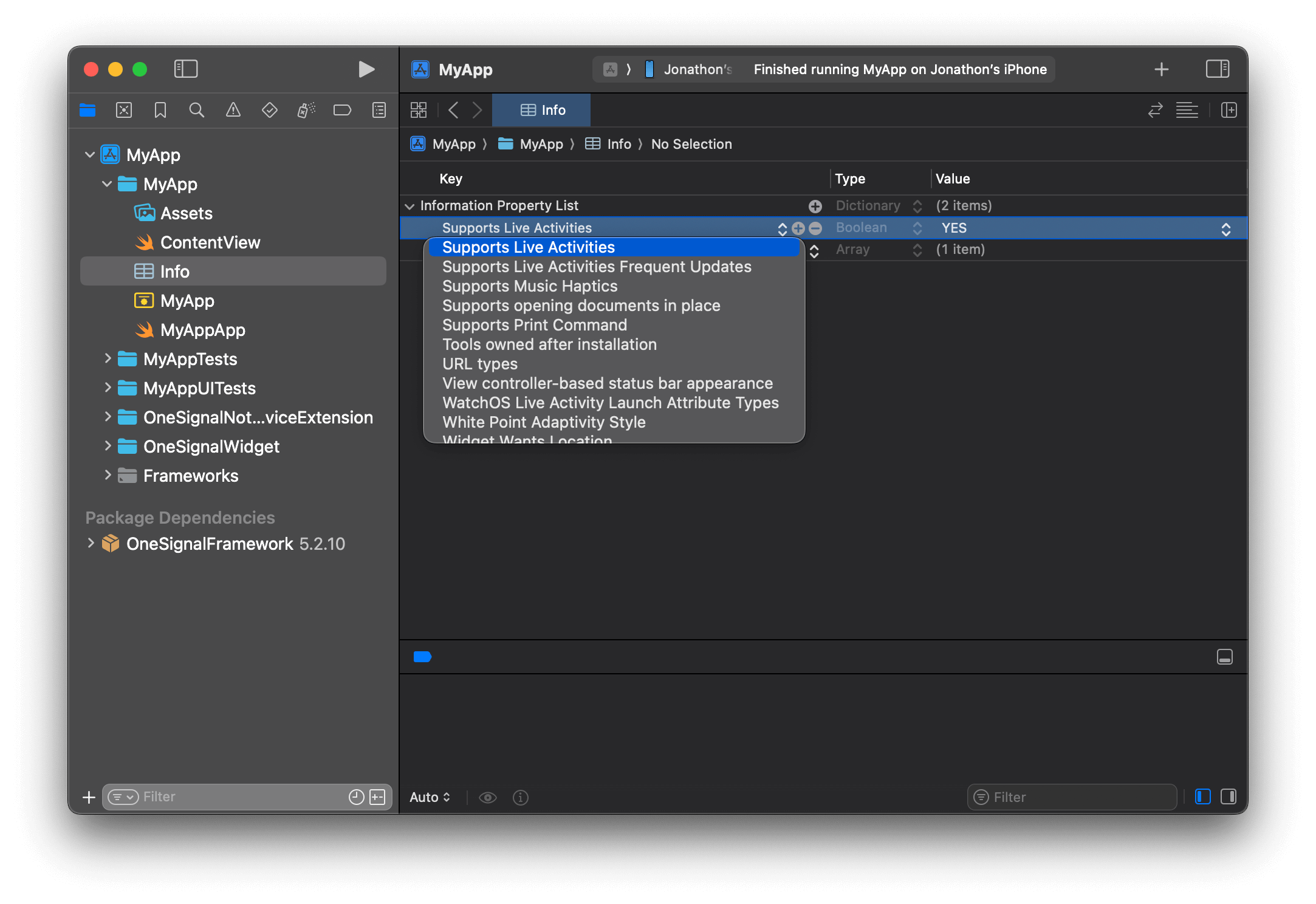
  <Step title="Update your Info.plist">
    In Xcode, open your main target’s `Info.plist`, add the key `Supports Live Activities` as **Boolean**, and set it to `YES`.

    <Frame caption="Add Supports Live Activities key to Info and set its value to Boolean YES">
      <img src="https://mintcdn.com/onesignal/yt4lRKoquAlWvRvF/images/live-activities/info-la-setting.png?fit=max&auto=format&n=yt4lRKoquAlWvRvF&q=85&s=e839231401651b71d0ae8d48614ec130" width="2166" height="1488" data-path="images/live-activities/info-la-setting.png" />
    </Frame>

    <Note>
      When updating Live Activities, you have the option to set a "priority" which Apple uses to determine how urgent the update is. Apple has internal thresholds in which they will throttle requests that use the high priority flag too frequently.

      If your use cases for Live Activities relies on more frequent high priority updates, you can add the key `NSSupportsLiveActivitiesFrequentUpdates` to your Info.plist as a Boolean type set to YES as directed in [Apple's Developer Docs](https://developer.apple.com/documentation/activitykit/starting-and-updating-live-activities-with-activitykit-push-notifications#Determine-the-update-frequency). Users will be presented with a dialog when the Live Activity exceeds its push budget, and if they allow the Live Activity to continue, the budget will automatically be increased for a seamless user experience.
    </Note>
  </Step>

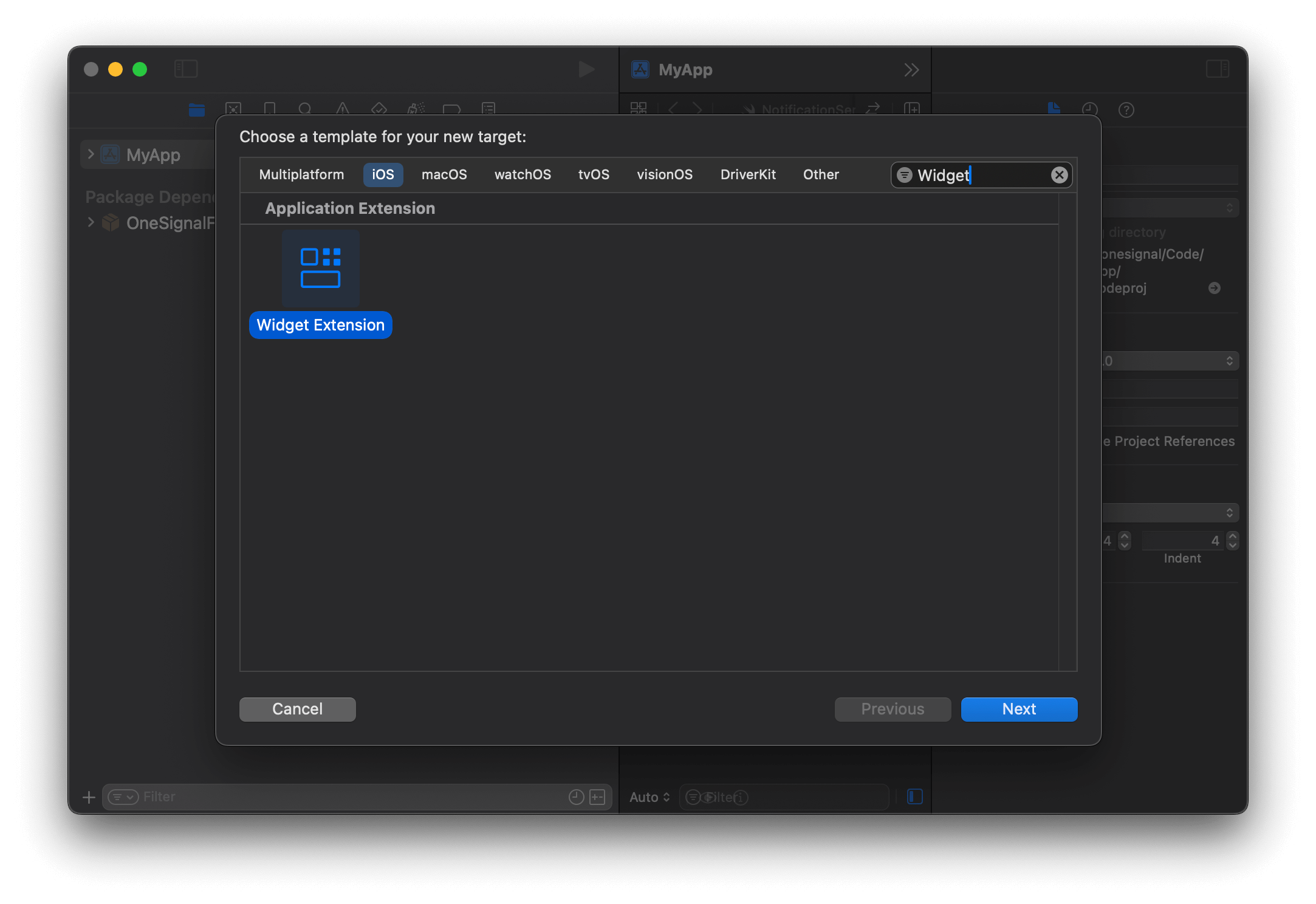
  <Step title="Create a Widget Extension">
    In Xcode, go to **File > New > Target... > Widget Extension**.

    <Frame caption="Add a new Widget Extension target for your app in Xcode.">
      <img src="https://mintcdn.com/onesignal/FXJz6yFfOqztaEND/images/live-activities/live-activity-widget-extension.png?fit=max&auto=format&n=FXJz6yFfOqztaEND&q=85&s=60a52d6484203c4d6af21bc3a7da5e62" width="2166" height="1488" data-path="images/live-activities/live-activity-widget-extension.png" />
    </Frame>

    Select and press **Next**.

    Configure the Widget Extension by providing a name (example: `OneSignalWidget`) and ensure **Include Live Activity** is selected. Then click **Finish**.
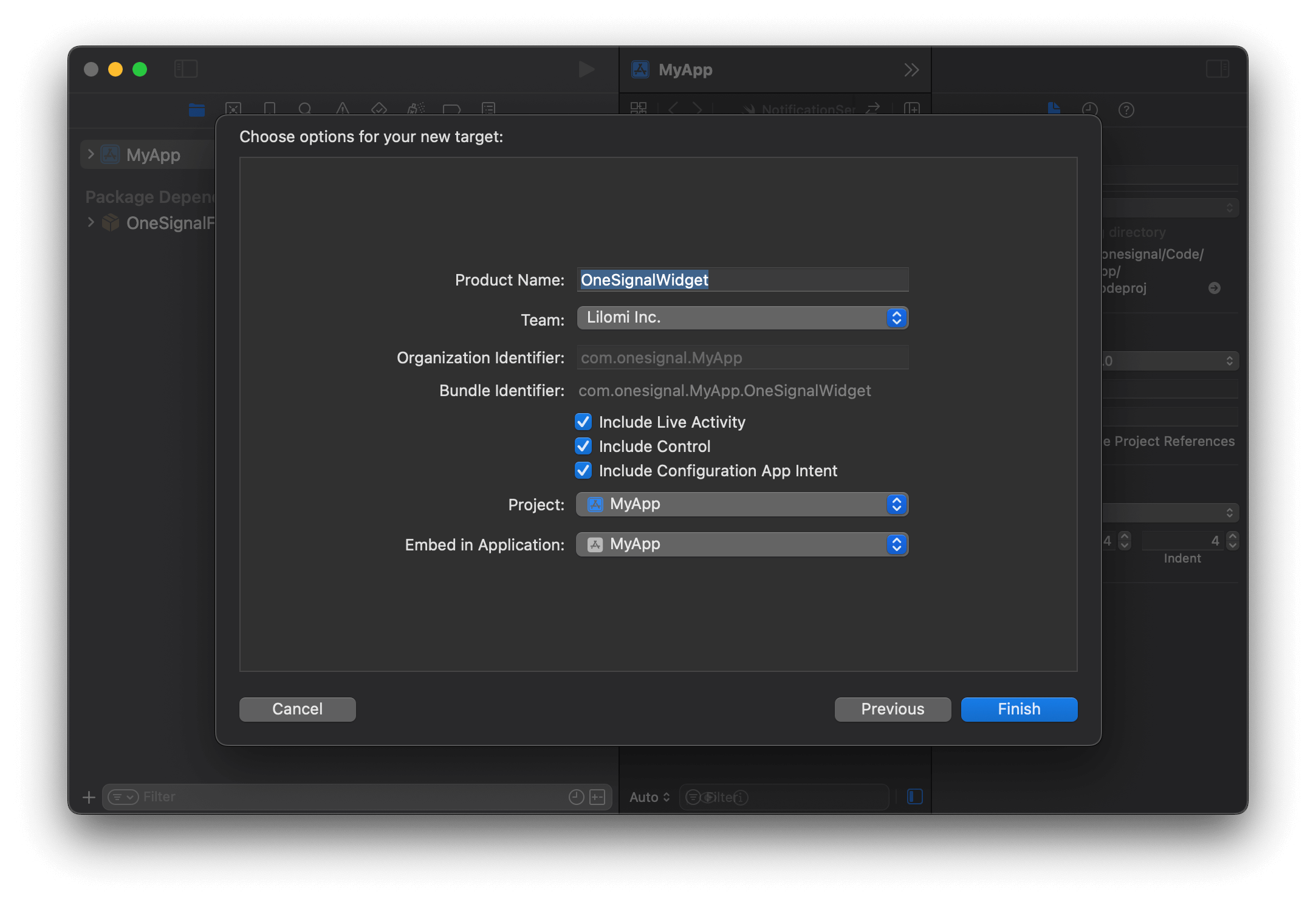
    <Frame caption="Widget Extension options for a Live Activity.">
      <img src="https://mintcdn.com/onesignal/yt4lRKoquAlWvRvF/images/live-activities/OneSignalWidget.png?fit=max&auto=format&n=yt4lRKoquAlWvRvF&q=85&s=47412314963f6fbd58fd2c7d3a529322" width="2166" height="1488" data-path="images/live-activities/OneSignalWidget.png" />
    </Frame>

    Click **Don't Activate** if prompted to activate the scheme.
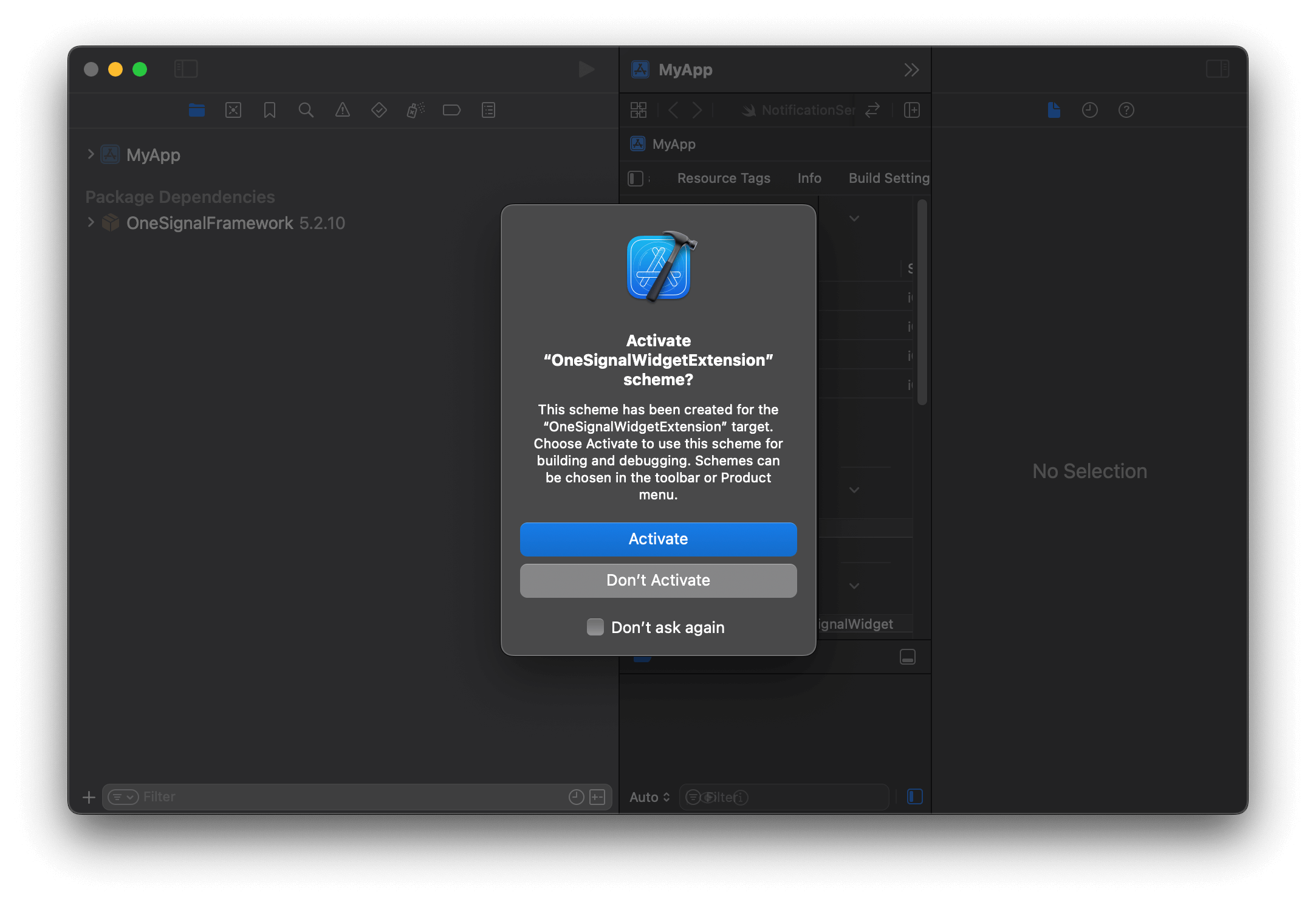
    <Frame caption="Widget Extension options for a Live Activity.">
      <img src="https://mintcdn.com/onesignal/yt4lRKoquAlWvRvF/images/live-activities/la-scheme-activation.png?fit=max&auto=format&n=yt4lRKoquAlWvRvF&q=85&s=d3a2207ff2b5988c63c2abd631a72541" width="2166" height="1488" data-path="images/live-activities/la-scheme-activation.png" />
    </Frame>
  </Step>

  <Step title="Add the OneSignalXCFramework to your Podfile">
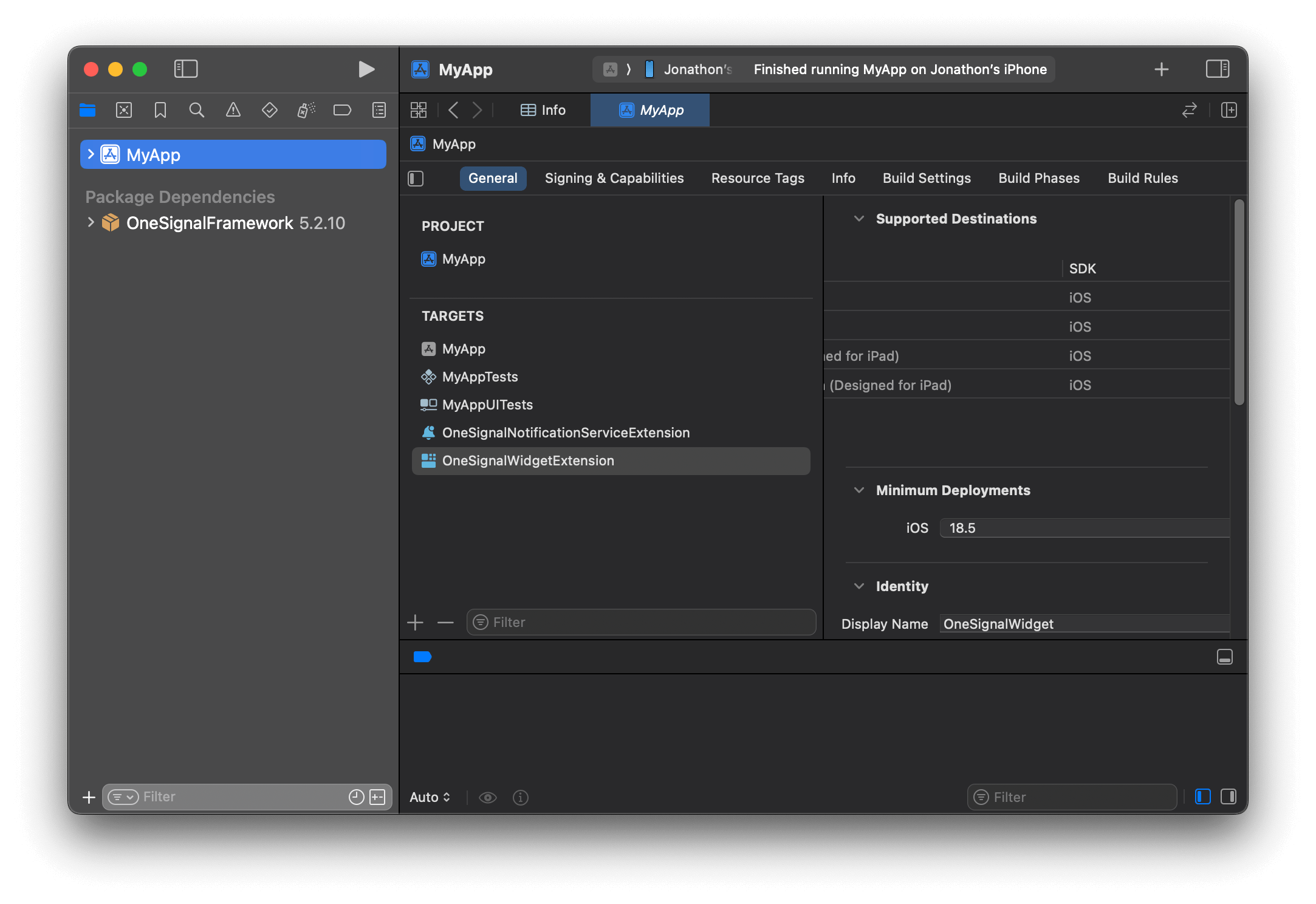
    Find the name of your widget extension target in your project's Targets list. Example's name is `OneSignalWidgetExtension`.

    <Frame caption="Find the name of your widget extension target">
      <img src="https://mintcdn.com/onesignal/yt4lRKoquAlWvRvF/images/live-activities/cocoapods-la-extension-name.png?fit=max&auto=format&n=yt4lRKoquAlWvRvF&q=85&s=850a91387539587802306a66771435eb" width="2166" height="1488" data-path="images/live-activities/cocoapods-la-extension-name.png" />
    </Frame>

    Open your `Podfile` and add the following code. Replace `OneSignalWidgetExtension` with the name of your widget extension target.

    ```ruby Podfile theme={null}
    target 'OneSignalWidgetExtension' do
      #use_frameworks!
      pod 'OneSignalXCFramework', '>= 5.0.0', '< 6.0'
    end
    ```

    Close Xcode and run `pod repo update && pod install` to install the `OneSignalLiveActivities` pod.
  </Step>
</Steps>

### 4. Setup the LiveActivity.swift file

In Xcode, open the *WidgetExtensionLiveActivity.swift* file.

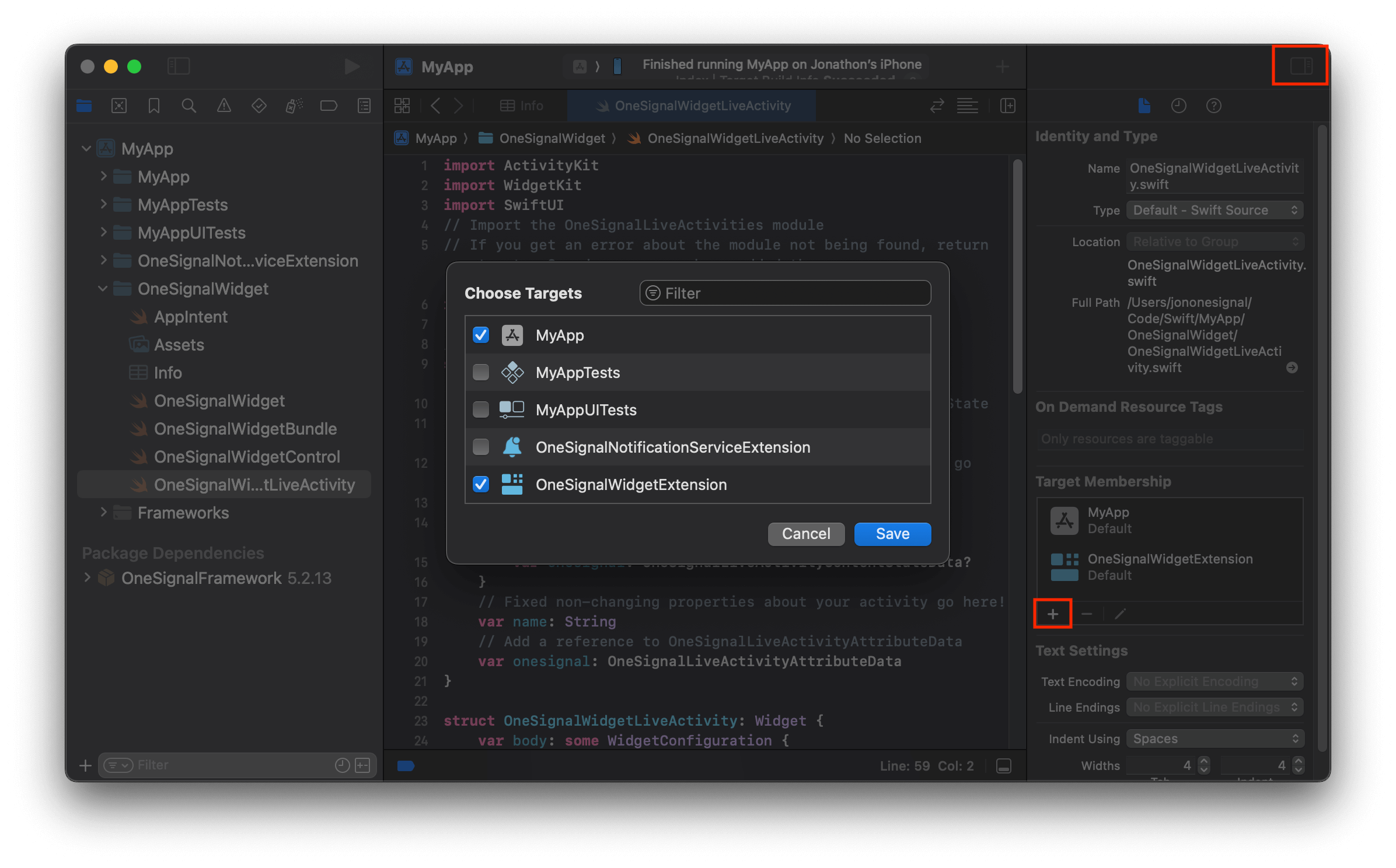
Open the Inspector panel on the right side of the screen. Within **Target Membership**, click the **+** button and select your Runner target.

<Frame caption="Allow main target membership">
  <img src="https://mintcdn.com/onesignal/FXJz6yFfOqztaEND/images/live-activities/target-membership.png?fit=max&auto=format&n=FXJz6yFfOqztaEND&q=85&s=3315253623dfec6c13a56ff30a156772" width="2392" height="1488" data-path="images/live-activities/target-membership.png" />
</Frame>

Update the contents of *WidgetExtensionLiveActivity.swift* with the following default Live Activity layout. The values in this Widget can be changed to whatever you'd like displayed on the widget, the setupDefault method will handle defining the struct for these attributes.

```swift Swift theme={null}
import ActivityKit
import WidgetKit
import SwiftUI
import OneSignalLiveActivities

// Your struct name might be different here
@available(iOS 16.2, *)
struct OneSignalWidgetLiveActivity: Widget {
    var body: some WidgetConfiguration {
        ActivityConfiguration(for: DefaultLiveActivityAttributes.self) { context in
            // Lock screen / banner UI
            VStack {
                Spacer()

                Text("Title: " + (context.attributes.data["title"]?.asString() ?? ""))
                    .font(.headline)

                Spacer()

                HStack {
                    Spacer()
                    Text(context.state.data["message"]?.asDict()?["en"]?.asString() ?? "Default Message")
                    Spacer()
                }

                Text("INT: " + String(context.state.data["intValue"]?.asInt() ?? 0))
                Text("DBL: " + String(context.state.data["doubleValue"]?.asDouble() ?? 0.0))
                Text("BOL: " + String(context.state.data["boolValue"]?.asBool() ?? false))

                Spacer()
            }
            .activitySystemActionForegroundColor(.black)
            .activityBackgroundTint(.white)

        } dynamicIsland: { _ in
            DynamicIsland {
                // Expanded UI
                DynamicIslandExpandedRegion(.leading) {
                    Text("Leading")
                }
                DynamicIslandExpandedRegion(.trailing) {
                    Text("Trailing")
                }
                DynamicIslandExpandedRegion(.bottom) {
                    Text("Bottom")
                    // More content
                }
            } compactLeading: {
                Text("L")
            } compactTrailing: {
                Text("T")
            } minimal: {
                Text("Min")
            }
            .widgetURL(URL(string: "http://www.apple.com"))
            .keylineTint(Color.red)
        }
    }
}

```

***

## Test the Live Activity

1. Start the app

2. See all possible fields in our [Start Live Activity API reference](/reference/start-live-activity). The structure of these fields might differ depending on how you've set up your UI. For example :

* `"event_updates"`: This is the dynamic data that can be updated after the Live Activity has been started (anything after `context.state` in the code example). Since we have context.state.data we would add a data object to this field and any additional fields within like the message dictionary we have added in the code example. For usage, see example request below.
* `"event_attributes"`: This is the static data that is set in the push to start request, and remains the same value until the Live Activity is removed or overwritten.

3. When using push to start, you set the `"activity_id"` in the request, rather than in the code. Using different Activity ID's will start new Live Activities. Using the same Activity ID will overwrite the widget that is currently using that ID.

4. Ensure that you've changed the [OneSignal App ID](./keys-and-ids) in your url path, and the [App API key](./keys-and-ids) in the Authorization header. The `DefaultActivityAttributes` type cannot be changed if you are using the default setup. Please also note, the activity type added to your path is case sensitive and should match what is defined either by you or the Default activity used in the example below.

```curl curl theme={null}
curl --request POST \
     --url https://api.onesignal.com/apps/YOUR_APP_ID/activities/activity/DefaultLiveActivityAttributes \
     --header 'Authorization: key YOUR_REST_API_KEY' \
     --header 'Content-Type: application/json' \
     --header 'accept: application/json' \
     --data '
{
  "event": "start",
  "event_updates": {
    "data": {
      "message": {
        "en": "The message is nested in context.state.data[\"message\"] as a dictionary"
      },
      "intValue": 10,
      "doubleValue": 3.14,
      "boolValue": true
    }
  },
  "event_attributes": {
    "data": {
      "title": "this is set when the LA starts and does not get updated after"
    }
  },
  "activity_id": "my-activity-id",
  "name": "OneSignal Notification Name",
  "contents": {
    "en": "English Message"
  },
  "headings": {
    "en": "English Message"
  },
  "sound": "beep.wav",
  "priority": 10
}'
```

***

## Low-level methods

These are optional methods to use if you want to generate your own Push To Start token, which has also been added in the latest release of the SDK. Using these methods requires that you interact with Xcode more, and generate your own token for Push To Start with Swift. You can find a guide on this [here](https://github.com/OneSignal/OneSignal-iOS-SDK/pull/1377#:~:text=Alternative%20\(low%20level\)%20method%20to%20setup%20Live%20Activities%20with%20OneSignal).

<CodeGroup>
  ```javascript React Native/Expo theme={null}
  //Setting the Push To Start Token
  OneSignal.LiveActivities.setPushToStartToken(activityType: string, token: string)

  //Removing the Push To Start Token
  OneSignal.LiveActivities.removePushToStartToken(activityType: string)

  ```

  ```csharp Unity theme={null}
  //Setting the Push To Start Token
  OneSignal.LiveActivities.SetPushToStartToken(string activityType, string token)

  //Removing the Push To Start Token
  OneSignal.LiveActivities.RemovePushToStartToken(string activityType)
  ```

  ```javascript Cordova/Ionic theme={null}
  /* Cordova */
  //Setting the Push To Start Token
  window.plugins.OneSignal.LiveActivities.setPushToStartToken(activityType: string, token: string)

  //Removing the Push To Start Token
  window.plugins.OneSignal.LiveActivities.removePushToStartToken(activityType: string)

  /* Ionic */
  //Setting the Push To Start Token
  OneSignal.LiveActivities.setPushToStartToken(activityType: string, token: string)

  //Removing the Push To Start Token
  OneSignal.LiveActivities.removePushToStartToken(activityType: string)
  ```

  ```csharp .NET theme={null}
  //Setting the Push To Start Token
  OneSignal.LiveActivities.SetPushToStartToken(string activityType, string token)

  //Removing the Push To Start Token
  OneSignal.LiveActivities.RemovePushToStartToken(string activityType)
  ```

  ```javascript Flutter theme={null}
  //Setting the Push To Start Token
  OneSignal.LiveActivities.setPushToStartToken(String activityType, String token)

  //Removing the Push To Start Token
  OneSignal.LiveActivities.removePushToStartToken(String activityType)
  ```
</CodeGroup>

***