> ## Documentation Index
> Fetch the complete documentation index at: https://documentation.onesignal.com/llms.txt
> Use this file to discover all available pages before exploring further.
# Daily streak journey
> Use Journeys to build daily streak reminders that keep users coming back, using last session time or tags and custom events.
## Overview
Daily streaks are one of the most effective retention mechanics in mobile and web apps. By reminding users to return each day, you can build habits, increase engagement, and reduce churn.
This tutorial walks through three Journey configurations:
* **[1-day recurring streak reminder (last session time)](#1-day-recurring-streak-reminder)**: A simple daily nudge for users who haven't opened the app yet today.
* **[7-day streak Journey (last session time)](#7-day-streak-journey)**: A guided 7-day challenge that checks daily activity and rewards users who complete the full streak.
* **[1-day recurring streak with tags and custom events](#1-day-recurring-streak-with-tags-and-custom-events)**: A tag-based approach that tracks streak count and sends personalized reminders based on progress.
### Prerequisites
Before starting, make sure you have:
* A OneSignal app with [push notifications](/docs/en/channel-setup) configured
* [External IDs](/docs/en/users) assigned to your users (recommended for cross-channel accuracy)
* Familiarity with [Journeys](/docs/en/journeys-overview), [Segments](/docs/en/segmentation), and [Journey actions](/docs/en/journeys-actions)
***
## 1-day recurring streak reminder
**Goal**: Send multiple daily push notifications throughout the day to users who haven't opened the app today, reminding them to keep their streak alive. When the user opens the app, they exit the Journey. The next day, the cycle repeats.
This approach uses user session activity only to trigger and manage the journey - no tags or custom events required. Users move through the journey using time window nodes, ensuring that your push notifications are sent at specific times of day.
#### Segments used
| Segment | Filters | Notes |
| ------------------------------------- | -------------------------------------- | ---------------------------------------------------------------------- |
| **Total Users** (optional) | **No filters** | To include all users in the journey |
| **Active in last 8 hours** (required) | **Last session less than 8 hours ago** | In order to check if the user was active before the first time window. |
If your first time window is not set to start at 8am in the user's timezone, change the settings of the `Active in last X hours` segment to a suitable time (e.g. for a 10am time window, the segment should check for users that were active in the last 10 hours)
#### Journey settings
| Setting | Configuration |
| ------------------ | ------------------------------------------------------------------------------------------------------------------- |
| **Entry rules** | **Audience Segment** |
| **Audience** | Include: `Total Users` segment |
| **Exit rules** | **Exit when user becomes active in your app/website**. & **Tag users when they exit early**: `streak_ongoing: true` |
| **Re-entry rules** | **Yes, after a certain amount of time**: `10 minutes` |
| **Schedule** | **Start immediately, never stops** |
Setting re-entry to 10 minutes ensures users re-enter the Journey as soon as possible. This is important to ensure that all eligible users are in the journey at the start of the new day.
#### Journey steps
Begin by setting a Time Window node to your preferred delivery hours for the first reminder push, for example **8:00 AM – 8:15 AM** every day. Enable **Use user's time zone** so messages arrive at a reasonable local time.
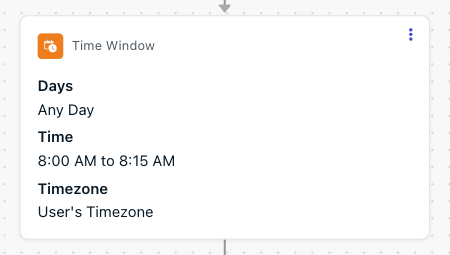 Users who enter the journey after this window will wait until the next day before receiving the first push notification (this will only affect new sign-ups who have had their first ever session after 8am).
Before we send any messages, we need to check if the user was active in the last 8 hours, in case they joined the journey after 0:00am.
Users who enter the journey after this window will wait until the next day before receiving the first push notification (this will only affect new sign-ups who have had their first ever session after 8am).
Before we send any messages, we need to check if the user was active in the last 8 hours, in case they joined the journey after 0:00am.
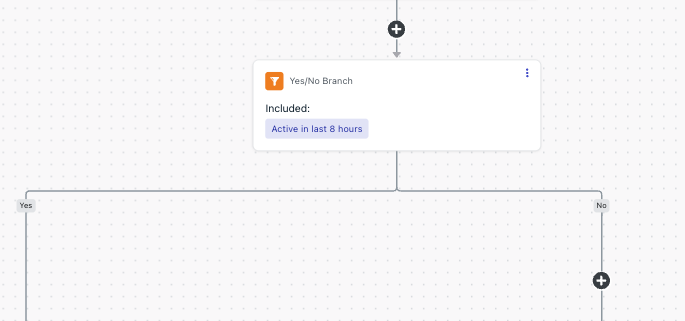 The Yes/No branch will check membership of this segment and if the user has been active in the last 8 hours, then they skip all of the messaging steps of the journey (following the yes branch).
If you have selected a different time for your first check, then you will need to adjust this segment's name and filters accordingly to check if the user's last session was between this time window and 00:00am
On the "No" branch of the previous Yes/No check, we want to ensure that we send appropriate messaging to our users. Here we want to branch based on whether the user has a streak ongoing or not. To do this, we need a segment of users who already have the `streak_ongoing: true` tag that is set when a user exits this journey early:
The Yes/No branch will check membership of this segment and if the user has been active in the last 8 hours, then they skip all of the messaging steps of the journey (following the yes branch).
If you have selected a different time for your first check, then you will need to adjust this segment's name and filters accordingly to check if the user's last session was between this time window and 00:00am
On the "No" branch of the previous Yes/No check, we want to ensure that we send appropriate messaging to our users. Here we want to branch based on whether the user has a streak ongoing or not. To do this, we need a segment of users who already have the `streak_ongoing: true` tag that is set when a user exits this journey early:
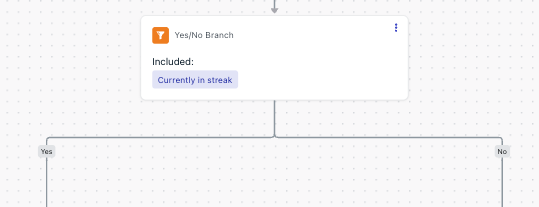 The Yes/No branch will check membership of this segment and send different push notifications depending on whether the user is in the streak or not.
Create two different push templates which remind the user to return to the app. One should mention continuing a streak, the other should mention starting a streak. Add the continuing template to the "Yes" branch, and the starting template to the "No" branch.
The Yes/No branch will check membership of this segment and send different push notifications depending on whether the user is in the streak or not.
Create two different push templates which remind the user to return to the app. One should mention continuing a streak, the other should mention starting a streak. Add the continuing template to the "Yes" branch, and the starting template to the "No" branch.
 After the branches converge, repeat the above steps - Time Window → Yes/No branch → Push notifications - as many times as you think necessary, changing the time window appropriately each time.
**Think about your users' daily routines**: Set the time windows for times of the day when your users might be active on their device (e.g. during their commute, at lunch time, after dinner time). Always avoid times when users are likely to be asleep.
**Don't be repetitive**: Make sure that you use a different push template each time you repeat the steps - users will quickly get frustrated with seeing the same notification repeatedly throughout the day.
Add a time window for 12:00 AM to 12:15 AM. This signifies the start of a new day and the end of the streak.
After the branches converge, repeat the above steps - Time Window → Yes/No branch → Push notifications - as many times as you think necessary, changing the time window appropriately each time.
**Think about your users' daily routines**: Set the time windows for times of the day when your users might be active on their device (e.g. during their commute, at lunch time, after dinner time). Always avoid times when users are likely to be asleep.
**Don't be repetitive**: Make sure that you use a different push template each time you repeat the steps - users will quickly get frustrated with seeing the same notification repeatedly throughout the day.
Add a time window for 12:00 AM to 12:15 AM. This signifies the start of a new day and the end of the streak.
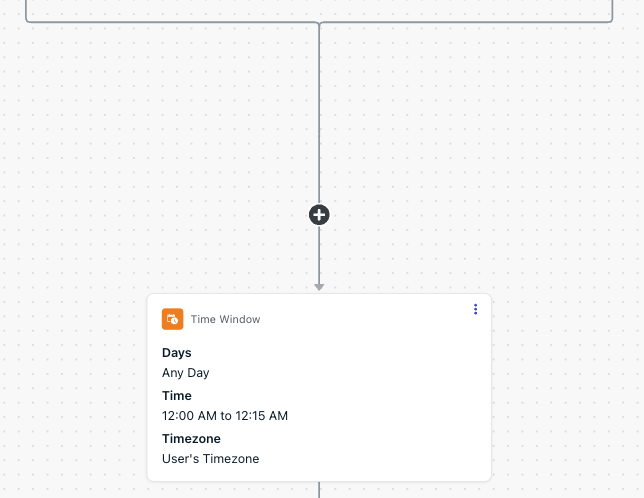 If the user has made it this far through the messaging branch of the journey without exiting early, it means that they have failed their streak. We need to update the `streak_ongoing` tag to `false` with a "Tag" node, both for tracking purposes and also so that when they rejoin the journey, they are sent the appropriate push notifications.
Similarly, on the "Yes" branch of our first Yes/No node (from step 2), we need to update the `streak_ongoing` tag to `true`, as the user completed their streak before our first Time Window check:
If the user has made it this far through the messaging branch of the journey without exiting early, it means that they have failed their streak. We need to update the `streak_ongoing` tag to `false` with a "Tag" node, both for tracking purposes and also so that when they rejoin the journey, they are sent the appropriate push notifications.
Similarly, on the "Yes" branch of our first Yes/No node (from step 2), we need to update the `streak_ongoing` tag to `true`, as the user completed their streak before our first Time Window check:
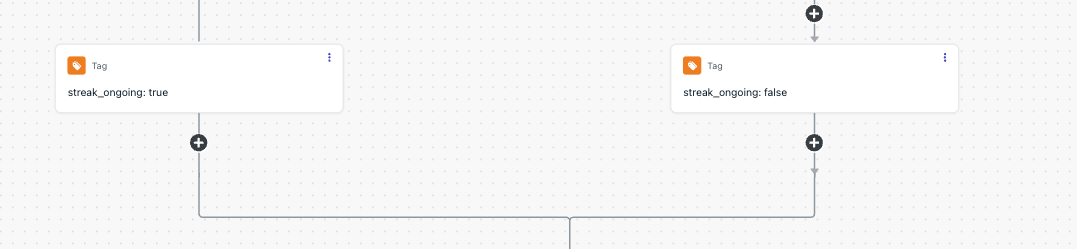 That's it - set the Journey live. Each day users will enter the journey and be sent one of two sets of push notifications (depending on whether they are continuing or starting a streak) reminding them to log in to maintain/build their streak.
***
## 7-day streak Journey
**Goal**: Guide users through a 7-day streak challenge. This can be a one-off, one-shot streak (ideal for time-limited events), or a repeatable streak that users can reattempt (for weekly streaks).
This approach uses user activity only to trigger and manage the journey - no tags or custom events required.
#### Segments used
| Segment | Filters | Notes |
| ------------------------------------- | --------------------------------------- | ------------------------------------------------------------------------------------------------------------------ |
| **Total Users** (optional) | **No filters** | To include all users in the journey. You can use other segments in place of this to target a more limited audience |
| **7 day streak completed** (optional) | **"7\_day\_streak" tag is "completed"** | Can be used to exclude users that have already completed the streak or for tracking purposes |
| **Active in last 8 hours** (required) | **Last session less than 8 hours ago** | To check for user activity between time windows. |
| **Active in last 6 hours** (required) | **Last session less than 6 hours ago** | To check for user activity between time windows. |
| **Active in last 4 hours** (required) | **Last session less than 4 hours ago** | To check for user activity between time windows. |
| **7 day streak failed** (required) | **"7\_day\_streak" tag is "failed"** | Used to force the user to exit the journey early if they are inactive for more than a day. |
#### Journey settings
| Setting | Configuration |
| ------------------ | -------------------------------------------------------------------------------------------------------------------------------------------------------------------------------------------------------------------------------------- |
| **Entry rules** | **Audience Segment** |
| **Audience** | **Include: `Total Users`** segment. (**Optional: Exclude `7 day streak completed`** to make it so that users can only complete the streak once, and `7 day streak failed` to make it so that a user can only attempt the streak once) |
| **Exit rules** | **Exit when user enters a segment: `7 day streak failed`** (**Optional : Tag users when they exit early**: `7_day_streak: 0` - removes users from `7 day streak failed` segment and allows them to re-enter the journey after failing) |
| **Re-entry rules** | **Yes, after a certain amount of time**: `10 minutes` (if repeating) OR **No, they can receive this only once** (for single attempts) |
| **Schedule** | **Start immediately, never stops** |
The above journey settings are a guide only. If you want to change your target audience or allow users to repeat the journey, simply adjust the settings accordingly. Only the **Exit rules** criteria laid out above are mandatory for this journey to function correctly.
#### Journey steps
Begin by setting a Time Window node to your preferred delivery hours for the first reminder push, for example **8:00 AM – 8:15 AM** every day. Enable **Use user's time zone** so messages arrive at a reasonable local time.
That's it - set the Journey live. Each day users will enter the journey and be sent one of two sets of push notifications (depending on whether they are continuing or starting a streak) reminding them to log in to maintain/build their streak.
***
## 7-day streak Journey
**Goal**: Guide users through a 7-day streak challenge. This can be a one-off, one-shot streak (ideal for time-limited events), or a repeatable streak that users can reattempt (for weekly streaks).
This approach uses user activity only to trigger and manage the journey - no tags or custom events required.
#### Segments used
| Segment | Filters | Notes |
| ------------------------------------- | --------------------------------------- | ------------------------------------------------------------------------------------------------------------------ |
| **Total Users** (optional) | **No filters** | To include all users in the journey. You can use other segments in place of this to target a more limited audience |
| **7 day streak completed** (optional) | **"7\_day\_streak" tag is "completed"** | Can be used to exclude users that have already completed the streak or for tracking purposes |
| **Active in last 8 hours** (required) | **Last session less than 8 hours ago** | To check for user activity between time windows. |
| **Active in last 6 hours** (required) | **Last session less than 6 hours ago** | To check for user activity between time windows. |
| **Active in last 4 hours** (required) | **Last session less than 4 hours ago** | To check for user activity between time windows. |
| **7 day streak failed** (required) | **"7\_day\_streak" tag is "failed"** | Used to force the user to exit the journey early if they are inactive for more than a day. |
#### Journey settings
| Setting | Configuration |
| ------------------ | -------------------------------------------------------------------------------------------------------------------------------------------------------------------------------------------------------------------------------------- |
| **Entry rules** | **Audience Segment** |
| **Audience** | **Include: `Total Users`** segment. (**Optional: Exclude `7 day streak completed`** to make it so that users can only complete the streak once, and `7 day streak failed` to make it so that a user can only attempt the streak once) |
| **Exit rules** | **Exit when user enters a segment: `7 day streak failed`** (**Optional : Tag users when they exit early**: `7_day_streak: 0` - removes users from `7 day streak failed` segment and allows them to re-enter the journey after failing) |
| **Re-entry rules** | **Yes, after a certain amount of time**: `10 minutes` (if repeating) OR **No, they can receive this only once** (for single attempts) |
| **Schedule** | **Start immediately, never stops** |
The above journey settings are a guide only. If you want to change your target audience or allow users to repeat the journey, simply adjust the settings accordingly. Only the **Exit rules** criteria laid out above are mandatory for this journey to function correctly.
#### Journey steps
Begin by setting a Time Window node to your preferred delivery hours for the first reminder push, for example **8:00 AM – 8:15 AM** every day. Enable **Use user's time zone** so messages arrive at a reasonable local time.
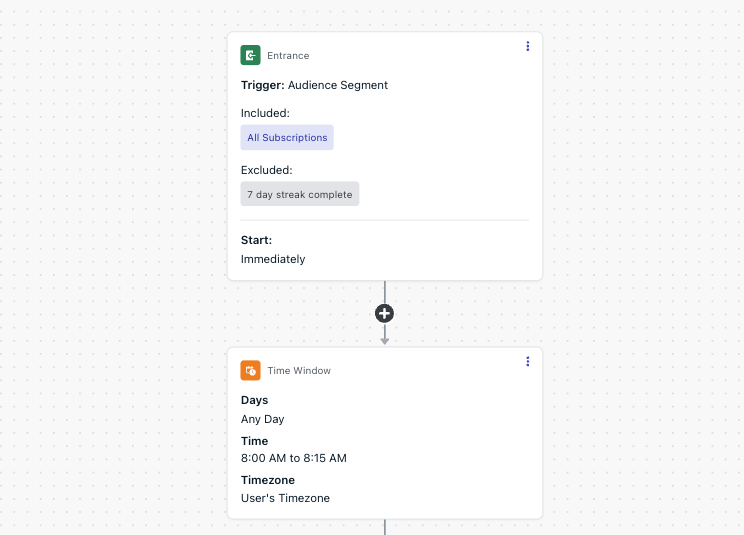 Users who enter the journey after this window will wait until the next day before receiving the first push notification (this will only affect new sign-ups who have had their first ever session after 8am).
Before we send any messages, we need to check if the user was active in the last 8 hours, in case they joined the journey after 0:00am.
Users who enter the journey after this window will wait until the next day before receiving the first push notification (this will only affect new sign-ups who have had their first ever session after 8am).
Before we send any messages, we need to check if the user was active in the last 8 hours, in case they joined the journey after 0:00am.
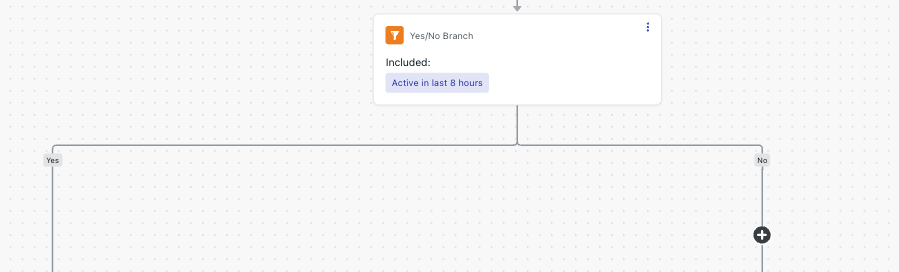 The Yes/No branch will check membership of this segment and if the user has been active in the last 8 hours, then they skip all of the messaging steps for the first day (following the yes branch).
If you have selected a different time for your first check, then you will need to adjust this segment's name and filters accordingly to check if the user's last session was between this time window and 00:00am
Send your Day 1, first push notification.
The Yes/No branch will check membership of this segment and if the user has been active in the last 8 hours, then they skip all of the messaging steps for the first day (following the yes branch).
If you have selected a different time for your first check, then you will need to adjust this segment's name and filters accordingly to check if the user's last session was between this time window and 00:00am
Send your Day 1, first push notification.
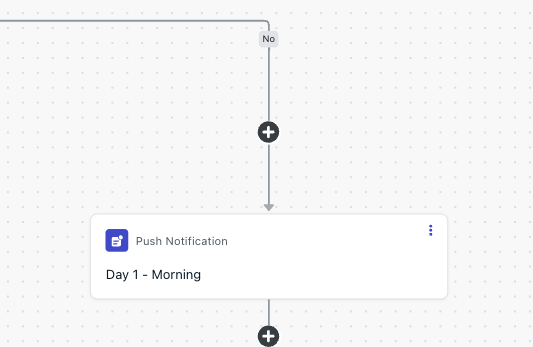 Add another time window node so that you can send a second reminder push for Day 1 (in this example at 12pm).
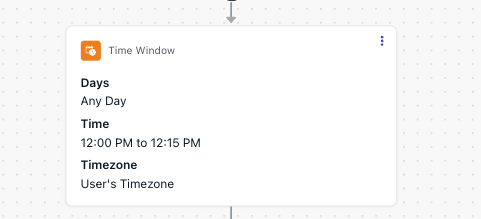 Before we send the next message, we need to check if the user was active since the last message, and only send the next message if they were not.
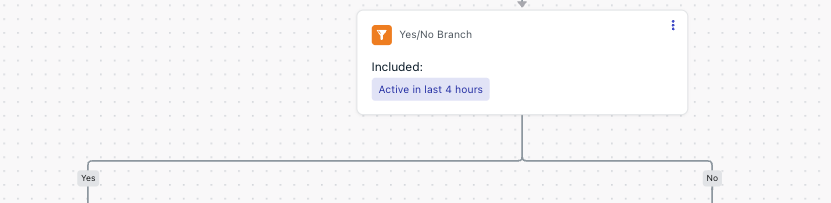 The Yes/No branch will check membership of this segment and if the user has been active in the last X hours, then they skip all of the messaging steps for the rest of the day if so (following the yes branch).
Send your Day 1, second push notification.
The Yes/No branch will check membership of this segment and if the user has been active in the last X hours, then they skip all of the messaging steps for the rest of the day if so (following the yes branch).
Send your Day 1, second push notification.
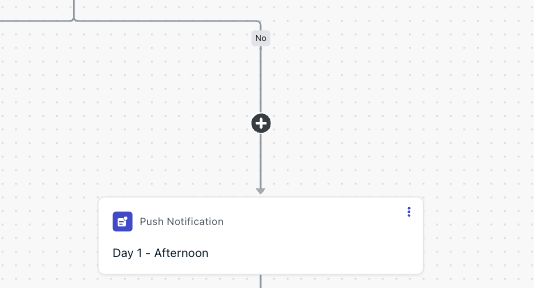 Add more time window and message nodes to send as many push notifications in this day as you like.
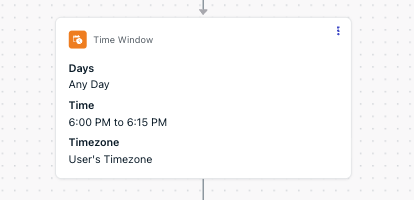 Add another time window node set to 12:00am to move to the next day.
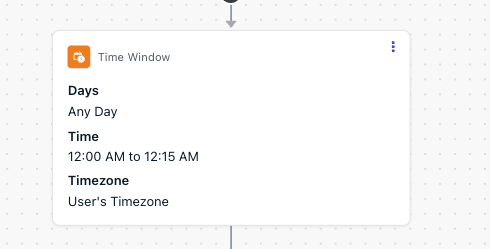 Before we move to the next day's messages, we need to check if the user was active since the last message, and only continue the journey if they were.
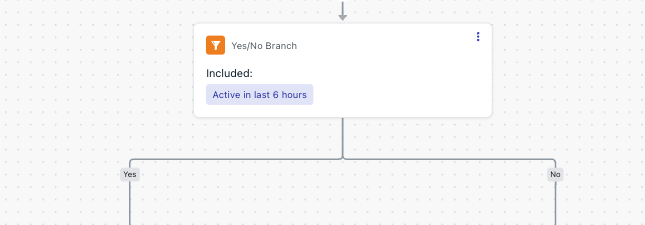 The Yes/No branch will check membership of this segment. If the user has not been active in the last X hours, they have failed the journey.
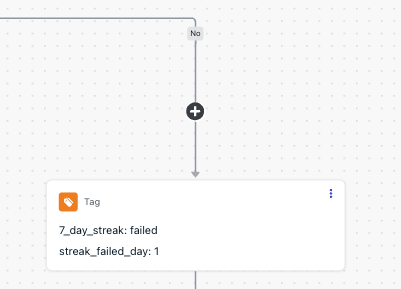
Down the "No" branch of the above Yes/No check, we need to add a tag to eject the user from the journey as they have failed to continue their streak. Add the tag `7_day_streak` with the value `failed` here. This will put the user into the "7 day streak failed" segment and automatically end the journey for them.
Optionally, you can also add a `streak_failed_day` tag here with the day number as the value in order to track what days your users failed their streaks.
The Yes/No branch will check membership of this segment. If the user has not been active in the last X hours, they have failed the journey.
Down the "No" branch of the above Yes/No check, we need to add a tag to eject the user from the journey as they have failed to continue their streak. Add the tag `7_day_streak` with the value `failed` here. This will put the user into the "7 day streak failed" segment and automatically end the journey for them.
Optionally, you can also add a `streak_failed_day` tag here with the day number as the value in order to track what days your users failed their streaks.
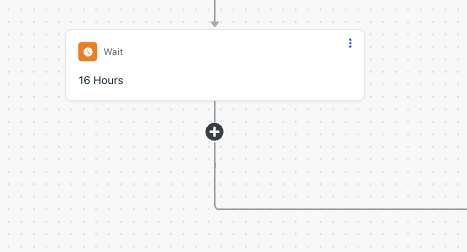
 On the "Yes" branch from the Yes/No node in step 2, add a wait node for 16 hours (or whatever the time difference between your first time window time and midnight of the next day). This ensures that the users on this branch are kept in line with users who have been receiving messages on the other branch.
 For tracking and personalization purposes, you may want to update the value of your "7\_day\_streak" tag to the number of the day the user is on at this stage (this step is optional).
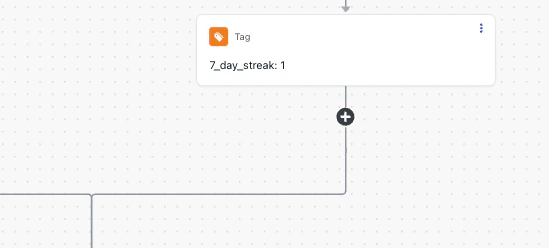 After the Yes/No branches from step 2 converge, repeat steps 2-12 for each day. Make sure that you vary your messaging each day to reflect the user's progress through the streak.
You can use message personalisation if you want to reuse your message templates each day. Simply use liquid syntax and the `7_day_streak` tag that was updated in step 12 to remind users how big their streak is so far.
For tracking purposes, and to prevent users from re-entering if you want to only allow them to finish the streak once, just before the exit node as the final step of your journey, update the `7_day_streak` to `completed`.
If you have been setting the `streak_failed_day` tag as well, update this to a blank value to delete the tag.
After the Yes/No branches from step 2 converge, repeat steps 2-12 for each day. Make sure that you vary your messaging each day to reflect the user's progress through the streak.
You can use message personalisation if you want to reuse your message templates each day. Simply use liquid syntax and the `7_day_streak` tag that was updated in step 12 to remind users how big their streak is so far.
For tracking purposes, and to prevent users from re-entering if you want to only allow them to finish the streak once, just before the exit node as the final step of your journey, update the `7_day_streak` to `completed`.
If you have been setting the `streak_failed_day` tag as well, update this to a blank value to delete the tag.
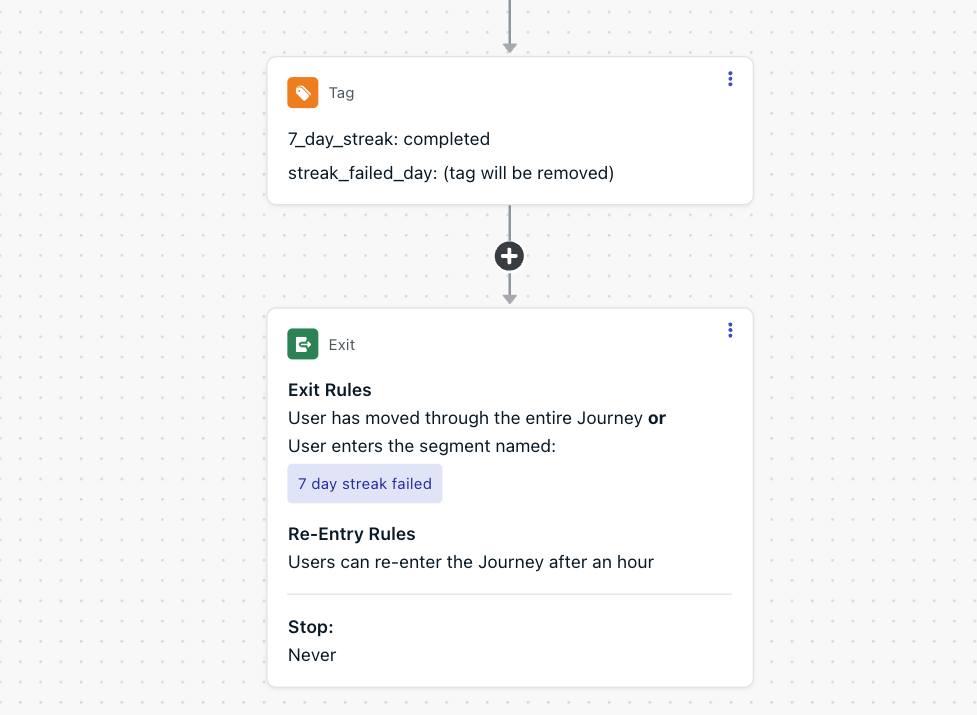 At this point you may want to congratulate your users via a push notification for completing your 7 day streak before exiting the journey.
That's it - set the Journey live. Your users will enter the journey on day 1 and will progress until they either complete their entire streak or until they have been inactive for a full calendar day. If they are inactive for a full day they will be ejected from the journey early, and depending on your journey settings, may re-enter the journey later.
***
## 1-day recurring streak with tags and custom events
**Goal**: Send escalating push reminders throughout the day, using a custom event (`streak_continued`) to detect when the user completes their daily action. As soon as the event fires, the user skips all remaining reminders for that day. If the user doesn't act, they receive up to four reminders spaced 4 hours apart. The cycle resets the next day.
This approach uses a **[custom event](/docs/en/custom-events)** (`streak_continued`) to signal that a user has completed their daily streak action, and **[Wait Until](/docs/en/journeys-actions#wait-until)** nodes to listen for that event between reminders. Unlike the previous examples, this journey doesn't rely on segment-based activity checks: instead, it reacts directly to an event fired by your app.
This journey focuses on **sending reminders**. Your app or backend should handle streak count tracking: incrementing the counter when the user completes their daily action, and resetting it when a day is missed. The journey uses a `streak_count` [tag](/docs/en/add-user-data-tags) on the user profile to personalize messages with [liquid syntax](/docs/en/using-liquid-syntax), so users who are continuing a streak see different copy than users who are starting fresh.
### Send the custom event and update streak tags from your app
Each time a user completes their daily streak action (opening the app, finishing a lesson, logging a workout, etc.), send a `streak_continued` custom event to OneSignal **and** update the `streak_count` tag on the user profile:
```javascript theme={null}
// Fire the custom event to signal streak completion
OneSignal.User.trackEvent("streak_continued");
// Update the streak count tag (your app calculates the value)
OneSignal.User.addTags({
streak_count: currentStreakCount.toString()
});
```
Fire the custom event via the [Custom Events API](/reference/create-custom-events):
```json theme={null}
{
"events": [
{
"name": "streak_continued",
"external_id": "USER_EXTERNAL_ID"
}
]
}
```
Update the tag via the [Update User API](/reference/update-user):
```json theme={null}
{
"properties": {
"tags": {
"streak_count": "5"
}
}
}
```
When a user misses a day, your app should reset the `streak_count` tag to `0` (or remove it). This ensures the journey's push templates always reflect the correct streak state.
### Create personalized message templates
Use [liquid syntax](/docs/en/using-liquid-syntax) in your push notification templates to show different copy depending on whether the user has an active streak or is starting fresh. This keeps the journey structure simple: a single push node handles both cases.
**Example push template:**
| Field | Value |
| -------------- | ------------------------------------------------------------------------------------------------------------------------------------------------------------------------- |
| **Title** | `{% if streak_count and streak_count != "0" %}Keep your streak alive!{% else %}Start a streak today!{% endif %}` |
| **Message** | `{% if streak_count and streak_count != "0" %}You're on a {{streak_count}}-day streak. Don't let it end!{% else %}Open the app to start building your streak.{% endif %}` |
| **Launch URL** | `https://yourapp.com/streak` |
Create a separate template for each time slot (8am, 12pm, 4pm, 8pm) so you can vary the tone throughout the day. For example, the morning template can be encouraging while the evening template adds gentle urgency, but each template should include the liquid conditional so it adapts to both streak states.
**Alternative approach**: If you prefer to manage "continue" and "start" messages as separate templates rather than using liquid syntax, you can add a [Yes/No branch](/docs/en/journeys-actions#yesno-branch) before each push node. Branch on segment membership (e.g., a segment where `streak_count` is greater than `0`) and route each path to a different template. This gives you more visual control in the journey builder but adds extra nodes to the canvas.
### Segments used
| Segment | Filters | Notes |
| -------------------------------------------- | -------------- | ------------------------------------------------------------------------------------ |
| **Total Users** (or your preferred audience) | **No filters** | To include all users in the journey. Replace with a more targeted segment if needed. |
### Journey settings
| Setting | Configuration |
| ------------------ | ----------------------------------------------------------- |
| **Entry rules** | **Audience Segment** |
| **Audience** | Include: `Total Users` (or your preferred audience segment) |
| **Exit rules** | **They moved through the entire journey** |
| **Re-entry rules** | **Yes, after a certain amount of time**: `10 minutes` |
| **Schedule** | **Start immediately, never stops** |
At this point you may want to congratulate your users via a push notification for completing your 7 day streak before exiting the journey.
That's it - set the Journey live. Your users will enter the journey on day 1 and will progress until they either complete their entire streak or until they have been inactive for a full calendar day. If they are inactive for a full day they will be ejected from the journey early, and depending on your journey settings, may re-enter the journey later.
***
## 1-day recurring streak with tags and custom events
**Goal**: Send escalating push reminders throughout the day, using a custom event (`streak_continued`) to detect when the user completes their daily action. As soon as the event fires, the user skips all remaining reminders for that day. If the user doesn't act, they receive up to four reminders spaced 4 hours apart. The cycle resets the next day.
This approach uses a **[custom event](/docs/en/custom-events)** (`streak_continued`) to signal that a user has completed their daily streak action, and **[Wait Until](/docs/en/journeys-actions#wait-until)** nodes to listen for that event between reminders. Unlike the previous examples, this journey doesn't rely on segment-based activity checks: instead, it reacts directly to an event fired by your app.
This journey focuses on **sending reminders**. Your app or backend should handle streak count tracking: incrementing the counter when the user completes their daily action, and resetting it when a day is missed. The journey uses a `streak_count` [tag](/docs/en/add-user-data-tags) on the user profile to personalize messages with [liquid syntax](/docs/en/using-liquid-syntax), so users who are continuing a streak see different copy than users who are starting fresh.
### Send the custom event and update streak tags from your app
Each time a user completes their daily streak action (opening the app, finishing a lesson, logging a workout, etc.), send a `streak_continued` custom event to OneSignal **and** update the `streak_count` tag on the user profile:
```javascript theme={null}
// Fire the custom event to signal streak completion
OneSignal.User.trackEvent("streak_continued");
// Update the streak count tag (your app calculates the value)
OneSignal.User.addTags({
streak_count: currentStreakCount.toString()
});
```
Fire the custom event via the [Custom Events API](/reference/create-custom-events):
```json theme={null}
{
"events": [
{
"name": "streak_continued",
"external_id": "USER_EXTERNAL_ID"
}
]
}
```
Update the tag via the [Update User API](/reference/update-user):
```json theme={null}
{
"properties": {
"tags": {
"streak_count": "5"
}
}
}
```
When a user misses a day, your app should reset the `streak_count` tag to `0` (or remove it). This ensures the journey's push templates always reflect the correct streak state.
### Create personalized message templates
Use [liquid syntax](/docs/en/using-liquid-syntax) in your push notification templates to show different copy depending on whether the user has an active streak or is starting fresh. This keeps the journey structure simple: a single push node handles both cases.
**Example push template:**
| Field | Value |
| -------------- | ------------------------------------------------------------------------------------------------------------------------------------------------------------------------- |
| **Title** | `{% if streak_count and streak_count != "0" %}Keep your streak alive!{% else %}Start a streak today!{% endif %}` |
| **Message** | `{% if streak_count and streak_count != "0" %}You're on a {{streak_count}}-day streak. Don't let it end!{% else %}Open the app to start building your streak.{% endif %}` |
| **Launch URL** | `https://yourapp.com/streak` |
Create a separate template for each time slot (8am, 12pm, 4pm, 8pm) so you can vary the tone throughout the day. For example, the morning template can be encouraging while the evening template adds gentle urgency, but each template should include the liquid conditional so it adapts to both streak states.
**Alternative approach**: If you prefer to manage "continue" and "start" messages as separate templates rather than using liquid syntax, you can add a [Yes/No branch](/docs/en/journeys-actions#yesno-branch) before each push node. Branch on segment membership (e.g., a segment where `streak_count` is greater than `0`) and route each path to a different template. This gives you more visual control in the journey builder but adds extra nodes to the canvas.
### Segments used
| Segment | Filters | Notes |
| -------------------------------------------- | -------------- | ------------------------------------------------------------------------------------ |
| **Total Users** (or your preferred audience) | **No filters** | To include all users in the journey. Replace with a more targeted segment if needed. |
### Journey settings
| Setting | Configuration |
| ------------------ | ----------------------------------------------------------- |
| **Entry rules** | **Audience Segment** |
| **Audience** | Include: `Total Users` (or your preferred audience segment) |
| **Exit rules** | **They moved through the entire journey** |
| **Re-entry rules** | **Yes, after a certain amount of time**: `10 minutes` |
| **Schedule** | **Start immediately, never stops** |
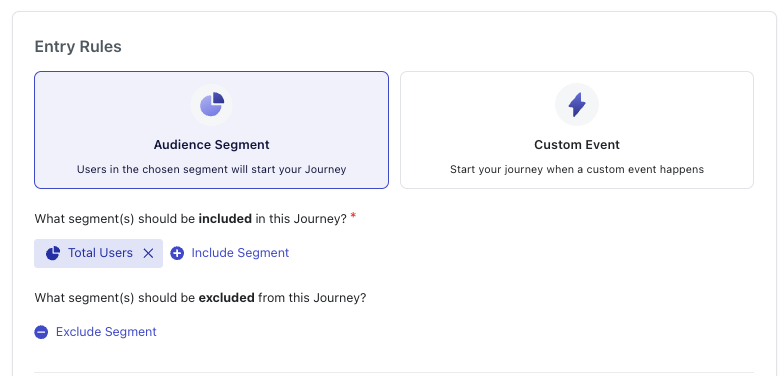
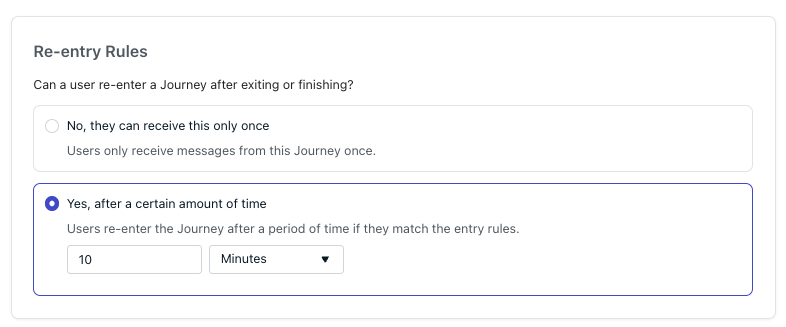 Setting re-entry to 10 minutes ensures users re-enter the journey as soon as possible after exiting. Combined with the Time Window as the first step, users will wait at the time window until the next morning before starting a new cycle.
### Journey steps
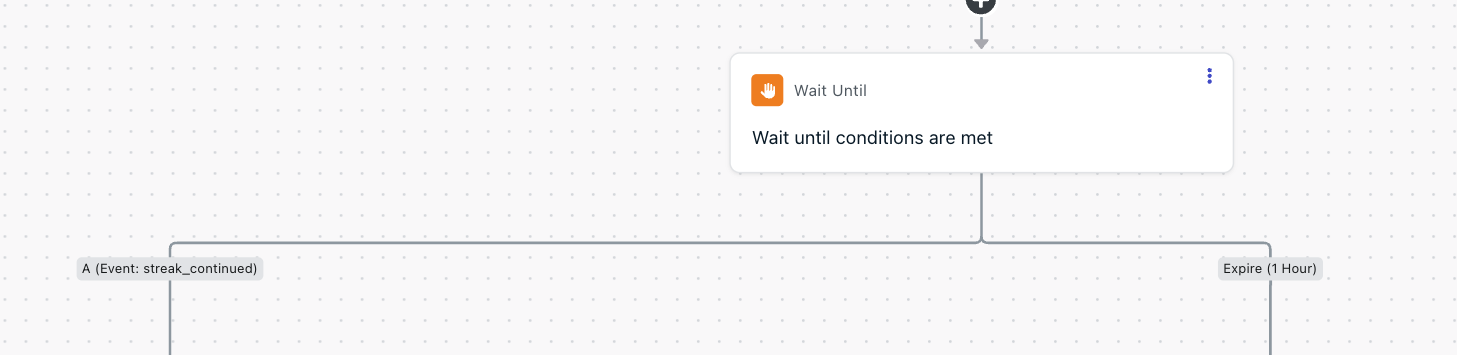
The journey uses **Wait Until** nodes to listen for the `streak_continued` custom event between each reminder. If the event fires at any point, the user follows the **A branch** and skips all remaining reminders for the day. If the event doesn't fire before the expiration, the user receives a push notification and moves to the next Wait Until node.
Begin by setting a Time Window node that starts slightly before your first desired reminder time, for example **7:00 AM – 7:15 AM** every day. Enable **Use user's time zone** so the cycle starts at a reasonable local time.
Setting re-entry to 10 minutes ensures users re-enter the journey as soon as possible after exiting. Combined with the Time Window as the first step, users will wait at the time window until the next morning before starting a new cycle.
### Journey steps
The journey uses **Wait Until** nodes to listen for the `streak_continued` custom event between each reminder. If the event fires at any point, the user follows the **A branch** and skips all remaining reminders for the day. If the event doesn't fire before the expiration, the user receives a push notification and moves to the next Wait Until node.
Begin by setting a Time Window node that starts slightly before your first desired reminder time, for example **7:00 AM – 7:15 AM** every day. Enable **Use user's time zone** so the cycle starts at a reasonable local time.
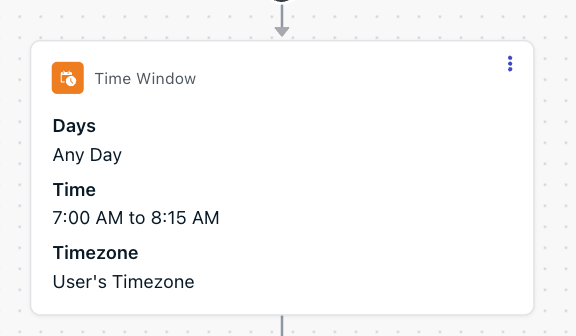 Users who enter the journey after this window will wait until the next day before the reminder cycle begins. The window starts at 7:00 AM to give the first Wait Until node time to expire before the 8am reminder.
Add a **Wait Until** node with the condition: Custom Event `streak_continued` occurs. Set the **expiration** to `1 hour`.
* **A branch** (event fires): The user already completed their daily action early in the morning, so they skip all reminders and proceed directly to the exit.
* **Expire branch** (1 hour, no event): The user hasn't acted yet. Continue to the first push reminder.
The 1-hour expiration covers the gap between the Time Window (7:00 AM) and the first reminder (\~8:00 AM). This gives users who are already active a chance to trigger the event before any push is sent.
Users who enter the journey after this window will wait until the next day before the reminder cycle begins. The window starts at 7:00 AM to give the first Wait Until node time to expire before the 8am reminder.
Add a **Wait Until** node with the condition: Custom Event `streak_continued` occurs. Set the **expiration** to `1 hour`.
* **A branch** (event fires): The user already completed their daily action early in the morning, so they skip all reminders and proceed directly to the exit.
* **Expire branch** (1 hour, no event): The user hasn't acted yet. Continue to the first push reminder.
The 1-hour expiration covers the gap between the Time Window (7:00 AM) and the first reminder (\~8:00 AM). This gives users who are already active a chance to trigger the event before any push is sent.
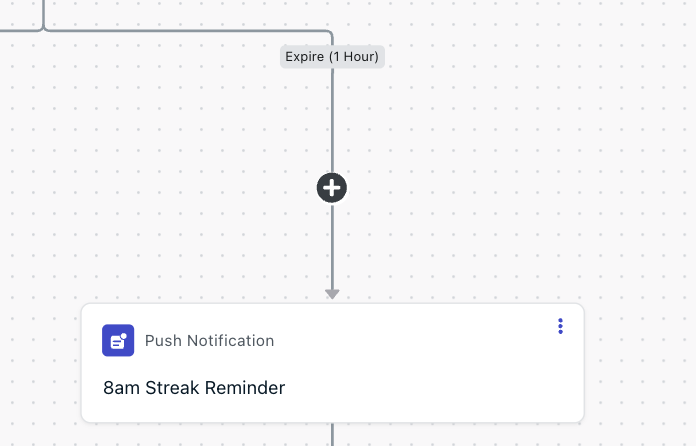
 On the **Expire branch**, add a Push Notification node with your first personalized template (e.g., "8am Streak Reminder"). The liquid syntax in the template will automatically show "Keep your streak alive!" for users with an active streak, or "Start a streak today!" for users starting fresh.
 After the push notification, add another **Wait Until** node with the same condition: Custom Event `streak_continued`. This time, set the **expiration** to `4 hours`.
* **A branch**: User completed their action after the first reminder. Skip remaining reminders and proceed to the exit.
* **Expire branch**: No action after 4 hours. Continue to the 12pm reminder.
On the **Expire branch**, add a Push Notification node for your midday reminder (e.g., "12pm Streak Reminder"). Use a different template from the 8am one, but include the same liquid conditional so it adapts to the user's streak state.
After the push notification, add another **Wait Until** node with the same condition: Custom Event `streak_continued`. This time, set the **expiration** to `4 hours`.
* **A branch**: User completed their action after the first reminder. Skip remaining reminders and proceed to the exit.
* **Expire branch**: No action after 4 hours. Continue to the 12pm reminder.
On the **Expire branch**, add a Push Notification node for your midday reminder (e.g., "12pm Streak Reminder"). Use a different template from the 8am one, but include the same liquid conditional so it adapts to the user's streak state.
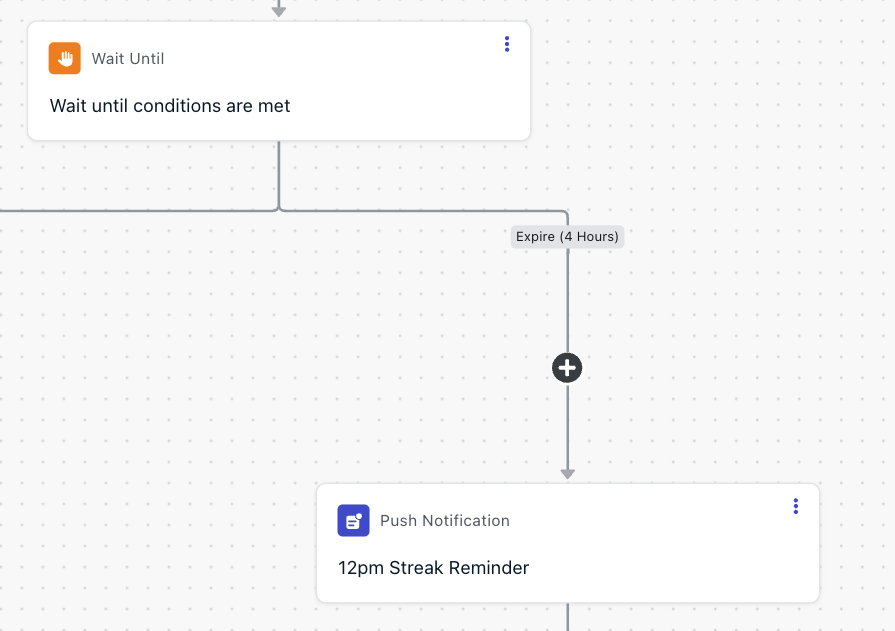 Repeat the **Wait Until (4 hours) → Push Notification** pattern for each additional reminder you want to send. In this example:
* **Wait Until** (4 hours) → **4pm Streak Reminder** push
* **Wait Until** (4 hours) → **8pm Streak Reminder** push
At each Wait Until node, the `streak_continued` event can fire to skip all remaining reminders and jump straight to the exit.
**Don't be repetitive**: Use a different push template for each time slot. Vary the tone and messaging. Morning reminders can be encouraging, while evening reminders can add gentle urgency. Users will tune out identical repeated notifications.
All **A branches** (from each Wait Until node where the `streak_continued` event fired) and the final push notification branch should converge at the end of the journey, leading to the **Exit** node.
Repeat the **Wait Until (4 hours) → Push Notification** pattern for each additional reminder you want to send. In this example:
* **Wait Until** (4 hours) → **4pm Streak Reminder** push
* **Wait Until** (4 hours) → **8pm Streak Reminder** push
At each Wait Until node, the `streak_continued` event can fire to skip all remaining reminders and jump straight to the exit.
**Don't be repetitive**: Use a different push template for each time slot. Vary the tone and messaging. Morning reminders can be encouraging, while evening reminders can add gentle urgency. Users will tune out identical repeated notifications.
All **A branches** (from each Wait Until node where the `streak_continued` event fired) and the final push notification branch should converge at the end of the journey, leading to the **Exit** node.
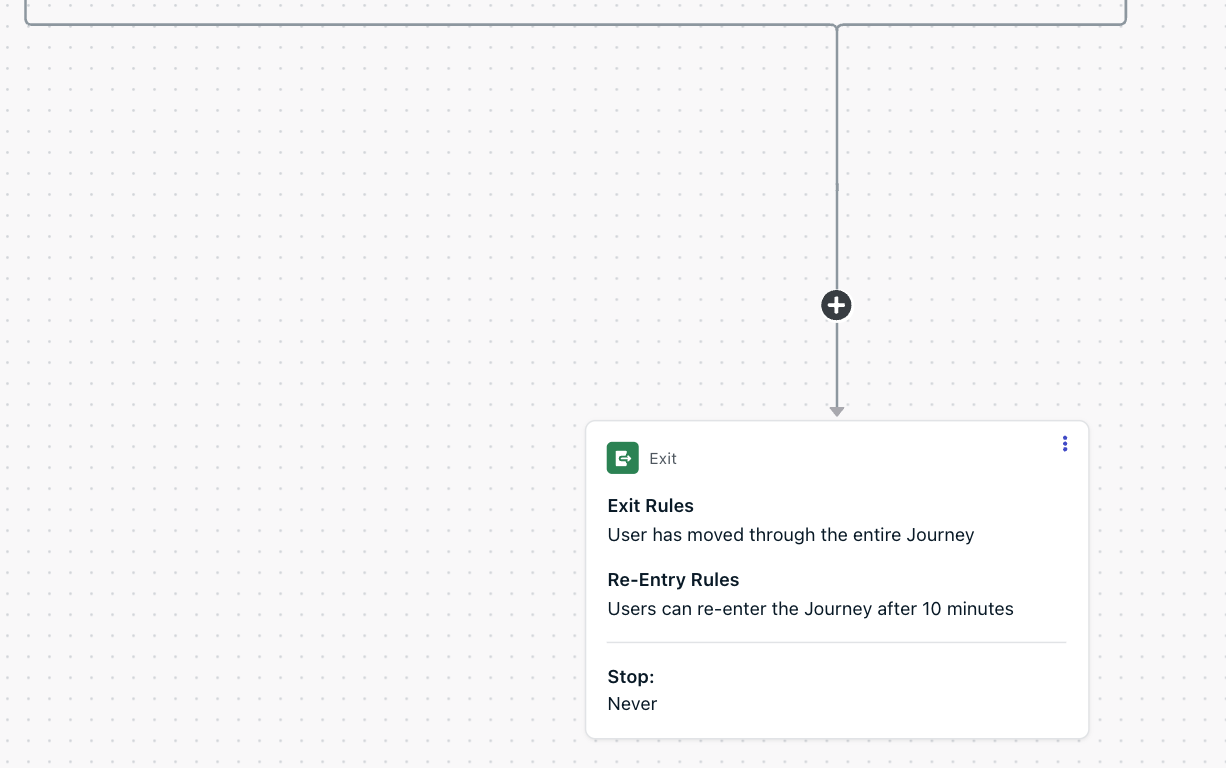 The user exits and re-enters after 10 minutes. Since the Time Window is the first step, they'll wait there until 7:00 AM the next morning before starting a new reminder cycle.
### How the flow works
Here's a walkthrough of a typical day for a user in this journey:
| Time | User action | Journey behavior |
| ---------------- | ---------------------------------------- | ----------------------------------------------------------------------------------- |
| 7:00 AM | - | User passes through Time Window, enters first Wait Until (1-hour expiration) |
| 7:00–8:00 AM | No `streak_continued` event | Wait Until expires → sends **8am Streak Reminder** push |
| 8:00 AM–12:00 PM | No event | Wait Until expires (4 hours) → sends **12pm Streak Reminder** push |
| 2:30 PM | User opens app, `streak_continued` fires | Wait Until condition met → user follows A branch, **skips 4pm and 8pm reminders** |
| - | - | User exits journey → re-enters after 10 min → waits at Time Window for next 7:00 AM |
If the user never acts, they receive all four reminders (8am, 12pm, 4pm, 8pm), then exit and re-enter the cycle the next day.
The first Wait Until uses a **1-hour expiration** while all subsequent ones use **4 hours**. This is because the Time Window starts at 7:00 AM, so the short first expiration ensures the 8am reminder fires on time. Adjust these values if you change your Time Window start time.
That's it. Set the Journey live. Each day, users will be prompted up to four times to complete their daily action, with messaging that automatically adapts based on their streak status. As soon as the `streak_continued` event fires, all remaining reminders are skipped for the day. The cycle resets the next morning at your configured Time Window.
***
## Comparison of approaches
| | Last session (1-day) | Last session (7-day) | Tags + custom events |
| ----------------------- | ---------------------- | ------------------------------ | ------------------------------ |
| **Complexity** | Low | Medium | High |
| **Setup required** | Segment only | Segment + branching | SDK/API integration + segments |
| **Personalization** | Generic messages | Day-specific messages | Streak count in messages |
| **Tracks streak count** | No | Implicitly (by day in Journey) | Yes (via tags) |
| **Best for** | Simple daily reminders | Time-limited challenges | Apps with streak UI/rewards |
| **Code required** | None | None | Yes (events + tag updates) |
***
## Tips and best practices
* **Don't over-message.** Ensure that you send an appropriate amount of reminders, and use [Time Window](/docs/en/journeys-actions#time-window) nodes to control when messages are sent and avoid interrupting users during off-hours.
* **Use different channels where appropriate.** If your users are subscribed to multiple channels, try experimenting with SMS and Email messages as part of your flow to see if streak retention increases. Note that in-app messages are not appropriate for streak reminders, as the user has to be in the app to see them, and in-app messages in journeys can only be shown to a user once, even if they re-enter the journey.
* **Combine with outcomes.** Track streak completions as [Custom Outcomes](/docs/en/custom-outcomes) to measure the impact of your streak Journeys on retention and engagement.
* **Test your timing.** Experiment with different delivery windows and message frequencies. Use [Split Branch](/docs/en/journeys-actions#split-branch) nodes to A/B test.
* **Reset streaks gracefully.** When a streak breaks, consider sending an encouraging "start a new streak" message rather than a punitive one.
***
## FAQ
### Can I track the actual streak count without tags or custom events?
Not directly. OneSignal's **Last Session** filter tells you *when* a user was last active but does not count consecutive days. For streak counting, use [tags](/docs/en/add-user-data-tags) or [custom events](/docs/en/custom-events) as shown in the third example.
### What happens if a user has multiple subscriptions?
Segment checks evaluate all of a user's subscriptions. If a user has both a mobile and web subscription, activity on *either* device updates their last session time. Assign [External IDs](/docs/en/users) to unify subscriptions under a single user profile.
### Can I reward users for completing a streak?
Yes. At the end of a streak Journey, use a [Tag User](/docs/en/journeys-actions#tag-user) action to mark the user (for example, `streak_7day_complete: true`). Your app can read this tag to unlock rewards, badges, or other incentives. You can also use a [Journey webhook](/docs/en/journeys-webhook) to notify your backend when a user completes the streak.
### How do I prevent users from getting multiple streak reminders in one day?
The combination of **re-entry rules** and **Time Window** nodes handles this. Set re-entry to at least 12 hours and use a single daily time window. This ensures each user receives at most one reminder per day.
The user exits and re-enters after 10 minutes. Since the Time Window is the first step, they'll wait there until 7:00 AM the next morning before starting a new reminder cycle.
### How the flow works
Here's a walkthrough of a typical day for a user in this journey:
| Time | User action | Journey behavior |
| ---------------- | ---------------------------------------- | ----------------------------------------------------------------------------------- |
| 7:00 AM | - | User passes through Time Window, enters first Wait Until (1-hour expiration) |
| 7:00–8:00 AM | No `streak_continued` event | Wait Until expires → sends **8am Streak Reminder** push |
| 8:00 AM–12:00 PM | No event | Wait Until expires (4 hours) → sends **12pm Streak Reminder** push |
| 2:30 PM | User opens app, `streak_continued` fires | Wait Until condition met → user follows A branch, **skips 4pm and 8pm reminders** |
| - | - | User exits journey → re-enters after 10 min → waits at Time Window for next 7:00 AM |
If the user never acts, they receive all four reminders (8am, 12pm, 4pm, 8pm), then exit and re-enter the cycle the next day.
The first Wait Until uses a **1-hour expiration** while all subsequent ones use **4 hours**. This is because the Time Window starts at 7:00 AM, so the short first expiration ensures the 8am reminder fires on time. Adjust these values if you change your Time Window start time.
That's it. Set the Journey live. Each day, users will be prompted up to four times to complete their daily action, with messaging that automatically adapts based on their streak status. As soon as the `streak_continued` event fires, all remaining reminders are skipped for the day. The cycle resets the next morning at your configured Time Window.
***
## Comparison of approaches
| | Last session (1-day) | Last session (7-day) | Tags + custom events |
| ----------------------- | ---------------------- | ------------------------------ | ------------------------------ |
| **Complexity** | Low | Medium | High |
| **Setup required** | Segment only | Segment + branching | SDK/API integration + segments |
| **Personalization** | Generic messages | Day-specific messages | Streak count in messages |
| **Tracks streak count** | No | Implicitly (by day in Journey) | Yes (via tags) |
| **Best for** | Simple daily reminders | Time-limited challenges | Apps with streak UI/rewards |
| **Code required** | None | None | Yes (events + tag updates) |
***
## Tips and best practices
* **Don't over-message.** Ensure that you send an appropriate amount of reminders, and use [Time Window](/docs/en/journeys-actions#time-window) nodes to control when messages are sent and avoid interrupting users during off-hours.
* **Use different channels where appropriate.** If your users are subscribed to multiple channels, try experimenting with SMS and Email messages as part of your flow to see if streak retention increases. Note that in-app messages are not appropriate for streak reminders, as the user has to be in the app to see them, and in-app messages in journeys can only be shown to a user once, even if they re-enter the journey.
* **Combine with outcomes.** Track streak completions as [Custom Outcomes](/docs/en/custom-outcomes) to measure the impact of your streak Journeys on retention and engagement.
* **Test your timing.** Experiment with different delivery windows and message frequencies. Use [Split Branch](/docs/en/journeys-actions#split-branch) nodes to A/B test.
* **Reset streaks gracefully.** When a streak breaks, consider sending an encouraging "start a new streak" message rather than a punitive one.
***
## FAQ
### Can I track the actual streak count without tags or custom events?
Not directly. OneSignal's **Last Session** filter tells you *when* a user was last active but does not count consecutive days. For streak counting, use [tags](/docs/en/add-user-data-tags) or [custom events](/docs/en/custom-events) as shown in the third example.
### What happens if a user has multiple subscriptions?
Segment checks evaluate all of a user's subscriptions. If a user has both a mobile and web subscription, activity on *either* device updates their last session time. Assign [External IDs](/docs/en/users) to unify subscriptions under a single user profile.
### Can I reward users for completing a streak?
Yes. At the end of a streak Journey, use a [Tag User](/docs/en/journeys-actions#tag-user) action to mark the user (for example, `streak_7day_complete: true`). Your app can read this tag to unlock rewards, badges, or other incentives. You can also use a [Journey webhook](/docs/en/journeys-webhook) to notify your backend when a user completes the streak.
### How do I prevent users from getting multiple streak reminders in one day?
The combination of **re-entry rules** and **Time Window** nodes handles this. Set re-entry to at least 12 hours and use a single daily time window. This ensures each user receives at most one reminder per day.