> ## Documentation Index
> Fetch the complete documentation index at: https://documentation.onesignal.com/llms.txt
> Use this file to discover all available pages before exploring further.

# Set up confirmed opt-in for email

> Implement double opt-in (confirmed opt-in) for email in OneSignal using Tags, Segments, and Journeys to improve engagement, compliance, and list quality.

A **confirmed opt-in** (also called **double opt-in**) requires new email subscribers to verify their email address by clicking a confirmation link in a follow-up email. This extra step ensures your email subscribers genuinely want to hear from you and protects your sender reputation by filtering out fake, mistyped, and spam-trap addresses before they enter your sending list.

This tutorial sets up a confirmed opt-in workflow using one Tag, one Segment, and one Journey. If you'd rather build the same flow via API, see [Example verification magic link OTP](./example-verification-magic-link-otp).

## Single vs double opt-in

* **Single opt-in**: A user enters their email (e.g., signup form) and is immediately added to your mailing list.
* **Double opt-in (confirmed opt-in)**: After entering their email, the user must click a confirmation link in a verification email before they're added.

### Benefits of double opt-in

* Improves engagement and list quality
* Verifies compliance with **GDPR**, **CAN-SPAM**, and other regulations
* Filters out fake, spam-trap, or mistyped addresses
* Reduces bounce and complaint rates
* Protects against abuse and list bombing

<Note>
  Most professional senders use double opt-in to protect their domain reputation and maximize [deliverability](./email-deliverability).
</Note>

## Prerequisites

Before starting:

* A configured OneSignal Email sending domain — see [Email setup](./email-setup) and [Email DNS configuration](./email-dns-configuration).
* At least one email Subscription marked as a Test User — see [Test Users](./test-users).
* Dashboard access to **Audience > Segments**, **Messages > Templates**, and **Journeys**.

If you already have a list of email subscribers who are confirmed, you can use the [CSV importer](./import) to bulk-set the `confirmed_opt_in` Tag so they bypass the Journey entirely.

## How to create a confirmed opt-in Journey

This setup uses a Tag called `confirmed_opt_in` with a value of `true` or `false` to identify confirmed subscribers.

### 1. Create a segment of users that did not confirm opt-in

Within the OneSignal dashboard, go to **Audience > Segments** and click **New Segment**.

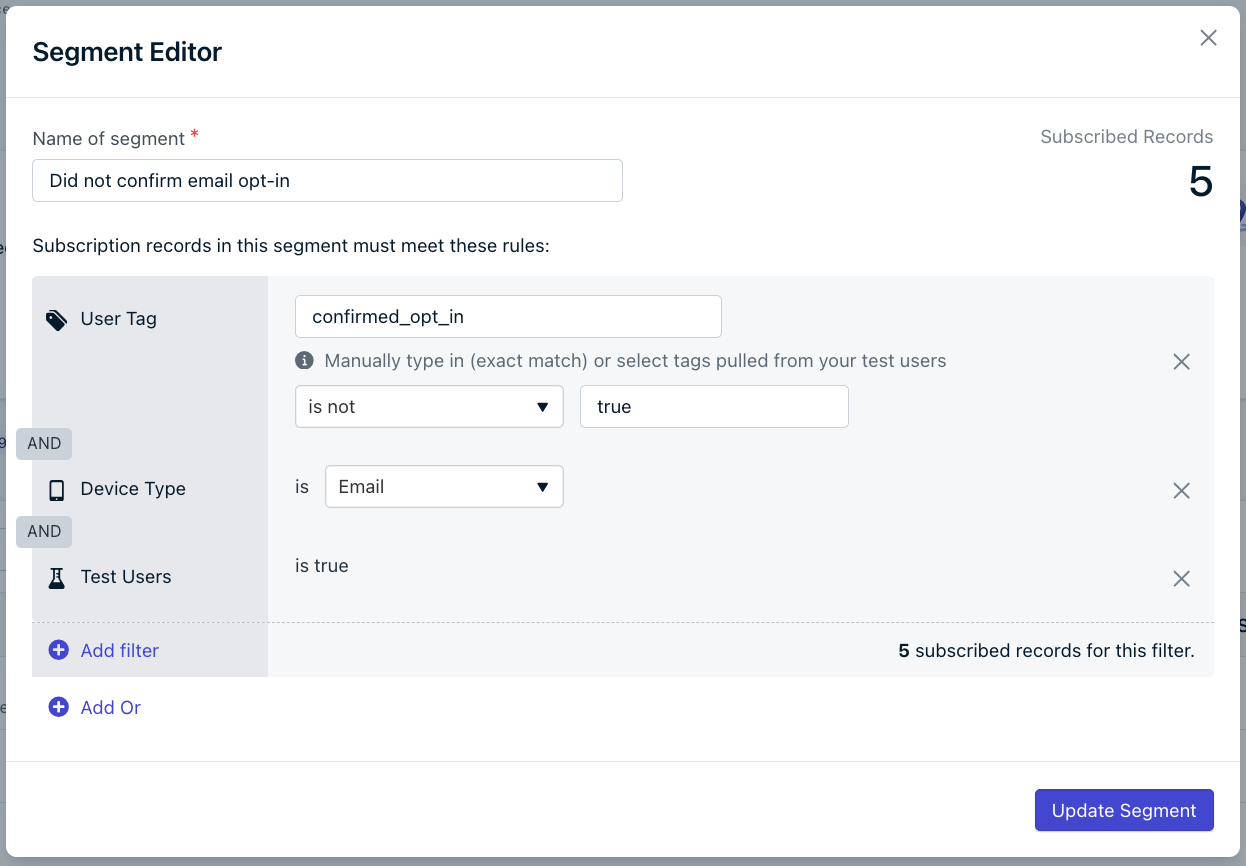
Build a segment called **Did not confirm email opt-in** that uses the following filters with **AND** logic:

* **User Tag** with `confirmed_opt_in` **is not** `true`
* **Device Type** is **Email**
* **Test Users** is true (remove this filter before going live in production)

This segment contains all test users with an email Subscription where `confirmed_opt_in` is set to `false` or is not set.

<Frame caption="Did not confirm email opt-in segment">
  <img src="https://mintcdn.com/onesignal/P-72FyFfB9AgPzK3/images/tutorials/did-not-confirm-email-opt-in-segment.png?fit=max&auto=format&n=P-72FyFfB9AgPzK3&q=85&s=8192490399d038544ae86863fce50a8c" alt="Segment builder showing the Did not confirm email opt-in segment with three AND filters" width="1246" height="866" data-path="images/tutorials/did-not-confirm-email-opt-in-segment.png" />
</Frame>

### 2. Create a confirmed opt-in email template

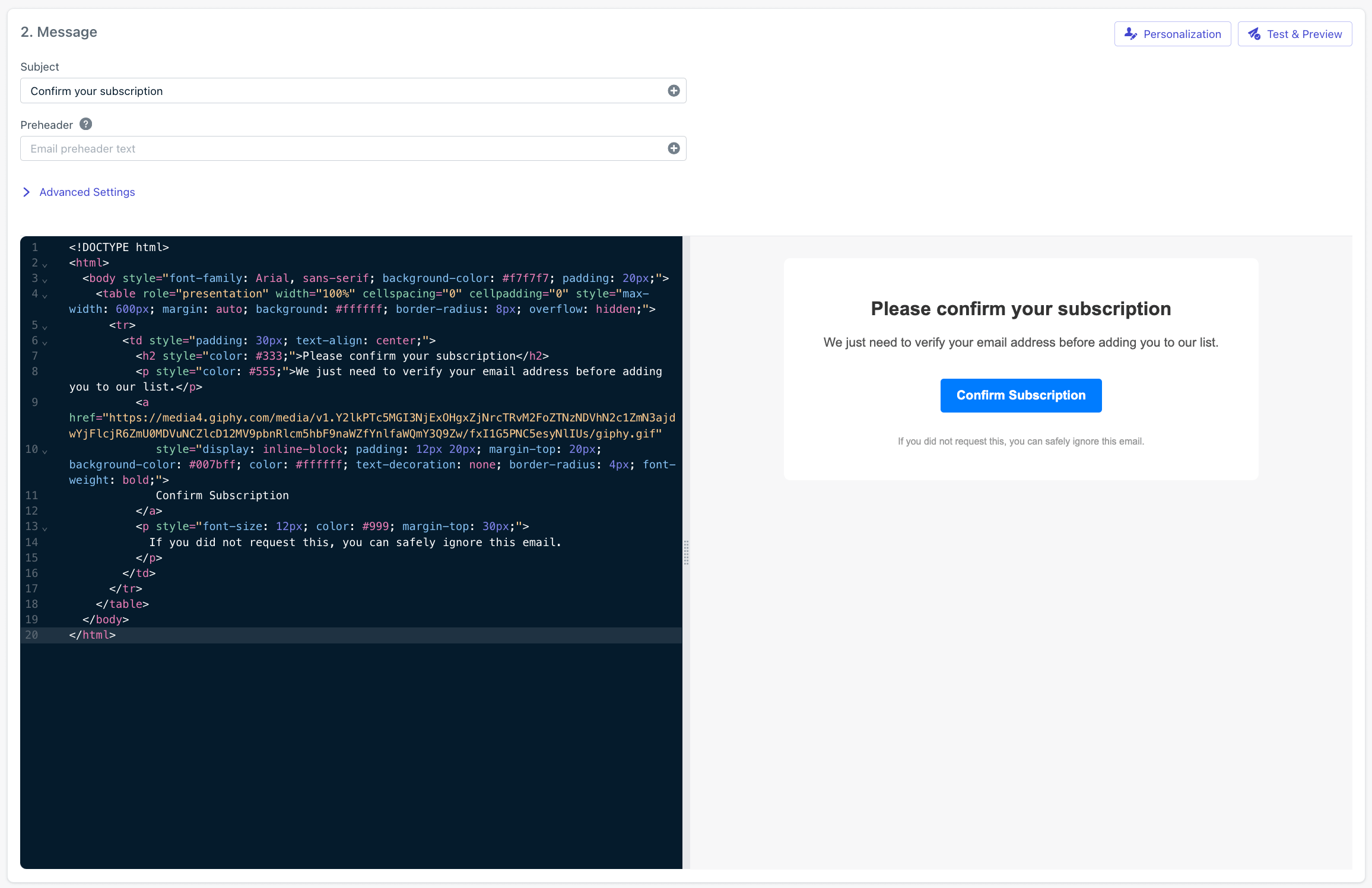
Navigate to **Messages > Templates > New Email Template** and select **HTML Editor** or **Drag & Drop Editor**.

Design a simple confirmation email:

* Clear subject line (e.g., "Confirm your subscription")
* A single, prominent confirmation CTA ("Confirm Subscription")
* No social media buttons or other CTAs that might distract from the confirmation action

Here's a starter template you can paste into the HTML editor:

```html HTML theme={null}
<!DOCTYPE html>
<html>
  <body style="font-family: Arial, sans-serif; background-color: #f7f7f7; padding: 20px;">
    <table role="presentation" width="100%" cellspacing="0" cellpadding="0" style="max-width: 600px; margin: auto; background: #ffffff; border-radius: 8px; overflow: hidden;">
      <tr>
        <td style="padding: 30px; text-align: center;">
          <h2 style="color: #333;">Please confirm your subscription</h2>
          <p style="color: #555;">We just need to verify your email address before adding you to our list.</p>
          <a href="YOUR_CONFIRMATION_URL"
             style="display: inline-block; padding: 12px 20px; margin-top: 20px; background-color: #007bff; color: #ffffff; text-decoration: none; border-radius: 4px; font-weight: bold;">
             Confirm Subscription
          </a>
          <p style="font-size: 12px; color: #999; margin-top: 30px;">
            If you did not request this, you can safely ignore this email.
          </p>
        </td>
      </tr>
    </table>
  </body>
</html>
```

<Note>
  Replace `YOUR_CONFIRMATION_URL` with the page on your site that thanks the user for confirming their subscription. The Wait Until step in the next section detects clicks on this link, so it must be a tracked URL inside the OneSignal template editor.
</Note>

<Frame caption="Opt-in email template">
  <img src="https://mintcdn.com/onesignal/P-72FyFfB9AgPzK3/images/tutorials/html-opt-in-template.png?fit=max&auto=format&n=P-72FyFfB9AgPzK3&q=85&s=f466d82e6e3a9ab0d644bb5f84d82bdb" alt="OneSignal HTML email template editor showing the confirmation email preview" width="2312" height="1496" data-path="images/tutorials/html-opt-in-template.png" />
</Frame>

Save the template with the name **Confirm email opt-in**. The next section references this template by that name.

### 3. Build a confirmed opt-in Journey

Navigate to **Journeys > New Journey** and select **Start from scratch**.

#### Journey settings

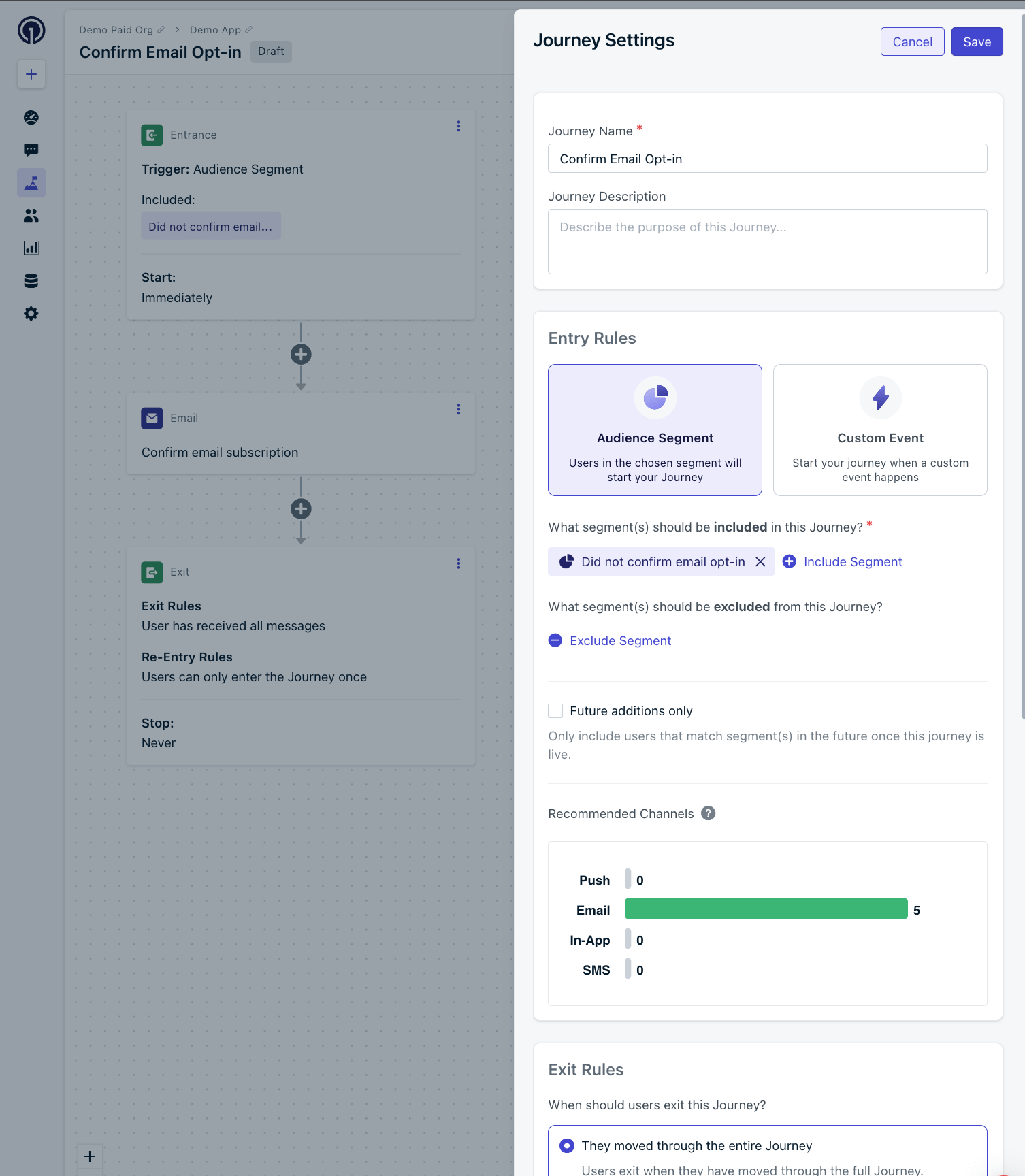
1. **Name**: `Confirm email opt-in` (or any name that helps you recognize this Journey).
2. **Entry rules**: Include the **Did not confirm email opt-in** segment.
3. **Exit rules**: Check **They moved through the entire Journey**.
4. **Re-entry rules**: Select **No, they can receive this only once**.
5. **Schedule**: Select **Start immediately** (or schedule for a later time) and **Never stops**.

Click **Save**.

#### Email message step

Add an **Email** message step and select the **Confirm email opt-in** template.
<Frame caption="Email message step and Journey settings">
  <img src="https://mintcdn.com/onesignal/P-72FyFfB9AgPzK3/images/tutorials/confirm-email-opt-in-message-step-and-journey-settings.png?fit=max&auto=format&n=P-72FyFfB9AgPzK3&q=85&s=15d881b358d978ce55bfe2c162248744" alt="Journey editor showing the Confirm email opt-in template attached to an Email message step" width="1506" height="1728" data-path="images/tutorials/confirm-email-opt-in-message-step-and-journey-settings.png" />
</Frame>

#### Wait Until step

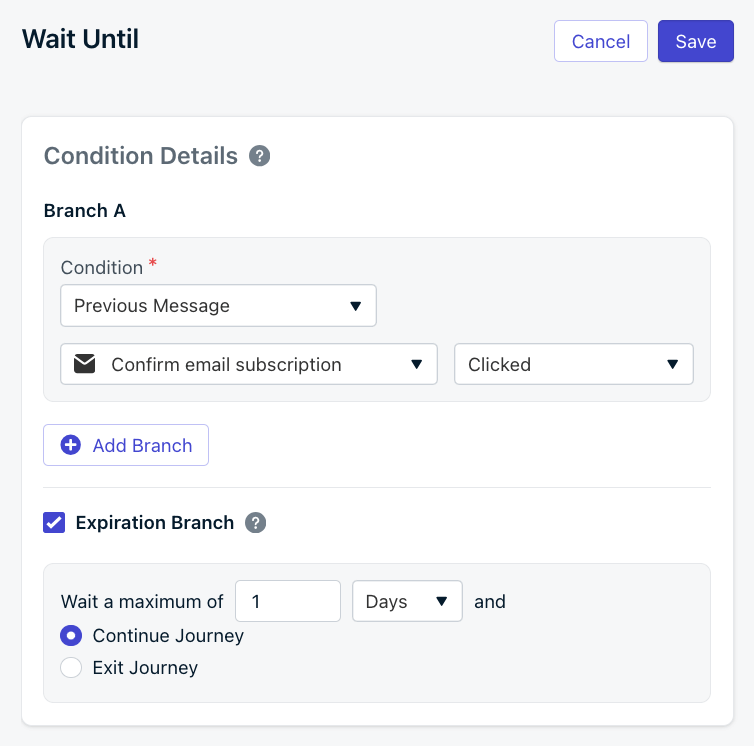
Add a **Wait Until** step and set the Branch A condition to:

* **Previous Message**
* **Confirm email opt-in** template name
* **Clicked**

Check the **Expiration Branch** option and set it to "Wait a maximum of `1 Day` and **Continue Journey**".
<Frame caption="Wait Until step">
  <img src="https://mintcdn.com/onesignal/P-72FyFfB9AgPzK3/images/tutorials/confirm-email-opt-in-wait-until-step.png?fit=max&auto=format&n=P-72FyFfB9AgPzK3&q=85&s=18cd9325a298fca5dc1a3d417469d02b" alt="Wait Until step configured to wait for a click on the Confirm email opt-in message" width="754" height="746" data-path="images/tutorials/confirm-email-opt-in-wait-until-step.png" />
</Frame>

#### Tag users who confirm

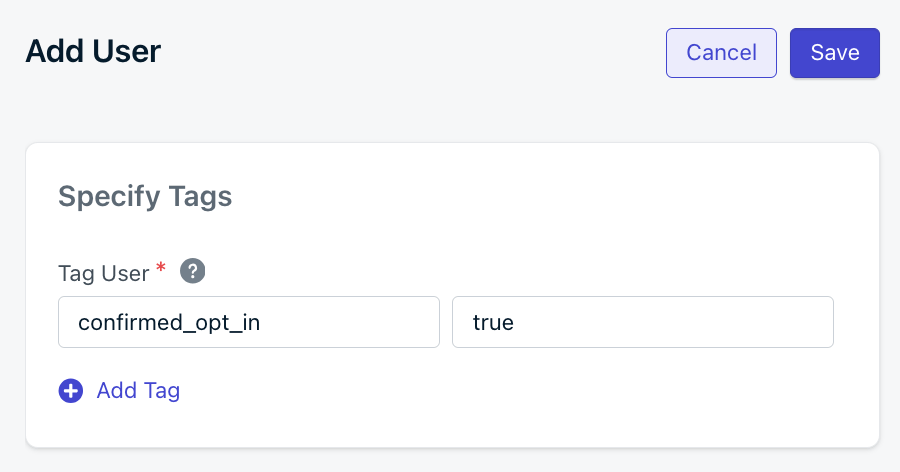
Under the **A (Message Clicked)** branch, add a **Tag User** action and set the Tag to `confirmed_opt_in` with a value of `true`.
<Frame caption="Tag User action">
  <img src="https://mintcdn.com/onesignal/P-72FyFfB9AgPzK3/images/tutorials/confirm-email-opt-in-tag-user-action.png?fit=max&auto=format&n=P-72FyFfB9AgPzK3&q=85&s=001a1d48f7bba349de2b21c297b509e9" alt="Journey editor showing Tag User action setting confirmed_opt_in to true" width="900" height="472" data-path="images/tutorials/confirm-email-opt-in-tag-user-action.png" />
</Frame>

When users click the confirmation button, their `confirmed_opt_in` Tag changes from `false` (or unset) to `true`. You can use this Tag to track which users have confirmed their email subscription.

#### Follow up with non-confirmers

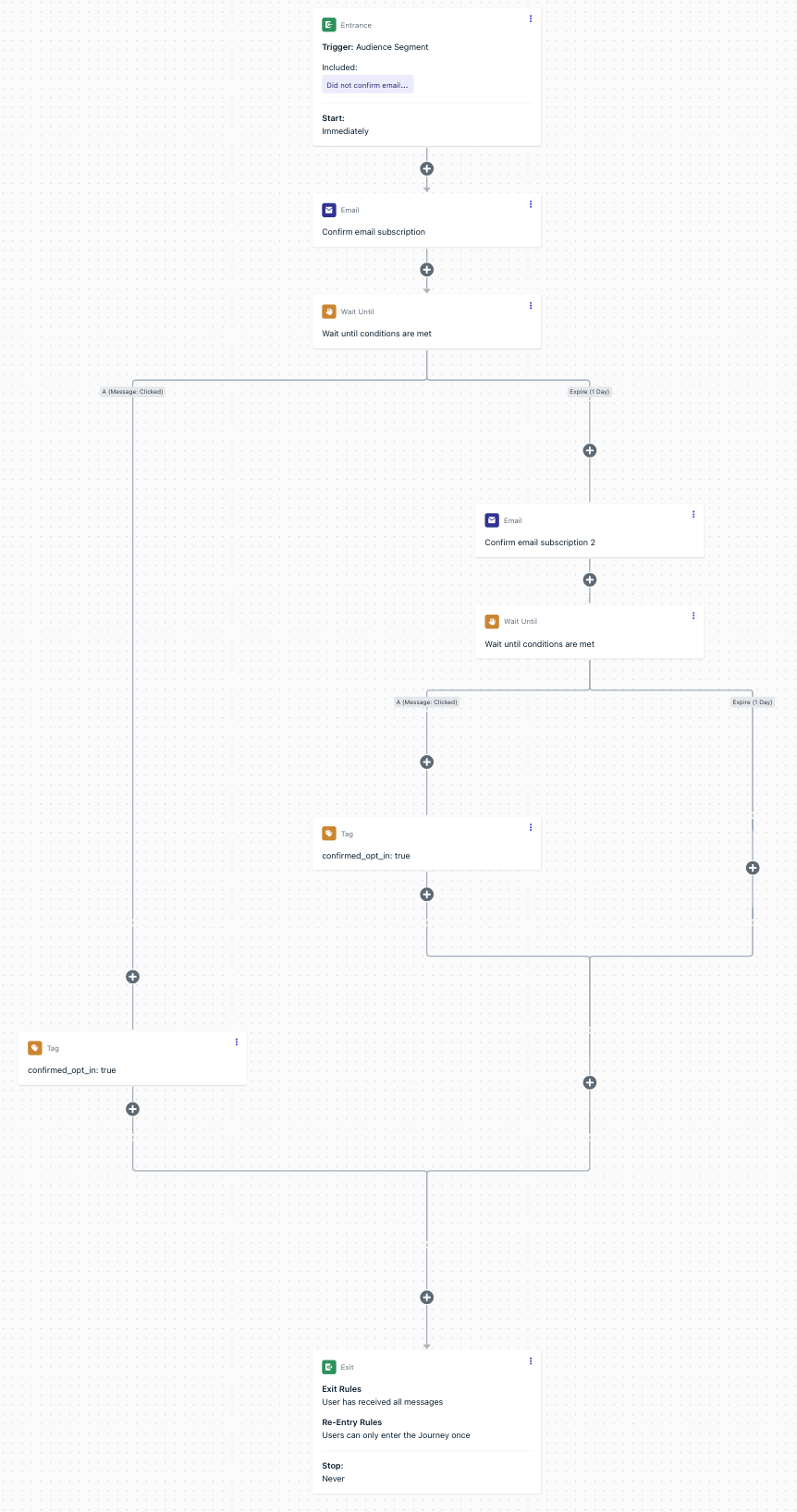
After 1 day, users who did not click the confirmation button go down the **Expire (1 Day)** branch. From there you can repeat the pattern (second confirmation email > Wait Until clicked > Tag if clicked) to give users another chance. Two attempts is a good baseline; three is usually the upper limit before it feels like nagging.
<Frame caption="Full Confirm email opt-in Journey example">
  <img src="https://mintcdn.com/onesignal/P-72FyFfB9AgPzK3/images/tutorials/confirm-email-opt-in-journey-example.png?fit=max&auto=format&n=P-72FyFfB9AgPzK3&q=85&s=4b3e76960f548462d2213c1ea388ceb0" alt="Complete confirmed opt-in Journey with email step, Wait Until, tag action, and a follow-up branch" width="862" height="1636" data-path="images/tutorials/confirm-email-opt-in-journey-example.png" />
</Frame>

### 4. Test the Journey

The Journey is now ready to test. Because the Segment uses the **Test Users** filter, only emails marked as Test Users will receive the confirmation message. To add more test addresses, see [Import emails](./import) and [Test Users](./test-users).

<Steps>
  <Step title="Set the Journey live">
    Click **Set Live** in the Journey.
  </Step>

  <Step title="Receive the confirmation email">
    Wait a few minutes — you should receive the confirmation email at your test address.
  </Step>

  <Step title="Click the confirmation button">
    Click the button in the email and wait a few more minutes for the click to register.
  </Step>

  <Step title="Verify the Tag">
    Check the user profile in **Audience > Users**. You should see `confirmed_opt_in=true` and the user should have exited the Journey.
  </Step>
</Steps>

#### Troubleshooting

If you did not receive the confirmation email after a few minutes:

1. Navigate back into the active Journey.
2. Click the first Email step.
3. Select **Audience Activity** at the top left. See [Journey analytics](./journeys-analytics) for more details.
4. You should see your email in the **Delivered** column. If it's not there, check that your email address is Subscribed and matches the Segment criteria.

If you received the email and clicked the button but the Tag did not update after a few minutes:

1. Navigate to **Audience > Users**.
2. Search for your email address.
3. Check the **Tags** column. You should see `confirmed_opt_in=true` if the Journey worked correctly.

<Info>
  Still need help? Email `support@onesignal.com` with:

  * The email address that you are testing.
  * A link to the Journey (copy the URL from your browser address bar).
  * Any additional information that may be helpful.
</Info>

### 5. Set live in production

When you're ready to send to actual users:

<Steps>
  <Step title="Stop and archive the test Journey">
    Navigate to the Journey and click **More Options > Stop + Archive**.
  </Step>

  <Step title="Duplicate the segment">
    Navigate to the Segment and click **Options > Pause**, then **Options > Duplicate**.
  </Step>

  <Step title="Remove the Test Users filter">
    Update the duplicated Segment to remove the **Test Users** filter, then save.
  </Step>

  <Step title="Duplicate the Journey">
    Navigate back to the Journeys page and click **Options > Duplicate** on the test Journey.
  </Step>

  <Step title="Point the Journey at the production segment">
    Update the duplicated Journey to use the segment without the Test Users filter, then save.
  </Step>

  <Step title="Set live">
    Click **Set Live** when you're ready to roll out to all users.
  </Step>
</Steps>

<Check>
  Subscribers who confirm now carry the `confirmed_opt_in=true` Tag, which you can use for segmentation and to ensure you only message verified users.
</Check>

## FAQ

### Is double opt-in required by GDPR or CAN-SPAM?

**GDPR** requires explicit consent, which double opt-in provides cleanly. **CAN-SPAM** does not strictly require it, but using double opt-in reduces complaint rates and helps you store proof of consent (timestamp + source). Always log the confirmation event for compliance audits.

### Do existing email subscribers need to re-confirm?

No — for users you already trust as confirmed, use the [CSV importer](./import) to bulk-set `confirmed_opt_in=true` so they bypass the confirmation Journey entirely.

### What should my confirmation email look like?

Keep it plain and short. Use a clear subject line ("Confirm your subscription"), a single confirmation CTA, and avoid heavy images, marketing content, or extra links. Make sure your sending domain has SPF, DKIM, and DMARC configured — see [Email DNS configuration](./email-dns-configuration).

### How can I improve confirmation rates?

Show a thank-you page after signup that explains the upcoming confirmation step. Use a benefit-led subject line ("One last step: confirm your subscription"). Send 2–3 reminders maximum — more becomes nagging. If you're sending from a new domain, [warm it up](./email-warm-up) before launching at scale.

### Why aren't my confirmation links tracking?

Make sure the button uses a tracked link generated by the OneSignal template editor — raw external URLs won't fire click events. If users click through but the Tag isn't applied, verify the Wait Until step is set to **Previous Message** **Clicked** and that the **Tag User** action sits on the click branch, not the expiration branch.

### Why aren't users confirming?

Confirmation emails sometimes land in spam or promotions. Encourage users on your post-signup thank-you page to check those folders. Follow the [email reputation best practices](./email-reputation-best-practices) to keep your sender reputation high enough to land in the inbox.

### What happens to users who never click the confirmation link?

After the Wait Until step expires (1 day in this tutorial), users go down the expiration branch. Send one or two follow-up confirmations, then exclude them from your primary segments — they remain unconfirmed and shouldn't receive marketing email.

## Related pages

<Columns cols={2}>
  <Card title="Email deliverability" icon="envelope" href="./email-deliverability">
    How sender reputation, list hygiene, and inbox placement work together to land in the inbox.
  </Card>

  <Card title="Email reputation best practices" icon="shield-check" href="./email-reputation-best-practices">
    Opt-in, monitoring, frequency, warm-up, and list-hygiene recommendations.
  </Card>

  <Card title="Email warm-up" icon="fire" href="./email-warm-up">
    Ramp volume on a new sending domain without hurting deliverability.
  </Card>

  <Card title="Email setup and compliance" icon="gear" href="./email-setup">
    Configure your sending domain and meet legal sending requirements.
  </Card>

  <Card title="Journeys actions" icon="route" href="./journeys-actions">
    Wait Until branches, Tag actions, and other Journey building blocks.
  </Card>

  <Card title="Magic Link OTP example" icon="link" href="./example-verification-magic-link-otp">
    Build the same confirmation flow programmatically via the OneSignal API.
  </Card>
</Columns>