> ## Documentation Index
> Fetch the complete documentation index at: https://documentation.onesignal.com/llms.txt
> Use this file to discover all available pages before exploring further.
# Dynamic Content with CSV
> Personalize push, email, and SMS messages at scale using Dynamic Content with CSV uploads and Liquid syntax in OneSignal.
OneSignal provides several ways to [personalize message content](./message-personalization) at scale. This guide focuses on using the Dynamic Content with CSV upload feature in the OneSignal dashboard for push, email, and SMS.
**Key benefits:**
* **Use a CSV to personalize at scale** – One message, custom experiences for everyone
* **Dynamic personalization** – Content adapts to user properties (language, region, campaign ID)
* **HTML injection (email)** – Include HTML markup in CSV cells to dynamically build rich email content
* **Team collaboration** – Non-technical users edit content in CSV files
* **Cross-channel compatibility** – Reuse CSV logic across channels
* **Multi-language support** – Automatic language switching per user
**Common use cases:**
* Multi-language onboarding or marketing
* Region-specific promotions
* Event announcements per location
* Campaign-based personalization
***
## Dynamic Content with CSV setup steps
**Quick reference:**
1. Create a CSV file with your content variations.
2. Create a [template](./templates)
3. Map the CSV data to the message using the `dynamic_content` property in liquid syntax.
4. Select the **Dynamic Content** or **Personalization** button.
5. Upload the CSV file and send the message.
### CSV requirements & setup
* **File size:** Under 200 KB
* **Column headers:**
* Reserve the first column header for the tag key or leave blank to reference sections
* Alphanumeric characters and underscores only
* Use underscores (`_`) instead of spaces
* **Encoding:** UTF-8
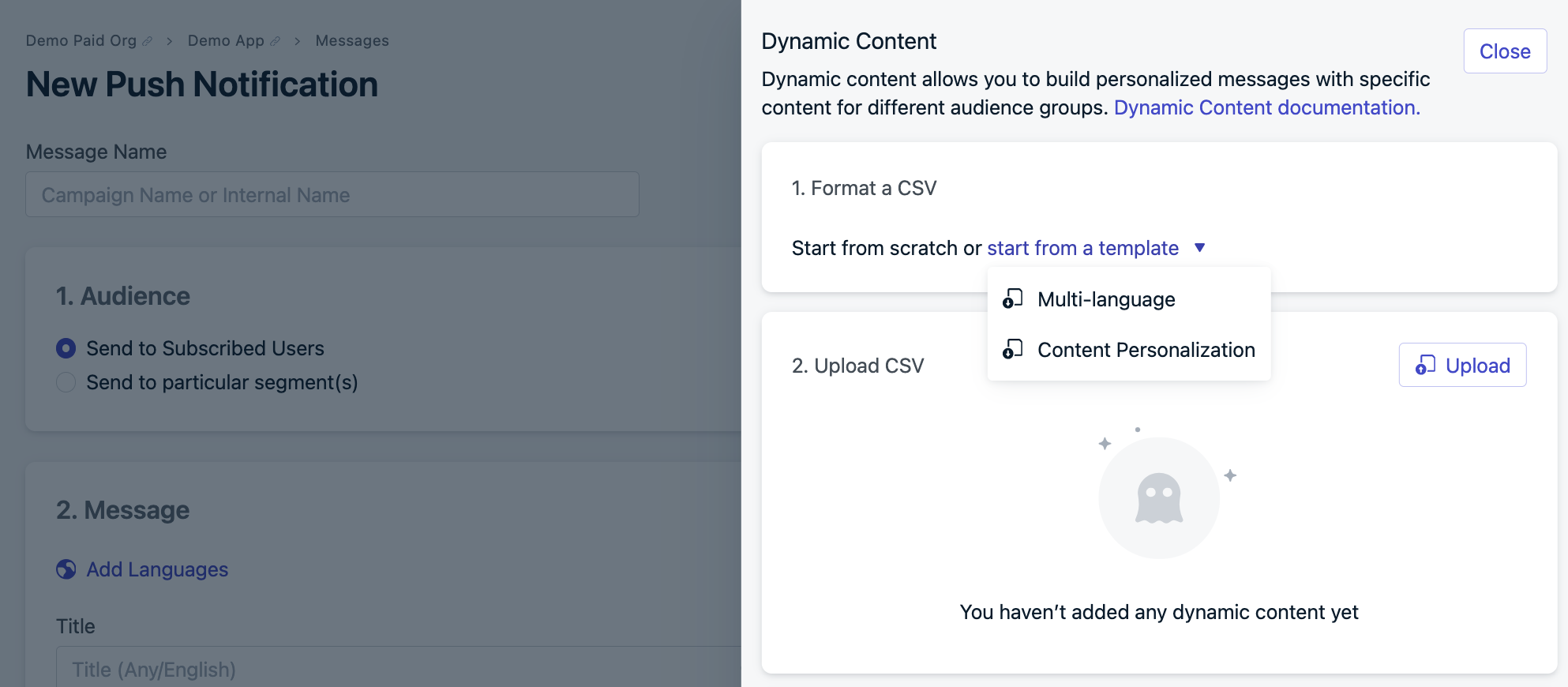
Start with a blank CSV or use a provided template. Templates are provided when selecting the **Dynamic Content** or **Personalization** button in the message and template editors.
 Templates are available for:
* **Multi-language** – Localize content by language
* **Content personalization** – Customize content by Tags
Templates are available for:
* **Multi-language** – Localize content by language
* **Content personalization** – Customize content by Tags
 #### Example CSVs
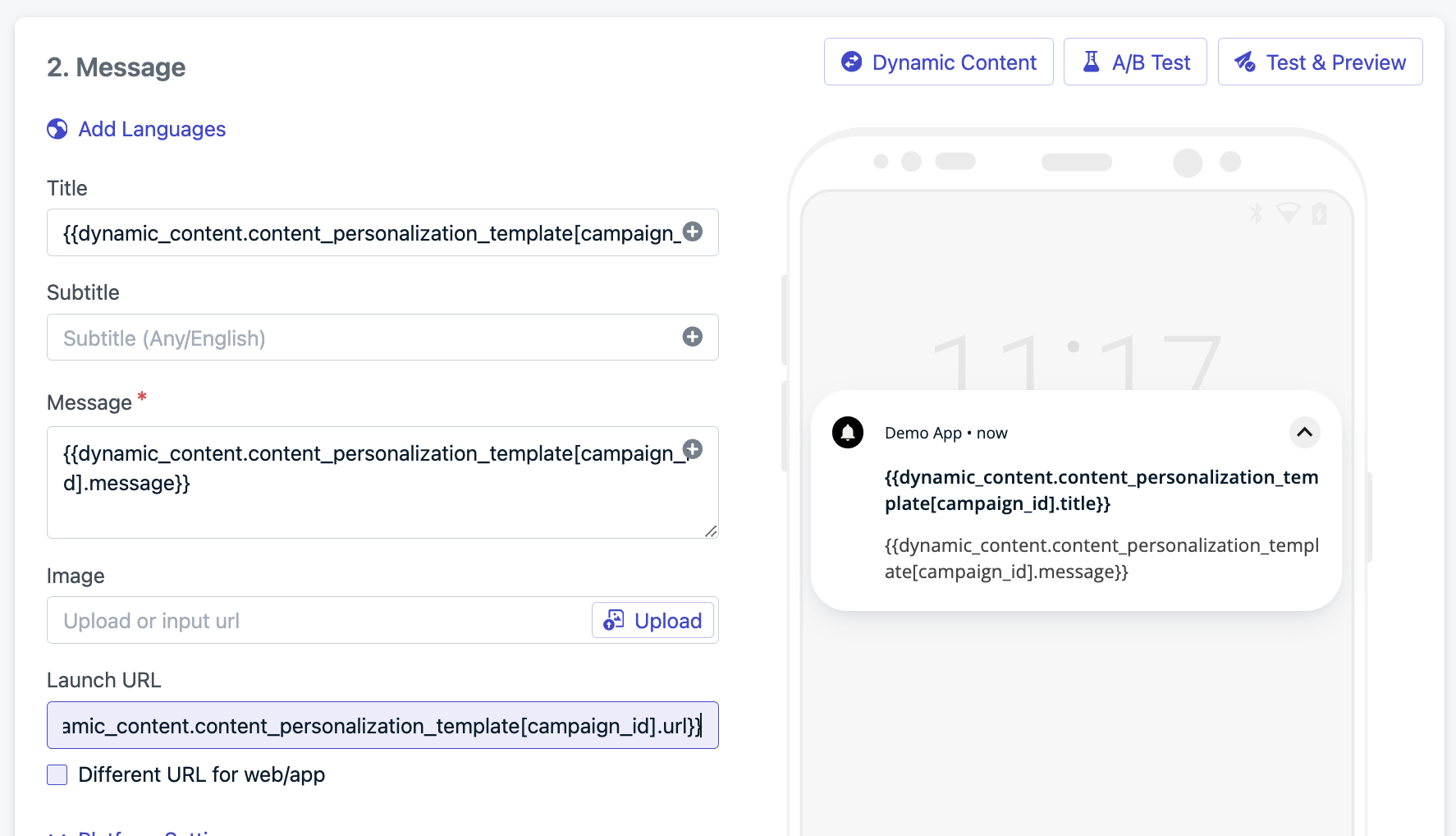
This guide will use the following example CSV data.
* Map the column headers to your [supported language codes](./multi-language-messaging#supported-languages).
* Add your translations to each row for each language code.
* If you have multiple sections (like in an email), designate the first column as the section name.
This example includes:
* 3 languages: English, Spanish, and French.
* 2 sections: "section\_1" and "section\_2".
#### Example CSVs
This guide will use the following example CSV data.
* Map the column headers to your [supported language codes](./multi-language-messaging#supported-languages).
* Add your translations to each row for each language code.
* If you have multiple sections (like in an email), designate the first column as the section name.
This example includes:
* 3 languages: English, Spanish, and French.
* 2 sections: "section\_1" and "section\_2".
 * Map the first column header to the tag key and underlying rows to the values you want to reference. See [Tags](./add-user-data-tags) for more information on adding tags to users.
* Map the remaining column headers to the sections or components you want to personalize.
In this example:
* The tag key is `campaign_id` with possible values of `A` and `B`.
* There are 3 components: "title", "message", and "url".
* Map the first column header to the tag key and underlying rows to the values you want to reference. See [Tags](./add-user-data-tags) for more information on adding tags to users.
* Map the remaining column headers to the sections or components you want to personalize.
In this example:
* The tag key is `campaign_id` with possible values of `A` and `B`.
* There are 3 components: "title", "message", and "url".
 **Important:** Remove spaces and non-alphanumeric characters from CSV headers
or use hash notation in Liquid.
**Important:** Remove spaces and non-alphanumeric characters from CSV headers
or use hash notation in Liquid.
 ### Map CSV data to message content
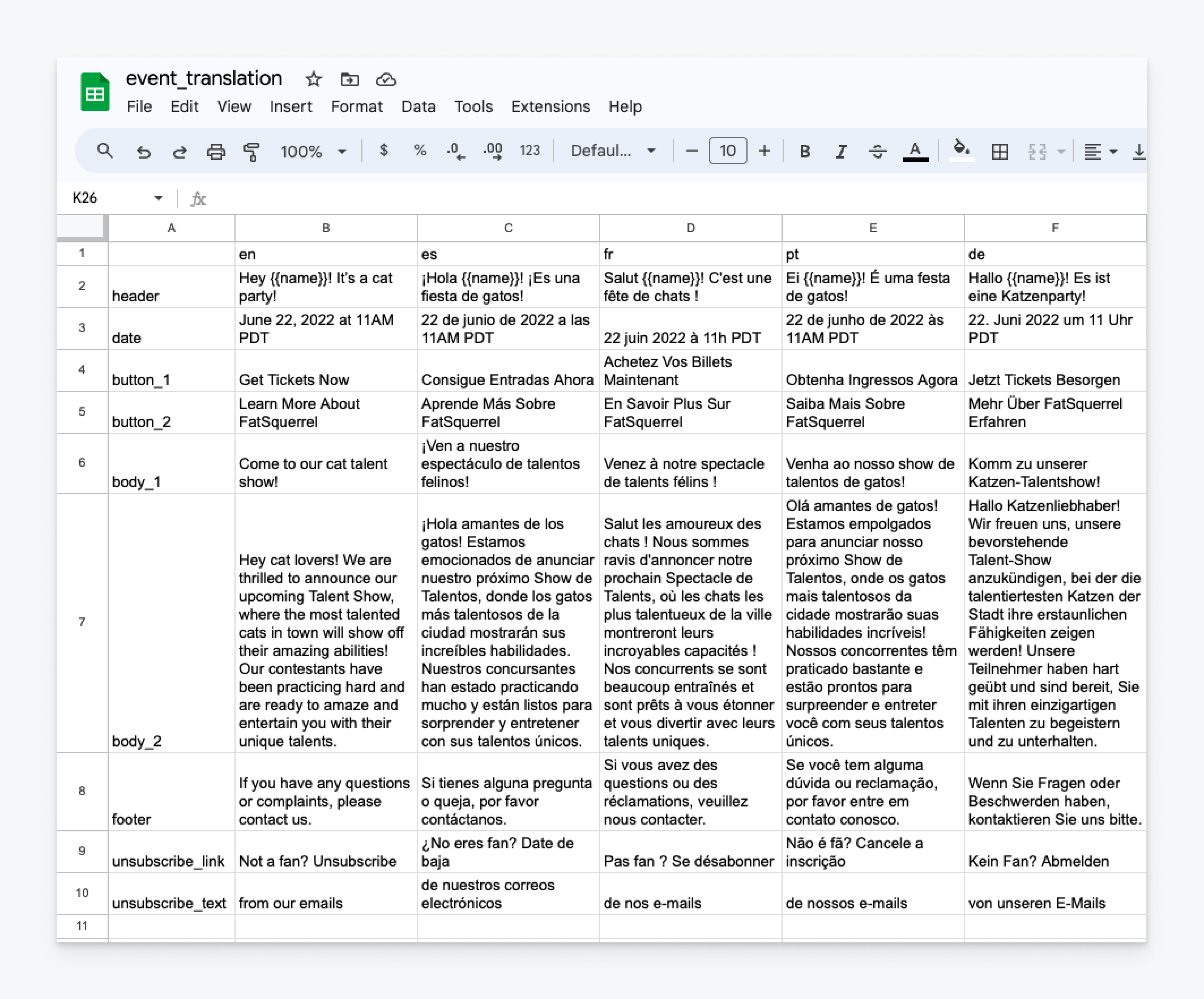
Using [Liquid syntax](./using-liquid-syntax), reference the CSV data in your message using the `dynamic_content` property:
```liquid theme={null}
{{dynamic_content.file_name.message_component[user_property]}}
{{dynamic_content.file_name[user_property].message_component}}
```
**Parameters:**
* `dynamic_content` – The property name used to reference the CSV data
* `file_name` – CSV file name (without `.csv` extension)
* `message_component` – The specific message component you want to personalize. This is the static text in the CSV column header or first row.
* `user_property` – The [user property](./message-personalization#properties) you want to reference.
**Fallback content:**
Always use hard-coded string `default` fallbacks to ensure messages render if the CSV lookup or Dynamic Content fails.
```liquid Liquid syntax for the fallback theme={null}
{{ dynamic_content.my_template.header[user.language] | default: "Welcome to our latest update" }}
```
This means if the CSV lookup or Dynamic Content fails, the message will render the fallback text `"Welcome to our latest update"`.
This ensures:
* Dynamic Content is used when available
* A hard-coded message appears if Dynamic Content fails
* Users never receive blank content
```csv translations.csv theme={null}
,en,es,fr
section_1,Hello,Hola,Bonjour
section_2,Thanks for shopping with us...,Gracias por comprar con nosotros...,Merci pour votre achat avec nous...
```
* The `file_name` is `translations.csv`.
* The `message_component` is in the rows of the first column `section_1` and `section_2`.
* The `user_property` is the column header matching language code. We can reference this on the user with the `user.language` [property](./message-personalization#properties).
```liquid Basic Liquid syntax for the multi-language message theme={null}
{{dynamic_content.translations.section_1[user.language]}}
{{dynamic_content.translations.section_2[user.language]}}
```
```liquid (Recommended) Liquid syntax with default fallback for the multi-language message theme={null}
{% assign supported_langs = "en,es,fr,de" | split: "," %}
{% assign lang = user.language | default: "en" %}
{% unless supported_langs contains lang %}
{% assign lang = "en" %}
{% endunless %}
{{ dynamic_content.translations.section_1[lang] | default: "Hello" }}
{{ dynamic_content.translations.section_2[lang] | default: "Thanks for shopping with us..." }}
```
### Map CSV data to message content
Using [Liquid syntax](./using-liquid-syntax), reference the CSV data in your message using the `dynamic_content` property:
```liquid theme={null}
{{dynamic_content.file_name.message_component[user_property]}}
{{dynamic_content.file_name[user_property].message_component}}
```
**Parameters:**
* `dynamic_content` – The property name used to reference the CSV data
* `file_name` – CSV file name (without `.csv` extension)
* `message_component` – The specific message component you want to personalize. This is the static text in the CSV column header or first row.
* `user_property` – The [user property](./message-personalization#properties) you want to reference.
**Fallback content:**
Always use hard-coded string `default` fallbacks to ensure messages render if the CSV lookup or Dynamic Content fails.
```liquid Liquid syntax for the fallback theme={null}
{{ dynamic_content.my_template.header[user.language] | default: "Welcome to our latest update" }}
```
This means if the CSV lookup or Dynamic Content fails, the message will render the fallback text `"Welcome to our latest update"`.
This ensures:
* Dynamic Content is used when available
* A hard-coded message appears if Dynamic Content fails
* Users never receive blank content
```csv translations.csv theme={null}
,en,es,fr
section_1,Hello,Hola,Bonjour
section_2,Thanks for shopping with us...,Gracias por comprar con nosotros...,Merci pour votre achat avec nous...
```
* The `file_name` is `translations.csv`.
* The `message_component` is in the rows of the first column `section_1` and `section_2`.
* The `user_property` is the column header matching language code. We can reference this on the user with the `user.language` [property](./message-personalization#properties).
```liquid Basic Liquid syntax for the multi-language message theme={null}
{{dynamic_content.translations.section_1[user.language]}}
{{dynamic_content.translations.section_2[user.language]}}
```
```liquid (Recommended) Liquid syntax with default fallback for the multi-language message theme={null}
{% assign supported_langs = "en,es,fr,de" | split: "," %}
{% assign lang = user.language | default: "en" %}
{% unless supported_langs contains lang %}
{% assign lang = "en" %}
{% endunless %}
{{ dynamic_content.translations.section_1[lang] | default: "Hello" }}
{{ dynamic_content.translations.section_2[lang] | default: "Thanks for shopping with us..." }}
```
 ```csv content_personalization_template.csv theme={null}
campaign_id,title,message,url
campaign_123,Flash deal for you,Tap to claim,https://example.com/flash
campaign_456,Weekend picks are here,See what's trending,https://example.com/weekend
default,Our latest offers,See what's new,https://example.com
```
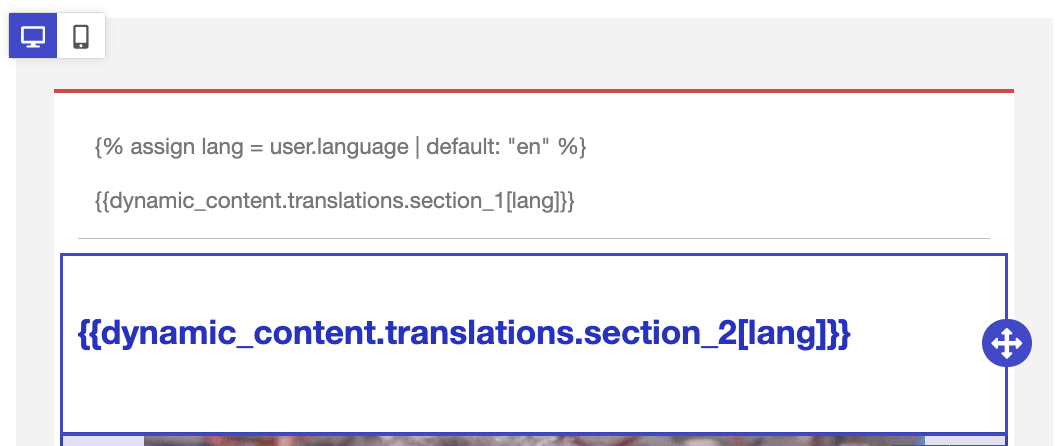
* The `file_name` is `content_personalization_template.csv`.
* The `user_property` maps to the tag key: `campaign_id`.
* The `message_component` is the column header mapped to the section of the message you want to personalize (title, message, or url).
```liquid Liquid syntax for the content personalization message theme={null}
{{ dynamic_content.content_personalization_template[campaign_id].title }}
{{ dynamic_content.content_personalization_template[campaign_id].message }}
{{ dynamic_content.content_personalization_template[campaign_id].url }}
```
```liquid (Recommended) Liquid syntax with default fallback for the content personalization message theme={null}
{% assign cid = campaign_id | default: "default" %}
{% unless dynamic_content.content_personalization_template[cid] %}
{% assign cid = "default" %}
{% endunless %}
{{ dynamic_content.content_personalization_template[cid].title | default: "Our latest offers" }}
{{ dynamic_content.content_personalization_template[cid].message | default: "See what's new" }}
{{ dynamic_content.content_personalization_template[cid].url | default: "https://example.com" }}
```
```csv content_personalization_template.csv theme={null}
campaign_id,title,message,url
campaign_123,Flash deal for you,Tap to claim,https://example.com/flash
campaign_456,Weekend picks are here,See what's trending,https://example.com/weekend
default,Our latest offers,See what's new,https://example.com
```
* The `file_name` is `content_personalization_template.csv`.
* The `user_property` maps to the tag key: `campaign_id`.
* The `message_component` is the column header mapped to the section of the message you want to personalize (title, message, or url).
```liquid Liquid syntax for the content personalization message theme={null}
{{ dynamic_content.content_personalization_template[campaign_id].title }}
{{ dynamic_content.content_personalization_template[campaign_id].message }}
{{ dynamic_content.content_personalization_template[campaign_id].url }}
```
```liquid (Recommended) Liquid syntax with default fallback for the content personalization message theme={null}
{% assign cid = campaign_id | default: "default" %}
{% unless dynamic_content.content_personalization_template[cid] %}
{% assign cid = "default" %}
{% endunless %}
{{ dynamic_content.content_personalization_template[cid].title | default: "Our latest offers" }}
{{ dynamic_content.content_personalization_template[cid].message | default: "See what's new" }}
{{ dynamic_content.content_personalization_template[cid].url | default: "https://example.com" }}
```
 Use Liquid with `default` fallback to update subject lines, preheaders, button
labels, and URLs.
### Using HTML in CSV cells (email only)
You can include HTML markup directly in CSV cells to inject rich content into emails. This is useful for swapping entire sections of an email — such as banners, CTAs, or styled blocks — based on user properties.
```csv promo_banners.csv theme={null}
campaign_id,banner_html
spring_sale,
default,
```
Reference the HTML cell in your email template:
```liquid theme={null}
{{ dynamic_content.promo_banners[campaign_id].banner_html | default: "
Use Liquid with `default` fallback to update subject lines, preheaders, button
labels, and URLs.
### Using HTML in CSV cells (email only)
You can include HTML markup directly in CSV cells to inject rich content into emails. This is useful for swapping entire sections of an email — such as banners, CTAs, or styled blocks — based on user properties.
```csv promo_banners.csv theme={null}
campaign_id,banner_html
spring_sale,
default,
```
Reference the HTML cell in your email template:
```liquid theme={null}
{{ dynamic_content.promo_banners[campaign_id].banner_html | default: "Check out our latest offers
" }}
```
The HTML renders directly in the email body, so you can use any inline styles and markup that email clients support.
HTML from CSV cells is only supported in email. Push and SMS channels render content as plain text and do not interpret HTML markup.
***
## Reference
### Updating templates
Re-upload CSVs via the dashboard or use the [Update Template API](/reference/update-template) `dynamic_content` property.
### Special characters in keys
**Hash notation** (for non-alphanumeric keys):
```liquid theme={null}
{{ dynamic_content.file_name["!the_row!"]["&the_column&"] }}
```
**Dot notation** (for standard keys):
```liquid theme={null}
{{ dynamic_content.file_name.the_row.the_column }}
```
***
## FAQ
### How can I test Dynamic Content with CSV?
Use email to test multiple variations of the message.
* Use `+` addressing in emails to test multiple variations: `username+test@example.com`.
* Set tags following the multi-language and content personalization examples above.
* See [Import](./import) for more on uploading multiple users and tags.
### When should I use Dynamic Content with CSV vs. other personalization options?
Use **Dynamic Content with CSV** when sending messages from the dashboard and you have user data in a CSV file. For other ways to add dynamic content to messages, see [Message Personalization](./message-personalization) or [Multi-language Messaging](./multi-language-messaging).
***
## Related pages
Overview of all personalization options available in OneSignal.
Complete Liquid syntax reference for OneSignal messages.
Upload user data and segments to OneSignal.
Create and manage reusable message templates.