> ## Documentation Index
> Fetch the complete documentation index at: https://documentation.onesignal.com/llms.txt
> Use this file to discover all available pages before exploring further.
# Email address validation
> Validate email addresses during CSV import and in bulk to reduce bounces and protect your sender reputation.
Email address validation detects common problems in email addresses before they reach your audience. It flags typos, invalid domains, role-based addresses, and disposable email services that could increase your bounce rate or hurt your sender reputation.
It runs automatically during CSV import and is also available as a bulk validation tool for your existing audience.
Email address validation checks addresses against OneSignal's validation criteria. It is not a live bounce verification check and does not guarantee deliverability.
## Validation checks
Email address validation evaluates each address against the following checks:
| Check | What it detects |
| ---------------------- | --------------------------------------------------------------------------------------- |
| **Syntax validation** | Malformed addresses missing required components (e.g. missing `@`, invalid TLD) |
| **Typo detection** | Common domain misspellings like `gnail.com` or `gmail.con` |
| **MX record check** | Domains with no valid mail exchange record; email sent here cannot be delivered |
| **Role-based address** | Addresses like `sales@`, `info@`, `admin@` that are unlikely to belong to an individual |
| **Disposable email** | Domains associated with temporary or throwaway email services |
**Free plans** include syntax validation and typo detection. **Paid plans** include all of the above plus MX record checks, role-based address detection, and disposable email filtering.
If an address fails a check, email address validation returns a human-readable error explaining the specific problem. If an address fails multiple checks, all failure reasons are returned together so you can address everything at once.
***
## Validate addresses during CSV import
When importing a CSV, you can configure email address validation settings on the **Review** step before confirming the import.
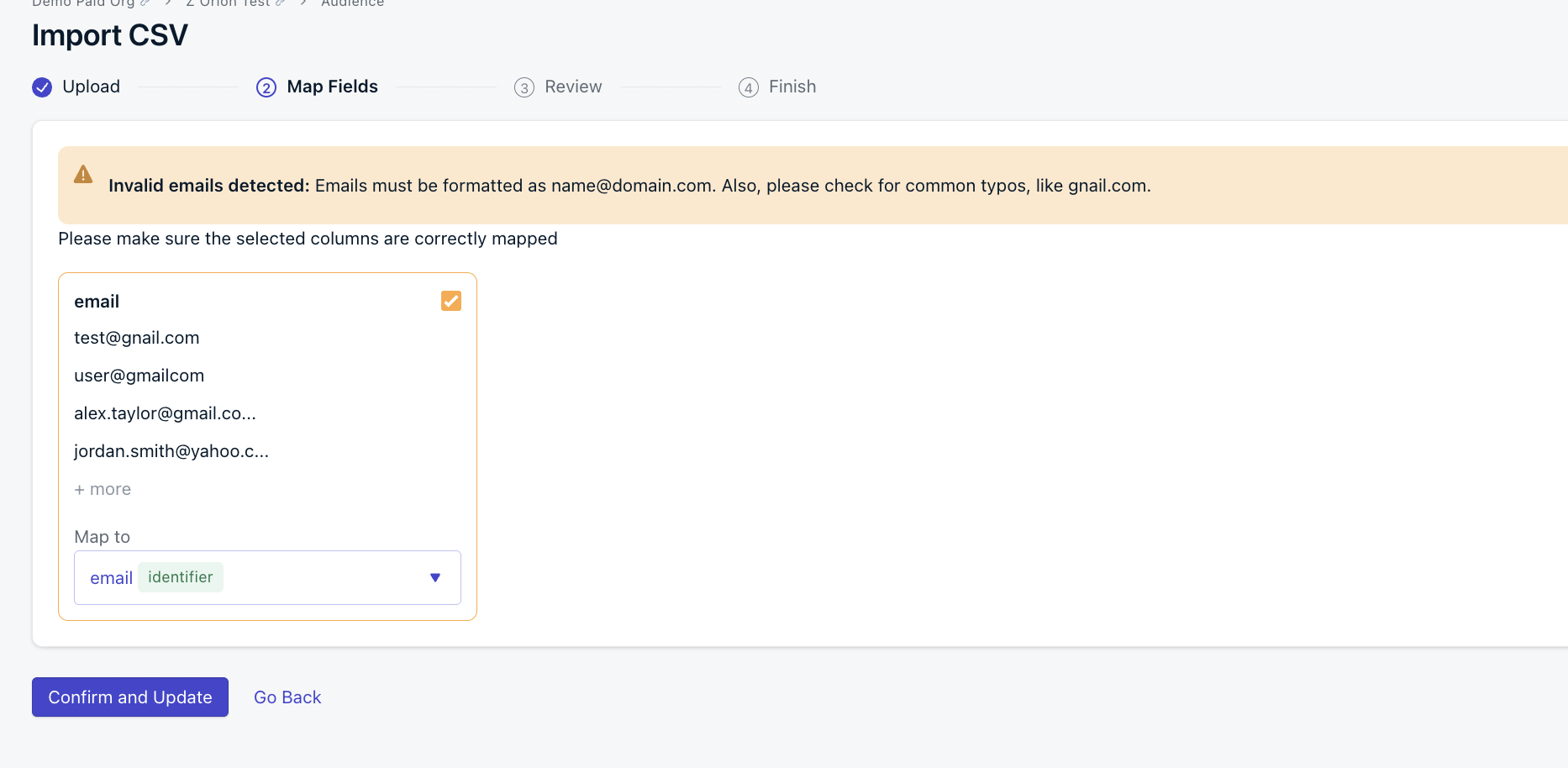
Go to **Audience > Import** and upload your file. Complete the **Upload** and **Map Fields** steps. If any invalid email addresses are detected, a warning will appear on the **Map Fields** step.
 On the **Review** step, expand **Email address validation settings**. The following options are available:
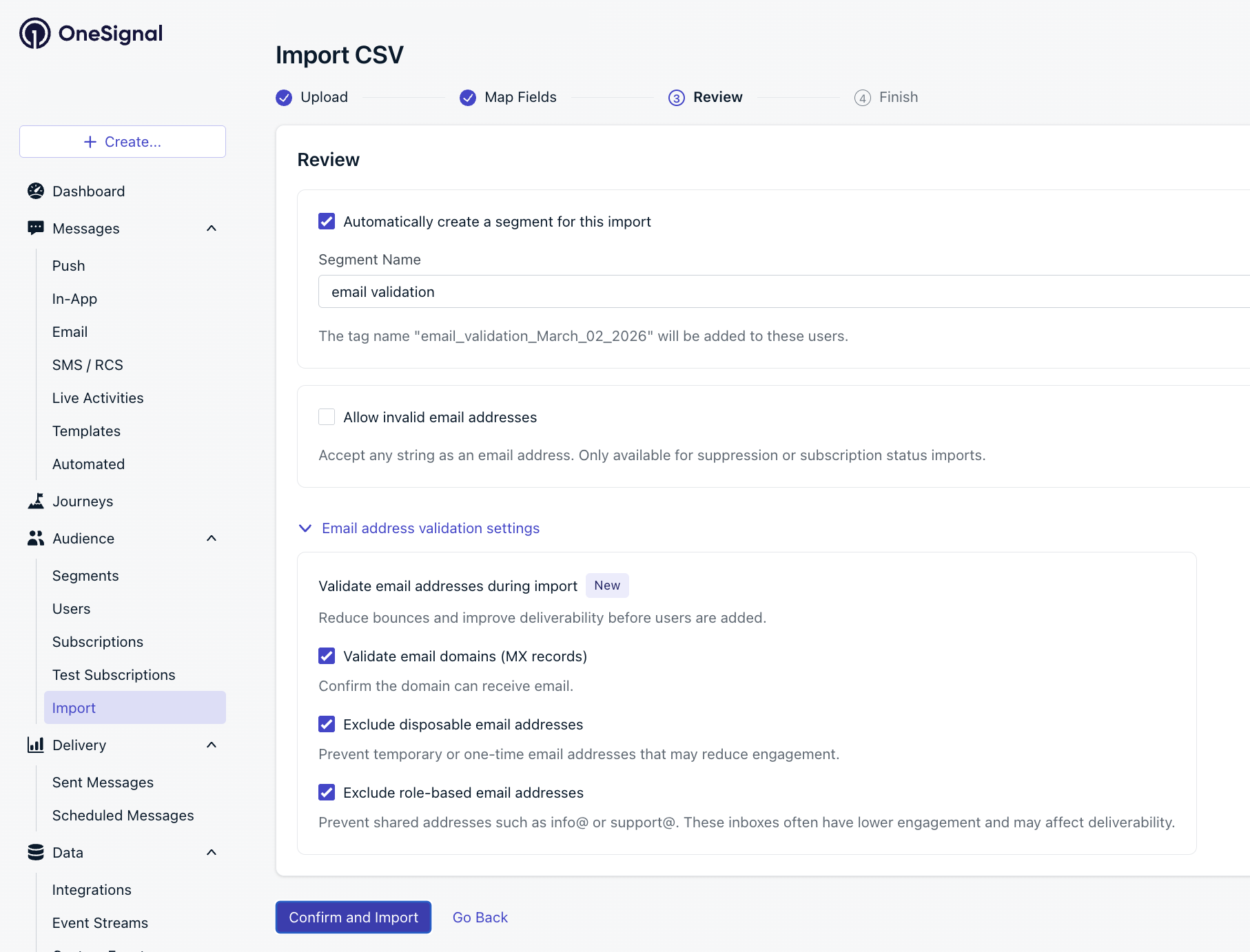 * **Validate email domains (MX records)**: confirm the domain can receive email
* **Exclude disposable email addresses**: prevent temporary or one-time addresses that may reduce engagement
* **Exclude role-based email addresses**: prevent shared addresses like `info@` or `support@` that often have lower engagement
All three are enabled by default. Uncheck any you don't want applied to this import.
If you need to import invalid email addresses (for example, to update suppression or subscription status), check **Allow invalid email addresses**. This bypasses validation and accepts any string as an email address.
Click **Confirm and Import**. When the import is complete, you'll receive an email summarizing the results:
* Subscriptions added
* Subscriptions modified
* Rows not imported, with a link to download the rejected rows
#### Result
Valid addresses are added to your audience. You receive an email when the import is complete. Addresses that failed validation are excluded and available to download from the link in the results email.
***
## Validate your existing audience in bulk
Use bulk validation to check email addresses already in your OneSignal audience. You receive results by email as a CSV export.
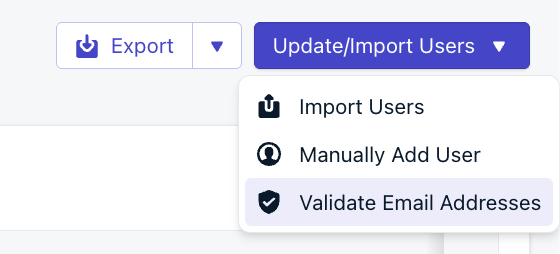
Go to **Audience > Subscriptions** (or **Audience > Users**), click **Update/Import Users**, then select **Validate Email Addresses**.
* **Validate email domains (MX records)**: confirm the domain can receive email
* **Exclude disposable email addresses**: prevent temporary or one-time addresses that may reduce engagement
* **Exclude role-based email addresses**: prevent shared addresses like `info@` or `support@` that often have lower engagement
All three are enabled by default. Uncheck any you don't want applied to this import.
If you need to import invalid email addresses (for example, to update suppression or subscription status), check **Allow invalid email addresses**. This bypasses validation and accepts any string as an email address.
Click **Confirm and Import**. When the import is complete, you'll receive an email summarizing the results:
* Subscriptions added
* Subscriptions modified
* Rows not imported, with a link to download the rejected rows
#### Result
Valid addresses are added to your audience. You receive an email when the import is complete. Addresses that failed validation are excluded and available to download from the link in the results email.
***
## Validate your existing audience in bulk
Use bulk validation to check email addresses already in your OneSignal audience. You receive results by email as a CSV export.
Go to **Audience > Subscriptions** (or **Audience > Users**), click **Update/Import Users**, then select **Validate Email Addresses**.
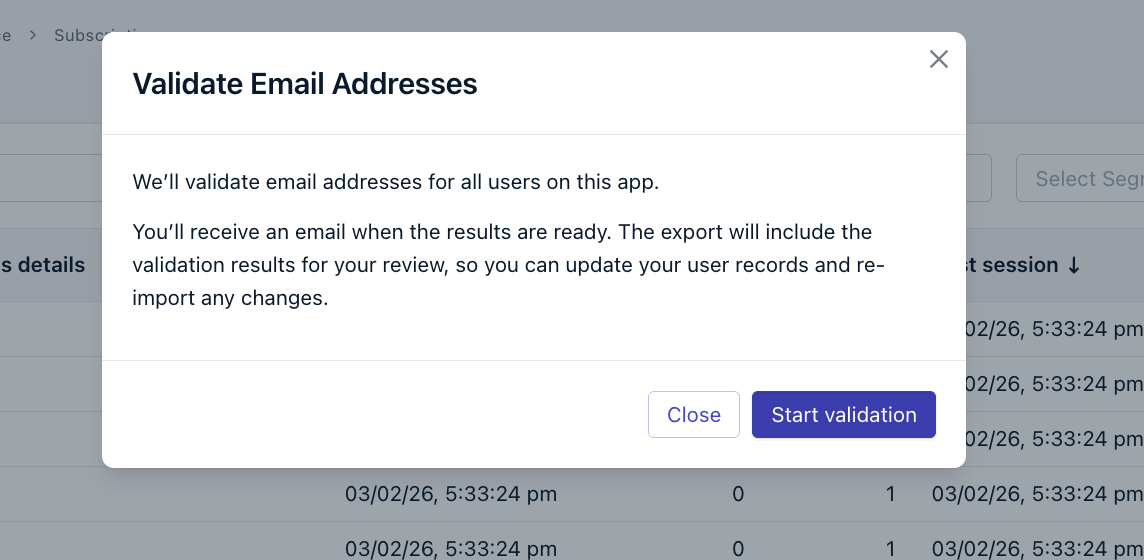
 In the modal, click **Start validation**. Email address validation runs against all email addresses for your app.
 When validation is complete, you'll receive an email from OneSignal with a **Download CSV Export** link. The link is active for 72 hours. The email summarizes how many addresses failed, broken down by:
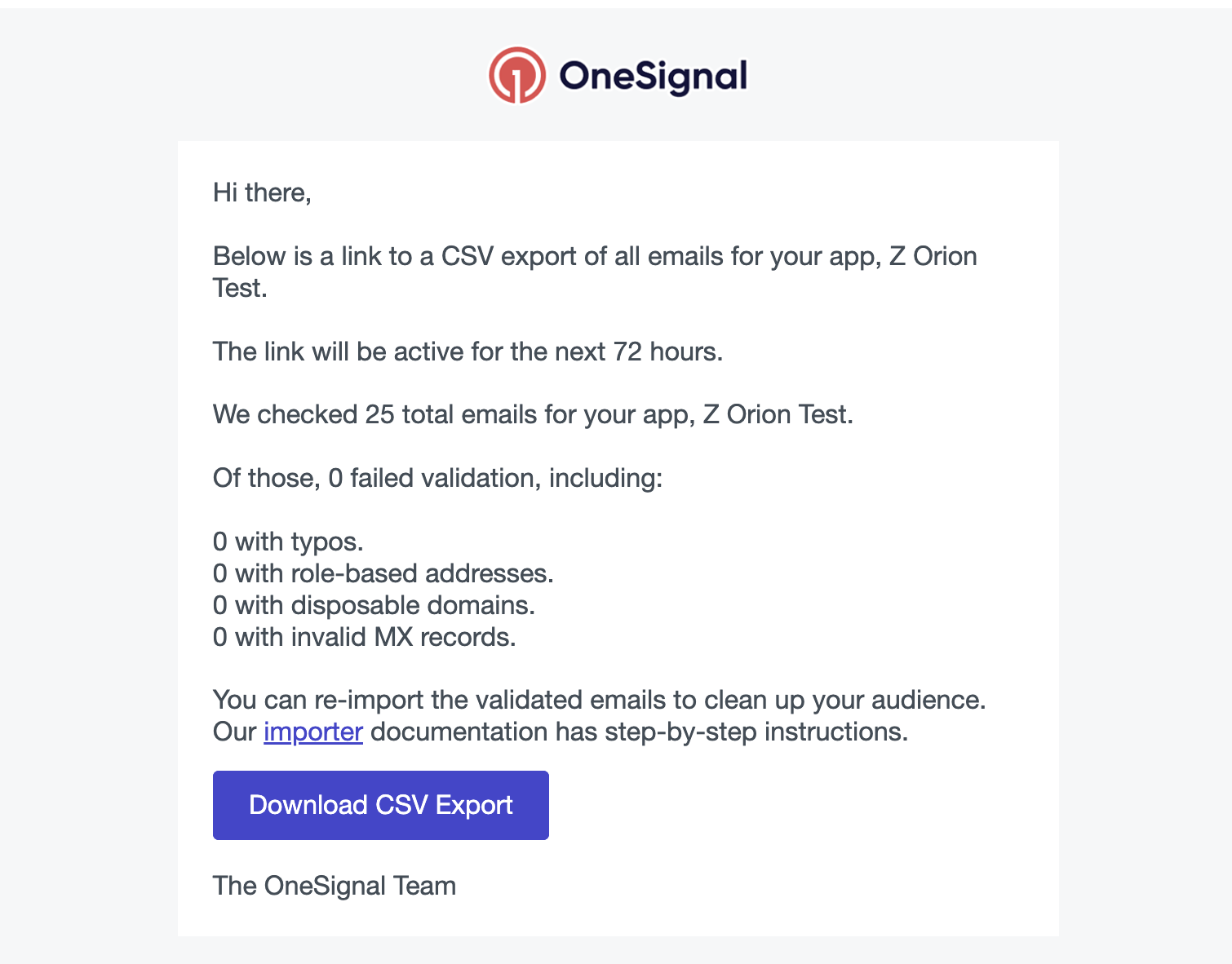 * Typos
* Role-based addresses
* Disposable domains
* Invalid MX records
Download the CSV and review the flagged addresses. To clean up your audience, create a new CSV with the corrected or actioned addresses and re-import it using one of the following column formats:
| Goal | Required columns | Value |
| -------------------------------- | --------------------- | --------------------- |
| Re-subscribe corrected addresses | `email`, `subscribed` | `subscribed` = `yes` |
| Unsubscribe flagged addresses | `email`, `subscribed` | `subscribed` = `no` |
| Suppress flagged addresses | `email`, `suppressed` | `suppressed` = `true` |
#### Result
You receive an email with a CSV export of flagged addresses and a summary of validation results broken down by error type.
* Typos
* Role-based addresses
* Disposable domains
* Invalid MX records
Download the CSV and review the flagged addresses. To clean up your audience, create a new CSV with the corrected or actioned addresses and re-import it using one of the following column formats:
| Goal | Required columns | Value |
| -------------------------------- | --------------------- | --------------------- |
| Re-subscribe corrected addresses | `email`, `subscribed` | `subscribed` = `yes` |
| Unsubscribe flagged addresses | `email`, `subscribed` | `subscribed` = `no` |
| Suppress flagged addresses | `email`, `suppressed` | `suppressed` = `true` |
#### Result
You receive an email with a CSV export of flagged addresses and a summary of validation results broken down by error type.
 ***
## Validation error reference
The following errors may appear in validation results:
| Error | What it means | What to do |
| ---------------------------- | ------------------------------------------------------------------------------------------------------------------------------------------ | ---------------------------------------------------------------------------------------- |
| **Invalid input** | The address is malformed and does not meet basic syntax requirements (e.g. missing `@`, invalid TLD). | Correct or remove the address. |
| **Typo in email address** | A likely misspelling was detected in the domain. A suggested correction appears in the adjacent column. | Apply the suggested fix or remove the address. |
| **MX record not found** | The domain has no valid mail exchange record. Email cannot be delivered to this address. | Remove or suppress the address. |
| **Role-based email address** | The local part (before `@`) matches a known role-based pattern like `sales@` or `support@`. These are unlikely to belong to an individual. | Review whether the address is appropriate for your use case, then suppress or remove it. |
| **Disposable email address** | The domain is associated with a temporary or throwaway email service. | Suppress or remove the address. |
***
## API error responses
Email address validation also applies to addresses submitted through the API. The sections below describe the error responses you may encounter.
API validation only checks that the email address is correctly formatted. It does not check for typos, MX records, role-based addresses, or disposable domains. Those checks are only available during CSV import and bulk validation.
### Send email: Create Message
When you send to one or more invalid addresses via the [Create Message endpoint](/reference/create-message), invalid addresses are excluded from delivery and returned under `invalid_email_tokens`.
```json theme={null}
{
"id": "",
"errors": {
"invalid_email_tokens": ["invalid@email"]
}
}
```
### Add a user or subscription: User Model API
When you create a user or subscription with an invalid email via the [Create User](/reference/create-user) or [Create Subscription](/reference/create-subscription) endpoint:
```json theme={null}
{
"errors": [
{
"title": "Invalid `token` format for device type email"
}
]
}
```
### Add a device: Legacy Players API
When you add or edit a player record with an invalid email via the [legacy Players API](/reference/add-a-device):
```json theme={null}
{
"success": false,
"errors": ["[\"Identifier invalid format.\"]"]
}
```
The Legacy Players API is deprecated. Migrate to the [User Model API](/reference/create-user) to receive more descriptive validation errors and access current features.
***
## Validation error reference
The following errors may appear in validation results:
| Error | What it means | What to do |
| ---------------------------- | ------------------------------------------------------------------------------------------------------------------------------------------ | ---------------------------------------------------------------------------------------- |
| **Invalid input** | The address is malformed and does not meet basic syntax requirements (e.g. missing `@`, invalid TLD). | Correct or remove the address. |
| **Typo in email address** | A likely misspelling was detected in the domain. A suggested correction appears in the adjacent column. | Apply the suggested fix or remove the address. |
| **MX record not found** | The domain has no valid mail exchange record. Email cannot be delivered to this address. | Remove or suppress the address. |
| **Role-based email address** | The local part (before `@`) matches a known role-based pattern like `sales@` or `support@`. These are unlikely to belong to an individual. | Review whether the address is appropriate for your use case, then suppress or remove it. |
| **Disposable email address** | The domain is associated with a temporary or throwaway email service. | Suppress or remove the address. |
***
## API error responses
Email address validation also applies to addresses submitted through the API. The sections below describe the error responses you may encounter.
API validation only checks that the email address is correctly formatted. It does not check for typos, MX records, role-based addresses, or disposable domains. Those checks are only available during CSV import and bulk validation.
### Send email: Create Message
When you send to one or more invalid addresses via the [Create Message endpoint](/reference/create-message), invalid addresses are excluded from delivery and returned under `invalid_email_tokens`.
```json theme={null}
{
"id": "",
"errors": {
"invalid_email_tokens": ["invalid@email"]
}
}
```
### Add a user or subscription: User Model API
When you create a user or subscription with an invalid email via the [Create User](/reference/create-user) or [Create Subscription](/reference/create-subscription) endpoint:
```json theme={null}
{
"errors": [
{
"title": "Invalid `token` format for device type email"
}
]
}
```
### Add a device: Legacy Players API
When you add or edit a player record with an invalid email via the [legacy Players API](/reference/add-a-device):
```json theme={null}
{
"success": false,
"errors": ["[\"Identifier invalid format.\"]"]
}
```
The Legacy Players API is deprecated. Migrate to the [User Model API](/reference/create-user) to receive more descriptive validation errors and access current features.