> ## Documentation Index
> Fetch the complete documentation index at: https://documentation.onesignal.com/llms.txt
> Use this file to discover all available pages before exploring further.
# Email deliverability
> Improve inbox placement by managing sender reputation, reducing bounces and spam complaints, and following email hygiene best practices.
Email deliverability is the ability of your messages to reach recipients' inboxes instead of being blocked, sent to spam, or lost in transit. Deliverability depends on your sender reputation, email content, [domain alignment](./email-dns-configuration) (DKIM and SPF matching your From: domain), and recipient engagement. Internet service providers (ISPs) and mailbox providers (Gmail, Outlook, etc.) assess every incoming email to filter out unwanted or harmful messages.
**Sending from a new domain, or planning to send 2,000+ emails per day?** Warm up your sending domain first. Sending large volumes from a cold domain triggers spam filters and damages your sender reputation, even with a clean list and proper authentication. Follow [Email warm-up](./email-warm-up) to ramp gradually using OneSignal's Auto Warm Up.
## Reputation
Your **email sending reputation**, assigned by inbox providers (Gmail, Outlook, Yahoo, Apple), is a key driver of deliverability. It determines how much email providers accept from you, whether your messages get blocked, and where they land. See [Inbox placement](#inbox-placement) for the difference between inbox, promotions, and spam.
Your reputation functions like a credit score: it goes up or down based on the performance of your past emails.
### What helps reputation
* Proper [email authentication](./email-dns-configuration) (SPF, DKIM, DMARC)
* High engagement (e.g., [opens](#opened), [clicks](#clicked), replies)
* Clean, verified lists
* Consistent email sending patterns
### What hurts reputation
* High [spam complaint](#spam-complained) rates. See [Monitor spam reports](./email-reputation-best-practices#monitor-spam-reports-and-complaints).
* High [bounce](#bounced) rates. See [Avoid invalid emails](./email-reputation-best-practices#avoid-invalid-emails).
* Sending to [spam traps](#spam-traps). See [Set up a clear opt-in process](./email-reputation-best-practices#set-up-a-clear-opt-in-process).
A bounce rate over **5%** or a complaint rate over **0.08%** may result in mail blocking by providers and violates the [Acceptable Use Policy & Code of Conduct](https://onesignal.com/aup). See [Google's Sender Guidelines](https://support.google.com/a/answer/14229414?hl=en) for more details.
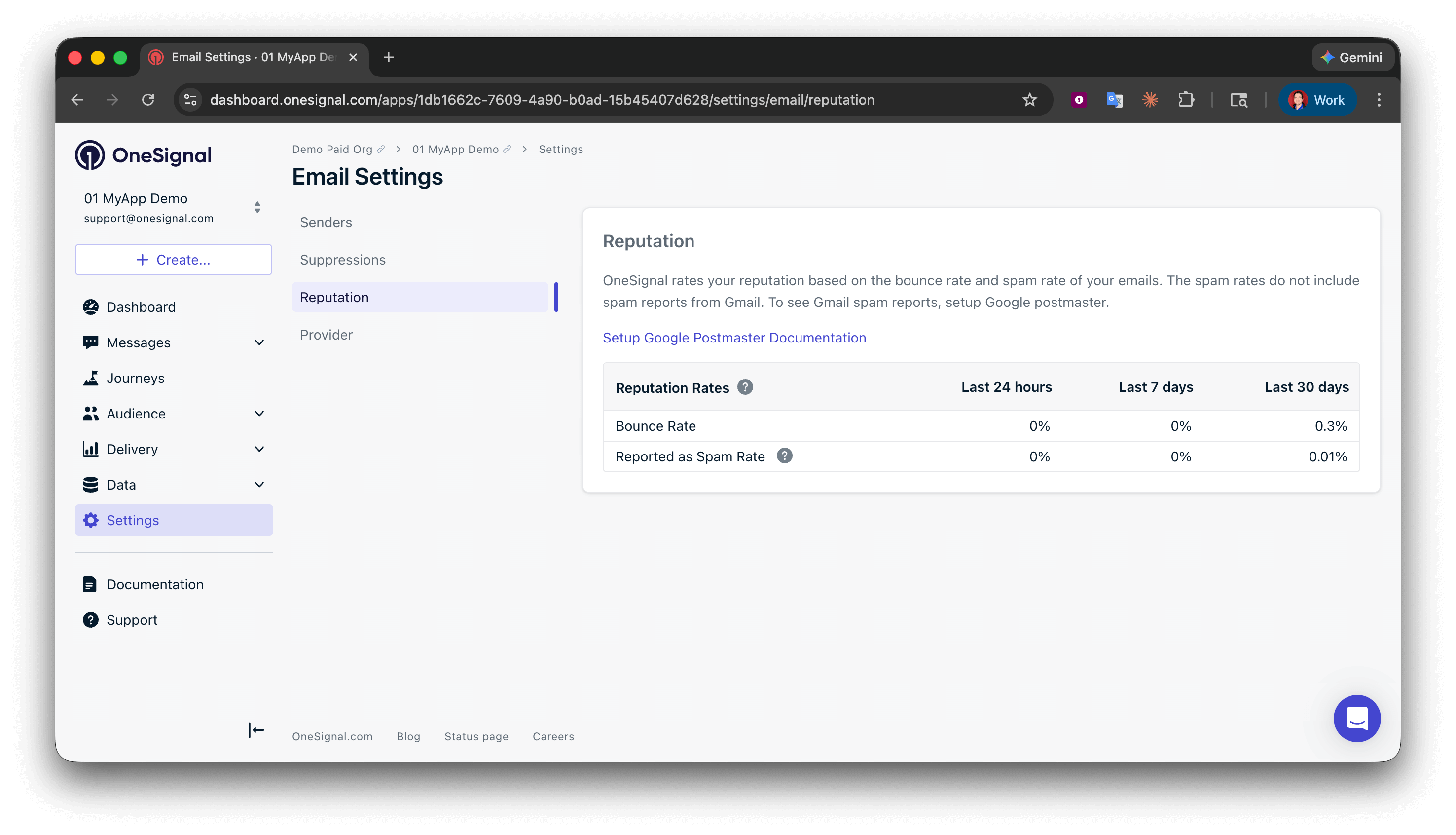
If you're using OneSignal Email, view your stats at **Settings > Email > Reputation**. For third-party services (e.g., SendGrid, Mailchimp, Mailgun), use their dashboards to monitor complaints and bounces.
### How reputation metrics are calculated
* **Bounce rate** = permanent bounces ÷ total sent
* **Reported spam rate** (feedback loop providers only) = spam complaints received via feedback loop ÷ total sent
Complaint data depends on provider feedback availability. See [How spam rate is calculated](#how-spam-rate-is-calculated) for the Gmail caveat and feedback-loop details.
Actionable steps to build and maintain a healthy sending reputation: opt-in, monitoring, frequency, warm-up, and list hygiene.
## Gmail and Yahoo bulk sender requirements
Gmail and Yahoo classify any domain sending **5,000 or more messages per day specifically to Gmail or Yahoo addresses** as a **bulk sender**. The classification is permanent and applies even if your daily volume later drops below 5,000.
Bulk senders must meet stricter requirements or face throttling and spam folder placement.
| Requirement | Applies to |
| -------------------------------------------------------- | ------------ |
| SPF authentication | All senders |
| DKIM authentication | All senders |
| DMARC published and aligned with SPF or DKIM | Bulk senders |
| One-click unsubscribe in marketing email | Bulk senders |
| Spam complaint rate below **0.3%** (ideally below 0.08%) | All senders |
| Valid forward and reverse DNS records (PTR / FCrDNS) | All senders |
| TLS-encrypted transmission | All senders |
| RFC 5322 message formatting | All senders |
OneSignal handles forward/reverse DNS, TLS, and message formatting for you. You're responsible for [SPF, DKIM, and DMARC](./email-dns-configuration), keeping your complaint rate low, and including a working unsubscribe link.
OneSignal-specific setup steps to meet the Gmail and Yahoo bulk sender requirements.
## Key deliverability concepts
These terms appear in your email reports and reputation dashboard. Understanding them helps you diagnose and fix deliverability issues.
### Unsubscribed
Recipients who opt out via the unsubscribe link in your emails. These recipients are suppressed automatically to ensure compliance and protect your reputation.
Honor unsubscribe requests promptly. It's required by regulations like CAN-SPAM and protects your sender reputation.
Manage unsubscribe links, List-Unsubscribe headers, suppression rules, and resubscription workflows.
Replace the default unsubscribe link with a branded, multi-language preferences page.
### Bounced
Emails that fail to deliver due to invalid addresses (usually they do not exist or are spelled incorrectly). Bounce data is stored in your [suppression list](#suppression-list) and is also visible in [Event Streams](./event-streams).
### Failed
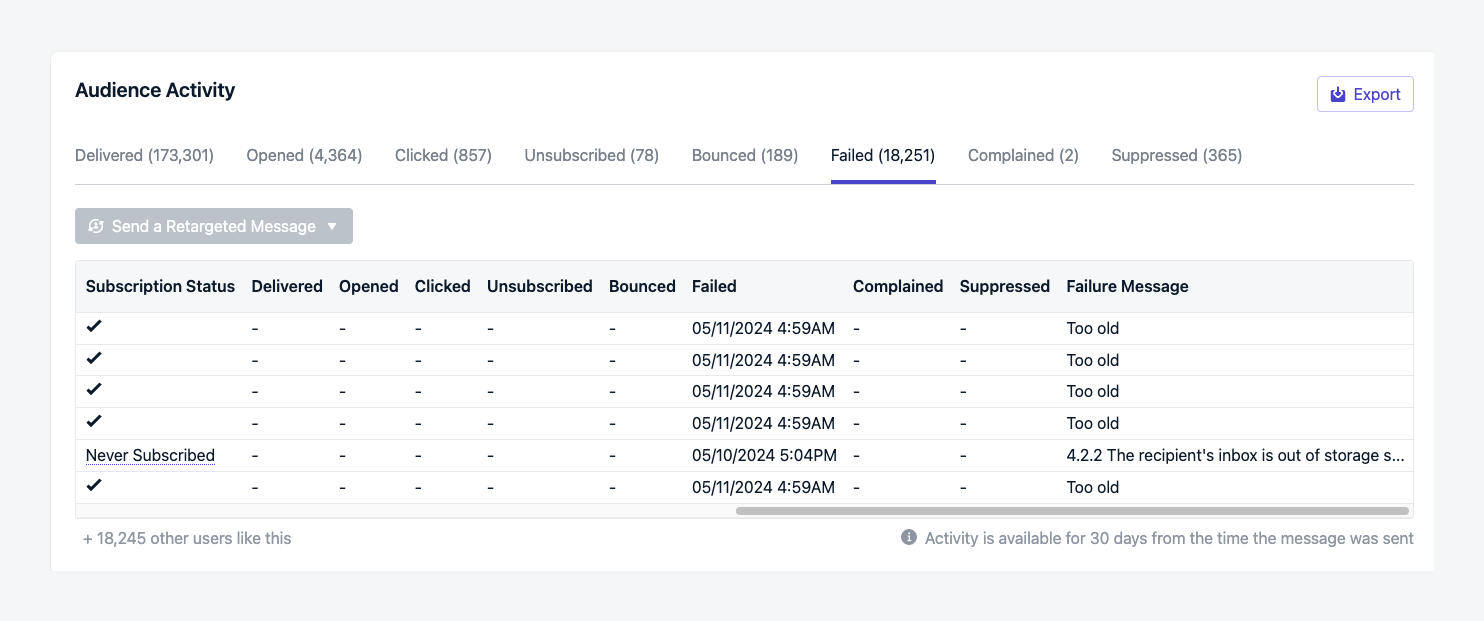
Emails that could not be delivered after retry attempts. Failed sends are not added to your suppression list, and the email may be retried on future sends.
Failures appear in [Email Message Reports > Audience Activity](./email-message-reports#audience-activity) and [Event Streams](./event-streams).
#### Common failure reasons
The email could not be delivered within the 8-hour retry window. This typically happens when the recipient's mail server issues repeated temporary 451 deferrals and never accepts the message before the retry window closes.
Common causes:
* Recipient-side email security gateways like Barracuda, Mimecast, and Proofpoint configured to defer or block mail from senders not on their allowlist
* Recipient ISP applying greylisting or rate limiting
* Recipient mailbox temporarily unavailable
The fix is usually on the recipient side. If you see a pattern of "Too old" failures to a specific organization, the recipient's IT admin needs to allowlist your sending domain in their email security gateway.
See [Too old failures](./email-troubleshooting#too-old-failures) for diagnostic steps.
The recipient's mailbox has exceeded its storage quota and cannot accept new messages. There is no sender-side fix. The recipient must clear space in their inbox.
The recipient domain does not exist, has no valid MX records, or failed DNS resolution. This often indicates typos in your recipient list, such as `gmial.com` instead of `gmail.com`. Clean these addresses from your list to protect your sender reputation.
The recipient's ISP rejected the message based on content filtering, sender reputation, or authentication issues. Review your [sender reputation](#reputation) and [email DNS configuration](./email-dns-configuration) if you see a pattern of policy blocks from a specific ISP.
The recipient's server rejected the message because SPF, DKIM, or DMARC validation failed. See [Email DNS configuration](./email-dns-configuration) to verify your setup.
### Spam complained
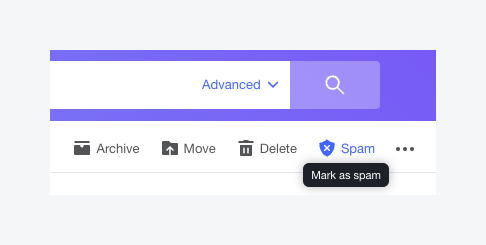
When recipients mark your email as spam, it triggers a spam complaint (also known as a "spam report").
Common reasons for complaints:
* Irrelevant content
* Excessive frequency
* Recipients who did not opt in
Minimize complaint rates by analyzing feedback, adjusting content, and providing easy opt-out options. Follow the [email reputation best practices](./email-reputation-best-practices) to keep complaints low.
Spam complaint events are available in [Event Streams](./event-streams).
#### How spam rate is calculated
A feedback loop is a reporting system where inbox providers notify senders when a recipient marks their email as spam. Not all providers offer this: Yahoo and Outlook do; Gmail does not.
The **Reported spam rate (feedback loop providers only)** metric reflects complaints received from mailbox providers that share per-recipient feedback loop data, such as Yahoo and Outlook. Gmail complaints are not included. This is an industry-wide limitation, not a OneSignal limitation.
Connect Postmaster Tools to monitor Gmail-specific spam rates and domain reputation.
### Suppression list
A blocklist within your OneSignal app that prevents sending to email addresses that have bounced or been marked as spam. Manage entries on the [Suppressions](./suppressions) page.
### Blocklists
External or ISP-managed lists of spammy or harmful IPs and domains. Being listed will cause deliverability problems. Use tools like [Spamhaus](https://www.spamhaus.org/) to check your domain or IP status.
### Spam traps
Spam traps are email addresses not used by real individuals, set up by ISPs or anti-spam organizations to identify spammers. Sending to spam traps indicates poor list hygiene or acquisition practices and can severely damage your sending reputation.
Spam traps are email addresses not owned or operated by actual recipients. They are operated by inbox providers and third-party operators that report to, or are referenced by, inbox providers.
Sending to spam traps can land your domain or IPs on a blocklist. Being on a blocklist means that some inboxes will reject your emails.
Some common spam trap networks are [Spamhaus](https://www.spamhaus.org/), [Abusix](https://abusix.com/), and Microsoft's [SNDS](https://sendersupport.olc.protection.outlook.com/snds/).
There are multiple types of spam traps, all of which can be prevented by following email best practices.
**Pristine**
Email addresses set up for the sole purpose of being monitored as spam traps. Found on public websites and purchased lists.
**Recycled**
Email addresses that used to belong to an actual recipient but have been repurposed as spam traps. Often abandoned inboxes or domains.
**Typo**
Email addresses set up with common typos, such as `gnail.com`, `tahoo.com`, `gmail.con`, `outlooj.com`, etc.
**How to avoid spam traps**
List cleaning tools will not remove spam traps. Focus on prevention and removal instead.
**Prevent spam traps:** Implement a confirmed (double) opt-in process. When a new contact provides their email address, send an immediate confirmation email that verifies (a) the address is valid and (b) the address is actually operated by the recipient. Learn how to implement double opt-in using OneSignal's [Magic Link](./example-verification-magic-link-otp#setting-up-double-opt-in-with-onesignal).
**Remove spam traps:** Remove unengaged email addresses. Spam traps don't bounce as invalid but don't engage with your emails either. If a recipient has received multiple emails without opening or clicking, remove them from your list. Use [Journeys](./journeys-overview) with [Wait Until branches](./journeys-actions#wait-until) to tag unengaged recipients, then exclude them from further sends.
## Email address validation
Email address validation detects common problems in email addresses before they reach your audience. It flags typos, invalid domains, role-based addresses, and disposable email services that could increase your bounce rate or hurt your sender reputation.
Validate email addresses during CSV import and in bulk to reduce bounces and protect your sender reputation.
## Engagement metrics
### Opened
The number of times recipients open your email messages. Open rates indicate the effectiveness of your subject lines, targeting, and your From name and address. View open rates in [Email Message Reports](./email-message-reports).
Open rates are over-reported for Apple Mail recipients because Mail Privacy Protection prefetches images. Compare opens with clicks and [CTOR](./email-message-reports#open-rate) for a more reliable engagement signal.
### Clicked
The number of times recipients click links within your email messages. Click-through rates measure the effectiveness of your email content and calls-to-action. Since recipients must open emails before clicking, clicks are a strong indicator of engagement. View click rates in [Email Message Reports](./email-message-reports).
## Inbox placement
Inbox placement refers to where your emails land within recipients' inboxes. Proper placement ensures your emails are seen in the right context and increases the likelihood of engagement.
### Primary
The Primary tab is typically where important and personal communications are received. Achieving primary inbox placement indicates good sender reputation and email relevance.
### Promotions
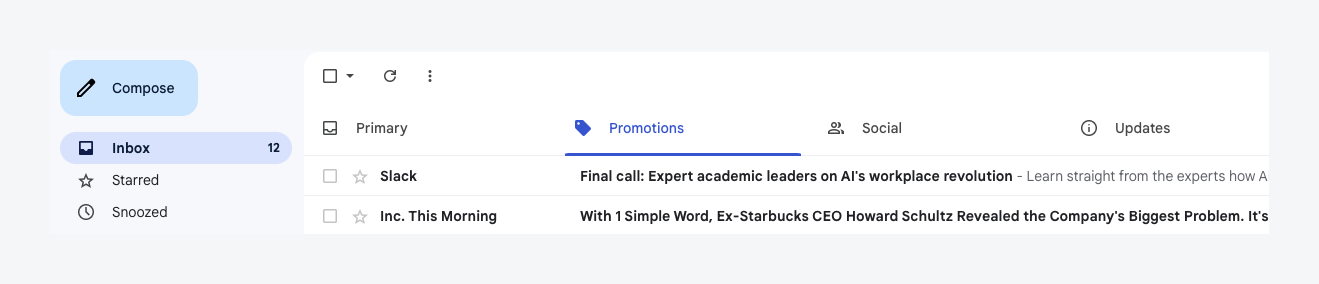
The Promotions tab is a separate section within recipients' inboxes designated for promotional or marketing emails. Inbox providers use algorithms to categorize emails as promotions based on sender reputation and email content.
Landing in the Promotions tab is not an indicator of bad reputation and is not necessarily a bad outcome for marketing emails. If an email is inherently promotional, it may perform better in the context of the Promotions tab. Providers like Gmail actively draw recipient attention to their Promotions tab.
The Promotions tab has been found to reduce spam complaints and increase engagement, as it helps emails meet recipient expectations. When a recipient visits their Promotions tab, they are more receptive to deals and shopping.
To land more often in the Primary tab, avoid excessive promotional language, personalize content, and encourage recipients to move your emails to their Primary tab.
### Spam
Emails filtered by inbox providers into recipients' spam or junk folders. Emails land in spam due to suspicious content, triggered spam filters, or low sender reputation.
Landing in the spam folder usually indicates poor reputation. Check whether your complaint or bounce rate has been higher than acceptable. According to Google, senders should keep their spam rate below 0.1%.
Follow the [email reputation best practices](./email-reputation-best-practices) to lower bounce and complaint rates. If spam placement does not seem reputation-related, verify that your DMARC is properly aligned. [About My Email](https://aboutmy.email/) is a good testing tool to check for alignment.
## FAQ
### What is the difference between reputation and deliverability?
Reputation is the score inbox providers assign to your sending domain based on past email performance. Deliverability is the outcome: whether your emails reach the inbox, land in spam, or get blocked. A good reputation is the primary driver of good deliverability.
### What's the difference between a bounce and a failure?
A [bounce](#bounced) means the email address is permanently invalid (e.g., it doesn't exist). Bounced addresses are added to your [suppression list](./suppressions). A [failure](#failed) is a temporary delivery issue (e.g., full inbox, DKIM misconfiguration). Failures are not suppressed and the email may be retried.
### Why are my emails landing in Promotions instead of Primary?
Landing in [Promotions](#promotions) is not a sign of bad reputation. Gmail and other providers categorize emails based on content and past recipient behavior. To reach the Primary tab, reduce promotional language, personalize content, and encourage recipients to move your emails to Primary.
### What are spam traps and how do they affect me?
[Spam traps](#spam-traps) are email addresses set up by ISPs to catch senders with poor list hygiene. Sending to spam traps can land your domain on a [blocklist](#blocklists), causing inbox providers to reject your emails. Implement confirmed opt-in and remove unengaged recipients to avoid them. See [Set up a clear opt-in process](./email-reputation-best-practices#set-up-a-clear-opt-in-process).
### Why don't my Gmail spam complaints show up in OneSignal?
Gmail does not provide per-recipient spam complaint feedback to senders. This is an industry-wide limitation. The **Reported spam rate** metric only reflects complaints from feedback-loop providers like Yahoo and Outlook. To monitor Gmail-specific spam rates, connect [Google Postmaster Tools](./google-postmaster-tools).
### How do I improve my deliverability?
Follow the [email reputation best practices](./email-reputation-best-practices), which covers opt-in processes, monitoring spam reports, targeting engaged recipients, controlling send frequency, warming up your domain, and maintaining list hygiene. If you're sending from a new domain, start with [Email warm-up](./email-warm-up).
### Do I need to warm up before sending large volumes?
Yes, if you're using a new sending domain or plan to send 5,000+ emails per day to Gmail or Yahoo (the threshold at which both providers classify you as a [bulk sender](#gmail-and-yahoo-bulk-sender-requirements)). Sending large volumes from a cold domain triggers spam filters and damages your sender reputation, which is hard to recover. Follow [Email warm-up](./email-warm-up) to ramp gradually with OneSignal's Auto Warm Up feature.
## Related pages
Actionable steps to build and maintain a healthy sending reputation.
Ramp volume on a new sending domain without hurting deliverability.
Set up SPF, DKIM, and DMARC records for your sending domain.
Monitor Gmail-specific spam rates and domain reputation.
Manage your suppression list to prevent sending to invalid or unengaged addresses.
Validate addresses during import to reduce bounces.
 ### What helps reputation
* Proper [email authentication](./email-dns-configuration) (SPF, DKIM, DMARC)
* High engagement (e.g., [opens](#opened), [clicks](#clicked), replies)
* Clean, verified lists
* Consistent email sending patterns
### What hurts reputation
* High [spam complaint](#spam-complained) rates. See [Monitor spam reports](./email-reputation-best-practices#monitor-spam-reports-and-complaints).
* High [bounce](#bounced) rates. See [Avoid invalid emails](./email-reputation-best-practices#avoid-invalid-emails).
* Sending to [spam traps](#spam-traps). See [Set up a clear opt-in process](./email-reputation-best-practices#set-up-a-clear-opt-in-process).
### What helps reputation
* Proper [email authentication](./email-dns-configuration) (SPF, DKIM, DMARC)
* High engagement (e.g., [opens](#opened), [clicks](#clicked), replies)
* Clean, verified lists
* Consistent email sending patterns
### What hurts reputation
* High [spam complaint](#spam-complained) rates. See [Monitor spam reports](./email-reputation-best-practices#monitor-spam-reports-and-complaints).
* High [bounce](#bounced) rates. See [Avoid invalid emails](./email-reputation-best-practices#avoid-invalid-emails).
* Sending to [spam traps](#spam-traps). See [Set up a clear opt-in process](./email-reputation-best-practices#set-up-a-clear-opt-in-process).
 ### Spam complained
When recipients mark your email as spam, it triggers a spam complaint (also known as a "spam report").
### Spam complained
When recipients mark your email as spam, it triggers a spam complaint (also known as a "spam report").
 Common reasons for complaints:
* Irrelevant content
* Excessive frequency
* Recipients who did not opt in
Common reasons for complaints:
* Irrelevant content
* Excessive frequency
* Recipients who did not opt in
 ### Primary
The Primary tab is typically where important and personal communications are received. Achieving primary inbox placement indicates good sender reputation and email relevance.
### Promotions
The Promotions tab is a separate section within recipients' inboxes designated for promotional or marketing emails. Inbox providers use algorithms to categorize emails as promotions based on sender reputation and email content.
Landing in the Promotions tab is not an indicator of bad reputation and is not necessarily a bad outcome for marketing emails. If an email is inherently promotional, it may perform better in the context of the Promotions tab. Providers like Gmail actively draw recipient attention to their Promotions tab.
The Promotions tab has been found to reduce spam complaints and increase engagement, as it helps emails meet recipient expectations. When a recipient visits their Promotions tab, they are more receptive to deals and shopping.
To land more often in the Primary tab, avoid excessive promotional language, personalize content, and encourage recipients to move your emails to their Primary tab.
### Spam
Emails filtered by inbox providers into recipients' spam or junk folders. Emails land in spam due to suspicious content, triggered spam filters, or low sender reputation.
Landing in the spam folder usually indicates poor reputation. Check whether your complaint or bounce rate has been higher than acceptable. According to Google, senders should keep their spam rate below 0.1%.
Follow the [email reputation best practices](./email-reputation-best-practices) to lower bounce and complaint rates. If spam placement does not seem reputation-related, verify that your DMARC is properly aligned. [About My Email](https://aboutmy.email/) is a good testing tool to check for alignment.
## FAQ
### What is the difference between reputation and deliverability?
Reputation is the score inbox providers assign to your sending domain based on past email performance. Deliverability is the outcome: whether your emails reach the inbox, land in spam, or get blocked. A good reputation is the primary driver of good deliverability.
### What's the difference between a bounce and a failure?
A [bounce](#bounced) means the email address is permanently invalid (e.g., it doesn't exist). Bounced addresses are added to your [suppression list](./suppressions). A [failure](#failed) is a temporary delivery issue (e.g., full inbox, DKIM misconfiguration). Failures are not suppressed and the email may be retried.
### Why are my emails landing in Promotions instead of Primary?
Landing in [Promotions](#promotions) is not a sign of bad reputation. Gmail and other providers categorize emails based on content and past recipient behavior. To reach the Primary tab, reduce promotional language, personalize content, and encourage recipients to move your emails to Primary.
### What are spam traps and how do they affect me?
[Spam traps](#spam-traps) are email addresses set up by ISPs to catch senders with poor list hygiene. Sending to spam traps can land your domain on a [blocklist](#blocklists), causing inbox providers to reject your emails. Implement confirmed opt-in and remove unengaged recipients to avoid them. See [Set up a clear opt-in process](./email-reputation-best-practices#set-up-a-clear-opt-in-process).
### Why don't my Gmail spam complaints show up in OneSignal?
Gmail does not provide per-recipient spam complaint feedback to senders. This is an industry-wide limitation. The **Reported spam rate** metric only reflects complaints from feedback-loop providers like Yahoo and Outlook. To monitor Gmail-specific spam rates, connect [Google Postmaster Tools](./google-postmaster-tools).
### How do I improve my deliverability?
Follow the [email reputation best practices](./email-reputation-best-practices), which covers opt-in processes, monitoring spam reports, targeting engaged recipients, controlling send frequency, warming up your domain, and maintaining list hygiene. If you're sending from a new domain, start with [Email warm-up](./email-warm-up).
### Do I need to warm up before sending large volumes?
Yes, if you're using a new sending domain or plan to send 5,000+ emails per day to Gmail or Yahoo (the threshold at which both providers classify you as a [bulk sender](#gmail-and-yahoo-bulk-sender-requirements)). Sending large volumes from a cold domain triggers spam filters and damages your sender reputation, which is hard to recover. Follow [Email warm-up](./email-warm-up) to ramp gradually with OneSignal's Auto Warm Up feature.
## Related pages
### Primary
The Primary tab is typically where important and personal communications are received. Achieving primary inbox placement indicates good sender reputation and email relevance.
### Promotions
The Promotions tab is a separate section within recipients' inboxes designated for promotional or marketing emails. Inbox providers use algorithms to categorize emails as promotions based on sender reputation and email content.
Landing in the Promotions tab is not an indicator of bad reputation and is not necessarily a bad outcome for marketing emails. If an email is inherently promotional, it may perform better in the context of the Promotions tab. Providers like Gmail actively draw recipient attention to their Promotions tab.
The Promotions tab has been found to reduce spam complaints and increase engagement, as it helps emails meet recipient expectations. When a recipient visits their Promotions tab, they are more receptive to deals and shopping.
To land more often in the Primary tab, avoid excessive promotional language, personalize content, and encourage recipients to move your emails to their Primary tab.
### Spam
Emails filtered by inbox providers into recipients' spam or junk folders. Emails land in spam due to suspicious content, triggered spam filters, or low sender reputation.
Landing in the spam folder usually indicates poor reputation. Check whether your complaint or bounce rate has been higher than acceptable. According to Google, senders should keep their spam rate below 0.1%.
Follow the [email reputation best practices](./email-reputation-best-practices) to lower bounce and complaint rates. If spam placement does not seem reputation-related, verify that your DMARC is properly aligned. [About My Email](https://aboutmy.email/) is a good testing tool to check for alignment.
## FAQ
### What is the difference between reputation and deliverability?
Reputation is the score inbox providers assign to your sending domain based on past email performance. Deliverability is the outcome: whether your emails reach the inbox, land in spam, or get blocked. A good reputation is the primary driver of good deliverability.
### What's the difference between a bounce and a failure?
A [bounce](#bounced) means the email address is permanently invalid (e.g., it doesn't exist). Bounced addresses are added to your [suppression list](./suppressions). A [failure](#failed) is a temporary delivery issue (e.g., full inbox, DKIM misconfiguration). Failures are not suppressed and the email may be retried.
### Why are my emails landing in Promotions instead of Primary?
Landing in [Promotions](#promotions) is not a sign of bad reputation. Gmail and other providers categorize emails based on content and past recipient behavior. To reach the Primary tab, reduce promotional language, personalize content, and encourage recipients to move your emails to Primary.
### What are spam traps and how do they affect me?
[Spam traps](#spam-traps) are email addresses set up by ISPs to catch senders with poor list hygiene. Sending to spam traps can land your domain on a [blocklist](#blocklists), causing inbox providers to reject your emails. Implement confirmed opt-in and remove unengaged recipients to avoid them. See [Set up a clear opt-in process](./email-reputation-best-practices#set-up-a-clear-opt-in-process).
### Why don't my Gmail spam complaints show up in OneSignal?
Gmail does not provide per-recipient spam complaint feedback to senders. This is an industry-wide limitation. The **Reported spam rate** metric only reflects complaints from feedback-loop providers like Yahoo and Outlook. To monitor Gmail-specific spam rates, connect [Google Postmaster Tools](./google-postmaster-tools).
### How do I improve my deliverability?
Follow the [email reputation best practices](./email-reputation-best-practices), which covers opt-in processes, monitoring spam reports, targeting engaged recipients, controlling send frequency, warming up your domain, and maintaining list hygiene. If you're sending from a new domain, start with [Email warm-up](./email-warm-up).
### Do I need to warm up before sending large volumes?
Yes, if you're using a new sending domain or plan to send 5,000+ emails per day to Gmail or Yahoo (the threshold at which both providers classify you as a [bulk sender](#gmail-and-yahoo-bulk-sender-requirements)). Sending large volumes from a cold domain triggers spam filters and damages your sender reputation, which is hard to recover. Follow [Email warm-up](./email-warm-up) to ramp gradually with OneSignal's Auto Warm Up feature.
## Related pages