> ## Documentation Index
> Fetch the complete documentation index at: https://documentation.onesignal.com/llms.txt
> Use this file to discover all available pages before exploring further.
# Email overview
> Send marketing and transactional emails with OneSignal using the dashboard, Journeys, or the API, with built-in personalization, analytics, and deliverability tools.
OneSignal Email lets you send **marketing** and **transactional** emails from the dashboard, Journeys, or the API.
* **Send marketing campaigns and transactional messages** from the dashboard or API
* **Build automated email and multi-channel flows** with Journeys
* **Design emails** using drag-and-drop or HTML
* **Personalize content** with dynamic fields, conditional logic, and language variants
* **Track performance and A/B test** with detailed analytics
* **Segment your audience** for precise targeting
* **Integrate with CRMs and tools** like HubSpot, Mixpanel, Amplitude, Zapier, and [more](./integrations)
***
## Email setup
Before sending emails, follow these setup guides:
Authenticate your domain (SPF, DKIM, DMARC) and enable [Auto warm-up](./email-warm-up) before sending at scale to protect your sender reputation and inbox placement.
Verify your sending domain and enable email in OneSignal.
Automatically configure DNS with one click or complete setup manually.
Manage from names, from addresses, reply-to addresses, and multiple sending domains.
Send hidden copies of outgoing emails for archiving, compliance, or third-party integrations.
Import existing email templates by forwarding them directly to OneSignal.
Trigger emails based on user actions or custom events.
Replace the default unsubscribe page using OneSignal APIs.
***
## Deliverability, reputation, and analytics
Deliverability determines whether your emails reach the inbox or land in spam. OneSignal provides tools and guidance to help you build and maintain a healthy sending reputation.
Understand how inbox placement works and how OneSignal supports it.
Warm domains, manage volume, and avoid spam filters.
Automatically ramp sending volume for new domains.
Monitor Gmail reputation and delivery signals.
Manage blocked and suppressed email addresses.
Track open, click, and conversion rates.
Diagnose and resolve common delivery issues.
Use Tags, Segments, and Journeys to create a confirmed opt-in journey.
Learn how to add your own verification links to your emails.
***
## Design your emails
OneSignal supports visual and code-based email creation. Use the drag-and-drop editor for quick campaigns or the HTML editor for full design control. You can also start from a template and customize from there.
Build emails visually without writing code.
Design fully custom emails using HTML.
Start from pre-built templates or create and save your own layouts.
Control unsubscribe behavior, headers, and compliance settings.
Personalize content using user data and conditional logic.
Send localized emails in multiple languages.
Import existing email templates by forwarding them directly to OneSignal.
Move templates between OneSignal apps.
***
## Send emails
Send messages from the dashboard, automate them with Journeys, or trigger them programmatically via the API.
Compose a message quickly within the dashboard.
Send messages programmatically using the REST API.
Build automated, multi-step, and multi-channel flows.
Test up to 10 message variants to optimize performance.
### Send from the dashboard
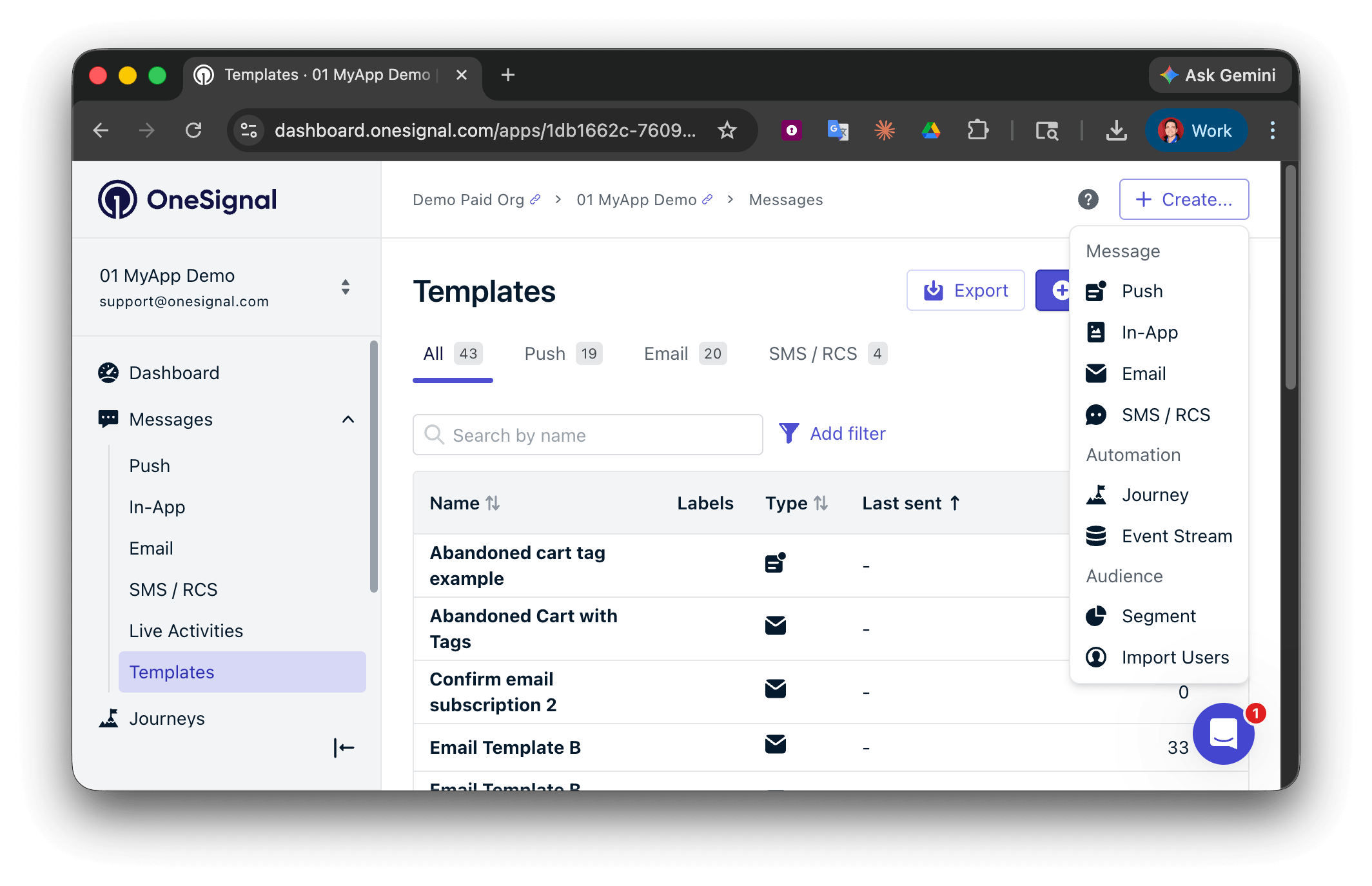
Select **Create...** then choose your message channel. You can also navigate to **Messages** or **Templates** to view previous messages.
 * Start from scratch with the [block editor](./design-emails-with-drag-and-drop) or [HTML editor](./design-emails-with-html)
* Use a pre-built [template](./templates)
Add internal metadata for tracking and reporting. API equivalent: `name`
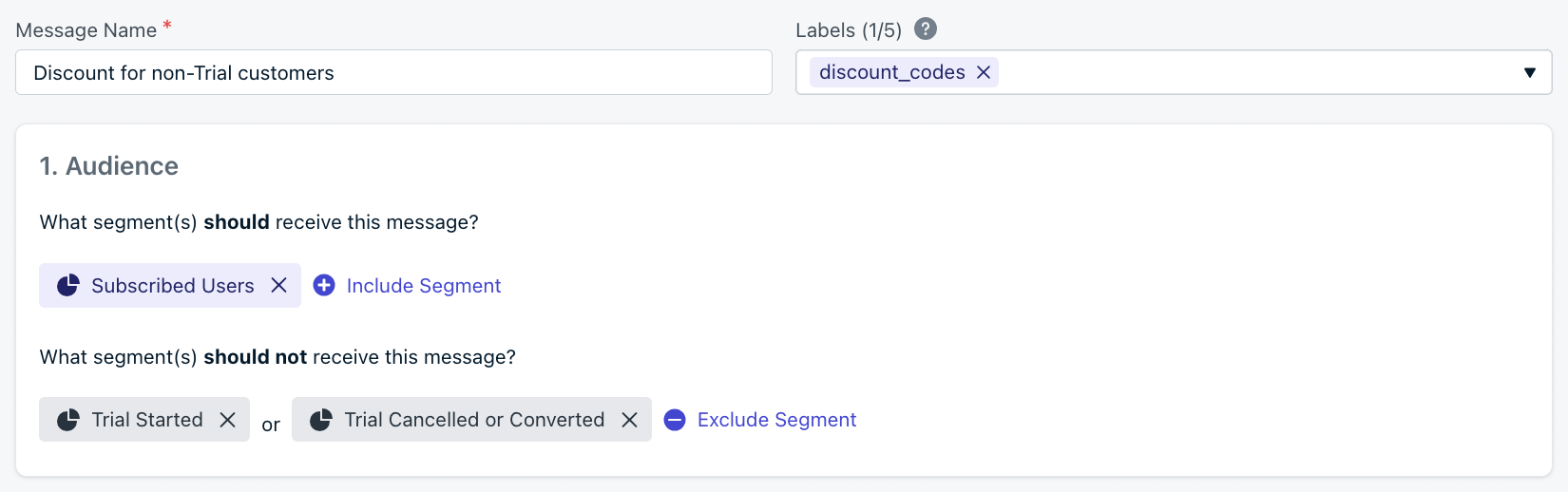
Choose which users receive the message. You can include and exclude [segments](./segmentation) to target specific groups. Defaults to all "Subscribed Users" if no segment is set.
* Start from scratch with the [block editor](./design-emails-with-drag-and-drop) or [HTML editor](./design-emails-with-html)
* Use a pre-built [template](./templates)
Add internal metadata for tracking and reporting. API equivalent: `name`
Choose which users receive the message. You can include and exclude [segments](./segmentation) to target specific groups. Defaults to all "Subscribed Users" if no segment is set.
 | Targeting method | Dashboard | API |
| --------------------------------------------------- | :-------: | :-: |
| [**Segments**](./segmentation) | Yes | Yes |
| **Filters** ([API only](/reference/create-message)) | No | Yes |
| **Aliases** ([API only](/reference/create-message)) | No | Yes |
#### Sender
Configure the sender details used for this email:
* From name
* From address
* Reply-to address
* Sending domain
Multi-domain sending is supported. See [Senders](./senders).
API fields: `email_from_address`, `email_sender_domain`, `email_reply_to_address`
#### Subject and preheader
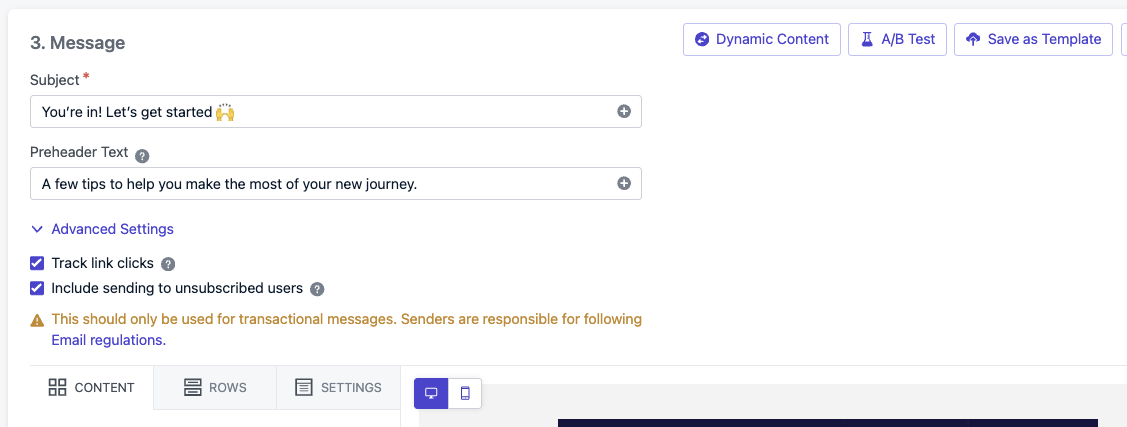
Set a required subject line and optional preheader text. Preheader display varies by inbox provider; not all inboxes show it.
* API fields: `email_subject` and `email_preheader`
* Supports [message personalization](./message-personalization) and [multi-language messaging](./multi-language-messaging)
#### Tracking and compliance
**Link tracking**: Enabled by default. Supports multi-link tracking. See [Links](./links#email) and [Deep linking](./deep-linking) for details.
* API field: `disable_email_click_tracking`
**Send to unsubscribed users**: Enable only for compliance or non-marketing messages.
* API field: `include_unsubscribed`
| Targeting method | Dashboard | API |
| --------------------------------------------------- | :-------: | :-: |
| [**Segments**](./segmentation) | Yes | Yes |
| **Filters** ([API only](/reference/create-message)) | No | Yes |
| **Aliases** ([API only](/reference/create-message)) | No | Yes |
#### Sender
Configure the sender details used for this email:
* From name
* From address
* Reply-to address
* Sending domain
Multi-domain sending is supported. See [Senders](./senders).
API fields: `email_from_address`, `email_sender_domain`, `email_reply_to_address`
#### Subject and preheader
Set a required subject line and optional preheader text. Preheader display varies by inbox provider; not all inboxes show it.
* API fields: `email_subject` and `email_preheader`
* Supports [message personalization](./message-personalization) and [multi-language messaging](./multi-language-messaging)
#### Tracking and compliance
**Link tracking**: Enabled by default. Supports multi-link tracking. See [Links](./links#email) and [Deep linking](./deep-linking) for details.
* API field: `disable_email_click_tracking`
**Send to unsubscribed users**: Enable only for compliance or non-marketing messages.
* API field: `include_unsubscribed`
 #### Delivery schedule and optimization
Choose when the message should start sending.
| Option | Description | API field |
| ----------------------------------- | -------------------------------------------------- | ------------ |
| **Send immediately** | Deliver to all recipients now. | |
| **Scheduled** | Send at a specific time, up to 30 days in advance. | `send_after` |
| **[Auto warm-up](./email-warm-up)** | Gradually ramp volume for new or cold domains. | |
The "start sending" time determines the audience cutoff. OneSignal evaluates segment membership at that moment; anyone in the audience receives the message, regardless of per-user optimization settings.
**Per-user optimization:**
Set when users should receive the message.
| Option | Description | API field |
| ----------------------------- | ------------------------------------------------------------------------------------------------------- | -------------------------------------------------- |
| **Everyone at the same time** | All recipients receive the email at once. Best for urgent messages. | |
| **Intelligent Delivery** | Sends at the optimal time for each user based on their open and click activity (excludes bot activity). | `delayed_option: last-active` |
| **Custom time per timezone** | Sends at a set local time in each user's timezone. | `delayed_option: timezone`, `delivery_time_of_day` |
With Intelligent Delivery or Custom time per timezone, delivery spans a 24 hour period so every record in the audience can receive the message. If it is already 10am for a recipient when a 9am-local message sends, they receive it at 9am the following day.
Click **Review and Send** to send immediately or on schedule, or **Save** as draft to edit later. Once sending begins, monitor performance under **Messages > Email** or in **Delivery > Sent Messages**. See [Email message reports](./email-message-reports) for details.
***
## Analytics
Track message performance and engagement.
Message-level delivery, open rate, and click-through reporting.
All analytics options available in OneSignal.
Stream push events to your data warehouse or BI tools in real time.
Pull message analytics programmatically via the REST API.
***
## FAQ
### What's the difference between marketing and transactional emails?
Marketing emails are campaigns sent to a segment of users, such as promotions or newsletters. Transactional emails are triggered by a user action or event, such as a password reset or order confirmation. See [Transactional email setup](./setup-transactional-emails) for configuration details.
### Why are my emails going to spam?
Common causes include missing DNS authentication (SPF, DKIM, DMARC), sending to unengaged users, or ramping volume too quickly on a new domain. See [Email deliverability](./email-deliverability) and [Email reputation best practices](./email-reputation-best-practices) for guidance.
### Can I send emails to users who unsubscribed?
Only for compliance or non-marketing messages, such as legal notices. Enable the **Send to unsubscribed users** option when composing or set `include_unsubscribed` via the API. Using this for marketing emails violates anti-spam regulations.
### How do I test emails before sending to Users?
Set up [Test Users](./test-users) to verify delivery, rendering, and deep links without affecting real Users. You can also send to a single-user segment for quick testing.
#### Delivery schedule and optimization
Choose when the message should start sending.
| Option | Description | API field |
| ----------------------------------- | -------------------------------------------------- | ------------ |
| **Send immediately** | Deliver to all recipients now. | |
| **Scheduled** | Send at a specific time, up to 30 days in advance. | `send_after` |
| **[Auto warm-up](./email-warm-up)** | Gradually ramp volume for new or cold domains. | |
The "start sending" time determines the audience cutoff. OneSignal evaluates segment membership at that moment; anyone in the audience receives the message, regardless of per-user optimization settings.
**Per-user optimization:**
Set when users should receive the message.
| Option | Description | API field |
| ----------------------------- | ------------------------------------------------------------------------------------------------------- | -------------------------------------------------- |
| **Everyone at the same time** | All recipients receive the email at once. Best for urgent messages. | |
| **Intelligent Delivery** | Sends at the optimal time for each user based on their open and click activity (excludes bot activity). | `delayed_option: last-active` |
| **Custom time per timezone** | Sends at a set local time in each user's timezone. | `delayed_option: timezone`, `delivery_time_of_day` |
With Intelligent Delivery or Custom time per timezone, delivery spans a 24 hour period so every record in the audience can receive the message. If it is already 10am for a recipient when a 9am-local message sends, they receive it at 9am the following day.
Click **Review and Send** to send immediately or on schedule, or **Save** as draft to edit later. Once sending begins, monitor performance under **Messages > Email** or in **Delivery > Sent Messages**. See [Email message reports](./email-message-reports) for details.
***
## Analytics
Track message performance and engagement.
Message-level delivery, open rate, and click-through reporting.
All analytics options available in OneSignal.
Stream push events to your data warehouse or BI tools in real time.
Pull message analytics programmatically via the REST API.
***
## FAQ
### What's the difference between marketing and transactional emails?
Marketing emails are campaigns sent to a segment of users, such as promotions or newsletters. Transactional emails are triggered by a user action or event, such as a password reset or order confirmation. See [Transactional email setup](./setup-transactional-emails) for configuration details.
### Why are my emails going to spam?
Common causes include missing DNS authentication (SPF, DKIM, DMARC), sending to unengaged users, or ramping volume too quickly on a new domain. See [Email deliverability](./email-deliverability) and [Email reputation best practices](./email-reputation-best-practices) for guidance.
### Can I send emails to users who unsubscribed?
Only for compliance or non-marketing messages, such as legal notices. Enable the **Send to unsubscribed users** option when composing or set `include_unsubscribed` via the API. Using this for marketing emails violates anti-spam regulations.
### How do I test emails before sending to Users?
Set up [Test Users](./test-users) to verify delivery, rendering, and deep links without affecting real Users. You can also send to a single-user segment for quick testing.