> ## Documentation Index
> Fetch the complete documentation index at: https://documentation.onesignal.com/llms.txt
> Use this file to discover all available pages before exploring further.
# Email reputation best practices
> Build and maintain a healthy email sending reputation to improve deliverability and avoid spam complaints.
New to email deliverability? Read the [Email deliverability overview](./email-deliverability) first to understand key concepts like reputation, bounces, spam traps, and inbox placement.
## Protect your reputation
### Monitor spam reports and complaints
A high volume of [spam reports](./email-deliverability#spam-complained) will quickly destroy your sending reputation. Monitor them closely, more often than open or click rates.
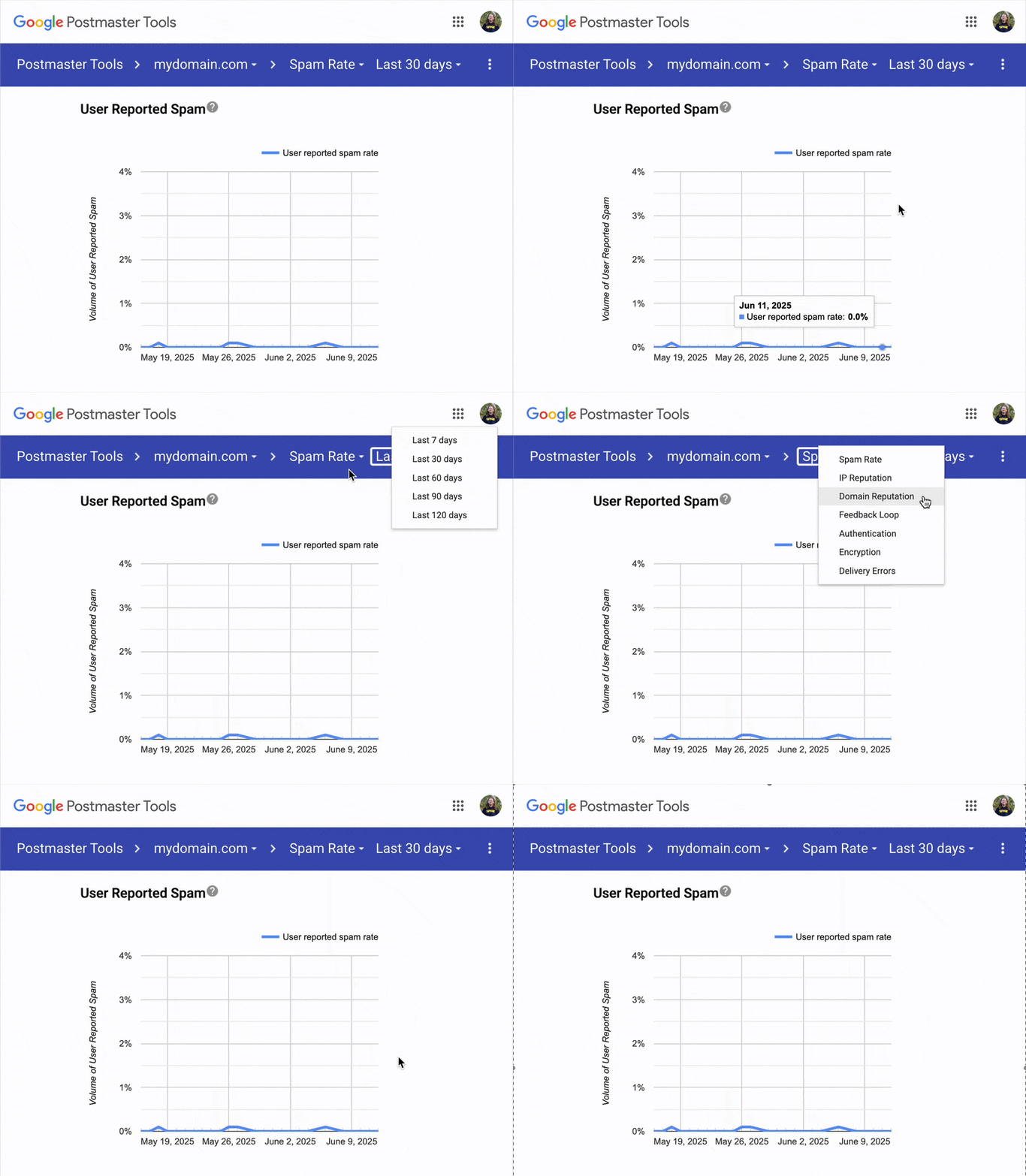
Most inbox providers (like Outlook, Hotmail, and Yahoo) report spam complaints and bounces back to OneSignal. Unfortunately Gmail does not. Gmail only surfaces this data through Google Postmaster Tools, which you must set up separately.
Currently, the OneSignal dashboard includes Gmail send volume when calculating [reputation rates](./email-deliverability#reputation) but because Google does not provide the complaint and bounced data for Gmail, the reported rates can appear lower than reality.
Your dashboard spam rate may be underreported because Gmail complaints are not included. For example, 10 spam complaints across 1,000 emails shows as a 1% spam rate if those complaints come from Outlook or Yahoo, but 0% if they come from Gmail.
To monitor Gmail-specific spam rates and domain reputation (especially since Gmail is the largest mailbox provider), set up [Google Postmaster Tools](./google-postmaster-tools).
Track aggregate spam rates and domain reputation for Gmail recipients.
Monitor spam and bounce rates for all providers except Gmail in your OneSignal dashboard.
 Consider why recipients might report your emails as spam:
* Did they disengage over time?
* Did they knowingly opt in?
* Were they sent too many emails?
* Was the content aligned with their expectations?
#### What to monitor regularly
To maintain a healthy sending reputation, regularly review:
* **Reported spam rate**: [Reputation dashboard](./email-deliverability#reputation)
* **Gmail spam rate**: [Google Postmaster Tools](./google-postmaster-tools)
* **Bounce rate**: [Reputation dashboard](./email-deliverability#reputation)
* **Unsubscribe rate**: [Email message reports](./email-message-reports)
* **Open and click engagement trends**: [Email message reports](./email-message-reports)
If you send 5,000 or more emails per day to Gmail or Yahoo, your domain is permanently classified as a [bulk sender](./email-deliverability#gmail-and-yahoo-bulk-sender-requirements). Bulk senders must meet stricter authentication, unsubscribe, and spam-rate requirements. See [Google and Yahoo email sender requirements](./new-google-and-yahoo-email-updates) for the OneSignal-specific setup steps.
### Set up a clear opt-in process
Sending emails to people who have not given clear permission often leads to spam reports. This negatively impacts your sending reputation and may result in all your emails going directly to spam.
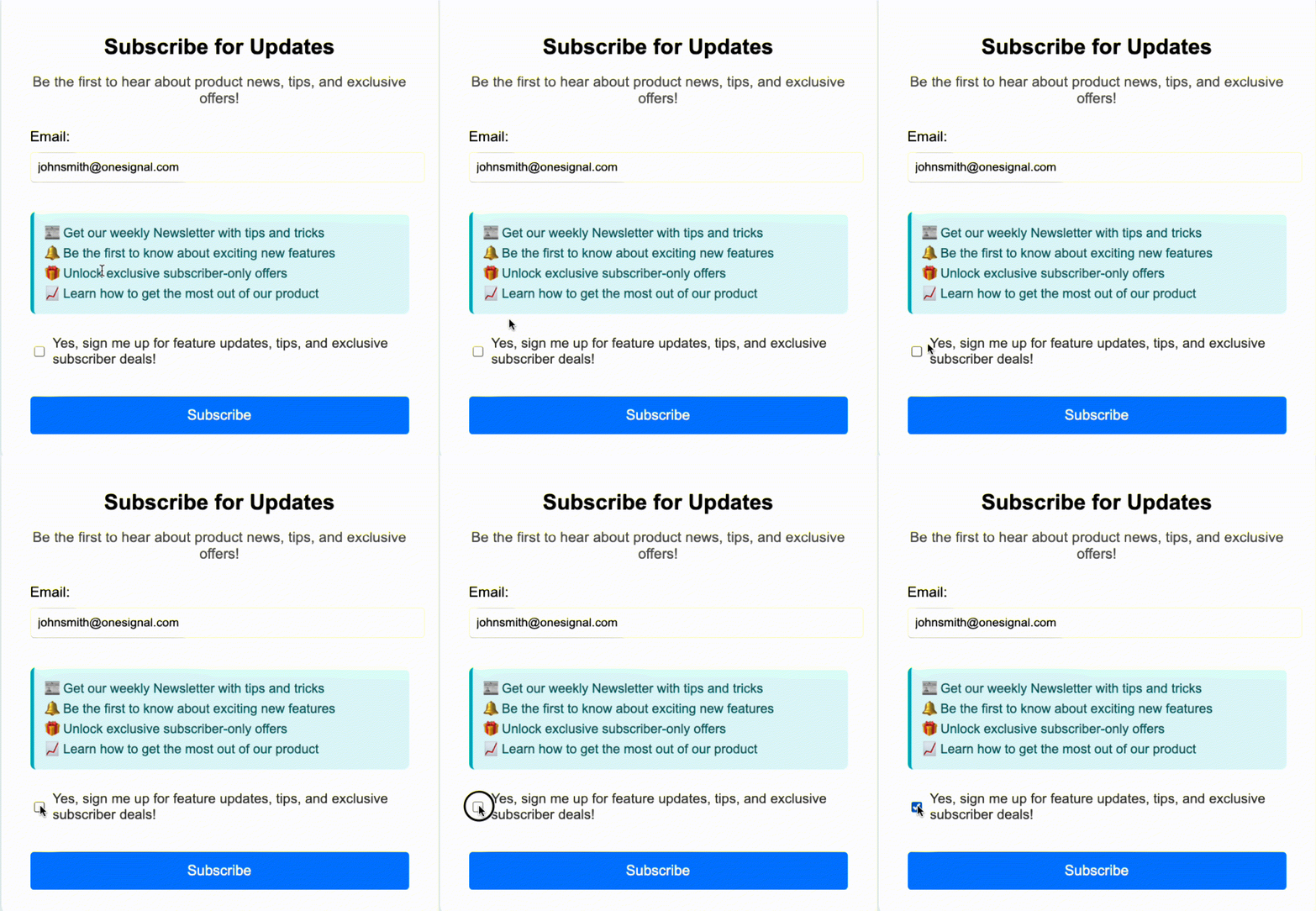
At minimum, when collecting emails, include a checkbox asking for permission to send marketing emails. If the checkbox is unchecked when the form is submitted, do not add that address to your marketing list. You can either not send the email address to OneSignal or use a [Tag](./add-user-data-tags) like `opt_in_consent: false` to track opt-in status and exclude those recipients from campaigns.
Collecting the email as part of your sign-up process or account creation is not enough. Consent needs to be explicitly given.
Consider why recipients might report your emails as spam:
* Did they disengage over time?
* Did they knowingly opt in?
* Were they sent too many emails?
* Was the content aligned with their expectations?
#### What to monitor regularly
To maintain a healthy sending reputation, regularly review:
* **Reported spam rate**: [Reputation dashboard](./email-deliverability#reputation)
* **Gmail spam rate**: [Google Postmaster Tools](./google-postmaster-tools)
* **Bounce rate**: [Reputation dashboard](./email-deliverability#reputation)
* **Unsubscribe rate**: [Email message reports](./email-message-reports)
* **Open and click engagement trends**: [Email message reports](./email-message-reports)
If you send 5,000 or more emails per day to Gmail or Yahoo, your domain is permanently classified as a [bulk sender](./email-deliverability#gmail-and-yahoo-bulk-sender-requirements). Bulk senders must meet stricter authentication, unsubscribe, and spam-rate requirements. See [Google and Yahoo email sender requirements](./new-google-and-yahoo-email-updates) for the OneSignal-specific setup steps.
### Set up a clear opt-in process
Sending emails to people who have not given clear permission often leads to spam reports. This negatively impacts your sending reputation and may result in all your emails going directly to spam.
At minimum, when collecting emails, include a checkbox asking for permission to send marketing emails. If the checkbox is unchecked when the form is submitted, do not add that address to your marketing list. You can either not send the email address to OneSignal or use a [Tag](./add-user-data-tags) like `opt_in_consent: false` to track opt-in status and exclude those recipients from campaigns.
Collecting the email as part of your sign-up process or account creation is not enough. Consent needs to be explicitly given.
 #### Implement confirmed opt-in (double opt-in)
A confirmed opt-in process requires the recipient to verify their interest by clicking a link in a confirmation email. This method:
* Increases engagement
* Verifies compliance (e.g., GDPR, CAN-SPAM)
* Filters out fake or mistyped addresses
* Reduces complaint and bounce rates
* Prevents abuse and list bombing
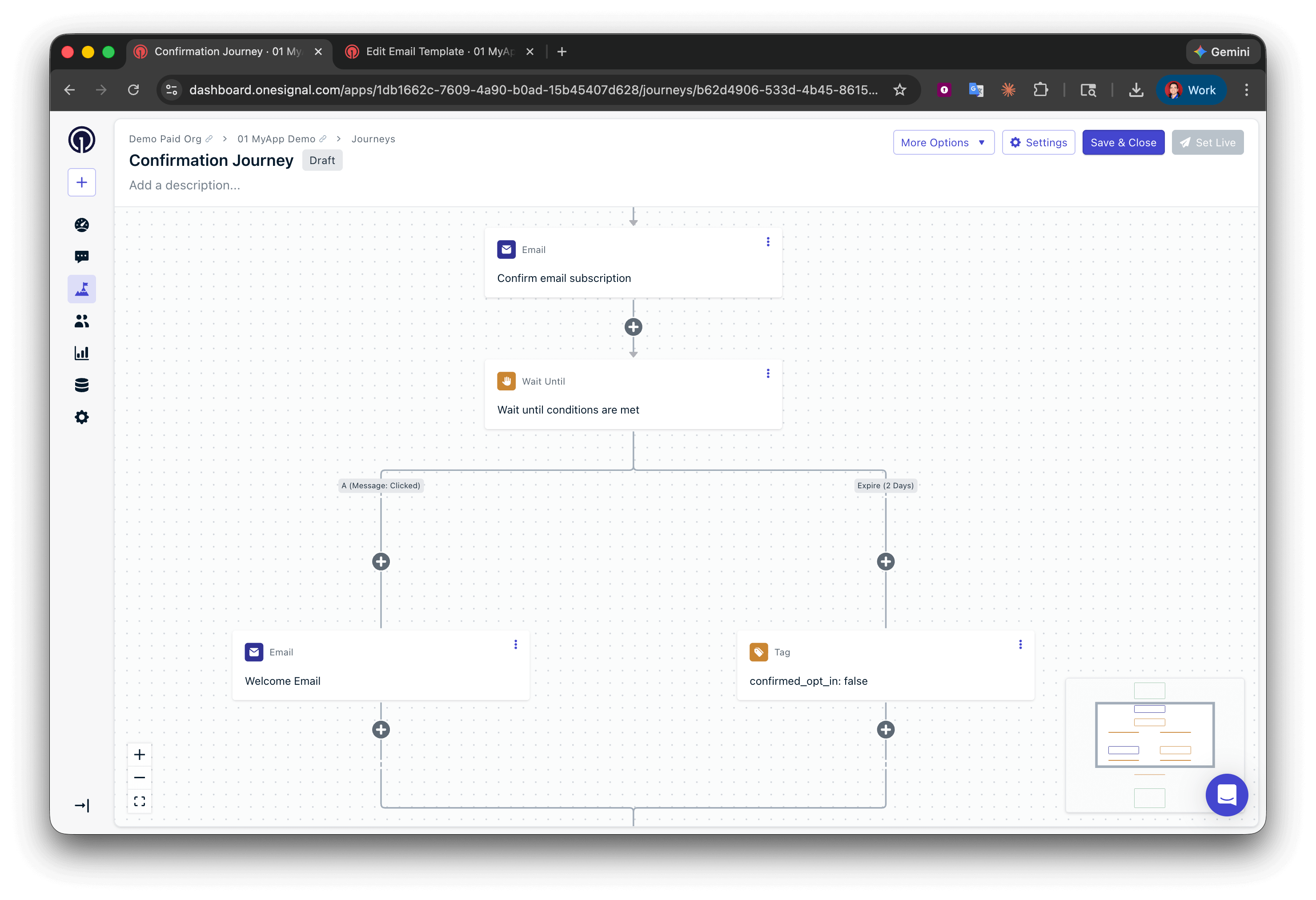
Use Tags, Segments, and Journeys to create a confirmed opt-in journey.
Learn how to add your own verification links to your emails.
#### Offer email preferences
Give recipients the option to choose what types of emails they receive: newsletters, rewards, deals, product updates, etc. Make it easy to adjust these preferences anytime via an email preference center.
#### Implement confirmed opt-in (double opt-in)
A confirmed opt-in process requires the recipient to verify their interest by clicking a link in a confirmation email. This method:
* Increases engagement
* Verifies compliance (e.g., GDPR, CAN-SPAM)
* Filters out fake or mistyped addresses
* Reduces complaint and bounce rates
* Prevents abuse and list bombing
Use Tags, Segments, and Journeys to create a confirmed opt-in journey.
Learn how to add your own verification links to your emails.
#### Offer email preferences
Give recipients the option to choose what types of emails they receive: newsletters, rewards, deals, product updates, etc. Make it easy to adjust these preferences anytime via an email preference center.
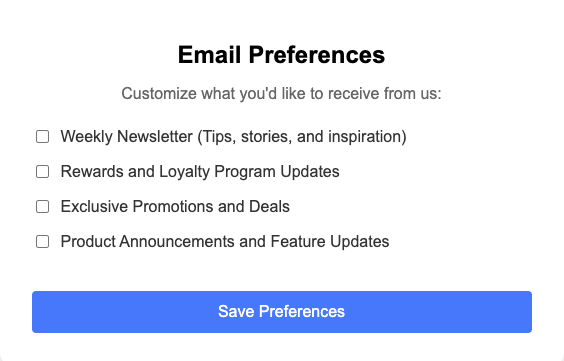 Build a preference center so recipients can manage their email preferences.
Use Tags to manage recipient preferences.
### Exclude or sunset unengaged recipients
Low open rates indicate poor engagement and hurt your reputation.
Implement a sunset policy to remove recipients who haven't opened or clicked emails in 2–3 months (depending on your send frequency). If you're using omni-channel messaging, you can also use last session date to identify inactive recipients across all channels.
Track recipients who have not opened or clicked emails in more than 3 months, or filter by last session date for omni-channel inactivity, and exclude or delete them from further sends using Message Event Filters or Last Session Date.
***
## Set up for success
### Authenticate your sending domain
Inbox providers check that your emails are authenticated before accepting them. Without proper DNS records (SPF, DKIM, DMARC), your emails may be rejected or sent to spam regardless of your content or engagement.
Set up SPF, DKIM, and DMARC records for your sending domain.
### Warm up your sending domain
Inbox providers may block high-volume sends from domains with no sending history. A new domain starts with no [reputation](./email-deliverability#reputation), so you need to build trust gradually.
If you're sending large volumes, especially from a new domain or provider, gradually increase volume to build trust.
Use OneSignal's Auto Warm Up feature to automate the ramp-up process.
### Avoid invalid emails
High [bounce](./email-deliverability#bounced) rates hurt your reputation. Validate your list before importing and use confirmed opt-in to prevent bad addresses from entering.
Validate email addresses during CSV import and in bulk to reduce bounces and protect your sender reputation.
***
## Improve deliverability
### Control send frequency
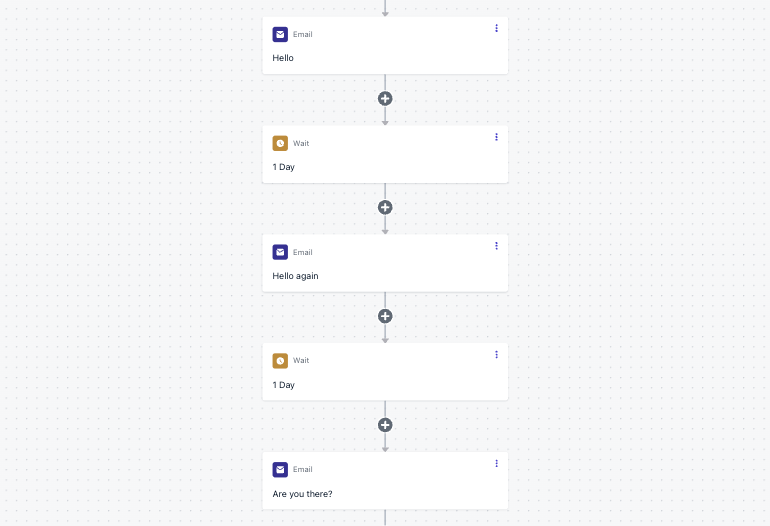
Sending too many emails increases the risk of unsubscribes and spam complaints. Evaluate frequency from the recipient's perspective. Daily emails may be too much for most audiences.
Add delays between Journey messages to control send frequency.
Send Journey follow-ups based on open/click behavior.
Build a preference center so recipients can manage their email preferences.
Use Tags to manage recipient preferences.
### Exclude or sunset unengaged recipients
Low open rates indicate poor engagement and hurt your reputation.
Implement a sunset policy to remove recipients who haven't opened or clicked emails in 2–3 months (depending on your send frequency). If you're using omni-channel messaging, you can also use last session date to identify inactive recipients across all channels.
Track recipients who have not opened or clicked emails in more than 3 months, or filter by last session date for omni-channel inactivity, and exclude or delete them from further sends using Message Event Filters or Last Session Date.
***
## Set up for success
### Authenticate your sending domain
Inbox providers check that your emails are authenticated before accepting them. Without proper DNS records (SPF, DKIM, DMARC), your emails may be rejected or sent to spam regardless of your content or engagement.
Set up SPF, DKIM, and DMARC records for your sending domain.
### Warm up your sending domain
Inbox providers may block high-volume sends from domains with no sending history. A new domain starts with no [reputation](./email-deliverability#reputation), so you need to build trust gradually.
If you're sending large volumes, especially from a new domain or provider, gradually increase volume to build trust.
Use OneSignal's Auto Warm Up feature to automate the ramp-up process.
### Avoid invalid emails
High [bounce](./email-deliverability#bounced) rates hurt your reputation. Validate your list before importing and use confirmed opt-in to prevent bad addresses from entering.
Validate email addresses during CSV import and in bulk to reduce bounces and protect your sender reputation.
***
## Improve deliverability
### Control send frequency
Sending too many emails increases the risk of unsubscribes and spam complaints. Evaluate frequency from the recipient's perspective. Daily emails may be too much for most audiences.
Add delays between Journey messages to control send frequency.
Send Journey follow-ups based on open/click behavior.
 ### Target engaged recipients
Inbox providers reward high engagement. Recipients who open and click are more likely to receive future emails in their inbox.
Open rates are over-reported for Apple Mail recipients because Mail Privacy Protection prefetches images. When targeting engaged users, prefer **click** behavior over open behavior wherever possible, since clicks are not affected by MPP. See [how open rate is affected](./email-message-reports#open-rate).
Send Journey follow-ups based on open or click behavior.
When sending less-urgent emails, target more engaged recipients.
### Target engaged recipients
Inbox providers reward high engagement. Recipients who open and click are more likely to receive future emails in their inbox.
Open rates are over-reported for Apple Mail recipients because Mail Privacy Protection prefetches images. When targeting engaged users, prefer **click** behavior over open behavior wherever possible, since clicks are not affected by MPP. See [how open rate is affected](./email-message-reports#open-rate).
Send Journey follow-ups based on open or click behavior.
When sending less-urgent emails, target more engaged recipients.
 ### Deliver value, not just promotions
Every email should provide real value: insights, tips, solutions, or relevant updates. A discount code alone does not equal value.
**Test your content for spam signals**
Before sending to your full audience, run your email through a spam content check to catch issues that could hurt deliverability.
* **Quick one-off test**: [mail-tester.com](https://www.mail-tester.com/) lets you send a test email to a generated address and scores it on content quality, authentication, blacklist status, and more. Free for a limited number of checks.
* **Ongoing testing**: Tools like GlockApps or Litmus run your email against multiple spam filters (SpamAssassin, Barracuda, etc.) and show inbox vs. spam placement across providers. Useful for regular sends or automated campaigns.
* **DIY content check**: Review your email for common red flags that trigger spam filters:
* All-caps subject lines
* Excessive exclamation marks
* URL shorteners (e.g., bit.ly)
* Image-heavy emails with very little text
* Spam-trigger phrases like "act now," "free," or "limited time"
* Mismatched display text and actual URL (e.g., link text says `yoursite.com` but the URL points somewhere else)
**Evaluate content performance**
Your audience expects specific content types. Make sure you're meeting those expectations.
Identify which content and links recipients click most.
Test subject lines, content, and layouts to see what resonates.
**Use email to build relationships and get feedback**
Email is a conversation channel, not a billboard. Use it to build trust and invite responses. Replies improve your sending reputation.
Use a valid reply-to address. Avoid "no-reply" emails.
***
## FAQ
### Why are my emails going to spam?
The most common causes are:
* DNS records are not properly configured
* A poor sending reputation
* High spam complaint rates
* Sending to recipients who did not explicitly opt in
Review your [Email Setup](./email-setup) for DNS records configuration, [Google Postmaster Tools](./google-postmaster-tools) for spam rate data, ensure you have a clear [opt-in process](#set-up-a-clear-opt-in-process), and [Exclude or sunset unengaged recipients](#exclude-or-sunset-unengaged-recipients).
### What spam complaint rate is too high?
Google recommends staying below 0.10% and never exceeding 0.30%. Use [Google Postmaster Tools](./google-postmaster-tools) to monitor your spam rate.
OneSignal's [Acceptable Use Policy & Code of Conduct](https://onesignal.com/aup) recommends keeping bounce rates below 5% and spam complaint rates below 0.08%.
### How do I check my domain reputation?
For Gmail, the largest email provider, set up [Google Postmaster Tools](./google-postmaster-tools) to view your domain reputation.
For other providers, you can monitor bounce rates and spam reports in your OneSignal dashboard via:
* [Reputation dashboard](./email-deliverability#reputation)
* [Suppression List](./suppressions)
* [Email Message Reports](./email-message-reports)
### How long does warm-up take?
Warm-up timelines depend on your target volume and current reputation. Typically, plan for 2–4 weeks of gradually increasing volume. See the [Warm Up guide](./email-warm-up) for details on using OneSignal's Auto Warm Up feature.
### Should I remove unengaged recipients from my list?
Yes. Implement a sunset policy to stop sending to recipients who haven't opened or clicked emails in 2–3 months. Low engagement signals to inbox providers that your emails are unwanted, which hurts deliverability for all recipients. Use [Message Event Filter Segments](./segmentation#message-event-filters) to target recipients based on open/click behavior.
***
## Related pages
Understand key concepts like reputation, bounces, spam traps, and inbox placement.
Set up SPF, DKIM, and DMARC records for your sending domain.
Monitor Gmail-specific spam rates and domain reputation.
Gradually increase sending volume to build trust with inbox providers.
***
### Deliver value, not just promotions
Every email should provide real value: insights, tips, solutions, or relevant updates. A discount code alone does not equal value.
**Test your content for spam signals**
Before sending to your full audience, run your email through a spam content check to catch issues that could hurt deliverability.
* **Quick one-off test**: [mail-tester.com](https://www.mail-tester.com/) lets you send a test email to a generated address and scores it on content quality, authentication, blacklist status, and more. Free for a limited number of checks.
* **Ongoing testing**: Tools like GlockApps or Litmus run your email against multiple spam filters (SpamAssassin, Barracuda, etc.) and show inbox vs. spam placement across providers. Useful for regular sends or automated campaigns.
* **DIY content check**: Review your email for common red flags that trigger spam filters:
* All-caps subject lines
* Excessive exclamation marks
* URL shorteners (e.g., bit.ly)
* Image-heavy emails with very little text
* Spam-trigger phrases like "act now," "free," or "limited time"
* Mismatched display text and actual URL (e.g., link text says `yoursite.com` but the URL points somewhere else)
**Evaluate content performance**
Your audience expects specific content types. Make sure you're meeting those expectations.
Identify which content and links recipients click most.
Test subject lines, content, and layouts to see what resonates.
**Use email to build relationships and get feedback**
Email is a conversation channel, not a billboard. Use it to build trust and invite responses. Replies improve your sending reputation.
Use a valid reply-to address. Avoid "no-reply" emails.
***
## FAQ
### Why are my emails going to spam?
The most common causes are:
* DNS records are not properly configured
* A poor sending reputation
* High spam complaint rates
* Sending to recipients who did not explicitly opt in
Review your [Email Setup](./email-setup) for DNS records configuration, [Google Postmaster Tools](./google-postmaster-tools) for spam rate data, ensure you have a clear [opt-in process](#set-up-a-clear-opt-in-process), and [Exclude or sunset unengaged recipients](#exclude-or-sunset-unengaged-recipients).
### What spam complaint rate is too high?
Google recommends staying below 0.10% and never exceeding 0.30%. Use [Google Postmaster Tools](./google-postmaster-tools) to monitor your spam rate.
OneSignal's [Acceptable Use Policy & Code of Conduct](https://onesignal.com/aup) recommends keeping bounce rates below 5% and spam complaint rates below 0.08%.
### How do I check my domain reputation?
For Gmail, the largest email provider, set up [Google Postmaster Tools](./google-postmaster-tools) to view your domain reputation.
For other providers, you can monitor bounce rates and spam reports in your OneSignal dashboard via:
* [Reputation dashboard](./email-deliverability#reputation)
* [Suppression List](./suppressions)
* [Email Message Reports](./email-message-reports)
### How long does warm-up take?
Warm-up timelines depend on your target volume and current reputation. Typically, plan for 2–4 weeks of gradually increasing volume. See the [Warm Up guide](./email-warm-up) for details on using OneSignal's Auto Warm Up feature.
### Should I remove unengaged recipients from my list?
Yes. Implement a sunset policy to stop sending to recipients who haven't opened or clicked emails in 2–3 months. Low engagement signals to inbox providers that your emails are unwanted, which hurts deliverability for all recipients. Use [Message Event Filter Segments](./segmentation#message-event-filters) to target recipients based on open/click behavior.
***
## Related pages
Understand key concepts like reputation, bounces, spam traps, and inbox placement.
Set up SPF, DKIM, and DMARC records for your sending domain.
Monitor Gmail-specific spam rates and domain reputation.
Gradually increase sending volume to build trust with inbox providers.
***