> ## Documentation Index
> Fetch the complete documentation index at: https://documentation.onesignal.com/llms.txt
> Use this file to discover all available pages before exploring further.
# Email template forwarding
> Forward your email templates to create them quickly!
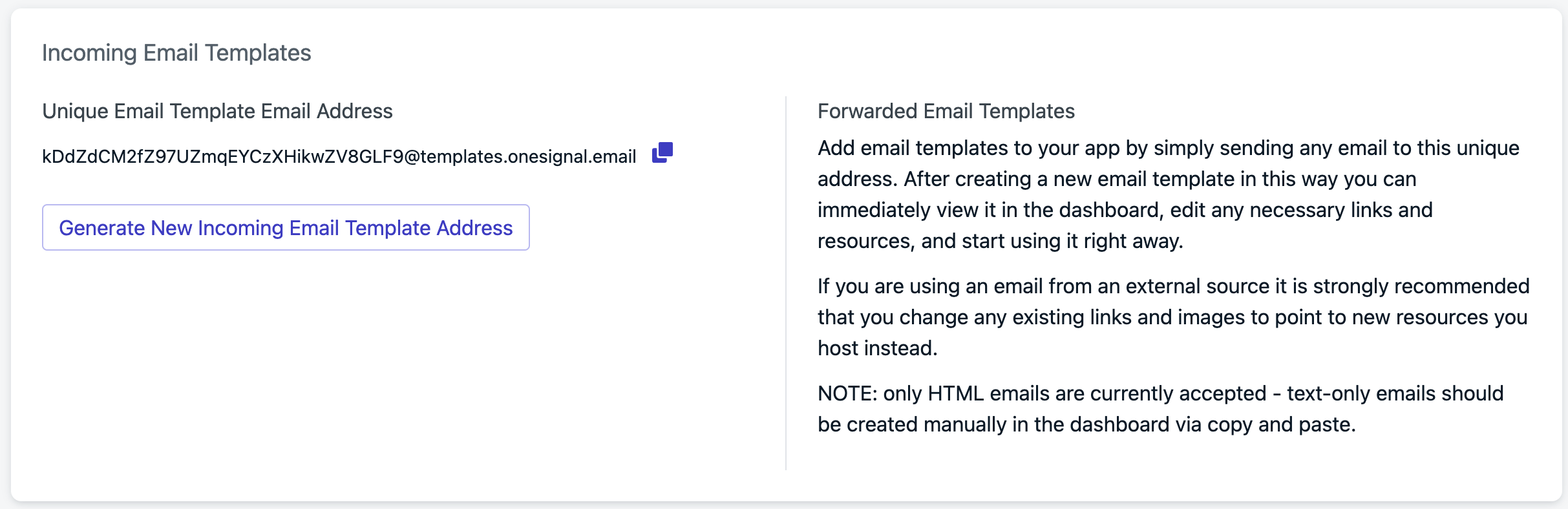
Add email templates to your app by simply sending any email to a unique address. After creating a new email template in this way you can immediately view it in the dashboard, edit any necessary links and resources, and start using it right away.
This could save you a lot of time migrating email templates to OneSignal. It is a great starting point for creating email templates from examples. You can always login to the dashboard **Messages > Templates** and update the new template to make sure its reusable with the correct images, links and general clean up.
If you are using an email from an external source it is strongly recommended that you change any existing links and images to point to new resources you host instead.
Only HTML emails are currently accepted.
Text-only emails should be created manually in the dashboard via copy and paste.
Within your OneSignal dashboard, navigate to **Settings > Keys & IDs > Incoming Email Templates**.
Copy the full `@templates.onesignal.email` address.
 Within your email client, select the email you want to "template-ize".
Send the email to the `@templates.onesignal.email`
Navigate to **Messages > Templates > Email** to see your new template.
***
Within your email client, select the email you want to "template-ize".
Send the email to the `@templates.onesignal.email`
Navigate to **Messages > Templates > Email** to see your new template.
***