> ## Documentation Index
> Fetch the complete documentation index at: https://documentation.onesignal.com/llms.txt
> Use this file to discover all available pages before exploring further.
# Email warm-up
> Build sender reputation with inbox providers by gradually scaling email volume to your most engaged recipients. Covers warm-up triggers, ramp schedule, Auto Warm Up, and FAQ.
Warm up your sending to prove to inbox providers (Gmail, Outlook, Yahoo, Apple) that your mail is wanted. Send small volumes to your most engaged recipients first, then scale gradually while keeping spam complaints, bounces, and unsubscribes low.
**Warm up to your most engaged recipients only.** Never include dormant, inactive, or unverified addresses. High bounces, low opens, and spam complaints from these users will damage the very reputation you're trying to build.
## Prerequisites
Before you start warming up:
* OneSignal Email is enabled on your app.
* Your sending domain is configured with SPF, DKIM, and DMARC. See [Email DNS configuration](./email-dns-configuration).
* Recommended: connect [Google Postmaster Tools](./google-postmaster-tools) so you have a baseline for Gmail spam rate and domain reputation before volume starts ramping.
## What warm-up is (and isn't)
Warm-up is about **building sender reputation** with inbox providers. Each provider treats new sending domains and IPs cautiously by default; warm-up earns their trust by demonstrating consistent, high-quality behavior over time.
Warm-up is **not**:
* **A list hygiene check.** Clean your list *before* warming up, not by warming up.
* **A deliverability test.** Use throwaway addresses to test, not your real audience.
* **A way to validate addresses.** Sending to dormant addresses to see what bounces actively damages your reputation.
Protect your sender reputation with list hygiene, engagement, and compliance strategies.
## When you need to warm up
Warm up your sending if any of the following apply:
* You send more than 2,000 emails per day
* You're new to OneSignal Email
* You're using a new sending domain or subdomain
* You're increasing daily volume by more than 20%
* You haven't sent high volumes in the past 30 days
OneSignal's shared IPs are pre-warmed, but new domains and subdomains always need to build trust independently.
If your warm-up will cross **5,000 emails per day to Gmail or Yahoo**, your domain is permanently classified as a [bulk sender](./email-deliverability#gmail-and-yahoo-bulk-sender-requirements) by both providers. From that day on you must meet stricter requirements (DMARC alignment, one-click unsubscribe, spam rate below 0.3%). Plan for these before you cross the threshold.
## How to warm up
### Build your audience
Your warm-up audience must be users who have **recently engaged** with your messages. Use signals such as:
* Opened or clicked an email in the **last 30 days** (strongest signal)
* Active app or website session in the **last 60 days**
* Purchase, sign-in, or other meaningful action in the **last 90 days**
Exclude any address that is dormant, has bounced, or hasn't engaged in 90+ days. The smaller, more engaged your starting audience, the faster reputation builds.
Filter for engaged users by tag, activity, or recent session data.
### Ramp volume gradually
Start small and increase by \~20% per day. Senders with strong existing reputation can ramp at 30% daily, but only if engagement stays high.
| Target daily volume | Days to reach (from 300/day baseline) |
| ------------------- | ------------------------------------- |
| 50,000 | 29 |
| 100,000 | 33 |
| 150,000 | 35 |
| 200,000 | 37 |
| 300,000 | 39 |
| 500,000 | 42 |
| 1,000,000 | 46 |
| Stage | Daily sends |
| ----- | ------------------ |
| 1 | 300 |
| 2 | 360 |
| 3 | 432 |
| 4 | 518 |
| 5 | 622 |
| 6 | 727 |
| 7 | 896 |
| 8 | 1,075 |
| 9 | 1,548 |
| 10 | 2,229 |
| 11 | 2,675 |
| 12 | 3,210 |
| 13 | 3,852 |
| 14 | 4,622 |
| 15 | 5,547 |
| 16+ | Continue 20% daily |
If your spam rate spikes or engagement drops during warm-up, **stop scaling**. Pause sending, review [Email reputation best practices](./email-reputation-best-practices), and resume at a lower volume.
### Choose a sending method
Pick the method that fits your message type. You can mix all three.
#### OneSignal Auto Warm Up (recommended)
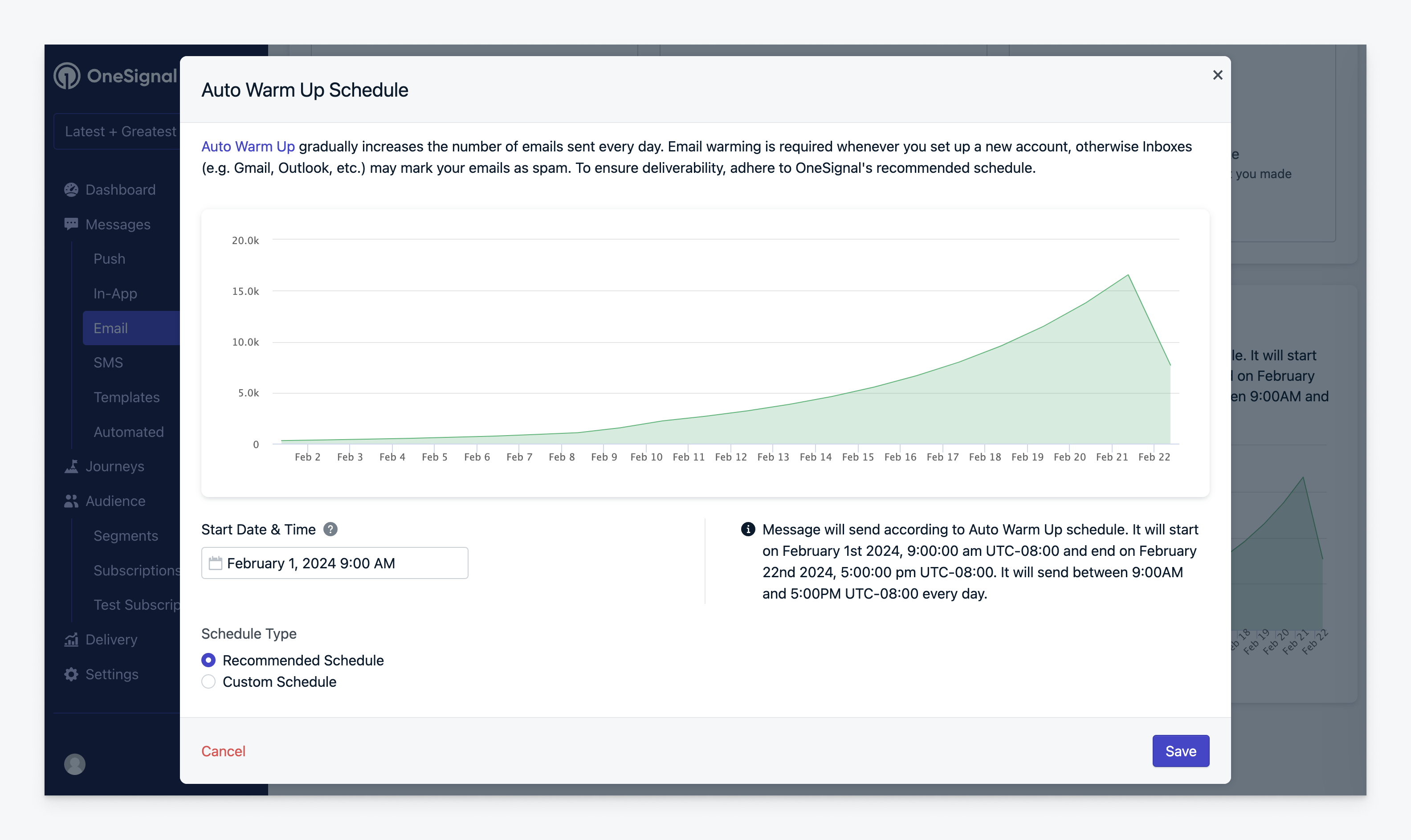
OneSignal's Auto Warm Up feature sends a single campaign to your audience gradually over several days, so you don't have to pace sends manually. Best for non-urgent, delay-tolerant content:
* Newsletters
* Evergreen content
* Onboarding flows
Specify your audience and OneSignal handles the pacing. Run multiple Auto Warm Up emails sequentially to reach your target daily volume.
 ##### Select Auto Warm Up
1. Compose your email as usual.
2. In the **Delivery Schedule** section, select **Send with Auto Warm Up**.
OneSignal generates a sending schedule based on your past delivery volumes, scheduled Auto Warm Up emails, and the size of your current audience.
##### Select Auto Warm Up
1. Compose your email as usual.
2. In the **Delivery Schedule** section, select **Send with Auto Warm Up**.
OneSignal generates a sending schedule based on your past delivery volumes, scheduled Auto Warm Up emails, and the size of your current audience.
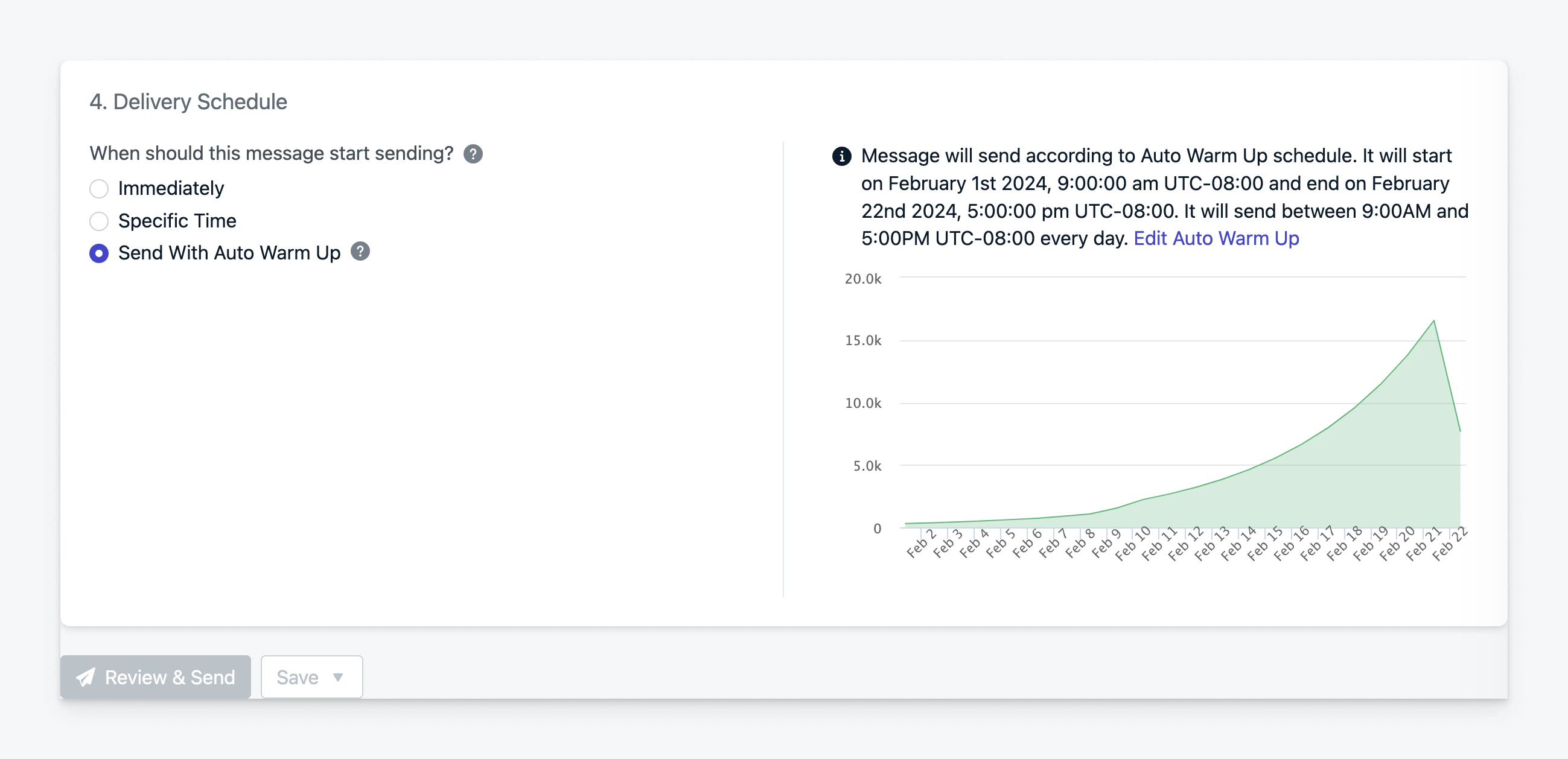 The schedule uses sending activity from the last 3 weeks. If there's a gap in sending, the system may assume a lower baseline volume, which affects the recommended ramp.
##### Monitor progress
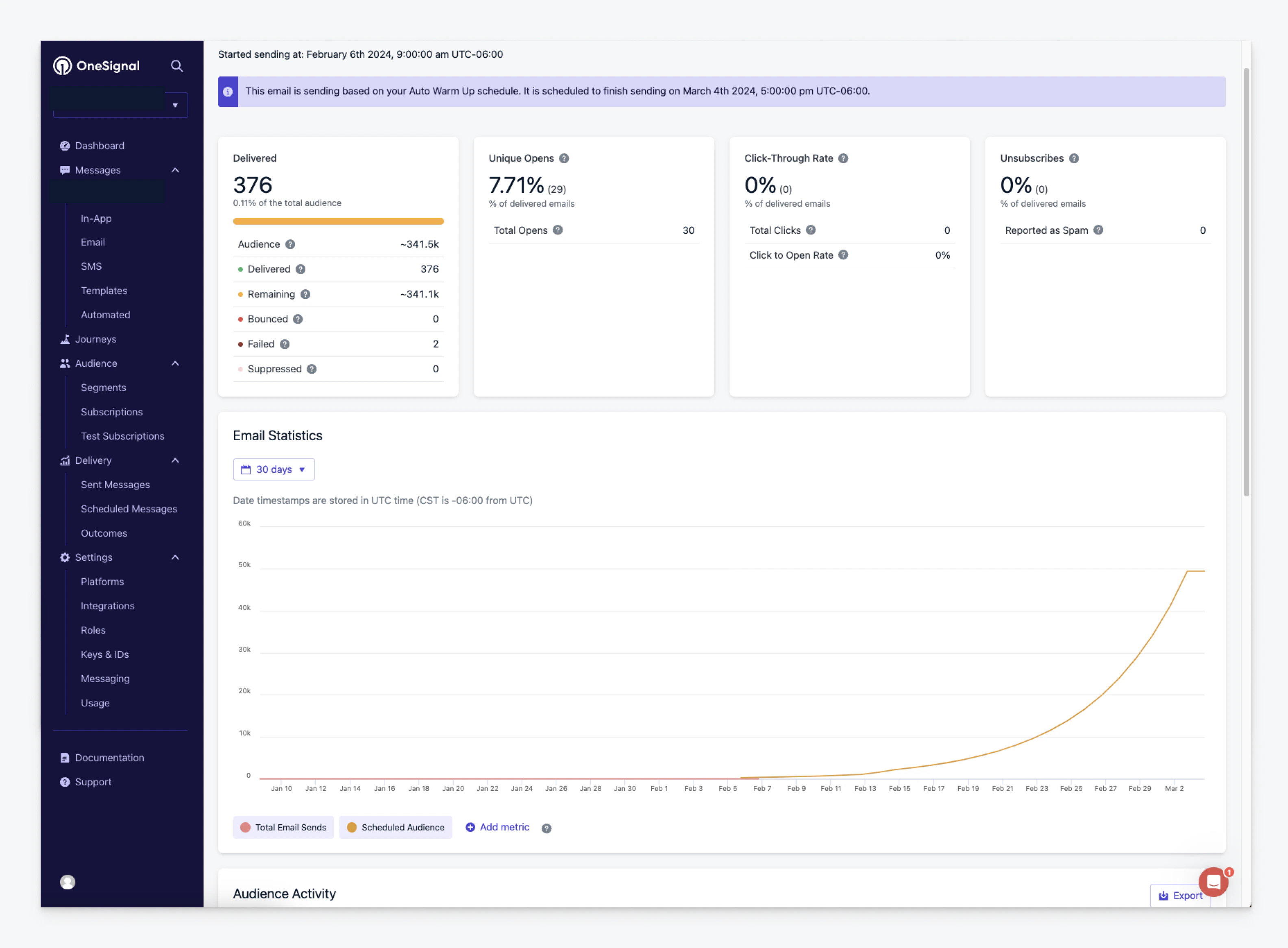
Track scheduled and sent counts in the [Email message report](./email-message-reports).
The schedule uses sending activity from the last 3 weeks. If there's a gap in sending, the system may assume a lower baseline volume, which affects the recommended ramp.
##### Monitor progress
Track scheduled and sent counts in the [Email message report](./email-message-reports).
 ##### Adjust the start date
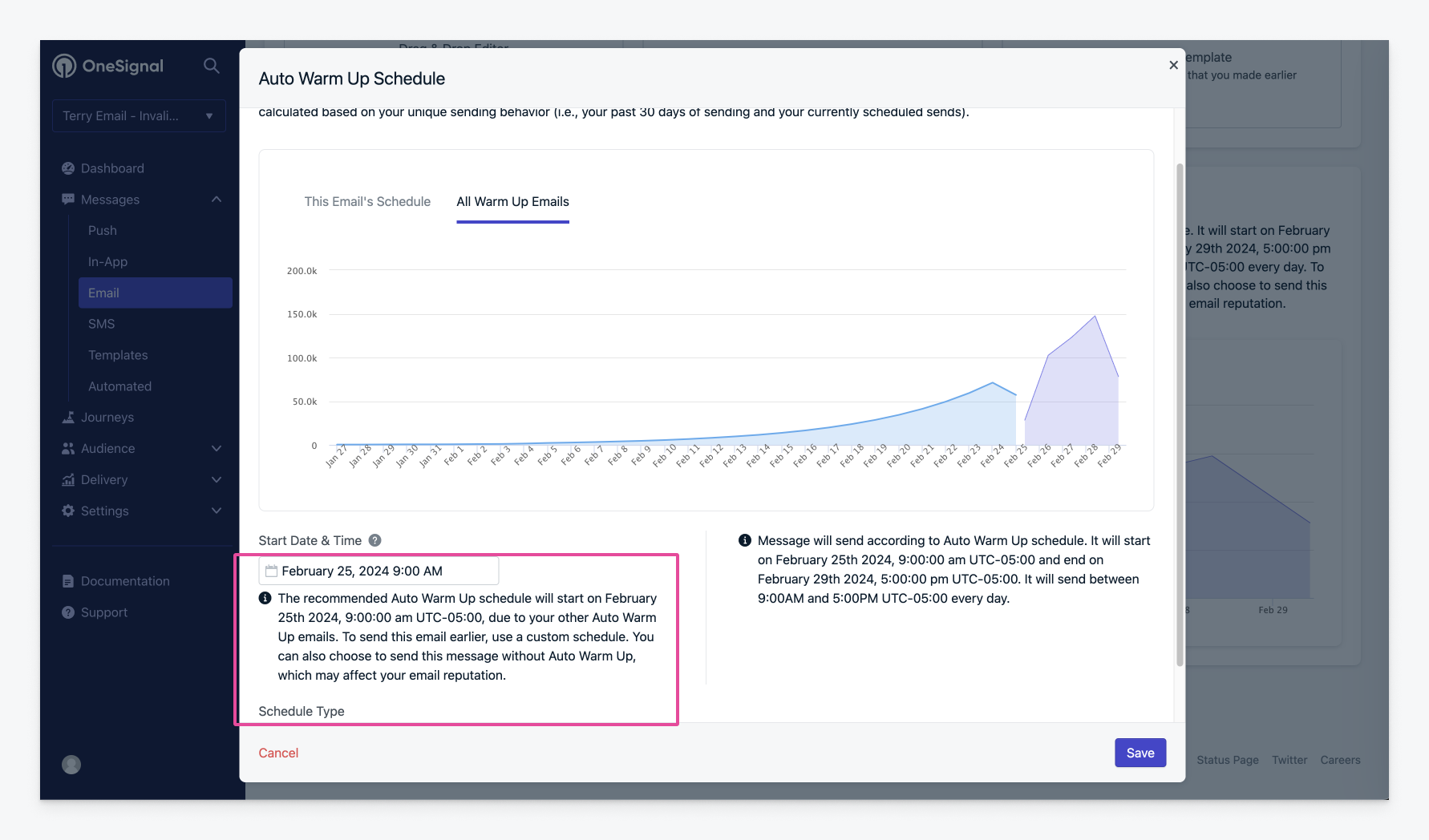
To set a different start date (default is the next day at 9am), make sure **Send with Auto Warm Up** is selected, then:
1. Click **Edit Auto Warm Up**.
2. Select **Start Date & Time** and change the date.
To change the start time on a recommended schedule, select **Custom Schedule** first.
##### Adjust the start date
To set a different start date (default is the next day at 9am), make sure **Send with Auto Warm Up** is selected, then:
1. Click **Edit Auto Warm Up**.
2. Select **Start Date & Time** and change the date.
To change the start time on a recommended schedule, select **Custom Schedule** first.
 Recipients are selected at random from your audience and sends are distributed across the day. Each audience member receives the email only once per Auto Warm Up campaign.
##### Customize your warm-up schedule
To make the schedule more aggressive or conservative:
1. Click **Edit Auto Warm Up** to open all schedules.
2. Adjust the number of emails sent each day or the duration of the warm-up period.
3. Save your schedule.
Recipients are selected at random from your audience and sends are distributed across the day. Each audience member receives the email only once per Auto Warm Up campaign.
##### Customize your warm-up schedule
To make the schedule more aggressive or conservative:
1. Click **Edit Auto Warm Up** to open all schedules.
2. Adjust the number of emails sent each day or the duration of the warm-up period.
3. Save your schedule.
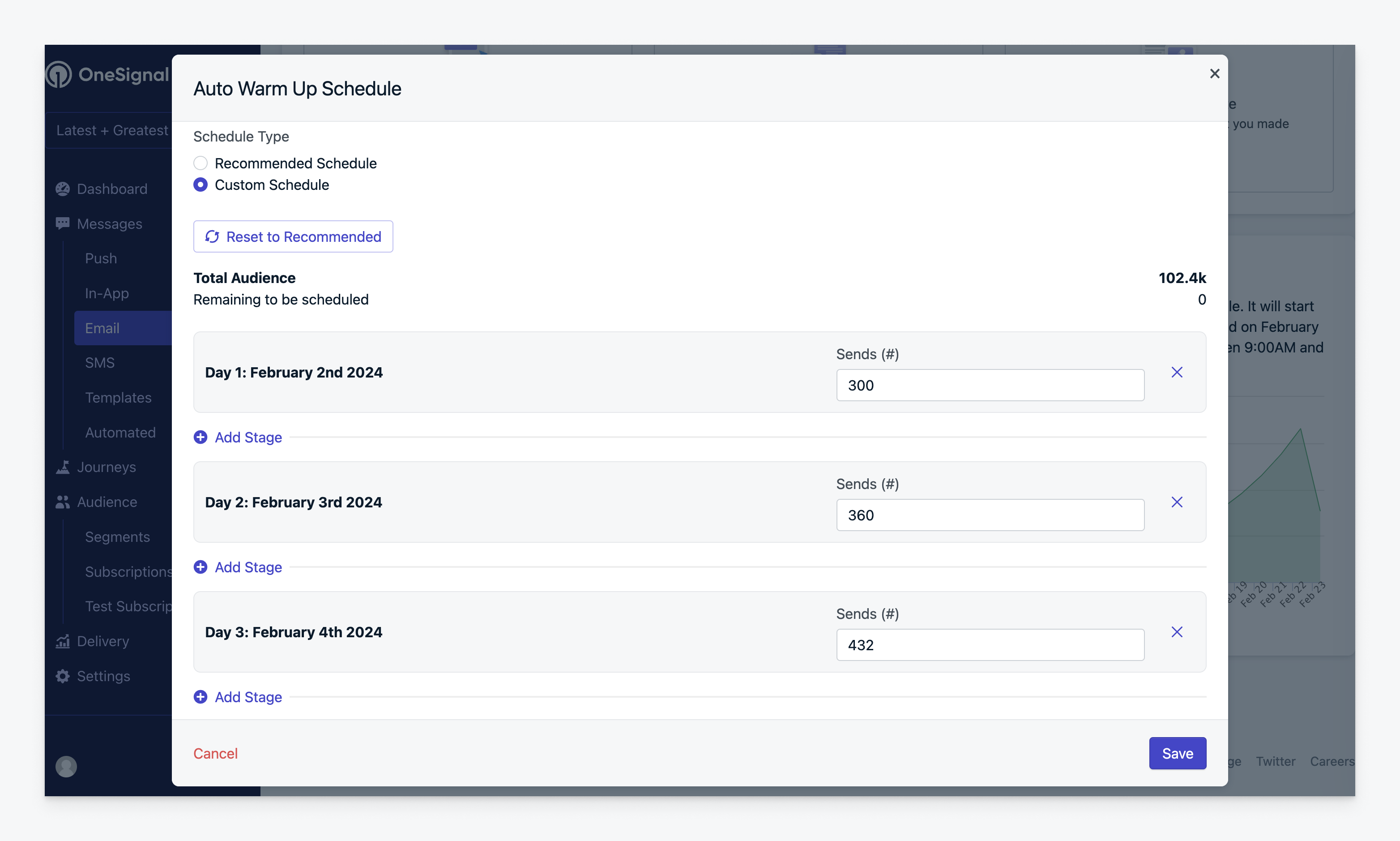 If you customize part of the schedule, OneSignal can auto-fill the remainder using the default 20% daily increase.
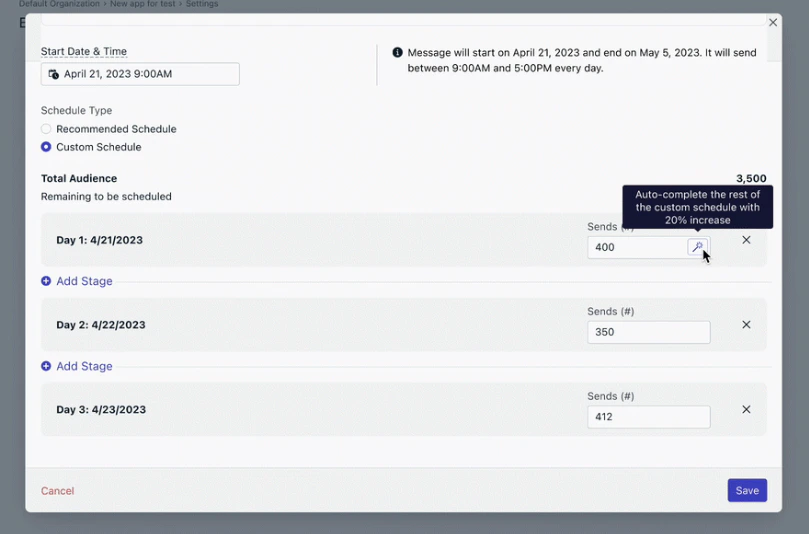 ##### Sending multiple Auto Warm Up emails
Reaching your target daily volume usually takes more than one Auto Warm Up email. OneSignal automatically schedules each new send for the next available time slot, typically after the previous email's warm-up cycle completes. You don't need to manually adjust the date.
##### Sending multiple Auto Warm Up emails
Reaching your target daily volume usually takes more than one Auto Warm Up email. OneSignal automatically schedules each new send for the next available time slot, typically after the previous email's warm-up cycle completes. You don't need to manually adjust the date.
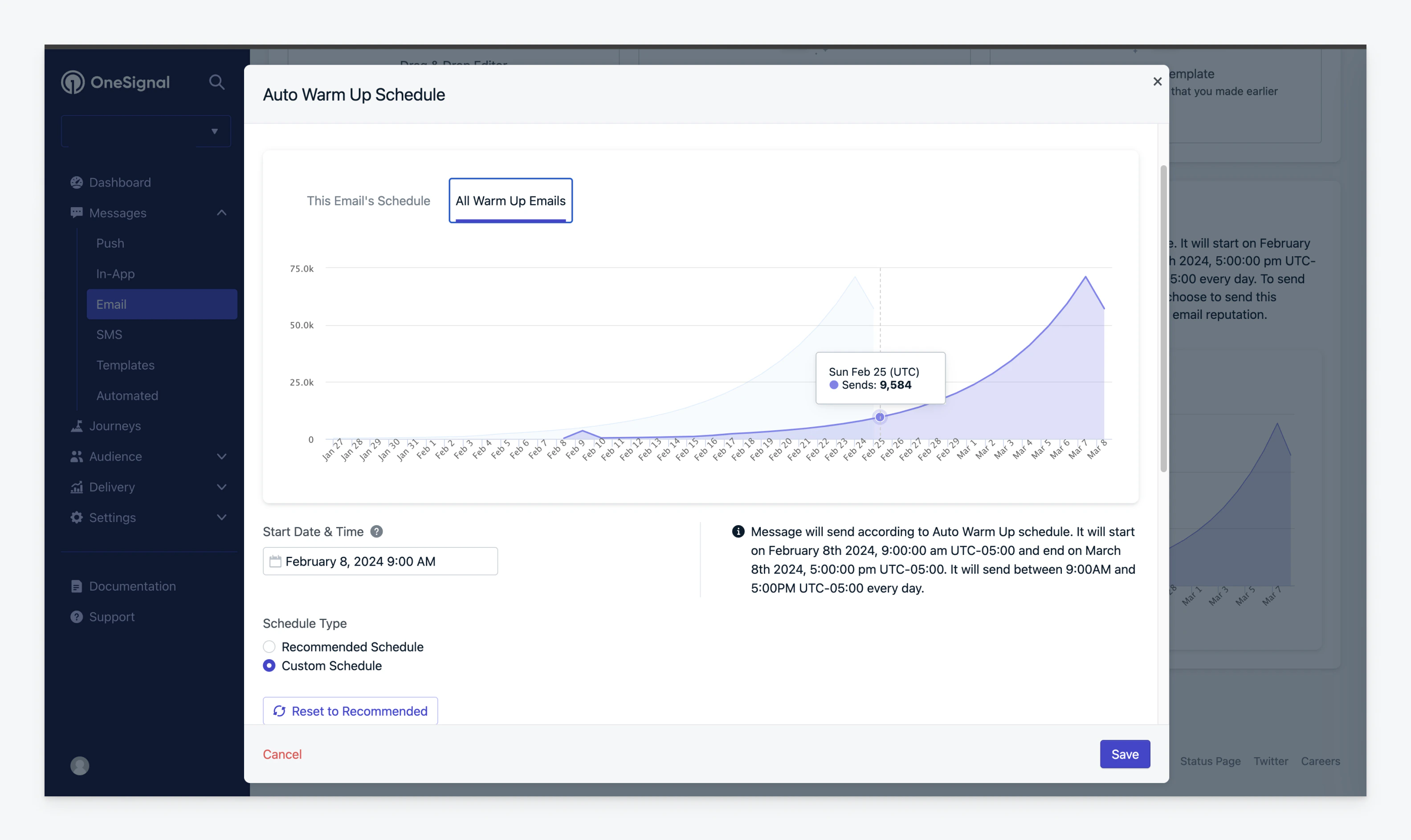 You can move the start date and customize the schedule of any Auto Warm Up email. Make sure the total volume across emails meets the recommended warm-up schedule. Reach out to `support@onesignal.com` with questions.
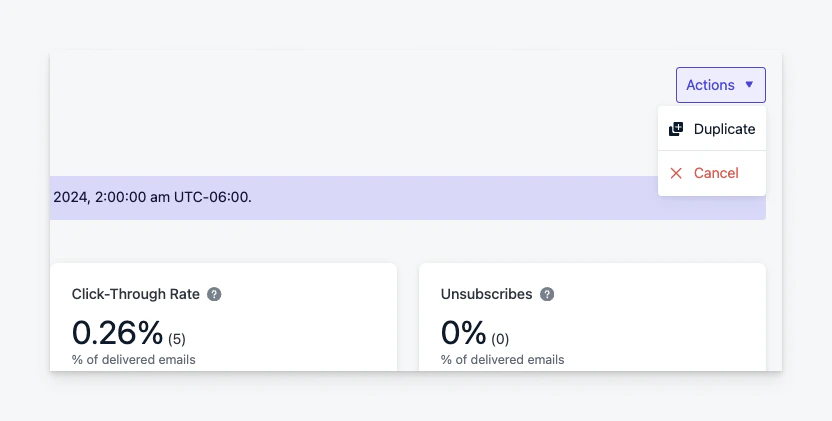
##### Cancel an active warm-up
1. Go to the **Email** page in your OneSignal dashboard.
2. Find the email you want to cancel.
3. Click the three-dot menu on the right.
4. Select **Cancel**.
You can move the start date and customize the schedule of any Auto Warm Up email. Make sure the total volume across emails meets the recommended warm-up schedule. Reach out to `support@onesignal.com` with questions.
##### Cancel an active warm-up
1. Go to the **Email** page in your OneSignal dashboard.
2. Find the email you want to cancel.
3. Click the three-dot menu on the right.
4. Select **Cancel**.
 #### Low-volume behavior-triggered campaigns
Welcome emails and loyalty or rewards emails are naturally low-volume and consistent. They're ideal for early-stage warm-up before you start large broadcasts.
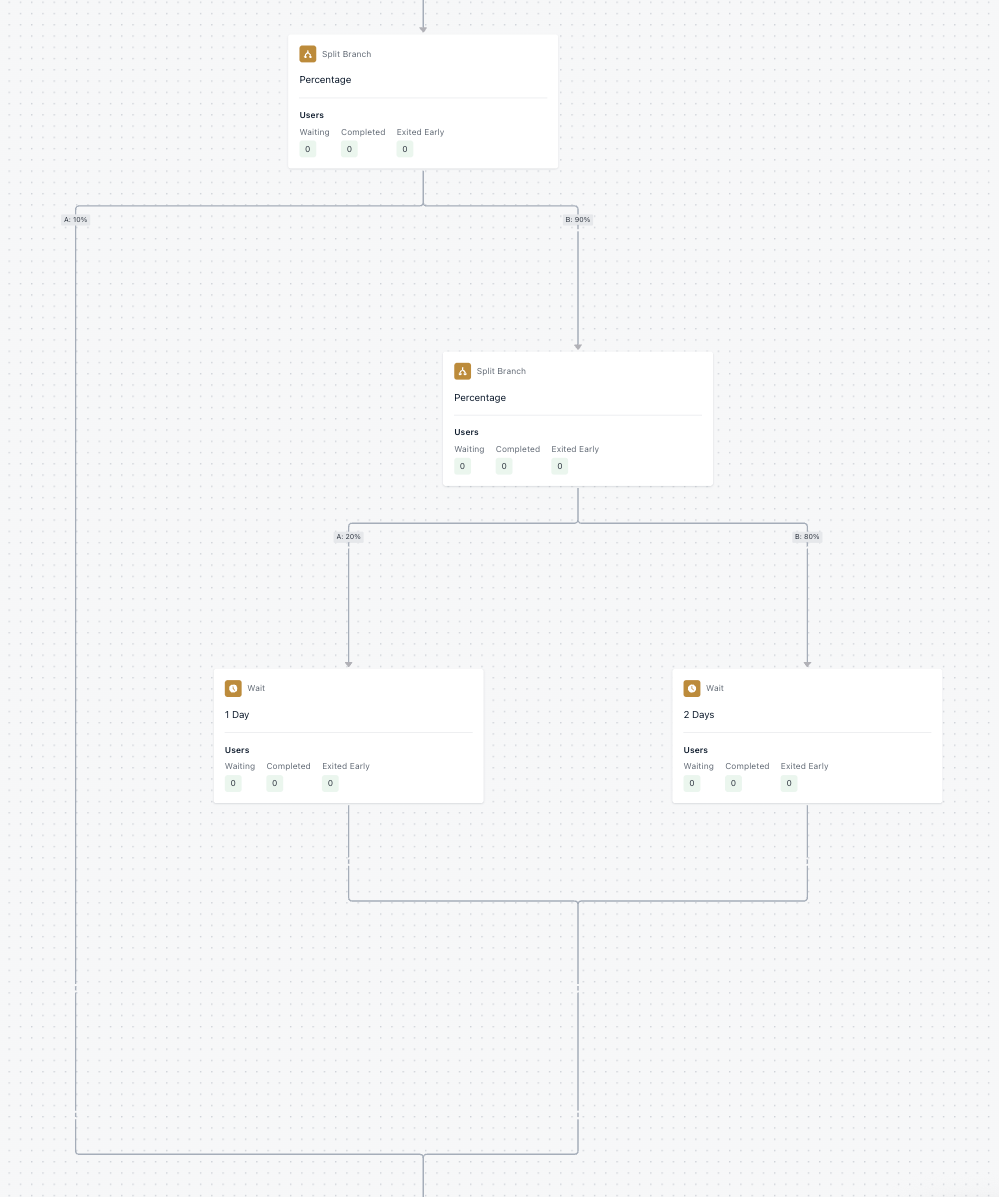
#### Journeys with Split Branches and Wait nodes
For Journey-based sends, combine [Split Branches](./journeys-actions#split-branch) with [Wait nodes](./journeys-actions#wait) to control volume across multi-step flows while preserving Journey logic and timing.
#### Low-volume behavior-triggered campaigns
Welcome emails and loyalty or rewards emails are naturally low-volume and consistent. They're ideal for early-stage warm-up before you start large broadcasts.
#### Journeys with Split Branches and Wait nodes
For Journey-based sends, combine [Split Branches](./journeys-actions#split-branch) with [Wait nodes](./journeys-actions#wait) to control volume across multi-step flows while preserving Journey logic and timing.
 ## Monitor and adjust
Watch the following signals throughout the warm-up:
* **Spam rate**: should stay below 0.1% (Gmail's threshold). Above 0.3% is critical.
* **Engagement**: open and click rates should stay strong; sustained drops mean your audience isn't as engaged as expected.
* **Bounces**: hard bounces above 2% indicate list quality issues; pause and clean before continuing.
* **Domain reputation**: use [Google Postmaster Tools](./google-postmaster-tools) to monitor Gmail specifically.
Google Postmaster Tools is the only way to monitor Gmail spam rates and domain reputation directly. Set it up before you start warming up so you have a clean baseline.
If any signal degrades, pause scaling and pull back to your last healthy volume. Resume at +20% only once metrics recover.
## FAQ
### Do I need to warm my subdomain if my domain is already warm?
Yes. Each subdomain is treated separately by inbox providers, so warm each one independently even if the main domain has a good reputation.
### Why do I need to send more than one Auto Warm Up email?
A single Auto Warm Up email reaches only a fraction of your target daily volume because delivery is spread across many days. Multiple sequential emails build sender reputation steadily without triggering spam filters.
### What's the difference between domain and IP warm-up?
**Domain warm-up** is required whenever you migrate to a new email platform. It builds trust for your sending domain with inbox providers. OneSignal automates this through Auto Warm Up.
**IP warm-up** builds reputation for the sending IP address itself. OneSignal automates IP warm-up in the background for dedicated IP customers; shared IP customers don't need to do this separately.
### How does this differ from bringing my own ESP?
With third-party ESPs (SendGrid, Mailchimp, Mailgun), you manage both IP and domain reputation. With OneSignal Email, OneSignal manages IP reputation; maintaining a warm domain with a good reputation is your responsibility.
### What should high-volume senders consider?
Senders ramping toward high daily volumes should plan for a few additional concerns:
* **Bulk sender requirements.** Crossing 5,000 emails per day to Gmail or Yahoo permanently classifies your domain as a [bulk sender](./email-deliverability#gmail-and-yahoo-bulk-sender-requirements). Set up DMARC alignment and one-click unsubscribe before you reach the threshold.
* **Dedicated IPs.** Above \~100,000 emails per month, a dedicated IP gives you full control over volume and reputation but requires you to warm the IP yourself. Contact `support@onesignal.com` to discuss.
* **Subdomain isolation.** Use a fresh subdomain when moving to a new platform. Reusing the same subdomain across different providers can create DNS issues, and starting clean is usually simpler than transferring an established domain.
* **Monitoring cadence.** Connect [Google Postmaster Tools](./google-postmaster-tools) before warm-up starts, and check it daily once you cross 1,000 emails per day to Gmail.
### Why are only some of my emails failing?
This usually means your volume is too high for your domain's current reputation with one or more inbox providers. Look for a `602 (too old)` error in [Audience Activity](/reference/export-csv-of-events). Failures often appear with specific providers like Gmail or Outlook first. Pull back to the volume that was previously delivering successfully and ramp up more slowly.
### Can I edit an Auto Warm Up email after it starts?
No. Once a warm-up send has started, the email cannot be edited. To stop it, navigate to the email index, click the three-dot menu, and select **Cancel**.
### How do I A/B test an Auto Warm Up email?
Create two separate emails targeting equal-sized segments. Select Auto Warm Up for each, then customize the start date and per-stage volume so the combined daily totals across both emails match the [ramp schedule above](#ramp-volume-gradually).
### What's the difference between dedicated and shared IPs?
By default, emails send from a shared IP, which OneSignal maintains. You only need to warm your domain. A dedicated IP is used exclusively by your account, giving you full control over volume and reputation but requiring you to warm the IP yourself. Contact `support@onesignal.com` for details on dedicated IPs.
## Related pages
Monitor spam rate and domain reputation with Google Postmaster Tools.
Protect your sender reputation with list hygiene, engagement, and compliance strategies.
## Monitor and adjust
Watch the following signals throughout the warm-up:
* **Spam rate**: should stay below 0.1% (Gmail's threshold). Above 0.3% is critical.
* **Engagement**: open and click rates should stay strong; sustained drops mean your audience isn't as engaged as expected.
* **Bounces**: hard bounces above 2% indicate list quality issues; pause and clean before continuing.
* **Domain reputation**: use [Google Postmaster Tools](./google-postmaster-tools) to monitor Gmail specifically.
Google Postmaster Tools is the only way to monitor Gmail spam rates and domain reputation directly. Set it up before you start warming up so you have a clean baseline.
If any signal degrades, pause scaling and pull back to your last healthy volume. Resume at +20% only once metrics recover.
## FAQ
### Do I need to warm my subdomain if my domain is already warm?
Yes. Each subdomain is treated separately by inbox providers, so warm each one independently even if the main domain has a good reputation.
### Why do I need to send more than one Auto Warm Up email?
A single Auto Warm Up email reaches only a fraction of your target daily volume because delivery is spread across many days. Multiple sequential emails build sender reputation steadily without triggering spam filters.
### What's the difference between domain and IP warm-up?
**Domain warm-up** is required whenever you migrate to a new email platform. It builds trust for your sending domain with inbox providers. OneSignal automates this through Auto Warm Up.
**IP warm-up** builds reputation for the sending IP address itself. OneSignal automates IP warm-up in the background for dedicated IP customers; shared IP customers don't need to do this separately.
### How does this differ from bringing my own ESP?
With third-party ESPs (SendGrid, Mailchimp, Mailgun), you manage both IP and domain reputation. With OneSignal Email, OneSignal manages IP reputation; maintaining a warm domain with a good reputation is your responsibility.
### What should high-volume senders consider?
Senders ramping toward high daily volumes should plan for a few additional concerns:
* **Bulk sender requirements.** Crossing 5,000 emails per day to Gmail or Yahoo permanently classifies your domain as a [bulk sender](./email-deliverability#gmail-and-yahoo-bulk-sender-requirements). Set up DMARC alignment and one-click unsubscribe before you reach the threshold.
* **Dedicated IPs.** Above \~100,000 emails per month, a dedicated IP gives you full control over volume and reputation but requires you to warm the IP yourself. Contact `support@onesignal.com` to discuss.
* **Subdomain isolation.** Use a fresh subdomain when moving to a new platform. Reusing the same subdomain across different providers can create DNS issues, and starting clean is usually simpler than transferring an established domain.
* **Monitoring cadence.** Connect [Google Postmaster Tools](./google-postmaster-tools) before warm-up starts, and check it daily once you cross 1,000 emails per day to Gmail.
### Why are only some of my emails failing?
This usually means your volume is too high for your domain's current reputation with one or more inbox providers. Look for a `602 (too old)` error in [Audience Activity](/reference/export-csv-of-events). Failures often appear with specific providers like Gmail or Outlook first. Pull back to the volume that was previously delivering successfully and ramp up more slowly.
### Can I edit an Auto Warm Up email after it starts?
No. Once a warm-up send has started, the email cannot be edited. To stop it, navigate to the email index, click the three-dot menu, and select **Cancel**.
### How do I A/B test an Auto Warm Up email?
Create two separate emails targeting equal-sized segments. Select Auto Warm Up for each, then customize the start date and per-stage volume so the combined daily totals across both emails match the [ramp schedule above](#ramp-volume-gradually).
### What's the difference between dedicated and shared IPs?
By default, emails send from a shared IP, which OneSignal maintains. You only need to warm your domain. A dedicated IP is used exclusively by your account, giving you full control over volume and reputation but requiring you to warm the IP yourself. Contact `support@onesignal.com` for details on dedicated IPs.
## Related pages
Monitor spam rate and domain reputation with Google Postmaster Tools.
Protect your sender reputation with list hygiene, engagement, and compliance strategies.