> ## Documentation Index
> Fetch the complete documentation index at: https://documentation.onesignal.com/llms.txt
> Use this file to discover all available pages before exploring further.
# Event Streams
> Send message data out of OneSignal in real-time to your chosen destination.
Event Streams allows you to send message data out of OneSignal in real-time to your chosen destination. Event streams are a great way to connect OneSignal to other products within your marketing ecosystem. They enable your team to trigger corresponding messaging, maintain records, and much more.
Available event types include:
* Push message events (sent, received, clicked, failed, unsubscribed)
* Email events (sent, opened, clicked, bounced, unsubscribed, etc.)
* SMS events (sent, failed, unsubscribed, etc.)
* In-app message events (impression, clicked, etc.)
* Live Activity events (sent, delivered, confirmed receipt, failed, unsubscribed, clicked)
## Common use cases
* **Centralize engagement data** — Stream events to a CRM, CDP, or data warehouse so cross-channel activity (opens, clicks, bounces) lives in one place instead of across disconnected tools.
* **Analytics, reporting, and compliance** — Land every message event in a warehouse for trend analysis, auditing, or regulatory record-keeping.
* **Monitor disengagement** — Track unsubscribes, bounces, and dismissals in your own systems to spot retention risks early.
* **Trigger external workflows** — Fire automations in other tools when a user opens or clicks a message (e.g., update a lead score, start a follow-up sequence).
* **Replace batch syncs and extra integrations** — React to events in real-time and connect OneSignal directly to your destination, cutting intermediary tools and maintenance cost.
### Getting your technical team started
Setting up Event Streams is a joint effort between the marketing/product owner (who decides *which* events matter and *where* they go) and the engineering team (who builds the receiving endpoint and configures the stream). Here's what the engineering side involves:
1. **Decide on a destination and scope** — Agree on where events should land (your own API, a data warehouse, a CDP, etc.), which event types to stream (push, email, SMS, IAM, Live Activity), and an estimate of message volume so the endpoint is sized appropriately.
2. **Set up an HTTP endpoint** — Build or configure a publicly reachable endpoint that accepts POST requests. It should record events quickly without heavy processing to keep response times low. See [Retries / Disabling](#retries--disabling) for performance expectations and what happens when the endpoint falls behind.
3. **Configure the Event Stream in OneSignal** — In **Data > Event Streams**, select events, set the URL and authentication headers, and define the JSON body using [Event Streams Data](./event-streams-data) fields with [Liquid syntax](./using-liquid-syntax).
4. **Test end-to-end** — Use [webhook.site](https://webhook.site) to verify the payload shape and headers before switching to your production endpoint (see [Testing](#testing)).
***
## Setup
You can configure a new event stream for your OneSignal application under **Data > Event Streams > New Event Stream**.
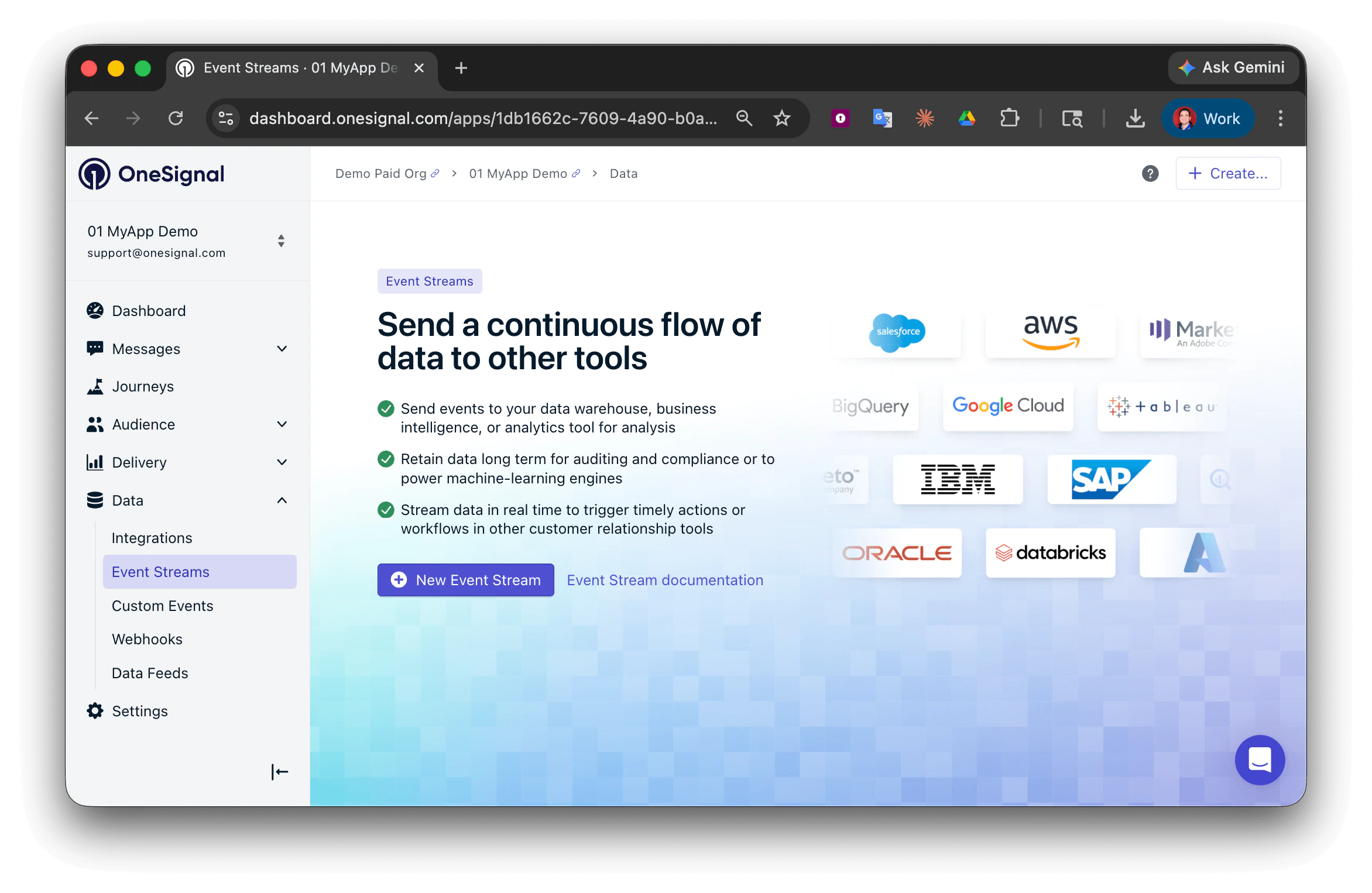 **Requirements**
Events can't be sent unless the following requirements are met:
* A valid URL or IP address for a publicly reachable **HTTP(S) endpoint**
* URLs and IP addresses must be publicly routable
* Domains must include a recognized top-level domain (e.g., ".com", ".net")
### Event Selection
Name your Event Stream and click **Select Events**.
**Requirements**
Events can't be sent unless the following requirements are met:
* A valid URL or IP address for a publicly reachable **HTTP(S) endpoint**
* URLs and IP addresses must be publicly routable
* Domains must include a recognized top-level domain (e.g., ".com", ".net")
### Event Selection
Name your Event Stream and click **Select Events**.
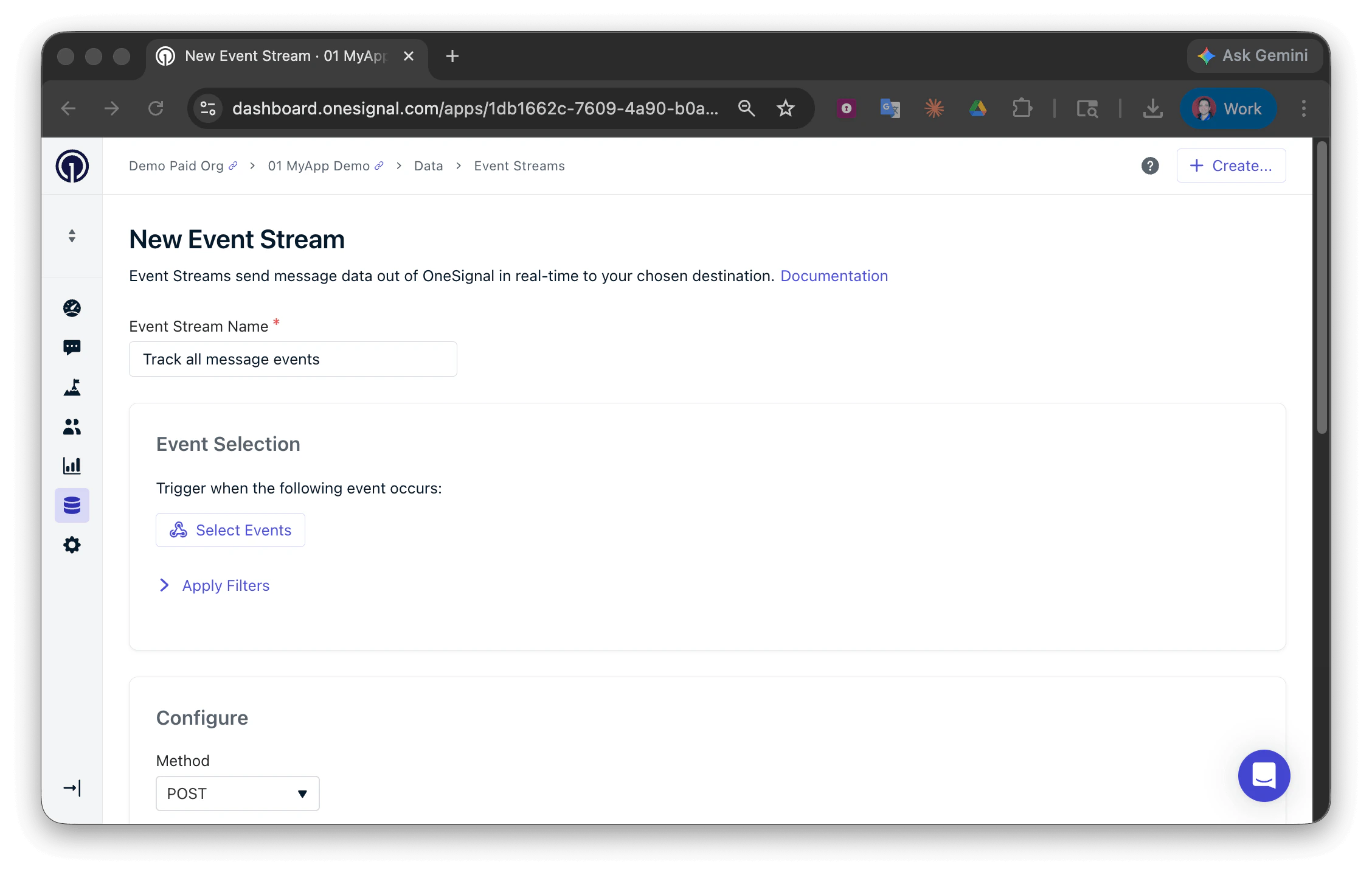 This will open the Event Selection page where you can select the events you want to trigger your event stream.
Each event counts toward your plan's message-event volume. Streaming **every** event type (especially `sent`) for a large audience can use your allowance quickly — for example, a single send to 100,000 users generates 100,000 `sent` events alone.
To manage volume:
* **Select only the event types you need** — e.g., `received` and `clicked` may be sufficient if you don't need send-level tracking.
* **Use [event stream filters](#event-stream-filters)** to limit events to specific messages or templates instead of streaming all traffic.
This will open the Event Selection page where you can select the events you want to trigger your event stream.
Each event counts toward your plan's message-event volume. Streaming **every** event type (especially `sent`) for a large audience can use your allowance quickly — for example, a single send to 100,000 users generates 100,000 `sent` events alone.
To manage volume:
* **Select only the event types you need** — e.g., `received` and `clicked` may be sufficient if you don't need send-level tracking.
* **Use [event stream filters](#event-stream-filters)** to limit events to specific messages or templates instead of streaming all traffic.
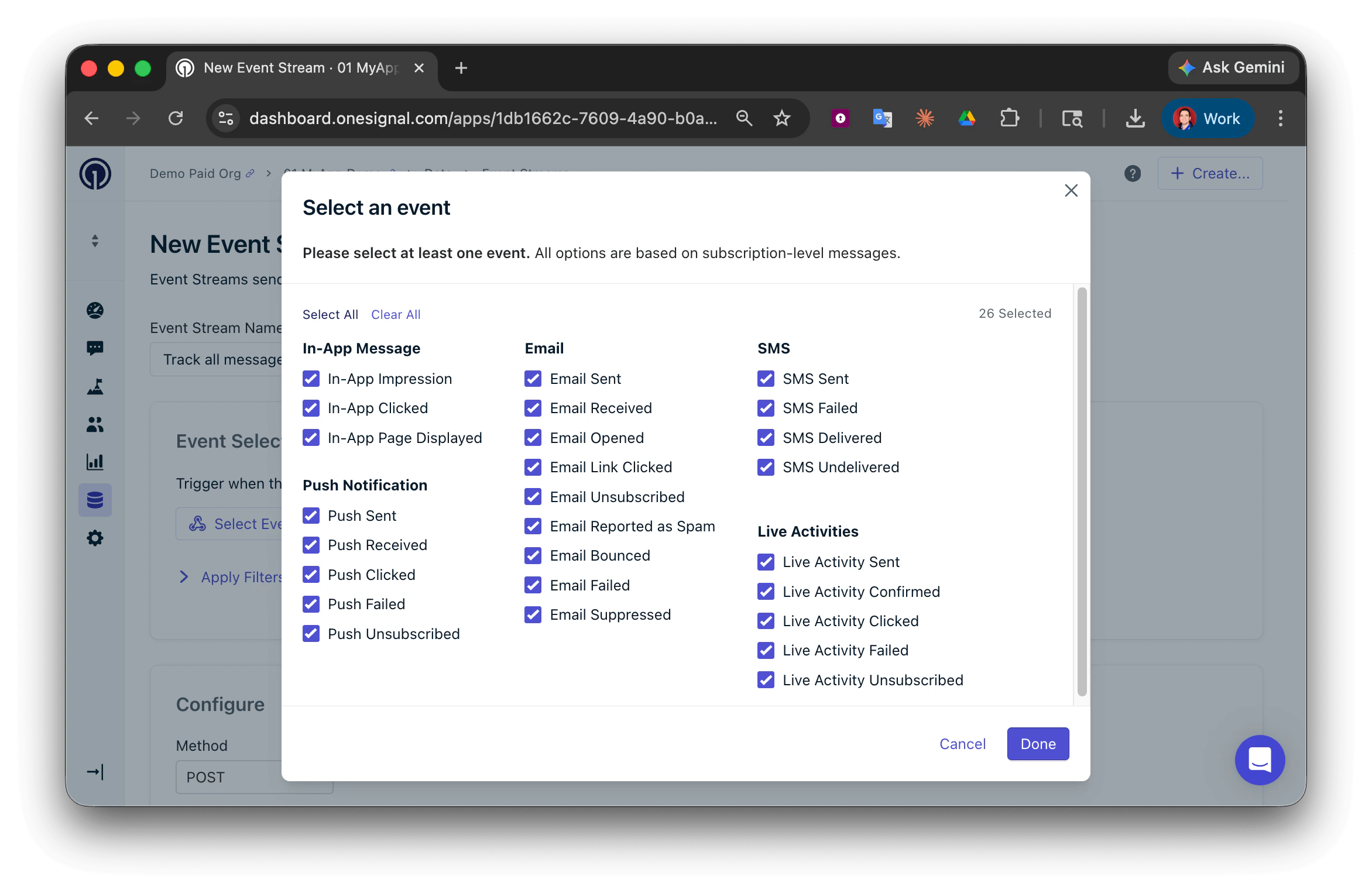 #### Event stream filters
You can optionally further refine events by specifying the identifiers of one or more messages or templates, enabling you to receive only events related to specific messages.
#### Event stream filters
You can optionally further refine events by specifying the identifiers of one or more messages or templates, enabling you to receive only events related to specific messages.
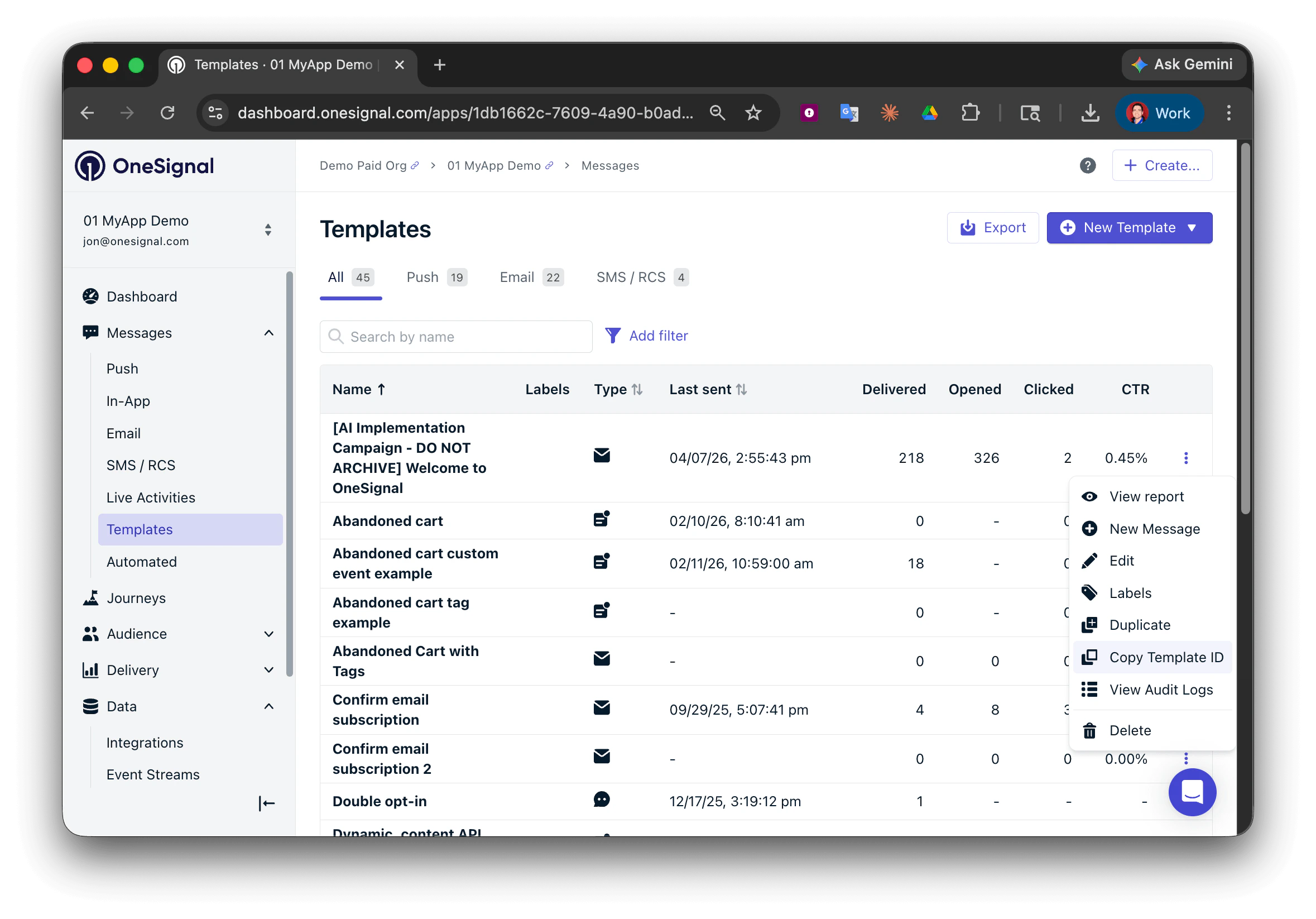
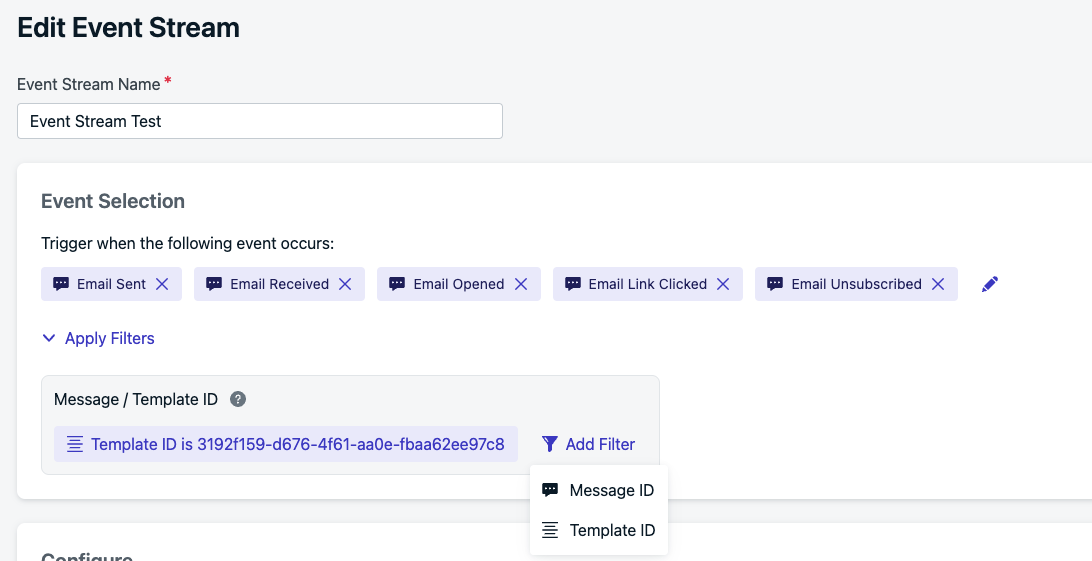 Template identifiers can be copied by navigating to **Messages > Templates**. Next to the template you want to track, select **Options > Copy Template ID** and paste it into the Event Stream filters.
 ### Configure the Event Stream
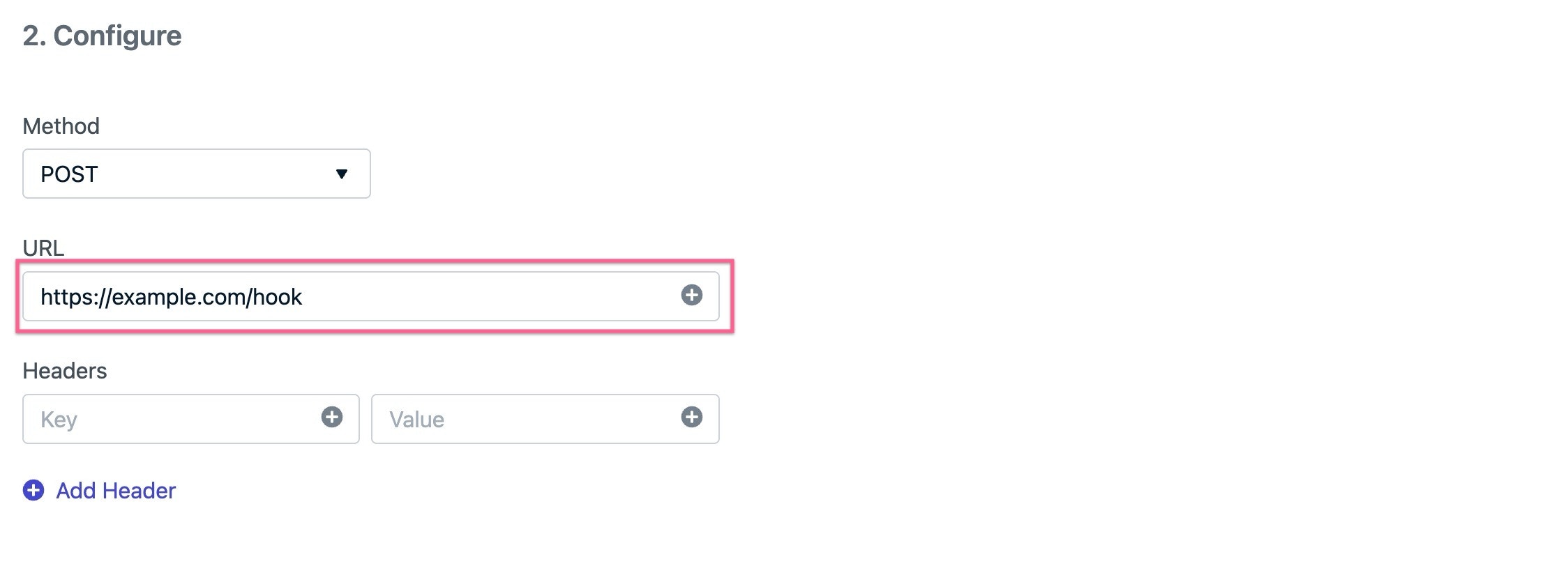
Select the HTTP method, the URL, and add headers for the event stream. This is where authentication should be configured to ensure secure communication between OneSignal and your systems.
The URI and Headers can contain liquid syntax which will come from both the user properties and properties of the event stream.
#### Authentication Headers
You can add authentication headers to validate that requests to your endpoint are genuinely from OneSignal. Common authentication methods include:
* **Authorization Header**: Add an `Authorization` header, where `YOUR_TOKEN` is provided by your system or 3rd party like:
* `Basic {{YOUR_TOKEN}}`
* `Bearer {{YOUR_TOKEN}}`
* `ApiKey {{YOUR_API_KEY}}`
* **Custom Headers**: You can also add custom headers like:
* `X-API-Key: {{YOUR_API_KEY}}`
*Note: OneSignal does not provide encryption services*
#### Testing Your Configuration
If you are looking for an easy way to test, use [webhook.site](https://webhook.site). Find "Your unique URL" in the center of the page. Copy that URL and use it in the URL field of your event stream configuration.
### Configure the Event Stream
Select the HTTP method, the URL, and add headers for the event stream. This is where authentication should be configured to ensure secure communication between OneSignal and your systems.
The URI and Headers can contain liquid syntax which will come from both the user properties and properties of the event stream.
#### Authentication Headers
You can add authentication headers to validate that requests to your endpoint are genuinely from OneSignal. Common authentication methods include:
* **Authorization Header**: Add an `Authorization` header, where `YOUR_TOKEN` is provided by your system or 3rd party like:
* `Basic {{YOUR_TOKEN}}`
* `Bearer {{YOUR_TOKEN}}`
* `ApiKey {{YOUR_API_KEY}}`
* **Custom Headers**: You can also add custom headers like:
* `X-API-Key: {{YOUR_API_KEY}}`
*Note: OneSignal does not provide encryption services*
#### Testing Your Configuration
If you are looking for an easy way to test, use [webhook.site](https://webhook.site). Find "Your unique URL" in the center of the page. Copy that URL and use it in the URL field of your event stream configuration.
 #### Disallowed headers
The following headers are restricted and can't be set.
* `content-length`
* `referer`
* `metadata-flavor`
* `x-google-metadata-request`
* `host`
* `x-onesignal*`
### Body
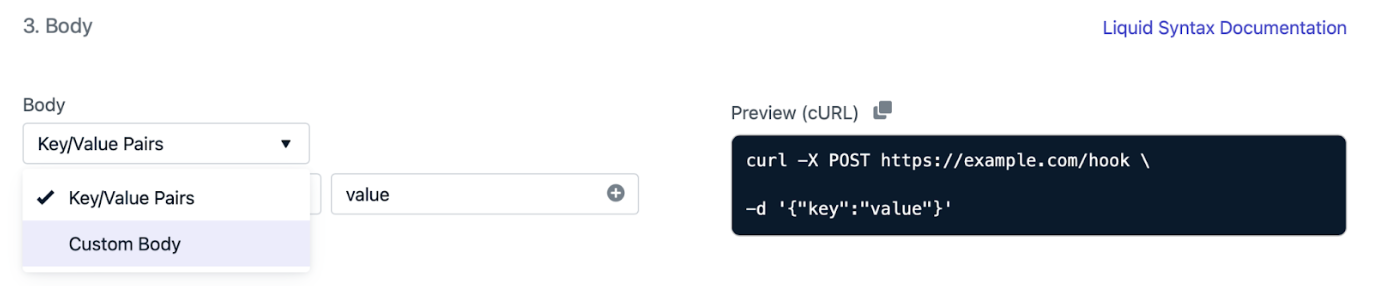
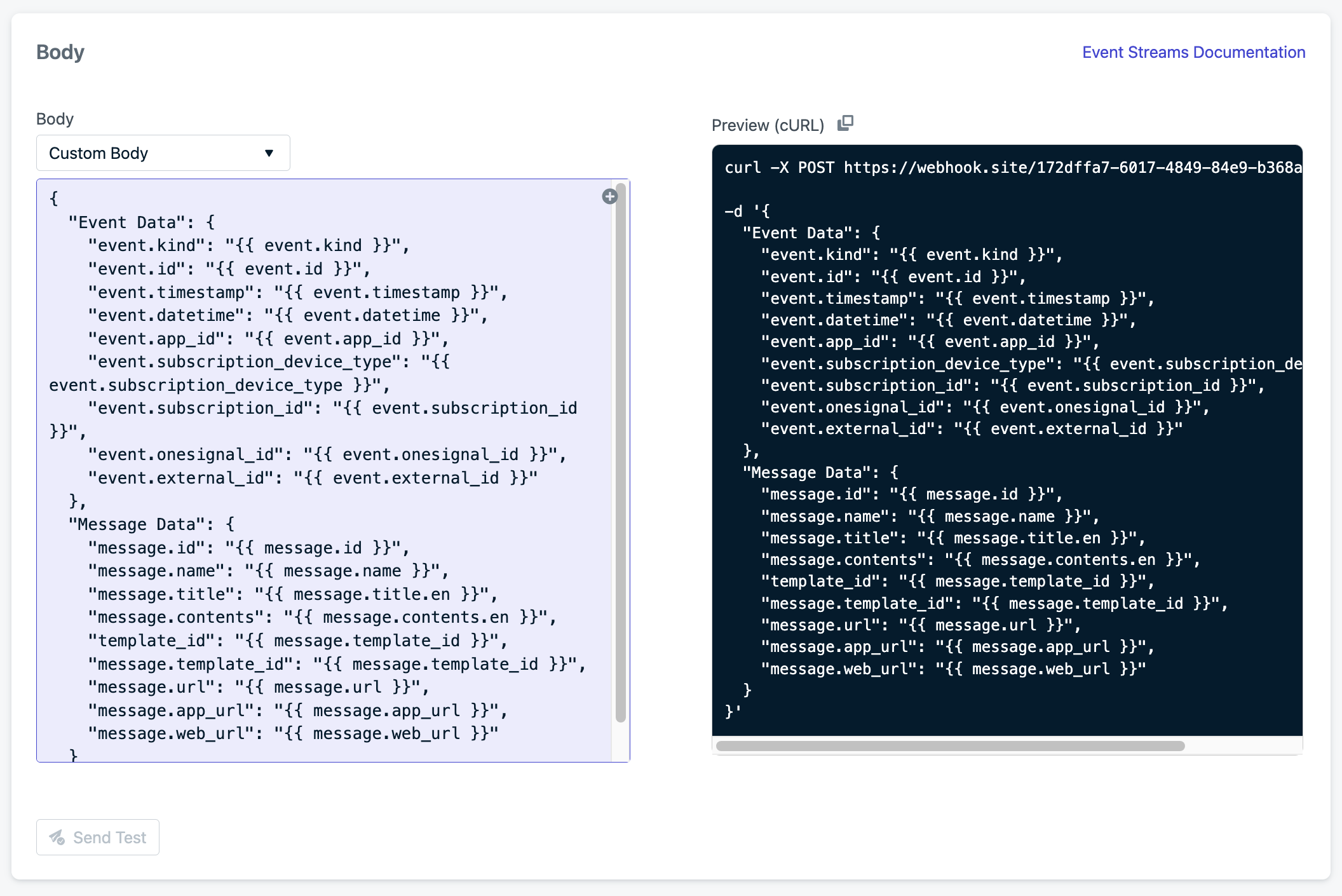
The body for an event stream will be JSON. The body JSON can be defined either as individual key/value pairs or as an editable code block. To change the input method use the first dropdown under the body heading and select the custom body.
#### Disallowed headers
The following headers are restricted and can't be set.
* `content-length`
* `referer`
* `metadata-flavor`
* `x-google-metadata-request`
* `host`
* `x-onesignal*`
### Body
The body for an event stream will be JSON. The body JSON can be defined either as individual key/value pairs or as an editable code block. To change the input method use the first dropdown under the body heading and select the custom body.
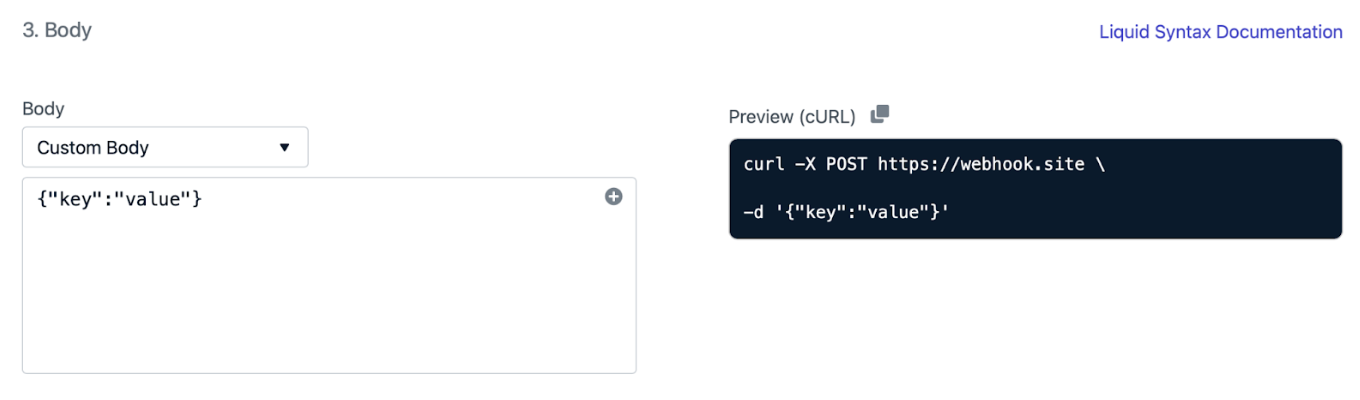
 On the right, you can see an example cURL request built from what has been input during event stream setup.
 ### Personalization
You can personalize all fields in your Event Stream with predefined [Event Streams Data](./event-streams-data). This data can be added using [Liquid Syntax](./using-liquid-syntax). This gives you the flexibility to use event streams for nearly any use case.
See [Event Streams Data](./event-streams-data) for a list of all event, message, and user event data available for personalization.
#### Example body
Select the "Custom Body" in the drop-down:
```json JSON theme={null}
{
"Event Data": {
"event.kind": "{{ event.kind }}",
"event.id": "{{ event.id }}",
"event.timestamp": "{{ event.timestamp }}",
"event.datetime": "{{ event.datetime }}",
"event.app_id": "{{ event.app_id }}",
"event.subscription_device_type": "{{ event.subscription_device_type }}",
"event.subscription_id": "{{ event.subscription_id }}",
"event.onesignal_id": "{{ event.onesignal_id }}",
"event.external_id": "{{ event.external_id }}",
"event.data.page_name": "{{ event.data.page_name}}",
"event.data.page_id": "{{ event.data.page_id}}",
"event.data.target_name": "{{ event.data.target_name}}",
"event.data.target_id": "{{ event.data.target_id}}",
"event.data.failure_reason": "{{ event.data.failure_reason}}"
},
"Message Data": {
"message.id": "{{ message.id }}",
"message.name": "{{ message.name }}",
"message.title": "{{ message.title.en }}",
"message.contents": "{{ message.contents.en }}",
"message.template_id": "{{ message.template_id }}",
"message.url": "{{ message.url }}",
"message.app_url": "{{ message.app_url }}",
"message.web_url": "{{ message.web_url }}"
}
}
```
### Personalization
You can personalize all fields in your Event Stream with predefined [Event Streams Data](./event-streams-data). This data can be added using [Liquid Syntax](./using-liquid-syntax). This gives you the flexibility to use event streams for nearly any use case.
See [Event Streams Data](./event-streams-data) for a list of all event, message, and user event data available for personalization.
#### Example body
Select the "Custom Body" in the drop-down:
```json JSON theme={null}
{
"Event Data": {
"event.kind": "{{ event.kind }}",
"event.id": "{{ event.id }}",
"event.timestamp": "{{ event.timestamp }}",
"event.datetime": "{{ event.datetime }}",
"event.app_id": "{{ event.app_id }}",
"event.subscription_device_type": "{{ event.subscription_device_type }}",
"event.subscription_id": "{{ event.subscription_id }}",
"event.onesignal_id": "{{ event.onesignal_id }}",
"event.external_id": "{{ event.external_id }}",
"event.data.page_name": "{{ event.data.page_name}}",
"event.data.page_id": "{{ event.data.page_id}}",
"event.data.target_name": "{{ event.data.target_name}}",
"event.data.target_id": "{{ event.data.target_id}}",
"event.data.failure_reason": "{{ event.data.failure_reason}}"
},
"Message Data": {
"message.id": "{{ message.id }}",
"message.name": "{{ message.name }}",
"message.title": "{{ message.title.en }}",
"message.contents": "{{ message.contents.en }}",
"message.template_id": "{{ message.template_id }}",
"message.url": "{{ message.url }}",
"message.app_url": "{{ message.app_url }}",
"message.web_url": "{{ message.web_url }}"
}
}
```
 #### Using Liquid Syntax in JSON
When using Liquid syntax within JSON, proper quoting depends on the data type:
**Guidelines for JSON Formatting**
* **Strings** → **Must** wrap in quotes.
* **Numbers** → **Don't** wrap in quotes.
* **Objects** → **Must** not be wrapped in quotes.
The `//` comment lines in the **Correct** examples below are for readability only. Remove them in your real Event Stream body—strict JSON does not allow `//` comments.
**Examples**
**✅ Correct** — wrap in quotes:
```liquid JSON theme={null}
{
"user_id": "{{ user.onesignal_id }}"
}
```
**❌ Incorrect** — missing quotes produces invalid JSON:
```liquid JSON theme={null}
{
"user_id": {{ user.onesignal_id }}
}
```
**✅ Correct** — no quotes:
```liquid JSON theme={null}
{
"user_score": {{ user.tags.score }}
}
```
**❌ Incorrect** — quotes turn the number into a string:
```liquid JSON theme={null}
{
"user_score": "{{ user.tags.score }}"
}
```
**✅ Correct** — no quotes:
```liquid JSON theme={null}
{
"user_data": {{ user.tags }}
}
```
**❌ Incorrect** — quotes turn the object into a string:
```liquid JSON theme={null}
{
"user_data": "{{ user.tags }}"
}
```
**Best practices for handling multilingual conditionals in liquid syntax**
To avoid issues with language-based conditionals
1. **Use Direct Language Checks**: Always check `user.language` directly in conditionals, not in variables like `userLang`, for better compatibility.
2. **Start Simple**: Begin with basic phrases, then gradually add complexity.
3. **Avoid Over-Nesting**: Keep conditionals flat to prevent parsing issues.
4. **Test Basic Punctuation First**: Start with simple sentences and punctuation before using special characters.
5. **Use Fallbacks**: Ensure a default language (e.g., English) in case of missing translations.
6. **Stick to Standard Keys**: Use standard OneSignal keys like `content/title/en` for reliability.
This approach minimizes parsing errors and ensures compatibility with the system.
For details and options on how to personalize your messages using Liquid syntax, check out our [Using Liquid Syntax Guide](./using-liquid-syntax).
***
## Results & Debugging
Monitoring your Event Stream's performance and troubleshooting issues:
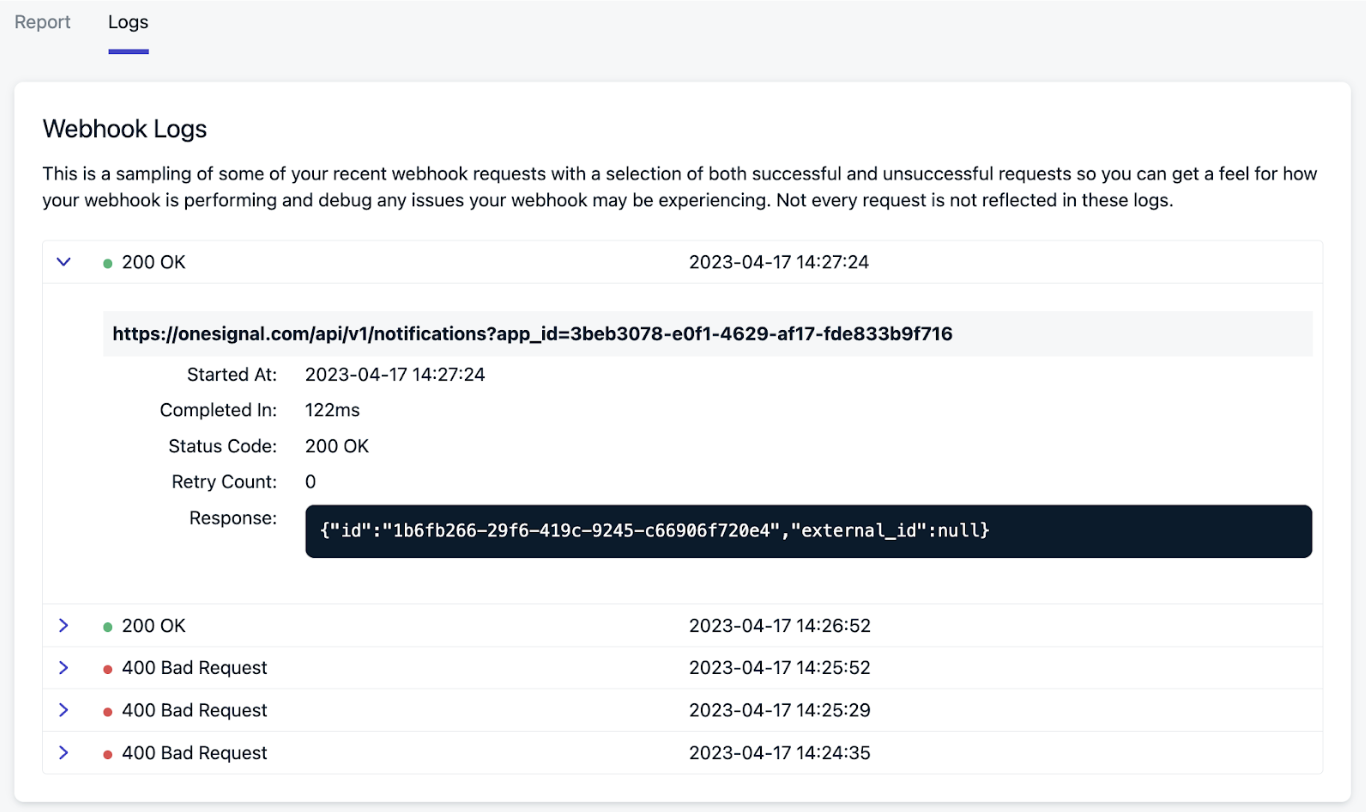
**Report tab** — Shows all-time totals, the current status of your event stream, and a time-series chart of HTTP response codes over time.
| Response | Meaning |
| ------------- | ---------------------------------------------------------------------------------------------------------------------------- |
| **2xx** | The event was successfully received by your endpoint. |
| **4xx / 5xx** | Your endpoint returned an error. Check the Logs tab for the specific status code and response body. |
| **Timeout** | Your endpoint did not respond within the allowed window. OneSignal closed the connection and treated the delivery as failed. |
**Logs tab** — Displays a sample of recent requests, including the full request body, headers, and the response from your endpoint. This is the best place to start when debugging — you can see exactly what OneSignal sent and what your server returned.
If the payload or configuration needs adjusting, edit the event stream and use the **Send Test** button to send sample requests. Iterate until the payload matches what your endpoint expects, then go live.
#### Using Liquid Syntax in JSON
When using Liquid syntax within JSON, proper quoting depends on the data type:
**Guidelines for JSON Formatting**
* **Strings** → **Must** wrap in quotes.
* **Numbers** → **Don't** wrap in quotes.
* **Objects** → **Must** not be wrapped in quotes.
The `//` comment lines in the **Correct** examples below are for readability only. Remove them in your real Event Stream body—strict JSON does not allow `//` comments.
**Examples**
**✅ Correct** — wrap in quotes:
```liquid JSON theme={null}
{
"user_id": "{{ user.onesignal_id }}"
}
```
**❌ Incorrect** — missing quotes produces invalid JSON:
```liquid JSON theme={null}
{
"user_id": {{ user.onesignal_id }}
}
```
**✅ Correct** — no quotes:
```liquid JSON theme={null}
{
"user_score": {{ user.tags.score }}
}
```
**❌ Incorrect** — quotes turn the number into a string:
```liquid JSON theme={null}
{
"user_score": "{{ user.tags.score }}"
}
```
**✅ Correct** — no quotes:
```liquid JSON theme={null}
{
"user_data": {{ user.tags }}
}
```
**❌ Incorrect** — quotes turn the object into a string:
```liquid JSON theme={null}
{
"user_data": "{{ user.tags }}"
}
```
**Best practices for handling multilingual conditionals in liquid syntax**
To avoid issues with language-based conditionals
1. **Use Direct Language Checks**: Always check `user.language` directly in conditionals, not in variables like `userLang`, for better compatibility.
2. **Start Simple**: Begin with basic phrases, then gradually add complexity.
3. **Avoid Over-Nesting**: Keep conditionals flat to prevent parsing issues.
4. **Test Basic Punctuation First**: Start with simple sentences and punctuation before using special characters.
5. **Use Fallbacks**: Ensure a default language (e.g., English) in case of missing translations.
6. **Stick to Standard Keys**: Use standard OneSignal keys like `content/title/en` for reliability.
This approach minimizes parsing errors and ensures compatibility with the system.
For details and options on how to personalize your messages using Liquid syntax, check out our [Using Liquid Syntax Guide](./using-liquid-syntax).
***
## Results & Debugging
Monitoring your Event Stream's performance and troubleshooting issues:
**Report tab** — Shows all-time totals, the current status of your event stream, and a time-series chart of HTTP response codes over time.
| Response | Meaning |
| ------------- | ---------------------------------------------------------------------------------------------------------------------------- |
| **2xx** | The event was successfully received by your endpoint. |
| **4xx / 5xx** | Your endpoint returned an error. Check the Logs tab for the specific status code and response body. |
| **Timeout** | Your endpoint did not respond within the allowed window. OneSignal closed the connection and treated the delivery as failed. |
**Logs tab** — Displays a sample of recent requests, including the full request body, headers, and the response from your endpoint. This is the best place to start when debugging — you can see exactly what OneSignal sent and what your server returned.
If the payload or configuration needs adjusting, edit the event stream and use the **Send Test** button to send sample requests. Iterate until the payload matches what your endpoint expects, then go live.
 ### Retries / Disabling
**Retry behavior** — When a request fails with a recoverable status (e.g. `429`), OneSignal retries with increasing delays. If retries for a single event keep failing, that event is marked as permanently failed and is not retried again.
**Auto-disabling** — If your endpoint returns sustained failures across many events, OneSignal may disable the entire event stream. When this happens:
1. App and org admins receive an email when failure volume becomes significant (before disabling) and again when the stream is disabled.
2. A banner also appears on the **Event Streams** index page in the dashboard.
3. Fix the underlying issue, test with the **Logs** tab or [webhook.site](https://webhook.site), and re-enable the stream.
**Performance guidance** — Your endpoint should be able to handle the volume of events your message sends produce. To avoid backlogs and disablement:
* **Record events quickly** — Write the incoming event to a queue or data store without heavy inline processing.
* **Avoid slow responses and 429s** — Consistent slow response times or rate-limit responses cause events to back up, which leads OneSignal to disable the stream.
* **Size for your send volume** — If you send 100k messages, expect up to 100k events per selected event type. Review your plan's message volume and provision accordingly.
**Deduplication** — Each delivered event includes a unique `event.id`. Include it in a header or the JSON body so your system can deduplicate if the same event is retried or replayed.
### Tips for Success
* **Point streams at your own servers first.** You *can* connect directly to a third-party API, but debugging, rate-limit handling, and volume management are harder when you don't control the receiving end.
* **Buffer before forwarding to third parties.** OneSignal sends events as fast as users trigger them — a large send can produce a burst that overwhelms external rate limits or runs up costs (especially with SMS providers). Build a lightweight service that accepts events, queues them, and forwards to external APIs at a pace you control.
* **Check third-party API docs.** Many services expose public HTTP APIs you can target with an event stream. Look for their docs on authentication, accepted payload format, and rate limits before configuring your stream.
### Message event data limitations
Data for messages sent via our Journeys or API are only available in OneSignal for 30 days. This means that any message events (like clicks, opens, unsubscribes, etc.) that happen 30+ days after the Journey or API message was sent, will not be available in the event stream. This may appear as blank or missing data in your analytics.
To work around this limitation, correlate the `message.id` of these clicked/opened/unsubscribed events with the original `sent` event that has the same `message.id`. The original `sent` event should have the relevant message data (title, template, etc.).
***
## Testing
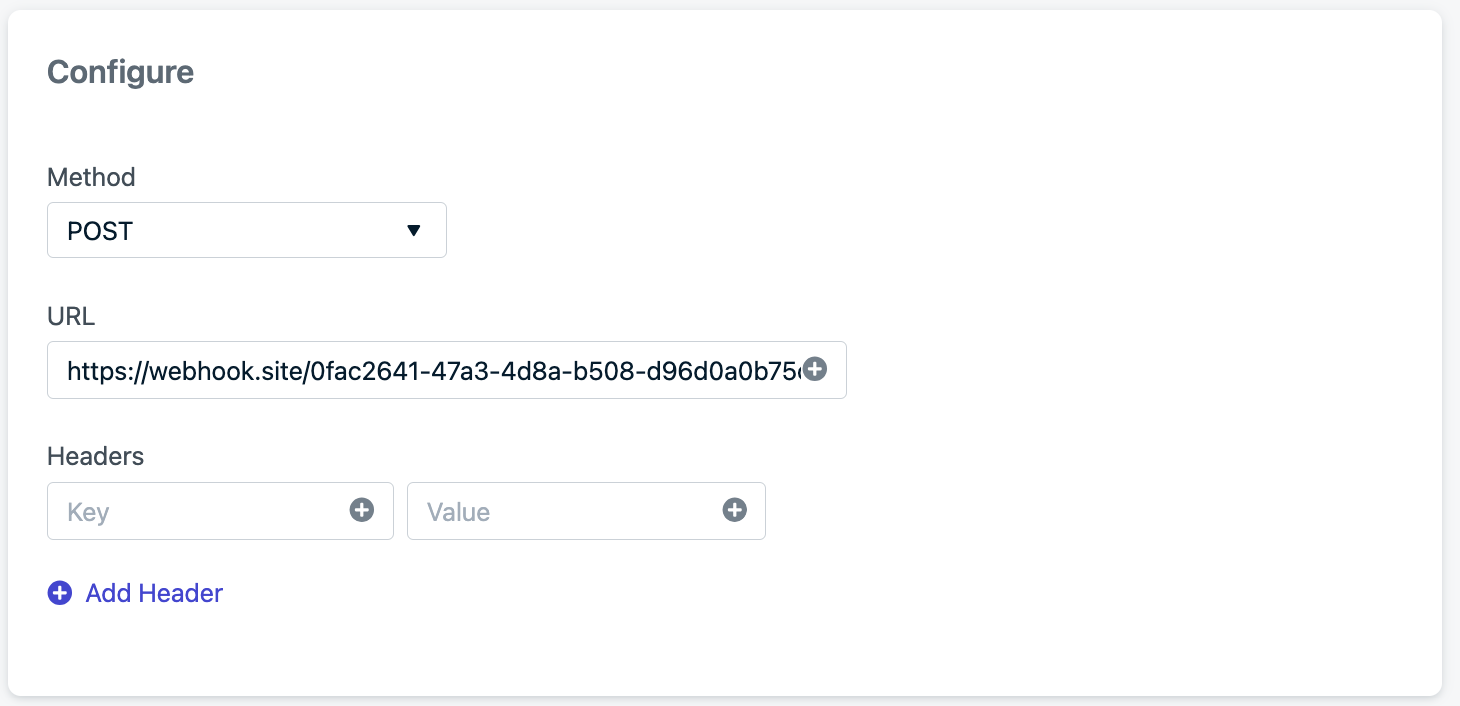
End-to-end testing walkthrough using [webhook.site](https://webhook.site). Paste **Your unique URL** into the Event Stream **URL** field with the **POST** method.
### Retries / Disabling
**Retry behavior** — When a request fails with a recoverable status (e.g. `429`), OneSignal retries with increasing delays. If retries for a single event keep failing, that event is marked as permanently failed and is not retried again.
**Auto-disabling** — If your endpoint returns sustained failures across many events, OneSignal may disable the entire event stream. When this happens:
1. App and org admins receive an email when failure volume becomes significant (before disabling) and again when the stream is disabled.
2. A banner also appears on the **Event Streams** index page in the dashboard.
3. Fix the underlying issue, test with the **Logs** tab or [webhook.site](https://webhook.site), and re-enable the stream.
**Performance guidance** — Your endpoint should be able to handle the volume of events your message sends produce. To avoid backlogs and disablement:
* **Record events quickly** — Write the incoming event to a queue or data store without heavy inline processing.
* **Avoid slow responses and 429s** — Consistent slow response times or rate-limit responses cause events to back up, which leads OneSignal to disable the stream.
* **Size for your send volume** — If you send 100k messages, expect up to 100k events per selected event type. Review your plan's message volume and provision accordingly.
**Deduplication** — Each delivered event includes a unique `event.id`. Include it in a header or the JSON body so your system can deduplicate if the same event is retried or replayed.
### Tips for Success
* **Point streams at your own servers first.** You *can* connect directly to a third-party API, but debugging, rate-limit handling, and volume management are harder when you don't control the receiving end.
* **Buffer before forwarding to third parties.** OneSignal sends events as fast as users trigger them — a large send can produce a burst that overwhelms external rate limits or runs up costs (especially with SMS providers). Build a lightweight service that accepts events, queues them, and forwards to external APIs at a pace you control.
* **Check third-party API docs.** Many services expose public HTTP APIs you can target with an event stream. Look for their docs on authentication, accepted payload format, and rate limits before configuring your stream.
### Message event data limitations
Data for messages sent via our Journeys or API are only available in OneSignal for 30 days. This means that any message events (like clicks, opens, unsubscribes, etc.) that happen 30+ days after the Journey or API message was sent, will not be available in the event stream. This may appear as blank or missing data in your analytics.
To work around this limitation, correlate the `message.id` of these clicked/opened/unsubscribed events with the original `sent` event that has the same `message.id`. The original `sent` event should have the relevant message data (title, template, etc.).
***
## Testing
End-to-end testing walkthrough using [webhook.site](https://webhook.site). Paste **Your unique URL** into the Event Stream **URL** field with the **POST** method.
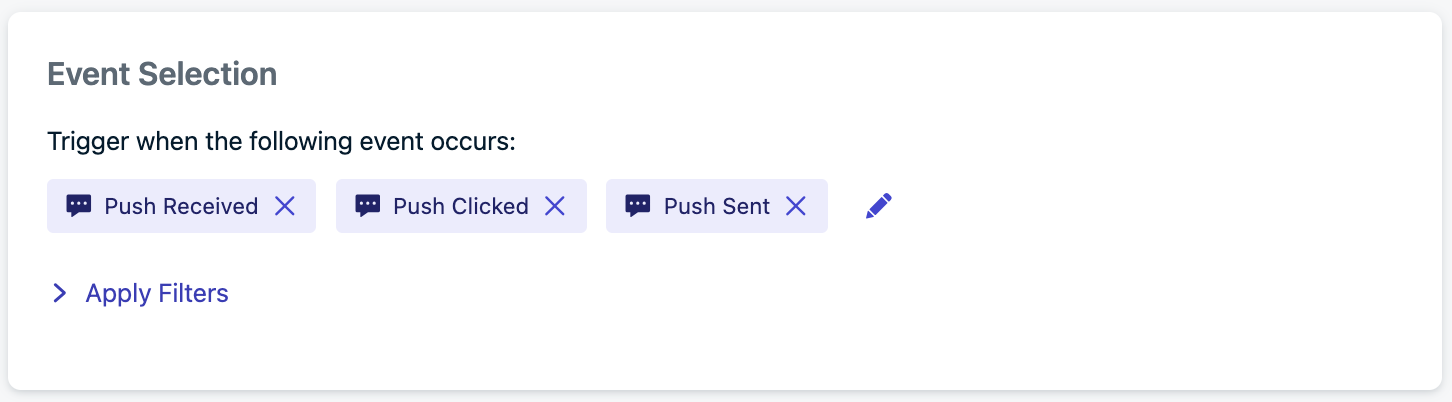
 Set the events you want to track. In this example, we will use the push events, but any will work.
 In this example, we will use the above [Example body](#body).
Save the event and set it live.
Send a message to trigger the event. In webhook.site we will see the event with the following data:
In this example, we will use the above [Example body](#body).
Save the event and set it live.
Send a message to trigger the event. In webhook.site we will see the event with the following data:
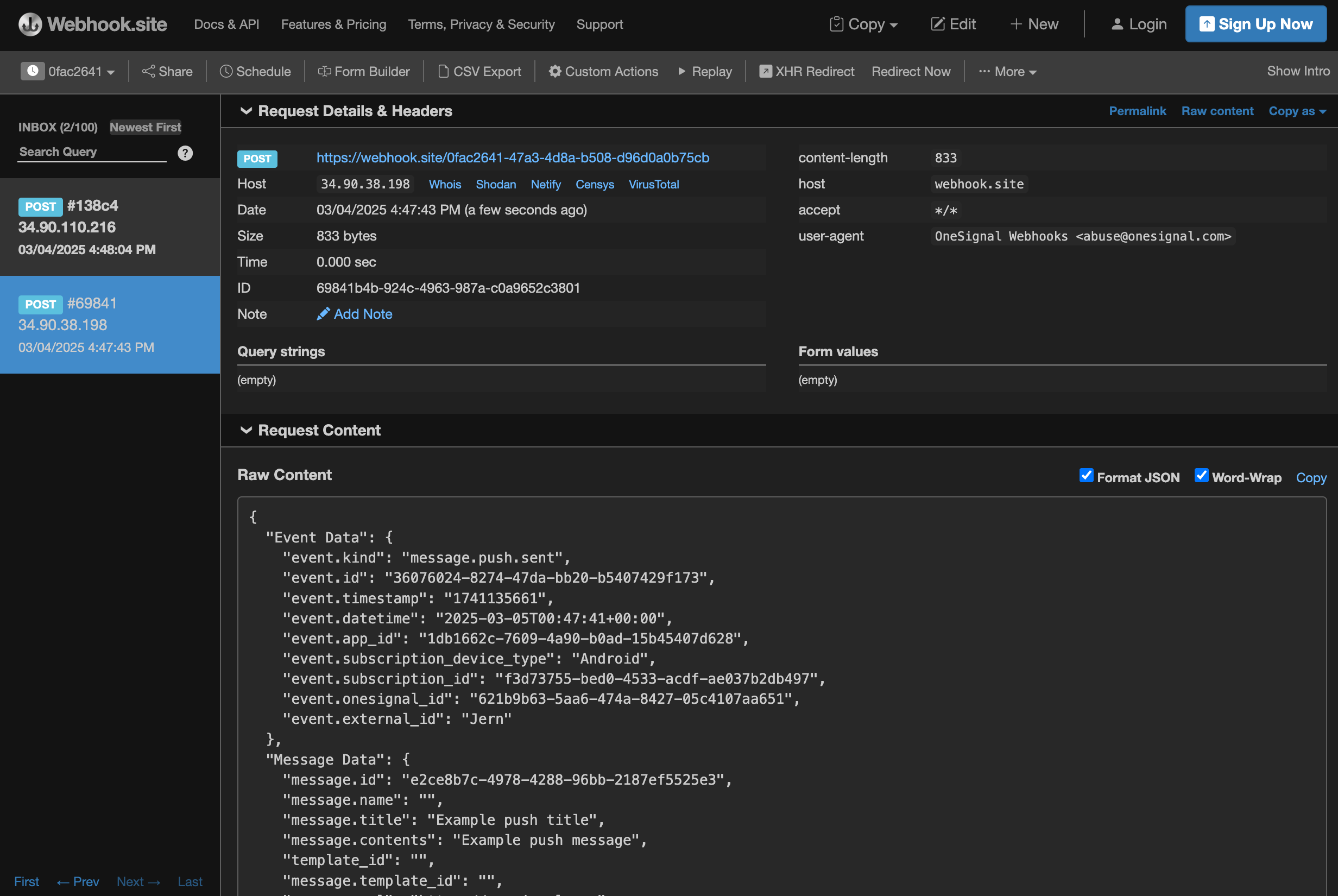 This shows the following:
* **Host**: the IP address where the request came from. See [REST API overview](/reference/rest-api-overview) for a list of possible IPs.
* **Request Content**: the data sent in the body of the event stream.
***
This shows the following:
* **Host**: the IP address where the request came from. See [REST API overview](/reference/rest-api-overview) for a list of possible IPs.
* **Request Content**: the data sent in the body of the event stream.
***