> ## Documentation Index
> Fetch the complete documentation index at: https://documentation.onesignal.com/llms.txt
> Use this file to discover all available pages before exploring further.
# Get more app store reviews
> Prompt users to review your app using OneSignal in-app messages with native iOS and Android review prompts, reducing friction and increasing ratings.
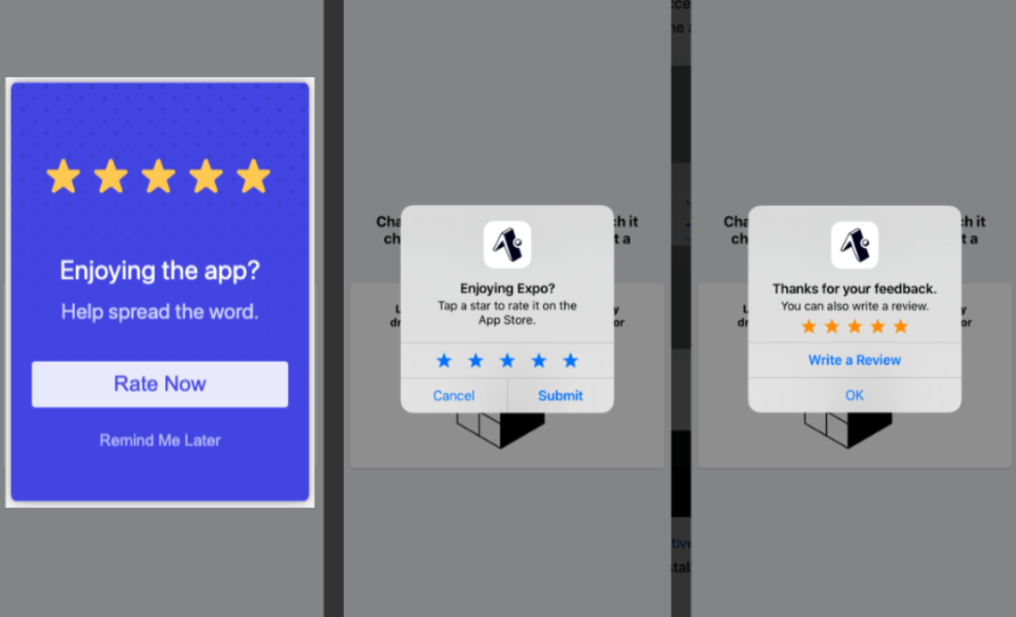
Use OneSignal in-app messages to prompt users for an App Store or Google Play review without leaving your app. This tutorial covers both no-code and code-required approaches.
 ## Setup
### 1. Create the message
Navigate to **Messages > In-App > New In-App** or open the existing App Store Rating template.
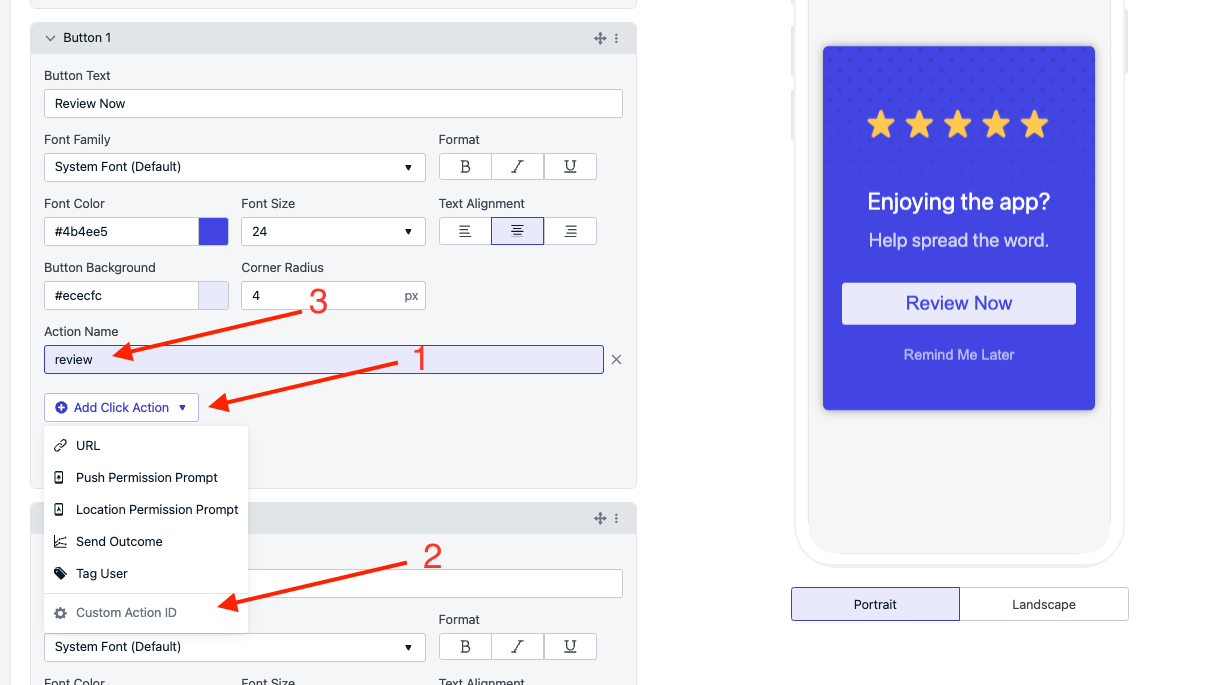
Add an Action ID to your review button:
## Setup
### 1. Create the message
Navigate to **Messages > In-App > New In-App** or open the existing App Store Rating template.
Add an Action ID to your review button:
 ### 2. Add the trigger
The trigger controls when the message displays. You can use a no-code or code-based approach.
**No-code**: Set up the Audience to target users you want reviews from — for example, users with many sessions who have used the app for a long time.
**Code-based**: Use the SDK's `addTrigger` method to programmatically display the message based on user actions. Avoid showing the prompt when the user is in the middle of an important task.
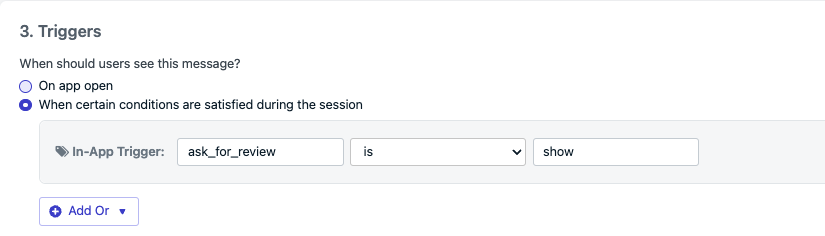
In this example, the **In-App Trigger** key is `ask_for_review` with a value of `show`. The key and value can be anything, but must match what you pass to `addTrigger`:
`OneSignal.InAppMessages.addTrigger("ask_for_review", "show");`
### 2. Add the trigger
The trigger controls when the message displays. You can use a no-code or code-based approach.
**No-code**: Set up the Audience to target users you want reviews from — for example, users with many sessions who have used the app for a long time.
**Code-based**: Use the SDK's `addTrigger` method to programmatically display the message based on user actions. Avoid showing the prompt when the user is in the middle of an important task.
In this example, the **In-App Trigger** key is `ask_for_review` with a value of `show`. The key and value can be anything, but must match what you pass to `addTrigger`:
`OneSignal.InAppMessages.addTrigger("ask_for_review", "show");`
 ### 3. Handle the app store rating prompt
You can direct users to leave a review with a no-code or code-based approach.
1. Update the segment to use the "Device Type is Android" filter.
2. Duplicate the in-app message and update the duplicate's segment to use the "Device Type is iOS" filter. You should have two in-app messages with two separate segments.
3. Add a [URL Click Action](./iam-click-actions) to the "Review Now" button linking to your app's store listing:
* **Android**: `https://play.google.com/store/apps/details?id=YOUR_PACKAGE_NAME` — see [Linking to Google Play](https://developer.android.com/distribute/marketing-tools/linking-to-google-play.html)
* **iOS**: `https://apps.apple.com/app/idYOUR_APP_STORE_ID?action=write-review` — see [Requesting App Store Reviews](https://developer.apple.com/documentation/storekit/requesting_app_store_reviews)
Use the SDK's `InAppMessages.addClickListener` method to detect when the review button is clicked (by checking the Action ID), then call the native iOS or Android review API to present the rating modal.
```dart theme={null}
OneSignal.InAppMessages.addClickListener((event) async {
if (event.result.actionId == 'review') {
if (await inAppReview.isAvailable()) {
inAppReview.requestReview();
}
}
});
```
This example uses the [in\_app\_review](https://pub.dev/packages/in_app_review) Flutter package. Adapt for your platform — see [RequestReviewAction](https://developer.apple.com/documentation/storekit/requestreviewaction) for iOS or the [Google Play In-App Reviews API](https://developer.android.com/guide/playcore/in-app-review) for Android.
### 4. Schedule and enable
Apple displays the native review prompt a maximum of three times within a 365-day period. Google Play enforces a time-bound quota but does not publish the exact limit — calling the API more than once in a short period (less than a month) may not show a dialog.
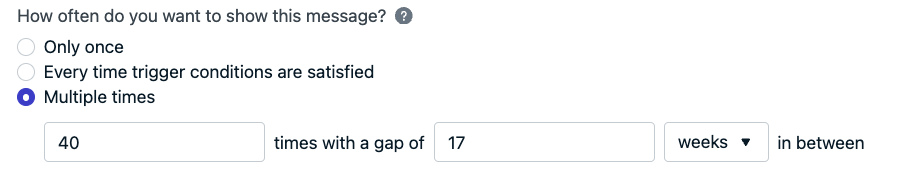
To stay within these limits, set your in-app schedule to display once every 17 weeks:
### 3. Handle the app store rating prompt
You can direct users to leave a review with a no-code or code-based approach.
1. Update the segment to use the "Device Type is Android" filter.
2. Duplicate the in-app message and update the duplicate's segment to use the "Device Type is iOS" filter. You should have two in-app messages with two separate segments.
3. Add a [URL Click Action](./iam-click-actions) to the "Review Now" button linking to your app's store listing:
* **Android**: `https://play.google.com/store/apps/details?id=YOUR_PACKAGE_NAME` — see [Linking to Google Play](https://developer.android.com/distribute/marketing-tools/linking-to-google-play.html)
* **iOS**: `https://apps.apple.com/app/idYOUR_APP_STORE_ID?action=write-review` — see [Requesting App Store Reviews](https://developer.apple.com/documentation/storekit/requesting_app_store_reviews)
Use the SDK's `InAppMessages.addClickListener` method to detect when the review button is clicked (by checking the Action ID), then call the native iOS or Android review API to present the rating modal.
```dart theme={null}
OneSignal.InAppMessages.addClickListener((event) async {
if (event.result.actionId == 'review') {
if (await inAppReview.isAvailable()) {
inAppReview.requestReview();
}
}
});
```
This example uses the [in\_app\_review](https://pub.dev/packages/in_app_review) Flutter package. Adapt for your platform — see [RequestReviewAction](https://developer.apple.com/documentation/storekit/requestreviewaction) for iOS or the [Google Play In-App Reviews API](https://developer.android.com/guide/playcore/in-app-review) for Android.
### 4. Schedule and enable
Apple displays the native review prompt a maximum of three times within a 365-day period. Google Play enforces a time-bound quota but does not publish the exact limit — calling the API more than once in a short period (less than a month) may not show a dialog.
To stay within these limits, set your in-app schedule to display once every 17 weeks:
 To increase positive reviews, target users who have had a great experience — for example, users with many sessions or those who gave positive feedback via a previous in-app message. Set [tags](./add-user-data-tags) on these users and create a segment to use as the audience for your review prompt.
***
## FAQ
### How often can Apple's native review prompt appear?
Apple displays the `RequestReviewAction` prompt a maximum of three times per 365-day period per user. This is enforced by the system — your app does not need to track the count. See [Requesting App Store Reviews](https://developer.apple.com/documentation/storekit/requesting_app_store_reviews).
### How often can Google's native review prompt appear?
Google Play enforces a quota but does not publish the exact limit. Calling `launchReviewFlow` more than once in a short period (less than a month) may not display the dialog. The quota is an implementation detail that Google can change without notice. See [In-App Reviews quotas](https://developer.android.com/guide/playcore/in-app-review#quotas).
### Can I use this with non-native apps (Flutter, React Native, Expo)?
Yes. Use a platform-specific plugin to call the native review API — for example, [in\_app\_review](https://pub.dev/packages/in_app_review) for Flutter or [StoreReview](https://docs.expo.dev/versions/latest/sdk/storereview/) for Expo. The OneSignal in-app message and click listener work the same way regardless of framework.
***
Configure URL, permission prompt, tag, outcome, and custom click actions on in-app message elements.
Tag users based on behavior to build segments for targeted messaging.
To increase positive reviews, target users who have had a great experience — for example, users with many sessions or those who gave positive feedback via a previous in-app message. Set [tags](./add-user-data-tags) on these users and create a segment to use as the audience for your review prompt.
***
## FAQ
### How often can Apple's native review prompt appear?
Apple displays the `RequestReviewAction` prompt a maximum of three times per 365-day period per user. This is enforced by the system — your app does not need to track the count. See [Requesting App Store Reviews](https://developer.apple.com/documentation/storekit/requesting_app_store_reviews).
### How often can Google's native review prompt appear?
Google Play enforces a quota but does not publish the exact limit. Calling `launchReviewFlow` more than once in a short period (less than a month) may not display the dialog. The quota is an implementation detail that Google can change without notice. See [In-App Reviews quotas](https://developer.android.com/guide/playcore/in-app-review#quotas).
### Can I use this with non-native apps (Flutter, React Native, Expo)?
Yes. Use a platform-specific plugin to call the native review API — for example, [in\_app\_review](https://pub.dev/packages/in_app_review) for Flutter or [StoreReview](https://docs.expo.dev/versions/latest/sdk/storereview/) for Expo. The OneSignal in-app message and click listener work the same way regardless of framework.
***
Configure URL, permission prompt, tag, outcome, and custom click actions on in-app message elements.
Tag users based on behavior to build segments for targeted messaging.