> ## Documentation Index
> Fetch the complete documentation index at: https://documentation.onesignal.com/llms.txt
> Use this file to discover all available pages before exploring further.
# Create a survey to ask for feedback
> Build a multi-page in-app survey using Carousel, Button Click Actions, Outcomes, and Tags for analytics and segmentation.
Using the in-app message Carousel and Button Click Actions, you can create a survey with up to 10 pages of questions and multiple-choice answers. When users respond, you can collect the data as Outcomes and group respondents with [Tags](./add-user-data-tags) for follow-up targeting.
Before starting, make sure you have [in-app messaging set up](./in-app-messages-setup) in your OneSignal app.
***
## Design your survey
1. Select the **Full** message type to enable the Carousel feature.
2. Add 3 Text Blocks, 1 Image Block, and 2 Button Blocks.
3. Select **+ Create Carousel** to duplicate this card, then navigate back to **Card 1**.
When you duplicate a card, all blocks are duplicated as well, so you only need to update the content on each new card.
The initial setup looks similar to this:
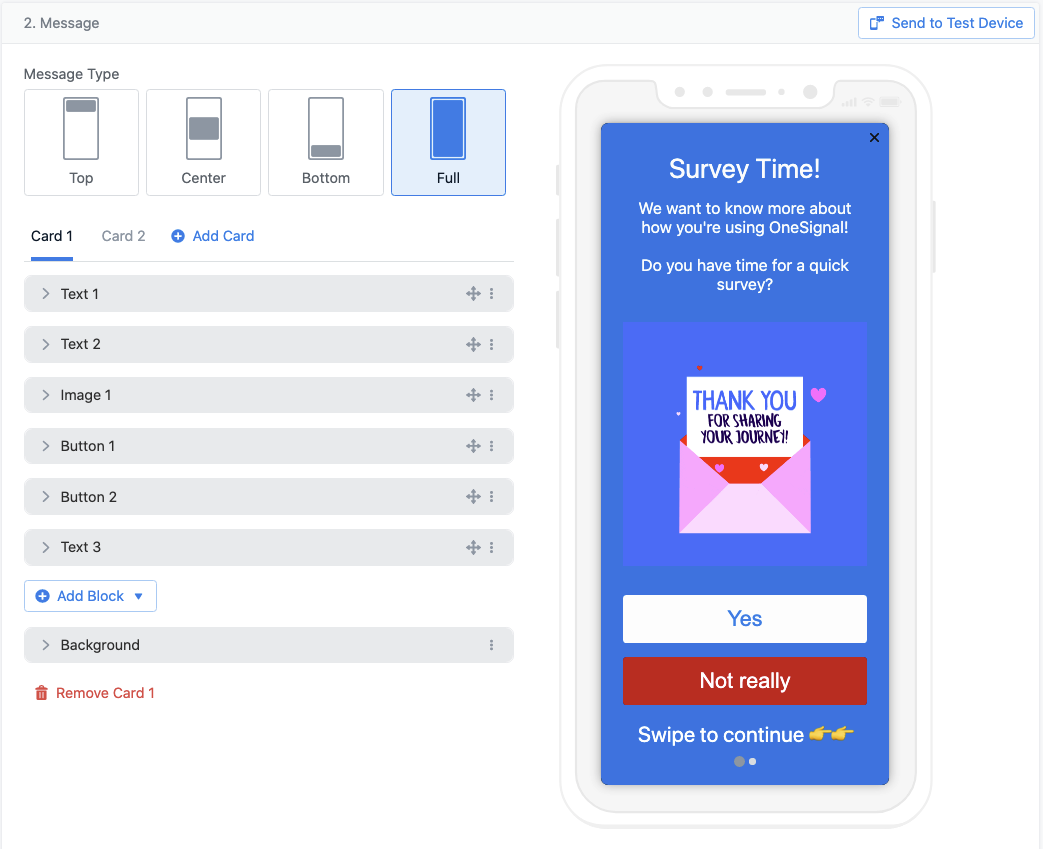 Add your question text, an image, and button labels to each card. Users read the question, select a button, and swipe to the next question.
### Set up click actions for the first question
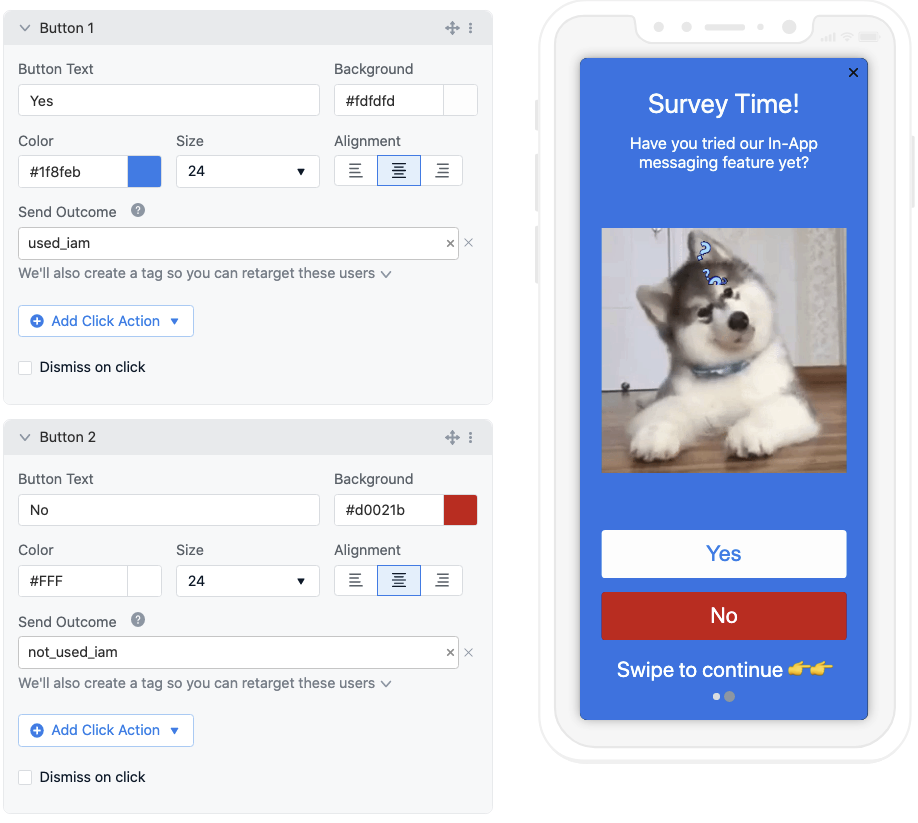
The first question might ask whether the user has time to take the survey. Configure each button to send an Outcome so you can track how many users accept or decline.
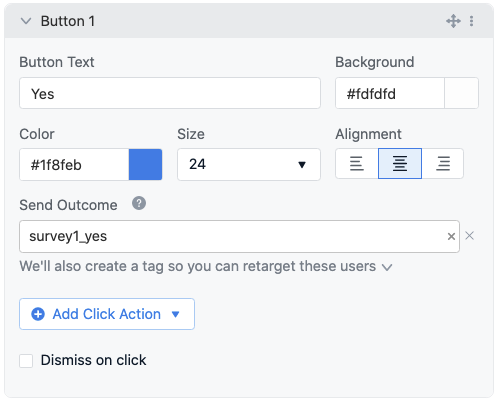
1. Select a button block and click **Add Click Action** > **Send Outcome**.
2. Adding an Outcome also sets a Tag, giving you both analytics and a segment filter for re-targeting.
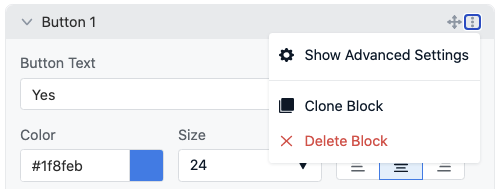
For the "Yes" button, **uncheck** "Dismiss on click" (found in the block's top-right menu > **Show Advanced Settings**) so the user can continue to the next card.
Add your question text, an image, and button labels to each card. Users read the question, select a button, and swipe to the next question.
### Set up click actions for the first question
The first question might ask whether the user has time to take the survey. Configure each button to send an Outcome so you can track how many users accept or decline.
1. Select a button block and click **Add Click Action** > **Send Outcome**.
2. Adding an Outcome also sets a Tag, giving you both analytics and a segment filter for re-targeting.
For the "Yes" button, **uncheck** "Dismiss on click" (found in the block's top-right menu > **Show Advanced Settings**) so the user can continue to the next card.
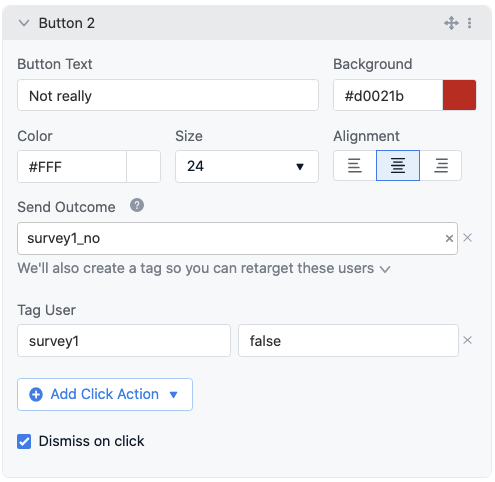
 For the "No" button, configure it the same way but **check** "Dismiss on click" so the in-app message closes.
 ***
## Add more cards and questions
Click **Card 2** or swipe the Carousel to the next page. All blocks are duplicated from Card 1.
Update the text and image for the new question. Keep "Dismiss on click" **unchecked** on both buttons so the user can continue to the next card.
***
## Add more cards and questions
Click **Card 2** or swipe the Carousel to the next page. All blocks are duplicated from Card 1.
Update the text and image for the new question. Keep "Dismiss on click" **unchecked** on both buttons so the user can continue to the next card.
 Press **+ Add Card** to add additional cards. You can add up to 10 cards total.
***
## Final survey question
For the last card, set up a multiple-choice question to give users more options.
To make room for additional buttons, remove the Image Block and add 2 more Button Blocks. You can clone existing blocks to reuse their configuration.
Press **+ Add Card** to add additional cards. You can add up to 10 cards total.
***
## Final survey question
For the last card, set up a multiple-choice question to give users more options.
To make room for additional buttons, remove the Image Block and add 2 more Button Blocks. You can clone existing blocks to reuse their configuration.
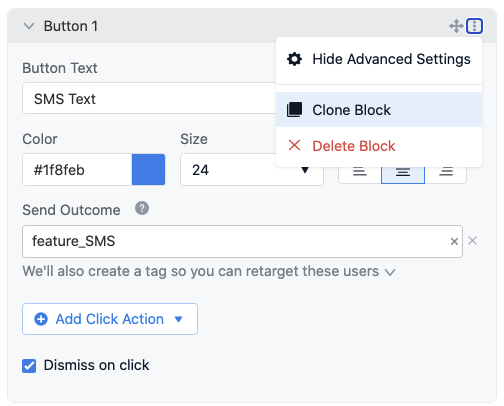 Since this is the final question, **check** "Dismiss on click" on every button so the in-app message closes after the user responds.
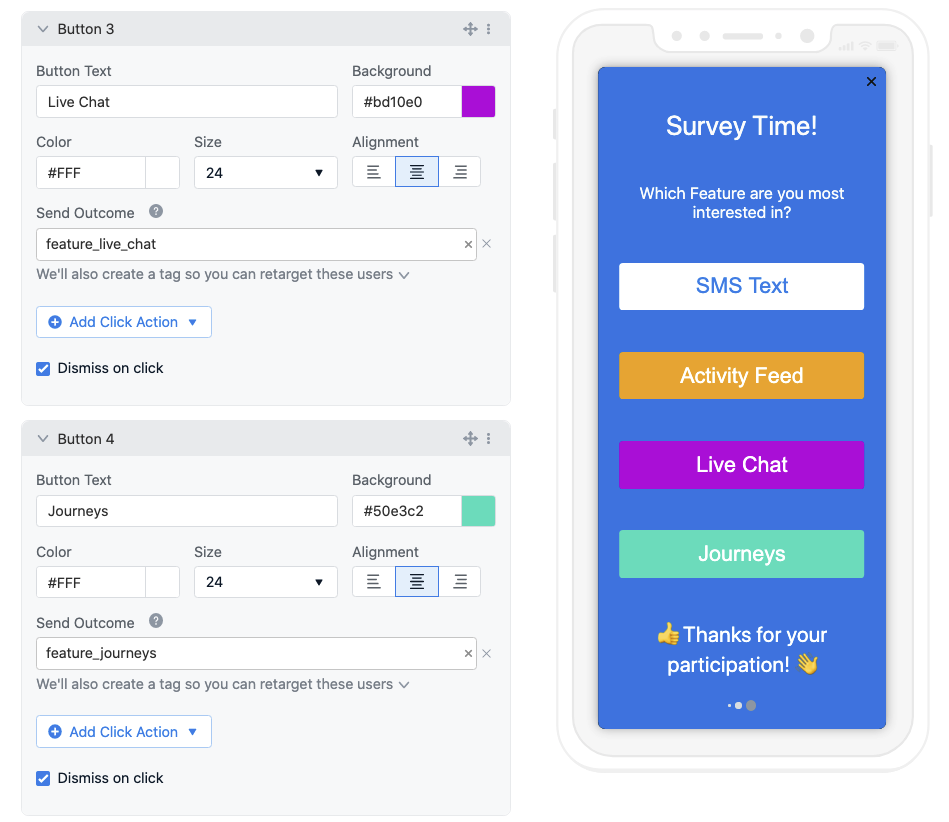 After publishing, check your Outcome analytics in the OneSignal dashboard to see response rates. Use the Tags set by each button to build segments for follow-up messages.
***
## FAQ
### How many questions can I include in a survey?
Up to 10. Each Carousel card represents one question, and the Carousel supports a maximum of 10 cards.
### Can I use this for multiple-choice questions with more than two options?
Yes. Add additional Button Blocks to any card. Each button can have its own Outcome and Tag, so every answer option is tracked independently.
### How do I target users based on their survey responses?
Each button click action can set a Tag on the user. After the survey runs, create a [segment](./segmentation) that filters by those tag values to target respondents with follow-up messages.
## Related pages
Set up and configure in-app messaging in your app.
Store user properties for segmentation and personalization.
Full reference for the in-app message editor, blocks, and Carousel.
After publishing, check your Outcome analytics in the OneSignal dashboard to see response rates. Use the Tags set by each button to build segments for follow-up messages.
***
## FAQ
### How many questions can I include in a survey?
Up to 10. Each Carousel card represents one question, and the Carousel supports a maximum of 10 cards.
### Can I use this for multiple-choice questions with more than two options?
Yes. Add additional Button Blocks to any card. Each button can have its own Outcome and Tag, so every answer option is tracked independently.
### How do I target users based on their survey responses?
Each button click action can set a Tag on the user. After the survey runs, create a [segment](./segmentation) that filters by those tag values to target respondents with follow-up messages.
## Related pages
Set up and configure in-app messaging in your app.
Store user properties for segmentation and personalization.
Full reference for the in-app message editor, blocks, and Carousel.