> ## Documentation Index
> Fetch the complete documentation index at: https://documentation.onesignal.com/llms.txt
> Use this file to discover all available pages before exploring further.
# Target certain Android manufacturers and devices
> Use OneSignal in-app messages to coach Android users on Samsung, Xiaomi, and similar devices that block push delivery when apps are force-stopped or have notification categories disabled.
Some Android manufacturers — including Samsung, Xiaomi, Huawei, Oppo, Vivo, and OnePlus — restrict background activity for non-system apps. When users swipe these apps away from the recents list, the OS force-stops the app and blocks push delivery until the user reopens it. See [Android Force Stop](./notifications-show-successful-but-are-not-being-shown#android-force-stop) for the underlying cause.
Push delivery from OneSignal succeeds, but the device suppresses the notification. You can detect these devices from your Android app and trigger a OneSignal in-app message that walks the user through enabling the right settings.
This pattern applies only to Android apps. iOS and web do not have an equivalent OS-level restriction that requires user remediation.
## Prerequisites
* An Android app integrated with the OneSignal SDK V5 or later. See [Mobile SDK setup](./mobile-sdk-setup).
* An in-app message you can build in the dashboard. See [In-app messages setup](./in-app-messages-setup).
* Familiarity with [in-app triggers](./iam-triggers) and the [`addTrigger` method](./mobile-sdk-reference#in-app-messages).
***
## Set up the message and trigger
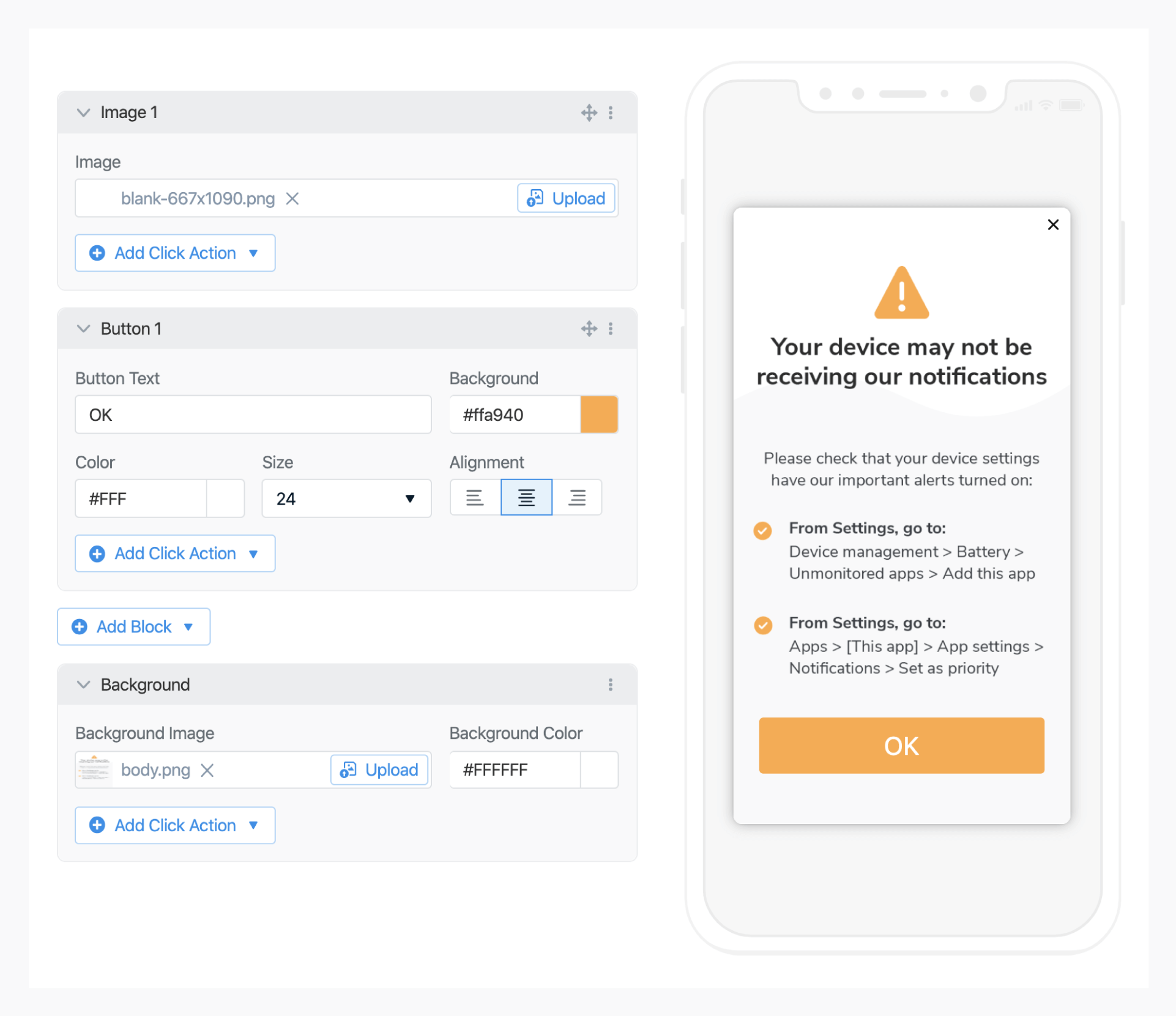
In **Messages > In-App > New In-App**, build the message you want to show. The body should give users clear, copy-paste-friendly steps to allow background activity on their device.
Set the audience to **Subscribed Users** with platform filter **Android**. Other audience filters work too, as long as the user is in the audience *before* a new session starts — otherwise the trigger will not fire. See the [in-app trigger requirements](./iam-triggers#important-in-app-trigger-requirements).
In **Trigger**, choose **Custom trigger** and set:
* **Key**: `device_manufacturer`
* **Operator**: `is`
* **Value**: `restricted`
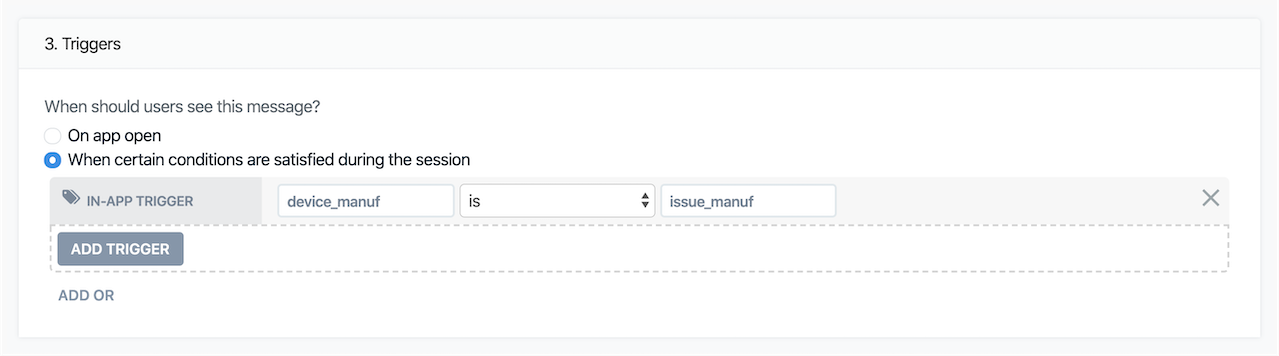 Read `android.os.Build.MANUFACTURER` early in your app's lifecycle — for example in `Application.onCreate()` or immediately after OneSignal initialization. If the value matches your list of restricted manufacturers, call `addTrigger` with the same key and value you set in the dashboard.
```kotlin Kotlin theme={null}
val restrictedManufacturers = setOf(
"samsung", "huawei", "xiaomi", "oppo", "vivo",
"oneplus", "honor", "realme", "meizu", "asus"
)
if (Build.MANUFACTURER?.lowercase(Locale.ROOT) in restrictedManufacturers) {
OneSignal.InAppMessages.addTrigger("device_manufacturer", "restricted")
}
```
```java Java theme={null}
Set restrictedManufacturers = new HashSet<>(Arrays.asList(
"samsung", "huawei", "xiaomi", "oppo", "vivo",
"oneplus", "honor", "realme", "meizu", "asus"
));
String manufacturer = Build.MANUFACTURER != null
? Build.MANUFACTURER.toLowerCase(Locale.ROOT)
: "";
if (restrictedManufacturers.contains(manufacturer)) {
OneSignal.getInAppMessages().addTrigger("device_manufacturer", "restricted");
}
```
Keep the manufacturer list in remote config (Firebase Remote Config, your own backend, or feature flags) so you can update it without shipping a new app release. [dontkillmyapp.com](https://dontkillmyapp.com/) maintains a community-sourced list of OEMs with restrictive battery policies.
Settings paths vary by manufacturer and OS version, so generic instructions break quickly. Two approaches that age well:
* **Recommended.** Link to the manufacturer's page on [dontkillmyapp.com](https://dontkillmyapp.com/) (for example, `https://dontkillmyapp.com/samsung`) from the in-app message CTA. The site has up-to-date, per-OEM walkthroughs in multiple languages.
* **Advanced.** Deep-link to the Android battery optimization screen from your IAM click handler using `Intent.ACTION_IGNORE_BATTERY_OPTIMIZATION_SETTINGS`. This skips the settings hunt entirely on most devices.
If you prefer to include settings copy directly in the message, scope it to the dominant manufacturer in your install base and refresh it when you see drop-off in delivery.
> Your device may not be receiving our notifications. To make sure you stay updated:
>
> Settings > Apps > \[Your app] > Battery > **Allow background activity**
>
> Settings > Apps > \[Your app] > Notifications > **Allow notifications** and verify all categories are on.
Read `android.os.Build.MANUFACTURER` early in your app's lifecycle — for example in `Application.onCreate()` or immediately after OneSignal initialization. If the value matches your list of restricted manufacturers, call `addTrigger` with the same key and value you set in the dashboard.
```kotlin Kotlin theme={null}
val restrictedManufacturers = setOf(
"samsung", "huawei", "xiaomi", "oppo", "vivo",
"oneplus", "honor", "realme", "meizu", "asus"
)
if (Build.MANUFACTURER?.lowercase(Locale.ROOT) in restrictedManufacturers) {
OneSignal.InAppMessages.addTrigger("device_manufacturer", "restricted")
}
```
```java Java theme={null}
Set restrictedManufacturers = new HashSet<>(Arrays.asList(
"samsung", "huawei", "xiaomi", "oppo", "vivo",
"oneplus", "honor", "realme", "meizu", "asus"
));
String manufacturer = Build.MANUFACTURER != null
? Build.MANUFACTURER.toLowerCase(Locale.ROOT)
: "";
if (restrictedManufacturers.contains(manufacturer)) {
OneSignal.getInAppMessages().addTrigger("device_manufacturer", "restricted");
}
```
Keep the manufacturer list in remote config (Firebase Remote Config, your own backend, or feature flags) so you can update it without shipping a new app release. [dontkillmyapp.com](https://dontkillmyapp.com/) maintains a community-sourced list of OEMs with restrictive battery policies.
Settings paths vary by manufacturer and OS version, so generic instructions break quickly. Two approaches that age well:
* **Recommended.** Link to the manufacturer's page on [dontkillmyapp.com](https://dontkillmyapp.com/) (for example, `https://dontkillmyapp.com/samsung`) from the in-app message CTA. The site has up-to-date, per-OEM walkthroughs in multiple languages.
* **Advanced.** Deep-link to the Android battery optimization screen from your IAM click handler using `Intent.ACTION_IGNORE_BATTERY_OPTIMIZATION_SETTINGS`. This skips the settings hunt entirely on most devices.
If you prefer to include settings copy directly in the message, scope it to the dominant manufacturer in your install base and refresh it when you see drop-off in delivery.
> Your device may not be receiving our notifications. To make sure you stay updated:
>
> Settings > Apps > \[Your app] > Battery > **Allow background activity**
>
> Settings > Apps > \[Your app] > Notifications > **Allow notifications** and verify all categories are on.
 1. Install a debug build on a Samsung (or other restricted-manufacturer) device.
2. Force-close and reopen the app to start a new session.
3. Confirm in logcat that `addTrigger` is being called with the expected key and value.
4. Verify the in-app message displays. If it does not, see [In-app message troubleshooting](./in-app-message-troubleshooting).
***
## Detect Samsung notification category restrictions
Samsung One UI 6.1 silently disables notification categories for many apps after install, which suppresses notifications even when the OS otherwise allows them. You can target this case with the same pattern by adding a second trigger and a second in-app message.
```kotlin theme={null}
if (Build.MANUFACTURER.equals("samsung", ignoreCase = true)) {
OneSignal.InAppMessages.addTrigger("samsung_category_check", "show")
}
```
Configure a separate in-app message that explains how to re-enable categories at **Settings > Notifications > Your app**. See [Android notification categories disabled](./notifications-show-successful-but-are-not-being-shown#android-notification-categories-disabled) for background on this issue.
***
## FAQ
### Why isn't my in-app message firing?
The most common cause is calling `addTrigger` after the user is already past the start of their session. In-app messages evaluate triggers when a session begins. Call `addTrigger` early in your app launch flow — before any user interaction — or instruct the user to relaunch the app.
A second common cause is the user being excluded from the message audience. Confirm the message audience includes the test user's subscription and platform.
### Will the message show on every app launch?
By default, every launch where the trigger matches will fire the message. To limit frequency, configure [display frequency](./in-app-messages-setup#display-frequency) on the in-app message (for example, "Show only once").
### Does this work on iOS?
No. iOS does not allow third-party apps to be force-stopped by the OS or by user swipe, so the underlying problem does not exist. You do not need to ship this pattern on iOS.
### Does this work on React Native, Flutter, or Cordova?
Yes. The `addTrigger` API is identical across [supported SDKs](./mobile-sdk-reference#in-app-messages). To read the device manufacturer, use a platform package such as `react-native-device-info` (`getManufacturer()`) or `device_info_plus` (`AndroidDeviceInfo.manufacturer`), then call `OneSignal.InAppMessages.addTrigger("device_manufacturer", "restricted")` when the value matches your list.
### Can OneSignal detect the manufacturer for me?
No. The OneSignal SDK does not expose `Build.MANUFACTURER` directly. You read it from the Android `Build` class in your own code and pass the result to `addTrigger`.
### Where can I see if the trigger is firing?
Trigger state is local to the SDK and is not a user-level property, so it does not appear in the OneSignal dashboard. To confirm it ran, add a log statement next to your `addTrigger` call, then watch logcat or check whether the IAM displayed for the test user.
***
## Related pages
Diagnose Force Stop, disabled categories, Doze mode, and other reasons Android delivery succeeds but the user sees nothing.
Audience and trigger requirements, including the session-start rule that catches most setup mistakes.
Build the message itself in the OneSignal dashboard, including audience, display options, and frequency.
Full cross-platform reference for `addTrigger`, `addTriggers`, `removeTrigger`, and `clearTriggers`.
1. Install a debug build on a Samsung (or other restricted-manufacturer) device.
2. Force-close and reopen the app to start a new session.
3. Confirm in logcat that `addTrigger` is being called with the expected key and value.
4. Verify the in-app message displays. If it does not, see [In-app message troubleshooting](./in-app-message-troubleshooting).
***
## Detect Samsung notification category restrictions
Samsung One UI 6.1 silently disables notification categories for many apps after install, which suppresses notifications even when the OS otherwise allows them. You can target this case with the same pattern by adding a second trigger and a second in-app message.
```kotlin theme={null}
if (Build.MANUFACTURER.equals("samsung", ignoreCase = true)) {
OneSignal.InAppMessages.addTrigger("samsung_category_check", "show")
}
```
Configure a separate in-app message that explains how to re-enable categories at **Settings > Notifications > Your app**. See [Android notification categories disabled](./notifications-show-successful-but-are-not-being-shown#android-notification-categories-disabled) for background on this issue.
***
## FAQ
### Why isn't my in-app message firing?
The most common cause is calling `addTrigger` after the user is already past the start of their session. In-app messages evaluate triggers when a session begins. Call `addTrigger` early in your app launch flow — before any user interaction — or instruct the user to relaunch the app.
A second common cause is the user being excluded from the message audience. Confirm the message audience includes the test user's subscription and platform.
### Will the message show on every app launch?
By default, every launch where the trigger matches will fire the message. To limit frequency, configure [display frequency](./in-app-messages-setup#display-frequency) on the in-app message (for example, "Show only once").
### Does this work on iOS?
No. iOS does not allow third-party apps to be force-stopped by the OS or by user swipe, so the underlying problem does not exist. You do not need to ship this pattern on iOS.
### Does this work on React Native, Flutter, or Cordova?
Yes. The `addTrigger` API is identical across [supported SDKs](./mobile-sdk-reference#in-app-messages). To read the device manufacturer, use a platform package such as `react-native-device-info` (`getManufacturer()`) or `device_info_plus` (`AndroidDeviceInfo.manufacturer`), then call `OneSignal.InAppMessages.addTrigger("device_manufacturer", "restricted")` when the value matches your list.
### Can OneSignal detect the manufacturer for me?
No. The OneSignal SDK does not expose `Build.MANUFACTURER` directly. You read it from the Android `Build` class in your own code and pass the result to `addTrigger`.
### Where can I see if the trigger is firing?
Trigger state is local to the SDK and is not a user-level property, so it does not appear in the OneSignal dashboard. To confirm it ran, add a log statement next to your `addTrigger` call, then watch logcat or check whether the IAM displayed for the test user.
***
## Related pages
Diagnose Force Stop, disabled categories, Doze mode, and other reasons Android delivery succeeds but the user sees nothing.
Audience and trigger requirements, including the session-start rule that catches most setup mistakes.
Build the message itself in the OneSignal dashboard, including audience, display options, and frequency.
Full cross-platform reference for `addTrigger`, `addTriggers`, `removeTrigger`, and `clearTriggers`.