> ## Documentation Index
> Fetch the complete documentation index at: https://documentation.onesignal.com/llms.txt
> Use this file to discover all available pages before exploring further.
# Google Sheets integration with Event Streams
> This guide illustrates the required steps to setup a connection between OneSignal’s Event Webhooks to a custom Google Sheets document to analyze message events generated by OneSignal.
## Toggle event streams
Enable [Event streams](./event-streams), an add-on feature to a paid plan, for your OneSignal application. If you don't have access to this feature, don't hesitate to contact your Success Manager or Account Executive for more information.
## Create an apps script deployment
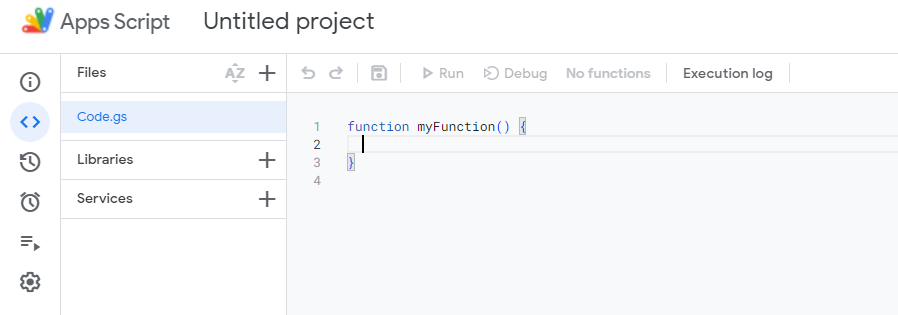
Navigate to **Extensions > Apps Script** in the Google Sheet you wish to add OneSignal message events. Next, within the code editor, replace the existing code with the following:
 ```javascript javascript theme={null}
function doPost(e) {
// Log the full request for debugging purposes
Logger.log("Request received: " + JSON.stringify(e));
const sheet = SpreadsheetApp.getActiveSpreadsheet().getActiveSheet();
let jsonData;
try {
// Log the postData.contents before parsing
Logger.log("Post Data Contents: " + e.postData.contents);
// Attempt to parse the JSON data
jsonData = JSON.parse(e.postData.contents);
} catch (error) {
// Log the error and return an error response
Logger.log("Failed to parse JSON: " + error);
return ContentService.createTextOutput(
JSON.stringify({ status: "error", message: "Invalid JSON" }),
).setMimeType(ContentService.MimeType.JSON);
}
// Check if the sheet is empty and set headers if necessary
if (sheet.getLastRow() === 0) {
sheet.appendRow([
"User ID",
"Event ID",
"Event",
"Message ID",
"Message Name",
"Message Title",
"Message Contents",
"Template ID",
"Subscription ID",
"Subscription Device Type",
"Source",
"Original Timestamp",
]);
}
// Prepare the row data from the JSON object
const row = [
jsonData.user_id || "",
jsonData.event_id || "",
jsonData.event || "",
jsonData.properties ? jsonData.properties.message_id || "" : "",
jsonData.properties ? jsonData.properties.message_name || "" : "",
jsonData.properties ? jsonData.properties.message_title || "" : "",
jsonData.properties ? jsonData.properties.message_contents || "" : "",
jsonData.properties ? jsonData.properties.template_id || "" : "",
jsonData.properties ? jsonData.properties.subscription_id || "" : "",
jsonData.properties
? jsonData.properties.subscription_device_type || ""
: "",
jsonData.properties ? jsonData.properties.source || "" : "",
jsonData.originalTimestamp || "",
];
try {
// Append the new row to the sheet
sheet.appendRow(row);
} catch (error) {
// Log the error if appending the row fails
Logger.log("Failed to append row: " + error);
return ContentService.createTextOutput(
JSON.stringify({ status: "error", message: "Failed to append row" }),
).setMimeType(ContentService.MimeType.JSON);
}
// Return a success response
return ContentService.createTextOutput(
JSON.stringify({ status: "success" }),
).setMimeType(ContentService.MimeType.JSON);
}
```
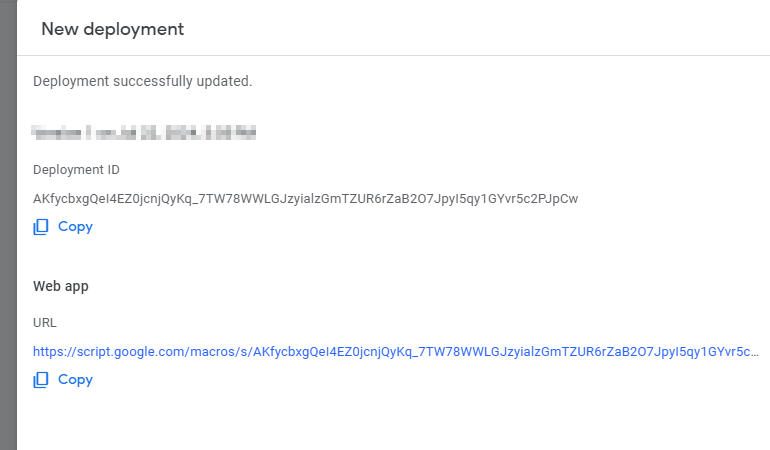
Next, deploy your project. Click Deploy in the top right, and select "Web App" as the deployment type. Provide a description and choose who can access the project; we will select "Anyone" to generate the URL needed in the following step.
```javascript javascript theme={null}
function doPost(e) {
// Log the full request for debugging purposes
Logger.log("Request received: " + JSON.stringify(e));
const sheet = SpreadsheetApp.getActiveSpreadsheet().getActiveSheet();
let jsonData;
try {
// Log the postData.contents before parsing
Logger.log("Post Data Contents: " + e.postData.contents);
// Attempt to parse the JSON data
jsonData = JSON.parse(e.postData.contents);
} catch (error) {
// Log the error and return an error response
Logger.log("Failed to parse JSON: " + error);
return ContentService.createTextOutput(
JSON.stringify({ status: "error", message: "Invalid JSON" }),
).setMimeType(ContentService.MimeType.JSON);
}
// Check if the sheet is empty and set headers if necessary
if (sheet.getLastRow() === 0) {
sheet.appendRow([
"User ID",
"Event ID",
"Event",
"Message ID",
"Message Name",
"Message Title",
"Message Contents",
"Template ID",
"Subscription ID",
"Subscription Device Type",
"Source",
"Original Timestamp",
]);
}
// Prepare the row data from the JSON object
const row = [
jsonData.user_id || "",
jsonData.event_id || "",
jsonData.event || "",
jsonData.properties ? jsonData.properties.message_id || "" : "",
jsonData.properties ? jsonData.properties.message_name || "" : "",
jsonData.properties ? jsonData.properties.message_title || "" : "",
jsonData.properties ? jsonData.properties.message_contents || "" : "",
jsonData.properties ? jsonData.properties.template_id || "" : "",
jsonData.properties ? jsonData.properties.subscription_id || "" : "",
jsonData.properties
? jsonData.properties.subscription_device_type || ""
: "",
jsonData.properties ? jsonData.properties.source || "" : "",
jsonData.originalTimestamp || "",
];
try {
// Append the new row to the sheet
sheet.appendRow(row);
} catch (error) {
// Log the error if appending the row fails
Logger.log("Failed to append row: " + error);
return ContentService.createTextOutput(
JSON.stringify({ status: "error", message: "Failed to append row" }),
).setMimeType(ContentService.MimeType.JSON);
}
// Return a success response
return ContentService.createTextOutput(
JSON.stringify({ status: "success" }),
).setMimeType(ContentService.MimeType.JSON);
}
```
Next, deploy your project. Click Deploy in the top right, and select "Web App" as the deployment type. Provide a description and choose who can access the project; we will select "Anyone" to generate the URL needed in the following step.
 ## Create the event stream
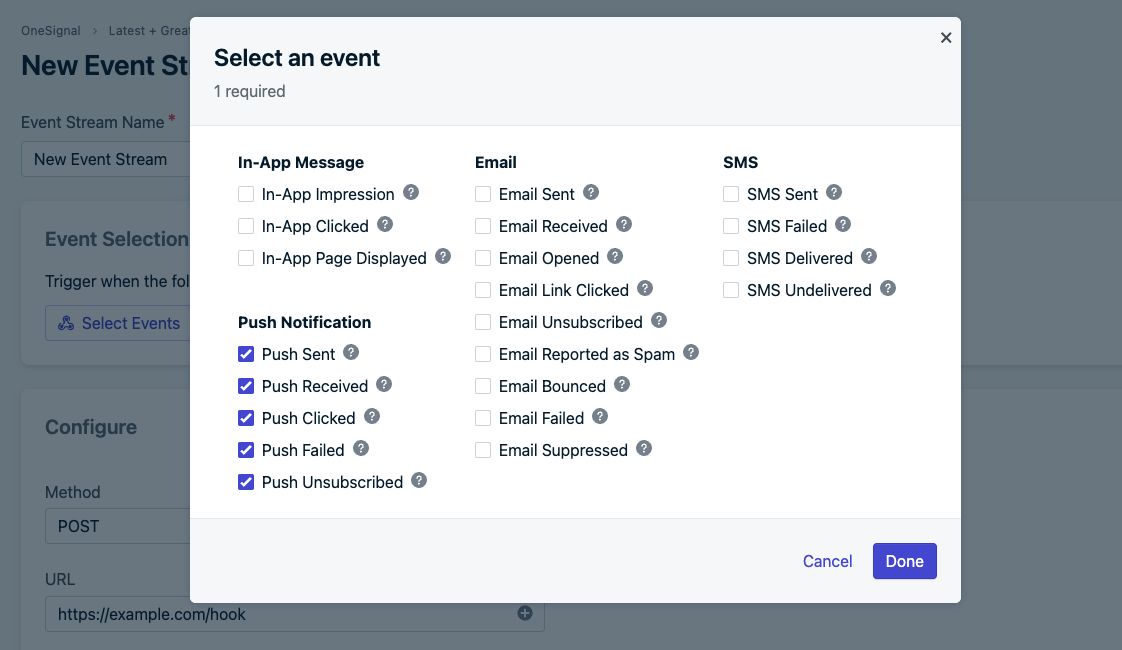
From the OneSignal dashboard, navigate to **Settings > Event Streams (subject to add-on feature)**. From there, create a new event stream and select "Trigger when any of the following events occur". Choose the message events you'd like to sync in the pop-up with Google Sheets. In the example below, we capture all Push Notification events.
## Create the event stream
From the OneSignal dashboard, navigate to **Settings > Event Streams (subject to add-on feature)**. From there, create a new event stream and select "Trigger when any of the following events occur". Choose the message events you'd like to sync in the pop-up with Google Sheets. In the example below, we capture all Push Notification events.
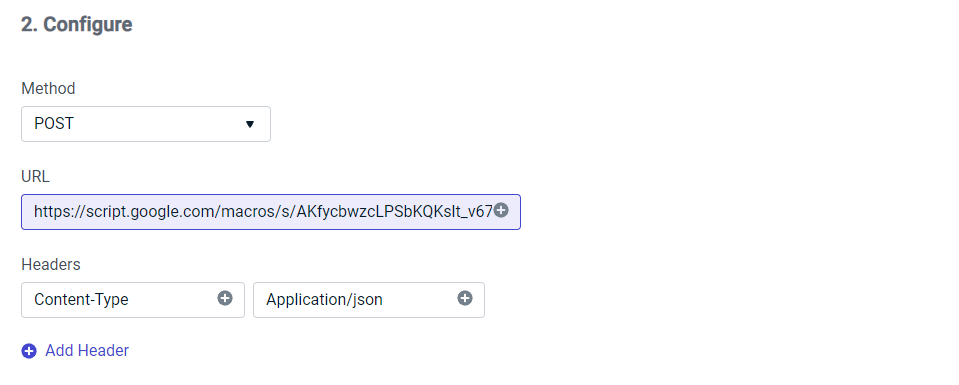
 Next, in the configuration step, choose POST, paste the previous step's URL, and create a header to accept the JSON.
 After this, select "Custom Body" in the Step 3 Dropdown and copy/paste the following code. You can change the properties and events you want to sync, as depicted in the example below. For more information on event stream event properties, visit our [documentation](./event-streams#personalization)
```json json theme={null}
{
"user_id": "{{ event.external_user_id }}",
"event_id": "{{ event.id }}",
"event": "{{ event.kind }}",
"properties": {
"message_id": "{{ message.id }}",
"message_name": "{{ message.name }}",
"message_title": "{{ message.title.en }}",
"message_contents": "{{ message.contents.en }}",
"template_id": "{{ message.template_id }}",
"subscription_id": "{{ event.subscription_id }}",
"subscription_device_type": "{{ event.subscription_device_type }}",
"source": "onesignal"
},
"originalTimestamp": "{{ event.datetime }}"
}
```
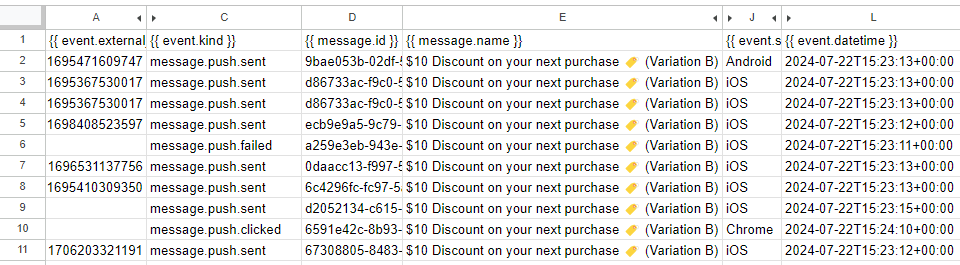
Finally, select "Save & Activate" to synchronize the chosen message events to the Google Sheet. Below is an example of how the sample code above renders:
After this, select "Custom Body" in the Step 3 Dropdown and copy/paste the following code. You can change the properties and events you want to sync, as depicted in the example below. For more information on event stream event properties, visit our [documentation](./event-streams#personalization)
```json json theme={null}
{
"user_id": "{{ event.external_user_id }}",
"event_id": "{{ event.id }}",
"event": "{{ event.kind }}",
"properties": {
"message_id": "{{ message.id }}",
"message_name": "{{ message.name }}",
"message_title": "{{ message.title.en }}",
"message_contents": "{{ message.contents.en }}",
"template_id": "{{ message.template_id }}",
"subscription_id": "{{ event.subscription_id }}",
"subscription_device_type": "{{ event.subscription_device_type }}",
"source": "onesignal"
},
"originalTimestamp": "{{ event.datetime }}"
}
```
Finally, select "Save & Activate" to synchronize the chosen message events to the Google Sheet. Below is an example of how the sample code above renders:
 ***
***