> ## Documentation Index
> Fetch the complete documentation index at: https://documentation.onesignal.com/llms.txt
> Use this file to discover all available pages before exploring further.
# Google Tag Manager setup
> Add OneSignal Web Push to your website using Google Tag Manager (GTM), including service worker setup, initialization, and sending Tags safely.
This guide shows you how to load and initialize the OneSignal Web SDK using Google Tag Manager (GTM), then optionally set an External ID and send OneSignal Tags after initialization.
## Prerequisites
* A site that supports HTTPS.
* You can publish changes in GTM for the site's container.
* You've completed the OneSignal [Web SDK setup](./web-sdk-setup) flow until **Add Code to Site**. This gives you:
* A OneSignal Web Push app and App ID.
* The [OneSignal Service Worker](./onesignal-service-worker) setup.
## Setup
### 1. Set up your OneSignal web app
Follow [Web SDK setup](./web-sdk-setup) until you reach **Add Code to Site**. This is where you will get the OneSignal App ID.
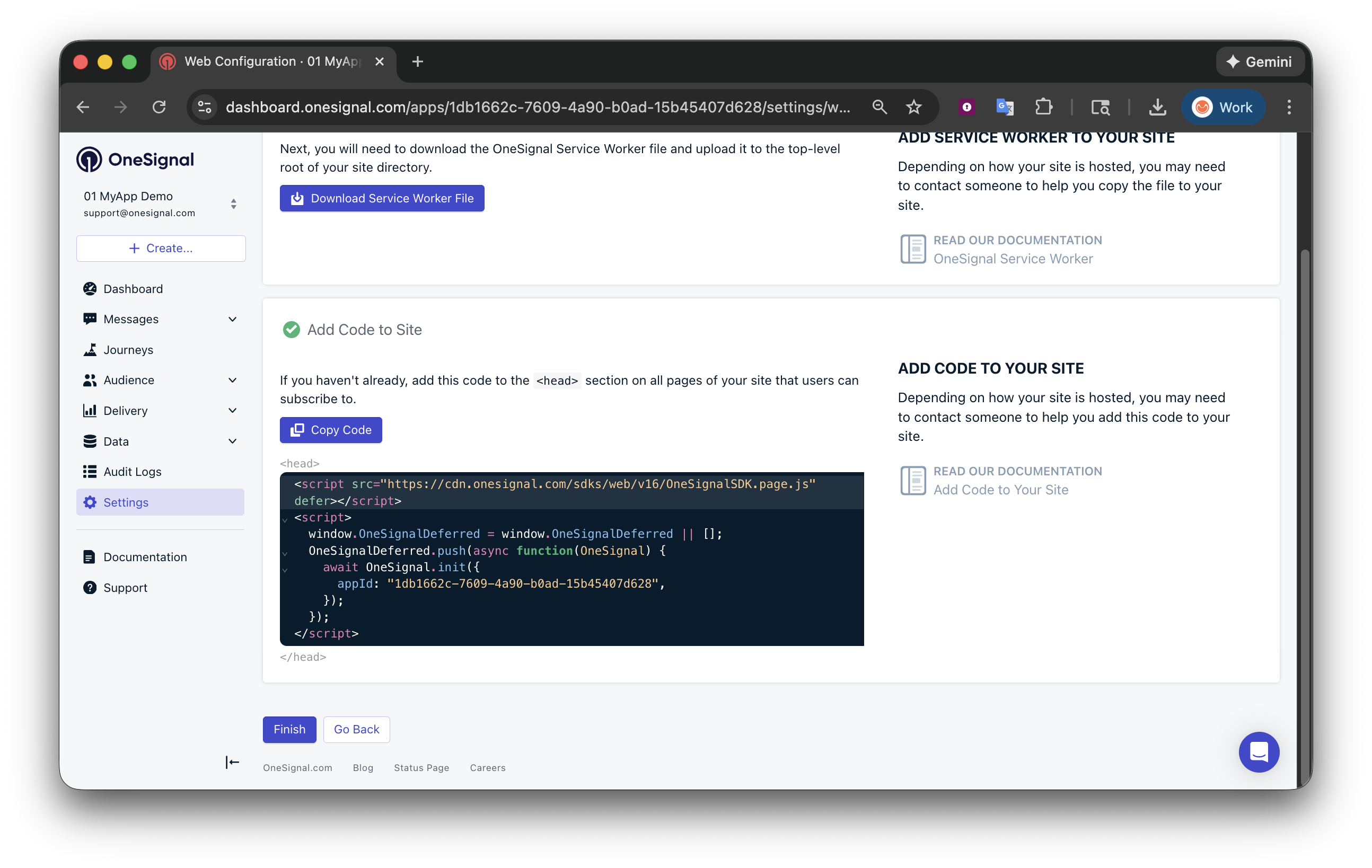 You must upload the OneSignal Service Worker file to your server directly. See [OneSignal Service Worker](./onesignal-service-worker).
### 2. Create GTM variables
Create GTM variables for values you reference across tags. This avoids hardcoding and makes your setup easier to maintain.
**Create a `ONESIGNAL_APP_ID` variable**
1. In GTM, go to **Variables > New**.
2. Choose **Constant**.
3. Name it `ONESIGNAL_APP_ID`
4. Set the value to your OneSignal App ID.
5. Save
You must upload the OneSignal Service Worker file to your server directly. See [OneSignal Service Worker](./onesignal-service-worker).
### 2. Create GTM variables
Create GTM variables for values you reference across tags. This avoids hardcoding and makes your setup easier to maintain.
**Create a `ONESIGNAL_APP_ID` variable**
1. In GTM, go to **Variables > New**.
2. Choose **Constant**.
3. Name it `ONESIGNAL_APP_ID`
4. Set the value to your OneSignal App ID.
5. Save
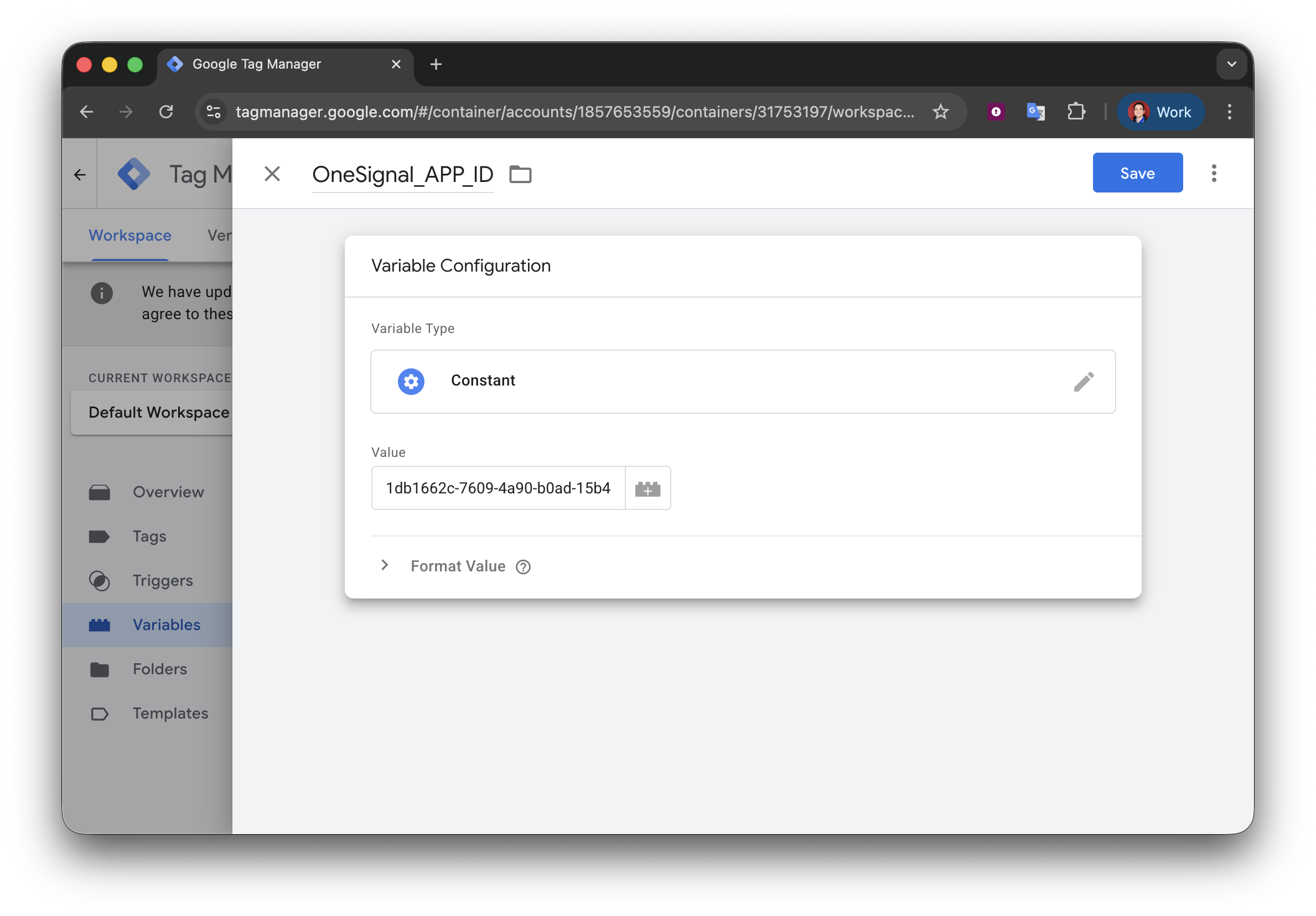 You can now reference your App ID anywhere in GTM using `{{ ONESIGNAL_APP_ID }}`.
**Create an `ONESIGNAL_EXTERNAL_ID` variable (Recommended)**
Use this if you associate users with an external identifier (for example, a user ID from your database or auth system).
Choose a variable type based on where the value lives on your site. Common options:
* Data Layer Variable (recommended)
* First-Party Cookie
* DOM Variable (advanced)
### 3. Create the OneSignal init tag
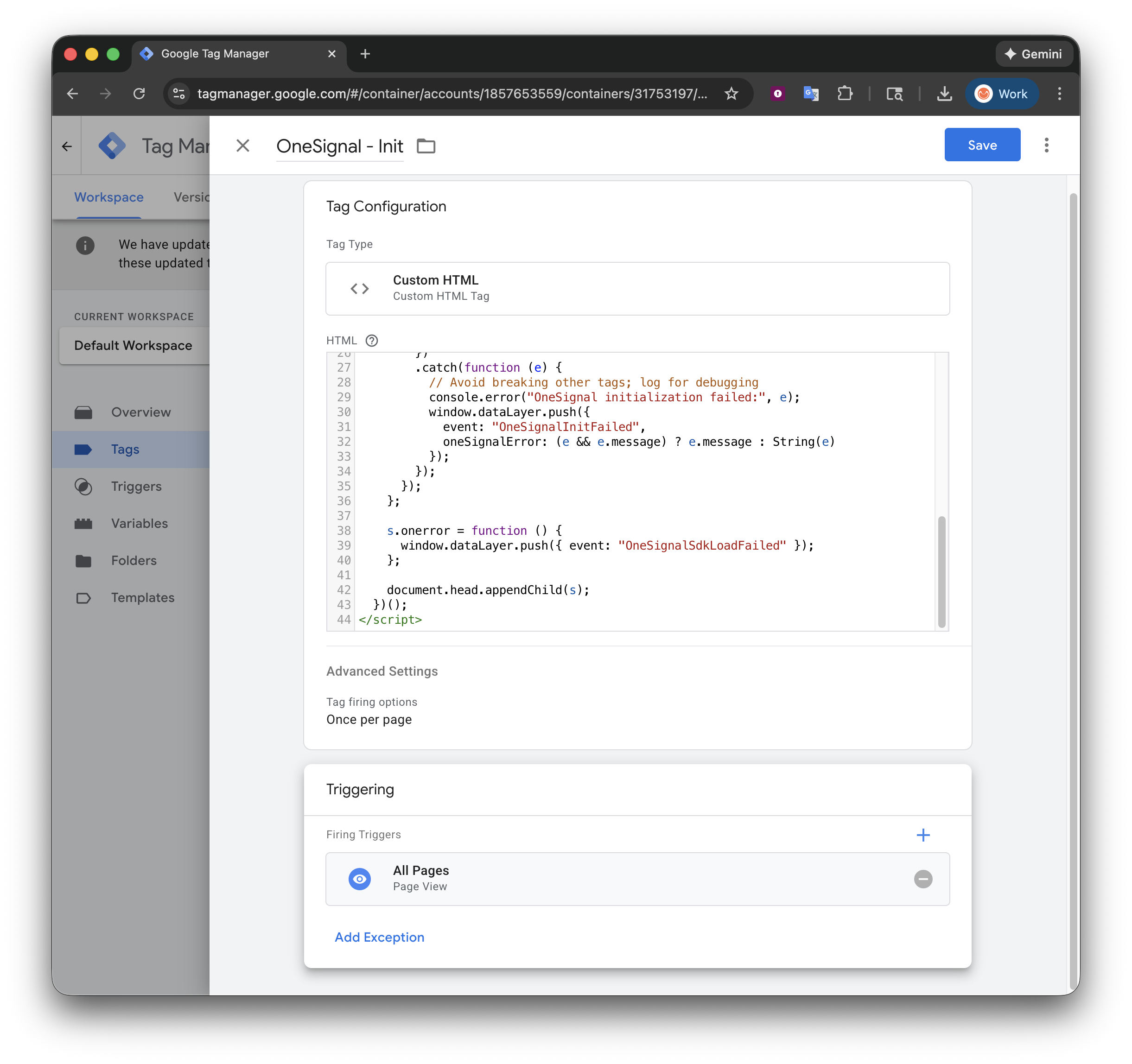
1. In GTM, go to **Tags > New**
2. Name the tag: `OneSignal - Init`
3. Tag Type: **Custom HTML**
4. Paste the below code.
5. Under **Advanced Settings > Tag firing options**, set **Once per page**.
6. Under **Triggering**, select **Initialization - All Pages**.
```html HTML theme={null}
```
You can now reference your App ID anywhere in GTM using `{{ ONESIGNAL_APP_ID }}`.
**Create an `ONESIGNAL_EXTERNAL_ID` variable (Recommended)**
Use this if you associate users with an external identifier (for example, a user ID from your database or auth system).
Choose a variable type based on where the value lives on your site. Common options:
* Data Layer Variable (recommended)
* First-Party Cookie
* DOM Variable (advanced)
### 3. Create the OneSignal init tag
1. In GTM, go to **Tags > New**
2. Name the tag: `OneSignal - Init`
3. Tag Type: **Custom HTML**
4. Paste the below code.
5. Under **Advanced Settings > Tag firing options**, set **Once per page**.
6. Under **Triggering**, select **Initialization - All Pages**.
```html HTML theme={null}
```
 If you use a consent banner / CMP, see [Consent Mode and privacy considerations](#consent-mode-and-privacy-considerations) options below.
### 4. Set External ID and tags
Setting the [External ID](./users#external-id) is optional but recommended because it allows you to identify users across devices and syncs with your backend.
**Push `ONESIGNAL_EXTERNAL_ID` into the dataLayer**
This example shows how you might push a user ID into the dataLayer so GTM can read it via the `ONESIGNAL_EXTERNAL_ID` variable (created in step 2).
```html HTML theme={null}
```
**Create a GTM Tag to set the External ID**
Tag configuration:
* Tag name: `OneSignal – Set External ID`
* Tag type: **Custom HTML**
* Tag firing options: **Once per page**
* Trigger:
* Create a custom event trigger for `OneSignalInitialized` (set in the above **OneSignal - Init** tag) and
* Optionally if you know the user ID is available on the page load.
The required method to set the External ID is `OneSignal.login(externalId)` where `externalId` is a string.
If `{{ONESIGNAL_EXTERNAL_ID}}` is empty (or GTM substitutes "undefined" / "null"), the login call will be skipped and the External ID will not be set. This is a common GTM timing issue.
```html HTML theme={null}
```
```html HTML theme={null}
```
#### Set tags
This sends [OneSignal Tags](./add-user-data-tags) using our Web SDK.
Tag configuration:
* Name: `OneSignal - Add Tags`
* Tag Type: **Custom HTML**
* Tag firing options: **Once per page**
* Trigger:
* `OneSignalInitialized`, and
* Your condition for when tag data is available (for example: after login, on a profile page, after purchase).
Paste this code and replace `TAG_1`/`TAG_2` and `VALUE_1`/`VALUE_2` with your tag names and values.
```html HTML theme={null}
```
Only send tags when you actually have the user data available (for example: after login, after a profile loads, or after a known conversion event).
#### Listen for push subscription changes
You can monitor push subscription state changes (opt-in, opt-out, token updates) by adding an event listener. This is useful for syncing subscription status with your analytics or backend systems via the GTM dataLayer.
Tag configuration:
* Name: `OneSignal - Push Subscription Listener`
* Tag Type: **Custom HTML**
* Tag firing options: **Once per page**
* Trigger: `OneSignalInitialized`
```html HTML theme={null}
```
### Consent Mode and privacy considerations
If your site uses Consent Mode / a CMP, decide whether OneSignal should load:
* Only after consent (common for EU/UK), or
* Immediately (common where "functional" storage is allowed by default).
GTM supports a Consent Initialization trigger and tag-level consent controls to manage tag behavior based on user consent. However, OneSignal also provides privacy consent methods to control when the SDK loads.
* [Handling personal data](./handling-personal-data)
* [Web SDK Privacy Methods](./web-sdk-reference#privacy)
***
## Testing
1. In GTM, open Preview mode.
2. Load your site and confirm:
* `OneSignal - Init` fires once.
* `OneSignalInitialized` appears in the GTM event timeline (if you kept the event push).
3. Subscribe to your website. See [Web permission prompts](./permission-requests) for prompting details.
4. In the OneSignal dashboard, go to **Audience > Subscriptions** and confirm:
* A Subscription appears after you opt in.
* An External ID is visible if you set one.
5. Send a test push from **Messages > New Push**.
If initialization is working, you’ll see subscriptions appearing in OneSignal after opt-in.
### Troubleshooting
* Init tag fires, but SDK never loads
* Check for Content Security Policy (CSP) blocking `https://cdn.onesignal.com`.
* Check for ad blockers/script blockers.
* `dataLayer` errors
* Ensure `window.dataLayer = window.dataLayer || []` is set before any `dataLayer.push()` calls.
* Duplicate prompts / duplicate SDK load
* Make sure you are not also loading OneSignal via site code, a CMS plugin, or another GTM tag.
* Add Tags runs but doesn’t appear in OneSignal
* Confirm the Trigger Group waits for `OneSignalInitialized`.
* Confirm your user action trigger actually fires.
* Confirm tags are valid key/value pairs and within [Plan limits](https://onesignal.com/pricing).
For additional help, see [Web SDK troubleshooting](./troubleshooting-web-push).
## FAQ
### Does OneSignal work with GTM Consent Mode?
Yes. You can control when OneSignal loads using GTM's consent controls or OneSignal's own privacy methods. If your site requires consent before loading scripts, configure the init tag's trigger to fire only after consent is granted, or use OneSignal's `setConsentRequired` and `setConsentGiven` methods. See [Handling personal data](./handling-personal-data) for details.
### Why isn't my External ID being set?
The most common cause is a GTM timing issue where `{{ONESIGNAL_EXTERNAL_ID}}` resolves to `"undefined"` or `"null"` because the dataLayer variable isn't populated yet when the tag fires. Verify the variable has a value in GTM Preview mode before the tag executes. If the value loads asynchronously, use the [advanced example with retry logic](#4-set-external-id-and-tags).
### Can I load OneSignal through both GTM and site code?
No. Loading the OneSignal SDK more than once causes duplicate prompts and unpredictable behavior. Use either GTM or direct site code, not both. Also check for CMS plugins that may inject OneSignal separately.
***
## Related pages
Configure how and when to prompt visitors for web push permission.
Set key-value data on Users for personalization and segmentation.
Full method and event reference for the OneSignal Web SDK.
Manage user consent and control which data the OneSignal SDK collects.
If you use a consent banner / CMP, see [Consent Mode and privacy considerations](#consent-mode-and-privacy-considerations) options below.
### 4. Set External ID and tags
Setting the [External ID](./users#external-id) is optional but recommended because it allows you to identify users across devices and syncs with your backend.
**Push `ONESIGNAL_EXTERNAL_ID` into the dataLayer**
This example shows how you might push a user ID into the dataLayer so GTM can read it via the `ONESIGNAL_EXTERNAL_ID` variable (created in step 2).
```html HTML theme={null}
```
**Create a GTM Tag to set the External ID**
Tag configuration:
* Tag name: `OneSignal – Set External ID`
* Tag type: **Custom HTML**
* Tag firing options: **Once per page**
* Trigger:
* Create a custom event trigger for `OneSignalInitialized` (set in the above **OneSignal - Init** tag) and
* Optionally if you know the user ID is available on the page load.
The required method to set the External ID is `OneSignal.login(externalId)` where `externalId` is a string.
If `{{ONESIGNAL_EXTERNAL_ID}}` is empty (or GTM substitutes "undefined" / "null"), the login call will be skipped and the External ID will not be set. This is a common GTM timing issue.
```html HTML theme={null}
```
```html HTML theme={null}
```
#### Set tags
This sends [OneSignal Tags](./add-user-data-tags) using our Web SDK.
Tag configuration:
* Name: `OneSignal - Add Tags`
* Tag Type: **Custom HTML**
* Tag firing options: **Once per page**
* Trigger:
* `OneSignalInitialized`, and
* Your condition for when tag data is available (for example: after login, on a profile page, after purchase).
Paste this code and replace `TAG_1`/`TAG_2` and `VALUE_1`/`VALUE_2` with your tag names and values.
```html HTML theme={null}
```
Only send tags when you actually have the user data available (for example: after login, after a profile loads, or after a known conversion event).
#### Listen for push subscription changes
You can monitor push subscription state changes (opt-in, opt-out, token updates) by adding an event listener. This is useful for syncing subscription status with your analytics or backend systems via the GTM dataLayer.
Tag configuration:
* Name: `OneSignal - Push Subscription Listener`
* Tag Type: **Custom HTML**
* Tag firing options: **Once per page**
* Trigger: `OneSignalInitialized`
```html HTML theme={null}
```
### Consent Mode and privacy considerations
If your site uses Consent Mode / a CMP, decide whether OneSignal should load:
* Only after consent (common for EU/UK), or
* Immediately (common where "functional" storage is allowed by default).
GTM supports a Consent Initialization trigger and tag-level consent controls to manage tag behavior based on user consent. However, OneSignal also provides privacy consent methods to control when the SDK loads.
* [Handling personal data](./handling-personal-data)
* [Web SDK Privacy Methods](./web-sdk-reference#privacy)
***
## Testing
1. In GTM, open Preview mode.
2. Load your site and confirm:
* `OneSignal - Init` fires once.
* `OneSignalInitialized` appears in the GTM event timeline (if you kept the event push).
3. Subscribe to your website. See [Web permission prompts](./permission-requests) for prompting details.
4. In the OneSignal dashboard, go to **Audience > Subscriptions** and confirm:
* A Subscription appears after you opt in.
* An External ID is visible if you set one.
5. Send a test push from **Messages > New Push**.
If initialization is working, you’ll see subscriptions appearing in OneSignal after opt-in.
### Troubleshooting
* Init tag fires, but SDK never loads
* Check for Content Security Policy (CSP) blocking `https://cdn.onesignal.com`.
* Check for ad blockers/script blockers.
* `dataLayer` errors
* Ensure `window.dataLayer = window.dataLayer || []` is set before any `dataLayer.push()` calls.
* Duplicate prompts / duplicate SDK load
* Make sure you are not also loading OneSignal via site code, a CMS plugin, or another GTM tag.
* Add Tags runs but doesn’t appear in OneSignal
* Confirm the Trigger Group waits for `OneSignalInitialized`.
* Confirm your user action trigger actually fires.
* Confirm tags are valid key/value pairs and within [Plan limits](https://onesignal.com/pricing).
For additional help, see [Web SDK troubleshooting](./troubleshooting-web-push).
## FAQ
### Does OneSignal work with GTM Consent Mode?
Yes. You can control when OneSignal loads using GTM's consent controls or OneSignal's own privacy methods. If your site requires consent before loading scripts, configure the init tag's trigger to fire only after consent is granted, or use OneSignal's `setConsentRequired` and `setConsentGiven` methods. See [Handling personal data](./handling-personal-data) for details.
### Why isn't my External ID being set?
The most common cause is a GTM timing issue where `{{ONESIGNAL_EXTERNAL_ID}}` resolves to `"undefined"` or `"null"` because the dataLayer variable isn't populated yet when the tag fires. Verify the variable has a value in GTM Preview mode before the tag executes. If the value loads asynchronously, use the [advanced example with retry logic](#4-set-external-id-and-tags).
### Can I load OneSignal through both GTM and site code?
No. Loading the OneSignal SDK more than once causes duplicate prompts and unpredictable behavior. Use either GTM or direct site code, not both. Also check for CMS plugins that may inject OneSignal separately.
***
## Related pages
Configure how and when to prompt visitors for web push permission.
Set key-value data on Users for personalization and segmentation.
Full method and event reference for the OneSignal Web SDK.
Manage user consent and control which data the OneSignal SDK collects.