> ## Documentation Index
> Fetch the complete documentation index at: https://documentation.onesignal.com/llms.txt
> Use this file to discover all available pages before exploring further.
# In-app click actions
> Configure click actions on in-app message elements to open URLs, prompt for push or location permissions, track outcomes, tag users, or trigger custom logic.
Click actions are interactive events you attach to elements in an in-app message — buttons, images, or backgrounds. Add them using the drag-and-drop editor or the HTML editor via the [In-app JavaScript API](./in-app-message-api).
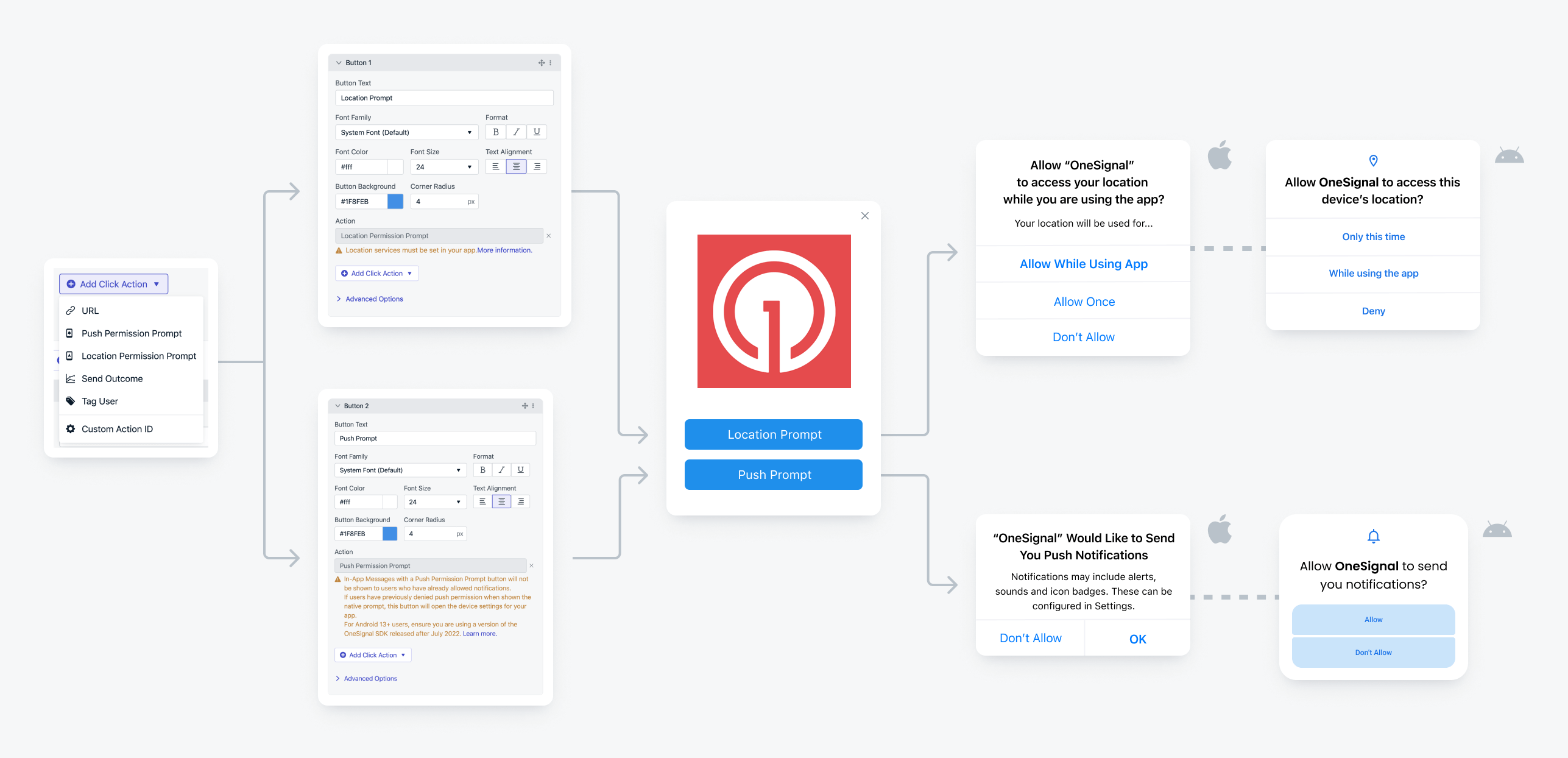 ## Click action types
### URL
Opens the specified URL in the device's default browser. Maps to `openUrl` in the [In-App JS API](./in-app-message-api). For deep linking within the app, use a **Custom Action ID** instead.
### Push permission prompt
Shows the native iOS or Android push permission prompt. If the device is already subscribed, the in-app message does not display. If the device was previously prompted and declined, a native alert asks the user to enable push notifications in app settings. Maps to `triggerPushPrompt` in the [In-App JS API](./in-app-message-api).
### Location permission prompt
Shows the native operating system prompt to request location tracking permission. Your app must include [location tracking permissions](./mobile-sdk-reference#location) — see [Location Opt-In Prompt](./location-opt-in-prompt) for setup. Maps to `triggerLocationPrompt` in the [In-App JS API](./in-app-message-api).
### Send outcome
Tracks a user interaction for analytics. Outcomes sent through in-app messages appear as "Unattributed" and set a [tag](./add-user-data-tags) on the user in the format `outcome_name : true`. See [Custom Outcomes](./custom-outcomes) for details. Maps to `sendOutcome` in the [In-App JS API](./in-app-message-api).
### Tag user
Adds a [tag](./add-user-data-tags) to the user based on their response, which you can use to segment them for more targeted messaging. Maps to `tagUser` in the [In-App JS API](./in-app-message-api).
### Custom action ID
Passes a custom value that your app reads through the [SDK IAM Click Listener](./mobile-sdk-reference#addclicklistener-in-app) when the element is clicked. Use this for:
* Sending interaction data to your own server or analytics vendor.
* [Deep linking within the app](./deep-linking) to navigate to specific screens.
Maps to `addClickName` in the [In-App JS API](./in-app-message-api).
#### Collecting custom click actions
Set a **Custom Action ID** on any image or button block to identify which element was clicked. Your app detects the click through the [SDK IAM Click Listener](./mobile-sdk-reference#addclicklistener-in-app) and can send the data to your server, database, or analytics vendor.
Set a unique Action ID on each button in a multiple-choice in-app message. When a user clicks an option, your app detects it through the [SDK IAM Click Listener](./mobile-sdk-reference#addclicklistener-in-app), sends the response to your server, and can display aggregated results back to the user later.
Instead of an Action ID, you can also use a **Tag** to identify the clicked element and segment users based on their response.
***
## Related guides
Set up custom URL schemes and app-specific routing for push and in-app messages.
Reference for click action methods in the HTML in-app message editor.
Step-by-step tutorial for prompting app store reviews from in-app messages.
Prompt users to update their app.
Guide users with contextual top and bottom banner in-app messages that don't block your app UI.
***
## FAQ
### Can I add multiple click actions to a single element?
No. Each element (button, image, or background) supports one click action. To trigger multiple behaviors, use a **Custom Action ID** and handle the logic in your app through the [SDK IAM Click Listener](./mobile-sdk-reference#addclicklistener-in-app).
### How do I deep link to a screen in my app?
Use the **Custom Action ID** click action and handle routing in your app via the [SDK IAM Click Listener](./mobile-sdk-reference#addclicklistener-in-app). The **URL** action opens links in the browser, not inside the app. See [Deep Linking](./deep-linking) for full setup.
### Why doesn't the push permission prompt appear?
If the device is already subscribed to push notifications, the in-app message with a push permission prompt click action does not display. Verify the user's push subscription status in the OneSignal dashboard before testing.
## Click action types
### URL
Opens the specified URL in the device's default browser. Maps to `openUrl` in the [In-App JS API](./in-app-message-api). For deep linking within the app, use a **Custom Action ID** instead.
### Push permission prompt
Shows the native iOS or Android push permission prompt. If the device is already subscribed, the in-app message does not display. If the device was previously prompted and declined, a native alert asks the user to enable push notifications in app settings. Maps to `triggerPushPrompt` in the [In-App JS API](./in-app-message-api).
### Location permission prompt
Shows the native operating system prompt to request location tracking permission. Your app must include [location tracking permissions](./mobile-sdk-reference#location) — see [Location Opt-In Prompt](./location-opt-in-prompt) for setup. Maps to `triggerLocationPrompt` in the [In-App JS API](./in-app-message-api).
### Send outcome
Tracks a user interaction for analytics. Outcomes sent through in-app messages appear as "Unattributed" and set a [tag](./add-user-data-tags) on the user in the format `outcome_name : true`. See [Custom Outcomes](./custom-outcomes) for details. Maps to `sendOutcome` in the [In-App JS API](./in-app-message-api).
### Tag user
Adds a [tag](./add-user-data-tags) to the user based on their response, which you can use to segment them for more targeted messaging. Maps to `tagUser` in the [In-App JS API](./in-app-message-api).
### Custom action ID
Passes a custom value that your app reads through the [SDK IAM Click Listener](./mobile-sdk-reference#addclicklistener-in-app) when the element is clicked. Use this for:
* Sending interaction data to your own server or analytics vendor.
* [Deep linking within the app](./deep-linking) to navigate to specific screens.
Maps to `addClickName` in the [In-App JS API](./in-app-message-api).
#### Collecting custom click actions
Set a **Custom Action ID** on any image or button block to identify which element was clicked. Your app detects the click through the [SDK IAM Click Listener](./mobile-sdk-reference#addclicklistener-in-app) and can send the data to your server, database, or analytics vendor.
Set a unique Action ID on each button in a multiple-choice in-app message. When a user clicks an option, your app detects it through the [SDK IAM Click Listener](./mobile-sdk-reference#addclicklistener-in-app), sends the response to your server, and can display aggregated results back to the user later.
Instead of an Action ID, you can also use a **Tag** to identify the clicked element and segment users based on their response.
***
## Related guides
Set up custom URL schemes and app-specific routing for push and in-app messages.
Reference for click action methods in the HTML in-app message editor.
Step-by-step tutorial for prompting app store reviews from in-app messages.
Prompt users to update their app.
Guide users with contextual top and bottom banner in-app messages that don't block your app UI.
***
## FAQ
### Can I add multiple click actions to a single element?
No. Each element (button, image, or background) supports one click action. To trigger multiple behaviors, use a **Custom Action ID** and handle the logic in your app through the [SDK IAM Click Listener](./mobile-sdk-reference#addclicklistener-in-app).
### How do I deep link to a screen in my app?
Use the **Custom Action ID** click action and handle routing in your app via the [SDK IAM Click Listener](./mobile-sdk-reference#addclicklistener-in-app). The **URL** action opens links in the browser, not inside the app. See [Deep Linking](./deep-linking) for full setup.
### Why doesn't the push permission prompt appear?
If the device is already subscribed to push notifications, the in-app message with a push permission prompt click action does not display. Verify the user's push subscription status in the OneSignal dashboard before testing.