> ## Documentation Index
> Fetch the complete documentation index at: https://documentation.onesignal.com/llms.txt
> Use this file to discover all available pages before exploring further.
# Import
> Import or update users in OneSignal using CSV uploads, REST API, or manual entry. Supports email, SMS, tags, and more for seamless user onboarding or migration.
Import or update users in bulk through the OneSignal dashboard using a CSV file or manual entry. Common use cases include migrating users from another platform, updating user details, and organizing users with [Tags](./add-user-data-tags) and [Segments](./segmentation).
You can also update or create users via the [REST API](/reference/create-user).
## CSV import
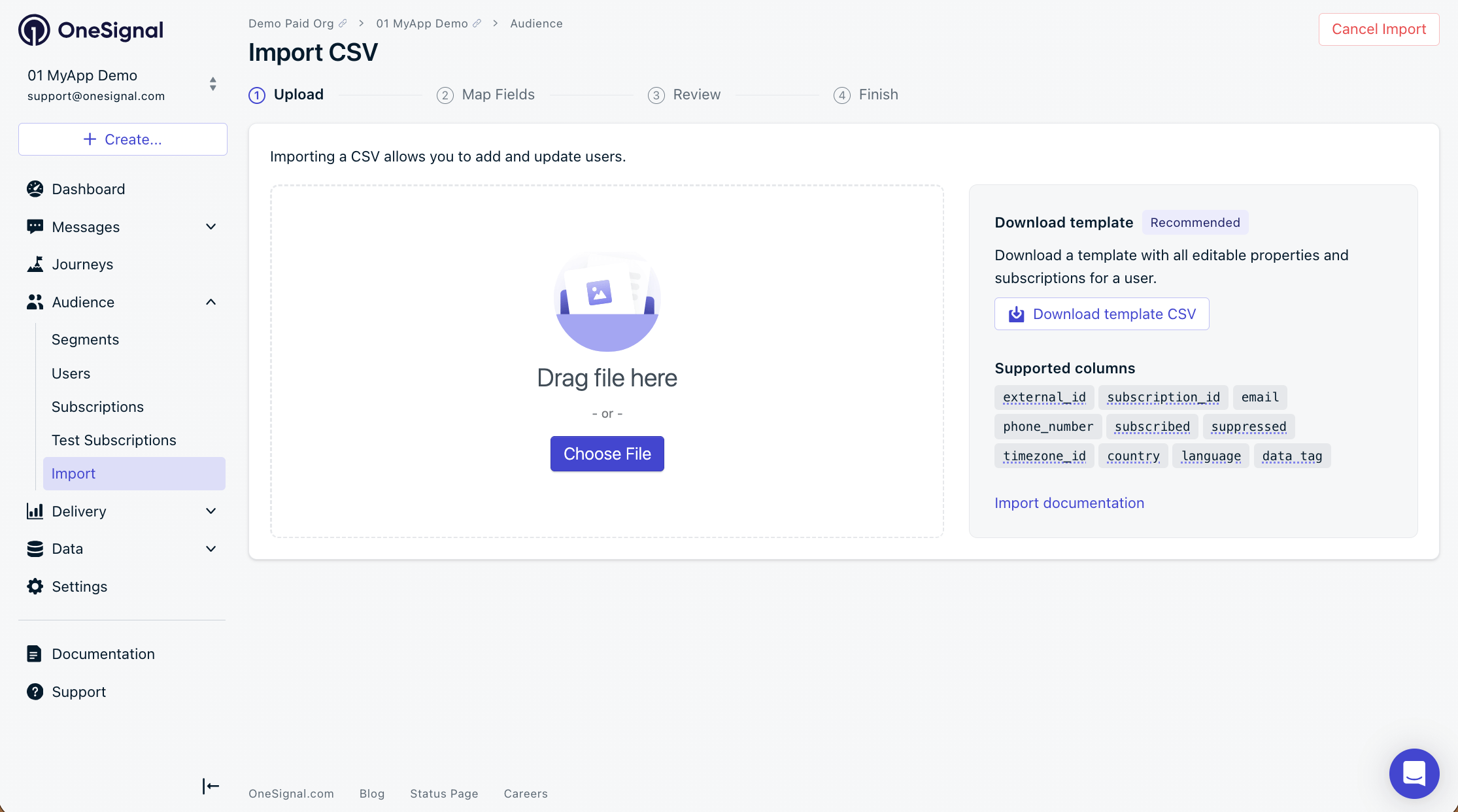
Use a CSV file to import or update email addresses, phone numbers, external IDs, [Tags](./add-user-data-tags), language, timezone, country, and more.
### CSV requirements
Make sure your `.csv` file meets the following requirements:
* UTF-8 encoding (without BOM)
* No non-printable characters (no special characters or non-ASCII characters)
* Clean, unique column headers
* File size under 150 MB (about 2 million rows)
* At least one identifier from the following:
* `external_id` — Recommended. Identifies [Users](./users) across all [Subscriptions](./subscriptions).
* `email` — Required for creating new email subscriptions. See [Email address validation](./email-address-validation) for more info.
* `phone_number` — Required for creating new SMS subscriptions.
* `subscription_id` — Only recommended for cases where you track Subscription IDs on your backend and want to set an `external_id`.
Only one identifier of each type is allowed per row. To associate multiple emails or phone numbers with the same user, use separate rows sharing the same `external_id`.
* Include `external_id` to deduplicate Users. Make sure it matches the ID used in your SDK `login` method — otherwise it resets when the user opens the app.
* To change subscription status, the row must include `email`, `phone_number`, or `subscription_id`. An `external_id` alone is not enough.
* `subscription_id` does not link or merge Subscriptions. Use `external_id` to add new emails or phone numbers to an existing user.
#### Supported columns
Your user ID. See [External ID](./users#external-id) for more info. Should be the same ID used via the SDK `login` method.
The user's email address. Creates an Email [Subscription](./subscriptions). Deduplicated if already present in the app.
The user's phone number in [E.164 format](https://en.wikipedia.org/wiki/E.164) like `+15555551234`. Creates an SMS [Subscription](./subscriptions). Deduplicated if already present in the app.
Only recommended if you already track OneSignal [Subscription IDs](./subscriptions) on your backend.
Sets subscription status. Requires `email`, `phone_number`, or `subscription_id` in the same row — cannot be used with `external_id` alone.
Use with `email` to add or remove from the [Suppression List](./suppressions).
* `true` adds the email to suppression list.
* `false` removes the email from suppression list.
The user's timezone in [IANA TZ format](https://en.wikipedia.org/wiki/List_of_tz_database_time_zones).
e.g.) `America/New_York`, `Europe/London`, `Asia/Tokyo`
The user's country code in [ISO 3166-2 format](https://www.iso.org/obp/ui/).
e.g.) `GB` for United Kingdom, `US` for United States
The user's language in [ISO 639-1 format](./multi-language-messaging#supported-languages).
e.g) `en` for English, `es` for Spanish, `fr` for French
Include up to 1,000 [Tags](./add-user-data-tags) per import. Use tag keys in the column headers and tag values in the rows. You can also use a single `tags` column with JSON formatting — see [Bulk tag updates](#bulk-tag-updates) for details.
#### Tag limits and restrictions
Tag [plan limits](https://onesignal.com/pricing) apply per user, not per app. For example, if your plan allows 20 tags per user and a user already has 19, you can only add 1 more — even though the app itself can have unlimited tag keys.
* Use the [Bulk tag updates](#bulk-tag-updates) workflow to export users, clear unwanted tag values, and re-import with the delete option enabled.
* Avoid spaces in tag keys — use underscores instead.
**Reserved and restricted tag keys**
The following tag keys are reserved and should not be used:
* "user"
* "subscription"
* "message"
* "template"
* "app"
* "org"
* "custom\_data"
* "dynamic\_content"
If you accidentally set one of these as a tag key, remove it via the [Update User API](/reference/update-user).
**Tag overwrites and deletions**
During a CSV import:
* Tags included in your CSV are overwritten with the value provided.
* Tags not included in your CSV remain unchanged on the user record.
If a tag is still present after import, verify that:
* The header column contains the tag key.
* The row contains no value.
* You selected the "Delete tags with blank values" option in the [Review screen](#review-and-confirm).
**Other sources of tags being added**
If deleted tags reappear after import, an integration may be automatically writing them back. Common sources include:
* Segment
* HubSpot
* Journeys
* SDK Tagging methods
* Custom APIs or ETL pipelines
Review integration mappings and event triggers to ensure they are not overwriting your CSV changes.
#### Email address validation
Email address validation detects common problems in email addresses before they reach your audience. It flags typos, invalid domains, role-based addresses, and disposable email services that could increase your bounce rate or hurt your sender reputation.
Validate email addresses during CSV import and in bulk to reduce bounces and protect your sender reputation.
#### Use AI to check your CSV before import
If you have errors or questions about your CSV formatting, you can describe your CSV problem to an AI tool (like Claude, ChatGPT, or similar) to automatically clean or rebuild your file before importing again.
Always test with a small sample (5-10 rows) before importing thousands of records.
```text AI prompt example for deleting unwanted tags theme={null}
I want to remove all tags except "user_name" from this CSV.
Please:
1. Keep only the "user_name" tag column.
2. Remove all other tag columns.
3. Format the CSV so it matches the OneSignal import requirements in this doc:
https://documentation.onesignal.com/docs/en/import
Here is my CSV:
[PASTE CSV]
```
```text AI prompt example for fixing multiple tag columns format theme={null}
I have multiple tag columns such as tag_first_name, tag_last_name, and tag_city.
According to the OneSignal import documentation, each tag must:
- Use the tag_ prefix
- Contain only alphanumeric characters and underscores
- Follow supported data types
Could you review my CSV, identify what is incorrectly formatted, and return a corrected version that meets these requirements?
Documentation link:
https://documentation.onesignal.com/docs/en/import
```
```text AI prompt example for identifying missing or invalid formatting theme={null}
OneSignal rejected my CSV during import.
Please:
1. Validate my CSV structure.
2. Identify any formatting issues (headers, ID columns, tag formats, quoting).
3. Return a corrected version that follows the requirements in this doc:
https://documentation.onesignal.com/docs/en/import#csv-requirements
Here is the file:
[PASTE CSV]
```
```text AI prompt example for fixing invalid phone number formats (E.164) theme={null}
My import is failing because phone numbers are not in E.164 format.
Please:
1. Convert all phone numbers to E.164 format.
2. Keep all other fields unchanged.
3. Ensure the CSV matches OneSignal's required structure:
https://documentation.onesignal.com/docs/en/import
Example of current format: (555) 555-1234
Here is my CSV:
[PASTE CSV]
```
```text AI prompt example for data from another platform theme={null}
I'm migrating from [Platform Name] to OneSignal.
Could you transform this CSV to match OneSignal's import format?
Include:
- `external_id`
- Any tags converted with the `tag_` prefix (if desired)
- Phone numbers in E.164 format (if applicable)
Reference doc:
https://documentation.onesignal.com/docs/en/import
Here is my CSV:
[PASTE CSV]
```
### Import steps
Navigate to **Audience > Import** and click **Launch CSV Importer**.
Select your prepared CSV file.
 OneSignal auto-maps your CSV headers to known properties. Review the mappings before confirming — use `external_id`, `email`, `phone_number`, and/or `subscription_id` as **identifiers**, not tags.
To add a new email or phone number to an existing user, you **must use** `external_id`. Do **not** use `subscription_id` — it will not link or merge Subscriptions.
OneSignal auto-maps your CSV headers to known properties. Review the mappings before confirming — use `external_id`, `email`, `phone_number`, and/or `subscription_id` as **identifiers**, not tags.
To add a new email or phone number to an existing user, you **must use** `external_id`. Do **not** use `subscription_id` — it will not link or merge Subscriptions.
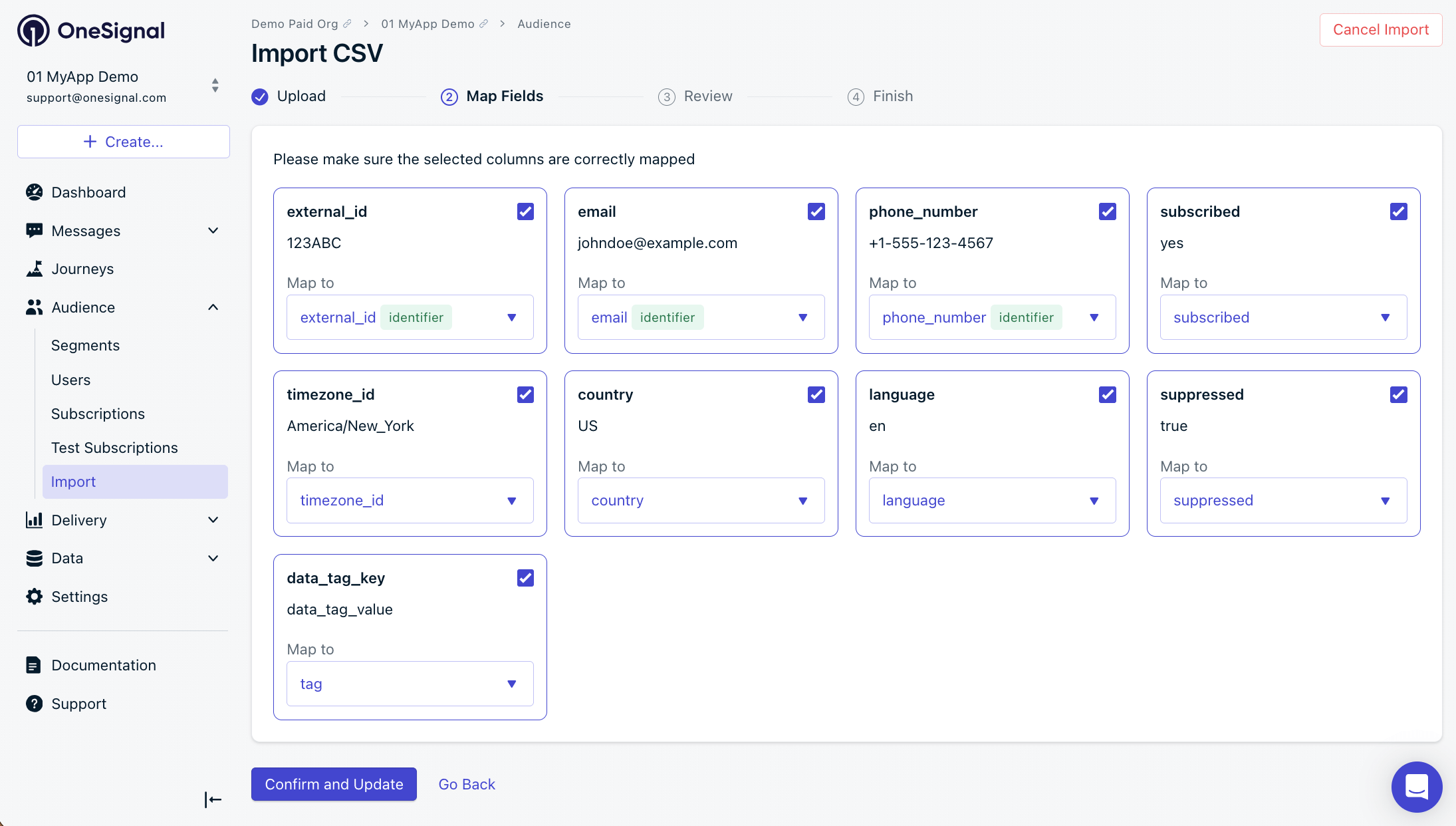 If OneSignal detects format issues, fix the CSV and re-upload (recommended) or uncheck the affected column to skip it.
The Review screen allows you to:
* **Automatically create a Segment** — Adds a tag to each imported user and creates a matching [Segment](./segmentation). Be mindful of your [plan limits](https://onesignal.com/pricing).
* **Delete tags with blank values** — Removes any tag where the value is blank in the CSV. This is useful for cleaning up unwanted tags and staying under plan limits.
* **Configure email address validation** — Configure [email address validation](./email-address-validation) settings to reduce bounces and protect your sender reputation.
For example, given this CSV:
```csv theme={null}
external_id,tag1,tag2
UserA,,"tag2value"
UserB,"tag1value",
```
With "Delete tags with blank values" enabled, `tag1` is deleted from UserA and `tag2` is deleted from UserB.
If OneSignal detects format issues, fix the CSV and re-upload (recommended) or uncheck the affected column to skip it.
The Review screen allows you to:
* **Automatically create a Segment** — Adds a tag to each imported user and creates a matching [Segment](./segmentation). Be mindful of your [plan limits](https://onesignal.com/pricing).
* **Delete tags with blank values** — Removes any tag where the value is blank in the CSV. This is useful for cleaning up unwanted tags and staying under plan limits.
* **Configure email address validation** — Configure [email address validation](./email-address-validation) settings to reduce bounces and protect your sender reputation.
For example, given this CSV:
```csv theme={null}
external_id,tag1,tag2
UserA,,"tag2value"
UserB,"tag1value",
```
With "Delete tags with blank values" enabled, `tag1` is deleted from UserA and `tag2` is deleted from UserB.
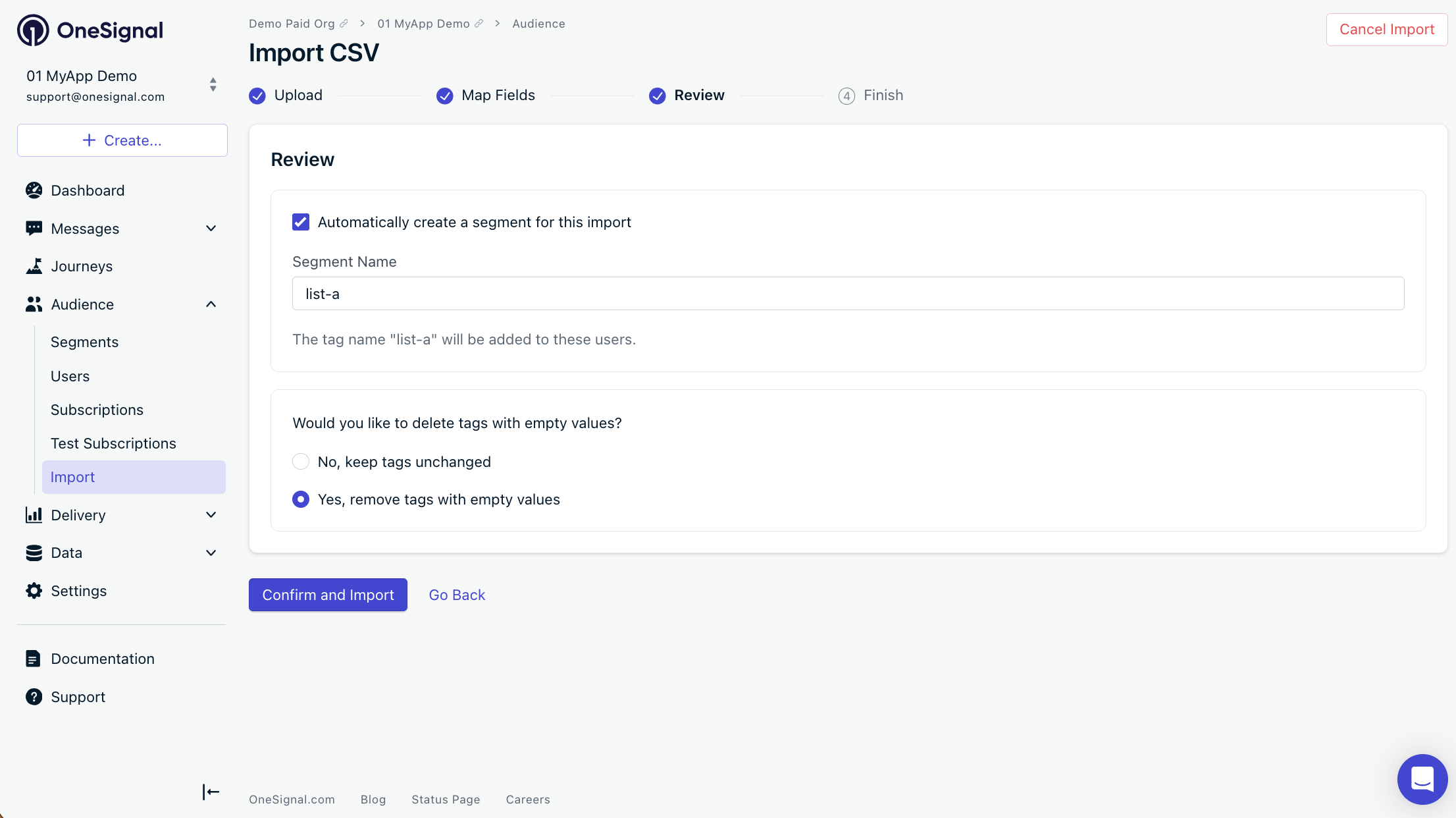 Click **Confirm and Import**. A status screen shows progress.
Import started. You'll receive a confirmation email from `contact@onesignal.com` when it completes.
### Email confirmation
Once the import finishes, you receive a confirmation email from `contact@onesignal.com` with the following data. Note that a single [User](./users) can have multiple [Subscriptions](./subscriptions) (e.g., email + push), so subscription counts may be higher than your row count.
**Subscription record(s) added** — New email or SMS [Subscriptions](./subscriptions) created. `0` means no unique `email` or `phone_number` identifiers were found.
**Subscription record(s) modified** — [Subscriptions](./subscriptions) where data changed (tags, properties, etc.). For example, 10 External IDs each linked to 20 subscriptions = `200` records modified.
**Subscription updates skipped** — [Subscriptions](./subscriptions) skipped for the stated reason. If the reason is "over your app's tag limit," remove tags and re-import or upgrade your plan.
**Not imported** — Rows that were not updated or imported. Common causes: the `external_id` does not match any existing subscription, or the `email`/`phone_number` already exists with no new data to set.
**Created new segment** — The segment name, if you selected that option.
Click **Confirm and Import**. A status screen shows progress.
Import started. You'll receive a confirmation email from `contact@onesignal.com` when it completes.
### Email confirmation
Once the import finishes, you receive a confirmation email from `contact@onesignal.com` with the following data. Note that a single [User](./users) can have multiple [Subscriptions](./subscriptions) (e.g., email + push), so subscription counts may be higher than your row count.
**Subscription record(s) added** — New email or SMS [Subscriptions](./subscriptions) created. `0` means no unique `email` or `phone_number` identifiers were found.
**Subscription record(s) modified** — [Subscriptions](./subscriptions) where data changed (tags, properties, etc.). For example, 10 External IDs each linked to 20 subscriptions = `200` records modified.
**Subscription updates skipped** — [Subscriptions](./subscriptions) skipped for the stated reason. If the reason is "over your app's tag limit," remove tags and re-import or upgrade your plan.
**Not imported** — Rows that were not updated or imported. Common causes: the `external_id` does not match any existing subscription, or the `email`/`phone_number` already exists with no new data to set.
**Created new segment** — The segment name, if you selected that option.
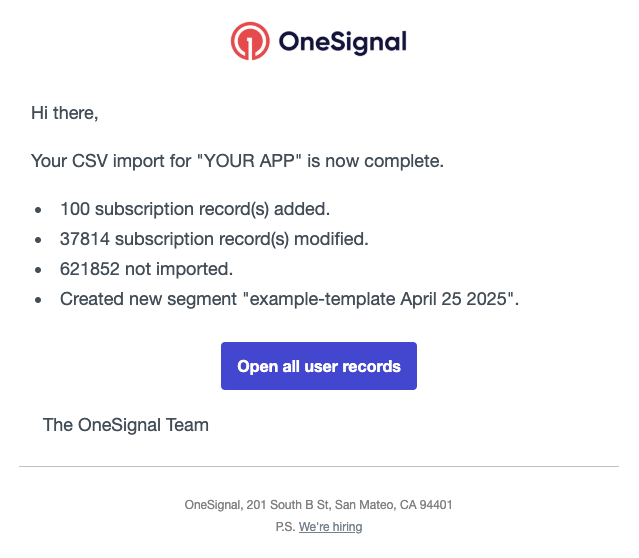 In the example above:
* `100` subscriptions were created from unique email addresses or phone numbers not already in the app.
* `37,814` subscriptions were updated (not the count of Users — each user can have multiple subscriptions).
* `621,852` rows were not imported because their External IDs did not match existing users, or their emails/phone numbers already existed with no new data.
[Segments](./segmentation) only count **subscribed** [Subscriptions](./subscriptions). Unsubscribed subscriptions are updated by the import but not reflected in segment counts. Improvements to segmentation are in progress.
### Common use cases
#### Bulk tag updates
You can add, update, or delete [Tags](./add-user-data-tags) in bulk using the CSV import. This section covers how to format tags for import and how to remove unwanted tags.
**Import tags from a single column**
Instead of using separate column headers for each tag key, you can set a single `tags` header with each row containing a JSON map of all key-value pairs within quotes. This is especially useful if you previously exported a CSV with tags and want to re-import it without reformatting.
```text CSV header theme={null}
external_id,email,tags
```
Tags must be formatted as a JSON object enclosed in 2 sets of double quotes around each key-value pair.
```text CSV row example theme={null}
userA,example@email.com,"{""level"":""30"",""color"":""teal""}"
```
When imported, OneSignal automatically converts each key-value pair into distinct tags. For example, the above row would be converted to 2 tags: `level:30` and `color:teal`.
**Bulk delete tags**
To remove tags in bulk, export your current data, blank out the tag values, and re-import the CSV with the delete option enabled.
* Navigate to **Audience > Subscriptions** in the OneSignal dashboard. Enable only the **External ID**, **Subscription ID**, and **Tags** columns (and optionally **Email** or **Phone Number**).
* Click **Export** to export the CSV.
In the example above:
* `100` subscriptions were created from unique email addresses or phone numbers not already in the app.
* `37,814` subscriptions were updated (not the count of Users — each user can have multiple subscriptions).
* `621,852` rows were not imported because their External IDs did not match existing users, or their emails/phone numbers already existed with no new data.
[Segments](./segmentation) only count **subscribed** [Subscriptions](./subscriptions). Unsubscribed subscriptions are updated by the import but not reflected in segment counts. Improvements to segmentation are in progress.
### Common use cases
#### Bulk tag updates
You can add, update, or delete [Tags](./add-user-data-tags) in bulk using the CSV import. This section covers how to format tags for import and how to remove unwanted tags.
**Import tags from a single column**
Instead of using separate column headers for each tag key, you can set a single `tags` header with each row containing a JSON map of all key-value pairs within quotes. This is especially useful if you previously exported a CSV with tags and want to re-import it without reformatting.
```text CSV header theme={null}
external_id,email,tags
```
Tags must be formatted as a JSON object enclosed in 2 sets of double quotes around each key-value pair.
```text CSV row example theme={null}
userA,example@email.com,"{""level"":""30"",""color"":""teal""}"
```
When imported, OneSignal automatically converts each key-value pair into distinct tags. For example, the above row would be converted to 2 tags: `level:30` and `color:teal`.
**Bulk delete tags**
To remove tags in bulk, export your current data, blank out the tag values, and re-import the CSV with the delete option enabled.
* Navigate to **Audience > Subscriptions** in the OneSignal dashboard. Enable only the **External ID**, **Subscription ID**, and **Tags** columns (and optionally **Email** or **Phone Number**).
* Click **Export** to export the CSV.
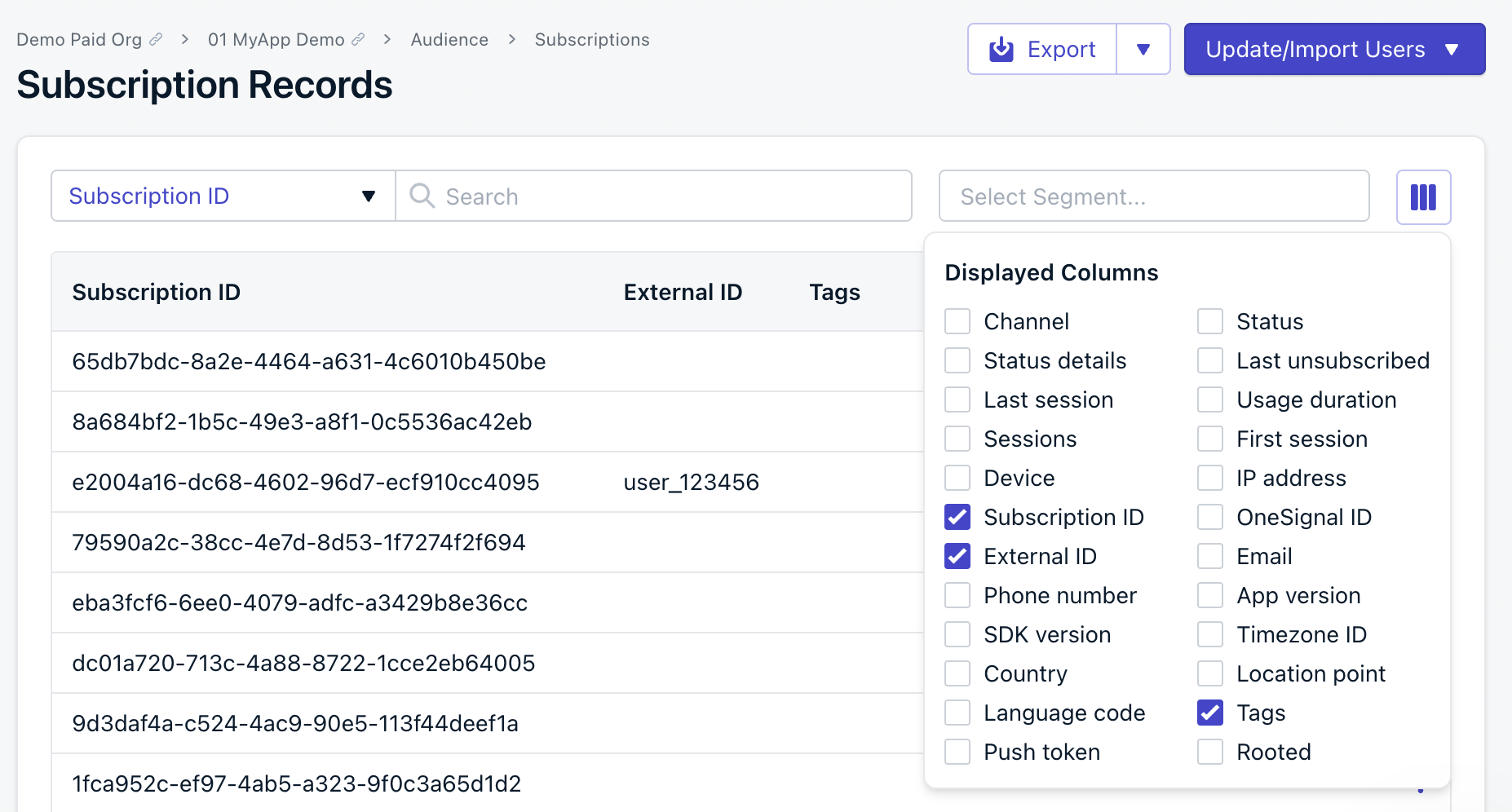 Open the exported CSV in a text editor and set the values of each tag you want to delete as an empty string.
For example, a row with tag values before editing:
```text Row before editing theme={null}
userA,example@email.com,"{""level"":""30"",""color"":""teal""}"
```
The same row after clearing the tag values:
```text Row after clearing tag values theme={null}
userA,example@email.com,"{""level"":"""",""color"":""""}"
```
This will result in deleting the tags `level` and `color` from the user.
* Take the edited CSV and import.
* On the [Review](#review-and-confirm) screen, select **Yes** for **Delete tags with blank values**. OneSignal deletes the tags with blank values during import.
Open the exported CSV in a text editor and set the values of each tag you want to delete as an empty string.
For example, a row with tag values before editing:
```text Row before editing theme={null}
userA,example@email.com,"{""level"":""30"",""color"":""teal""}"
```
The same row after clearing the tag values:
```text Row after clearing tag values theme={null}
userA,example@email.com,"{""level"":"""",""color"":""""}"
```
This will result in deleting the tags `level` and `color` from the user.
* Take the edited CSV and import.
* On the [Review](#review-and-confirm) screen, select **Yes** for **Delete tags with blank values**. OneSignal deletes the tags with blank values during import.
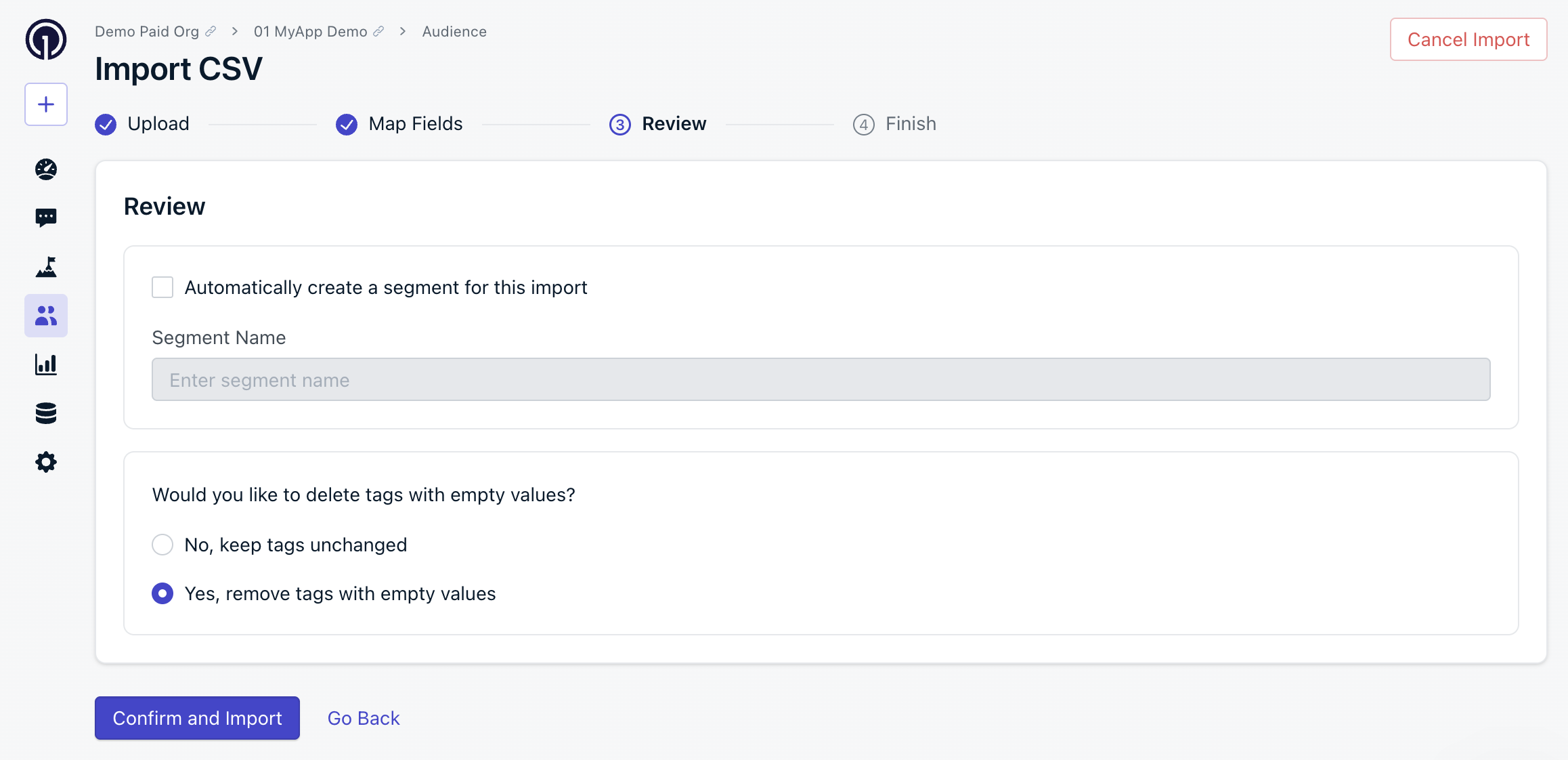 To remove only specific tags, clear the values for those tags and leave the others unchanged. Only blank values are deleted when the delete option is enabled.
Need help?
* Try the [Use AI to check your CSV before import](#use-ai-to-check-your-csv-before-import) section above.
* Contact `support@onesignal.com` and share the CSV file you uploaded along with a screenshot of the confirmation email. We are happy to take a look!
***
## Manual entry
You can manually add users' email and phone number Subscriptions through the OneSignal dashboard by navigating to **Audience > Users > Update/Import Users > Manually Add Users**.
To remove only specific tags, clear the values for those tags and leave the others unchanged. Only blank values are deleted when the delete option is enabled.
Need help?
* Try the [Use AI to check your CSV before import](#use-ai-to-check-your-csv-before-import) section above.
* Contact `support@onesignal.com` and share the CSV file you uploaded along with a screenshot of the confirmation email. We are happy to take a look!
***
## Manual entry
You can manually add users' email and phone number Subscriptions through the OneSignal dashboard by navigating to **Audience > Users > Update/Import Users > Manually Add Users**.
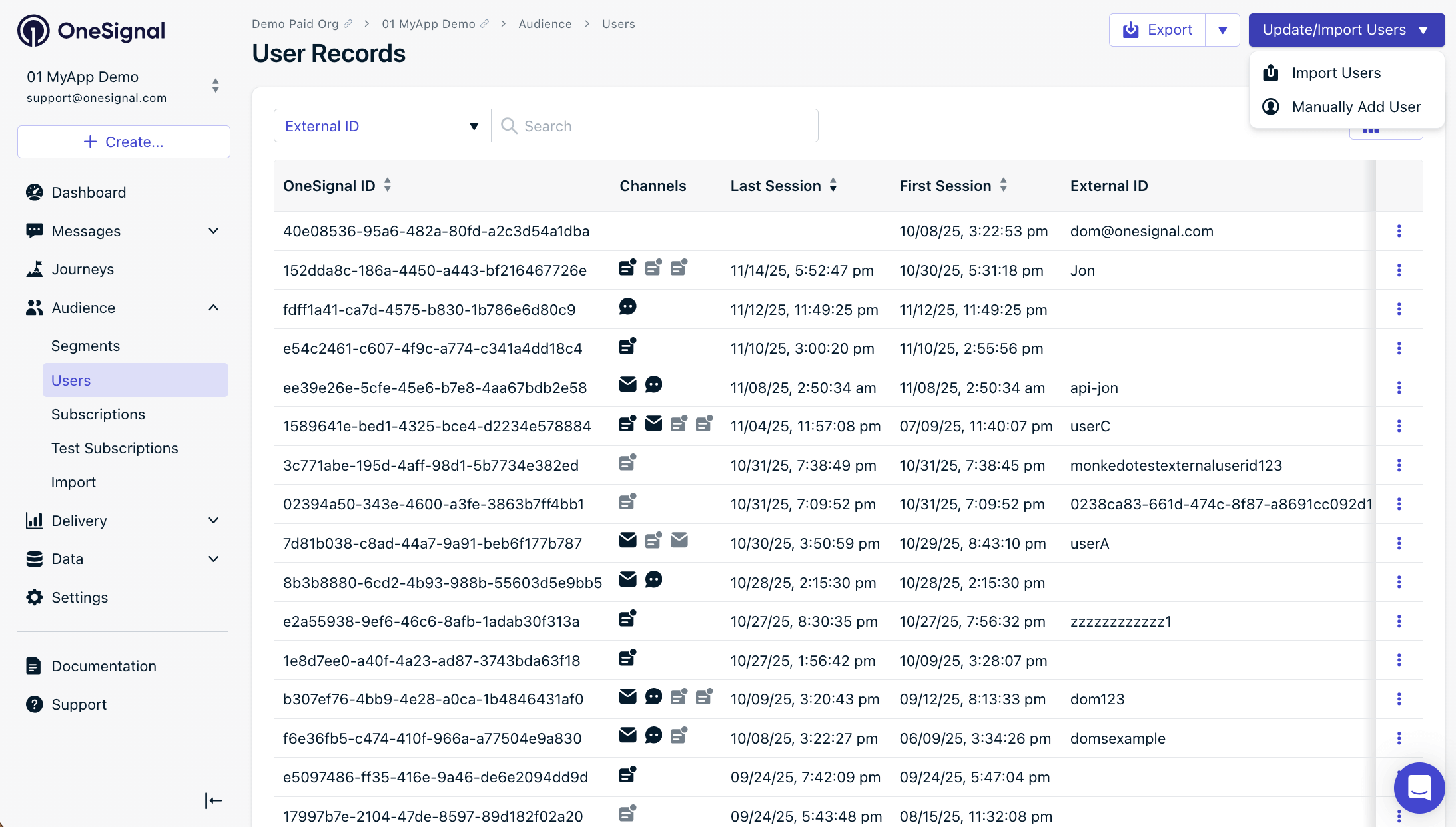 On the **New User** screen, include the data you want and select **Create User**.
***
## FAQ
### How long does a CSV import take?
Most imports complete within a few minutes depending on file size. You receive a confirmation email from `contact@onesignal.com` when the import finishes.
### Can I undo a CSV import?
No. Prepare a new CSV with the correct values and re-import it. For tag deletions, use the [Bulk tag updates](#bulk-tag-updates) workflow.
### Why don't my segment counts match the rows in my CSV?
[Segments](./segmentation) only count **subscribed** [Subscriptions](./subscriptions). Unsubscribed subscriptions are updated but not reflected in segment counts. See the [Email confirmation](#email-confirmation) section for details.
### Why did my import show "not imported" for some rows?
Rows are skipped when the `external_id` does not match any existing subscription, or when the `email`/`phone_number` already exists with no new data to set. See [Email confirmation](#email-confirmation) for details on each status.
### Why do deleted tags keep coming back?
An integration or SDK call may be re-adding them. See [Other sources of tags being added](#other-sources-of-tags-being-added) for common causes and how to fix them.
On the **New User** screen, include the data you want and select **Create User**.
***
## FAQ
### How long does a CSV import take?
Most imports complete within a few minutes depending on file size. You receive a confirmation email from `contact@onesignal.com` when the import finishes.
### Can I undo a CSV import?
No. Prepare a new CSV with the correct values and re-import it. For tag deletions, use the [Bulk tag updates](#bulk-tag-updates) workflow.
### Why don't my segment counts match the rows in my CSV?
[Segments](./segmentation) only count **subscribed** [Subscriptions](./subscriptions). Unsubscribed subscriptions are updated but not reflected in segment counts. See the [Email confirmation](#email-confirmation) section for details.
### Why did my import show "not imported" for some rows?
Rows are skipped when the `external_id` does not match any existing subscription, or when the `email`/`phone_number` already exists with no new data to set. See [Email confirmation](#email-confirmation) for details on each status.
### Why do deleted tags keep coming back?
An integration or SDK call may be re-adding them. See [Other sources of tags being added](#other-sources-of-tags-being-added) for common causes and how to fix them.