> ## Documentation Index
> Fetch the complete documentation index at: https://documentation.onesignal.com/llms.txt
> Use this file to discover all available pages before exploring further.
# In-app overview
> Display targeted, customizable messages inside your mobile app to drive engagement, collect feedback, and prompt actions like push opt-in.
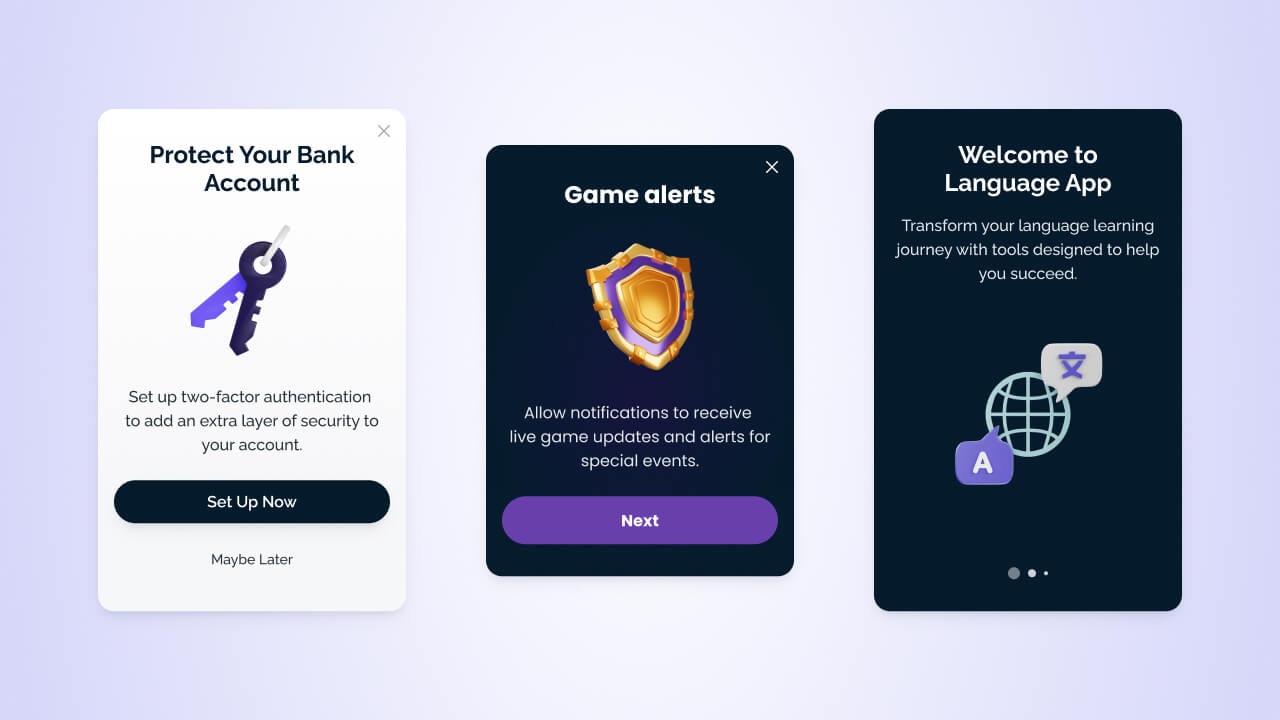
In-app messages (IAM) are customizable, targeted messages that display within your mobile app. They enable you to:
* Prompt User actions like subscribing to push notifications or updating their location
* Promote new or underutilized features to targeted Users
* Display announcements and news in real time without releasing an app update
* Create surveys and carousels
* Help with onboarding and educational content
***
## In-app setup
You must have the OneSignal SDK installed in your app to use in-app messages. Once the SDK is integrated, you can create and send in-app messages from the OneSignal dashboard without writing any code. The SDK also provides methods for advanced use cases like:
* Triggering the message at specific times
* Click handling and deep linking
* Pausing the message
* Lifecycle management
Add OneSignal to your mobile app codebase.
Access trigger, click handler, and lifecycle APIs.
Control when messages appear based on User behavior or app activity.
Define what happens when Users interact with your message.
***
## Send in-app messages
You can send in-app messages from the OneSignal dashboard and within Journeys.
Compose and send in-app messages from the OneSignal dashboard.
Build automated, multi-step, and multi-channel flows.
### Send from the dashboard
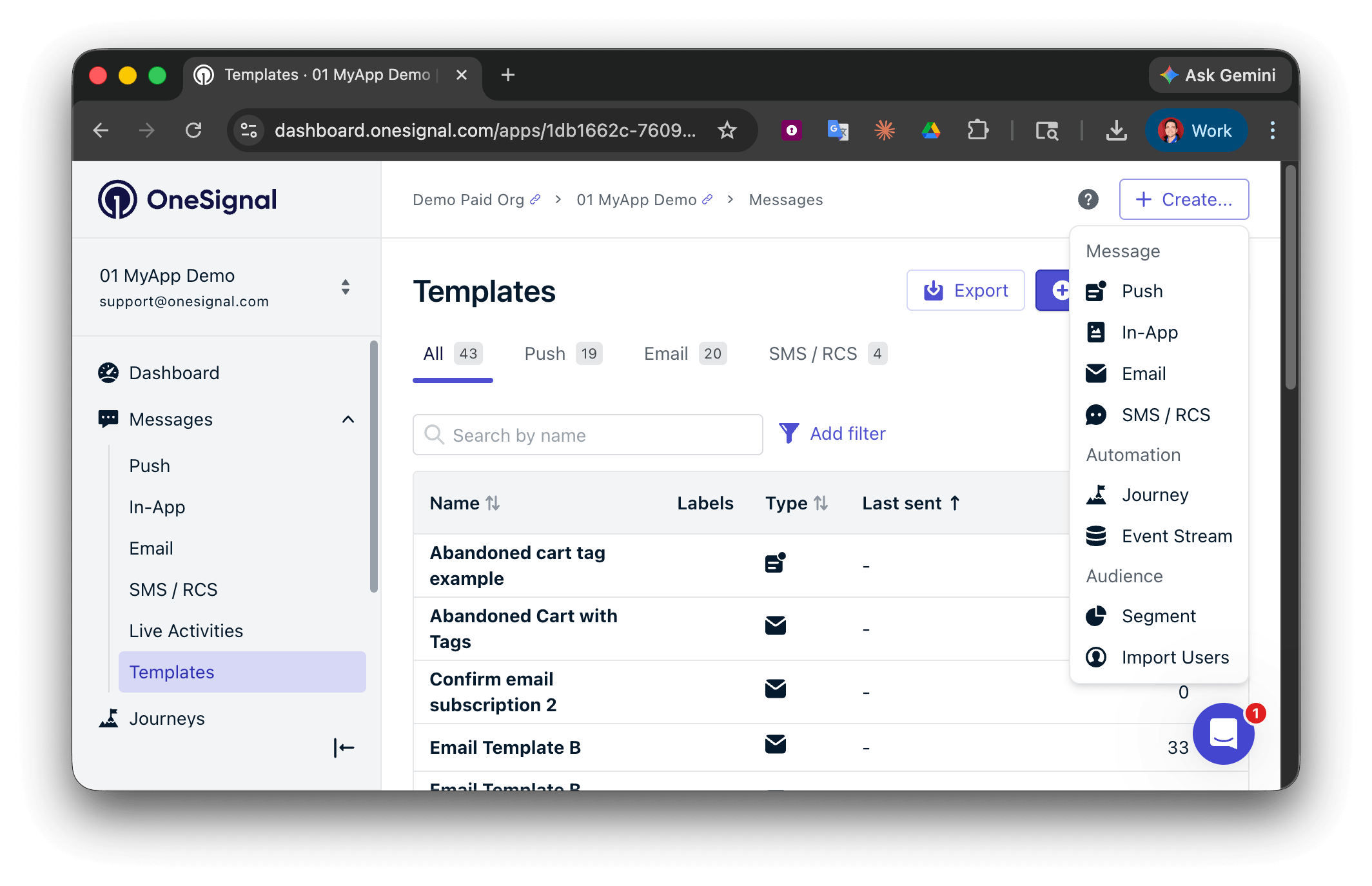
Select **Create...** then choose your message channel. You can also navigate to **Messages** or **Templates** to view previous messages.
* Start from scratch with the [Block Editor](./design-your-in-app-message) or [HTML Editor](./design-your-in-app-message-with-html)
* Use a pre-built [template](./templates)
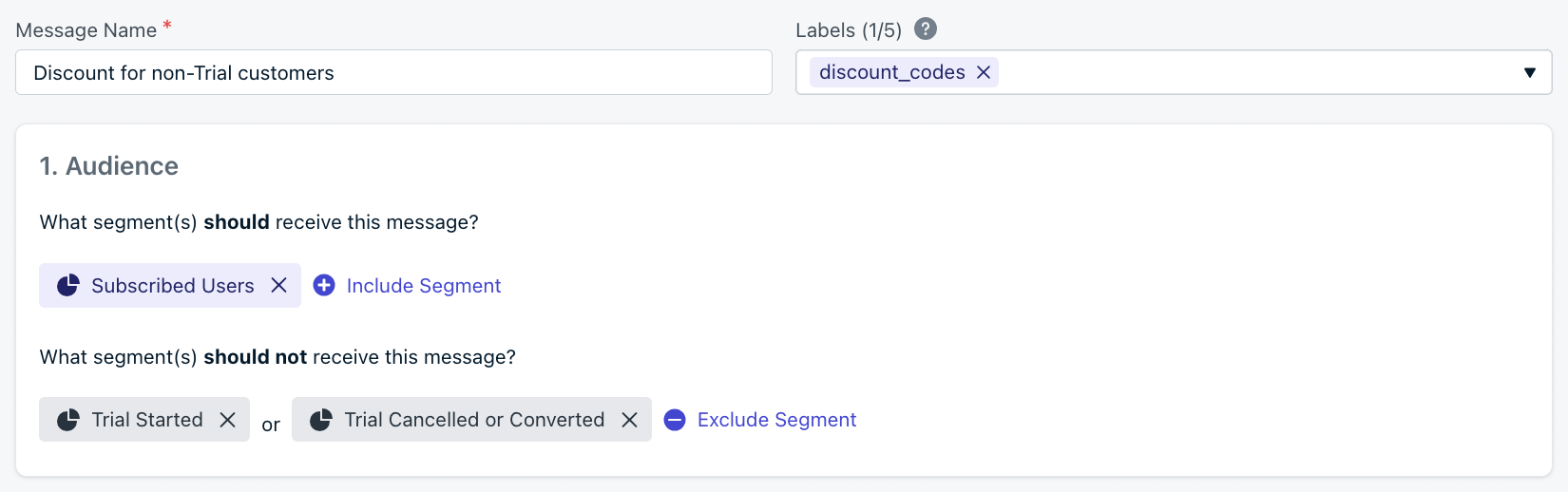
Add internal metadata for tracking and reporting. API equivalent: `name`
Choose which users receive the message. You can include and exclude [segments](./segmentation) to target specific groups. Defaults to all "Subscribed Users" if no segment is set.
In-app messages are delivered to all [mobile Subscriptions](./subscriptions) in the Segment, regardless of push opt-in status. However, if your message contains a push prompt [click action](#click-actions), it will not show to subscribed (opted-in) mobile Subscriptions.
### Message design
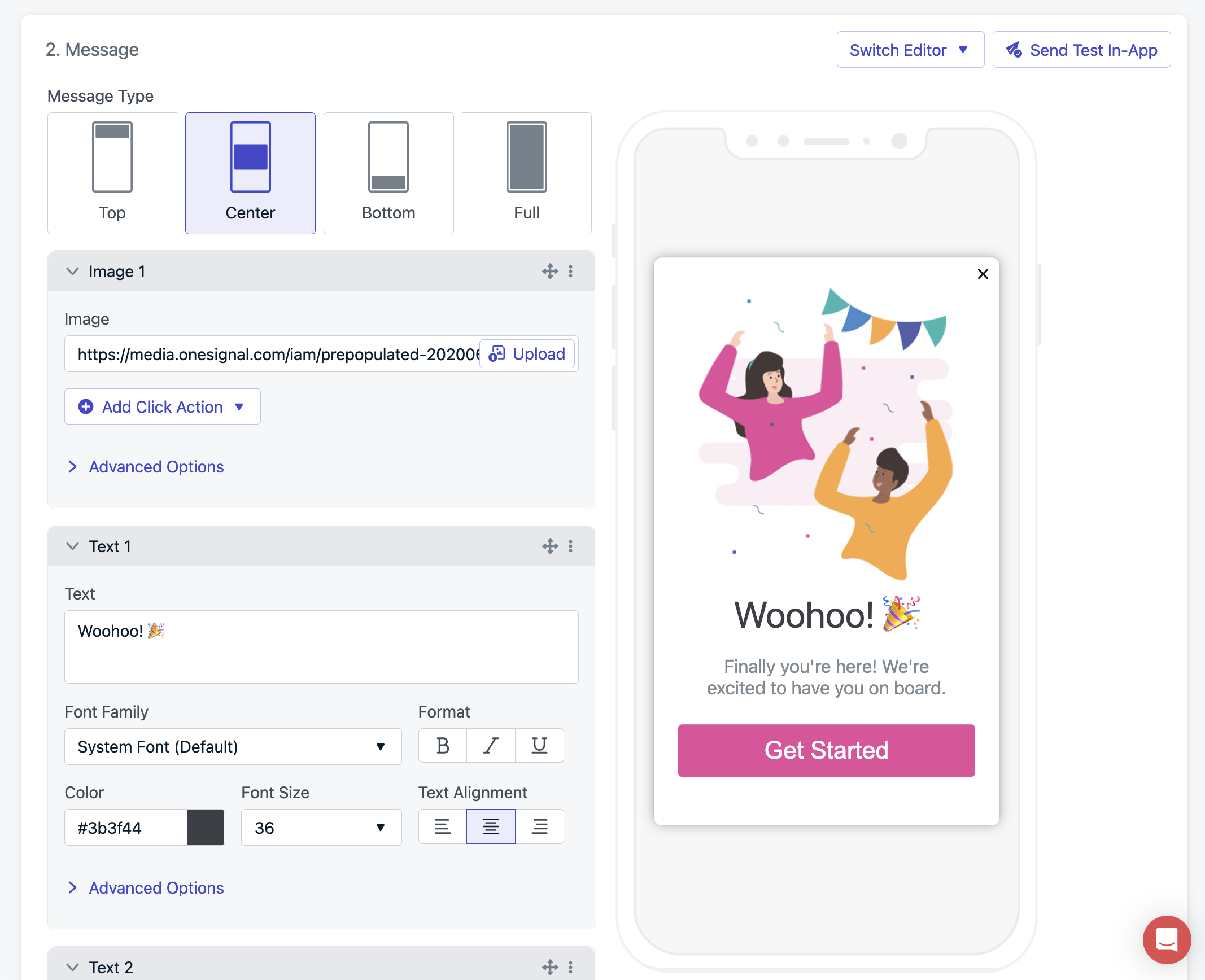
Use the visual drag-and-drop editor or the HTML editor for more control.
Full reference for the in-app message editor, blocks, and Carousel.
Full control for developers to customize messages.
Start from tested layouts and campaigns.
Add OneSignal click actions to your HTML messages.
Add dynamic content to personalize messages for each User.
Localize your content for global audiences.
### Click actions
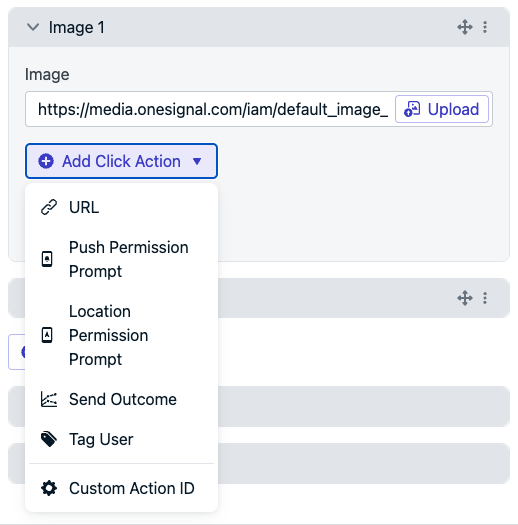
Customize what happens when Users click elements in your message.
Configure what happens when Users click elements in your message.
Track interactions with the message.
React to click events with the mobile SDK.
Navigate Users to specific screens on click.
### Triggers
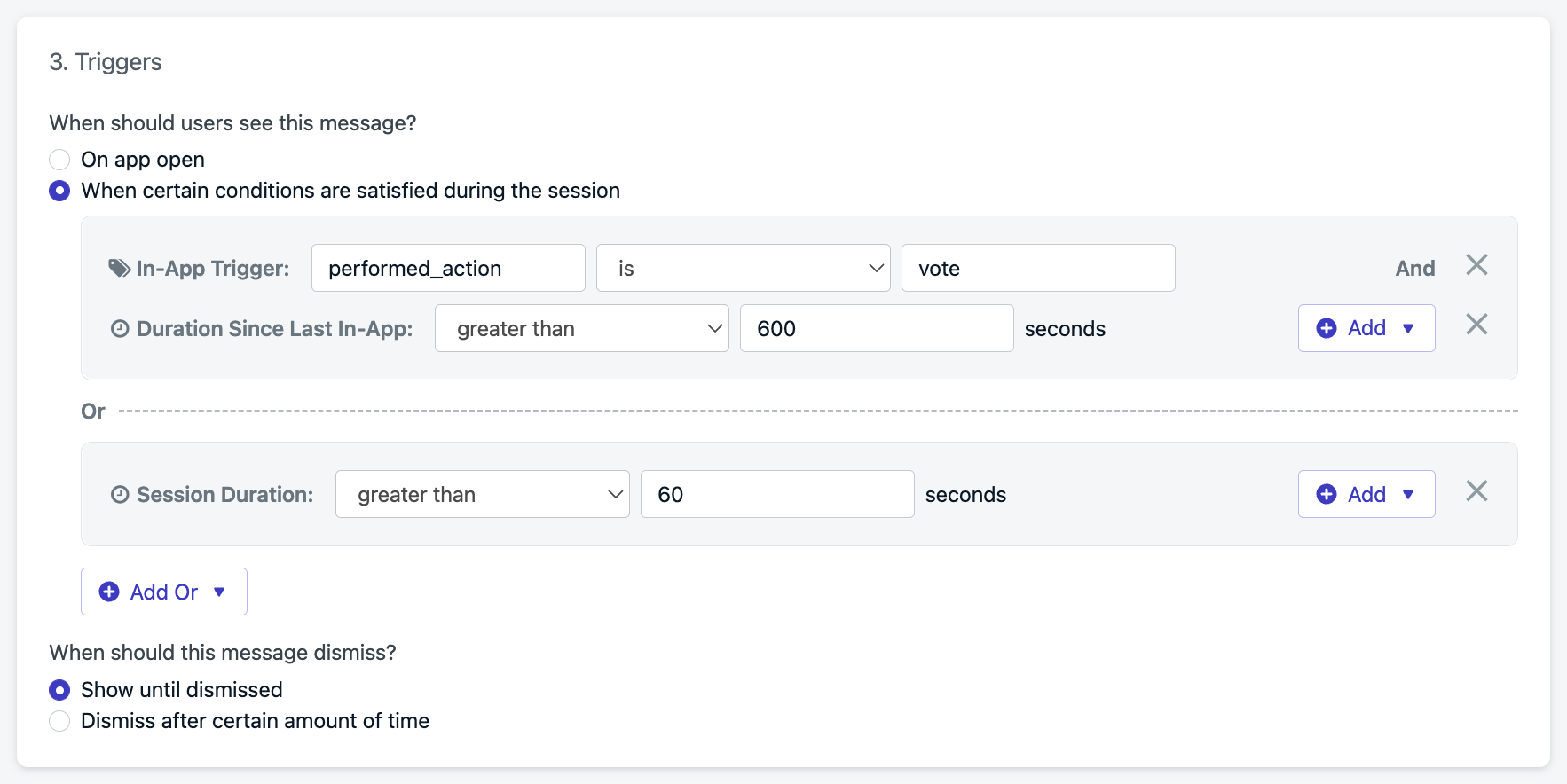
Define when messages should appear during app sessions.
Four trigger types are available:
* **On app open**: Display when the User launches the app.
* **Session duration**: Delay a set number of seconds after app open.
* **Since last message**: Delay a set time after the last in-app message was shown.
* **[Custom triggers](./iam-triggers)**: Controlled via the SDK `addTrigger(s)` method for precise timing based on User behavior.
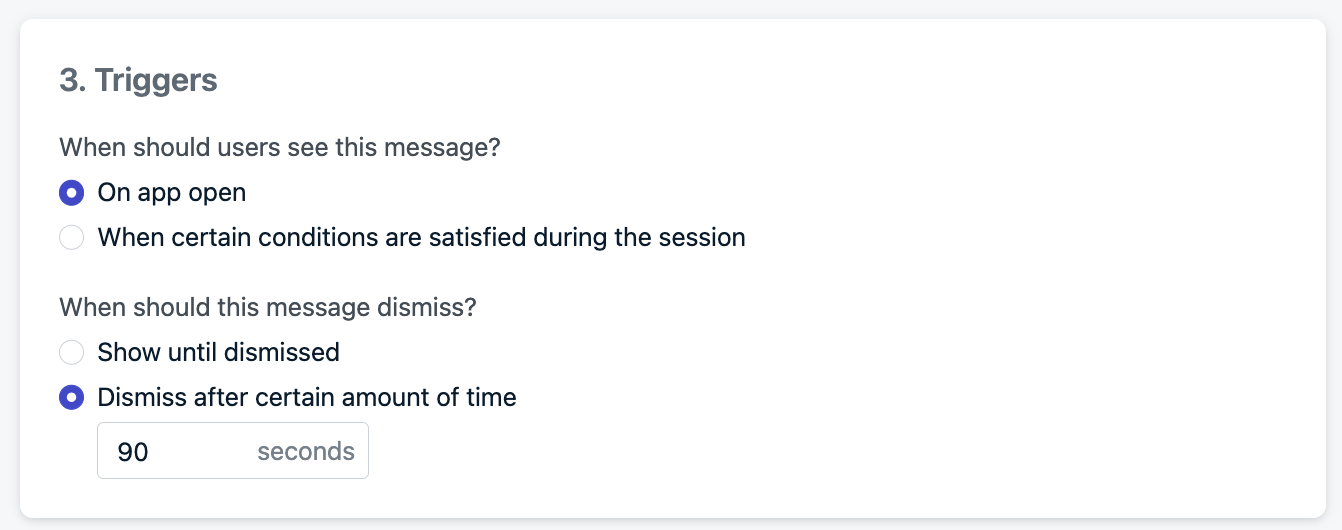
### Dismiss behavior
Messages can dismiss:
* On User interaction (click, swipe)
* After a set time (auto-dismiss)
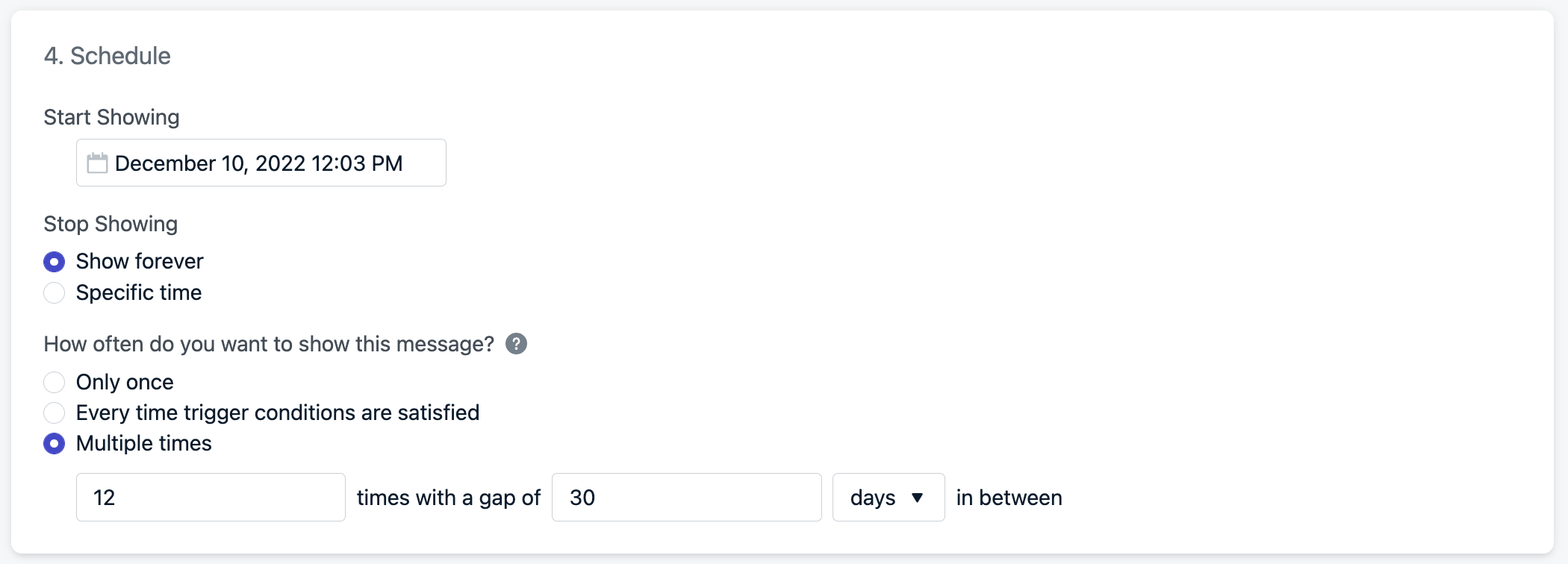
### Schedule and frequency
* **Start showing**: When the message becomes eligible to display
* **Stop showing**: Set an end date/time or "Show forever"
#### Display frequency
* **Only once** (default)
* **Every time** trigger conditions are met
* **Multiple times** with custom repeat logic
Examples:
* Show **2 times** with a **1 hour** gap
* Show **12 times** with a **30 day** gap
***
## How in-app messages are shown
In-app messages are not actively pushed. Instead, they're pulled at app start based on audience, then displayed based on trigger logic.
The message displays if:
1. The User meets audience criteria **before** a new session starts.
* A new session starts when the User opens your app after it has been in the background or closed for at least 30 seconds.
* If the User has the app open when the message goes live or enters the Segment during the same session, they must close or background the app for at least 30 seconds to be eligible.
2. The trigger conditions are met.
3. The scheduled time and frequency are valid.
If Segment criteria change mid-session, the User must reopen the app to see the message.
### Testing
Add the [`setLogLevel` method set to `Verbose`](./mobile-sdk-reference#setloglevel) in your app to get more detailed logs.
As explained in [How in-app messages are shown](#how-in-app-messages-are-shown), the User must match the audience criteria **before a new session starts**.
* See [Find devices and set test Users](./test-users) if you don't know your device's Subscription ID.
* Make sure your device's Subscription is in the included Segment(s) and not in the excluded Segment(s).
Add your device as a test user and create or update the Segment to include the **Test Users** filter.
This ensures you open the app to create a new session and become eligible for the message.
Make sure you satisfy the [triggers](#triggers) for the message to be shown.
* Make sure the "Start showing" and "Stop showing" dates are set correctly.
* Set [display frequency](#display-frequency) to "Every time trigger conditions are satisfied" while testing.
Once the message is active, open the app on your device. You should see the message display based on your trigger conditions.
### Test and preview
The **Test & Preview** button sends a push notification to your selected test device. When you click the push to open the app, the in-app message displays.
Requirements and notes:
* Your device must be a [test User](./test-users)
* Your device must be subscribed to push — test in-app messages are triggered via push notification (this is not required for normal in-app messages)
* Push is only sent for testing purposes and will not be sent when the message is live
* If you are not seeing the message, follow the [testing steps](#testing) above
Tag substitution does not work for test in-app messages.
Need help?
Chat with our Support team or email `support@onesignal.com`
Please include:
* Details of the issue you're experiencing and steps to reproduce if available
* Your OneSignal App ID
* The External ID or Subscription ID if applicable
* The URL to the message you tested in the OneSignal Dashboard if applicable
* Any relevant [logs or error messages](/docs/en/capturing-a-debug-log)
We're happy to help!
***
## Tutorials and use cases
Personalize your in-app message content with Tags.
Prompt Users to update their app.
Increase your ratings with timely review requests.
Collect feedback inside your app.
Improve push opt-in rates with pre-permission prompts.
Ask Users to enable location tracking.
Guide Users through new features of your app.
***
## Analytics
Track message performance and engagement.
Impressions, clicks, dismissals, and conversion metrics for in-app messages.
All analytics options available in OneSignal.
Stream push events to your data warehouse or BI tools in real time.
***
## FAQ
### Do in-app messages require push notification permission?
No. In-app messages are delivered to all mobile Subscriptions in the target Segment, regardless of push opt-in status. They display inside the app during an active session.
### Why isn't my in-app message showing?
The most common cause is that the User's session didn't refresh. The User must close or background the app for at least 30 seconds, then reopen it to start a new session. Also verify the User is in the target Segment and that trigger conditions are met. See [Testing](#testing) for a full checklist.
### Can I send in-app messages via the API?
You must create in-app messages within the OneSignal dashboard.
You can include the in-app message within [Journeys](./journeys-overview) and enter the user into the Journey via [Custom Events](./custom-events) triggered from the API.
### How are in-app messages different from push notifications?
In-app messages display inside your app while the User is actively using it. Push notifications appear on the device's notification tray and can reach Users even when the app is closed. In-app messages do not require push permission and are pulled at session start rather than pushed from the server.
### Can I use in-app messages on web?
No. In-app messages are only available for mobile apps with the OneSignal mobile SDK installed. For web, consider using [web push notifications](./web-push-setup) instead.
 ***
## In-app setup
You must have the OneSignal SDK installed in your app to use in-app messages. Once the SDK is integrated, you can create and send in-app messages from the OneSignal dashboard without writing any code. The SDK also provides methods for advanced use cases like:
* Triggering the message at specific times
* Click handling and deep linking
* Pausing the message
* Lifecycle management
***
## In-app setup
You must have the OneSignal SDK installed in your app to use in-app messages. Once the SDK is integrated, you can create and send in-app messages from the OneSignal dashboard without writing any code. The SDK also provides methods for advanced use cases like:
* Triggering the message at specific times
* Click handling and deep linking
* Pausing the message
* Lifecycle management
 Four trigger types are available:
* **On app open**: Display when the User launches the app.
* **Session duration**: Delay a set number of seconds after app open.
* **Since last message**: Delay a set time after the last in-app message was shown.
* **[Custom triggers](./iam-triggers)**: Controlled via the SDK `addTrigger(s)` method for precise timing based on User behavior.
### Dismiss behavior
Messages can dismiss:
* On User interaction (click, swipe)
* After a set time (auto-dismiss)
Four trigger types are available:
* **On app open**: Display when the User launches the app.
* **Session duration**: Delay a set number of seconds after app open.
* **Since last message**: Delay a set time after the last in-app message was shown.
* **[Custom triggers](./iam-triggers)**: Controlled via the SDK `addTrigger(s)` method for precise timing based on User behavior.
### Dismiss behavior
Messages can dismiss:
* On User interaction (click, swipe)
* After a set time (auto-dismiss)
 ### Schedule and frequency
* **Start showing**: When the message becomes eligible to display
* **Stop showing**: Set an end date/time or "Show forever"
#### Display frequency
* **Only once** (default)
* **Every time** trigger conditions are met
* **Multiple times** with custom repeat logic
Examples:
* Show **2 times** with a **1 hour** gap
* Show **12 times** with a **30 day** gap
### Schedule and frequency
* **Start showing**: When the message becomes eligible to display
* **Stop showing**: Set an end date/time or "Show forever"
#### Display frequency
* **Only once** (default)
* **Every time** trigger conditions are met
* **Multiple times** with custom repeat logic
Examples:
* Show **2 times** with a **1 hour** gap
* Show **12 times** with a **30 day** gap
 ***
## How in-app messages are shown
In-app messages are not actively pushed. Instead, they're pulled at app start based on audience, then displayed based on trigger logic.
***
## How in-app messages are shown
In-app messages are not actively pushed. Instead, they're pulled at app start based on audience, then displayed based on trigger logic.
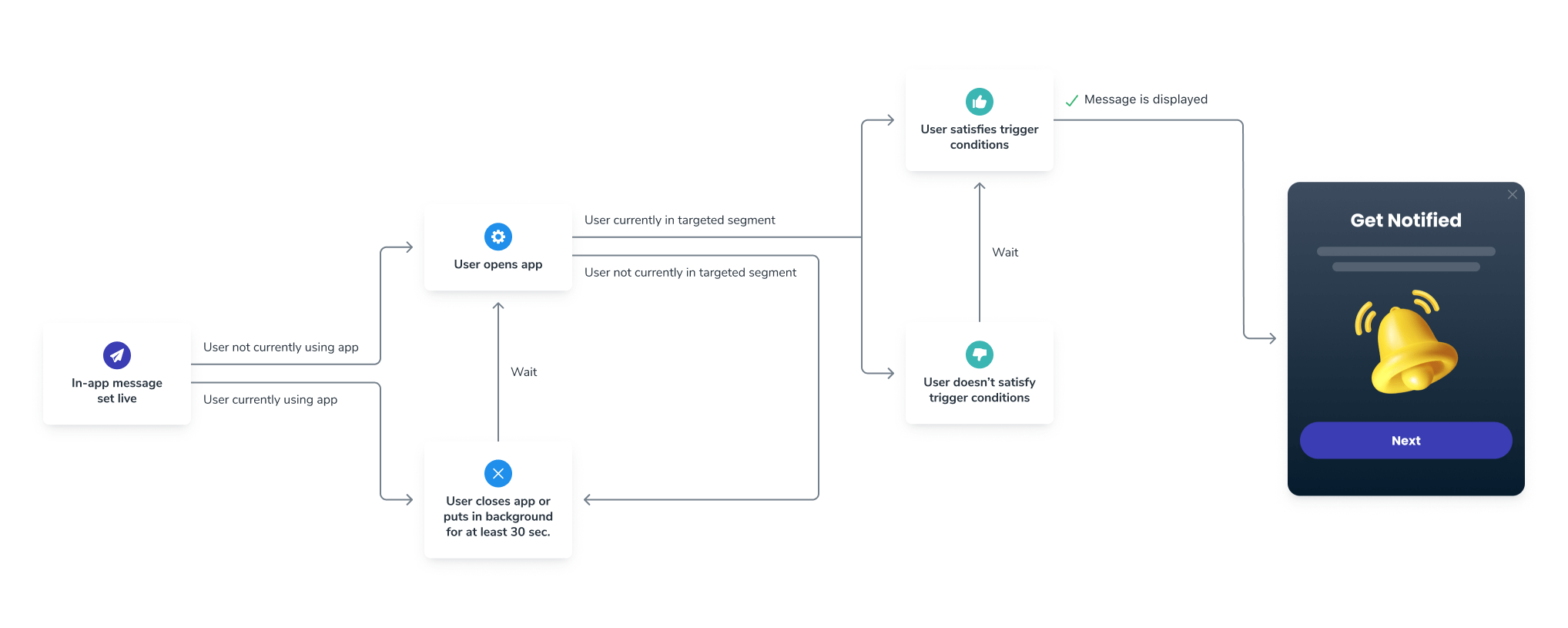 The message displays if:
1. The User meets audience criteria **before** a new session starts.
* A new session starts when the User opens your app after it has been in the background or closed for at least 30 seconds.
* If the User has the app open when the message goes live or enters the Segment during the same session, they must close or background the app for at least 30 seconds to be eligible.
2. The trigger conditions are met.
3. The scheduled time and frequency are valid.
If Segment criteria change mid-session, the User must reopen the app to see the message.
### Testing
The message displays if:
1. The User meets audience criteria **before** a new session starts.
* A new session starts when the User opens your app after it has been in the background or closed for at least 30 seconds.
* If the User has the app open when the message goes live or enters the Segment during the same session, they must close or background the app for at least 30 seconds to be eligible.
2. The trigger conditions are met.
3. The scheduled time and frequency are valid.
If Segment criteria change mid-session, the User must reopen the app to see the message.
### Testing