> ## Documentation Index
> Fetch the complete documentation index at: https://documentation.onesignal.com/llms.txt
> Use this file to discover all available pages before exploring further.
# Journey message A/B testing
> Run A/B tests on push, email, and SMS message steps in a Journey, compare variants on a target metric, and select a winner automatically or manually.
A/B testing on a Journey message step lets you compare multiple versions of a push, email, or SMS message and automatically route future sends to the best-performing one, without leaving the Journey canvas.
Journey message A/B testing is currently in **private alpha**. To request access, contact `support@onesignal.com` with your company name, OneSignal organization ID, and the app ID(s) you want to enable.
Available on push, email, and SMS/RCS message steps. In-app message steps don't support A/B testing yet.
## Why A/B test your Journey messages
Small changes in wording or design can change how many people open, click, or convert on a message. Instead of guessing which version works best, A/B testing lets you send multiple variants to a portion of your audience, measure the results, and automatically route everyone else to the winner.
A few examples of what you can test (not an exhaustive list):
* Titles and subject lines
* Message body copy
* Call-to-action button text
* Images or rich media
***
## Plan availability
* **Free & Growth**: Up to 2 variants.
* **Professional & Enterprise**: Up to 10 variants.
Historical test results follow your plan's reporting retention: 30 days (Free), 90 days (Growth), 1 year (Professional), 2 years (Enterprise).
[Compare Plans](https://onesignal.com/pricing)
***
## Add an A/B test to a message step
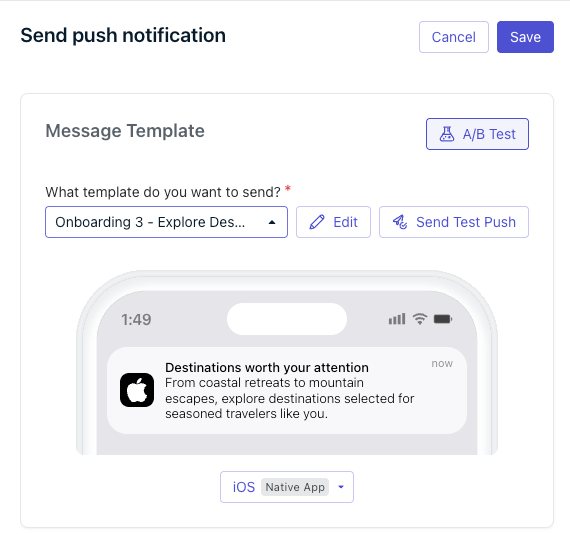
1. Open a push, email, or SMS message step in the Journey canvas.
2. Click **A/B Test**.
3. The step's existing message becomes **Control**, the first variant. Use the **Actions** menu on the variant tabs to add more variants, up to your plan's limit (2 for Free & Growth, 10 for Professional & Enterprise, see [Plan availability](#plan-availability)).
4. Select a [template](./templates) for each variant, including Control. Every variant needs its own template before the test can run.
 Each message step can have only one active A/B test at a time. A Journey can run tests on multiple message steps concurrently.
***
## Test settings
Each message step can have only one active A/B test at a time. A Journey can run tests on multiple message steps concurrently.
***
## Test settings
 ### Test name and description
* **Test Name** (required): Name your test so you can find and recognize it later.
* **Description** (optional): Describe what you're testing and why.
### Target metric
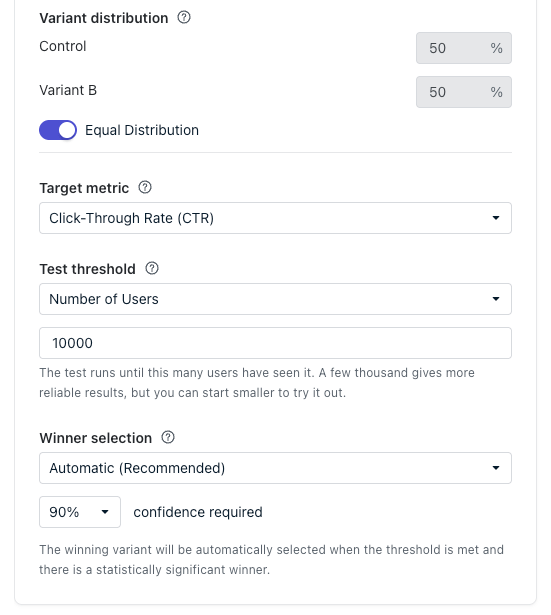
The metric the test optimizes for. Winner selection compares variants on this metric. Available options depend on the channel:
| Channel | Target metric | How is this calculated? |
| - | - | - |
| Push | Click-Through Rate (CTR) | `(Total Clicks / Delivered) * 100%` |
| Email | Unique Open Rate | `(Unique Opens / Unique Delivered) * 100%` |
| Email | Unique Click-Through Rate (CTR) | `(Unique Clicks / Unique Delivered) * 100%` |
| SMS/RCS | Click-Through Rate (CTR) | `(Unique Clicks / Delivered) * 100%` |
### Test threshold
Choose when the test ends and moves into winner selection:
| Option | Description |
| - | - |
| **Number of Users** | The test runs until this many users have reached this step. Bigger numbers give more reliable results but take longer. |
| **Date and Time** | The test runs until a set date and time, however many users it has reached by then. |
With **Date and Time**, make sure enough users will actually enter the test in that window. A short duration on a low-traffic step may not generate enough data to reach a confident winner.
### Winner selection
| Mode | Behavior |
| - | - |
| **Automatic** (Recommended) | Selects a winner once the test threshold is met and a variant reaches the chosen confidence level. If the threshold is reached without a confident winner, you'll need to pick one manually. |
| **Manual** | A variant is reported as a statistically significant winner once it reaches the chosen confidence level. You choose which variant wins. |
Both modes require a **confidence level**: 70%, 80%, 90% (default), 95%, or 99%. Higher confidence means fewer false winners but requires more data. Lower confidence decides faster but with more risk of error.
### Audience split
Distribute your audience across variants. The split must total 100% across all variants, split evenly or customized per variant.
***
## Test lifecycle
| Status | Meaning |
| - | - |
| **Draft** | The test is configured but not yet running. Variants, templates, and settings can still be freely edited. |
| **Running** | The test is live and splitting new entrants across variants. |
| **Action Required** | The test threshold has been reached and needs a winner selected, either because winner selection is set to Manual, or because Automatic mode didn't find a statistically significant winner. |
| **Completed** | A winner was selected. All future sends go to that variant. |
| **Cancelled** | The test was ended early. All future sends go to whichever variant was chosen when it was cancelled. |
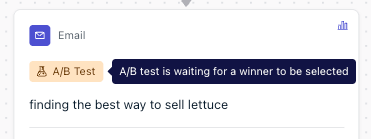
The message step shows an **A/B Test** badge reflecting its current status, with a tooltip showing progress (for example, how many users have been reached toward the threshold, or how long ago the test concluded).
### Test name and description
* **Test Name** (required): Name your test so you can find and recognize it later.
* **Description** (optional): Describe what you're testing and why.
### Target metric
The metric the test optimizes for. Winner selection compares variants on this metric. Available options depend on the channel:
| Channel | Target metric | How is this calculated? |
| - | - | - |
| Push | Click-Through Rate (CTR) | `(Total Clicks / Delivered) * 100%` |
| Email | Unique Open Rate | `(Unique Opens / Unique Delivered) * 100%` |
| Email | Unique Click-Through Rate (CTR) | `(Unique Clicks / Unique Delivered) * 100%` |
| SMS/RCS | Click-Through Rate (CTR) | `(Unique Clicks / Delivered) * 100%` |
### Test threshold
Choose when the test ends and moves into winner selection:
| Option | Description |
| - | - |
| **Number of Users** | The test runs until this many users have reached this step. Bigger numbers give more reliable results but take longer. |
| **Date and Time** | The test runs until a set date and time, however many users it has reached by then. |
With **Date and Time**, make sure enough users will actually enter the test in that window. A short duration on a low-traffic step may not generate enough data to reach a confident winner.
### Winner selection
| Mode | Behavior |
| - | - |
| **Automatic** (Recommended) | Selects a winner once the test threshold is met and a variant reaches the chosen confidence level. If the threshold is reached without a confident winner, you'll need to pick one manually. |
| **Manual** | A variant is reported as a statistically significant winner once it reaches the chosen confidence level. You choose which variant wins. |
Both modes require a **confidence level**: 70%, 80%, 90% (default), 95%, or 99%. Higher confidence means fewer false winners but requires more data. Lower confidence decides faster but with more risk of error.
### Audience split
Distribute your audience across variants. The split must total 100% across all variants, split evenly or customized per variant.
***
## Test lifecycle
| Status | Meaning |
| - | - |
| **Draft** | The test is configured but not yet running. Variants, templates, and settings can still be freely edited. |
| **Running** | The test is live and splitting new entrants across variants. |
| **Action Required** | The test threshold has been reached and needs a winner selected, either because winner selection is set to Manual, or because Automatic mode didn't find a statistically significant winner. |
| **Completed** | A winner was selected. All future sends go to that variant. |
| **Cancelled** | The test was ended early. All future sends go to whichever variant was chosen when it was cancelled. |
The message step shows an **A/B Test** badge reflecting its current status, with a tooltip showing progress (for example, how many users have been reached toward the threshold, or how long ago the test concluded).
 ***
## Editing and ending a test
While a test is **Draft**, it's fully editable.
Once a test is **Running**, its variants and templates lock: rename variants before starting if you need to, since you can't add, remove, or reassign templates for any variant once it's live. Test Name, Description, target metric, test threshold, confidence level, winner selection mode, and audience split all stay editable for the life of the test.
**Discard a Draft test**: Deletes the test, its variants, and its settings. The step reverts to a regular message sending Control's content.
**Cancel a Running test**: Ends the test immediately and prompts you to pick a winner. All future sends go to whichever variant you select. Results so far stay available in the A/B Analytics report.
Cancelling a test or selecting a winner both end it immediately, and neither can be undone.
***
## Reading results and selecting a winner
Open a message step's **A/B Analytics** report to review all the stats available for the test:
* Each variant's rate on the target metric, and its lift versus Control
* Confidence intervals at your chosen confidence level
* A **Statistical Winner** indicator on the variant currently leading, distinct from a **Selected Winner**, which only appears once someone has actually picked a winner. A statistical leader can change before a winner is selected.
***
## Editing and ending a test
While a test is **Draft**, it's fully editable.
Once a test is **Running**, its variants and templates lock: rename variants before starting if you need to, since you can't add, remove, or reassign templates for any variant once it's live. Test Name, Description, target metric, test threshold, confidence level, winner selection mode, and audience split all stay editable for the life of the test.
**Discard a Draft test**: Deletes the test, its variants, and its settings. The step reverts to a regular message sending Control's content.
**Cancel a Running test**: Ends the test immediately and prompts you to pick a winner. All future sends go to whichever variant you select. Results so far stay available in the A/B Analytics report.
Cancelling a test or selecting a winner both end it immediately, and neither can be undone.
***
## Reading results and selecting a winner
Open a message step's **A/B Analytics** report to review all the stats available for the test:
* Each variant's rate on the target metric, and its lift versus Control
* Confidence intervals at your chosen confidence level
* A **Statistical Winner** indicator on the variant currently leading, distinct from a **Selected Winner**, which only appears once someone has actually picked a winner. A statistical leader can change before a winner is selected.
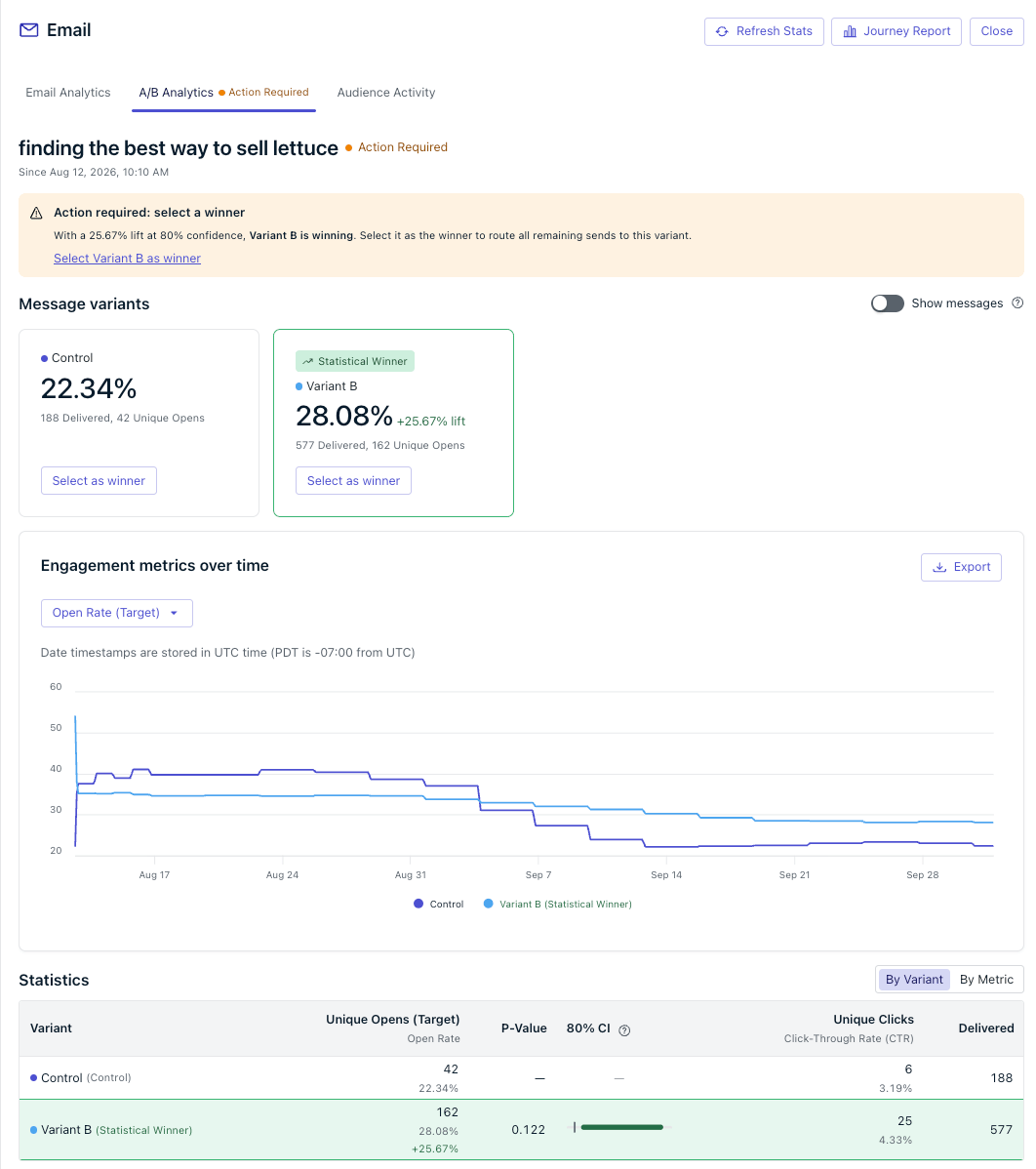 **Select a winner**: Available once the test enters Action Required, or any time while Running if you don't want to wait. All future sends go to the selected variant, and the test is marked Completed (or Cancelled, if selected before the threshold was reached). Results are locked once a winner is selected.
***
## Caveats
* Only push, email, and SMS/RCS message steps support A/B testing today. In-app message steps don't.
* Every variant, including Control, needs its own template. You can't author message content directly in the test panel.
* The audience split must total 100% across variants. There's no way to hold out part of your audience from the test entirely.
* Variants and templates lock as soon as a test starts running. Make sure each variant is set up the way you want before launching.
***
## FAQ
### How is this different from using a split branch to A/B test?
Journey message A/B testing handles message-content variants on a single step for you: it splits traffic, tracks each variant's performance, and selects (or lets you select) a winner, without any manual setup. A split branch is still the right tool for testing things that aren't message content on one step, like a shorter wait duration against a longer one, or a one-message sequence against a two-message sequence. For those, build the two paths with a [split branch](./journeys-actions#split-branch) and compare results yourself.
### Can I run more than one A/B test on the same message step at once?
No, each message step supports only one active A/B test at a time. You can, however, run separate A/B tests on different message steps in the same Journey at the same time.
### What happens to users who already passed this step when I start a test?
Nothing. A/B tests only affect new entrants reaching the step from the point the test starts.
### What happens if a user re-enters the Journey and gets to the A/B test a second time?
They're randomly assigned a variant again, as if reaching the test for the first time, so they may see a different variant than before. Each entry counts toward that variant's metrics independently. OneSignal doesn't combine or deduplicate results across a single user's multiple entries.
### Can I edit a test after it's running?
You can still edit the Test Name, Description, target metric, test threshold (for example, to let the test run longer), confidence level, winner selection mode, and audience split, down to 0% for a given variant. Variant names and templates lock once the test is Running. To change those, cancel the test first.
### What happens if the test reaches its threshold but no variant is statistically significant?
With Automatic winner selection, the test moves to Action Required and keeps splitting traffic across variants until you manually select one. With Manual winner selection, this is the expected end state: you always choose the winner yourself.
### Which metrics can I test against?
It depends on the channel: Click-Through Rate (CTR) for push and SMS/RCS, and Open Rate or Click-Through Rate (CTR) for email.
### What is a confidence level?
A confidence level is the bar of evidence required before declaring a winner, expressed as a percentage. At a 95% confidence level, a variant is only declared the winner once the data would be very unlikely, no more than a 5% chance, to look this way if the variants actually performed identically. Higher confidence levels require stronger evidence (and more data) before declaring a winner. Lower levels decide faster, but with more risk of a false winner.
### What is a confidence interval?
A confidence interval is the range within which a variant's true performance likely falls. For example, a 95% confidence interval of 4% to 6% means you can be 95% confident the real rate sits somewhere in that range. It shows how precisely the test has pinned down each variant's performance, not just its single reported number.
### What is the significance level?
The significance level is the flip side of your confidence level: the maximum chance you're willing to accept of declaring a winner that's actually just random noise. A 95% confidence level sets a 5% significance level, meaning a variant needs a p-value below 0.05 to win. A 99% confidence level requires a p-value below 0.01.
### What is a p-value?
The p-value is the probability of getting your actual results or more extreme results under the assumption that there is no actual difference between the variants and any measured difference is due to noise. A p-value of 0.05 means there's only a 5% chance you'd see a result this strong if the variants actually performed identically. The lower the p-value, the stronger the evidence that one variant is genuinely outperforming the other.
### How many users should I set for my test threshold?
It depends on your target metric's baseline rate, how many variants you're testing, and how large a difference you want to be able to detect. A sample size calculator (widely available online, search for "A/B test sample size calculator") can help you estimate a reasonable number of users per variant based on those inputs. As a rule of thumb, more variants and smaller expected differences both require more users to reach a confident result.
***
## Related pages
Configure push, email, SMS, and in-app message steps in a Journey.
Create and manage the reusable message templates your variants send.
Track delivery and engagement metrics for every step in a Journey.
A/B testing for standalone push and email campaigns sent outside of Journeys.
This documentation is built and hosted on [Mintlify](https://mintlify.com), a developer documentation platform.
**Select a winner**: Available once the test enters Action Required, or any time while Running if you don't want to wait. All future sends go to the selected variant, and the test is marked Completed (or Cancelled, if selected before the threshold was reached). Results are locked once a winner is selected.
***
## Caveats
* Only push, email, and SMS/RCS message steps support A/B testing today. In-app message steps don't.
* Every variant, including Control, needs its own template. You can't author message content directly in the test panel.
* The audience split must total 100% across variants. There's no way to hold out part of your audience from the test entirely.
* Variants and templates lock as soon as a test starts running. Make sure each variant is set up the way you want before launching.
***
## FAQ
### How is this different from using a split branch to A/B test?
Journey message A/B testing handles message-content variants on a single step for you: it splits traffic, tracks each variant's performance, and selects (or lets you select) a winner, without any manual setup. A split branch is still the right tool for testing things that aren't message content on one step, like a shorter wait duration against a longer one, or a one-message sequence against a two-message sequence. For those, build the two paths with a [split branch](./journeys-actions#split-branch) and compare results yourself.
### Can I run more than one A/B test on the same message step at once?
No, each message step supports only one active A/B test at a time. You can, however, run separate A/B tests on different message steps in the same Journey at the same time.
### What happens to users who already passed this step when I start a test?
Nothing. A/B tests only affect new entrants reaching the step from the point the test starts.
### What happens if a user re-enters the Journey and gets to the A/B test a second time?
They're randomly assigned a variant again, as if reaching the test for the first time, so they may see a different variant than before. Each entry counts toward that variant's metrics independently. OneSignal doesn't combine or deduplicate results across a single user's multiple entries.
### Can I edit a test after it's running?
You can still edit the Test Name, Description, target metric, test threshold (for example, to let the test run longer), confidence level, winner selection mode, and audience split, down to 0% for a given variant. Variant names and templates lock once the test is Running. To change those, cancel the test first.
### What happens if the test reaches its threshold but no variant is statistically significant?
With Automatic winner selection, the test moves to Action Required and keeps splitting traffic across variants until you manually select one. With Manual winner selection, this is the expected end state: you always choose the winner yourself.
### Which metrics can I test against?
It depends on the channel: Click-Through Rate (CTR) for push and SMS/RCS, and Open Rate or Click-Through Rate (CTR) for email.
### What is a confidence level?
A confidence level is the bar of evidence required before declaring a winner, expressed as a percentage. At a 95% confidence level, a variant is only declared the winner once the data would be very unlikely, no more than a 5% chance, to look this way if the variants actually performed identically. Higher confidence levels require stronger evidence (and more data) before declaring a winner. Lower levels decide faster, but with more risk of a false winner.
### What is a confidence interval?
A confidence interval is the range within which a variant's true performance likely falls. For example, a 95% confidence interval of 4% to 6% means you can be 95% confident the real rate sits somewhere in that range. It shows how precisely the test has pinned down each variant's performance, not just its single reported number.
### What is the significance level?
The significance level is the flip side of your confidence level: the maximum chance you're willing to accept of declaring a winner that's actually just random noise. A 95% confidence level sets a 5% significance level, meaning a variant needs a p-value below 0.05 to win. A 99% confidence level requires a p-value below 0.01.
### What is a p-value?
The p-value is the probability of getting your actual results or more extreme results under the assumption that there is no actual difference between the variants and any measured difference is due to noise. A p-value of 0.05 means there's only a 5% chance you'd see a result this strong if the variants actually performed identically. The lower the p-value, the stronger the evidence that one variant is genuinely outperforming the other.
### How many users should I set for my test threshold?
It depends on your target metric's baseline rate, how many variants you're testing, and how large a difference you want to be able to detect. A sample size calculator (widely available online, search for "A/B test sample size calculator") can help you estimate a reasonable number of users per variant based on those inputs. As a rule of thumb, more variants and smaller expected differences both require more users to reach a confident result.
***
## Related pages
Configure push, email, SMS, and in-app message steps in a Journey.
Create and manage the reusable message templates your variants send.
Track delivery and engagement metrics for every step in a Journey.
A/B testing for standalone push and email campaigns sent outside of Journeys.
This documentation is built and hosted on [Mintlify](https://mintlify.com), a developer documentation platform.