> ## Documentation Index
> Fetch the complete documentation index at: https://documentation.onesignal.com/llms.txt
> Use this file to discover all available pages before exploring further.
# Keys & IDs
> Find and manage your OneSignal App ID, Organization ID, and API keys. Learn how to create, rotate, secure, and migrate keys safely.
Your OneSignal account includes **public IDs** like App ID and Organization ID and **private API keys** like App API Key and Organization API Key.
* **App ID** and **Organization ID** are public identifiers — safe to use in client-side code and SDK initialization.
* **App API Keys** and **Organization API Keys** are private secrets — store them securely and never expose them in client-side code.
This guide explains what each key does, where to find it, and how to manage it securely.
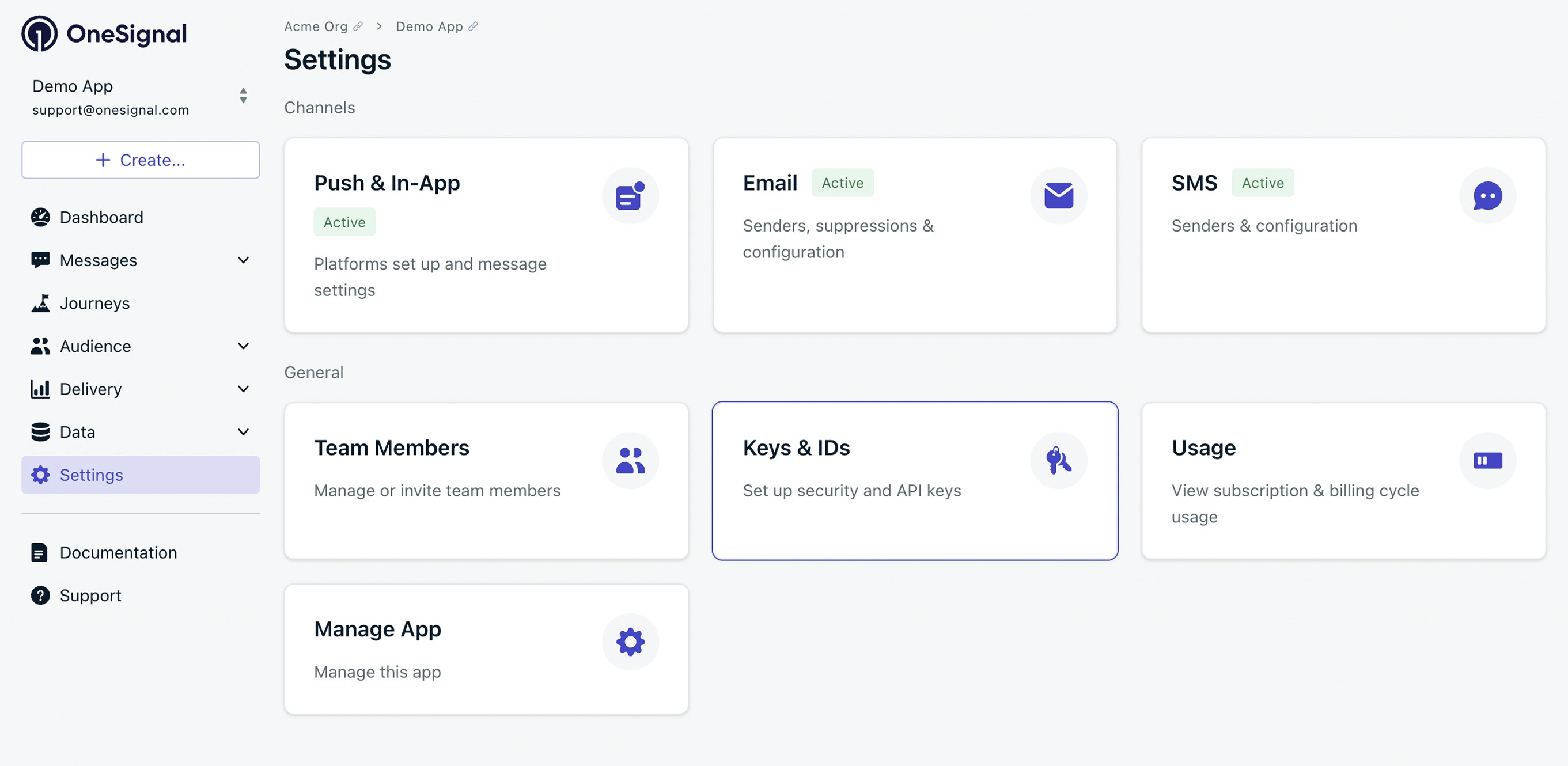
**Where to find your keys:** From any app in the OneSignal dashboard, go to **Settings > Keys & IDs**. For Organization-level keys, go to **Organizations > Your Organization > Keys & IDs**.
***
## App ID
The **App ID** is a public UUID (v4) that identifies your OneSignal app.
You use it for:
* Initializing the SDK (Mobile SDK setup, Web SDK setup)
* Making API requests such as Create message and Create user
Find your App ID in the dashboard under **Settings > Keys & IDs** or via the [View apps](/reference/view-apps) API.
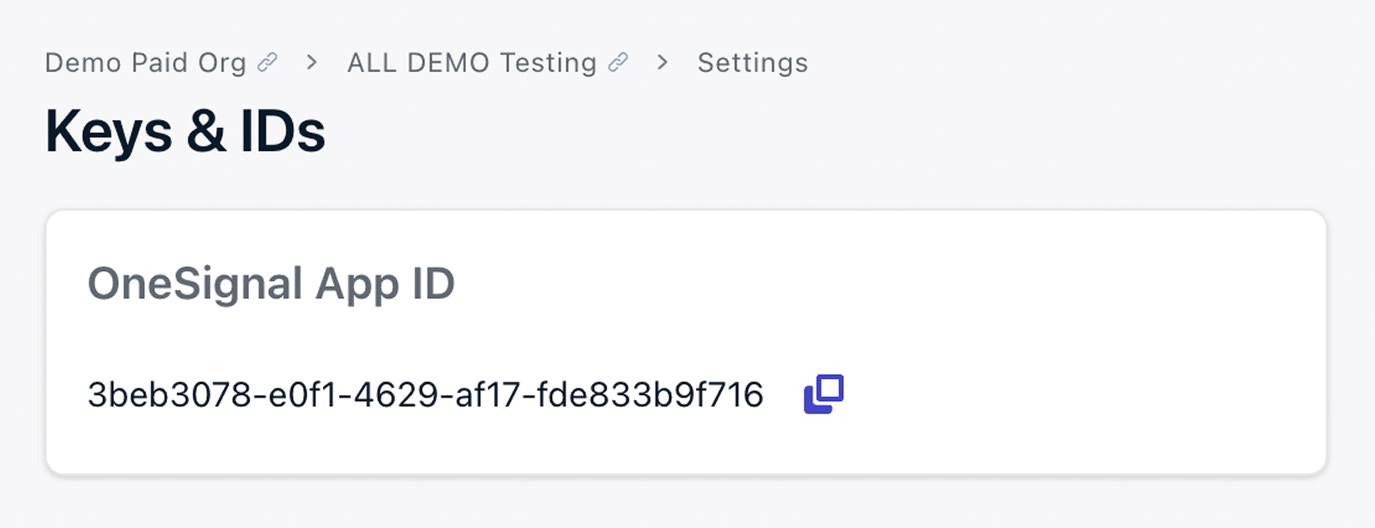 Your App ID is safe to use in client-side SDK initialization. It is not a secret.
***
## Organization ID
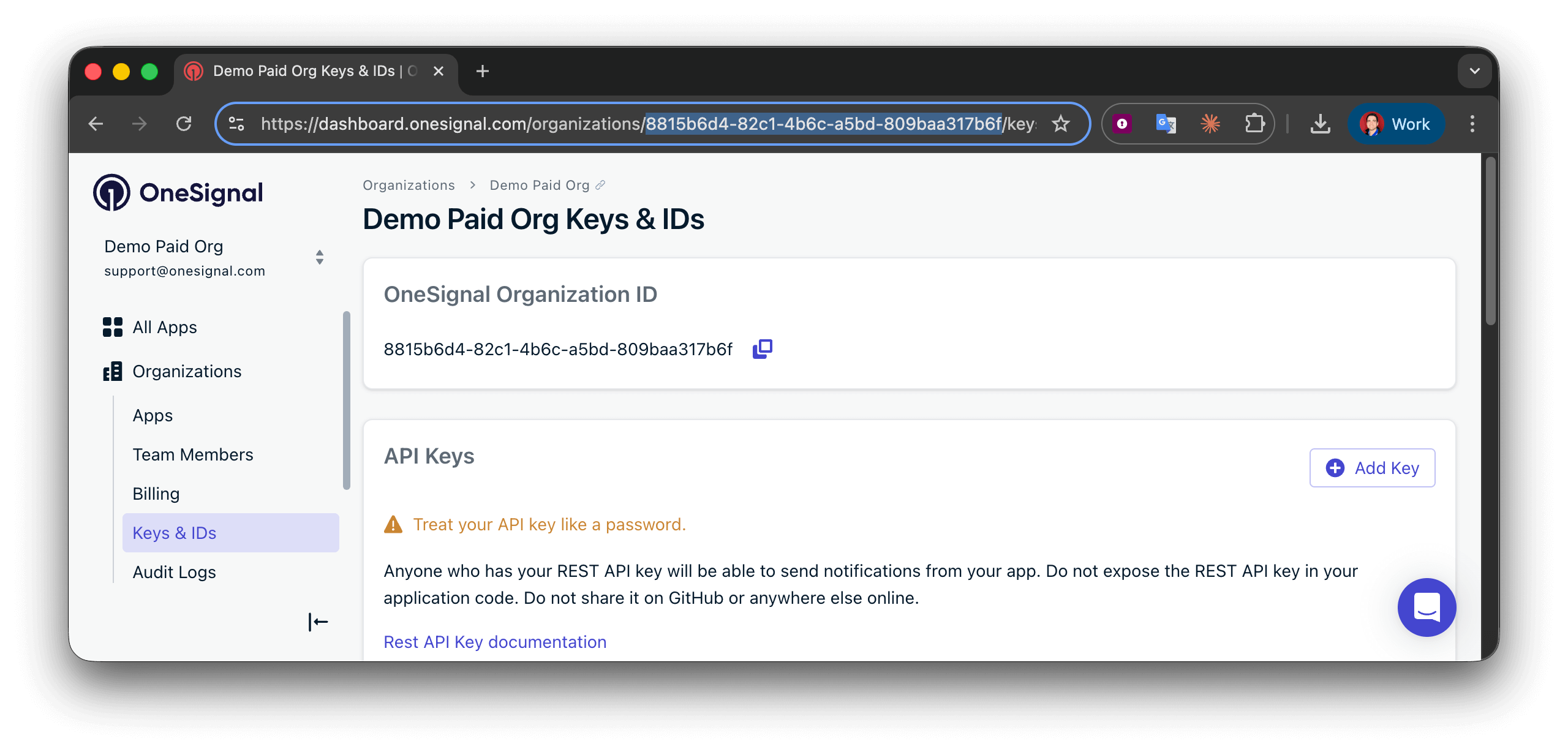
The **Organization ID (Org ID)** is a UUID (v4) that groups all apps under your billing plan.
You need it for Organization-level APIs such as:
* [Create an app](/reference/create-an-app)
* [Update an app](/reference/update-an-app)
Find it in **Organizations > Your Organization > Keys & IDs** or via the [View an app](/reference/view-an-app) API.
Your App ID is safe to use in client-side SDK initialization. It is not a secret.
***
## Organization ID
The **Organization ID (Org ID)** is a UUID (v4) that groups all apps under your billing plan.
You need it for Organization-level APIs such as:
* [Create an app](/reference/create-an-app)
* [Update an app](/reference/update-an-app)
Find it in **Organizations > Your Organization > Keys & IDs** or via the [View an app](/reference/view-an-app) API.
 ***
## API keys overview
OneSignal supports two types of API keys:
| Key Type | Scope | Used For |
| ------------------------ | ------------------- | --------------------------------------------------------- |
| **App API Key** | Single app | Sending messages, creating users, app-level operations |
| **Organization API Key** | Entire organization | Creating apps, managing API keys, org-level configuration |
You can create up to 16 API keys and configure IP allowlisting.
Both are **private secrets** and must be stored securely.
### App API key
Use an **App API Key** for most REST API requests related to a specific app.
**Authentication format:**
Include the key in the `Authorization` header with the `key` authentication scheme:
```http theme={null}
Authorization: key YOUR_REST_API_KEY
```
You can create App API Keys in **App Settings > Keys & IDs** or via the [Create API key](/reference/create-api-key) API.
Treat App API Keys like passwords.
* Never expose them in mobile or web client code.
* Never commit them to public repositories (like GitHub).
* Store them in a secure backend or secret manager.
### Organization API key
Use an **Organization API Key** for:
* **App management**: [Creating apps](/reference/create-an-app), [Viewing apps](/reference/view-apps)
* **App API key management**: [Create API key](/reference/create-api-key), [Delete API key](/reference/delete-api-key), [Rotate API key](/reference/rotate-api-key)
Create Organization API Keys in the OneSignal dashboard under **Organizations > Your Organization > Keys & IDs**.
***
## API keys overview
OneSignal supports two types of API keys:
| Key Type | Scope | Used For |
| ------------------------ | ------------------- | --------------------------------------------------------- |
| **App API Key** | Single app | Sending messages, creating users, app-level operations |
| **Organization API Key** | Entire organization | Creating apps, managing API keys, org-level configuration |
You can create up to 16 API keys and configure IP allowlisting.
Both are **private secrets** and must be stored securely.
### App API key
Use an **App API Key** for most REST API requests related to a specific app.
**Authentication format:**
Include the key in the `Authorization` header with the `key` authentication scheme:
```http theme={null}
Authorization: key YOUR_REST_API_KEY
```
You can create App API Keys in **App Settings > Keys & IDs** or via the [Create API key](/reference/create-api-key) API.
Treat App API Keys like passwords.
* Never expose them in mobile or web client code.
* Never commit them to public repositories (like GitHub).
* Store them in a secure backend or secret manager.
### Organization API key
Use an **Organization API Key** for:
* **App management**: [Creating apps](/reference/create-an-app), [Viewing apps](/reference/view-apps)
* **App API key management**: [Create API key](/reference/create-api-key), [Delete API key](/reference/delete-api-key), [Rotate API key](/reference/rotate-api-key)
Create Organization API Keys in the OneSignal dashboard under **Organizations > Your Organization > Keys & IDs**.
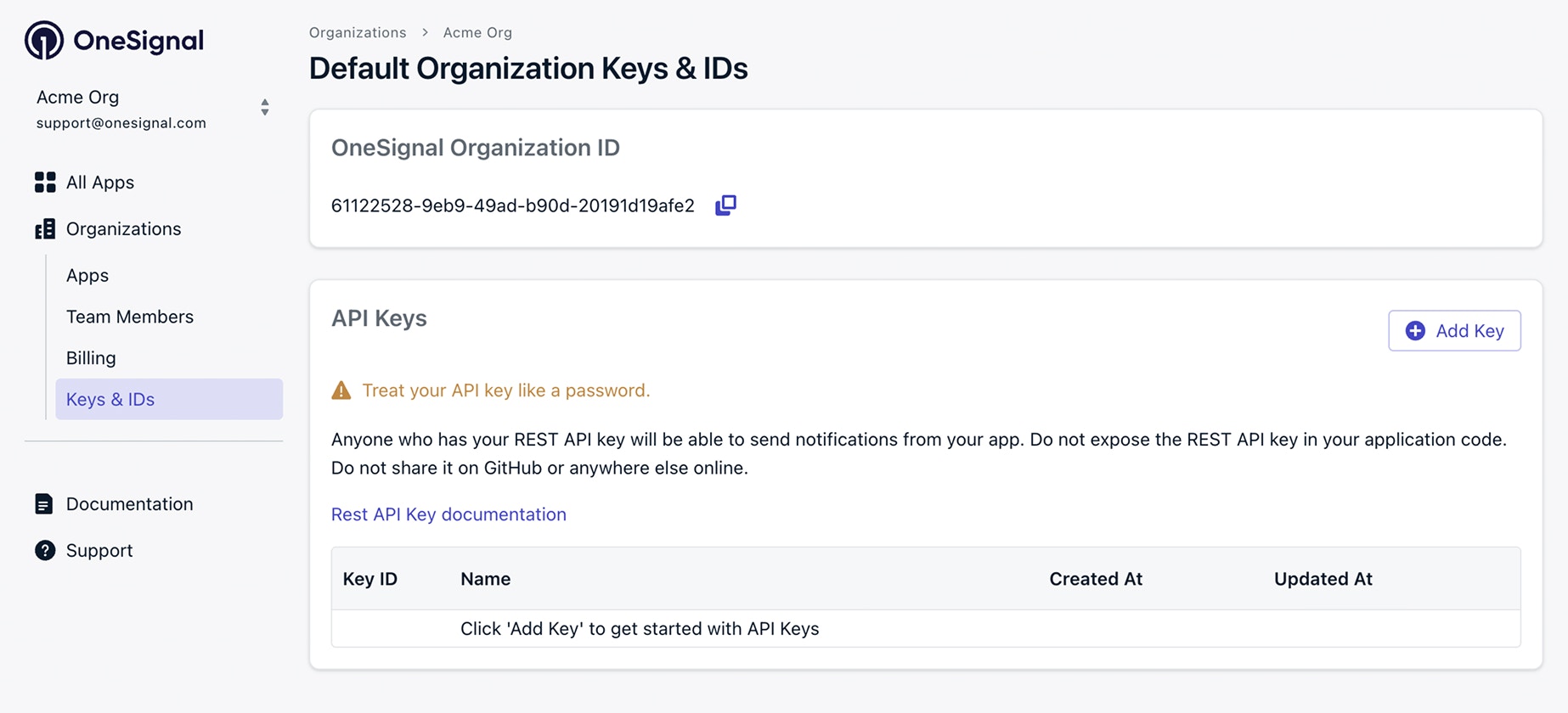 As with app API keys, you can configure up to 16 org keys and include IP allowlisting configuration.
***
## Create API keys
You can create both App and Organization API keys from the dashboard.
* App API keys can also be created via the [Create API key](/reference/create-api-key) API.
* Organization API keys can only be created via dashboard.
**Create a key:**
1. Go to Keys & IDs (App or Organization level).
2. Click **Add Key**.
3. Enter a descriptive name (example: CRM Sync Service).
4. (Optional) Configure IP allowlisting.
5. Click **Create**.
6. Copy and securely store the key immediately.
As with app API keys, you can configure up to 16 org keys and include IP allowlisting configuration.
***
## Create API keys
You can create both App and Organization API keys from the dashboard.
* App API keys can also be created via the [Create API key](/reference/create-api-key) API.
* Organization API keys can only be created via dashboard.
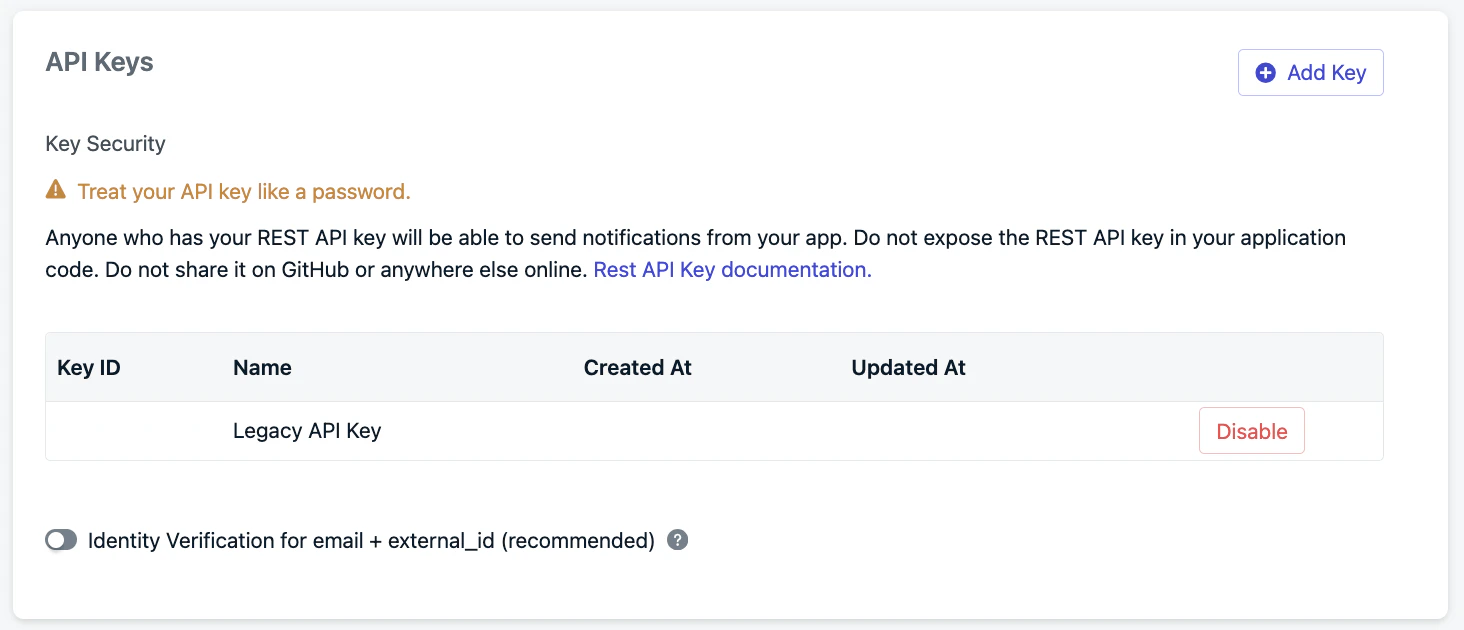
**Create a key:**
1. Go to Keys & IDs (App or Organization level).
2. Click **Add Key**.
3. Enter a descriptive name (example: CRM Sync Service).
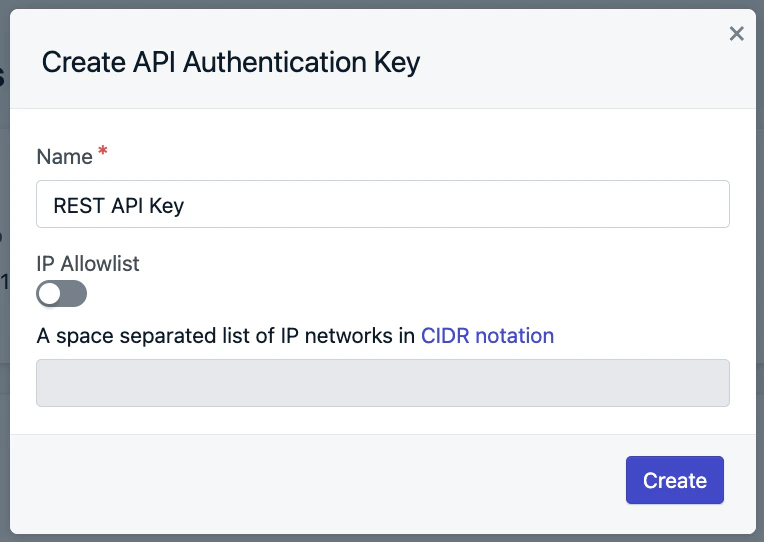
4. (Optional) Configure IP allowlisting.
5. Click **Create**.
6. Copy and securely store the key immediately.
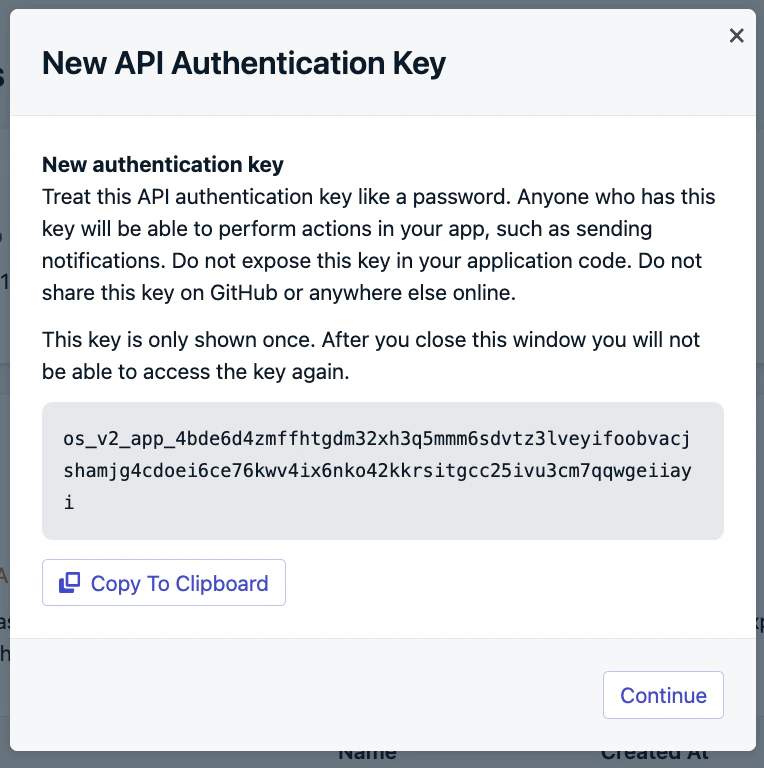 API keys are shown only once. If you lose the key, you must rotate it.
### IP allowlist (optional but recommended)
You can restrict API key usage to specific IP addresses.
* Enter space-separated CIDR blocks
* Example: `192.0.2.0/24 192.0.2.123/32`
* Requests from non-allowed IPs will be denied.
Use IP allowlisting for:
* Backend services with static IPs
* High-security production environments
API keys are shown only once. If you lose the key, you must rotate it.
### IP allowlist (optional but recommended)
You can restrict API key usage to specific IP addresses.
* Enter space-separated CIDR blocks
* Example: `192.0.2.0/24 192.0.2.123/32`
* Requests from non-allowed IPs will be denied.
Use IP allowlisting for:
* Backend services with static IPs
* High-security production environments
 ***
## Key management
After creating a key, you can manage it via the key list interface:
***
## Key management
After creating a key, you can manage it via the key list interface:
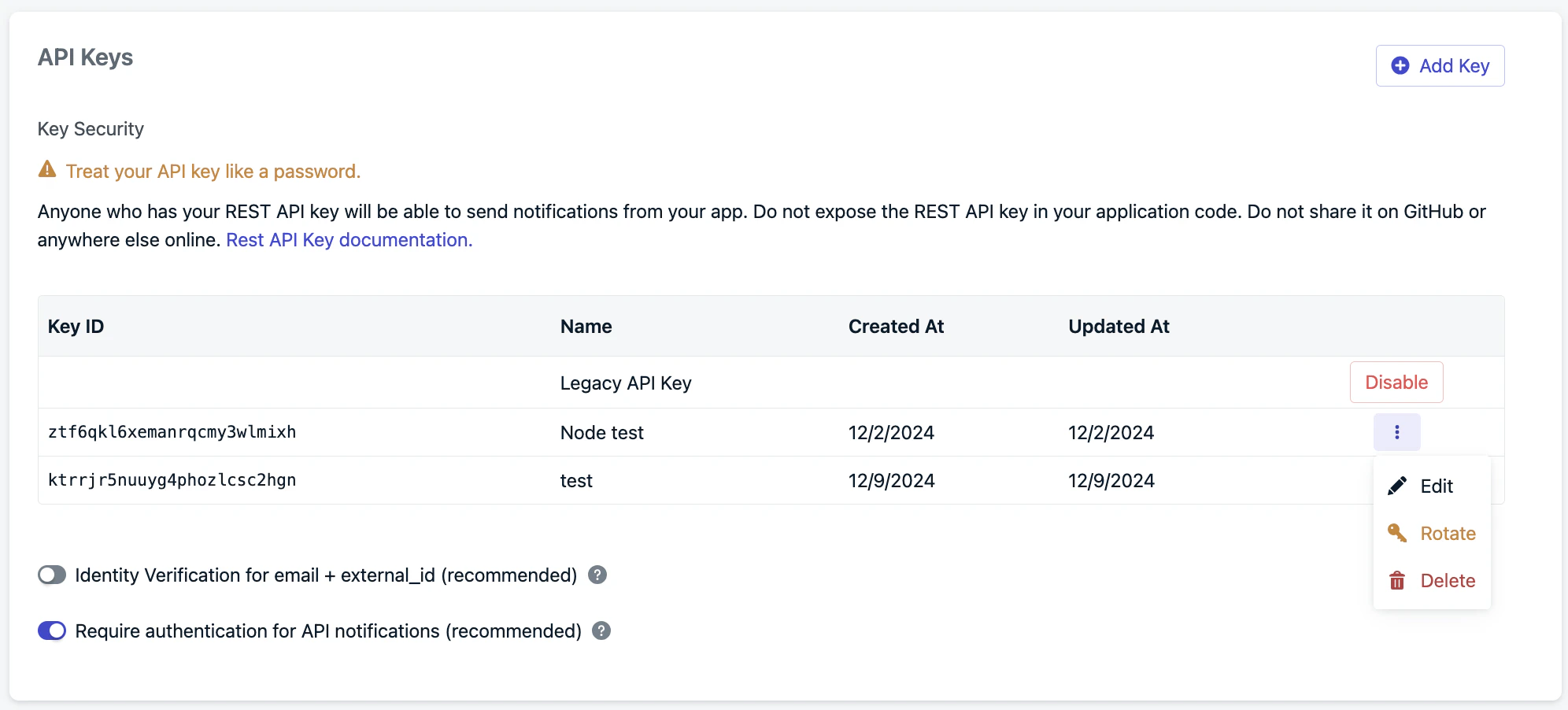 The **Key ID** is a label for reference. It is not the secret API key.
### Edit API keys
You can:
* Update the key name
* Modify IP allowlist settings
Editing does not change the secret value. No integration changes are required.
* App API keys can be updated via dashboard or the [Update API key](/reference/update-api-key) API.
* Organization API keys can only be updated via dashboard.
### Rotate API keys
Rotating a key:
* Generates a new secret
* Keeps the same name and configuration
* Immediately invalidates the old secret
**When to rotate:**
* The key was exposed
* A team member with access leaves
* Routine security rotation
After rotating a key, update all services using it. Requests with the old key will fail.
* App API keys can be rotated via dashboard or the [Rotate API key](/reference/rotate-api-key) API.
* Organization API keys can only be rotated via dashboard.
### Delete API keys
Deleting a key:
* Permanently removes it
* Immediately blocks API access using that key
Use deletion when a key is no longer needed.
* App API keys can be deleted via dashboard or the [Delete API key](/reference/delete-api-key) API.
* Organization API keys can only be deleted via dashboard.
***
## Migrating from legacy API keys
We introduced rich API key management on November 14, 2024.
**Migration Steps**
1. Create a new App or Organization API key.
2. Replace the legacy key in your code.
3. Update your API base URL from `https://onesignal.com/api/v1/` to `https://api.onesignal.com`.
4. Disable or delete the legacy key in Keys & IDs.
Test API requests in a staging environment before disabling your legacy key in production.
***
## Disabling your app
**Block API access:**
* Delete or rotate API keys to immediately block REST API usage.
**Disable message sending:**
* Go to **Settings > Manage App > Disable App**.
See [Disabled Apps & Organizations](./disabled-apps) for details.
Disabling an app does not stop billing. Monthly Active Users (MAU) for disabled apps still count toward billing.
To stop billing, delete the app or move it to a Free Organization.
Contact `support@onesignal.com` for assistance.
***
## Security best practices
* Store API keys in a secure backend (never client-side).
* Use environment variables or a secrets manager.
* Enable IP allowlisting when possible.
* Rotate keys periodically.
* Use separate keys for staging and production.
***
## FAQ
### How do I find my API key?
Go to **Settings > Keys & IDs** in the OneSignal dashboard. Copy the **App API Key** (app-level) or go to **Organizations > Your Organization > Keys & IDs** for the **Organization API Key**.
The key is only displayed once after creation. If you lose the key, you must rotate it.
### Can I retrieve a legacy App API key?
No. OneSignal does not display legacy App API keys anymore. If you cannot find this key in your codebase, then you will need to generate and use a new API key.
### What is the difference between an App ID, App API key, and Organization API key?
* **App ID**: A public identifier for your app. Used in SDK setup and API requests to specify the app.
* **App API Key**: A secret key used to send messages and manage users for one app.
* **Organization API Key**: A secret key used to manage apps and organization-level settings across your entire account.
***
## Related pages
Manage disabled apps and understand billing implications.
Understand the OneSignal user model and External IDs.
The **Key ID** is a label for reference. It is not the secret API key.
### Edit API keys
You can:
* Update the key name
* Modify IP allowlist settings
Editing does not change the secret value. No integration changes are required.
* App API keys can be updated via dashboard or the [Update API key](/reference/update-api-key) API.
* Organization API keys can only be updated via dashboard.
### Rotate API keys
Rotating a key:
* Generates a new secret
* Keeps the same name and configuration
* Immediately invalidates the old secret
**When to rotate:**
* The key was exposed
* A team member with access leaves
* Routine security rotation
After rotating a key, update all services using it. Requests with the old key will fail.
* App API keys can be rotated via dashboard or the [Rotate API key](/reference/rotate-api-key) API.
* Organization API keys can only be rotated via dashboard.
### Delete API keys
Deleting a key:
* Permanently removes it
* Immediately blocks API access using that key
Use deletion when a key is no longer needed.
* App API keys can be deleted via dashboard or the [Delete API key](/reference/delete-api-key) API.
* Organization API keys can only be deleted via dashboard.
***
## Migrating from legacy API keys
We introduced rich API key management on November 14, 2024.
**Migration Steps**
1. Create a new App or Organization API key.
2. Replace the legacy key in your code.
3. Update your API base URL from `https://onesignal.com/api/v1/` to `https://api.onesignal.com`.
4. Disable or delete the legacy key in Keys & IDs.
Test API requests in a staging environment before disabling your legacy key in production.
***
## Disabling your app
**Block API access:**
* Delete or rotate API keys to immediately block REST API usage.
**Disable message sending:**
* Go to **Settings > Manage App > Disable App**.
See [Disabled Apps & Organizations](./disabled-apps) for details.
Disabling an app does not stop billing. Monthly Active Users (MAU) for disabled apps still count toward billing.
To stop billing, delete the app or move it to a Free Organization.
Contact `support@onesignal.com` for assistance.
***
## Security best practices
* Store API keys in a secure backend (never client-side).
* Use environment variables or a secrets manager.
* Enable IP allowlisting when possible.
* Rotate keys periodically.
* Use separate keys for staging and production.
***
## FAQ
### How do I find my API key?
Go to **Settings > Keys & IDs** in the OneSignal dashboard. Copy the **App API Key** (app-level) or go to **Organizations > Your Organization > Keys & IDs** for the **Organization API Key**.
The key is only displayed once after creation. If you lose the key, you must rotate it.
### Can I retrieve a legacy App API key?
No. OneSignal does not display legacy App API keys anymore. If you cannot find this key in your codebase, then you will need to generate and use a new API key.
### What is the difference between an App ID, App API key, and Organization API key?
* **App ID**: A public identifier for your app. Used in SDK setup and API requests to specify the app.
* **App API Key**: A secret key used to send messages and manage users for one app.
* **Organization API Key**: A secret key used to manage apps and organization-level settings across your entire account.
***
## Related pages
Manage disabled apps and understand billing implications.
Understand the OneSignal user model and External IDs.