> ## Documentation Index
> Fetch the complete documentation index at: https://documentation.onesignal.com/llms.txt
> Use this file to discover all available pages before exploring further.
# Labels
> Organize and manage messages across push, email, SMS, and in-app channels with Labels in OneSignal. Easily filter, categorize, and streamline your campaign workflow.
## Overview
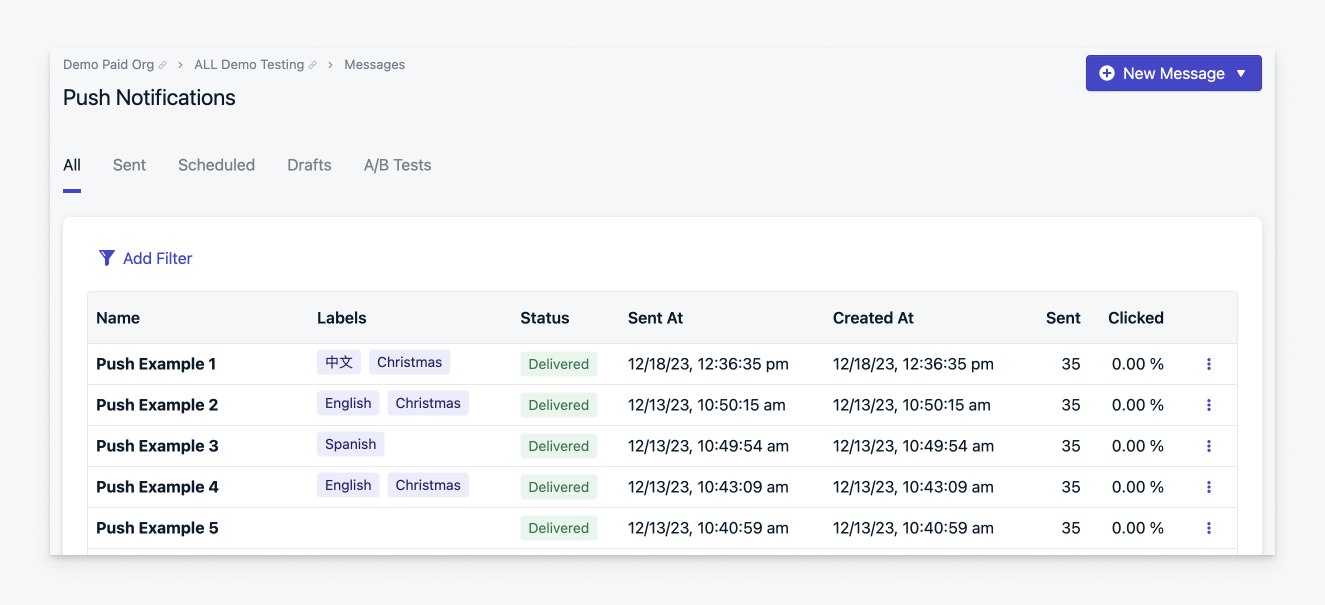
Labels in OneSignal help you categorize and organize messages across push, email, SMS, and in-app channels. Labels make it easier to filter messages, locate templates, and collaborate across teams.
Once a label is applied, it can be used to filter and group content, improving visibility and navigation within your dashboard.
 ### Suggested use cases
Organize your messages by:
* Team or message creator
* Status or priority
* Campaign topic or goal
* Language or geography
* Event or seasonal theme
* Message type (promo, transactional, etc.)
* Top Performers
To get the most value out of Labels, we recommend:
1. Defining clear criteria for when and why to use labels.
2. Establishing consistent naming conventions.
3. Brainstorming and planning label types before applying them.
4. Aligning with team members and cross-functional partners.
5. Reviewing and adjusting labels periodically to keep your dashboard clean and useful.
***
## Add or edit a Label
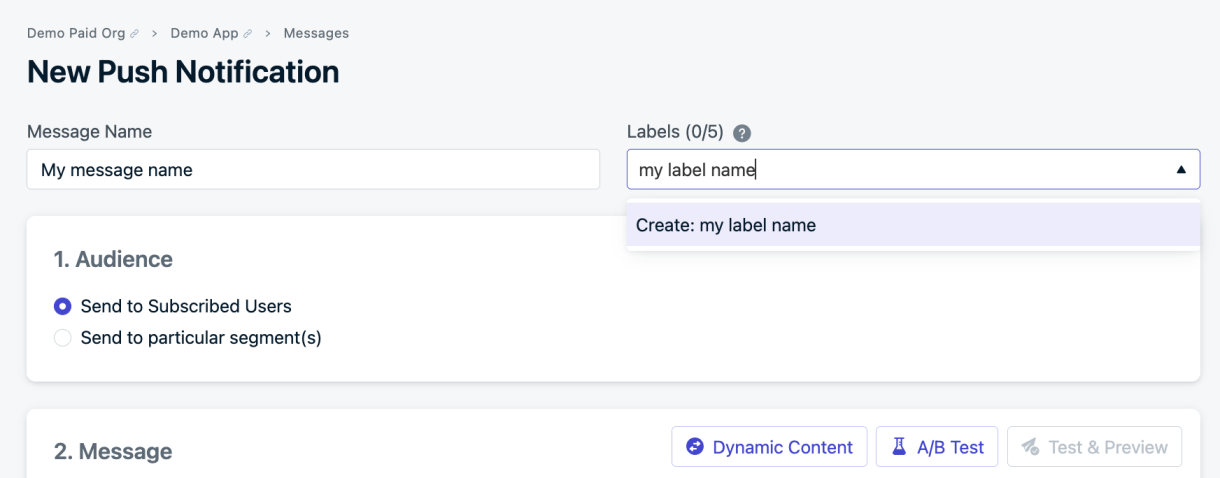
You can apply up to **five labels** per message or template. Each label can be up to **100 characters** long and must be unique. Labels are **shared across all channels**, enabling you to group related content across push, email, SMS, and in-app messages.
### When sending a message
Use the **Labels dropdown** when composing a new message. Select existing labels or start typing to create new ones.
### Suggested use cases
Organize your messages by:
* Team or message creator
* Status or priority
* Campaign topic or goal
* Language or geography
* Event or seasonal theme
* Message type (promo, transactional, etc.)
* Top Performers
To get the most value out of Labels, we recommend:
1. Defining clear criteria for when and why to use labels.
2. Establishing consistent naming conventions.
3. Brainstorming and planning label types before applying them.
4. Aligning with team members and cross-functional partners.
5. Reviewing and adjusting labels periodically to keep your dashboard clean and useful.
***
## Add or edit a Label
You can apply up to **five labels** per message or template. Each label can be up to **100 characters** long and must be unique. Labels are **shared across all channels**, enabling you to group related content across push, email, SMS, and in-app messages.
### When sending a message
Use the **Labels dropdown** when composing a new message. Select existing labels or start typing to create new ones.
 ### On an existing message
To label an existing message:
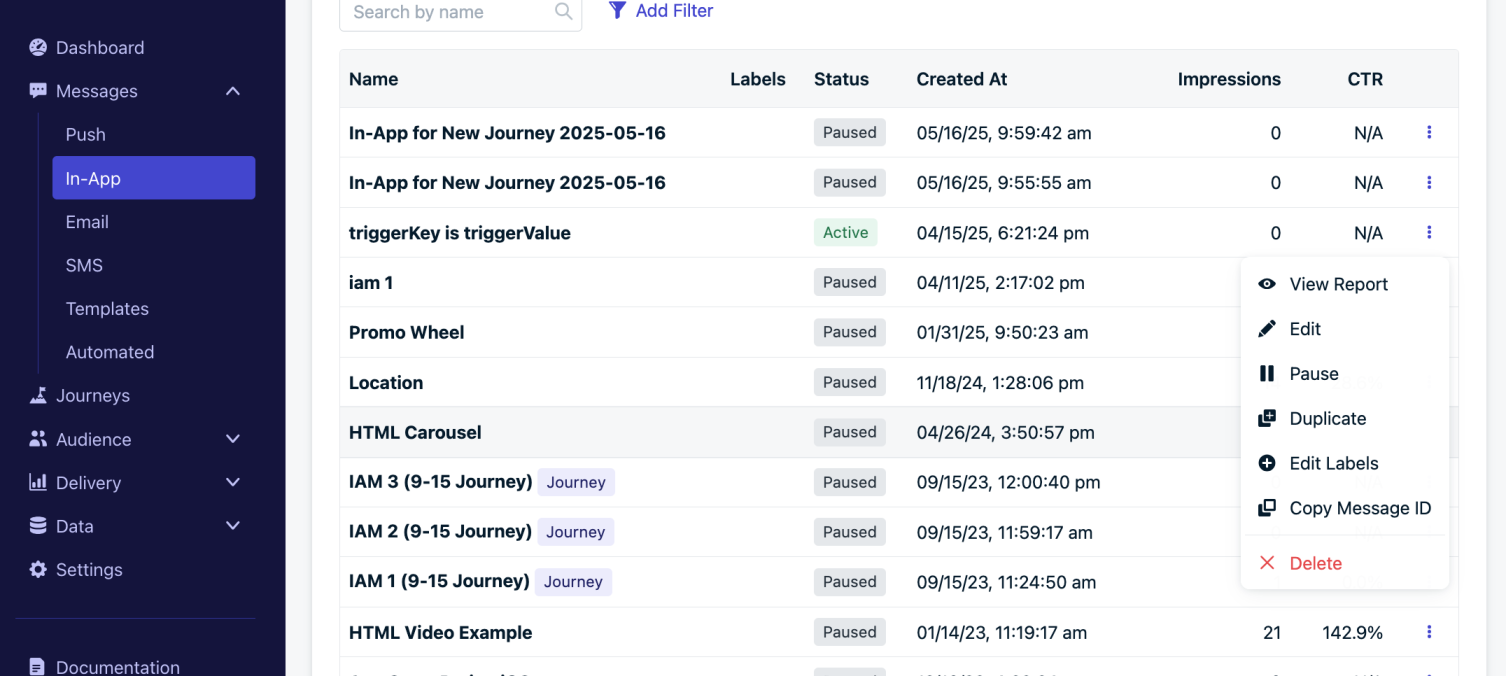
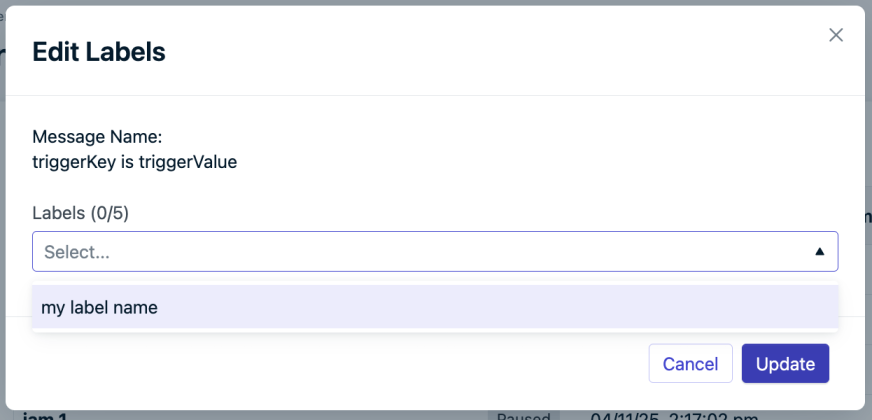
Click the **three dots** on the right side of the message and select **Edit Labels**.
### On an existing message
To label an existing message:
Click the **three dots** on the right side of the message and select **Edit Labels**.
 ***
## Filter by label
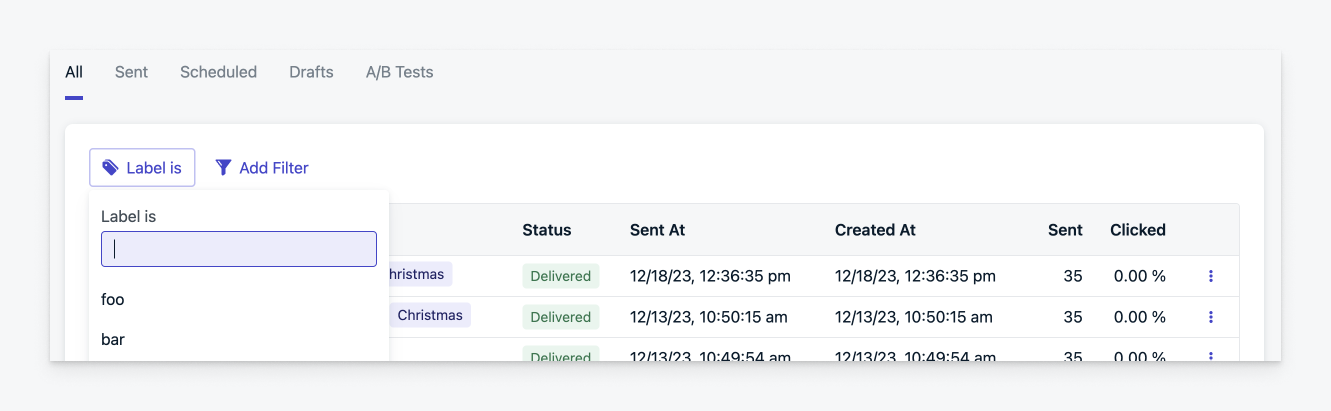
Apply filters to show only messages with selected labels. You can use up to **five label filters** at once. Filters use **AND logic**, meaning only messages that match *all* selected labels will appear.
Example: Filtering by `Label A` and `Label B` will only show messages tagged with *both*.
***
## Filter by label
Apply filters to show only messages with selected labels. You can use up to **five label filters** at once. Filters use **AND logic**, meaning only messages that match *all* selected labels will appear.
Example: Filtering by `Label A` and `Label B` will only show messages tagged with *both*.
 ### Rename or delete a Label across all messages
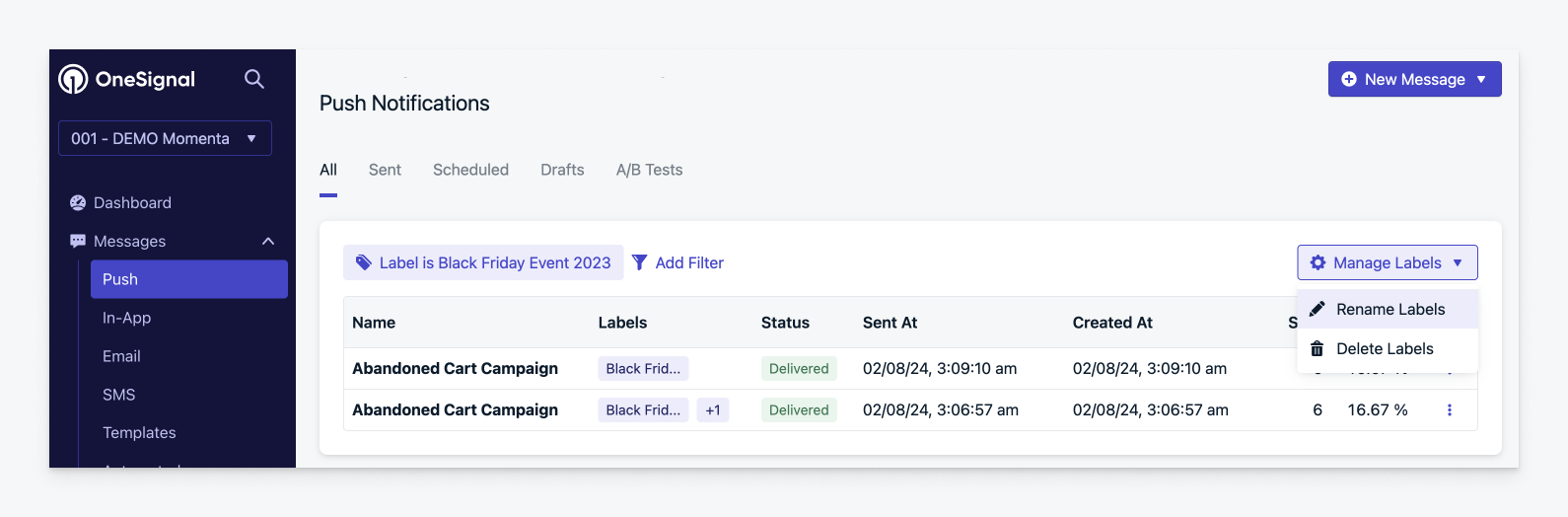
To change or remove a label globally:
1. Use **Add Filter > Label** to find messages with a specific label.
2. Click **Manage Labels** in the top right corner.
3. Choose **Rename Labels** or **Delete Labels**.
4. Confirm your changes:
* **Rename**: Enter a new name and click **Rename**.
* **Delete**: Confirm removal to delete the label from all messages.
### Rename or delete a Label across all messages
To change or remove a label globally:
1. Use **Add Filter > Label** to find messages with a specific label.
2. Click **Manage Labels** in the top right corner.
3. Choose **Rename Labels** or **Delete Labels**.
4. Confirm your changes:
* **Rename**: Enter a new name and click **Rename**.
* **Delete**: Confirm removal to delete the label from all messages.
 ***
## FAQ
### If I use the same label across different channels, will it group those messages together?
Yes. Labels are shared across all messaging channels. For example, the label "Super Bowl 2023" can be used on push, email or any other channel and will appear consistently in filters.
### Can I see labels when I export my messages?
Yes. When exporting your messages from **Delivery > Sent Messages** the labels for these messages will be included in the exported CSV.
***
***
## FAQ
### If I use the same label across different channels, will it group those messages together?
Yes. Labels are shared across all messaging channels. For example, the label "Super Bowl 2023" can be used on push, email or any other channel and will appear consistently in filters.
### Can I see labels when I export my messages?
Yes. When exporting your messages from **Delivery > Sent Messages** the labels for these messages will be included in the exported CSV.
***