> ## Documentation Index
> Fetch the complete documentation index at: https://documentation.onesignal.com/llms.txt
> Use this file to discover all available pages before exploring further.
# URLs, links, & deep links
> Set up launch URLs, deep links, dynamic URLs, UTM tracking, and click tracking across push, email, in-app, SMS, and RCS messages.
## How links work
Every OneSignal message — push, email, in-app, SMS, or RCS — can include a URL that takes the User to a destination when clicked. That destination can be a web page that opens in a browser or a [deep link](#deep-links) that opens directly in your app.
The way you set the URL depends on the channel:
* **Push**: Use the **Launch URL** field in the dashboard or the `url` parameter in the API.
* **Email**: Add links using the email editor or HTML. OneSignal automatically tracks clicks.
* **In-app**: Configure [Click Actions](./iam-click-actions) on buttons, images, or backgrounds.
* **SMS/RCS**: Add links inline. Use **Insert Trackable Link** in the dashboard for automatic shortening and tracking. See [SMS/RCS trackable links](#sms%2Frcs-trackable-links).
### Deep links
To open content inside your app instead of a browser, use a deep link. Deep link support varies by channel:
* **Push and in-app**: Support custom URL schemes like `your-app://product/123` and `https://` universal links / App Links.
* **Email and SMS**: Only `https://` universal links / App Links are supported. Custom URL schemes do not work because email clients and SMS apps don't handle them.
Full setup guide for custom URL schemes, universal links, and app-specific routing.
### Push
#### Launch URL
The Launch URL opens when the User clicks a push notification. It should start with `https://`.
To use `http://` URLs on Apple devices, configure the [NSAppTransportSecurity](https://developer.apple.com/documentation/bundleresources/information_property_list/nsapptransportsecurity) property in your app's `Info.plist` file.
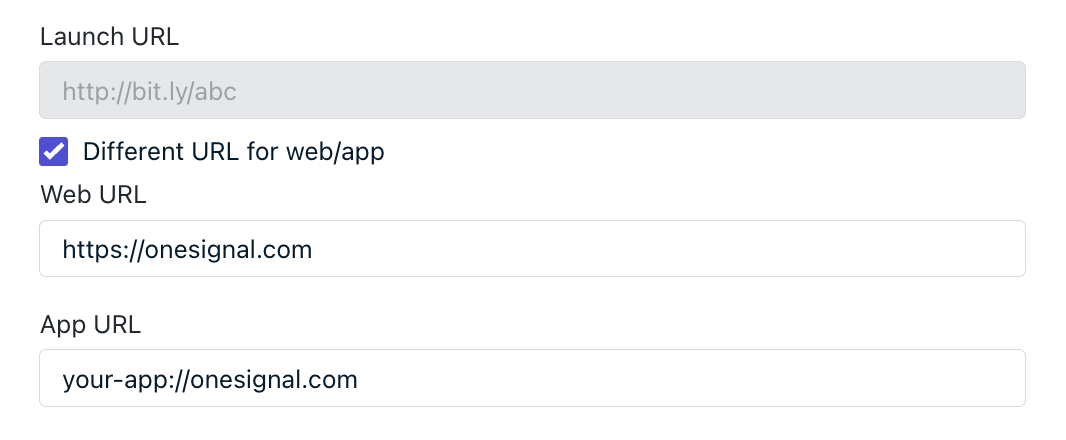
If you send a single message to both web and mobile Users, use platform-specific URL fields:
* `url` — targets all platforms
* `web_url` — targets web push Subscriptions only
* `app_url` — targets mobile Subscriptions only
 To dismiss a web push notification without opening any page, append `?_osp=do_not_open` to the launch URL, e.g., `https://yoursite.com/page?_osp=do_not_open`. This only works for web push.
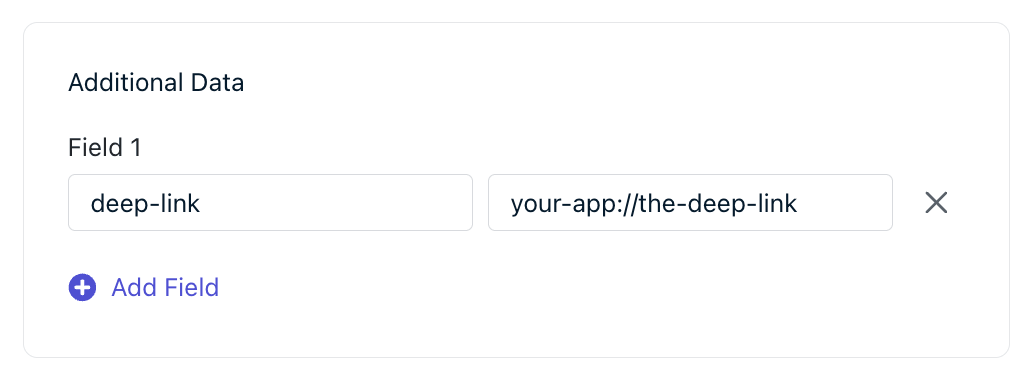
#### Additional data
Instead of a Launch URL, you can send custom key-value pairs using the **Additional Data** field (`data` in the API). Your app reads this data through the [SDK's Notification Click Listener](./mobile-sdk-reference#push-notification-events) via the `additionalData` property — useful when you need more flexibility than a single URL.
To dismiss a web push notification without opening any page, append `?_osp=do_not_open` to the launch URL, e.g., `https://yoursite.com/page?_osp=do_not_open`. This only works for web push.
#### Additional data
Instead of a Launch URL, you can send custom key-value pairs using the **Additional Data** field (`data` in the API). Your app reads this data through the [SDK's Notification Click Listener](./mobile-sdk-reference#push-notification-events) via the `additionalData` property — useful when you need more flexibility than a single URL.
 ### Email link tracking
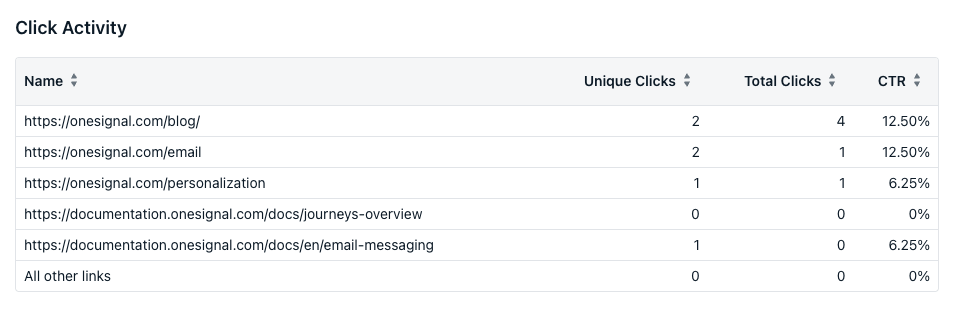
OneSignal automatically tracks link clicks within emails when **Track link clicks** is enabled for the email or template (on by default). OneSignal tracks total and unique clicks per email and per individual link (up to 30 links per email). View these statistics in [Email Message Reports](./email-message-reports).
For unsubscribe links, see [Unsubscribe Links & Email Subscriptions](./unsubscribe-links-email-subscriptions).
### Email link tracking
OneSignal automatically tracks link clicks within emails when **Track link clicks** is enabled for the email or template (on by default). OneSignal tracks total and unique clicks per email and per individual link (up to 30 links per email). View these statistics in [Email Message Reports](./email-message-reports).
For unsubscribe links, see [Unsubscribe Links & Email Subscriptions](./unsubscribe-links-email-subscriptions).
 Tracking works by rewriting URLs to capture the click event, then redirecting the User to the original destination. This happens almost instantly but may cause unexpected behavior with [deep links](./deep-linking). For example:
`https://some-domain.com/the-page`
becomes something like:
`https://some-domain/c/eJxU0D2uGzEMBODTrDoZJPW3...`
The User is immediately redirected to the intended URL.
If you construct links with Liquid syntax, OneSignal may not detect them automatically. Explicitly mark a link as trackable:
```liquid theme={null}
{{ 'https://some-domain.com/the-page' | track_link }}
```
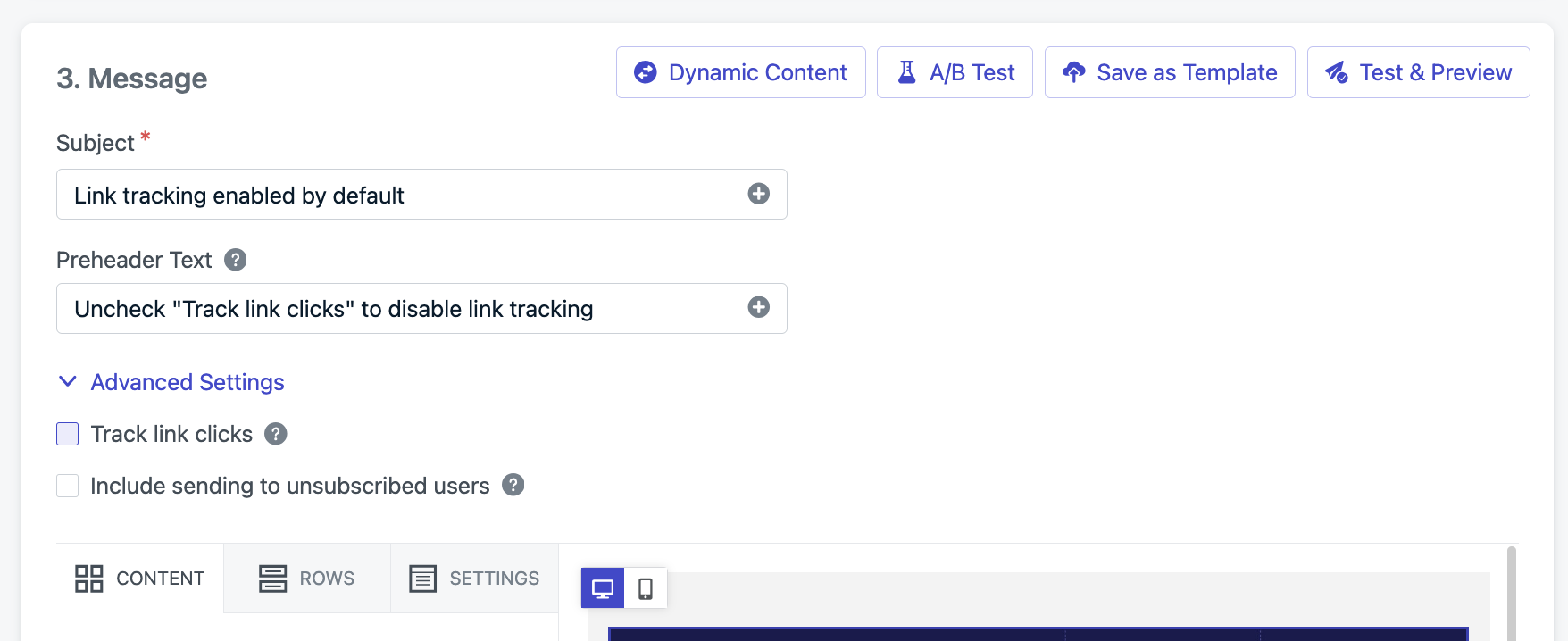
To disable tracking for an entire email, uncheck **Track link clicks** in the dashboard email editor or set `disable_email_click_tracking: true` in the API.
Tracking works by rewriting URLs to capture the click event, then redirecting the User to the original destination. This happens almost instantly but may cause unexpected behavior with [deep links](./deep-linking). For example:
`https://some-domain.com/the-page`
becomes something like:
`https://some-domain/c/eJxU0D2uGzEMBODTrDoZJPW3...`
The User is immediately redirected to the intended URL.
If you construct links with Liquid syntax, OneSignal may not detect them automatically. Explicitly mark a link as trackable:
```liquid theme={null}
{{ 'https://some-domain.com/the-page' | track_link }}
```
To disable tracking for an entire email, uncheck **Track link clicks** in the dashboard email editor or set `disable_email_click_tracking: true` in the API.
 To disable tracking for a specific link while keeping it enabled for the rest, add the `disable-tracking=true` attribute to its anchor tag:
```html theme={null}
View the page
```
Disabling tracking for an entire email means no click data is collected — CTR shows "N/A" in [Email Message Reports](./email-message-reports).
### SMS/RCS trackable links
OneSignal provides trackable shortened links for SMS/RCS messages using the `1sgnl.co` domain. Just wrap your URL in `{{ "https://your-url.com" | track_link }}` and the link will be replaced with a trackable link when the message is sent. For API usage, see the [SMS/RCS create message API reference](/reference/sms).
Only 1 trackable link is allowed per SMS/RCS message.
When using the dashboard, you can also click the **Insert Trackable Link** button beneath the message input box and enter your URL:
To disable tracking for a specific link while keeping it enabled for the rest, add the `disable-tracking=true` attribute to its anchor tag:
```html theme={null}
View the page
```
Disabling tracking for an entire email means no click data is collected — CTR shows "N/A" in [Email Message Reports](./email-message-reports).
### SMS/RCS trackable links
OneSignal provides trackable shortened links for SMS/RCS messages using the `1sgnl.co` domain. Just wrap your URL in `{{ "https://your-url.com" | track_link }}` and the link will be replaced with a trackable link when the message is sent. For API usage, see the [SMS/RCS create message API reference](/reference/sms).
Only 1 trackable link is allowed per SMS/RCS message.
When using the dashboard, you can also click the **Insert Trackable Link** button beneath the message input box and enter your URL:
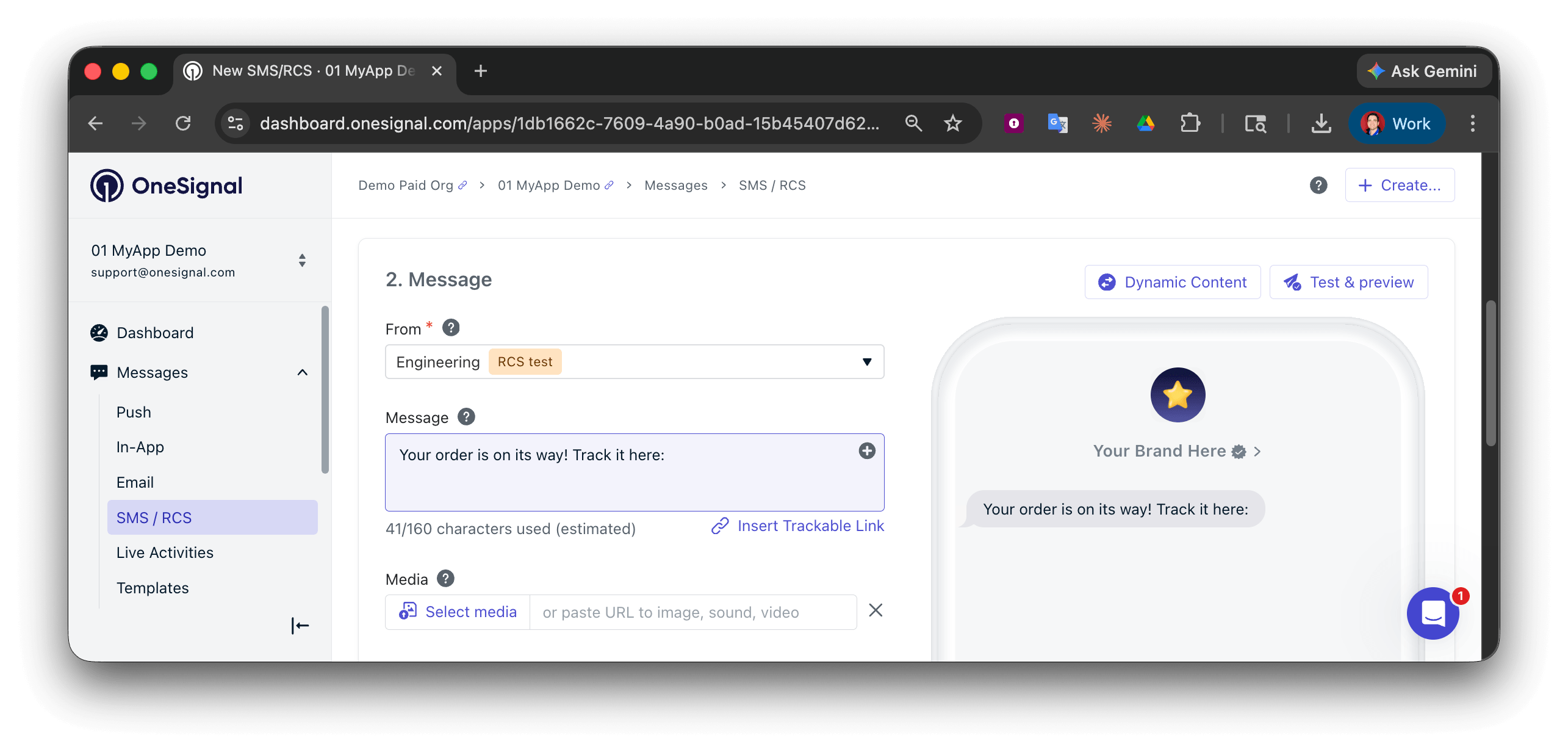 Click **Insert trackable link** to add the short link to your message:
```liquid theme={null}
Your order is on its way!
Track it here: {{ "https://your-url.com" | track_link }}
```
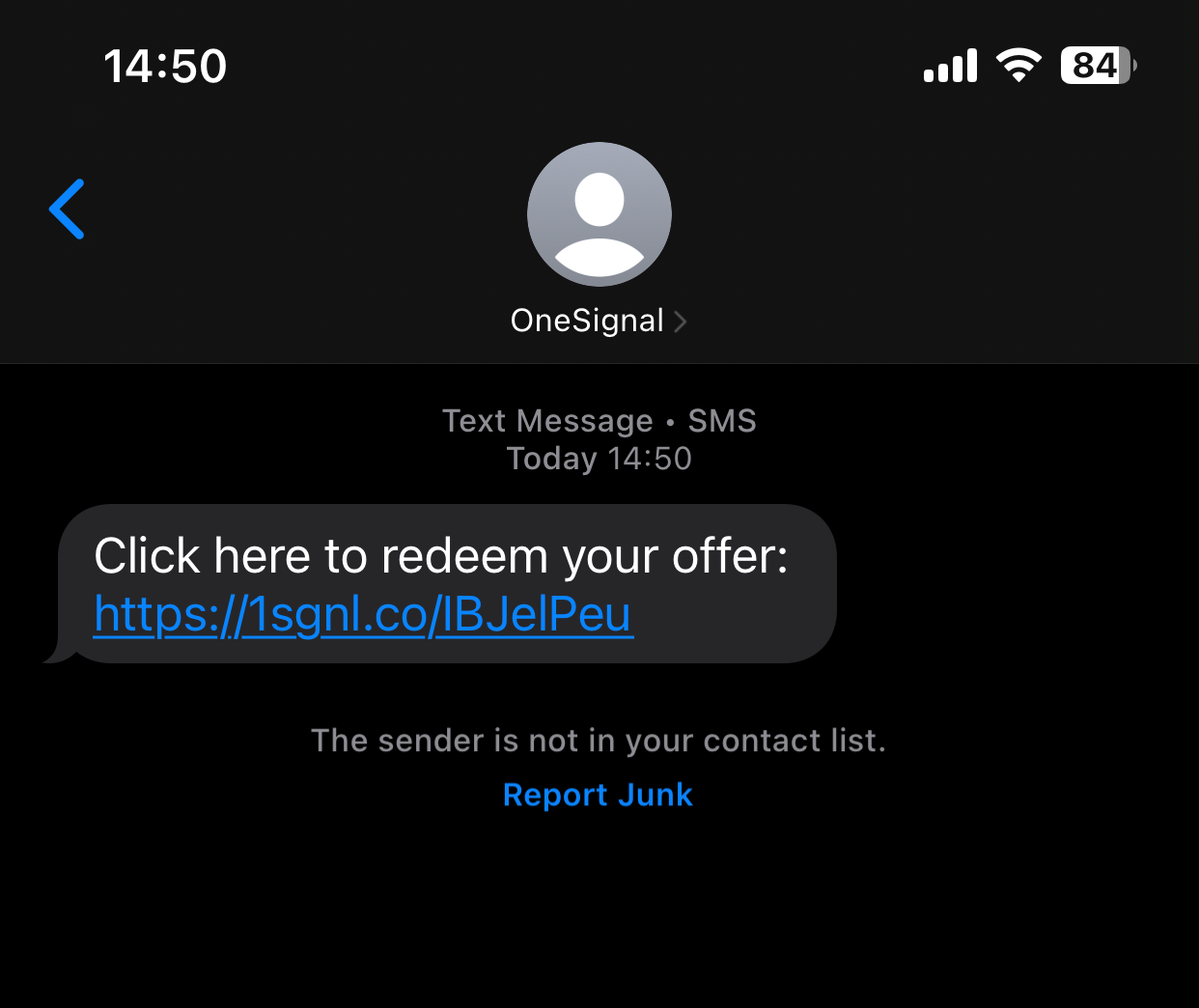
When the message is sent, the double curly braces and everything inside will be replaced with a `1sgnl.co/XXXX` trackable link:
Click **Insert trackable link** to add the short link to your message:
```liquid theme={null}
Your order is on its way!
Track it here: {{ "https://your-url.com" | track_link }}
```
When the message is sent, the double curly braces and everything inside will be replaced with a `1sgnl.co/XXXX` trackable link:
 ***
## Dynamic URLs
You can build personalized, user-specific URLs with [Liquid syntax](./using-liquid-syntax). For example, include a User's ID in the URL so each person lands on their own profile page, or insert a product ID from a recent event to link directly to a relevant item.
Dynamic URLs can pull data from:
* User properties (e.g., `external_id`, `email`)
* Tags stored in OneSignal
* `custom_data` sent via the API
* Custom Events (in Journeys)
Inject values like `external_id` or `email` directly into URLs.
```text theme={null}
https://yourdomain.com/profile/user={{subscription.external_id}}
```
If the User's `external_id` is `12345`, the final URL is:
```text theme={null}
https://yourdomain.com/profile/user=12345
```
Similarly:
```text theme={null}
https://yourdomain.com/profile/email={{subscription.email}}
```
If the User's email is `john@example.com`, the final URL is:
```text theme={null}
https://yourdomain.com/profile/email=john@example.com
```
Reference Tags stored in OneSignal.
```text theme={null}
https://yourdomain.com/topic/{{tag_key}}
```
If the User has a tag `tag_key` with value `technology`, the final URL is:
```text theme={null}
https://yourdomain.com/topic/technology
```
If `tag_key` is not set, the URL becomes:
```text theme={null}
https://yourdomain.com/topic/
```
Use the `default` filter to set a fallback:
```text theme={null}
https://yourdomain.com/topic/{{tag_key | default: 'unknown'}}
```
Use the Create message API with Templates. Set the URL in the template with Liquid syntax that references the `custom_data` object.
Template URL:
```text theme={null}
https://yourdomain.com/invoice={{message.custom_data.invoice_number}}
```
API request with `custom_data`:
```json theme={null}
{
"template_id": "YOUR_TEMPLATE_ID",
"custom_data": {
"invoice_number": "12345"
}
}
```
Final URL:
```text theme={null}
https://yourdomain.com/invoice=12345
```
Personalize URLs using Custom Events captured in Journeys. Reference event properties directly or assign the event to a variable for cleaner syntax.
**Reference event properties directly:**
```text theme={null}
https://yourdomain.com/order/{{ journey.event.purchase.properties.order_id }}
```
If the most recent `purchase` event included `"order_id": "98765"`, the final URL is:
```text theme={null}
https://yourdomain.com/order/98765
```
**Assign the event for readability:**
```liquid theme={null}
{% assign event = journey.event.purchase %}
https://yourdomain.com/order/{{ event.properties.order_id }}
```
**Access the most recent stored event:**
```text theme={null}
https://yourdomain.com/product/{{ journey.last_event.properties.product_id | default: 'unknown' }}
```
**Event names with spaces or special characters (hash notation):**
```text theme={null}
https://yourdomain.com/status/{{ journey.event["order status"].properties.current_status }}
```
Custom Events can only be referenced in Templates used within Journeys. Use `journey.first_event`, `journey.last_event`, or `journey.event.` to access event data in Liquid.
Only substitute data into parts of the URL — keep the protocol (`https://`) and domain as static text. Use the `default` filter to set a fallback if a value is not present.
***
## UTM parameters
UTM parameters track campaign performance by appending `source`, `medium`, and `campaign` details to URLs. Add UTM parameters directly to the URLs in your messages.
For push notifications sent from the dashboard, OneSignal can add UTMs automatically.
Navigate to **Settings > Push & In-app > UTM Settings** and enable **Turn on automated UTM tagging**.
Once enabled, OneSignal appends these values (editable):
* **Source** = `utm_source` — defaults to `onesignal`
* **Medium** = `utm_medium` — defaults to `push`
* **Campaign** = `utm_campaign` — defaults to `{{ sendDate }}-{{ title }}`
* `sendDate`: Date sent
* `title`: First 15 alphanumeric characters, underscores, or hyphens from the message title
Example:
```text theme={null}
https://test.com?utm_source=onesignal&utm_medium=push&utm_campaign=2020-06-03-sale-today
```
Automatic UTM tagging only applies to push notifications sent from the dashboard. It does not work with:
* Emails, SMS, or in-app messages
* Journeys, Templates, or automated messages
* API requests
* The "Send Test Message" button
* Additional data fields
For these cases, add UTM parameters manually in your templates or API payloads.
#### URL handling and overrides
If you manually add UTM parameters to a launch URL while automatic tagging is enabled, your manual UTMs override the automatic values.
***
## FAQ
### How do I link to the app store?
Use the store URL as the launch URL:
* **Android**: Use the Google Play link, e.g., `https://play.google.com/store/apps/details?id=com.example.app`. See [Linking to Google Play](https://developer.android.com/distribute/marketing-tools/linking-to-google-play.html).
* **iOS**: Use the App Store link but replace `https://` with `itms-apps://` to open the App Store app directly, e.g., `itms-apps://apps.apple.com/app/id123456789`.
### Can I link to another app?
For push and in-app messages, you can use a URL scheme to deep link into another app. For example, to [deep link into WhatsApp](https://faq.whatsapp.com/425247423114725): `whatsapp://wa.me/15551234567`.
For email and SMS, use `https://` links instead — custom URL schemes are not supported.
### Why is my launch URL not working?
Common causes:
* **URL mismatch**: The URL must start with `https://`. If you're using `http://` on Apple devices, you need [NSAppTransportSecurity](https://developer.apple.com/documentation/bundleresources/information_property_list/nsapptransportsecurity) configured.
* **Custom schemes on mobile**: Deep links like `your-app://path` may not work as a launch URL on all platforms. Use the **Additional Data** field or see [Deep Linking](./deep-linking) for reliable app routing.
* **Web push default**: If no launch URL is set, web push opens your homepage. Set a launch URL explicitly to control the destination.
* **Click tracking interference**: In email, link rewriting for click tracking can break deep links. Try [disabling click tracking](#email-link-tracking) for that specific link.
### Do UTM parameters work with email and SMS?
No. Automatic UTM tagging only applies to push notifications sent from the dashboard. For email and SMS, add UTM parameters manually to the URLs in your templates or API payloads. See [UTM parameters](#utm-parameters) for the full list of limitations.
### Can I prevent a push notification from opening a URL?
On mobile, clicking a push notification always opens the app.
On web, append `?_osp=do_not_open` to the launch URL to dismiss the notification without opening any page. See the [Launch URL tip](#launch-url) for an example.
***
Set up custom URL schemes and app-specific routing for push and in-app messages.
Insert dynamic user data into messages using Liquid syntax and tags.
Reference guide for Liquid filters, tags, and variables in OneSignal templates.
View delivery, open, and click-through metrics for email campaigns.
Add call-to-action buttons to push notifications with custom URLs.
***
## Dynamic URLs
You can build personalized, user-specific URLs with [Liquid syntax](./using-liquid-syntax). For example, include a User's ID in the URL so each person lands on their own profile page, or insert a product ID from a recent event to link directly to a relevant item.
Dynamic URLs can pull data from:
* User properties (e.g., `external_id`, `email`)
* Tags stored in OneSignal
* `custom_data` sent via the API
* Custom Events (in Journeys)
Inject values like `external_id` or `email` directly into URLs.
```text theme={null}
https://yourdomain.com/profile/user={{subscription.external_id}}
```
If the User's `external_id` is `12345`, the final URL is:
```text theme={null}
https://yourdomain.com/profile/user=12345
```
Similarly:
```text theme={null}
https://yourdomain.com/profile/email={{subscription.email}}
```
If the User's email is `john@example.com`, the final URL is:
```text theme={null}
https://yourdomain.com/profile/email=john@example.com
```
Reference Tags stored in OneSignal.
```text theme={null}
https://yourdomain.com/topic/{{tag_key}}
```
If the User has a tag `tag_key` with value `technology`, the final URL is:
```text theme={null}
https://yourdomain.com/topic/technology
```
If `tag_key` is not set, the URL becomes:
```text theme={null}
https://yourdomain.com/topic/
```
Use the `default` filter to set a fallback:
```text theme={null}
https://yourdomain.com/topic/{{tag_key | default: 'unknown'}}
```
Use the Create message API with Templates. Set the URL in the template with Liquid syntax that references the `custom_data` object.
Template URL:
```text theme={null}
https://yourdomain.com/invoice={{message.custom_data.invoice_number}}
```
API request with `custom_data`:
```json theme={null}
{
"template_id": "YOUR_TEMPLATE_ID",
"custom_data": {
"invoice_number": "12345"
}
}
```
Final URL:
```text theme={null}
https://yourdomain.com/invoice=12345
```
Personalize URLs using Custom Events captured in Journeys. Reference event properties directly or assign the event to a variable for cleaner syntax.
**Reference event properties directly:**
```text theme={null}
https://yourdomain.com/order/{{ journey.event.purchase.properties.order_id }}
```
If the most recent `purchase` event included `"order_id": "98765"`, the final URL is:
```text theme={null}
https://yourdomain.com/order/98765
```
**Assign the event for readability:**
```liquid theme={null}
{% assign event = journey.event.purchase %}
https://yourdomain.com/order/{{ event.properties.order_id }}
```
**Access the most recent stored event:**
```text theme={null}
https://yourdomain.com/product/{{ journey.last_event.properties.product_id | default: 'unknown' }}
```
**Event names with spaces or special characters (hash notation):**
```text theme={null}
https://yourdomain.com/status/{{ journey.event["order status"].properties.current_status }}
```
Custom Events can only be referenced in Templates used within Journeys. Use `journey.first_event`, `journey.last_event`, or `journey.event.` to access event data in Liquid.
Only substitute data into parts of the URL — keep the protocol (`https://`) and domain as static text. Use the `default` filter to set a fallback if a value is not present.
***
## UTM parameters
UTM parameters track campaign performance by appending `source`, `medium`, and `campaign` details to URLs. Add UTM parameters directly to the URLs in your messages.
For push notifications sent from the dashboard, OneSignal can add UTMs automatically.
Navigate to **Settings > Push & In-app > UTM Settings** and enable **Turn on automated UTM tagging**.
Once enabled, OneSignal appends these values (editable):
* **Source** = `utm_source` — defaults to `onesignal`
* **Medium** = `utm_medium` — defaults to `push`
* **Campaign** = `utm_campaign` — defaults to `{{ sendDate }}-{{ title }}`
* `sendDate`: Date sent
* `title`: First 15 alphanumeric characters, underscores, or hyphens from the message title
Example:
```text theme={null}
https://test.com?utm_source=onesignal&utm_medium=push&utm_campaign=2020-06-03-sale-today
```
Automatic UTM tagging only applies to push notifications sent from the dashboard. It does not work with:
* Emails, SMS, or in-app messages
* Journeys, Templates, or automated messages
* API requests
* The "Send Test Message" button
* Additional data fields
For these cases, add UTM parameters manually in your templates or API payloads.
#### URL handling and overrides
If you manually add UTM parameters to a launch URL while automatic tagging is enabled, your manual UTMs override the automatic values.
***
## FAQ
### How do I link to the app store?
Use the store URL as the launch URL:
* **Android**: Use the Google Play link, e.g., `https://play.google.com/store/apps/details?id=com.example.app`. See [Linking to Google Play](https://developer.android.com/distribute/marketing-tools/linking-to-google-play.html).
* **iOS**: Use the App Store link but replace `https://` with `itms-apps://` to open the App Store app directly, e.g., `itms-apps://apps.apple.com/app/id123456789`.
### Can I link to another app?
For push and in-app messages, you can use a URL scheme to deep link into another app. For example, to [deep link into WhatsApp](https://faq.whatsapp.com/425247423114725): `whatsapp://wa.me/15551234567`.
For email and SMS, use `https://` links instead — custom URL schemes are not supported.
### Why is my launch URL not working?
Common causes:
* **URL mismatch**: The URL must start with `https://`. If you're using `http://` on Apple devices, you need [NSAppTransportSecurity](https://developer.apple.com/documentation/bundleresources/information_property_list/nsapptransportsecurity) configured.
* **Custom schemes on mobile**: Deep links like `your-app://path` may not work as a launch URL on all platforms. Use the **Additional Data** field or see [Deep Linking](./deep-linking) for reliable app routing.
* **Web push default**: If no launch URL is set, web push opens your homepage. Set a launch URL explicitly to control the destination.
* **Click tracking interference**: In email, link rewriting for click tracking can break deep links. Try [disabling click tracking](#email-link-tracking) for that specific link.
### Do UTM parameters work with email and SMS?
No. Automatic UTM tagging only applies to push notifications sent from the dashboard. For email and SMS, add UTM parameters manually to the URLs in your templates or API payloads. See [UTM parameters](#utm-parameters) for the full list of limitations.
### Can I prevent a push notification from opening a URL?
On mobile, clicking a push notification always opens the app.
On web, append `?_osp=do_not_open` to the launch URL to dismiss the notification without opening any page. See the [Launch URL tip](#launch-url) for an example.
***
Set up custom URL schemes and app-specific routing for push and in-app messages.
Insert dynamic user data into messages using Liquid syntax and tags.
Reference guide for Liquid filters, tags, and variables in OneSignal templates.
View delivery, open, and click-through metrics for email campaigns.
Add call-to-action buttons to push notifications with custom URLs.