> ## Documentation Index
> Fetch the complete documentation index at: https://documentation.onesignal.com/llms.txt
> Use this file to discover all available pages before exploring further.
# Request location permissions with in-app messages
> Guide users to enable location tracking in your mobile app using a soft pre-prompt in OneSignal before triggering the native Android or iOS location permission request.
Easily request location access from users by using a OneSignal in-app message as a soft pre-prompt before showing the required native system-level location permission dialog. This improves opt-in rates and gives you more control over when and how to ask. Alternatively, you can directly trigger the system prompt using our [Mobile SDK location methods](./mobile-sdk-reference#location).
***
## Requirements
Before creating your in-app message:
* Add location tracking permissions to your app (for both Android and iOS).
* Refer to our [Mobile SDK location reference](./mobile-sdk-reference#location) for platform-specific setup instructions.
* Enable location sharing with OneSignal in your app code.
***
## Create your message
In the OneSignal dashboard, go to: **Messages > In-App > New In-App**
* If all users should see the prompt, select **Show to all users**.
* Otherwise, target a specific Segment.
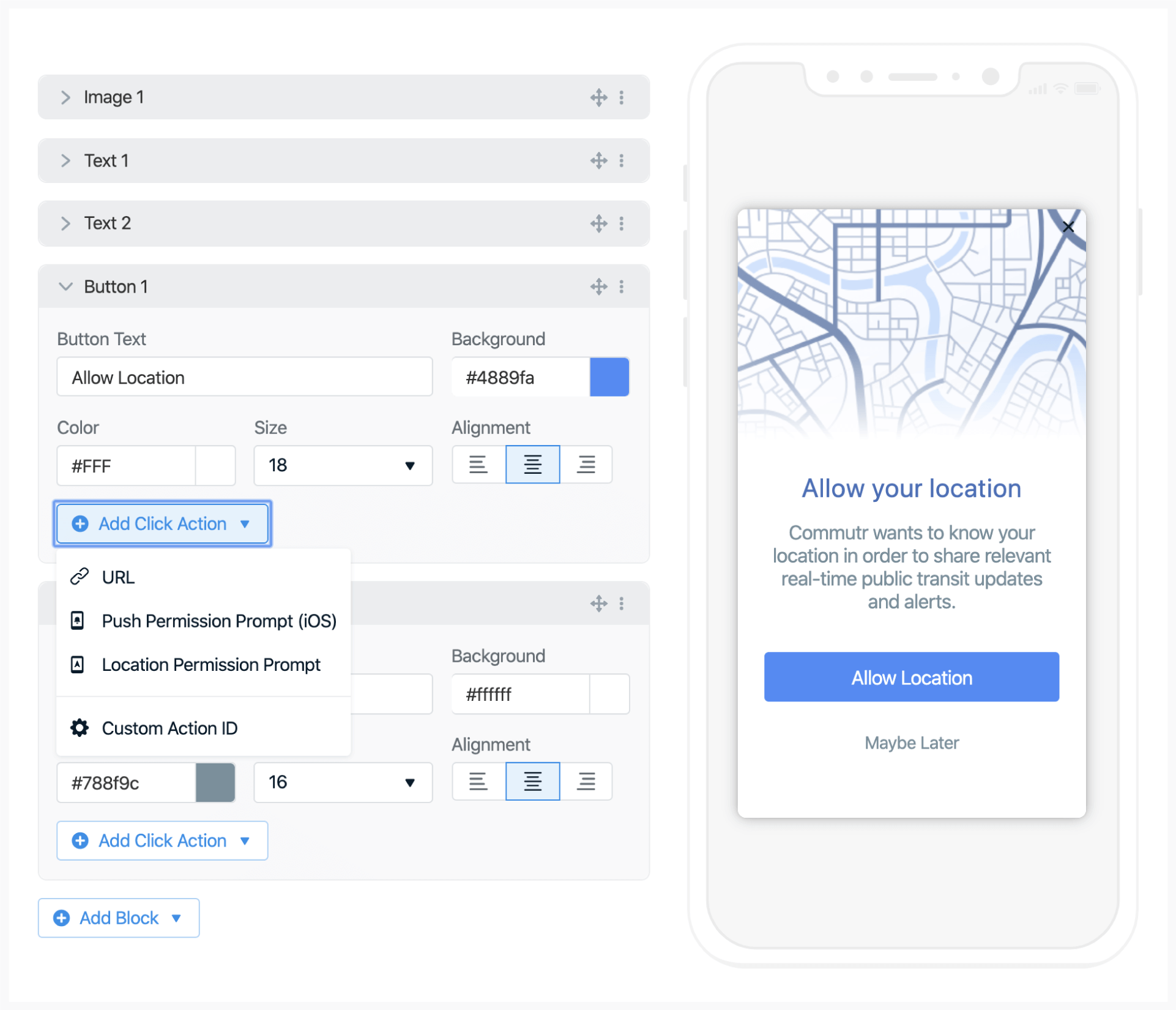
* Clearly explain why location access benefits the user. E.g., "Enable location to receive relevant local updates."
* Be concise but specific to increase opt-in likelihood.
 ***
## Add the Location Permission Prompt Click Action
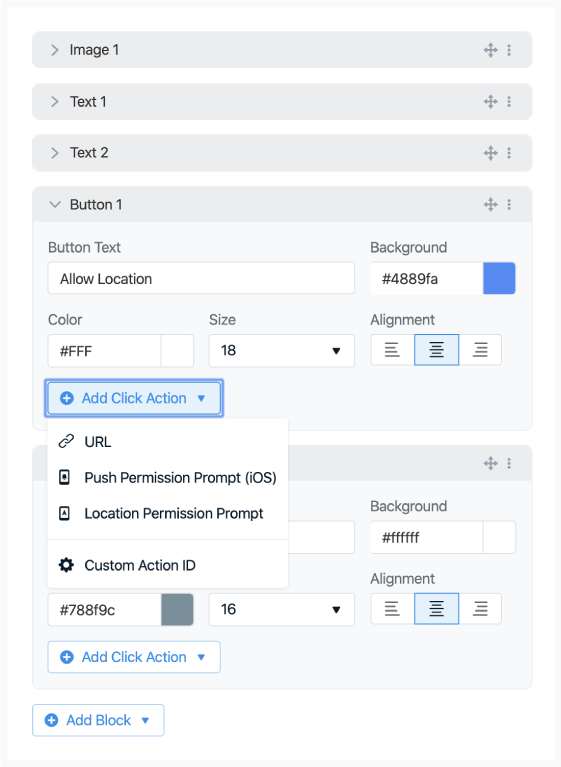
Add a button or image with a clear call to action (e.g., “Enable Location”).
In the options:
* Click **Add Click Action**
* Select **Location Permission Prompt**
When clicked, OneSignal will trigger the native, required system-level location prompt.
**If location is already enabled, the message won’t show to avoid unnecessary prompts.**
Both Android and iOS limit how frequently system-level prompts can appear. Using this soft pre-prompt helps avoid those limitations and allows for repeat attempts if needed.
***
## Add the Location Permission Prompt Click Action
Add a button or image with a clear call to action (e.g., “Enable Location”).
In the options:
* Click **Add Click Action**
* Select **Location Permission Prompt**
When clicked, OneSignal will trigger the native, required system-level location prompt.
**If location is already enabled, the message won’t show to avoid unnecessary prompts.**
Both Android and iOS limit how frequently system-level prompts can appear. Using this soft pre-prompt helps avoid those limitations and allows for repeat attempts if needed.
 ***
## Trigger the in-app message
You can control when and how the prompt is shown.
### Option 1: Time-based triggers
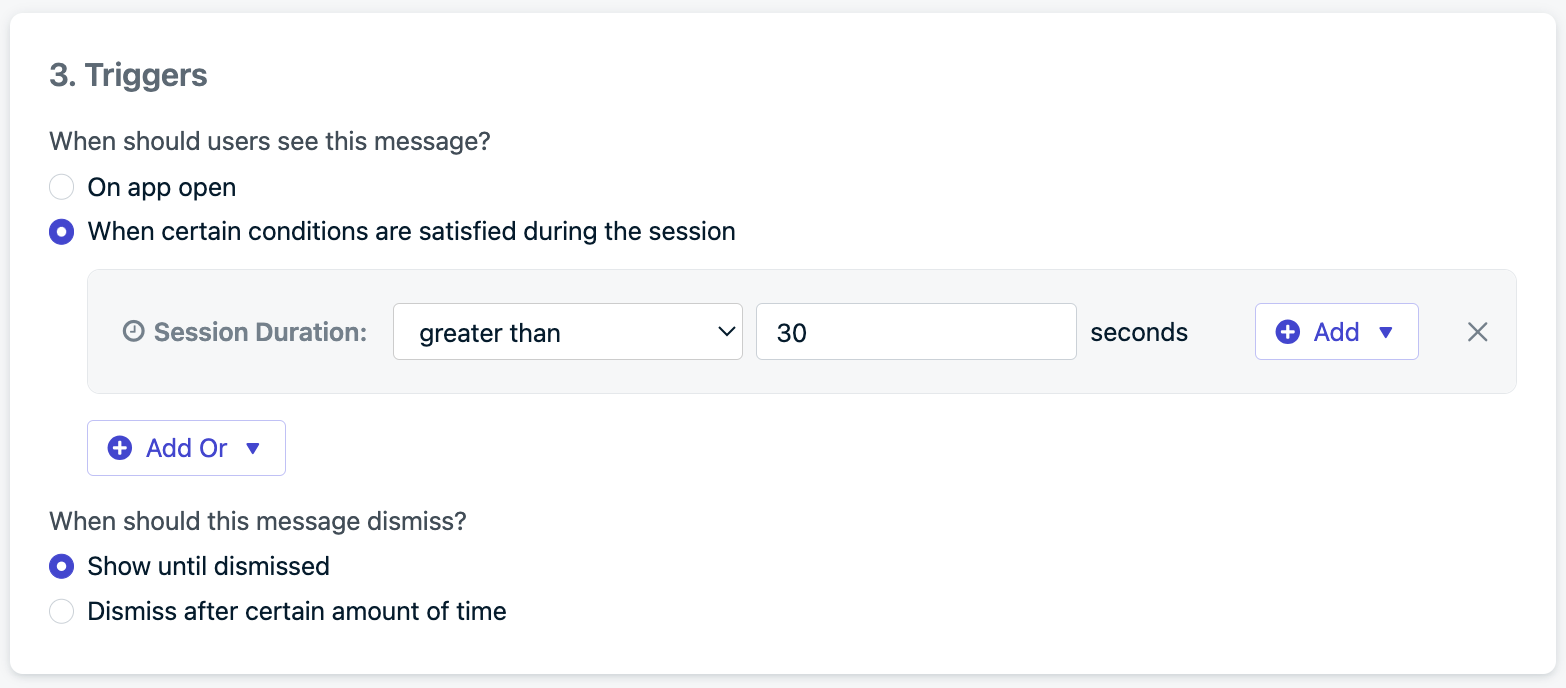
Show the message after a user has been in the app for a set amount of time (e.g., after 30 seconds).
***
## Trigger the in-app message
You can control when and how the prompt is shown.
### Option 1: Time-based triggers
Show the message after a user has been in the app for a set amount of time (e.g., after 30 seconds).
 ### Option 2: Programmatic triggers
Control exactly when the prompt appears via the SDK:
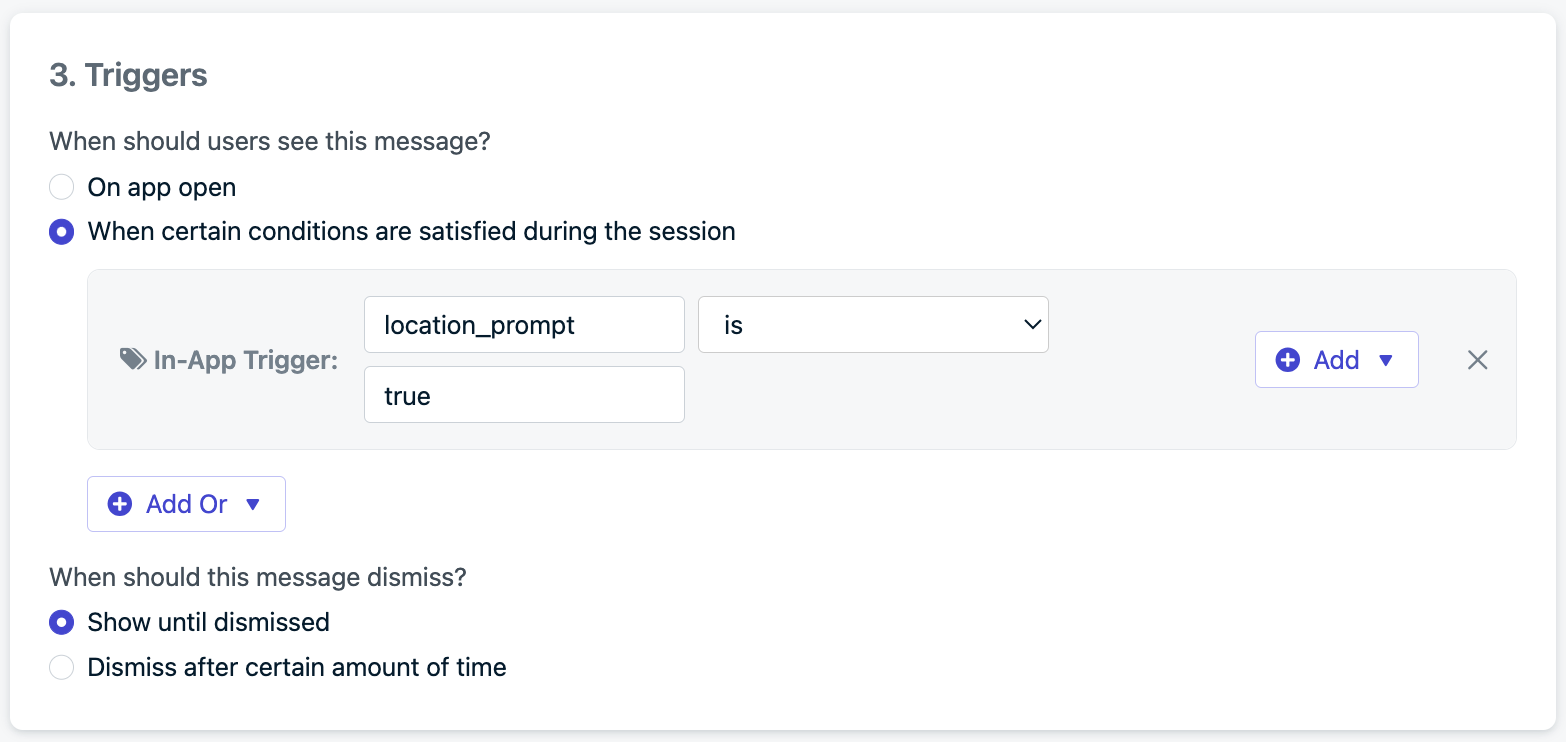
Use our SDK's [`addTrigger` method](./mobile-sdk-reference#in-app-messages) to set a key like `location_prompt` and value like `true`. Then call this whenever you want inside your app.
Set the same trigger key (`location_prompt`) and value (`true`) in your in-app message settings.
### Option 2: Programmatic triggers
Control exactly when the prompt appears via the SDK:
Use our SDK's [`addTrigger` method](./mobile-sdk-reference#in-app-messages) to set a key like `location_prompt` and value like `true`. Then call this whenever you want inside your app.
Set the same trigger key (`location_prompt`) and value (`true`) in your in-app message settings.
 ***
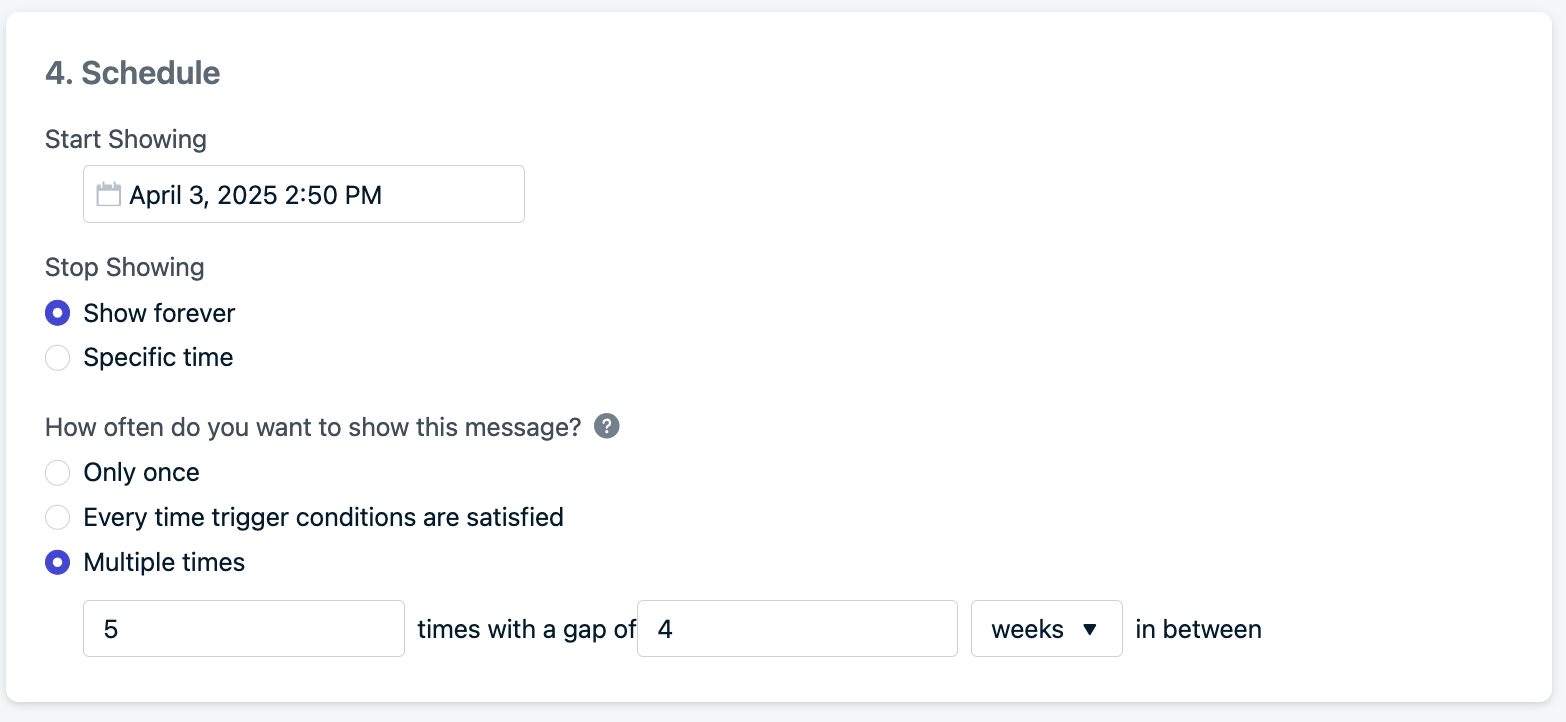
## Set the message frequency
To avoid spamming users:
* Choose **Multiple times**
* Set a number of times to show the message
* Set a gap between each attempt
Example setting: show up to 5 times, with a 4-week gap between each attempt
This allows monthly reminders for up to 5 months, striking a balance between persistence and user experience.
***
## Set the message frequency
To avoid spamming users:
* Choose **Multiple times**
* Set a number of times to show the message
* Set a gap between each attempt
Example setting: show up to 5 times, with a 4-week gap between each attempt
This allows monthly reminders for up to 5 months, striking a balance between persistence and user experience.
 ***
## Best Practices
* Always explain the benefit of location access to users.
* Use segmentation or triggers to avoid asking at a bad time.
* Pre-prompts increase opt-in rates and avoid operating system limits.
* Ensure location permissions are correctly configured in your app before triggering the in-app message.
***
You will start to see location points being tracked in your Users and Subscriptions pages.
Create [Location-triggered messages](./location-triggered-event).
***
***
## Best Practices
* Always explain the benefit of location access to users.
* Use segmentation or triggers to avoid asking at a bad time.
* Pre-prompts increase opt-in rates and avoid operating system limits.
* Ensure location permissions are correctly configured in your app before triggering the in-app message.
***
You will start to see location points being tracked in your Users and Subscriptions pages.
Create [Location-triggered messages](./location-triggered-event).
***