> ## Documentation Index
> Fetch the complete documentation index at: https://documentation.onesignal.com/llms.txt
> Use this file to discover all available pages before exploring further.
# macOS app setup
> Learn how to integrate OneSignal into your macOS app, whether using Mac Catalyst or direct API access. Step-by-step guidance for configuring platforms and sending push notifications.
## Configure your OneSignal app and platform
To send push notifications on macOS, your OneSignal app must be configured with Apple (APNs).
If your team already has a OneSignal account, [ask to be invited as an admin role](./manage-team-members) so you can configure the app. Otherwise, [sign up for a free account](https://onesignal.com) to get started.
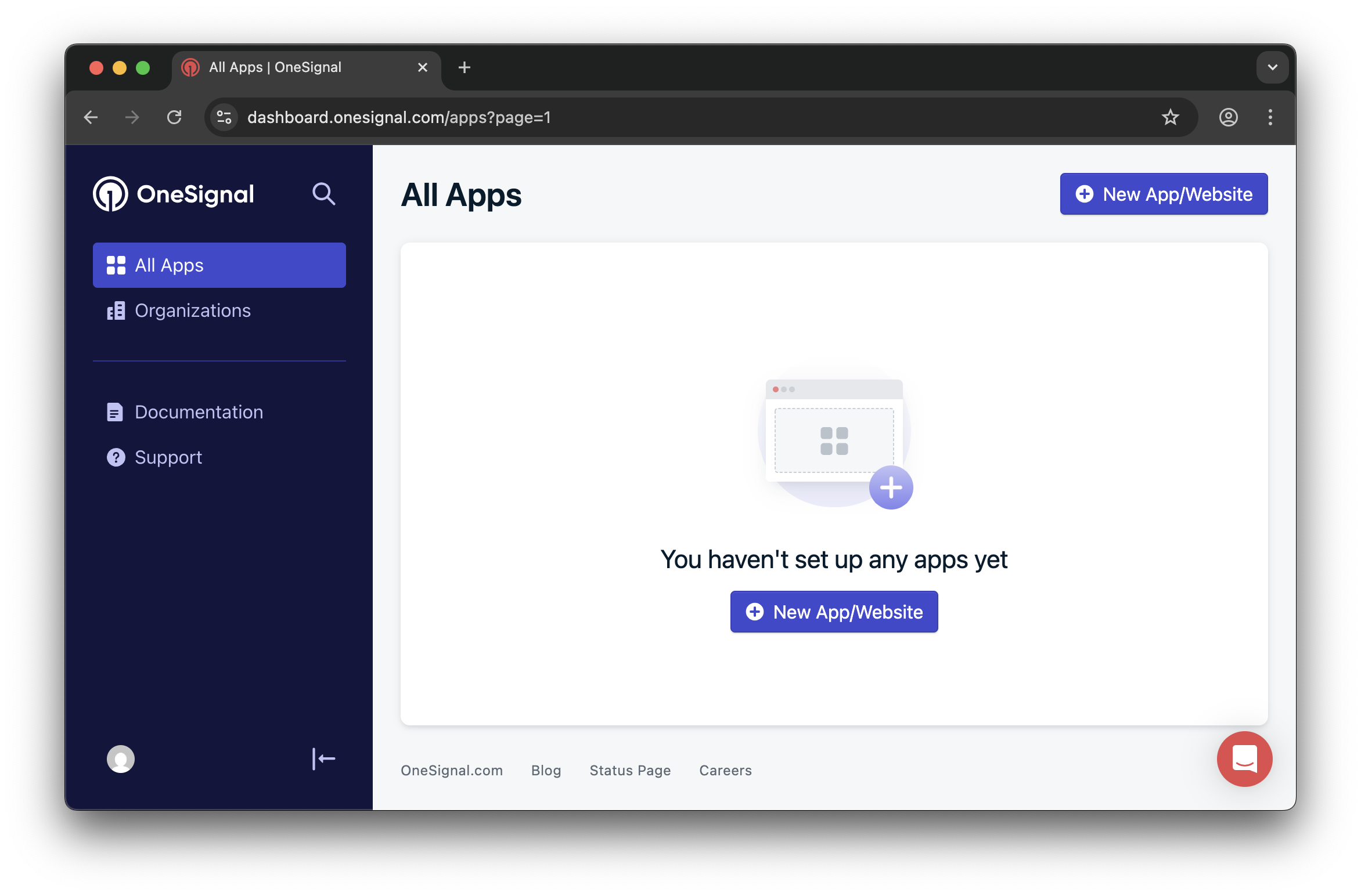
### 1. Create or select your app
* Select your app and go to **Settings > Push & In-App**.
* Or create a new app by clicking **New App/Website**.
 ### 2. Set up and activate macOS platform
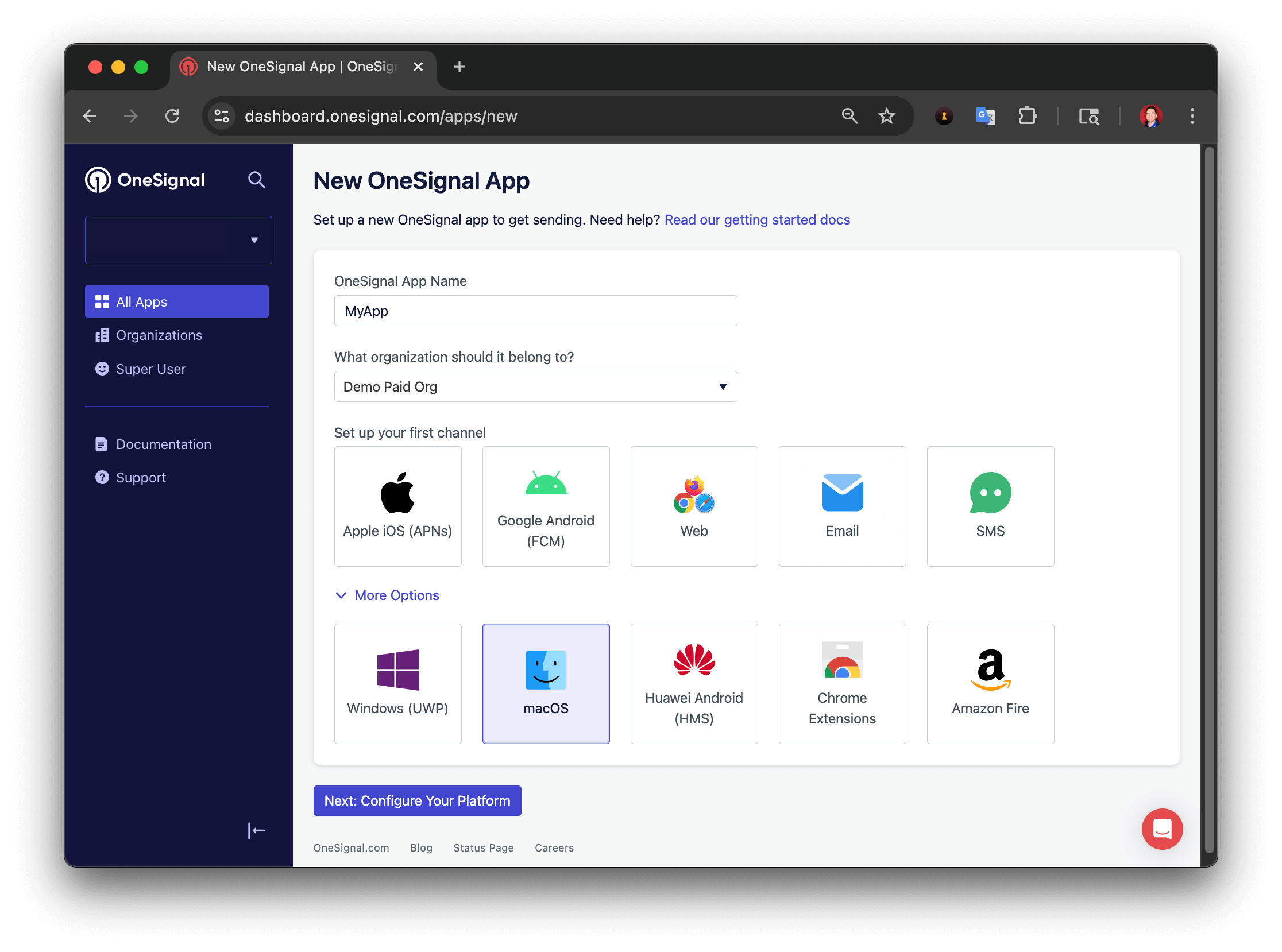
* Choose a recognizable app and organization name.
* Select (More Options) macOS as the platform to activate.
* Click **Next: Configure Your Platform**.
### 2. Set up and activate macOS platform
* Choose a recognizable app and organization name.
* Select (More Options) macOS as the platform to activate.
* Click **Next: Configure Your Platform**.
 ### 3. Configure credentials
Follow the prompts to add either:
* [p8 Auth Key (Recommended)](./ios-p8-token-based-connection-to-apns)
* Or [p12 Certificate](./ios-p12-generate-certificates)
### 3. Configure credentials
Follow the prompts to add either:
* [p8 Auth Key (Recommended)](./ios-p8-token-based-connection-to-apns)
* Or [p12 Certificate](./ios-p12-generate-certificates)
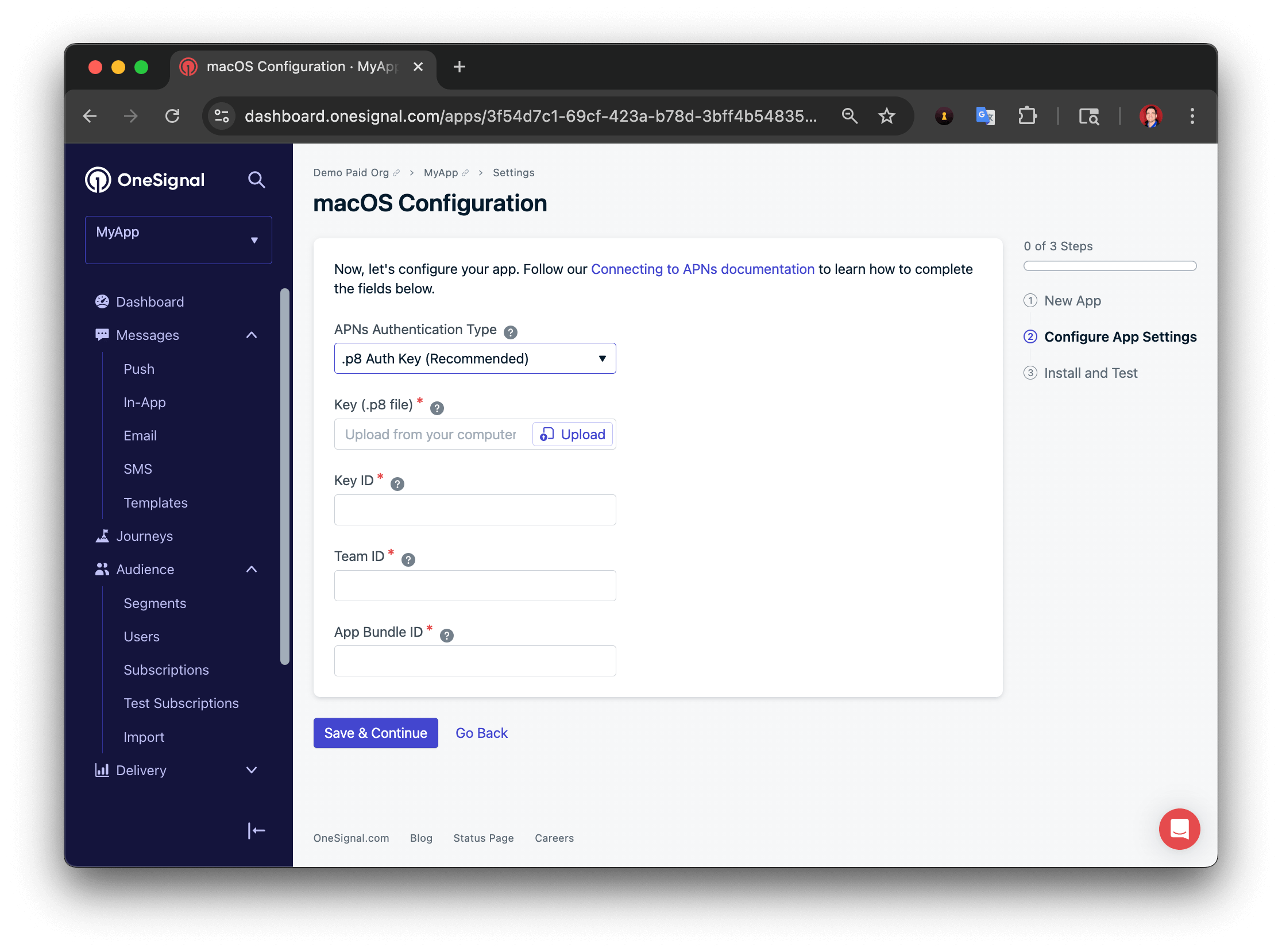 Click **Save & Continue** after entering your credentials.
### 4. Save your App ID
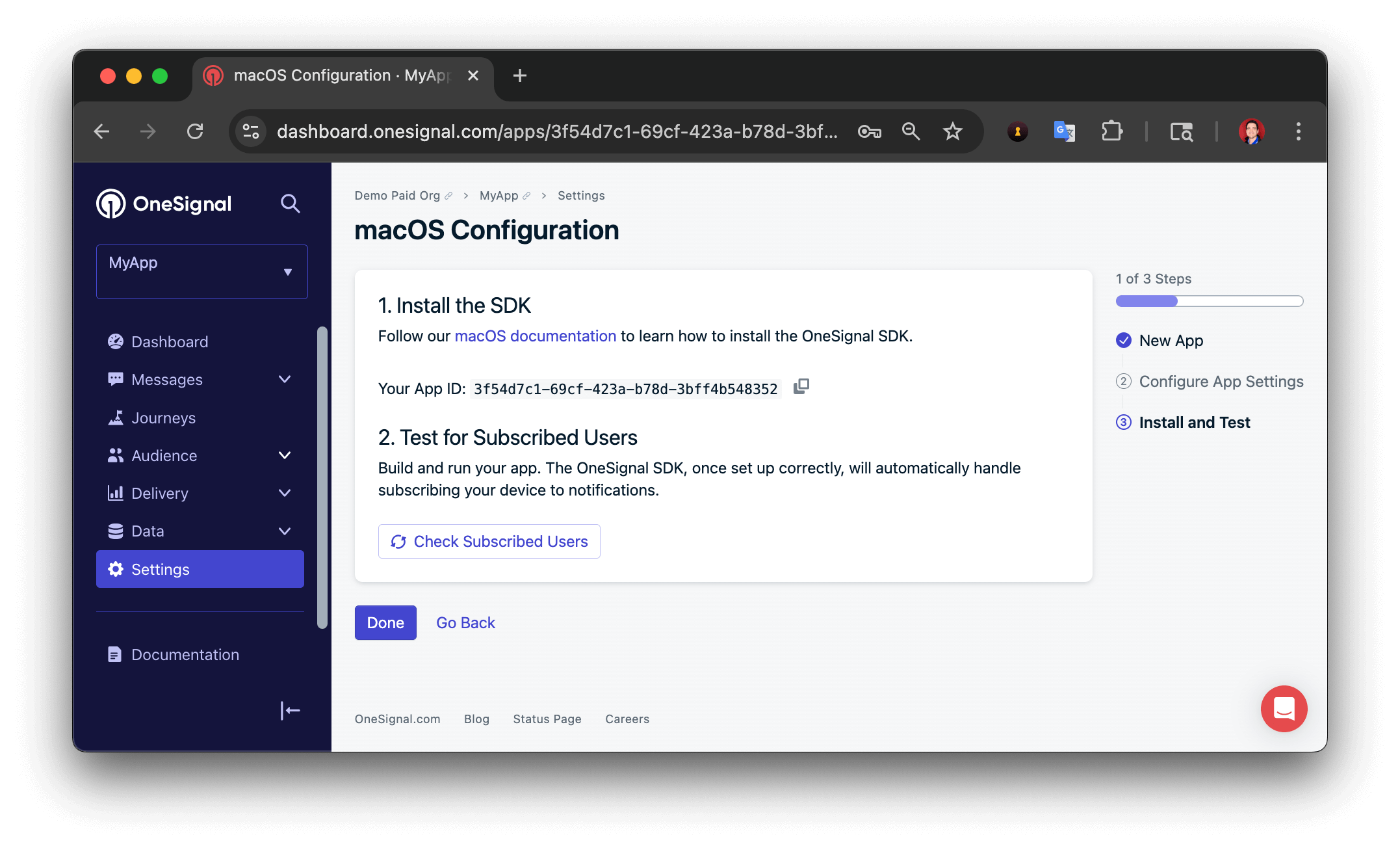
You’ll be shown your OneSignal App ID — make sure to save it, as you’ll need it during setup.
Click **Save & Continue** after entering your credentials.
### 4. Save your App ID
You’ll be shown your OneSignal App ID — make sure to save it, as you’ll need it during setup.
 ***
## Setup
If your macOS app was built with Mac Catalyst, you can integrate our iOS SDK directly. Otherwise, you can leverage our APIs to manage users and notifications.
If you built your app with Mac Catalyst, you can integrate our [iOS SDK](./ios-sdk-setup) directly.
If you're not using Mac Catalyst, or need full control, you can integrate via the OneSignal REST API.
Follow [Apple's documentation](https://developer.apple.com/notifications/) to implement native push support and retrieve the APNs token from your macOS app.
Call our [Create user API](/reference/create-user) to set the `subscription` object:
* `type` of `macOSPush`
* `token` of the APNs token
* Include all other user data, especially `external_id` to track the user in OneSignal.
Use the [Create user](/reference/create-user) or [Update user](/reference/update-user) APIs with the `external_id` to update user and subscription data.
***
macOS setup complete!
Recommended next steps:
* Understand [Users](./users) and [Subscriptions](./subscriptions)
* [Create message API](/reference/create-message) to send notifications
***
***
## Setup
If your macOS app was built with Mac Catalyst, you can integrate our iOS SDK directly. Otherwise, you can leverage our APIs to manage users and notifications.
If you built your app with Mac Catalyst, you can integrate our [iOS SDK](./ios-sdk-setup) directly.
If you're not using Mac Catalyst, or need full control, you can integrate via the OneSignal REST API.
Follow [Apple's documentation](https://developer.apple.com/notifications/) to implement native push support and retrieve the APNs token from your macOS app.
Call our [Create user API](/reference/create-user) to set the `subscription` object:
* `type` of `macOSPush`
* `token` of the APNs token
* Include all other user data, especially `external_id` to track the user in OneSignal.
Use the [Create user](/reference/create-user) or [Update user](/reference/update-user) APIs with the `external_id` to update user and subscription data.
***
macOS setup complete!
Recommended next steps:
* Understand [Users](./users) and [Subscriptions](./subscriptions)
* [Create message API](/reference/create-message) to send notifications
***