> ## Documentation Index
> Fetch the complete documentation index at: https://documentation.onesignal.com/llms.txt
> Use this file to discover all available pages before exploring further.
# Mailgun Setup
> Step-by-step guide to setting up Mailgun with OneSignal for sending email messages. Includes DNS verification, SMTP credential setup, API key generation, and OneSignal integration instructions.
This setup guide is if you have Mailgun already and want to integrate it with OneSignal. If you don't have a Mailgun account, you can use [OneSignal Email](./email-setup) instead.
## Requirements
* [Mailgun Account](https://www.mailgun.com)
* Mailgun **US** API (EU region is not supported)
* [OneSignal Account](https://onesignal.com)
* A domain you own and access to its DNS provider
***
## Setup
### 1. Add a new domain in Mailgun
Skip this step if your domain is already set up in the US region.
1. Go to the **Domains** page in the Mailgun dashboard.
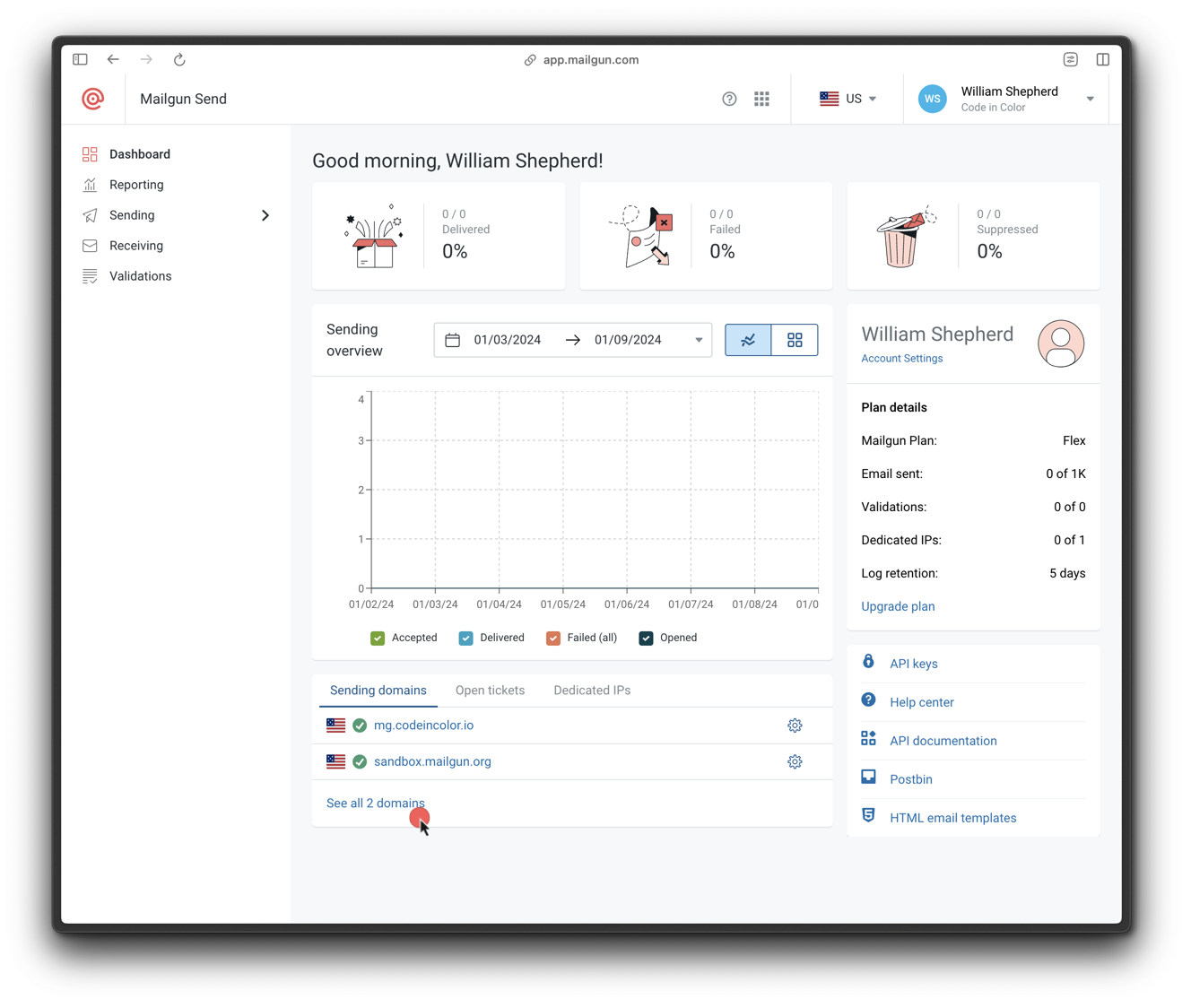 2. Click **Add new domain**.
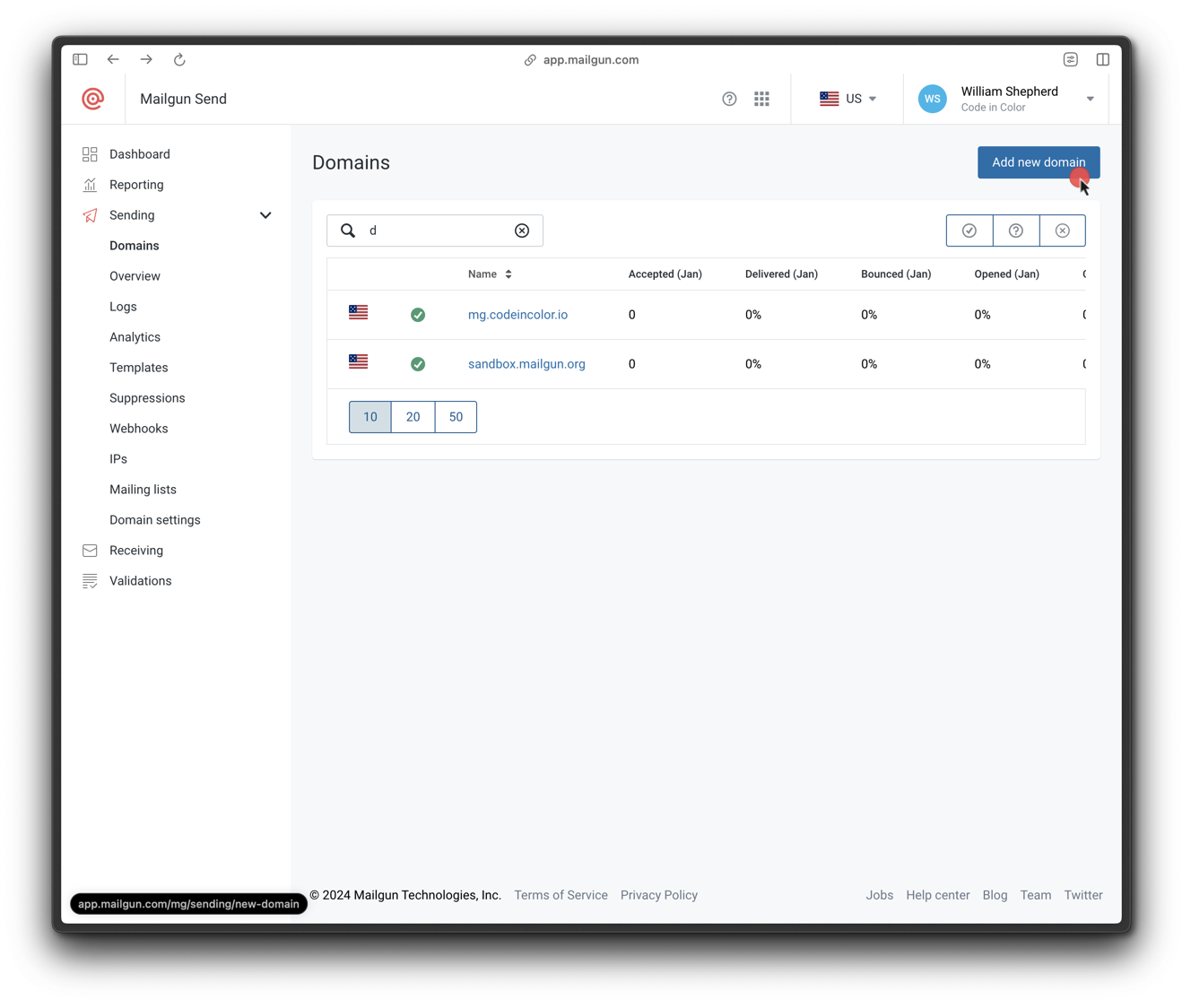 3. Enter a subdomain (e.g., `mail.yourdomain.com`) and ensure the region is **US**.
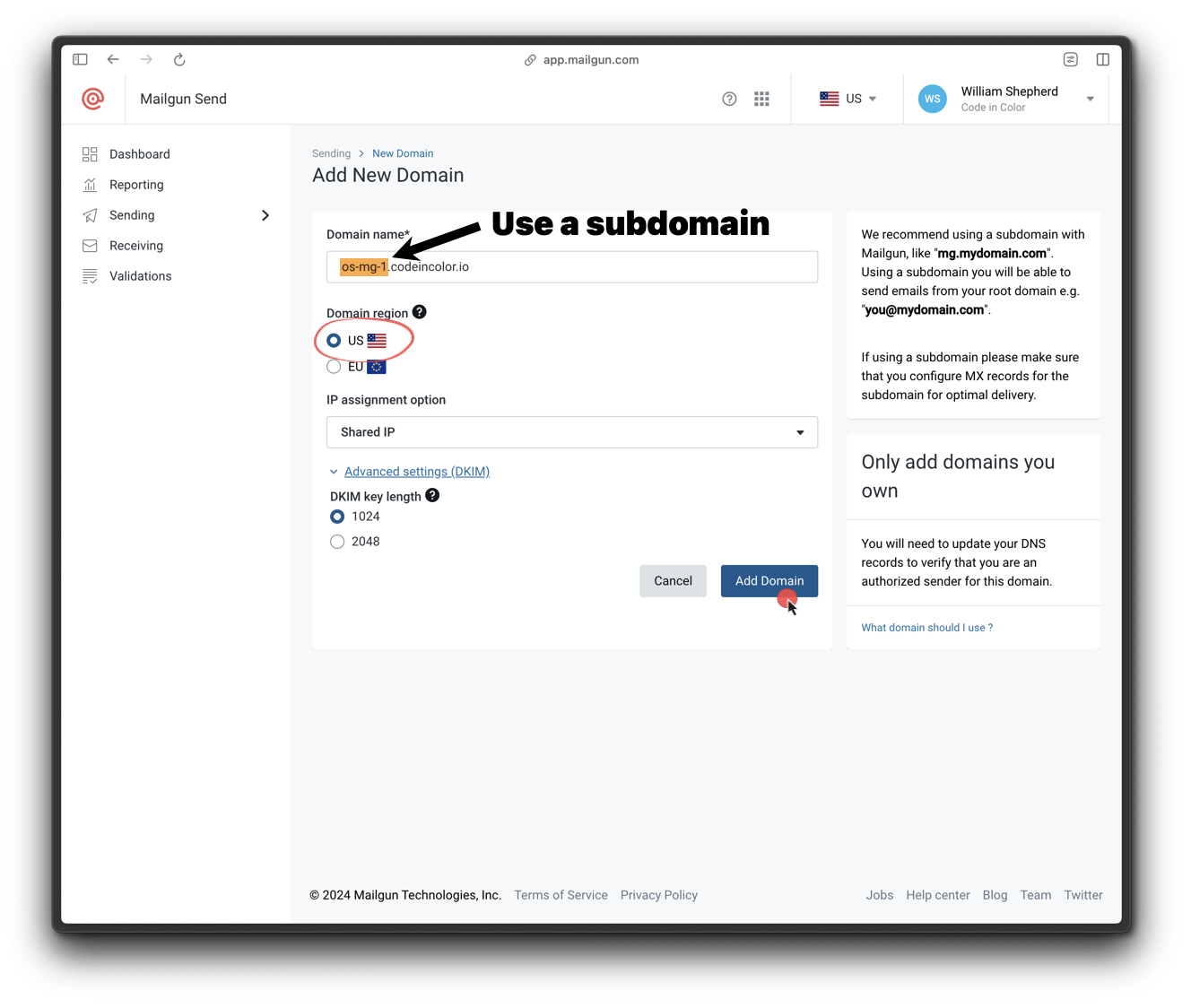 ### 2. Verify DNS settings
Mailgun provides the following DNS records:
* 2 **TXT** (SPF & DKIM)
* 2 **MX**
* 1 **CNAME**
Update these in your DNS provider. Propagation may take up to 48 hours. Mailgun will notify you via email once verified.
To verify:
* Go to **Mailgun > Sending > Domain Settings > Your Domain > DNS Records**
* Look for green checkmarks next to each record
### 2. Verify DNS settings
Mailgun provides the following DNS records:
* 2 **TXT** (SPF & DKIM)
* 2 **MX**
* 1 **CNAME**
Update these in your DNS provider. Propagation may take up to 48 hours. Mailgun will notify you via email once verified.
To verify:
* Go to **Mailgun > Sending > Domain Settings > Your Domain > DNS Records**
* Look for green checkmarks next to each record
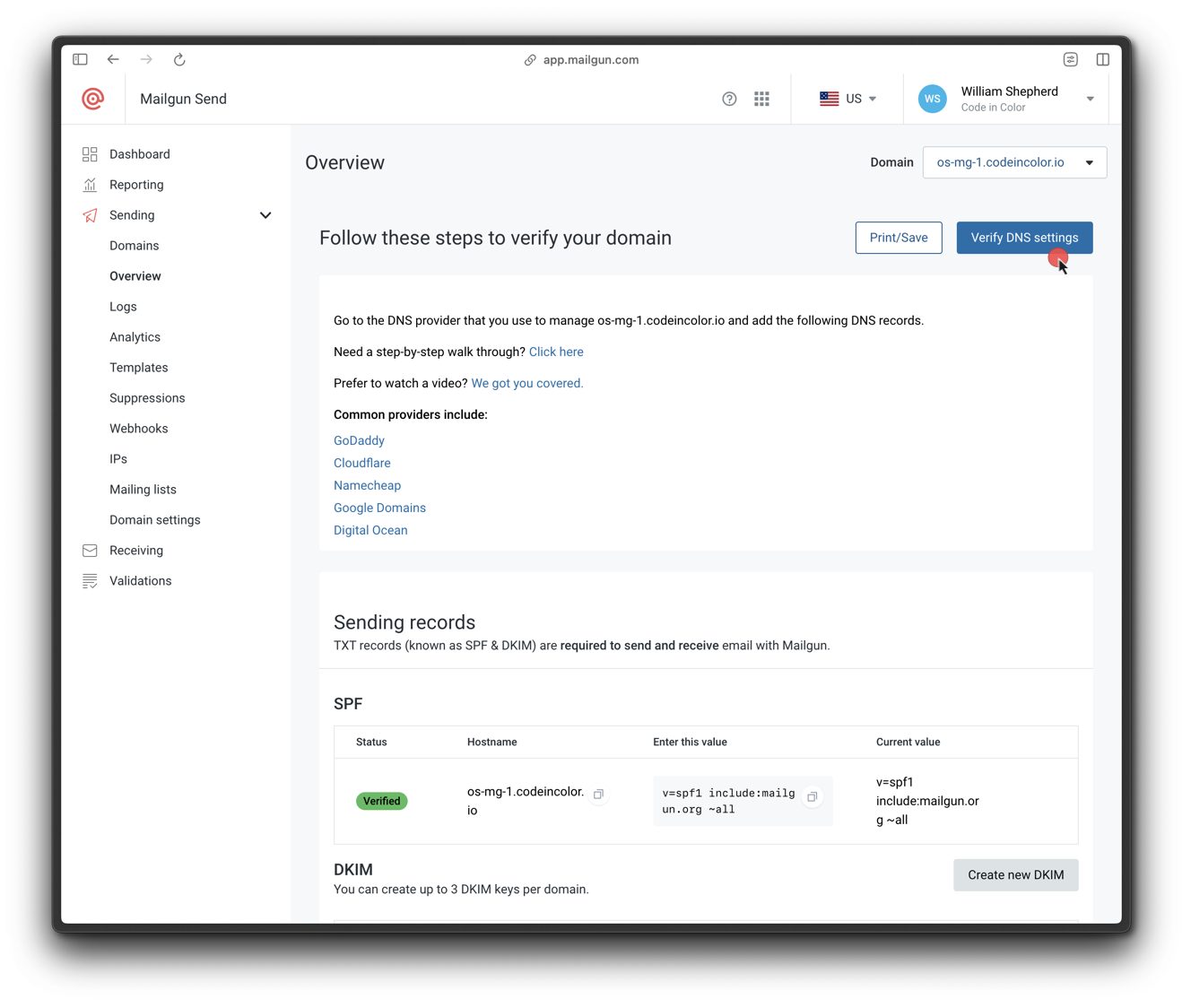 If CNAME is not set correctly, email click, open, and unsubscribe tracking will not work.
***
### 3. Set up SMTP credentials
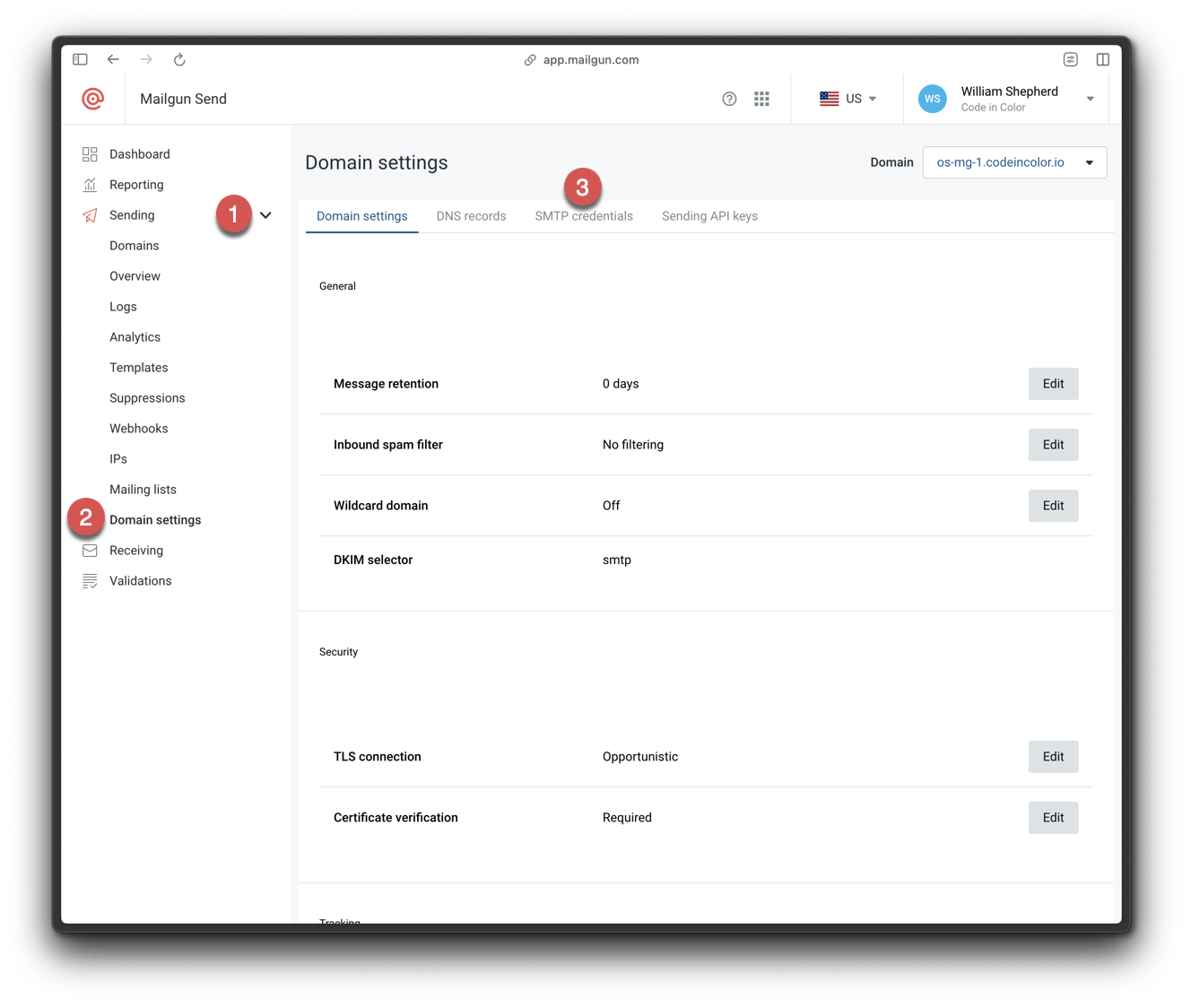
1. Go to **Sending > Domain Settings > SMTP credentials** in Mailgun.
If CNAME is not set correctly, email click, open, and unsubscribe tracking will not work.
***
### 3. Set up SMTP credentials
1. Go to **Sending > Domain Settings > SMTP credentials** in Mailgun.
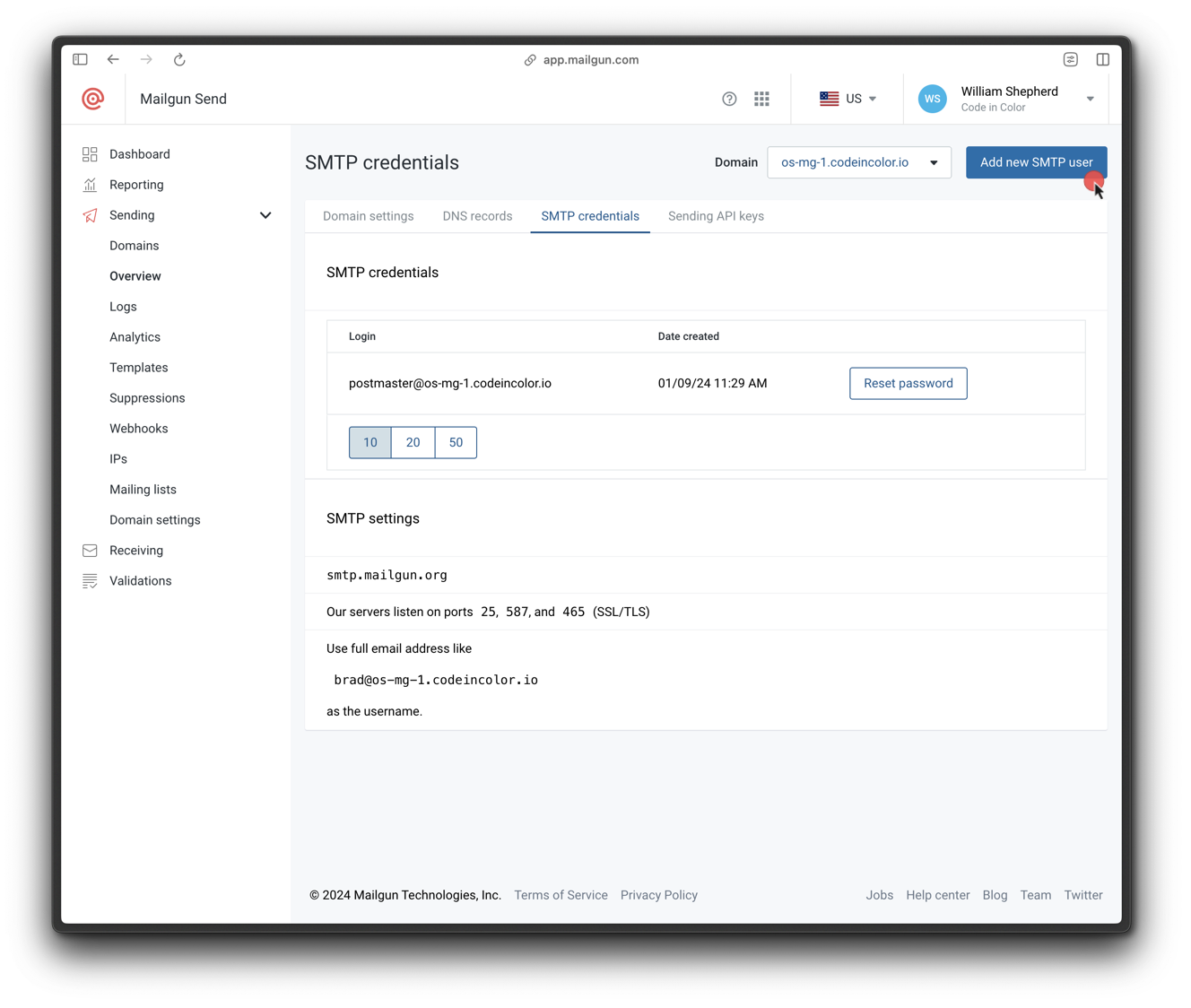
 2. Click **Add new SMTP user**.
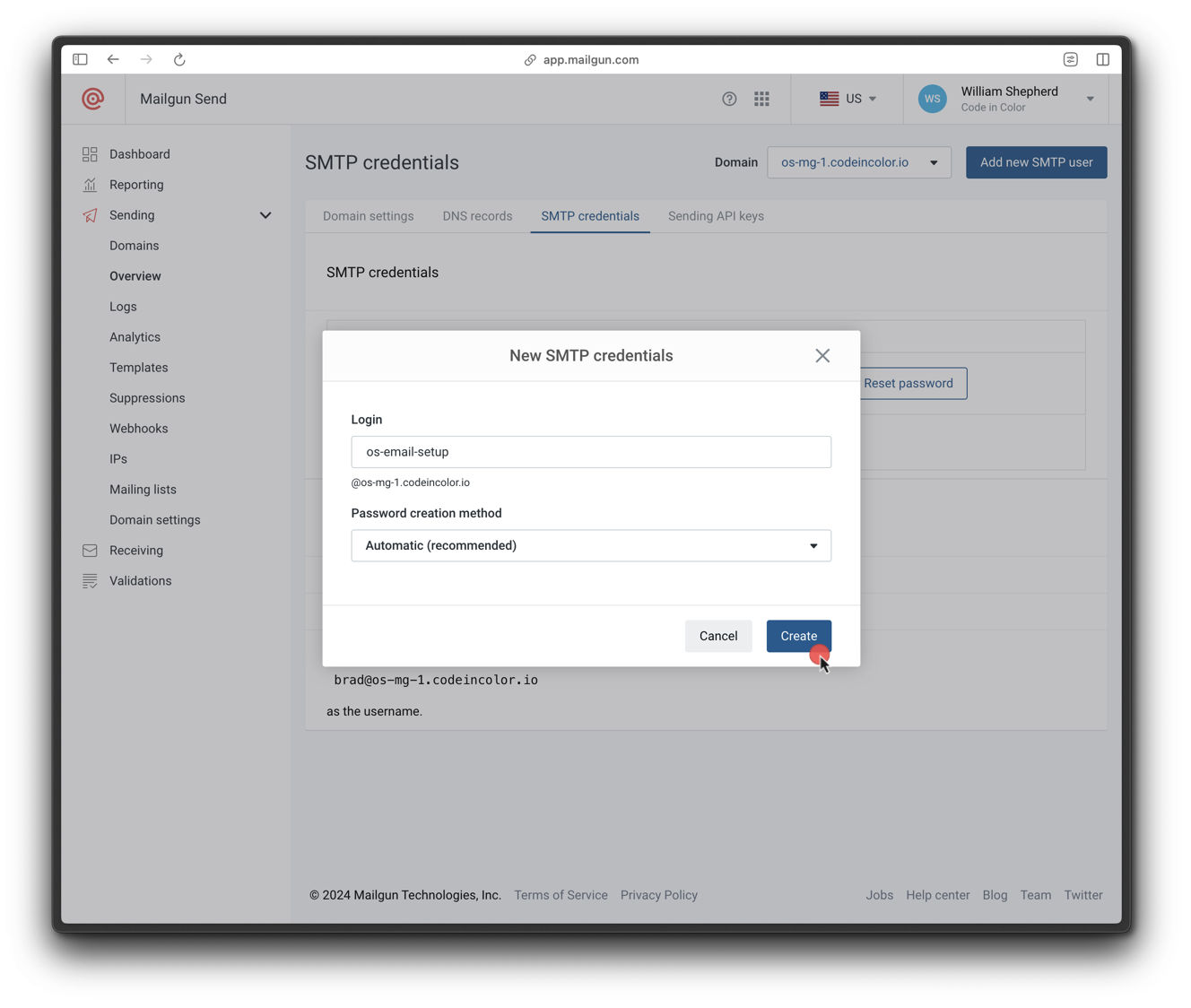
 3. Set a login name and save the credentials.
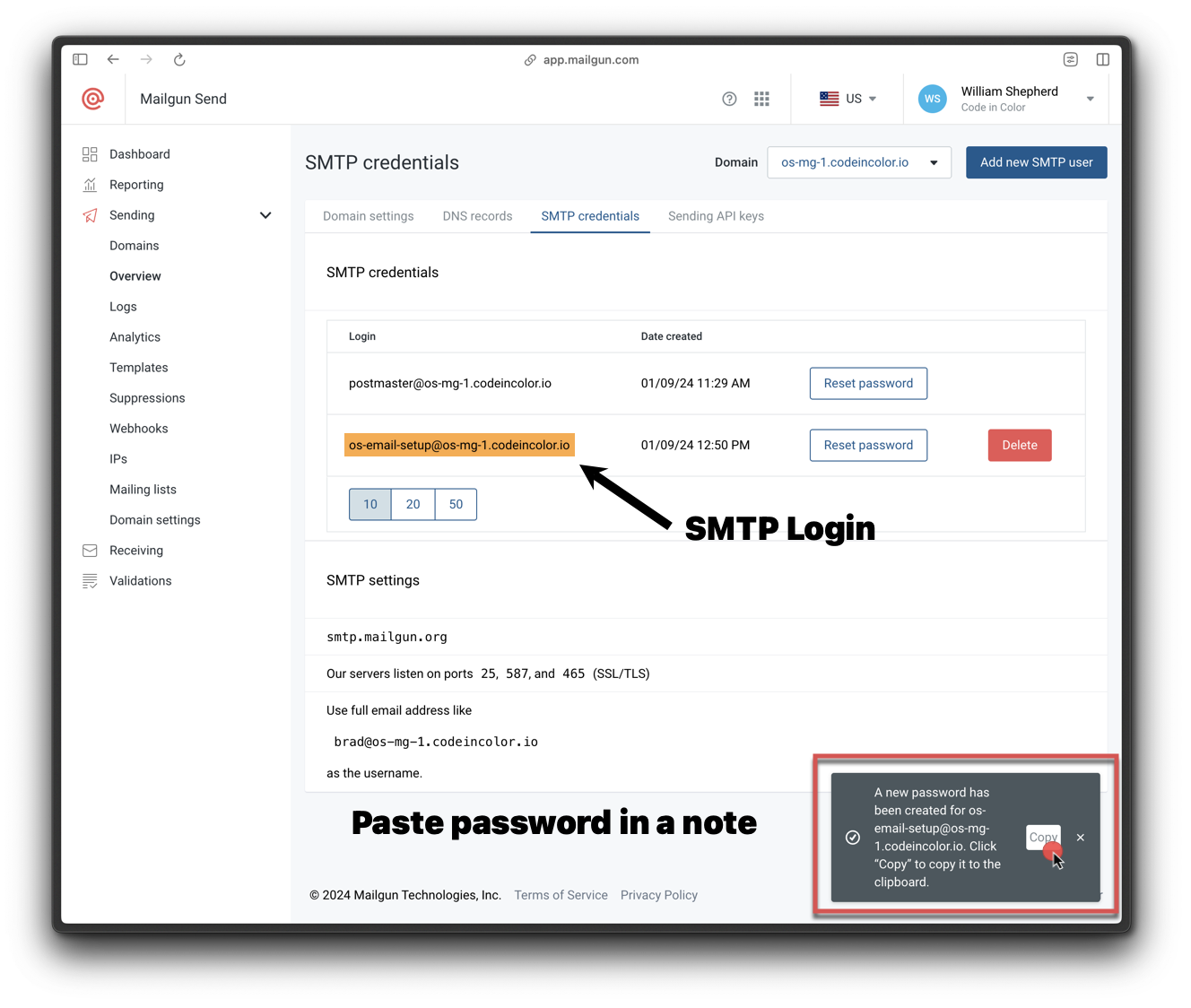
 4. Click the **copy** icon to save the password securely.
 ### 4. Get a Mailgun API key
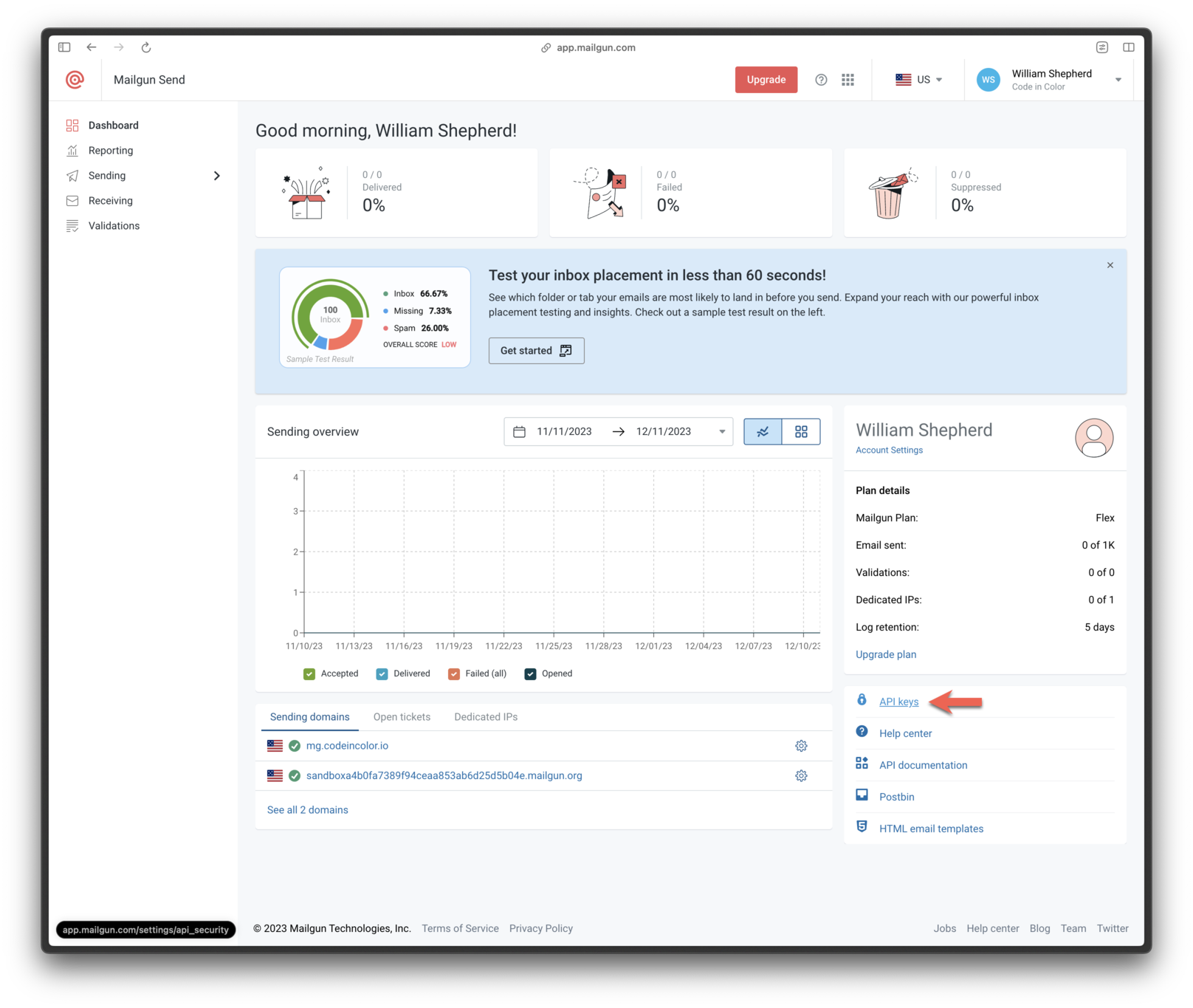
1. In the Mailgun dashboard, scroll to the bottom and click **API Keys**.
### 4. Get a Mailgun API key
1. In the Mailgun dashboard, scroll to the bottom and click **API Keys**.
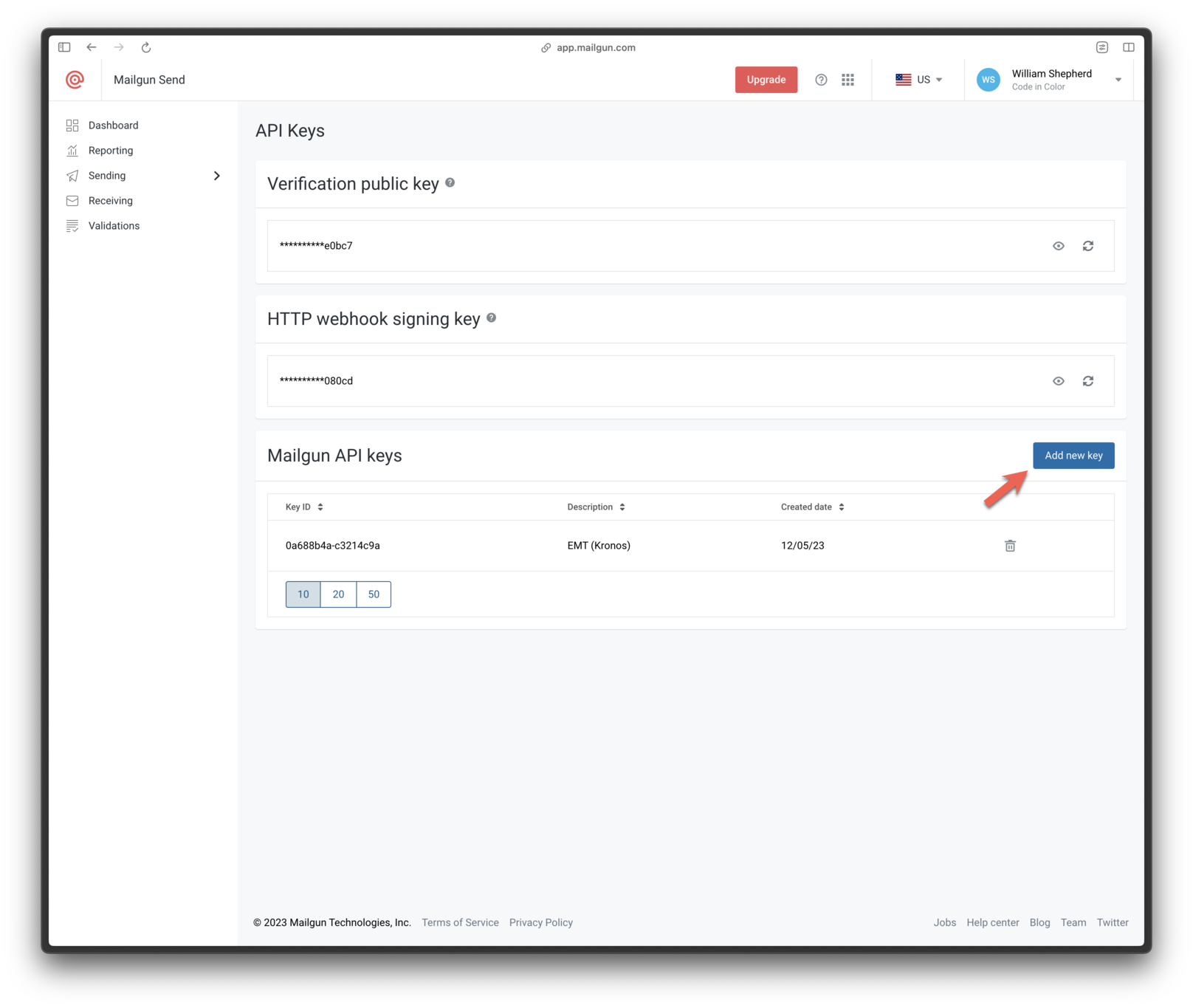
 2. Click **Add new key**
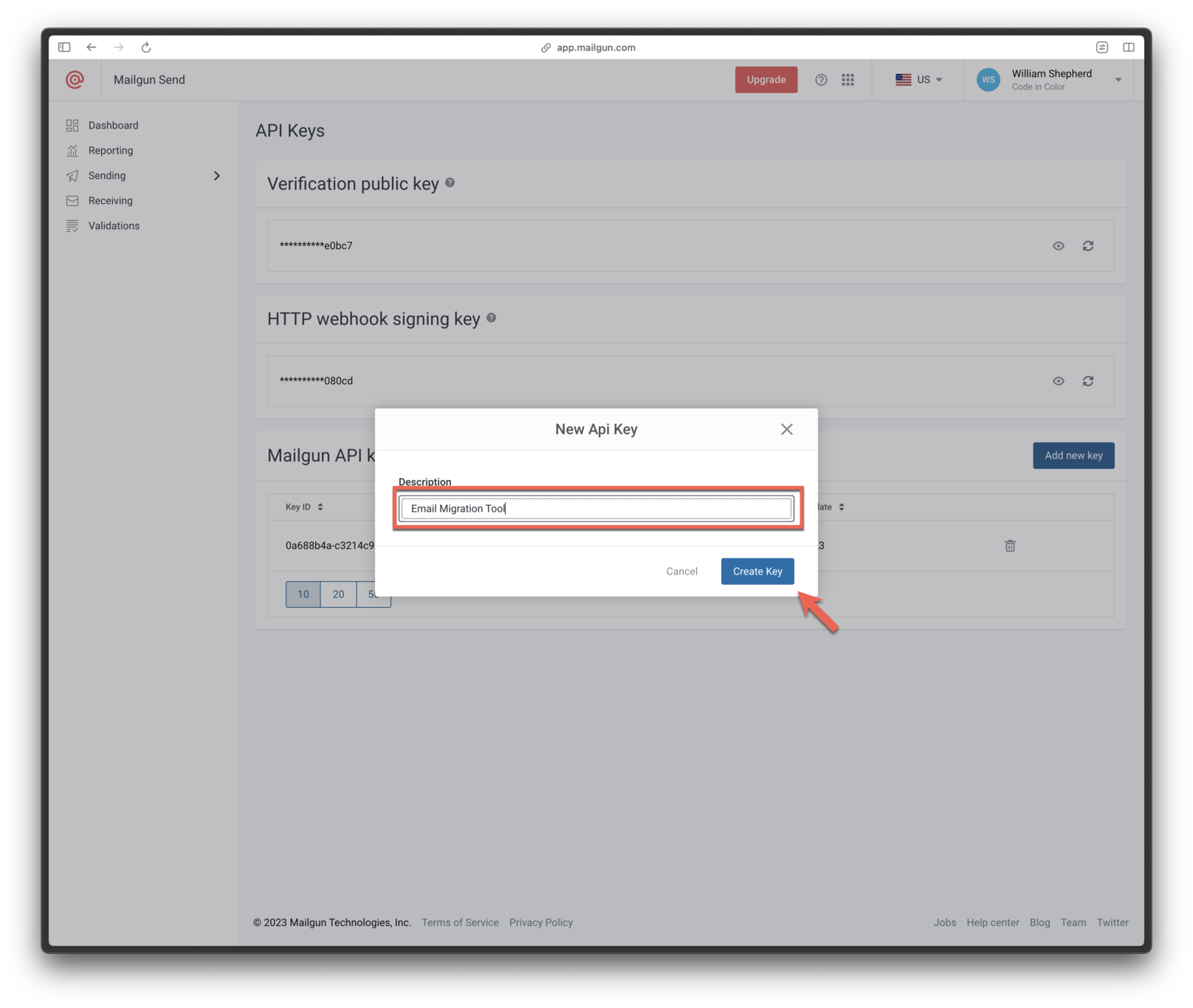
 3. Name the key and click **Create Key**.
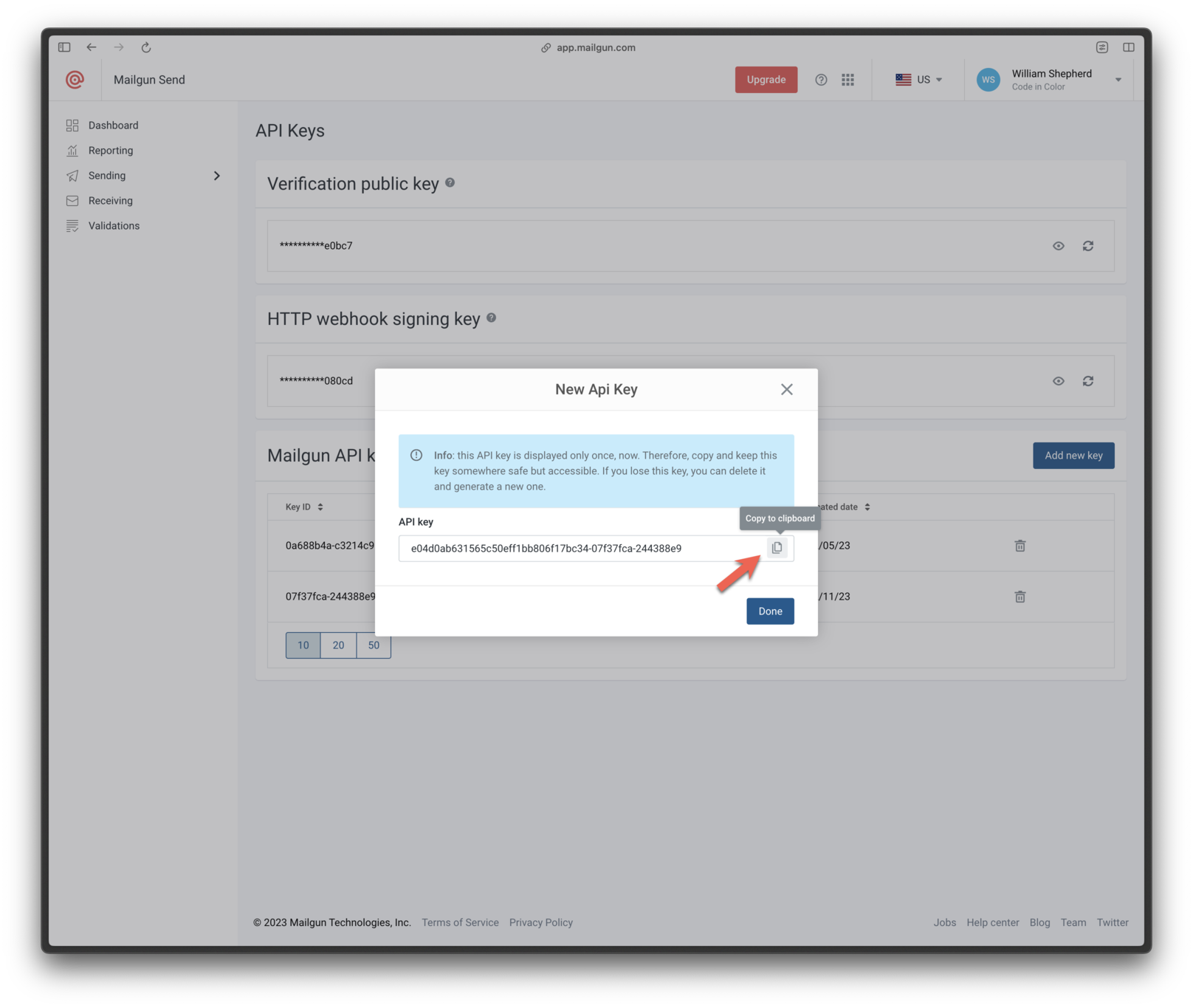
 4. Copy the generated API key and save it securely.
 ***
### 5. Configure Mailgun in OneSignal
1. In OneSignal, go to **Settings > Platforms > Email** and choose **Mailgun**.
***
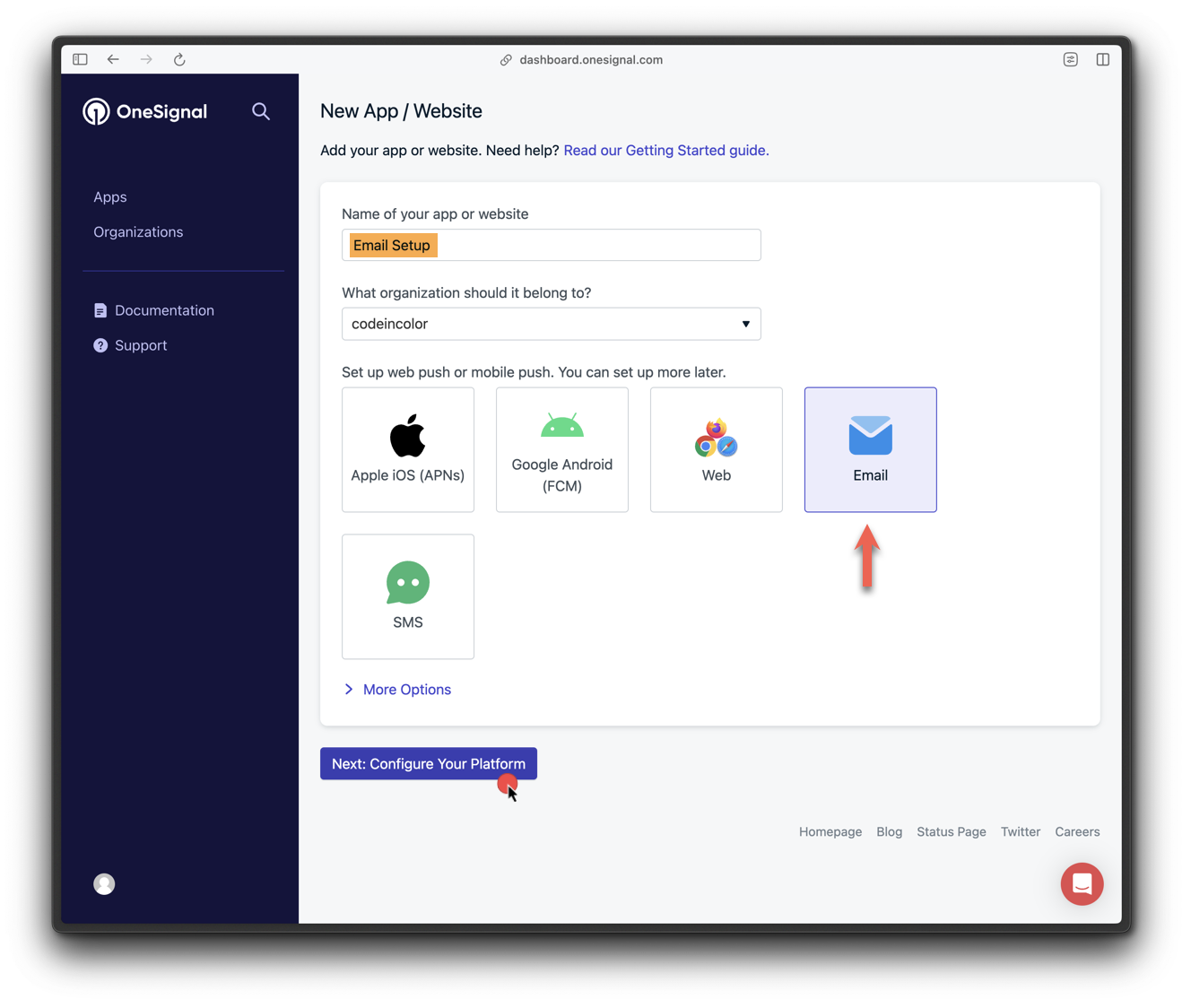
### 5. Configure Mailgun in OneSignal
1. In OneSignal, go to **Settings > Platforms > Email** and choose **Mailgun**.
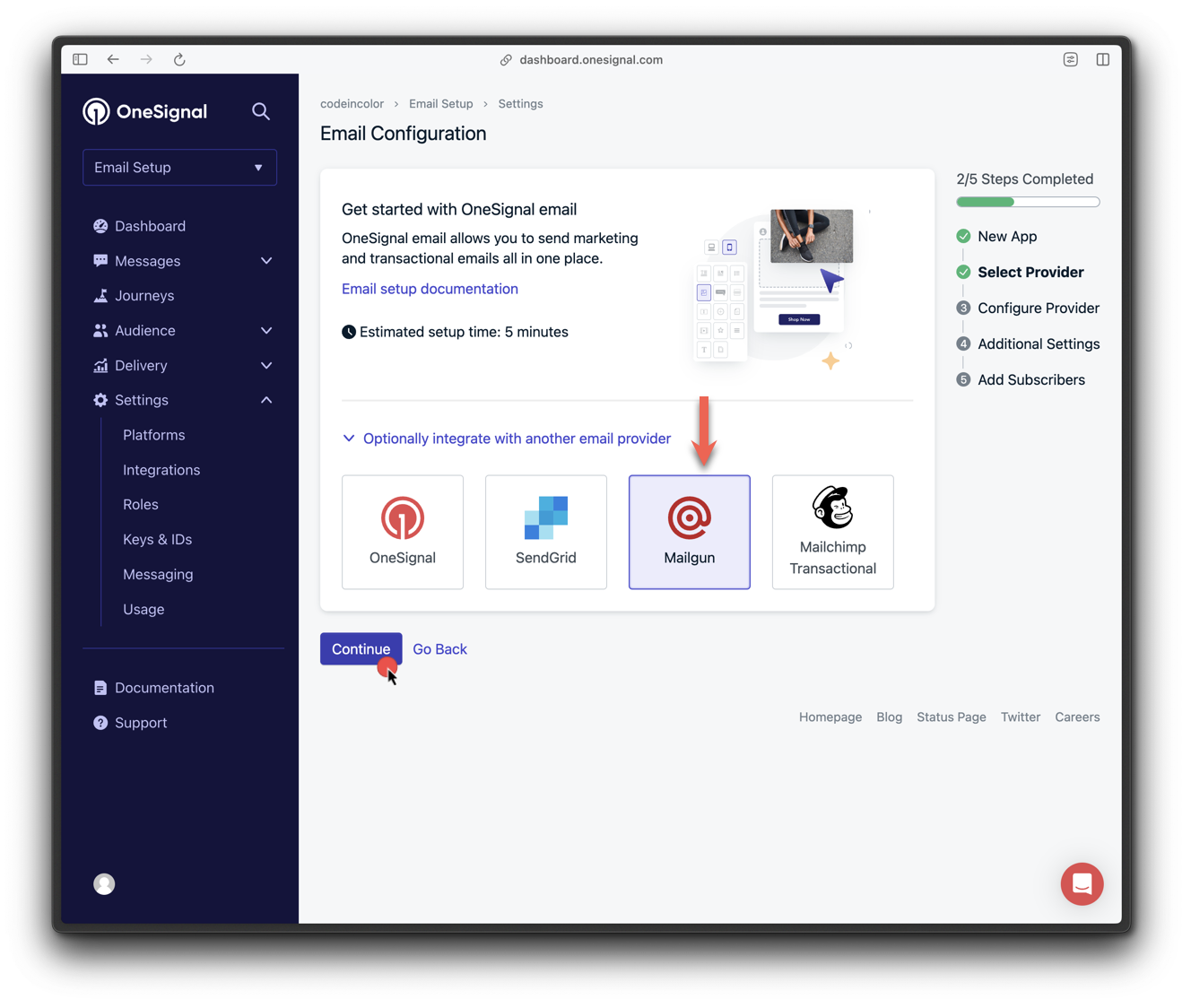
 2. Select **Mailgun** as the provider.
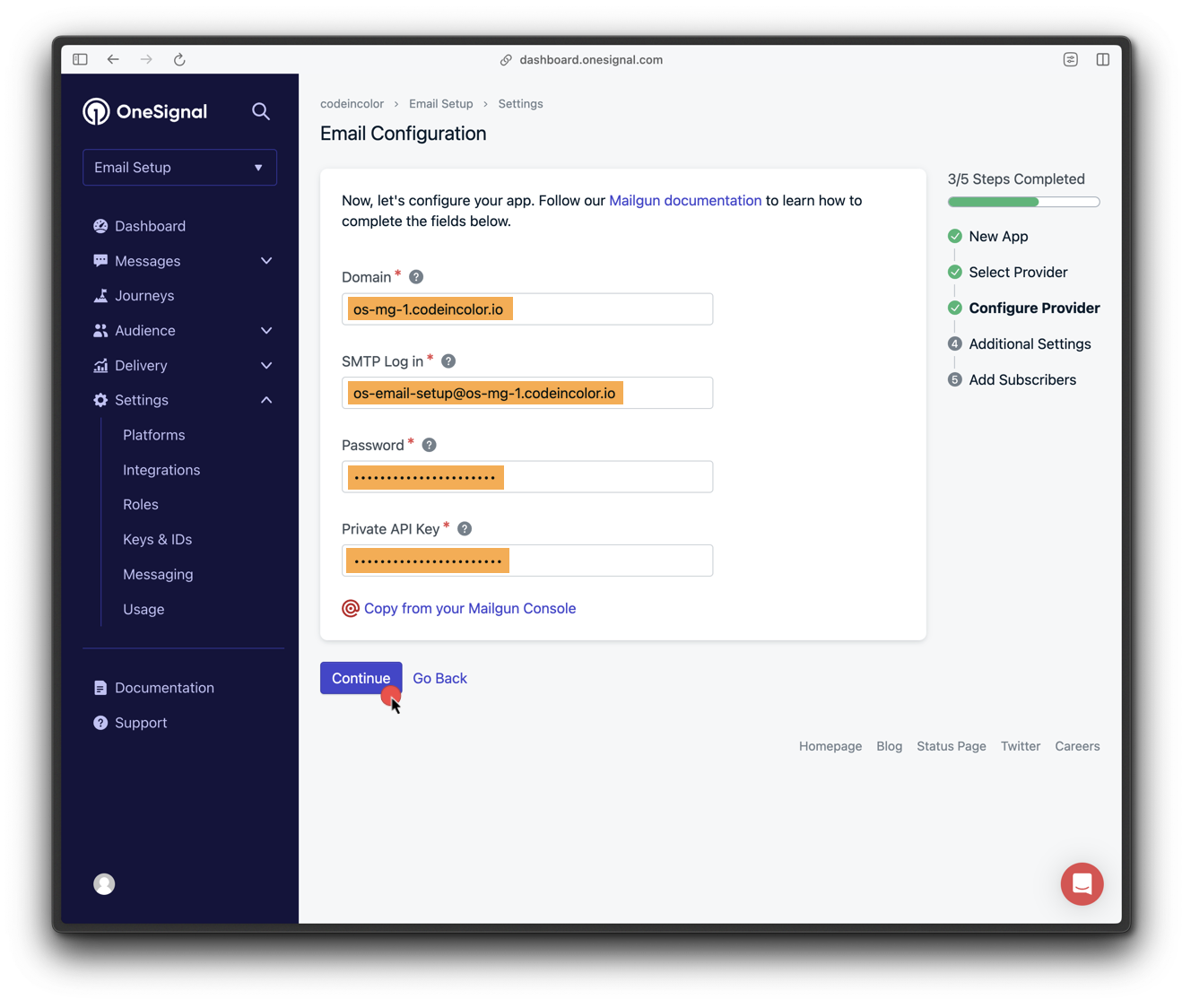
 3. Enter:
* The domain from [Step 1](#1-add-a-new-domain-in-mailgun)
* SMTP credentials from [Step 3](#3-set-up-smtp-credentials)
* API key from [Step 4](#4-get-a-mailgun-api-key)
3. Enter:
* The domain from [Step 1](#1-add-a-new-domain-in-mailgun)
* SMTP credentials from [Step 3](#3-set-up-smtp-credentials)
* API key from [Step 4](#4-get-a-mailgun-api-key)
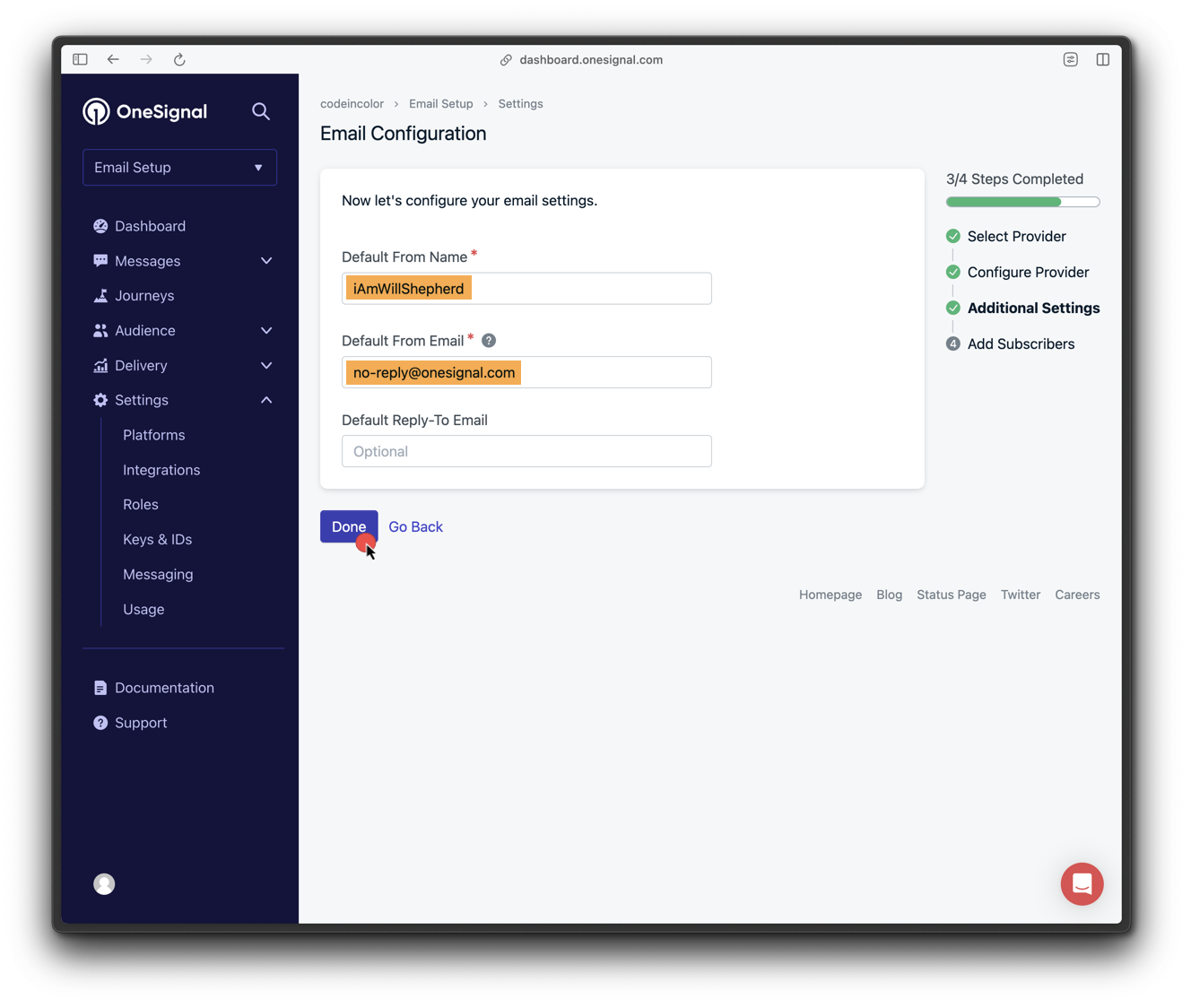
 4. Set default sender name and `from` email address.
 ### 6. Add OneSignal webhooks to Mailgun
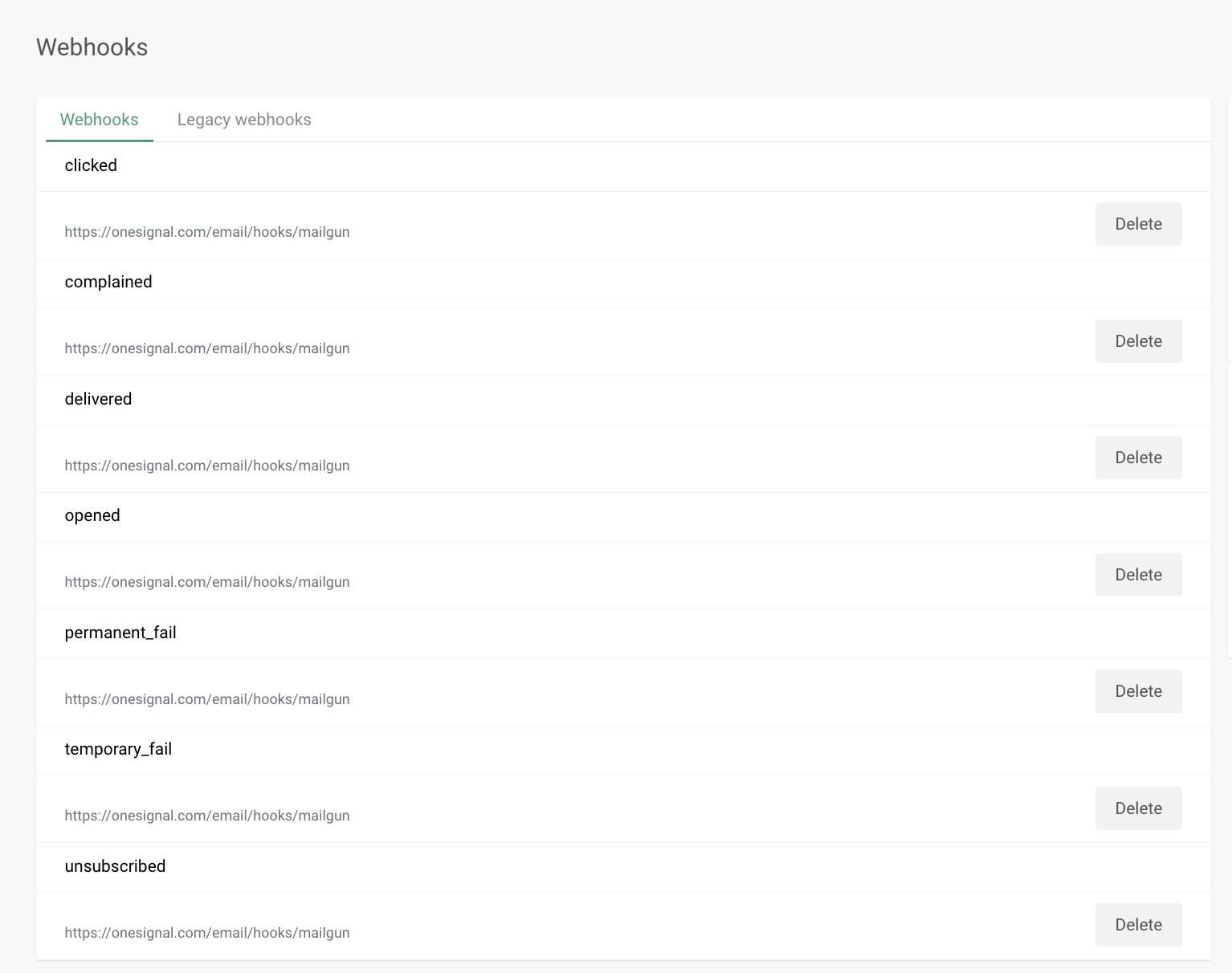
Navigate to **Mailgun > Sending > Webhooks > Your Domain > Webhooks** and add:
```
https://onesignal.com/email/hooks/mailgun
```
### 6. Add OneSignal webhooks to Mailgun
Navigate to **Mailgun > Sending > Webhooks > Your Domain > Webhooks** and add:
```
https://onesignal.com/email/hooks/mailgun
```
 ### 7. Change tracking protocol to HTTPS
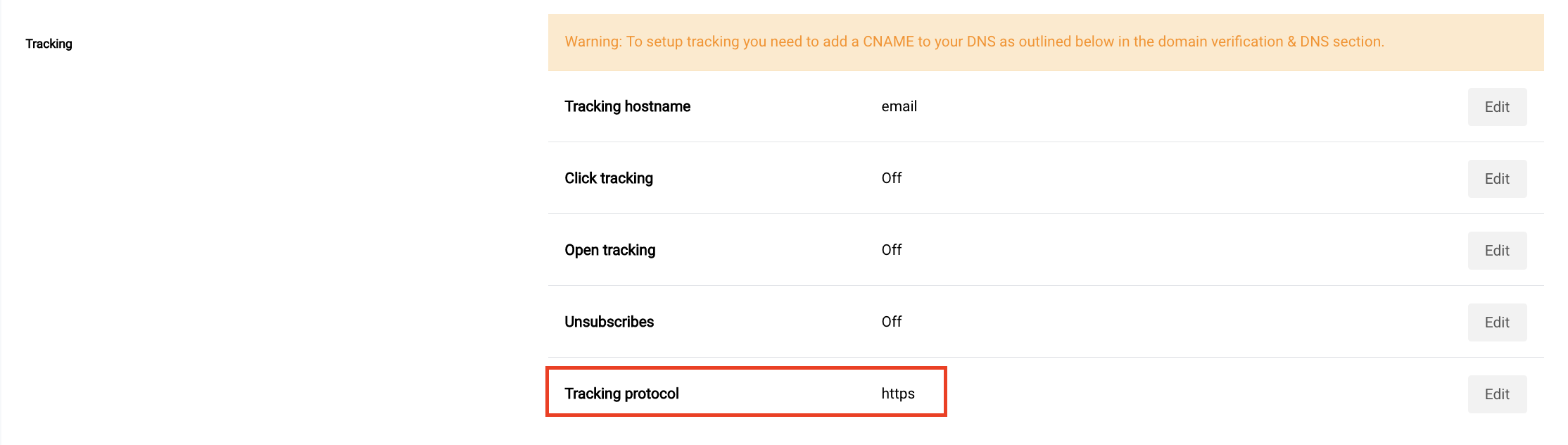
Ensure recipients are directed to secure URLs.
1. Go to your domain settings in Mailgun.
2. Under **Tracking > Tracking Protocol**, change from **HTTP** to **HTTPS**.
### 7. Change tracking protocol to HTTPS
Ensure recipients are directed to secure URLs.
1. Go to your domain settings in Mailgun.
2. Under **Tracking > Tracking Protocol**, change from **HTTP** to **HTTPS**.
 ### 8. Send a test email
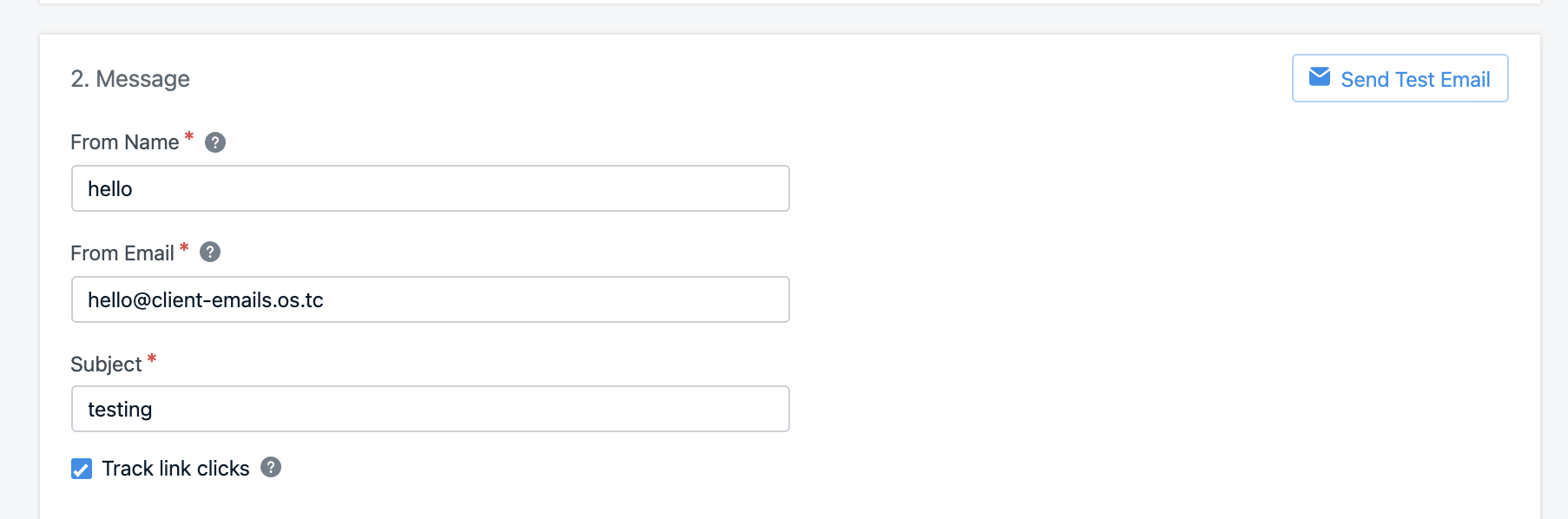
1. Go to **OneSignal > Messages > Email**, click **New Email**.
2. Add a subject, click **Send Test Email**, input your email, and hit **Send Test Message**.
### 8. Send a test email
1. Go to **OneSignal > Messages > Email**, click **New Email**.
2. Add a subject, click **Send Test Email**, input your email, and hit **Send Test Message**.
 You should receive the test email shortly.
***
## Troubleshooting
See our [Email FAQ](./email-troubleshooting)
Need help?
Chat with our Support team or email `support@onesignal.com`
Please include:
* Details of the issue you're experiencing and steps to reproduce if available
* Your OneSignal App ID
* The External ID or Subscription ID if applicable
* The URL to the message you tested in the OneSignal Dashboard if applicable
* Any relevant [logs or error messages](/docs/en/capturing-a-debug-log)
We're happy to help!
***
Email setup complete!
**Next steps:**
* Return to the [Email Setup guide](./email-setup) to explore OneSignal Email capabilities.
***
You should receive the test email shortly.
***
## Troubleshooting
See our [Email FAQ](./email-troubleshooting)
Need help?
Chat with our Support team or email `support@onesignal.com`
Please include:
* Details of the issue you're experiencing and steps to reproduce if available
* Your OneSignal App ID
* The External ID or Subscription ID if applicable
* The URL to the message you tested in the OneSignal Dashboard if applicable
* Any relevant [logs or error messages](/docs/en/capturing-a-debug-log)
We're happy to help!
***
Email setup complete!
**Next steps:**
* Return to the [Email Setup guide](./email-setup) to explore OneSignal Email capabilities.
***