> ## Documentation Index
> Fetch the complete documentation index at: https://documentation.onesignal.com/llms.txt
> Use this file to discover all available pages before exploring further.
# Mobile SDK setup
> Set up the OneSignal SDK for Android, iOS, Huawei, and cross-platform frameworks like React Native, Flutter, and Unity.
export const SdkReleasesIframe = ({sdkFilter = undefined, viewMode = undefined, height, ...frameProps}) => {
const baseUrl = 'https://onesignal.github.io/sdk-releases';
const buildUrl = (theme, sdkFilter, viewMode) => {
const url = new URL(baseUrl);
const params = new URLSearchParams();
if (theme) {
params.set('theme', theme);
}
if (sdkFilter) {
params.set('sdk', sdkFilter);
}
if (viewMode) {
params.set('viewMode', viewMode);
}
if (params.toString()) {
url.search = params.toString();
}
return url.toString();
};
const detectTheme = () => {
if (document.documentElement.classList.contains('dark')) {
return 'dark';
}
return 'light';
};
const [theme, setTheme] = useState('light');
const [iframeSrc, setIframeSrc] = useState(() => {
const initialTheme = detectTheme();
return buildUrl(initialTheme, sdkFilter, viewMode);
});
useEffect(() => {
const currentTheme = detectTheme();
setTheme(currentTheme);
setIframeSrc(buildUrl(currentTheme, sdkFilter, viewMode));
const mediaQuery = window.matchMedia('(prefers-color-scheme: dark)');
const handleThemeChange = () => {
const newTheme = detectTheme();
setTheme(newTheme);
setIframeSrc(buildUrl(newTheme, sdkFilter, viewMode));
};
if (mediaQuery.addEventListener) {
mediaQuery.addEventListener('change', handleThemeChange);
} else {
mediaQuery.addListener(handleThemeChange);
}
window.addEventListener('storage', handleThemeChange);
const observer = new MutationObserver(handleThemeChange);
observer.observe(document.documentElement, {
attributes: true,
attributeFilter: ['class', 'data-theme']
});
return () => {
if (mediaQuery.removeEventListener) {
mediaQuery.removeEventListener('change', handleThemeChange);
} else {
mediaQuery.removeListener(handleThemeChange);
}
window.removeEventListener('storage', handleThemeChange);
observer.disconnect();
};
}, [sdkFilter, viewMode]);
const getIframeHeight = () => {
if (viewMode === 'table') {
return '450';
}
if (viewMode === 'mini') {
return '170';
}
return '800';
};
const iframeHeight = height || getIframeHeight();
return
;
};
The OneSignal mobile SDK enables [push notifications](./push), [in-app messages](./in-app-messages-setup), and [Live Activities](./live-activities) in your iOS, Android, Huawei, and Amazon apps. Setup has two steps:
1. **Configure platform credentials** — connect your FCM, APNs, HMS, or ADM credentials to OneSignal
2. **Integrate the SDK** — install the OneSignal SDK for your platform and initialize it in your app
For websites, see [Web SDK setup](./web-push-setup).
***
## Configure platform credentials
Each platform requires its own push credentials. Configure the credentials for every platform your app supports before integrating the SDK.
### Configure your OneSignal app and platform
Configure your OneSignal app with the platforms you support — Apple (APNs), Google (FCM), Huawei (HMS), and/or Amazon (ADM).
If your organization already has a OneSignal account, [ask to be invited](/docs/en/manage-team-members) to the Organization. Otherwise, [sign up for a free account](https://onesignal.com) to get started.
Create a new app by clicking **New App/Website**, or add a platform to an existing app in **Settings > Push & In-App**. Select the platform(s) you want to configure and click **Next: Configure Your Platform**.
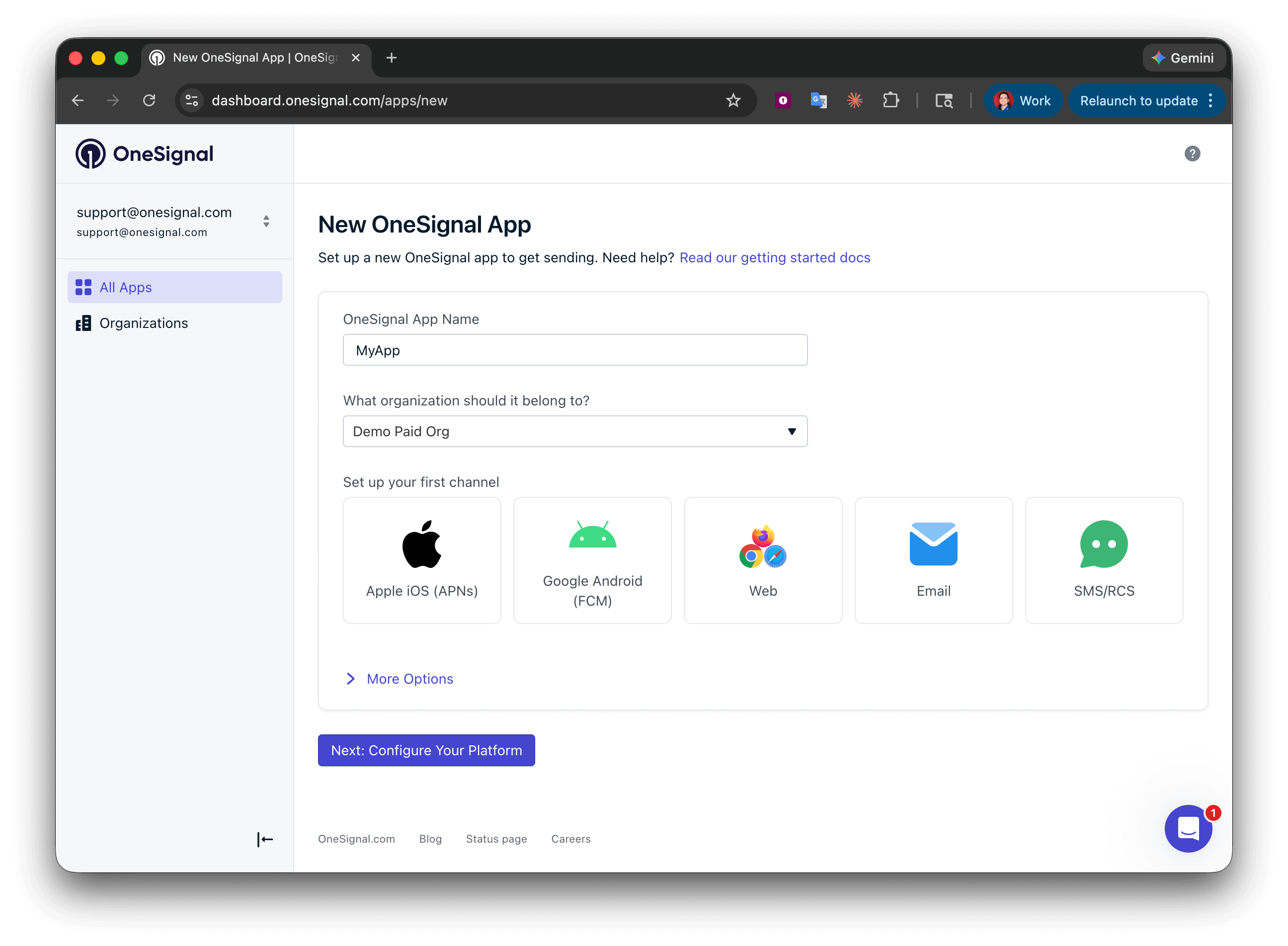 Enter the credentials for your platform:
* **Android**: [Set up Firebase credentials](/docs/en/android-firebase-credentials)
* **iOS**: [p8 token (recommended)](/docs/en/ios-p8-token-based-connection-to-apns) or [p12 certificate](/docs/en/ios-p12-generate-certificates)
* **Amazon**: [Generate API key](/docs/en/generate-an-amazon-api-key)
* **Huawei**: [Authorize OneSignal](/docs/en/authorize-onesignal-to-send-huawei-push)
Click **Save & Continue** after entering your credentials.
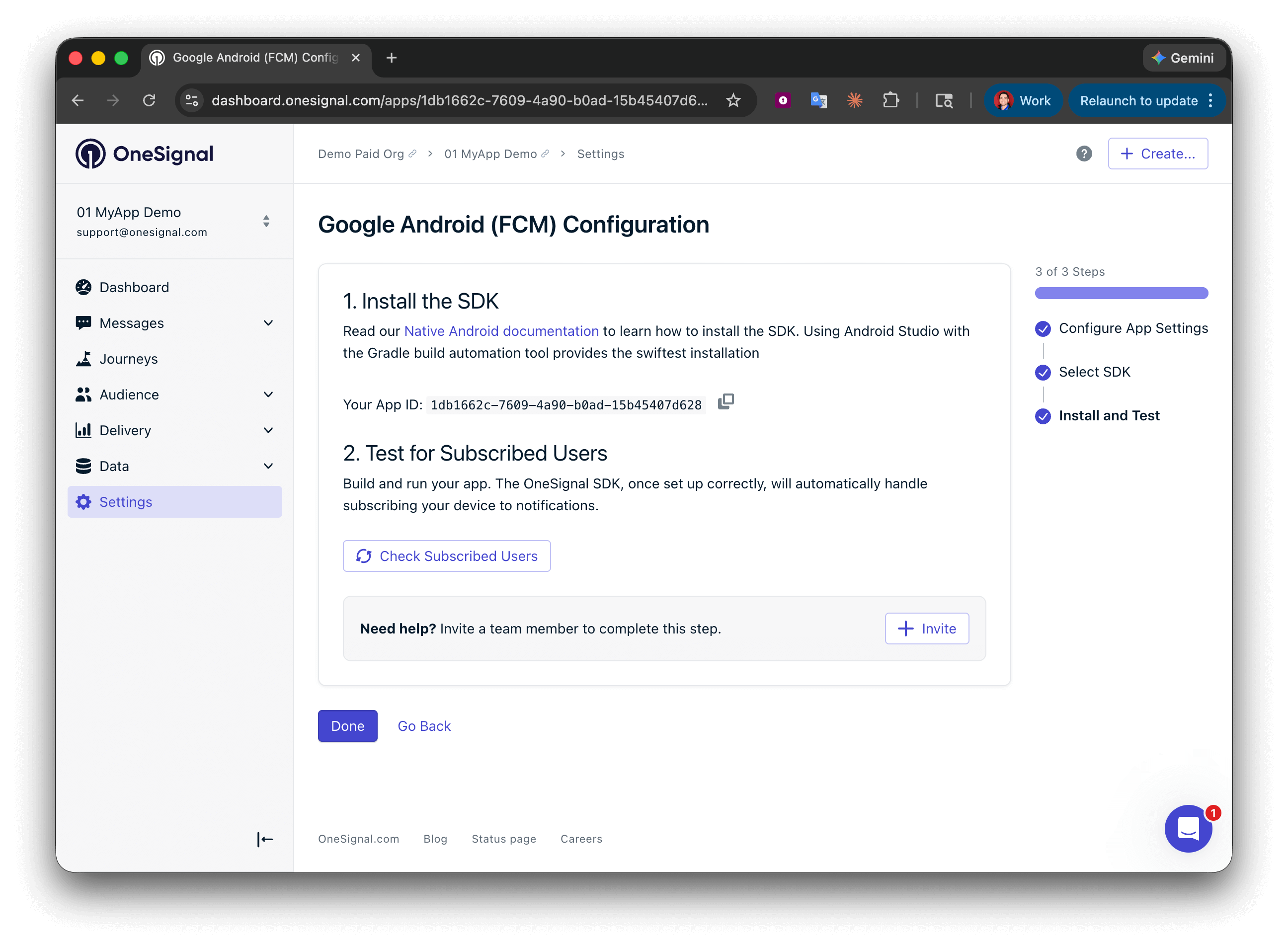
Your **App ID** is displayed on the final screen. Copy and save it — you need it when initializing the SDK. Select your SDK platform, then follow the setup guide.
Enter the credentials for your platform:
* **Android**: [Set up Firebase credentials](/docs/en/android-firebase-credentials)
* **iOS**: [p8 token (recommended)](/docs/en/ios-p8-token-based-connection-to-apns) or [p12 certificate](/docs/en/ios-p12-generate-certificates)
* **Amazon**: [Generate API key](/docs/en/generate-an-amazon-api-key)
* **Huawei**: [Authorize OneSignal](/docs/en/authorize-onesignal-to-send-huawei-push)
Click **Save & Continue** after entering your credentials.
Your **App ID** is displayed on the final screen. Copy and save it — you need it when initializing the SDK. Select your SDK platform, then follow the setup guide.
 ***
## Integrate the SDK
Integrate the OneSignal SDK into native Android apps using FCM.
Integrate the OneSignal SDK into native iOS apps using APNs.
Setup for React Native and Expo environments.
SDK setup for Flutter apps using Dart.
Cross-platform SDK setup for Unity-based mobile apps.
Integrate the OneSignal SDK with .NET MAUI apps.
SDK setup for Huawei devices using HMS push services.
Setup for Cordova and Ionic Cordova hybrid mobile apps.
Setup for Capacitor and Ionic Capacitor hybrid mobile apps.
### Other integrations
Low-code SDK setup for FlutterFlow apps.
Integration guide for Median.co (formerly GoNative.io) apps.
***
## SDK versions
***
## FAQ
### Are the SDKs required?
No, but they're highly recommended and open source on [GitHub](https://github.com/OneSignal/sdks). You can integrate OneSignal using only the [REST API](/reference/rest-api-overview), but the SDKs simplify the process significantly, especially for handling push notifications across platforms.
### What can I do without the SDK?
You can use the following APIs directly:
* [Create User](/reference/create-user)
* [Create Subscription](/reference/create-subscription)
* [Update User](/reference/update-user)
* [Update Subscription](/reference/update-subscription)
* [Create message](/reference/create-message)
* [Notification payload reference](./osnotification-payload)
[In-app messages](./in-app-messages-setup) and [Live Activities](./live-activities) require the SDK — they cannot be delivered via API alone.
### Why do you recommend using the SDKs?
Push notifications have platform-specific requirements that the SDKs handle for you, including:
* Obtaining push tokens across Android, iOS, Huawei, and web
* Managing Subscription status and User opt-in prompts
* Displaying and processing push notifications on the client
Apple's APNs and Google's FCM use different payload formats. The OneSignal SDK parses custom payloads to display and track messages accurately. Maintaining this manually adds significant complexity. Learn more: [Build vs. Buy: What Goes Into Building a Push Notification Platform](https://onesignal.com/blog/build-vs-buy-what-goes-into-building-a-push-notification-platform/).
### Do I need separate OneSignal apps for iOS and Android?
No. A single OneSignal app supports multiple platforms — iOS, Android, Huawei, Amazon, and web. Configure each platform's credentials in **Settings > Push & In-App** and they all share the same app, Users, and segments.
### Can devices in China or on Huawei receive push notifications?
If the device has Google Play Services, it receives push through FCM. If the app was downloaded from the Huawei AppGallery (including non-HarmonyOS Huawei devices running Android), it receives push through HMS — set up the [Huawei SDK](./huawei-sdk-setup) to enable this. OneSignal defaults to FCM for devices that support both HMS and FCM. You can [prefer HMS over FCM](./huawei-sdk-setup#prefer-hms-over-fcm-optional) if needed.
***
## Integrate the SDK
Integrate the OneSignal SDK into native Android apps using FCM.
Integrate the OneSignal SDK into native iOS apps using APNs.
Setup for React Native and Expo environments.
SDK setup for Flutter apps using Dart.
Cross-platform SDK setup for Unity-based mobile apps.
Integrate the OneSignal SDK with .NET MAUI apps.
SDK setup for Huawei devices using HMS push services.
Setup for Cordova and Ionic Cordova hybrid mobile apps.
Setup for Capacitor and Ionic Capacitor hybrid mobile apps.
### Other integrations
Low-code SDK setup for FlutterFlow apps.
Integration guide for Median.co (formerly GoNative.io) apps.
***
## SDK versions
***
## FAQ
### Are the SDKs required?
No, but they're highly recommended and open source on [GitHub](https://github.com/OneSignal/sdks). You can integrate OneSignal using only the [REST API](/reference/rest-api-overview), but the SDKs simplify the process significantly, especially for handling push notifications across platforms.
### What can I do without the SDK?
You can use the following APIs directly:
* [Create User](/reference/create-user)
* [Create Subscription](/reference/create-subscription)
* [Update User](/reference/update-user)
* [Update Subscription](/reference/update-subscription)
* [Create message](/reference/create-message)
* [Notification payload reference](./osnotification-payload)
[In-app messages](./in-app-messages-setup) and [Live Activities](./live-activities) require the SDK — they cannot be delivered via API alone.
### Why do you recommend using the SDKs?
Push notifications have platform-specific requirements that the SDKs handle for you, including:
* Obtaining push tokens across Android, iOS, Huawei, and web
* Managing Subscription status and User opt-in prompts
* Displaying and processing push notifications on the client
Apple's APNs and Google's FCM use different payload formats. The OneSignal SDK parses custom payloads to display and track messages accurately. Maintaining this manually adds significant complexity. Learn more: [Build vs. Buy: What Goes Into Building a Push Notification Platform](https://onesignal.com/blog/build-vs-buy-what-goes-into-building-a-push-notification-platform/).
### Do I need separate OneSignal apps for iOS and Android?
No. A single OneSignal app supports multiple platforms — iOS, Android, Huawei, Amazon, and web. Configure each platform's credentials in **Settings > Push & In-App** and they all share the same app, Users, and segments.
### Can devices in China or on Huawei receive push notifications?
If the device has Google Play Services, it receives push through FCM. If the app was downloaded from the Huawei AppGallery (including non-HarmonyOS Huawei devices running Android), it receives push through HMS — set up the [Huawei SDK](./huawei-sdk-setup) to enable this. OneSignal defaults to FCM for devices that support both HMS and FCM. You can [prefer HMS over FCM](./huawei-sdk-setup#prefer-hms-over-fcm-optional) if needed.