> ## Documentation Index
> Fetch the complete documentation index at: https://documentation.onesignal.com/llms.txt
> Use this file to discover all available pages before exploring further.
# Notification icons
> Push notification icon requirements, sizes, and best practices for Web Push, Android, and iOS, including how to configure default and per-message icons in OneSignal.
Push notification icons are small images that appear alongside your notifications. They help users quickly recognize your brand, understand context, and distinguish your messages from others. Each platform handles icons differently, so following platform-specific standards is critical to ensure your notifications display correctly.
For large images attached to notifications, see [Images & Rich Media](./rich-media).
 ***
## Best practices for push notification icons
* Use **PNG images with transparency** whenever possible.
* Keep icons **simple and recognizable** at very small sizes.
* Avoid text or fine details that may become illegible.
* Follow **platform-specific rules** for size, color, and transparency.
* Test notifications on real devices across platforms and OS versions.
***
## Web notification icons
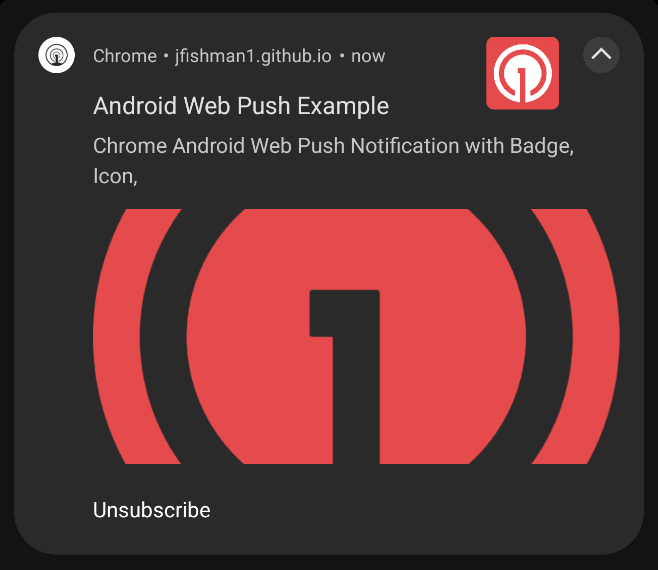
Web push notifications display an icon provided at send time or defined as a default in your site settings. If no icon is provided, a default bell icon is used.
* Supported formats: PNG, JPG, GIF (non-animated)
* Icon must be square. Recommended size is `256x256` pixels.
Different browsers (Chrome, Edge, Safari, Firefox) may crop or scale icons differently depending on device and OS. A square `256x256` icon is recommended to ensure consistent display across all browsers.
Set the default icon in your [Dashboard Settings > Push & In-App > Web Settings](./web-push-setup).
You can also override the icon per notification using the dashboard or REST API. See [Send notifications with non-default icons](#send-notifications-with-non-default-icons) for details.
### Android web push badge icon
On Android devices, Web Push notifications may display a smaller **badge icon** defined by the Web App Manifest `badge` property. The badge icon is used in limited UI contexts (such as the Android status bar) and may not appear on all Android devices. If no badge icon is provided, the default is the browser icon.
While badge icons are not subject to the same strict alpha-only rules as Android app small notification icons, they are still rendered in system-controlled UI.
**Best practices:**
* Use a **square PNG** with a **transparent background**
* Keep the design **simple and high-contrast**
* Avoid text or fine detail
* Use monochrome or minimal color for best consistency
A minimum size of `72×72 pixels` is recommended. Larger images are acceptable and will be downscaled as needed.
Example small badge icon: `https://i.imgur.com/9QFB20F.png`
***
## Best practices for push notification icons
* Use **PNG images with transparency** whenever possible.
* Keep icons **simple and recognizable** at very small sizes.
* Avoid text or fine details that may become illegible.
* Follow **platform-specific rules** for size, color, and transparency.
* Test notifications on real devices across platforms and OS versions.
***
## Web notification icons
Web push notifications display an icon provided at send time or defined as a default in your site settings. If no icon is provided, a default bell icon is used.
* Supported formats: PNG, JPG, GIF (non-animated)
* Icon must be square. Recommended size is `256x256` pixels.
Different browsers (Chrome, Edge, Safari, Firefox) may crop or scale icons differently depending on device and OS. A square `256x256` icon is recommended to ensure consistent display across all browsers.
Set the default icon in your [Dashboard Settings > Push & In-App > Web Settings](./web-push-setup).
You can also override the icon per notification using the dashboard or REST API. See [Send notifications with non-default icons](#send-notifications-with-non-default-icons) for details.
### Android web push badge icon
On Android devices, Web Push notifications may display a smaller **badge icon** defined by the Web App Manifest `badge` property. The badge icon is used in limited UI contexts (such as the Android status bar) and may not appear on all Android devices. If no badge icon is provided, the default is the browser icon.
While badge icons are not subject to the same strict alpha-only rules as Android app small notification icons, they are still rendered in system-controlled UI.
**Best practices:**
* Use a **square PNG** with a **transparent background**
* Keep the design **simple and high-contrast**
* Avoid text or fine detail
* Use monochrome or minimal color for best consistency
A minimum size of `72×72 pixels` is recommended. Larger images are acceptable and will be downscaled as needed.
Example small badge icon: `https://i.imgur.com/9QFB20F.png`
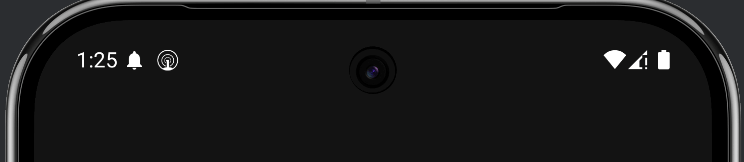 Unlike Android app small notification icons, Web Push badge icons may preserve color on some devices. However, full-color or complex icons may render inconsistently depending on Android version, browser, and device manufacturer.
See [Send notifications with non-default icons](#send-notifications-with-non-default-icons) for details.
***
## iOS notification icons
iOS notifications always use your **app icon**.
* The notification icon is automatically derived from your app's icon asset
* You cannot change the notification icon per message
* Changing the icon requires updating your app icon and shipping a new app version
There is no APNs payload field that allows you to specify a custom notification icon on iOS.
This behavior is enforced by iOS and applies to standard push notifications, Critical Alerts, and Live Activities.
### Communication Notifications
On iOS 15 and newer, Apple supports [Communication Notifications](https://developer.apple.com/documentation/usernotifications/implementing-communication-notifications).
When properly implemented, communication-style notifications (such as messaging or calling apps) may display a **contact or sender image** instead of the app icon in supported system views.
Communication Notifications are limited to specific use cases and require explicit adoption of Apple’s communication notification APIs. They are not available for general-purpose notifications.
***
## Android notification icons
Android (including Amazon and Huawei devices) supports **Small** and **Large** notification icons.
Android also supports [Conversation Notifications](https://developer.android.com/develop/ui/views/notifications/conversations) that allow you to change the icon to the user's profile image.
On Android 8.0+ (API 26+), notification appearance is heavily influenced by system UI, [notification channels](./android-notification-categories), and device manufacturer customizations.
Unlike Android app small notification icons, Web Push badge icons may preserve color on some devices. However, full-color or complex icons may render inconsistently depending on Android version, browser, and device manufacturer.
See [Send notifications with non-default icons](#send-notifications-with-non-default-icons) for details.
***
## iOS notification icons
iOS notifications always use your **app icon**.
* The notification icon is automatically derived from your app's icon asset
* You cannot change the notification icon per message
* Changing the icon requires updating your app icon and shipping a new app version
There is no APNs payload field that allows you to specify a custom notification icon on iOS.
This behavior is enforced by iOS and applies to standard push notifications, Critical Alerts, and Live Activities.
### Communication Notifications
On iOS 15 and newer, Apple supports [Communication Notifications](https://developer.apple.com/documentation/usernotifications/implementing-communication-notifications).
When properly implemented, communication-style notifications (such as messaging or calling apps) may display a **contact or sender image** instead of the app icon in supported system views.
Communication Notifications are limited to specific use cases and require explicit adoption of Apple’s communication notification APIs. They are not available for general-purpose notifications.
***
## Android notification icons
Android (including Amazon and Huawei devices) supports **Small** and **Large** notification icons.
Android also supports [Conversation Notifications](https://developer.android.com/develop/ui/views/notifications/conversations) that allow you to change the icon to the user's profile image.
On Android 8.0+ (API 26+), notification appearance is heavily influenced by system UI, [notification channels](./android-notification-categories), and device manufacturer customizations.
 ### Small notification icons
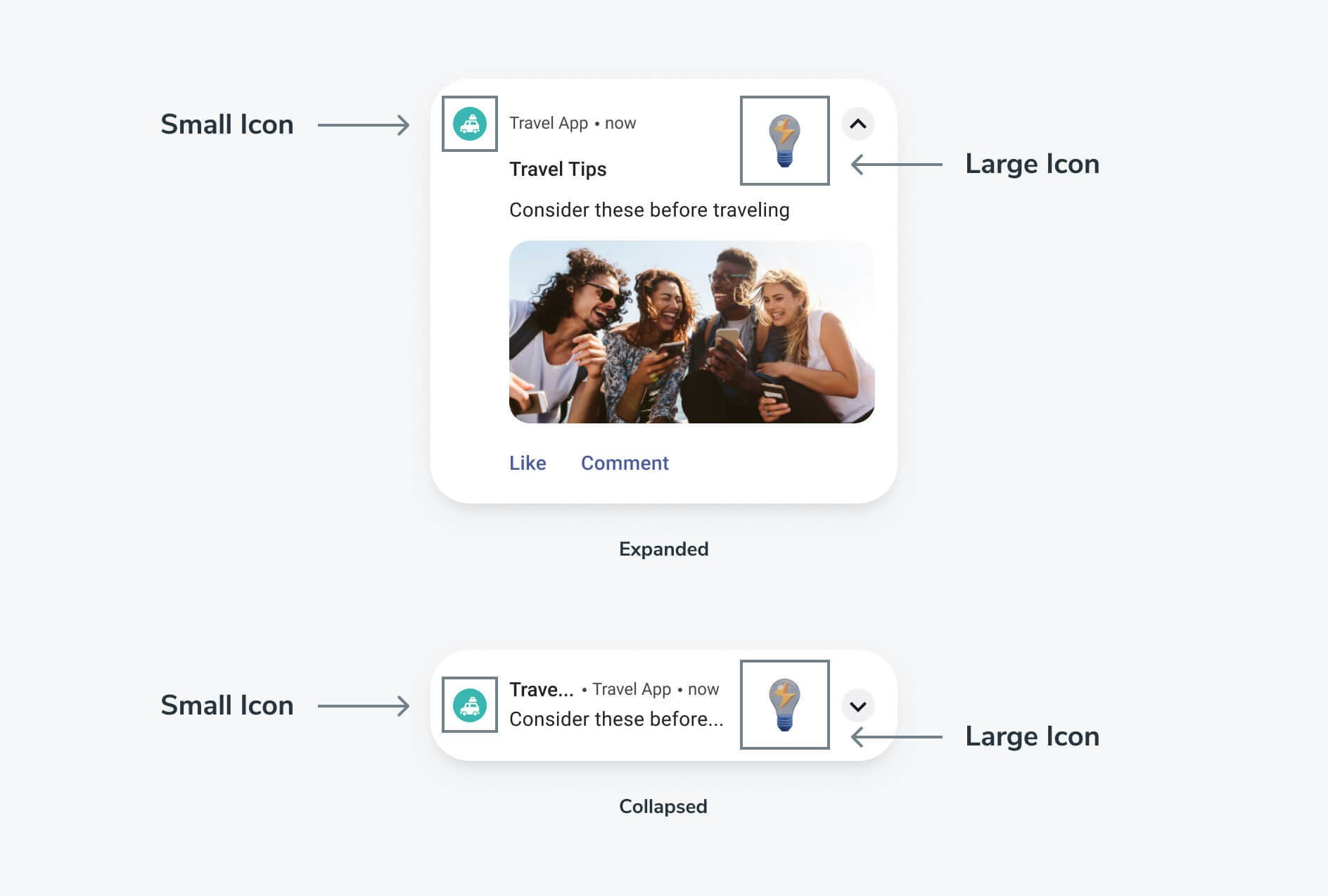
The small notification icon appears in the status bar and the top-left of the notification. If no custom small icon is provided, OneSignal displays a default bell icon.
Android renders small notification icons using the **icon's alpha channel**, not its color data. The system applies its own tint (or your configured accent color) when displaying the icon.
**Requirements and best practices:**
* Use a **monochrome silhouette icon** on a **transparent background**
* Design the icon so the **shape is defined by transparency**, not color
* Avoid gradients, shadows, or multi-color artwork
* Keep the design simple and recognizable at very small sizes
A common and recommended approach is to design the icon as **white artwork on a transparent background**, but technically Android uses the **alpha mask**, not the white color itself.
Icons with solid backgrounds or full-color artwork may render incorrectly — often appearing as a white square, clipped shape, or unexpected silhouette — depending on the device manufacturer and Android version.
Android often ignores color information in small notification icons and derives the final appearance from the alpha channel and system or app-defined tinting.
#### Small icon accent color
You can change the color shown around the small icon of the notification.
### Small notification icons
The small notification icon appears in the status bar and the top-left of the notification. If no custom small icon is provided, OneSignal displays a default bell icon.
Android renders small notification icons using the **icon's alpha channel**, not its color data. The system applies its own tint (or your configured accent color) when displaying the icon.
**Requirements and best practices:**
* Use a **monochrome silhouette icon** on a **transparent background**
* Design the icon so the **shape is defined by transparency**, not color
* Avoid gradients, shadows, or multi-color artwork
* Keep the design simple and recognizable at very small sizes
A common and recommended approach is to design the icon as **white artwork on a transparent background**, but technically Android uses the **alpha mask**, not the white color itself.
Icons with solid backgrounds or full-color artwork may render incorrectly — often appearing as a white square, clipped shape, or unexpected silhouette — depending on the device manufacturer and Android version.
Android often ignores color information in small notification icons and derives the final appearance from the alpha channel and system or app-defined tinting.
#### Small icon accent color
You can change the color shown around the small icon of the notification.
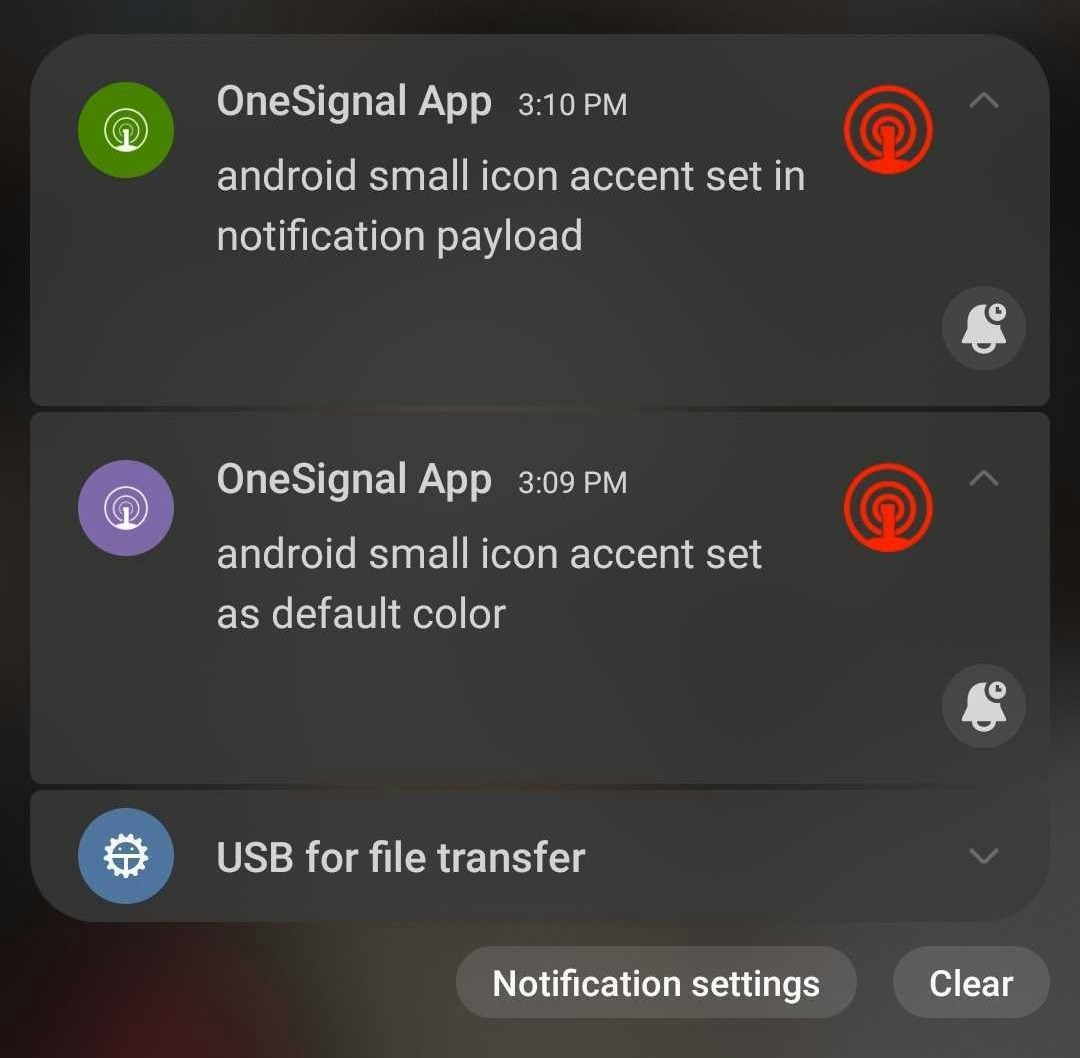 To set a default color, add the following line to your `res/values/strings.xml` file in your project.
If you want a different color for dark mode, add the key to your `res/values-night/strings.xml` as well.
Use a HEX value (e.g., `FF00FF00`). You can use [Android Asset Studio](https://romannurik.github.io/AndroidAssetStudio/icons-generic.html#source.type=clipart\&source.clipart=ac_unit\&source.space.trim=1\&source.space.pad=0\&size=32\&padding=8\&color=rgb\(139%2C%20195%2C%2074\)\&name=ic_ac_unit) to preview color values.
```xml theme={null}
FF00FF00
```
To set the color on a per-notification basis, set `android_accent_color` in the [Create notification](/reference/create-message) API call or enter a value in the **Accent color** field under **Messages > New Push > Platform Settings > Google Android Options**.
If you've very recently added an icon resource to your app, you may want to wait a few days before sending notifications using the icon. This is because it can take many days or even weeks for the majority of your users to update their apps to the latest version which contain your new icons.
#### Custom non-alpha channel small icon images
Some device manufacturers display the image as-is (ignoring the alpha channel rule). You can set up a [custom notification layout based on Android's documentation](https://developer.android.com/training/notify-user/custom-notification) if you need non-alpha channel images across all devices.
Following the alpha rule is strongly recommended. Icons may not render consistently across all devices, and Google enforces the single-color approach because the icon is too small for meaningful detail — a clear silhouette is easier to recognize at a glance.
### Large notification icons
The large icon appears on the right side of the Android notification.
* Recommended size: **256×256 pixels**
* Format: PNG or JPG
* If not set, Android may reuse the small icon
***
## How to add Android default icons
Configuring default notification icons is strongly recommended for every Android-based app (Google Play, Amazon, Huawei). Missing or incorrectly configured icons are the most common cause of broken notification rendering.
Default icons are **bundled inside your app**, not uploaded to the OneSignal dashboard. You add them to your project's resource directories (or use a plugin config for Expo), and the OneSignal SDK uses them automatically.
Android supports two default icons:
* **Small notification icon** (required)
* **Large notification icon** (optional but recommended)
The small notification icon appears in the status bar and notification header.
**Requirements:**
* Monochrome silhouette icon
* Transparent background (alpha channel required)
* No colors, gradients, or shadows
A common and recommended approach is a **white icon on a transparent background**, but Android uses the **alpha channel**, not the white color itself.
The fastest and safest way to generate compliant small icons is using [Android Asset Studio – Notification Icons](http://romannurik.github.io/AndroidAssetStudio/icons-notification.html#source.space.trim=1\&source.space.pad=0\&name=ic_stat_onesignal_default).
**Name the icon:** `ic_stat_onesignal_default`
**Required**: You must include **all density variants** for the small icon. Missing any size can cause Android to fall back to a system default icon.
| Icon name | Density (dp) | Size (px) |
| --------------------------- | ------------ | --------- |
| `ic_stat_onesignal_default` | MDPI | 24x24 |
| `ic_stat_onesignal_default` | HDPI | 36x36 |
| `ic_stat_onesignal_default` | XHDPI | 48x48 |
| `ic_stat_onesignal_default` | XXHDPI | 72x72 |
| `ic_stat_onesignal_default` | XXXHDPI | 96x96 |
**Best practices:**
* Square image
* PNG or JPG
* Transparent background recommended
* Recommended size: **256×256 px**
Unlike small icons:
* Color is allowed
* Alpha-only is **not required**
* Only one size is needed
**Required file name:** `ic_onesignal_large_icon_default.png`
Each icon must be placed in the correct resource directory for your framework. Make sure the following paths exist; create any folders you are missing.
**Required**: Each image must be present in the following paths:
* `res/drawable-mdpi/` (24x24)
* `res/drawable-hdpi/` (36x36)
* `res/drawable-xhdpi/` (48x48)
* `res/drawable-xxhdpi/` (72x72)
* `res/drawable-xxxhdpi/` (96x96)
* `res/drawable-xxxhdpi/` (256x256) (Large Icon)
* `Assets/Plugins/Android/OneSignalConfig.androidlib/src/main/res/drawable-mdpi/` (24x24)
* `Assets/Plugins/Android/OneSignalConfig.androidlib/src/main/res/drawable-hdpi/` (36x36)
* `Assets/Plugins/Android/OneSignalConfig.androidlib/src/main/res/drawable-xhdpi/` (48x48)
* `Assets/Plugins/Android/OneSignalConfig.androidlib/src/main/res/drawable-xxhdpi/` (72x72)
* `Assets/Plugins/Android/OneSignalConfig.androidlib/src/main/res/drawable-xxxhdpi/` (96x96)
* `Assets/Plugins/Android/OneSignalConfig.androidlib/src/main/res/drawable-xxxhdpi/` (256x256) (Large Icon)
* `/platforms/android/app/src/main/res/drawable-mdpi/` (24x24)
* `/platforms/android/app/src/main/res/drawable-hdpi/` (36x36)
* `/platforms/android/app/src/main/res/drawable-xhdpi/` (48x48)
* `/platforms/android/app/src/main/res/drawable-xxhdpi/` (72x72)
* `/platforms/android/app/src/main/res/drawable-xxxhdpi/` (96x96)
* `/platforms/android/app/src/main/res/drawable-xxxhdpi/` (256x256) (Large Icon)
With versions of Cordova before 7.0, you will need to use `/platforms/android/res/drawable-{size}/` instead of the path shown above when adding the icon resource to `config.xml`
* `android/app/src/main/res/drawable-mdpi/` (24x24)
* `android/app/src/main/res/drawable-hdpi/` (36x36)
* `android/app/src/main/res/drawable-xhdpi/` (48x48)
* `android/app/src/main/res/drawable-xxhdpi/` (72x72)
* `android/app/src/main/res/drawable-xxxhdpi/` (96x96)
* `android/app/src/main/res/drawable-xxxhdpi/` (256x256) (Large Icon)
**Expo shortcut:** If you use the `onesignal-expo-plugin`, you can provide a single 96x96 source PNG and the plugin generates all density variants automatically. Add it to your `app.json` or `app.config.js`:
```json theme={null}
{
"plugins": [
["onesignal-expo-plugin", {
"mode": "production",
"smallIcons": ["./assets/ic_stat_onesignal_default.png"],
"largeIcons": ["./assets/ic_onesignal_large_icon_default.png"]
}]
]
}
```
You do not need to manually create the `android/` subdirectories — the plugin places the generated files in the correct drawable folders at build time. See [React Native / Expo SDK setup](./react-native-expo-sdk-setup) for full plugin configuration.
* `Resources/Images/drawable-mdpi/` (24x24)
* `Resources/Images/drawable-hdpi/` (36x36)
* `Resources/Images/drawable-xhdpi/` (48x48)
* `Resources/Images/drawable-xxhdpi/` (72x72)
* `Resources/Images/drawable-xxxhdpi/` (96x96)
* `Resources/Images/drawable-xxxhdpi/` (256x256) (Large Icon)
* `android/app/src/main/res/drawable-mdpi/` (24x24)
* `android/app/src/main/res/drawable-hdpi/` (36x36)
* `android/app/src/main/res/drawable-xhdpi/` (48x48)
* `android/app/src/main/res/drawable-xxhdpi/` (72x72)
* `android/app/src/main/res/drawable-xxxhdpi/` (96x96)
* `android/app/src/main/res/drawable-xxxhdpi/` (256x256) (Large Icon)
Your project should look similar to this (depending on your SDK):
To set a default color, add the following line to your `res/values/strings.xml` file in your project.
If you want a different color for dark mode, add the key to your `res/values-night/strings.xml` as well.
Use a HEX value (e.g., `FF00FF00`). You can use [Android Asset Studio](https://romannurik.github.io/AndroidAssetStudio/icons-generic.html#source.type=clipart\&source.clipart=ac_unit\&source.space.trim=1\&source.space.pad=0\&size=32\&padding=8\&color=rgb\(139%2C%20195%2C%2074\)\&name=ic_ac_unit) to preview color values.
```xml theme={null}
FF00FF00
```
To set the color on a per-notification basis, set `android_accent_color` in the [Create notification](/reference/create-message) API call or enter a value in the **Accent color** field under **Messages > New Push > Platform Settings > Google Android Options**.
If you've very recently added an icon resource to your app, you may want to wait a few days before sending notifications using the icon. This is because it can take many days or even weeks for the majority of your users to update their apps to the latest version which contain your new icons.
#### Custom non-alpha channel small icon images
Some device manufacturers display the image as-is (ignoring the alpha channel rule). You can set up a [custom notification layout based on Android's documentation](https://developer.android.com/training/notify-user/custom-notification) if you need non-alpha channel images across all devices.
Following the alpha rule is strongly recommended. Icons may not render consistently across all devices, and Google enforces the single-color approach because the icon is too small for meaningful detail — a clear silhouette is easier to recognize at a glance.
### Large notification icons
The large icon appears on the right side of the Android notification.
* Recommended size: **256×256 pixels**
* Format: PNG or JPG
* If not set, Android may reuse the small icon
***
## How to add Android default icons
Configuring default notification icons is strongly recommended for every Android-based app (Google Play, Amazon, Huawei). Missing or incorrectly configured icons are the most common cause of broken notification rendering.
Default icons are **bundled inside your app**, not uploaded to the OneSignal dashboard. You add them to your project's resource directories (or use a plugin config for Expo), and the OneSignal SDK uses them automatically.
Android supports two default icons:
* **Small notification icon** (required)
* **Large notification icon** (optional but recommended)
The small notification icon appears in the status bar and notification header.
**Requirements:**
* Monochrome silhouette icon
* Transparent background (alpha channel required)
* No colors, gradients, or shadows
A common and recommended approach is a **white icon on a transparent background**, but Android uses the **alpha channel**, not the white color itself.
The fastest and safest way to generate compliant small icons is using [Android Asset Studio – Notification Icons](http://romannurik.github.io/AndroidAssetStudio/icons-notification.html#source.space.trim=1\&source.space.pad=0\&name=ic_stat_onesignal_default).
**Name the icon:** `ic_stat_onesignal_default`
**Required**: You must include **all density variants** for the small icon. Missing any size can cause Android to fall back to a system default icon.
| Icon name | Density (dp) | Size (px) |
| --------------------------- | ------------ | --------- |
| `ic_stat_onesignal_default` | MDPI | 24x24 |
| `ic_stat_onesignal_default` | HDPI | 36x36 |
| `ic_stat_onesignal_default` | XHDPI | 48x48 |
| `ic_stat_onesignal_default` | XXHDPI | 72x72 |
| `ic_stat_onesignal_default` | XXXHDPI | 96x96 |
**Best practices:**
* Square image
* PNG or JPG
* Transparent background recommended
* Recommended size: **256×256 px**
Unlike small icons:
* Color is allowed
* Alpha-only is **not required**
* Only one size is needed
**Required file name:** `ic_onesignal_large_icon_default.png`
Each icon must be placed in the correct resource directory for your framework. Make sure the following paths exist; create any folders you are missing.
**Required**: Each image must be present in the following paths:
* `res/drawable-mdpi/` (24x24)
* `res/drawable-hdpi/` (36x36)
* `res/drawable-xhdpi/` (48x48)
* `res/drawable-xxhdpi/` (72x72)
* `res/drawable-xxxhdpi/` (96x96)
* `res/drawable-xxxhdpi/` (256x256) (Large Icon)
* `Assets/Plugins/Android/OneSignalConfig.androidlib/src/main/res/drawable-mdpi/` (24x24)
* `Assets/Plugins/Android/OneSignalConfig.androidlib/src/main/res/drawable-hdpi/` (36x36)
* `Assets/Plugins/Android/OneSignalConfig.androidlib/src/main/res/drawable-xhdpi/` (48x48)
* `Assets/Plugins/Android/OneSignalConfig.androidlib/src/main/res/drawable-xxhdpi/` (72x72)
* `Assets/Plugins/Android/OneSignalConfig.androidlib/src/main/res/drawable-xxxhdpi/` (96x96)
* `Assets/Plugins/Android/OneSignalConfig.androidlib/src/main/res/drawable-xxxhdpi/` (256x256) (Large Icon)
* `/platforms/android/app/src/main/res/drawable-mdpi/` (24x24)
* `/platforms/android/app/src/main/res/drawable-hdpi/` (36x36)
* `/platforms/android/app/src/main/res/drawable-xhdpi/` (48x48)
* `/platforms/android/app/src/main/res/drawable-xxhdpi/` (72x72)
* `/platforms/android/app/src/main/res/drawable-xxxhdpi/` (96x96)
* `/platforms/android/app/src/main/res/drawable-xxxhdpi/` (256x256) (Large Icon)
With versions of Cordova before 7.0, you will need to use `/platforms/android/res/drawable-{size}/` instead of the path shown above when adding the icon resource to `config.xml`
* `android/app/src/main/res/drawable-mdpi/` (24x24)
* `android/app/src/main/res/drawable-hdpi/` (36x36)
* `android/app/src/main/res/drawable-xhdpi/` (48x48)
* `android/app/src/main/res/drawable-xxhdpi/` (72x72)
* `android/app/src/main/res/drawable-xxxhdpi/` (96x96)
* `android/app/src/main/res/drawable-xxxhdpi/` (256x256) (Large Icon)
**Expo shortcut:** If you use the `onesignal-expo-plugin`, you can provide a single 96x96 source PNG and the plugin generates all density variants automatically. Add it to your `app.json` or `app.config.js`:
```json theme={null}
{
"plugins": [
["onesignal-expo-plugin", {
"mode": "production",
"smallIcons": ["./assets/ic_stat_onesignal_default.png"],
"largeIcons": ["./assets/ic_onesignal_large_icon_default.png"]
}]
]
}
```
You do not need to manually create the `android/` subdirectories — the plugin places the generated files in the correct drawable folders at build time. See [React Native / Expo SDK setup](./react-native-expo-sdk-setup) for full plugin configuration.
* `Resources/Images/drawable-mdpi/` (24x24)
* `Resources/Images/drawable-hdpi/` (36x36)
* `Resources/Images/drawable-xhdpi/` (48x48)
* `Resources/Images/drawable-xxhdpi/` (72x72)
* `Resources/Images/drawable-xxxhdpi/` (96x96)
* `Resources/Images/drawable-xxxhdpi/` (256x256) (Large Icon)
* `android/app/src/main/res/drawable-mdpi/` (24x24)
* `android/app/src/main/res/drawable-hdpi/` (36x36)
* `android/app/src/main/res/drawable-xhdpi/` (48x48)
* `android/app/src/main/res/drawable-xxhdpi/` (72x72)
* `android/app/src/main/res/drawable-xxxhdpi/` (96x96)
* `android/app/src/main/res/drawable-xxxhdpi/` (256x256) (Large Icon)
Your project should look similar to this (depending on your SDK):
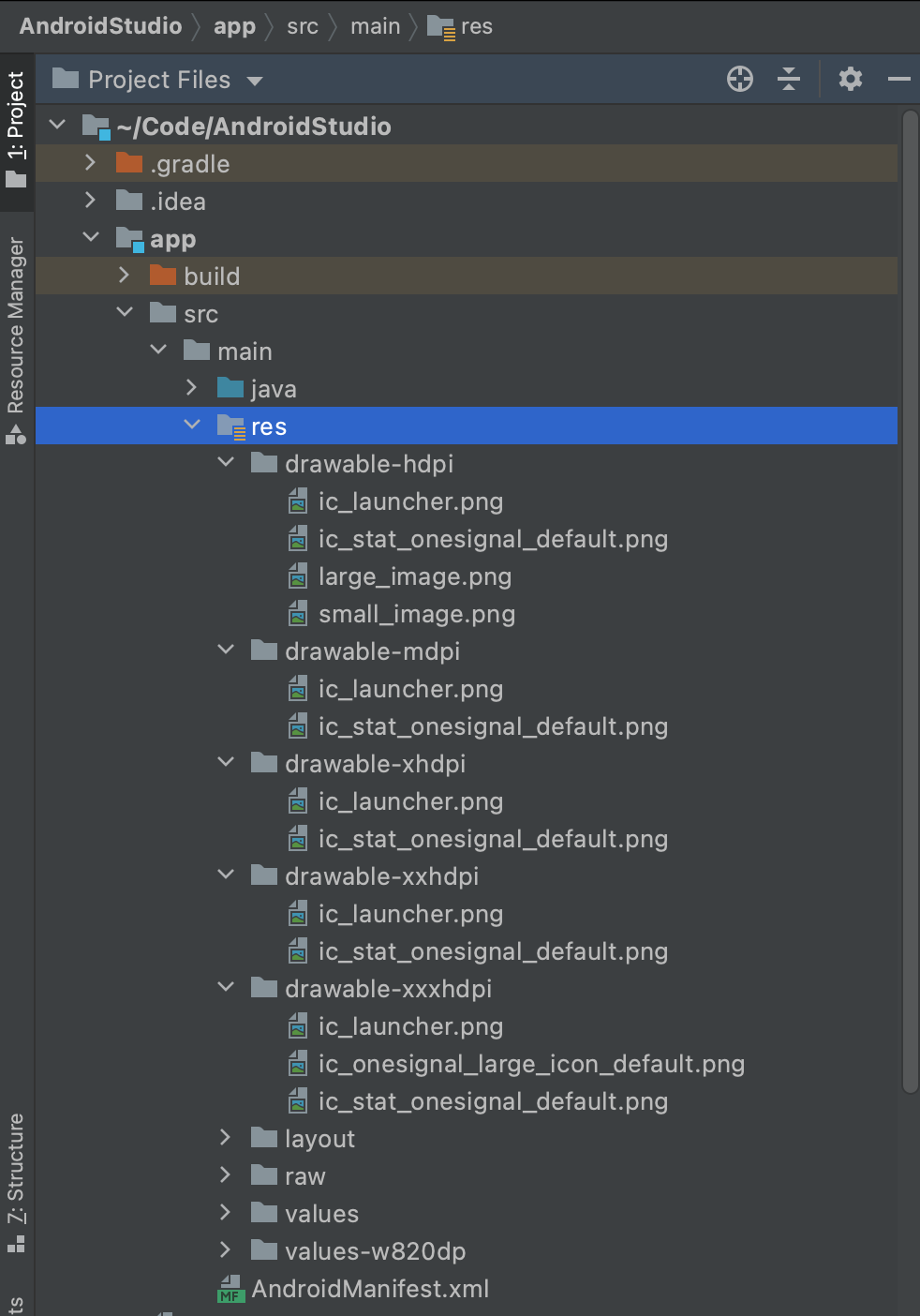 **Troubleshooting icon display issues:**
* If you see a **solid square** instead of your icon, the image does not have proper transparency.
* If you see the **OneSignal bell icon**, one or more required small icon sizes are missing or placed in the wrong directory.
Your Android app is now correctly configured with default notification icons.
***
## Send notifications with non-default icons
When sending push notifications from the OneSignal dashboard or REST API, you can override the default icons with custom icons for Android, Amazon, Huawei, and Web Push notifications. You cannot override the icon for iOS notifications.
### REST API parameters
**Android, Amazon, and Huawei REST API parameters:**
Amazon: `adm_small_icon` Huawei: `huawei_small_icon`
For the small icon, the image must exist within the same project path as the default small icon. It cannot use a remote URL. See [How to add Android default icons](#how-to-add-android-default-icons) for details on where to add your custom icons.
Set the icon name **without** the file extension in the REST API parameters.
Example: `"small_icon": "my_custom_icon_name_without_extension"`
Amazon: `adm_large_icon` Huawei: `huawei_large_icon`
For the large icon, the image can exist within the same project path as the default large icon or as a remote URL. See [How to add Android default icons](#how-to-add-android-default-icons) for details on where to add your custom icons.
Set the icon name **without** the file extension in the REST API parameters.
Example: `"large_icon": "my_custom_icon_name_without_extension"`
**Web Push REST API parameter:**
Firefox: `firefox_icon`
The URL to the image resource. Must be the direct URL to the image resource.
Example: `"chrome_web_icon": "https://example.com/my_custom_icon.png"`
The URL to the image resource. Must be the direct URL to the image resource.
Example: `"chrome_web_badge": "https://i.imgur.com/9QFB20F.png"`
### Dashboard
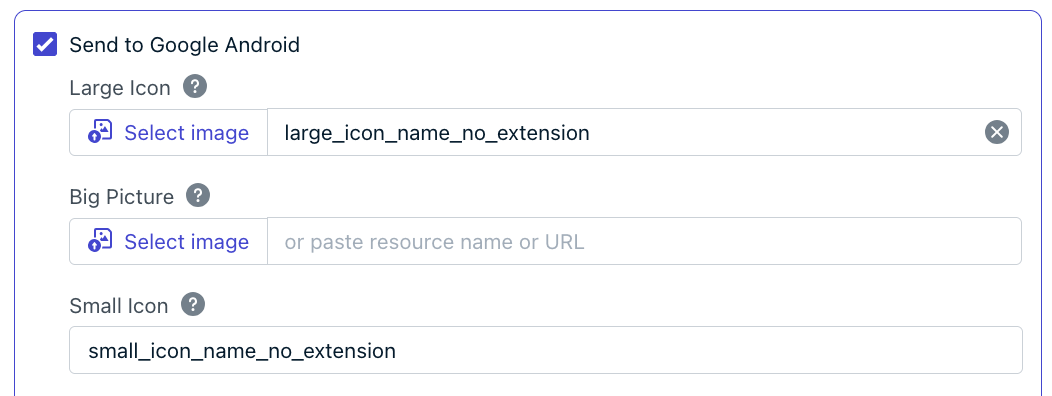
In the OneSignal dashboard, using the **Messages > Push > New Push** form or **Templates**, navigate to the platform-specific options.
For Android, Amazon, and Huawei, if the file exists within the same project path as the default icon, set the icon names **without** the file extension. With Large Notification Icons, you can also supply a direct URL where the icon will be displayed from.
**Troubleshooting icon display issues:**
* If you see a **solid square** instead of your icon, the image does not have proper transparency.
* If you see the **OneSignal bell icon**, one or more required small icon sizes are missing or placed in the wrong directory.
Your Android app is now correctly configured with default notification icons.
***
## Send notifications with non-default icons
When sending push notifications from the OneSignal dashboard or REST API, you can override the default icons with custom icons for Android, Amazon, Huawei, and Web Push notifications. You cannot override the icon for iOS notifications.
### REST API parameters
**Android, Amazon, and Huawei REST API parameters:**
Amazon: `adm_small_icon` Huawei: `huawei_small_icon`
For the small icon, the image must exist within the same project path as the default small icon. It cannot use a remote URL. See [How to add Android default icons](#how-to-add-android-default-icons) for details on where to add your custom icons.
Set the icon name **without** the file extension in the REST API parameters.
Example: `"small_icon": "my_custom_icon_name_without_extension"`
Amazon: `adm_large_icon` Huawei: `huawei_large_icon`
For the large icon, the image can exist within the same project path as the default large icon or as a remote URL. See [How to add Android default icons](#how-to-add-android-default-icons) for details on where to add your custom icons.
Set the icon name **without** the file extension in the REST API parameters.
Example: `"large_icon": "my_custom_icon_name_without_extension"`
**Web Push REST API parameter:**
Firefox: `firefox_icon`
The URL to the image resource. Must be the direct URL to the image resource.
Example: `"chrome_web_icon": "https://example.com/my_custom_icon.png"`
The URL to the image resource. Must be the direct URL to the image resource.
Example: `"chrome_web_badge": "https://i.imgur.com/9QFB20F.png"`
### Dashboard
In the OneSignal dashboard, using the **Messages > Push > New Push** form or **Templates**, navigate to the platform-specific options.
For Android, Amazon, and Huawei, if the file exists within the same project path as the default icon, set the icon names **without** the file extension. With Large Notification Icons, you can also supply a direct URL where the icon will be displayed from.
 ***
## FAQ
### Why does my Android small icon show as a white or grey square?
The image does not have proper transparency. Android renders small notification icons using the alpha channel only — any fully opaque pixels with a solid background appear as a filled square. Regenerate the icon as a monochrome silhouette on a transparent background using [Android Asset Studio](http://romannurik.github.io/AndroidAssetStudio/icons-notification.html#source.space.trim=1\&source.space.pad=0\&name=ic_stat_onesignal_default).
### Why does the OneSignal bell icon appear instead of my custom icon?
One or more required density variants of the small icon are missing or placed in the wrong drawable directory. You must include all five sizes (MDPI through XXXHDPI) with the exact file name `ic_stat_onesignal_default`. See [How to add Android default icons](#how-to-add-android-default-icons) for the correct paths.
### Can I change the iOS notification icon per message?
No. iOS always uses your app icon for push notifications. There is no APNs payload field to override it. Changing the icon requires updating your app icon asset and releasing a new app version.
### What size should my web push icon be?
Use a square PNG image at `256x256` pixels. Different browsers and operating systems may crop or scale the icon, but `256x256` provides the best consistency across Chrome, Firefox, Edge, and Safari.
### Can I use a URL for the Android small icon?
No. The Android small icon must be a local resource file bundled with your app. Only the large icon supports remote URLs.
### How do I add notification icons in Expo?
With the `onesignal-expo-plugin`, you provide a single source PNG (96x96 for small icons, 256x256 for large icons) and reference it in `app.json` or `app.config.js` under the `smallIcons` and `largeIcons` arrays. The plugin automatically generates all density variants and places them in the correct `android/` directories at build time. You do not need to create drawable folders manually. See the [Expo tab under "Place icons in the correct project paths"](#how-to-add-android-default-icons) for an example config.
### Do I upload default icons to the OneSignal dashboard?
No. Default notification icons are bundled inside your app binary, not uploaded to OneSignal. You add them to your project's resource directories (or plugin config for Expo), and the OneSignal SDK uses them automatically. The OneSignal dashboard only lets you override icons on a per-message basis for Android and Web Push.
***
## Related pages
Attach large images, GIFs, and videos to push notifications.
Create and manage Android notification channels for custom sound, vibration, and importance.
Configure your site for web push notifications including default icon settings.
Send push notifications with custom icons using the REST API.
***
## FAQ
### Why does my Android small icon show as a white or grey square?
The image does not have proper transparency. Android renders small notification icons using the alpha channel only — any fully opaque pixels with a solid background appear as a filled square. Regenerate the icon as a monochrome silhouette on a transparent background using [Android Asset Studio](http://romannurik.github.io/AndroidAssetStudio/icons-notification.html#source.space.trim=1\&source.space.pad=0\&name=ic_stat_onesignal_default).
### Why does the OneSignal bell icon appear instead of my custom icon?
One or more required density variants of the small icon are missing or placed in the wrong drawable directory. You must include all five sizes (MDPI through XXXHDPI) with the exact file name `ic_stat_onesignal_default`. See [How to add Android default icons](#how-to-add-android-default-icons) for the correct paths.
### Can I change the iOS notification icon per message?
No. iOS always uses your app icon for push notifications. There is no APNs payload field to override it. Changing the icon requires updating your app icon asset and releasing a new app version.
### What size should my web push icon be?
Use a square PNG image at `256x256` pixels. Different browsers and operating systems may crop or scale the icon, but `256x256` provides the best consistency across Chrome, Firefox, Edge, and Safari.
### Can I use a URL for the Android small icon?
No. The Android small icon must be a local resource file bundled with your app. Only the large icon supports remote URLs.
### How do I add notification icons in Expo?
With the `onesignal-expo-plugin`, you provide a single source PNG (96x96 for small icons, 256x256 for large icons) and reference it in `app.json` or `app.config.js` under the `smallIcons` and `largeIcons` arrays. The plugin automatically generates all density variants and places them in the correct `android/` directories at build time. You do not need to create drawable folders manually. See the [Expo tab under "Place icons in the correct project paths"](#how-to-add-android-default-icons) for an example config.
### Do I upload default icons to the OneSignal dashboard?
No. Default notification icons are bundled inside your app binary, not uploaded to OneSignal. You add them to your project's resource directories (or plugin config for Expo), and the OneSignal SDK uses them automatically. The OneSignal dashboard only lets you override icons on a per-message basis for Android and Web Push.
***
## Related pages
Attach large images, GIFs, and videos to push notifications.
Create and manage Android notification channels for custom sound, vibration, and importance.
Configure your site for web push notifications including default icon settings.
Send push notifications with custom icons using the REST API.