> ## Documentation Index
> Fetch the complete documentation index at: https://documentation.onesignal.com/llms.txt
> Use this file to discover all available pages before exploring further.
# Notification sounds
> Add custom notification sounds to iOS, Android, Huawei, and Amazon apps — including file formats, SDK setup, and API parameters.
Custom sounds let you provide a more unique, branded experience in your app. You can add a custom sound to every notification or only to certain types. For example, a social app might play a distinct sound only for direct messages to differentiate them from system notifications.
For mobile apps only. Custom sounds are not supported on web push.
## Setup
### Create sound files
Create sound files following the platform requirements below. If the device cannot find the specified file or the file format is unsupported, it falls back to the default system notification sound.
Keep sound filenames lowercase since some platforms ignore uppercase letters for sound files. Instead of `AwesomeSound.wav` use `awesomesound.wav` or `awesome_sound.wav`.
| Platform | Extensions | Notes |
| -------- | --------------------- | -------------------------------------------------------------------------------------------------------- |
| iOS | `.wav` `.aiff` `.caf` | Sounds must be encoded as Linear PCM, MA4 (IMA/ADPCM), µLaw, or aLaw. Must be less than 30 seconds. |
| Android | `.wav` `.mp3` `.ogg` | Recommended length less than 30 seconds. Keep file size small, large files may not play on some devices. |
| Huawei | `.wav` `.mp3` `.wma` | Recommended length less than 30 seconds. Keep file size small, large files may not play on some devices. |
| Amazon | `.wav` `.mp3` `.ogg` | Recommended length less than 30 seconds. Keep file size small, large files may not play on some devices. |
### Add sound files to your app
Sound files must be included as resources within your app. External URLs are not supported.
Add sound files to the appropriate location in your Xcode project depending on your SDK.
| SDK | Folder |
| -------------- | -------------------------------------------------------------------------------------------------------------------------------------------------------- |
| iOS Native | Add files to the Xcode project root. Make sure **Add to targets** is selected when adding files so they are automatically added to the bundle resources. |
| Cordova, Ionic | Add files to `Resources` directory within the Xcode project in `/platforms/ios/project-name.xcodeproj`. |
| Unity | Add sounds anywhere in your Unity project, build your project, and then move those sounds to the Xcode project root. |
Add sound files to the appropriate folder in your project depending on your SDK. **If the folder does not exist, create it.**
| SDK | Folder |
| ------------------------------ | ------------------------------------------------------------------------------------------------------------------------------------------------------------------------- |
| Android, Huawei, Amazon Native | `res/raw` |
| React Native | `/android/app/src/main/res/raw` |
| Cordova | `/platforms/android/res/raw/` |
| Ionic | `/android/app/src/main/res/raw/` |
| Unity | `Assets/Plugins/Android/OneSignalConfig/res/raw` *NOTE: Your sound and icon file names must be lowercase and can't contain anything else except underscores and numbers.* |
| Flutter | `main/res/raw` |
| .NET | `/Platforms/Android/Resources/raw/` |
### Send notifications
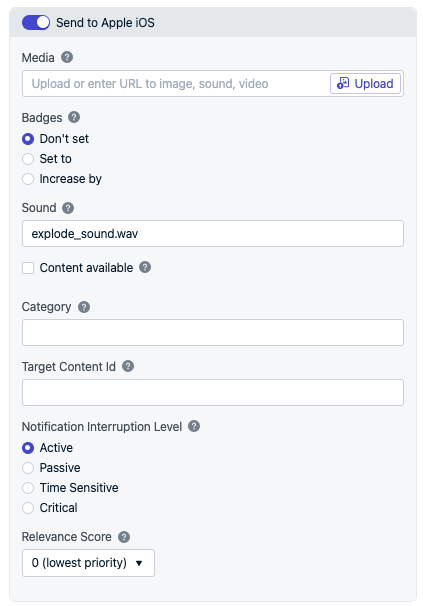
Include the file extension when referencing the sound resource (e.g., `explode_sound.wav`). Set the sound in the dashboard when sending push messages or use the [Create Notification](/reference/create-message) API `ios_sound` property.
For no sound, pass `nil` to the **Sound** field.
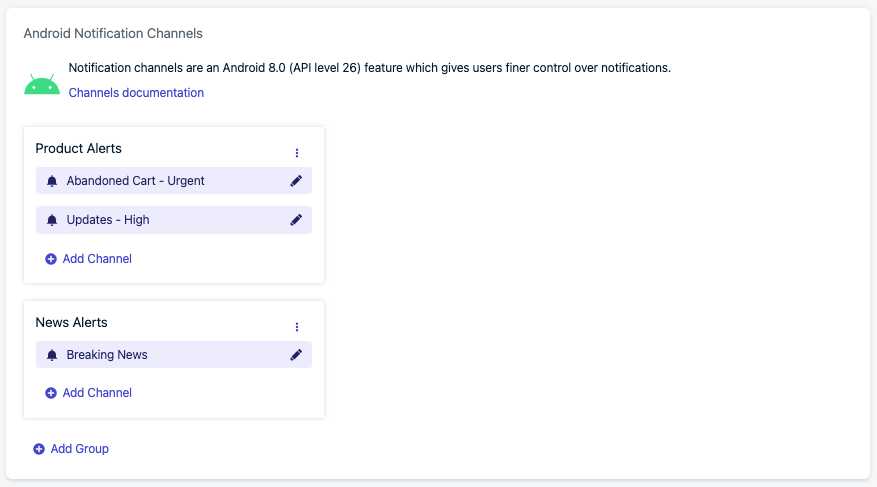
 Android 8+ introduced [Notification Categories](./android-notification-categories) which must be set up to customize notification sounds. OneSignal uses the sound configured in the Notification Channel for all versions of Android.
In **Settings > Push & In-App > Android Notification Channels**, create the group and channel.
Android 8+ introduced [Notification Categories](./android-notification-categories) which must be set up to customize notification sounds. OneSignal uses the sound configured in the Notification Channel for all versions of Android.
In **Settings > Push & In-App > Android Notification Channels**, create the group and channel.
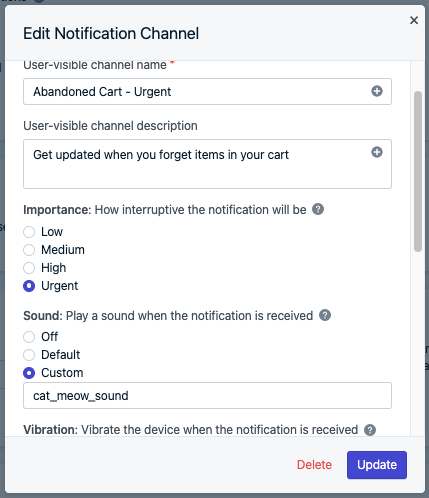
 * Set **Importance** to "Urgent" or "High" to play sound.
* Set **Sound** to "Default" or "Custom" based on your needs. **Do not** add the file extension when referencing the sound resource (e.g., `cat_meow_sound`).
* For no sound, set **Importance** to "Urgent" or "High" and **Sound** to "Off". Or set **Importance** to "Medium" or "Low" for no sound.
* Set **Importance** to "Urgent" or "High" to play sound.
* Set **Sound** to "Default" or "Custom" based on your needs. **Do not** add the file extension when referencing the sound resource (e.g., `cat_meow_sound`).
* For no sound, set **Importance** to "Urgent" or "High" and **Sound** to "Off". Or set **Importance** to "Medium" or "Low" for no sound.
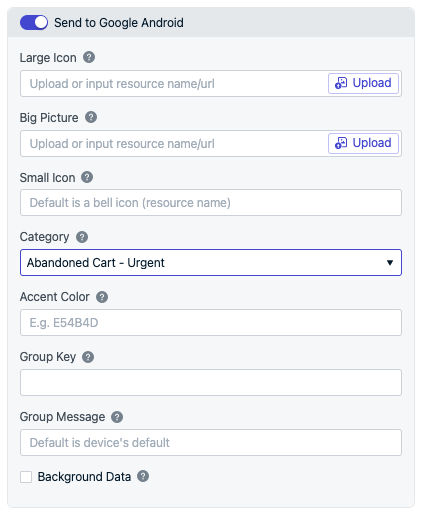
 You can then set the category name in the dashboard when sending push messages or use the [Create Notification](/reference/create-message) API `android_channel_id` and `huawei_channel_id` properties. The sound set in the category works for all Android versions.
 You can send notifications with sounds via the REST API using the appropriate parameter for each platform. See the [Create Notification API reference](/reference/push-notification) for full details.
| Platform | API Parameter | Details |
| -------- | ---------------------------------------------------------------------------------------------------------------------------------------------------------------------------------------------------------------------------- | ---------------------------------------------------------------------------------------------- |
| iOS | `ios_sound` | Include file extension. Example: `"ios_sound": "explode_sound.wav"`. For no sound, pass `nil`. |
| Android | `android_channel_id` — Use if you created the channel in the OneSignal dashboard via [Notification Categories](./android-notification-categories). `existing_android_channel_id` — Use if you created the channel elsewhere. | Using [Notification Categories](./android-notification-categories) is recommended. |
| Huawei | `huawei_channel_id` — Use if you created the channel in the OneSignal dashboard via [Notification Categories](./android-notification-categories). `huawei_existing_channel_id` — Use if you created the channel elsewhere. | Using [Notification Categories](./android-notification-categories) is recommended. |
| Amazon | `adm_sound` | Do not include file extension. Example: `"adm_sound": "explode_sound"`. |
If you recently added a sound resource to your app, consider waiting a few days before sending notifications that use it. It can take days or weeks for most users to update to the latest app version containing the new sound file.
If a user has an older version without the sound resource and receives a notification referencing it, they hear only the default system notification sound.
***
## FAQ
### Can I set a default sound?
Use a [Template](./templates) that references the sound and/or Android Notification Channel. Every notification sent with that template uses the configured sound automatically.
### Can I send different notification sounds to different users?
The `ios_sound` and `android_channel_id` parameters are request-level — they apply to **all** recipients of that API call. You cannot specify different sounds for different users in a single request.
To deliver different sounds to different users, use a **fan-out pattern**: make separate API calls for each sound variant, targeting users by tag or segment. For example, store each user's preferred sound in a [tag](./add-user-data-tags) like `preferred_sound`, then send one request per sound value.
```json Request 1 — "chime" users theme={null}
{
"app_id": "YOUR_APP_ID",
"contents": {"en": "You have a new message!"},
"ios_sound": "chime.wav",
"android_channel_id": "CHIME_CHANNEL_ID",
"include_filters": [
{"field": "tag", "key": "preferred_sound", "relation": "=", "value": "chime"}
]
}
```
```json Request 2 — "bell" users theme={null}
{
"app_id": "YOUR_APP_ID",
"contents": {"en": "You have a new message!"},
"ios_sound": "bell.wav",
"android_channel_id": "BELL_CHANNEL_ID",
"include_filters": [
{"field": "tag", "key": "preferred_sound", "relation": "=", "value": "bell"}
]
}
```
Each request targets only the users whose `preferred_sound` tag matches, so each group hears its own sound. Add as many variants as you need — one API call per sound.
### Why is my notification not playing the custom sound file?
There are a few common causes:
* Sound file has an incorrect file extension
* Sound file is not encoded in a supported format
* Sound file is in the wrong location in the project
* Sound file is longer than 30 seconds
**iOS** — Read more in [Apple's documentation](https://developer.apple.com/documentation/usernotifications/unnotificationsound?language=objc) for encoding and testing guidance.
**Android** — Verify the sound file is included in your APK by extracting it and confirming it exists in `res/raw/`.
If resource shrinking is enabled, protect sound files from being removed by creating `keep.xml` in `res/raw/`:
```xml theme={null}
```
### Why is my notification playing the default sound file?
Make sure you followed the setup instructions and the sound file is in the correct location for your SDK. Double-check the filename casing — some platforms ignore uppercase letters.
### Why is the wrong sound playing?
On Android, notifications are grouped together after a certain number are received without being opened. Grouped notifications play a default sound. You can set the sound with the [group key](https://developer.android.com/training/notify-user/group) for all your notifications.
***
## Related pages
Set up Android notification channels to control sound, vibration, and importance.
Create reusable notification templates with predefined sounds.
API reference for the ios\_sound, android\_channel\_id, and adm\_sound parameters.
Customize notification icons for your mobile app.
You can send notifications with sounds via the REST API using the appropriate parameter for each platform. See the [Create Notification API reference](/reference/push-notification) for full details.
| Platform | API Parameter | Details |
| -------- | ---------------------------------------------------------------------------------------------------------------------------------------------------------------------------------------------------------------------------- | ---------------------------------------------------------------------------------------------- |
| iOS | `ios_sound` | Include file extension. Example: `"ios_sound": "explode_sound.wav"`. For no sound, pass `nil`. |
| Android | `android_channel_id` — Use if you created the channel in the OneSignal dashboard via [Notification Categories](./android-notification-categories). `existing_android_channel_id` — Use if you created the channel elsewhere. | Using [Notification Categories](./android-notification-categories) is recommended. |
| Huawei | `huawei_channel_id` — Use if you created the channel in the OneSignal dashboard via [Notification Categories](./android-notification-categories). `huawei_existing_channel_id` — Use if you created the channel elsewhere. | Using [Notification Categories](./android-notification-categories) is recommended. |
| Amazon | `adm_sound` | Do not include file extension. Example: `"adm_sound": "explode_sound"`. |
If you recently added a sound resource to your app, consider waiting a few days before sending notifications that use it. It can take days or weeks for most users to update to the latest app version containing the new sound file.
If a user has an older version without the sound resource and receives a notification referencing it, they hear only the default system notification sound.
***
## FAQ
### Can I set a default sound?
Use a [Template](./templates) that references the sound and/or Android Notification Channel. Every notification sent with that template uses the configured sound automatically.
### Can I send different notification sounds to different users?
The `ios_sound` and `android_channel_id` parameters are request-level — they apply to **all** recipients of that API call. You cannot specify different sounds for different users in a single request.
To deliver different sounds to different users, use a **fan-out pattern**: make separate API calls for each sound variant, targeting users by tag or segment. For example, store each user's preferred sound in a [tag](./add-user-data-tags) like `preferred_sound`, then send one request per sound value.
```json Request 1 — "chime" users theme={null}
{
"app_id": "YOUR_APP_ID",
"contents": {"en": "You have a new message!"},
"ios_sound": "chime.wav",
"android_channel_id": "CHIME_CHANNEL_ID",
"include_filters": [
{"field": "tag", "key": "preferred_sound", "relation": "=", "value": "chime"}
]
}
```
```json Request 2 — "bell" users theme={null}
{
"app_id": "YOUR_APP_ID",
"contents": {"en": "You have a new message!"},
"ios_sound": "bell.wav",
"android_channel_id": "BELL_CHANNEL_ID",
"include_filters": [
{"field": "tag", "key": "preferred_sound", "relation": "=", "value": "bell"}
]
}
```
Each request targets only the users whose `preferred_sound` tag matches, so each group hears its own sound. Add as many variants as you need — one API call per sound.
### Why is my notification not playing the custom sound file?
There are a few common causes:
* Sound file has an incorrect file extension
* Sound file is not encoded in a supported format
* Sound file is in the wrong location in the project
* Sound file is longer than 30 seconds
**iOS** — Read more in [Apple's documentation](https://developer.apple.com/documentation/usernotifications/unnotificationsound?language=objc) for encoding and testing guidance.
**Android** — Verify the sound file is included in your APK by extracting it and confirming it exists in `res/raw/`.
If resource shrinking is enabled, protect sound files from being removed by creating `keep.xml` in `res/raw/`:
```xml theme={null}
```
### Why is my notification playing the default sound file?
Make sure you followed the setup instructions and the sound file is in the correct location for your SDK. Double-check the filename casing — some platforms ignore uppercase letters.
### Why is the wrong sound playing?
On Android, notifications are grouped together after a certain number are received without being opened. Grouped notifications play a default sound. You can set the sound with the [group key](https://developer.android.com/training/notify-user/group) for all your notifications.
***
## Related pages
Set up Android notification channels to control sound, vibration, and importance.
Create reusable notification templates with predefined sounds.
API reference for the ios\_sound, android\_channel\_id, and adm\_sound parameters.
Customize notification icons for your mobile app.