> ## Documentation Index
> Fetch the complete documentation index at: https://documentation.onesignal.com/llms.txt
> Use this file to discover all available pages before exploring further.
# OneSignal service worker
> Set up and configure the OneSignalSDKWorker.js file so your website can receive and display web push notifications through OneSignal.
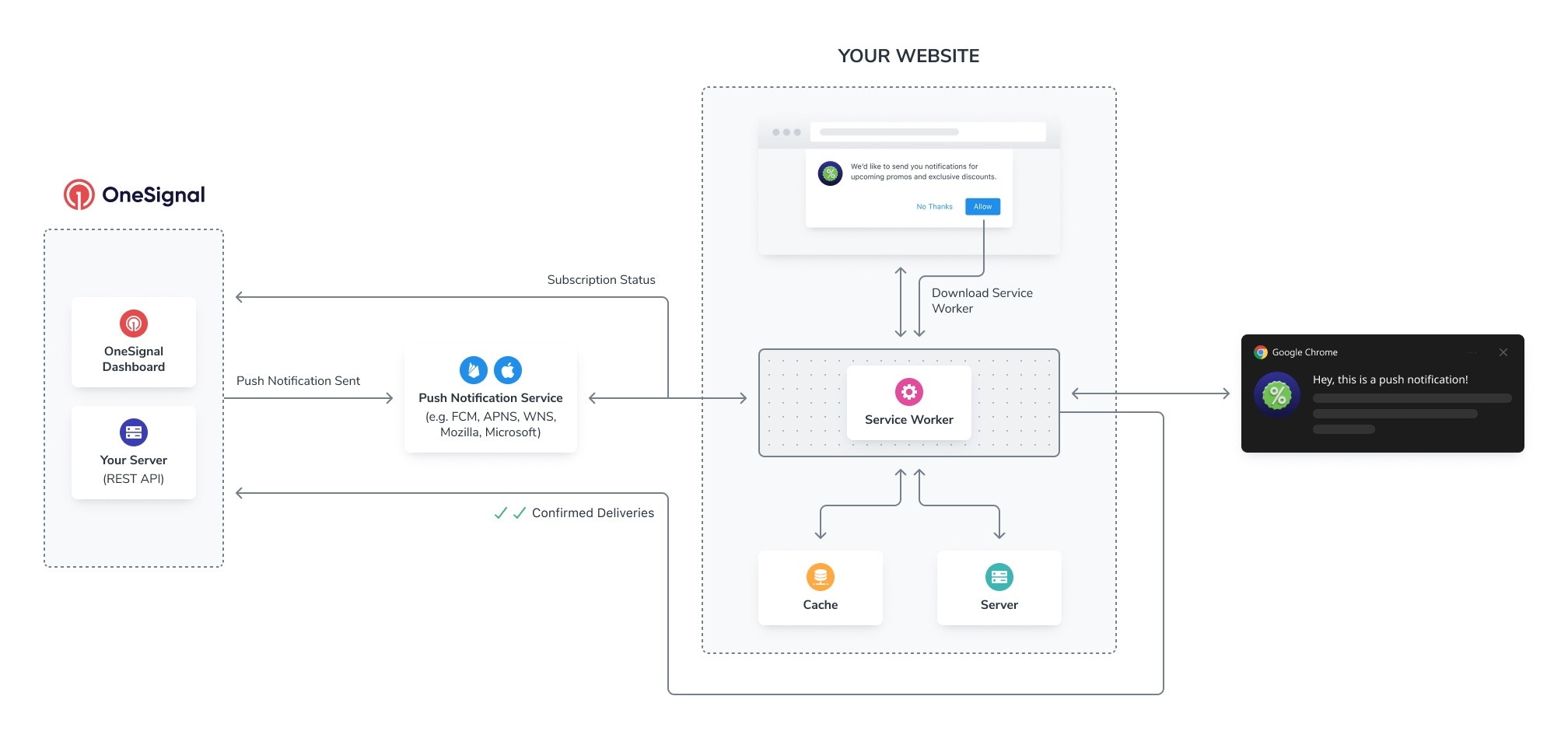
The OneSignal service worker (`OneSignalSDKWorker.js`) is a JavaScript file hosted on your server that is required for web push notifications. It enables your site to receive and display notifications, even when the user is not on your page.
 If you use the WordPress or Shopify integration, the service worker is added automatically. Skip this guide and return to [WordPress setup](./wordpress) or [Shopify setup](./shopify).
## Service worker setup
Create a dedicated `OneSignalSDKWorker.js` file for OneSignal push notifications. If your site already has a service worker and you want to use a single file, see [Combining multiple service workers](#combining-multiple-service-workers) instead.
Download the file from the OneSignal dashboard during [Web SDK setup](./web-sdk-setup) or [from GitHub](https://github.com/OneSignal/OneSignal-Website-SDK/files/11480764/OneSignalSDK-v16-ServiceWorker.zip).
Alternatively, create a file named `OneSignalSDKWorker.js` with the following single line of code:
```javascript theme={null}
importScripts("https://cdn.onesignal.com/sdks/web/v16/OneSignalSDK.sw.js");
```
You can rename the file if needed (e.g., `onesignalsdkworker.js`, `ossw.js`). If you do, replace `OneSignalSDKWorker.js` in this guide with your filename.
Place `OneSignalSDKWorker.js` on your server so it is publicly accessible over HTTPS. The file must not require authentication or login to access.
**Recommended:** Host the file in a dedicated subdirectory that never serves pages, such as `/push/onesignal/`. This avoids conflicts with other service workers on your site (e.g., a PWA or AMP service worker) and keeps the URL path stable.
* Example: `https://yoursite.com/push/onesignal/OneSignalSDKWorker.js`
**Alternative:** The OneSignal Web SDK defaults to looking for the file at your site root (`https://yoursite.com/OneSignalSDKWorker.js`). You can upload the file to the root directory, but it may conflict with other service workers that need root scope. If you use a PWA, place `OneSignalSDKWorker.js` in a subdirectory instead.
Choose a **permanent** URL path. Once a browser registers a service worker at a given URL, changing that URL requires a [migration](#migration-guide).
Navigate to the file URL in your browser (e.g., `https://yoursite.com/push/onesignal/OneSignalSDKWorker.js`). You should see the `importScripts` line from the first step:
If you use the WordPress or Shopify integration, the service worker is added automatically. Skip this guide and return to [WordPress setup](./wordpress) or [Shopify setup](./shopify).
## Service worker setup
Create a dedicated `OneSignalSDKWorker.js` file for OneSignal push notifications. If your site already has a service worker and you want to use a single file, see [Combining multiple service workers](#combining-multiple-service-workers) instead.
Download the file from the OneSignal dashboard during [Web SDK setup](./web-sdk-setup) or [from GitHub](https://github.com/OneSignal/OneSignal-Website-SDK/files/11480764/OneSignalSDK-v16-ServiceWorker.zip).
Alternatively, create a file named `OneSignalSDKWorker.js` with the following single line of code:
```javascript theme={null}
importScripts("https://cdn.onesignal.com/sdks/web/v16/OneSignalSDK.sw.js");
```
You can rename the file if needed (e.g., `onesignalsdkworker.js`, `ossw.js`). If you do, replace `OneSignalSDKWorker.js` in this guide with your filename.
Place `OneSignalSDKWorker.js` on your server so it is publicly accessible over HTTPS. The file must not require authentication or login to access.
**Recommended:** Host the file in a dedicated subdirectory that never serves pages, such as `/push/onesignal/`. This avoids conflicts with other service workers on your site (e.g., a PWA or AMP service worker) and keeps the URL path stable.
* Example: `https://yoursite.com/push/onesignal/OneSignalSDKWorker.js`
**Alternative:** The OneSignal Web SDK defaults to looking for the file at your site root (`https://yoursite.com/OneSignalSDKWorker.js`). You can upload the file to the root directory, but it may conflict with other service workers that need root scope. If you use a PWA, place `OneSignalSDKWorker.js` in a subdirectory instead.
Choose a **permanent** URL path. Once a browser registers a service worker at a given URL, changing that URL requires a [migration](#migration-guide).
Navigate to the file URL in your browser (e.g., `https://yoursite.com/push/onesignal/OneSignalSDKWorker.js`). You should see the `importScripts` line from the first step:
 If you see a 404 error, a blank page, or a login prompt, the file is not correctly uploaded or is behind authentication.
If you placed the file at your site root, no additional configuration is needed — skip to the next step.
If you placed the file in a subdirectory, tell the SDK where to find it:
#### Typical site setup
1. In the OneSignal dashboard, go to **Settings > Push & In-App > Web Settings**.
2. Under **Advanced Push Settings**, enable **Customize service worker paths and filenames**.
If you see a 404 error, a blank page, or a login prompt, the file is not correctly uploaded or is behind authentication.
If you placed the file at your site root, no additional configuration is needed — skip to the next step.
If you placed the file in a subdirectory, tell the SDK where to find it:
#### Typical site setup
1. In the OneSignal dashboard, go to **Settings > Push & In-App > Web Settings**.
2. Under **Advanced Push Settings**, enable **Customize service worker paths and filenames**.
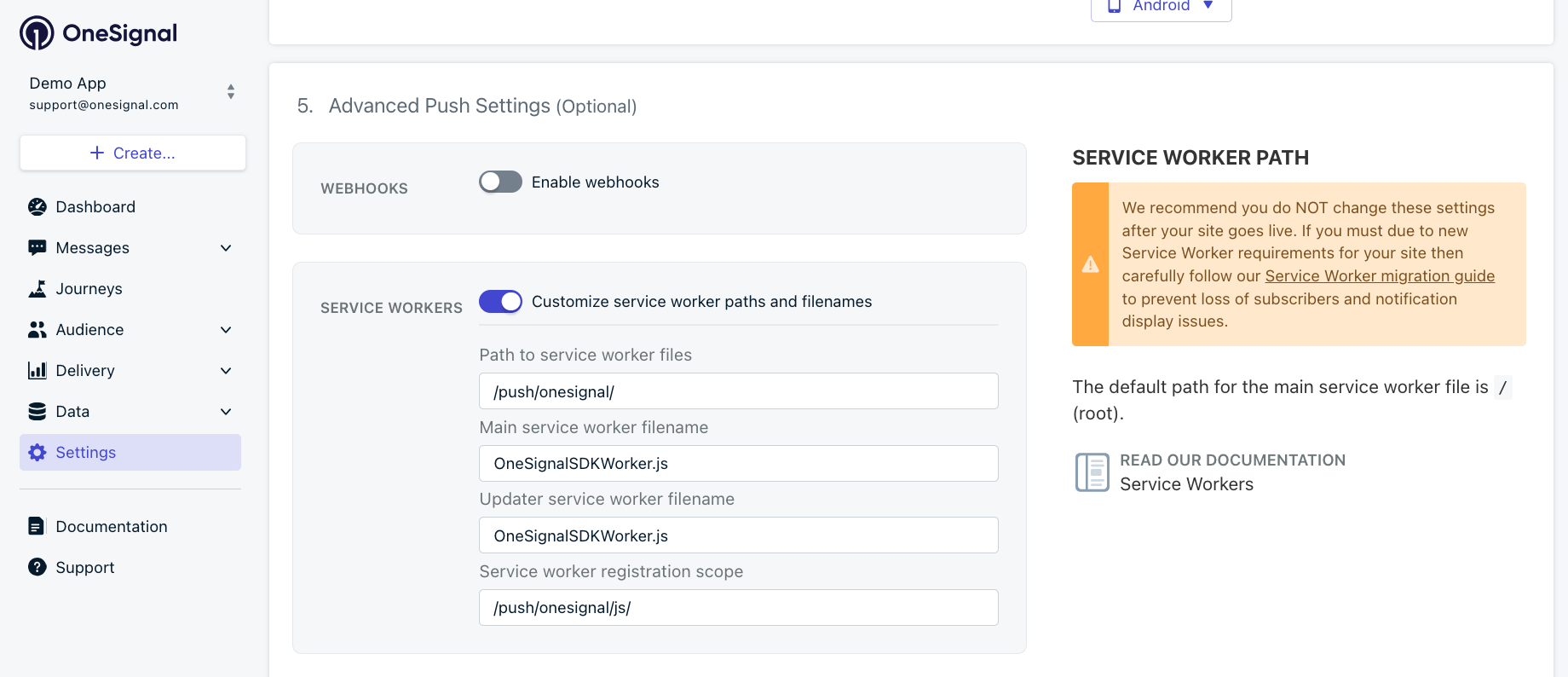 | Field | Description | Example |
| ------------------------------------- | ------------------------------------------------------------------------------------------------------------------------------------------------- | ----------------------- |
| **Path to service worker files** | Directory where `OneSignalSDKWorker.js` is hosted. | `/push/onesignal/` |
| **Service worker filename** | Name of the `.js` file. | `OneSignalSDKWorker.js` |
| **Service worker registration scope** | URL path the service worker controls. Must be at or below the directory where the file is hosted. Use a path that never serves user-facing pages. | `/push/onesignal/` |
#### Custom code setup
Pass `serviceWorkerPath` and `serviceWorkerParam` in your [`OneSignal.init()`](./web-push-custom-code-setup) call:
```html theme={null}
```
| Parameter | Description | Example |
| -------------------------- | ------------------------------------------------------------------------------------------------------------------------------------------------- | ---------------------------------------- |
| `serviceWorkerPath` | Relative path from site root to the `.js` file (no leading slash). | `"push/onesignal/OneSignalSDKWorker.js"` |
| `serviceWorkerParam.scope` | URL path the service worker controls. Must be at or below the directory where the file is hosted. Use a path that never serves user-facing pages. | `"/push/onesignal/"` |
The `OneSignalSDKWorker.js` file must meet all of the following requirements for push notifications to work.
| Requirement | Details |
| ------------------------ | ---------------------------------------------------------------------------------------------------------------------------------------------------------------------------------------------------------------------------------------------------- |
| **Publicly accessible** | Navigate to the file URL in a browser and confirm you see the JavaScript code. |
| **Correct content type** | The server must return `Content-Type: application/javascript; charset=utf-8`. |
| **Same origin** | The file must be hosted on the same domain as your site. CDNs and subdomains are not allowed. See [MDN: Registering your worker](https://developer.mozilla.org/en-US/docs/Web/API/Service_Worker_API/Using_Service_Workers#Registering_your_worker). |
| **HTTPS** | Service workers require a secure context. `localhost` is the only exception during development. |
Service worker setup is complete.
Continue with the Web SDK setup guide for next steps.
***
## Combining multiple service workers
Each service worker file on your site is registered at a **scope** — a URL path that determines which pages it controls. Only one service worker can be active at a given scope. If you already have a service worker (for example, a PWA or caching worker) and want OneSignal to share the same file, you can combine them.
Keeping service workers in separate files with separate scopes is simpler to maintain and avoids conflicts. Only combine them if your setup requires a single service worker file.
To combine, add the OneSignal `importScripts` line to your **existing** service worker file:
```javascript theme={null}
importScripts("https://cdn.onesignal.com/sdks/web/v16/OneSignalSDK.sw.js");
importScripts("https://yoursite.com/your-other-service-worker.js");
```
After combining, update the OneSignal configuration to point to your existing service worker file. Follow [Step 4: Configure the SDK path](#step-4-configure-the-sdk-path-subdirectory-only) using the path and filename of your combined file.
***
## Migration guide
This section is for existing OneSignal customers who need to change the service worker file path, filename, or scope. Do not follow these steps unless you have a specific reason to change your current configuration.
**Reasons to migrate:**
* The root-scope OneSignal service worker conflicts with a Progressive Web App (PWA)
* The service worker conflicts with AMP or another caching service worker
* Security policies prohibit third-party service worker code at root scope
**Option 1: Change scope only (recommended)**
Changing only the scope is the safest migration. The file stays at its current URL, so existing subscribers continue to receive notifications without interruption.
**If your file contains only OneSignal code**
Confirm `OneSignalSDKWorker.js` contains only:
```javascript theme={null}
importScripts("https://cdn.onesignal.com/sdks/web/v16/OneSignalSDK.sw.js");
```
Update the scope using the dashboard or `serviceWorkerParam` as described in [Step 4: Configure the SDK path](#step-4-configure-the-sdk-path-subdirectory-only). No other changes are needed.
If `OneSignalSDKWorker.js` is **not** hosted at your domain root today, you must continue hosting it at its current URL with the `Service-Worker-Allowed` header for at least one year. Add a comment in your backend code or internal documentation so the file is not accidentally removed.
**If your file contains OneSignal + other code**
Your service worker may include additional `importScripts` calls (e.g., from following the [combining multiple service workers](#combining-multiple-service-workers) guide). If your current setup still works, **keep it as-is** — splitting a merged service worker requires a two-phase rollout.
If you must separate them:
Above the OneSignal `importScripts` line in your current service worker, add:
```javascript theme={null}
// KEEP until YYYY-MM-DD: Required for push delivery to subscribers who have not revisited.
importScripts("https://cdn.onesignal.com/sdks/web/v16/OneSignalSDK.sw.js");
```
Set the date at least **one year** in the future.
Create `OneSignalSDKWorker.js` in a subdirectory (e.g., `/push/onesignal/`) containing only:
```javascript theme={null}
importScripts("https://cdn.onesignal.com/sdks/web/v16/OneSignalSDK.sw.js");
```
Set the new path and scope using the dashboard or `OneSignal.init()` as described in [Step 4: Configure the SDK path](#step-4-configure-the-sdk-path-subdirectory-only).
New and returning visitors automatically register with the new service worker. Wait at least one year for the majority of existing subscribers to revisit your site.
[Delete inactive users](./delete-users) older than your chosen retention period, then remove the OneSignal `importScripts` line from the original service worker file.
**Option 2: Change filename or file location**
Changing the filename or directory is more complex because browsers fetch the service worker from the URL where it was originally registered. Subscribers who have not revisited your site still reference the old URL.
You must continue hosting the original file at its old URL for at least one year. Removing it causes 404 errors when the browser attempts to update the service worker, and affected subscribers stop receiving notifications.
**If your file contains only OneSignal code**
```javascript theme={null}
// KEEP until YYYY-MM-DD: Required for push delivery to subscribers still on the old service worker URL.
importScripts("https://cdn.onesignal.com/sdks/web/v16/OneSignalSDK.sw.js");
```
Place `OneSignalSDKWorker.js` (or your chosen filename) in the new directory with:
```javascript theme={null}
importScripts("https://cdn.onesignal.com/sdks/web/v16/OneSignalSDK.sw.js");
```
Set the new path, filename, and scope as described in [Step 4: Configure the SDK path](#step-4-configure-the-sdk-path-subdirectory-only).
New and returning visitors register with the new file automatically. Wait at least one year.
[Delete inactive users](./delete-users) older than your retention period, then remove the old file.
**If your file contains OneSignal + other code**
Follow the steps in **Option 1: Change scope only** above. The process is the same.
***
## FAQ
### Why is my service worker returning a 404?
The file is not at the URL the SDK expects. Navigate to the full file URL in your browser to confirm it is accessible. If you placed the file in a subdirectory, verify that `serviceWorkerPath` (custom code) or the dashboard path setting matches the actual file location — including the directory and filename.
### Why are notifications not displaying after I moved the service worker file?
Existing subscribers still reference the old service worker URL. The browser fetches the registered URL (cached up to 24 hours) each time a push arrives. If the old URL returns a 404, those subscribers do not receive notifications. Continue hosting the old file for at least one year while subscribers naturally migrate by revisiting your site. See the [migration guide](#migration-guide) and [Web push notifications not shown](./notifications-not-shown-web-push) guide.
### Can I host the service worker on a CDN or subdomain?
No. Browsers require service workers to be served from the same origin as the page that registers them. The file must be on your primary domain — not a CDN, subdomain, or different domain.
### Why does my PWA conflict with the OneSignal service worker?
Both are likely registered at root scope (`/`) and only one service worker can be active at a given scope. Move the OneSignal service worker to a subdirectory scope (e.g., `/push/onesignal/`) so your PWA retains control of root scope, or combine them as described in [Combining multiple service workers](#combining-multiple-service-workers).
### Can I rename the OneSignalSDKWorker.js file?
Yes. If your server requires a specific naming convention (e.g., all lowercase), rename the file to something like `onesignalsdkworker.js`. Update the filename in your OneSignal configuration — either the **Service worker filename** field in the dashboard or the `serviceWorkerPath` parameter in your `OneSignal.init()` call. See [Configure the SDK path](#step-4-configure-the-sdk-path-subdirectory-only) for details.
### What content type should my server return for the service worker file?
The server must return `Content-Type: application/javascript; charset=utf-8`. Some servers or CDN configurations return an incorrect MIME type, which causes the browser to reject the service worker registration.
| Field | Description | Example |
| ------------------------------------- | ------------------------------------------------------------------------------------------------------------------------------------------------- | ----------------------- |
| **Path to service worker files** | Directory where `OneSignalSDKWorker.js` is hosted. | `/push/onesignal/` |
| **Service worker filename** | Name of the `.js` file. | `OneSignalSDKWorker.js` |
| **Service worker registration scope** | URL path the service worker controls. Must be at or below the directory where the file is hosted. Use a path that never serves user-facing pages. | `/push/onesignal/` |
#### Custom code setup
Pass `serviceWorkerPath` and `serviceWorkerParam` in your [`OneSignal.init()`](./web-push-custom-code-setup) call:
```html theme={null}
```
| Parameter | Description | Example |
| -------------------------- | ------------------------------------------------------------------------------------------------------------------------------------------------- | ---------------------------------------- |
| `serviceWorkerPath` | Relative path from site root to the `.js` file (no leading slash). | `"push/onesignal/OneSignalSDKWorker.js"` |
| `serviceWorkerParam.scope` | URL path the service worker controls. Must be at or below the directory where the file is hosted. Use a path that never serves user-facing pages. | `"/push/onesignal/"` |
The `OneSignalSDKWorker.js` file must meet all of the following requirements for push notifications to work.
| Requirement | Details |
| ------------------------ | ---------------------------------------------------------------------------------------------------------------------------------------------------------------------------------------------------------------------------------------------------- |
| **Publicly accessible** | Navigate to the file URL in a browser and confirm you see the JavaScript code. |
| **Correct content type** | The server must return `Content-Type: application/javascript; charset=utf-8`. |
| **Same origin** | The file must be hosted on the same domain as your site. CDNs and subdomains are not allowed. See [MDN: Registering your worker](https://developer.mozilla.org/en-US/docs/Web/API/Service_Worker_API/Using_Service_Workers#Registering_your_worker). |
| **HTTPS** | Service workers require a secure context. `localhost` is the only exception during development. |
Service worker setup is complete.
Continue with the Web SDK setup guide for next steps.
***
## Combining multiple service workers
Each service worker file on your site is registered at a **scope** — a URL path that determines which pages it controls. Only one service worker can be active at a given scope. If you already have a service worker (for example, a PWA or caching worker) and want OneSignal to share the same file, you can combine them.
Keeping service workers in separate files with separate scopes is simpler to maintain and avoids conflicts. Only combine them if your setup requires a single service worker file.
To combine, add the OneSignal `importScripts` line to your **existing** service worker file:
```javascript theme={null}
importScripts("https://cdn.onesignal.com/sdks/web/v16/OneSignalSDK.sw.js");
importScripts("https://yoursite.com/your-other-service-worker.js");
```
After combining, update the OneSignal configuration to point to your existing service worker file. Follow [Step 4: Configure the SDK path](#step-4-configure-the-sdk-path-subdirectory-only) using the path and filename of your combined file.
***
## Migration guide
This section is for existing OneSignal customers who need to change the service worker file path, filename, or scope. Do not follow these steps unless you have a specific reason to change your current configuration.
**Reasons to migrate:**
* The root-scope OneSignal service worker conflicts with a Progressive Web App (PWA)
* The service worker conflicts with AMP or another caching service worker
* Security policies prohibit third-party service worker code at root scope
**Option 1: Change scope only (recommended)**
Changing only the scope is the safest migration. The file stays at its current URL, so existing subscribers continue to receive notifications without interruption.
**If your file contains only OneSignal code**
Confirm `OneSignalSDKWorker.js` contains only:
```javascript theme={null}
importScripts("https://cdn.onesignal.com/sdks/web/v16/OneSignalSDK.sw.js");
```
Update the scope using the dashboard or `serviceWorkerParam` as described in [Step 4: Configure the SDK path](#step-4-configure-the-sdk-path-subdirectory-only). No other changes are needed.
If `OneSignalSDKWorker.js` is **not** hosted at your domain root today, you must continue hosting it at its current URL with the `Service-Worker-Allowed` header for at least one year. Add a comment in your backend code or internal documentation so the file is not accidentally removed.
**If your file contains OneSignal + other code**
Your service worker may include additional `importScripts` calls (e.g., from following the [combining multiple service workers](#combining-multiple-service-workers) guide). If your current setup still works, **keep it as-is** — splitting a merged service worker requires a two-phase rollout.
If you must separate them:
Above the OneSignal `importScripts` line in your current service worker, add:
```javascript theme={null}
// KEEP until YYYY-MM-DD: Required for push delivery to subscribers who have not revisited.
importScripts("https://cdn.onesignal.com/sdks/web/v16/OneSignalSDK.sw.js");
```
Set the date at least **one year** in the future.
Create `OneSignalSDKWorker.js` in a subdirectory (e.g., `/push/onesignal/`) containing only:
```javascript theme={null}
importScripts("https://cdn.onesignal.com/sdks/web/v16/OneSignalSDK.sw.js");
```
Set the new path and scope using the dashboard or `OneSignal.init()` as described in [Step 4: Configure the SDK path](#step-4-configure-the-sdk-path-subdirectory-only).
New and returning visitors automatically register with the new service worker. Wait at least one year for the majority of existing subscribers to revisit your site.
[Delete inactive users](./delete-users) older than your chosen retention period, then remove the OneSignal `importScripts` line from the original service worker file.
**Option 2: Change filename or file location**
Changing the filename or directory is more complex because browsers fetch the service worker from the URL where it was originally registered. Subscribers who have not revisited your site still reference the old URL.
You must continue hosting the original file at its old URL for at least one year. Removing it causes 404 errors when the browser attempts to update the service worker, and affected subscribers stop receiving notifications.
**If your file contains only OneSignal code**
```javascript theme={null}
// KEEP until YYYY-MM-DD: Required for push delivery to subscribers still on the old service worker URL.
importScripts("https://cdn.onesignal.com/sdks/web/v16/OneSignalSDK.sw.js");
```
Place `OneSignalSDKWorker.js` (or your chosen filename) in the new directory with:
```javascript theme={null}
importScripts("https://cdn.onesignal.com/sdks/web/v16/OneSignalSDK.sw.js");
```
Set the new path, filename, and scope as described in [Step 4: Configure the SDK path](#step-4-configure-the-sdk-path-subdirectory-only).
New and returning visitors register with the new file automatically. Wait at least one year.
[Delete inactive users](./delete-users) older than your retention period, then remove the old file.
**If your file contains OneSignal + other code**
Follow the steps in **Option 1: Change scope only** above. The process is the same.
***
## FAQ
### Why is my service worker returning a 404?
The file is not at the URL the SDK expects. Navigate to the full file URL in your browser to confirm it is accessible. If you placed the file in a subdirectory, verify that `serviceWorkerPath` (custom code) or the dashboard path setting matches the actual file location — including the directory and filename.
### Why are notifications not displaying after I moved the service worker file?
Existing subscribers still reference the old service worker URL. The browser fetches the registered URL (cached up to 24 hours) each time a push arrives. If the old URL returns a 404, those subscribers do not receive notifications. Continue hosting the old file for at least one year while subscribers naturally migrate by revisiting your site. See the [migration guide](#migration-guide) and [Web push notifications not shown](./notifications-not-shown-web-push) guide.
### Can I host the service worker on a CDN or subdomain?
No. Browsers require service workers to be served from the same origin as the page that registers them. The file must be on your primary domain — not a CDN, subdomain, or different domain.
### Why does my PWA conflict with the OneSignal service worker?
Both are likely registered at root scope (`/`) and only one service worker can be active at a given scope. Move the OneSignal service worker to a subdirectory scope (e.g., `/push/onesignal/`) so your PWA retains control of root scope, or combine them as described in [Combining multiple service workers](#combining-multiple-service-workers).
### Can I rename the OneSignalSDKWorker.js file?
Yes. If your server requires a specific naming convention (e.g., all lowercase), rename the file to something like `onesignalsdkworker.js`. Update the filename in your OneSignal configuration — either the **Service worker filename** field in the dashboard or the `serviceWorkerPath` parameter in your `OneSignal.init()` call. See [Configure the SDK path](#step-4-configure-the-sdk-path-subdirectory-only) for details.
### What content type should my server return for the service worker file?
The server must return `Content-Type: application/javascript; charset=utf-8`. Some servers or CDN configurations return an incorrect MIME type, which causes the browser to reject the service worker registration.