> ## Documentation Index
> Fetch the complete documentation index at: https://documentation.onesignal.com/llms.txt
> Use this file to discover all available pages before exploring further.
# Web permission prompts
> Configure OneSignal's web push permission prompts to maximize opt-ins. Covers slidedown prompts, native browser prompts, category selection, email/phone collection, subscription bell, and custom link prompts.
***
## Overview
"Prompting" refers to the process of asking users for permission to send them messages. Prompts are pop-up messages presented in the browser or mobile app and require the user to click "Allow" to be subscribed and receive messages. This guide covers the different types of web prompts and how to configure them.
Web push works on desktop, Android, and iOS, but [web push for iOS requires additional steps](./web-push-for-ios). If you have a mobile app, see [how to prompt for Push Permissions with In-App Messages](./prompt-for-push-permissions).
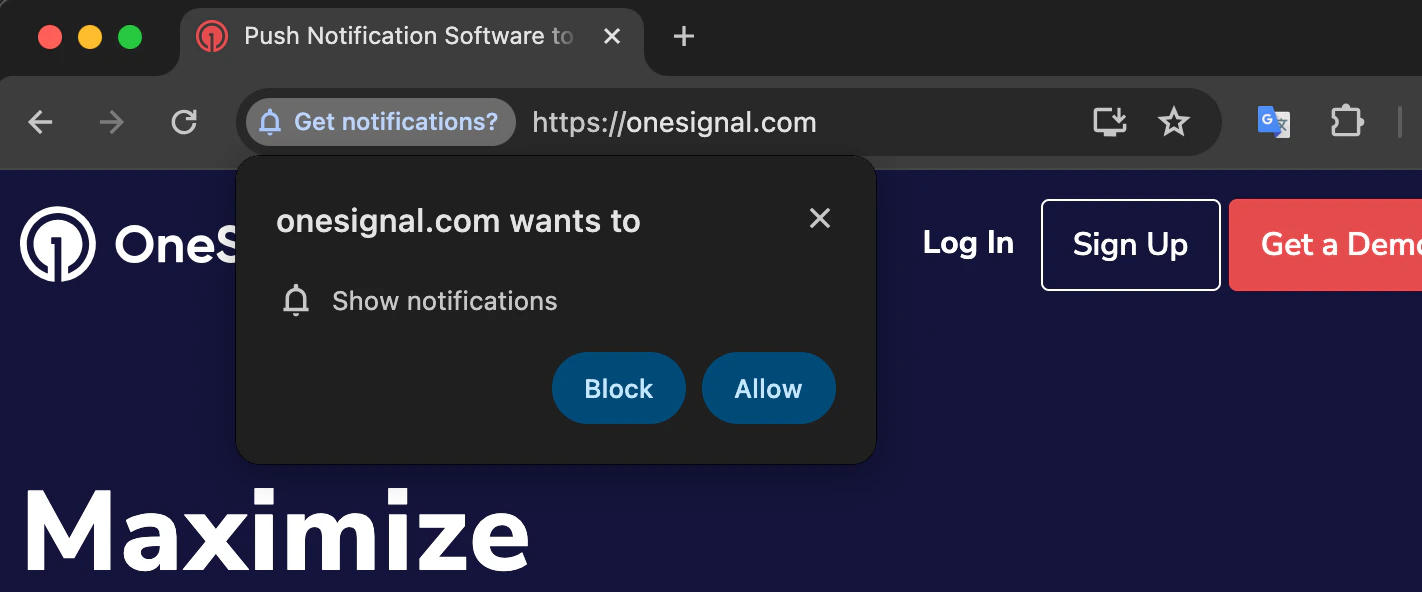
Browsers provide their own native, system-level permission prompt, which is required to be both shown and clicked "Allow" for the user to subscribe to push notifications on your website. Browsers now [highly recommend websites be more selective](https://onesignal.com/blog/changes-to-chrome-and-firefox-permission-prompting) when it comes to showing the native permission prompt. This is why using OneSignal Prompts or your own custom "soft prompts" before the native prompt is encouraged.
### OneSignal prompts (soft prompts)
OneSignal soft prompts are user-friendly, customizable prompts that appear before the browser’s native permission prompt. These prompts do not subscribe users to messages by themselves; instead, they help:
1. Explain the value of subscribing to messages (push, email, or SMS).
2. Prevent browsers from automatically blocking permission requests.
3. Launch the native browser prompt only after the user expresses interest.
Soft prompts are [recommended by browsers](https://onesignal.com/blog/changes-to-chrome-and-firefox-permission-prompting) and help maximize engagement rates while protecting your domain reputation.
***
## Prompt icon
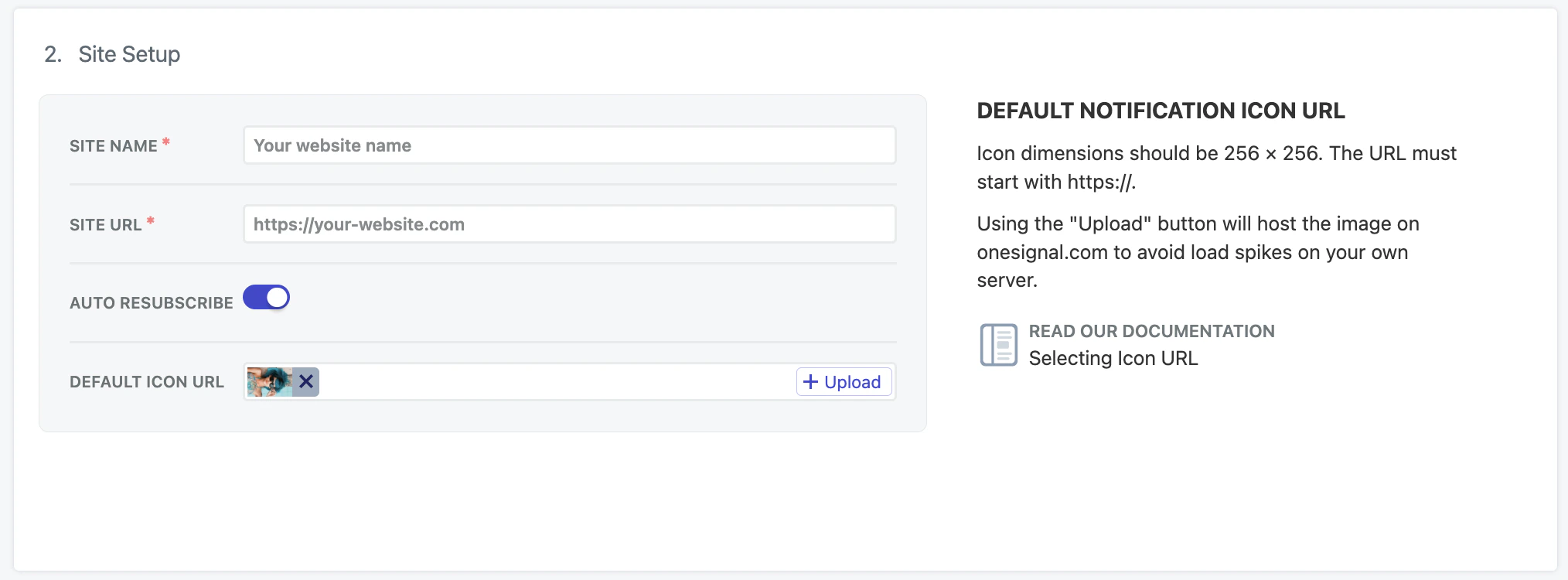
To customize the icon shown in your web push notifications, go to your OneSignal dashboard: **Settings > Push & In-App > Web Settings**.
In the **Site Setup** section, configure the **Default Icon URL**. This icon appears in all your notifications unless otherwise specified.
* Accepted formats: `.png` or `.jpg`
* Recommended size: `256x256` pixels (to meet Safari's requirements)
* If left unset, OneSignal will use a generic bell icon
This setting can be changed at any time.
***
## Permission prompt setup
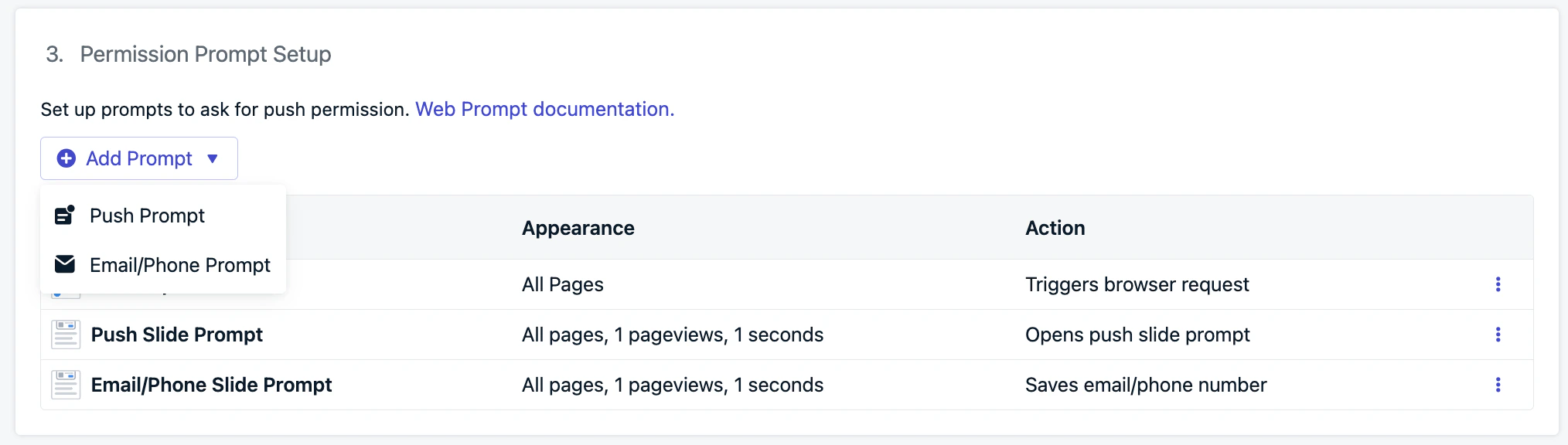
Configure the prompts you want to display on your site. In your OneSignal dashboard, navigate to: **Settings > Push & In-App > Web Settings > Permission Prompt Setup**.
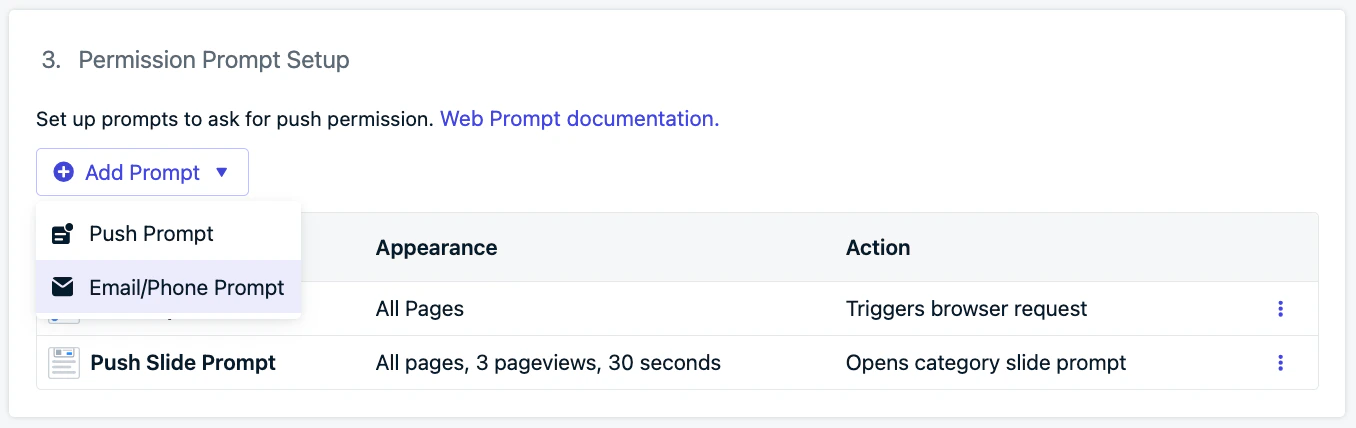
From there, click **Add Prompt** to choose from OneSignal’s available prompt types. You can also edit any existing prompts already shown in the list.
Each prompt type has different use cases and display behaviors. You can use them individually or in combination to guide users through the subscription process in a way that fits your website's UX.
Available prompts are:
* [Slidedown](#slidedown-%26-category): A visually prominent prompt used for push notifications and optional category selection.
* [Email/Phone prompt](#email-%26-phone-number-prompt): Used to collect user email addresses, phone numbers, or both.
* [Subscription bell prompt](#subscription-bell-prompt): A persistent floating widget for push subscriptions, typically placed in the bottom corner of your site.
* [Custom link prompt](#custom-link-prompt): A customizable button or link embedded in your site that triggers the native browser prompt.
* [Native permission prompt](#native-permission-prompt): The required browser-level prompt that must be accepted for users to receive push notifications.
***
### Slidedown & category
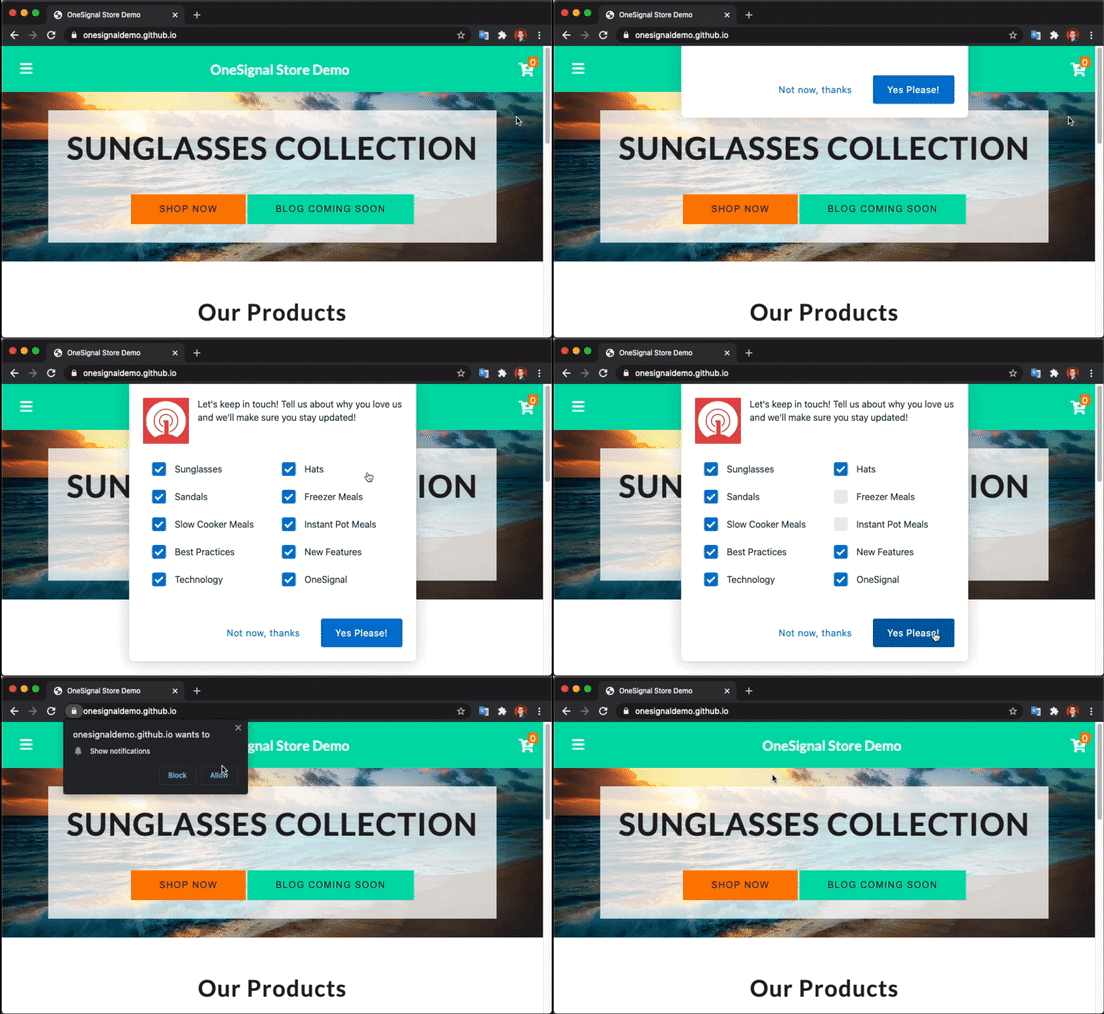
The Slide and Category prompts appear prominently at the top center of the screen on desktop and bottom center on mobile. These are high-visibility, soft prompts shown before the required [native permission prompt](#native-permission-prompt). They do not subscribe the user on their own but help initiate the subscription flow and capture user interest.
To add a Slide Prompt, follow the steps below:
**Typical Site & WordPress Setup:**
1. Go to **Settings > Push & In-App > Web Settings > Permission Prompt Setup**
2. Select **Add Prompt > Push Prompt > Push Slide Prompt**
**Custom Code Setup:**
Use the `slidedown` property in your OneSignal `init` code's `promptOptions` object. See [Web SDK Reference](./web-sdk-reference) for more details.
For details on triggering the prompt, see [Auto prompt & display settings](#auto-prompt-%26-display-settings).
#### Slide prompt text
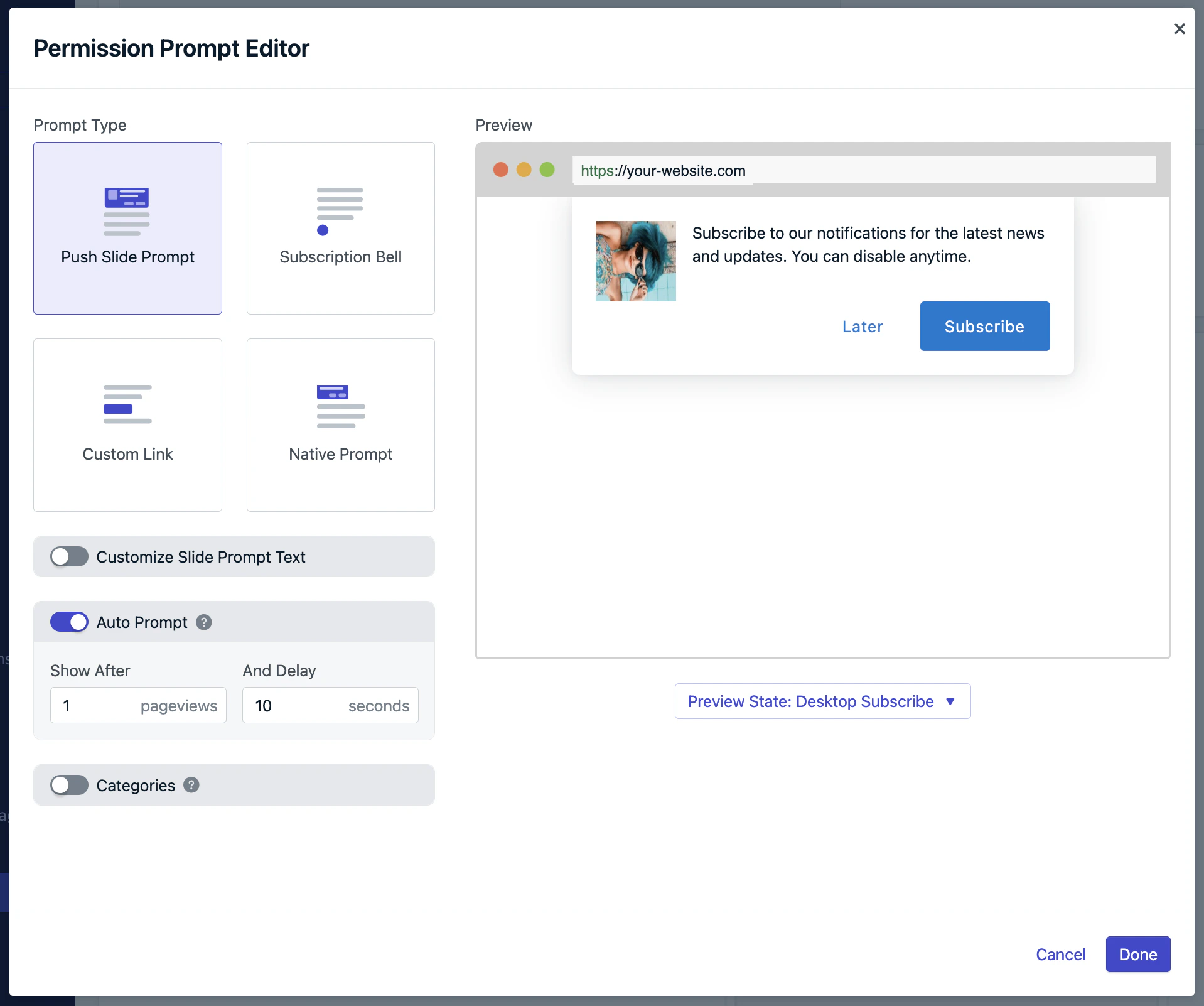
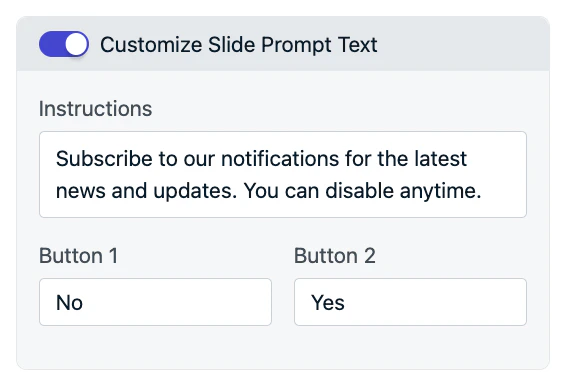
You can customize the text displayed in the slide prompt:
* Action message: up to 90 characters
* Button labels: up to 15 characters each
* Customization of font, size, or colors is not currently supported
Enable the text customization option in the dashboard. If no text is entered, default text will be used.
When finished, click **Done** and **Save** again on the next page to see this go into effect.
For Custom Code setup, use the `text` properties within your OneSignal `init` code's `promptOptions` object. See [Web SDK Reference](./web-sdk-reference) for more details.
#### Categories
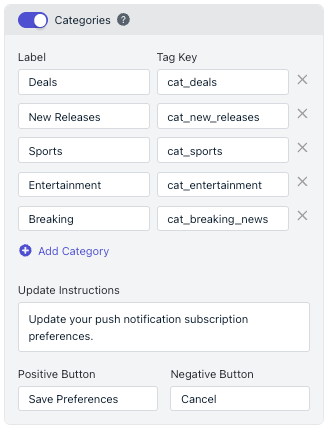
You can enhance the Slidedown prompt by adding categories—checkboxes that let users indicate interest in specific message topics (e.g., News, Sales, Updates).
* Up to 10 categories allowed
* Each category is stored as a Data Tag with a `1` (selected) or `0` (not selected)
* Useful for segmentation and targeting messages by user preferences
You may display the category prompt again later to let users update their preferences. Previously selected values will be retained unless overwritten.
* **Label**: what the user sees in the prompt. Recommended to capitalize the first letter.
* **Tag Key**: what the tag in OneSignal will be. Use the `cat_` naming convention (lower case, underscores for spaces) — for example `cat_breaking_news`, `cat_sports`, `cat_apparel`. This matches the convention used across OneSignal industry guides and lets the same Tag namespace be populated automatically from page-visit behavior. See [Tag users by page topic](./auto-segment-users-by-page-visit#tag-by-page-topic-every-visit) for the auto-tag pattern.
* **Update Instructions, Positive and Negative Buttons**: if you choose to display the category prompt again after the user is already subscribed to push, the update instructions will be shown instead of the action message. This allows you to inform the user they can update their categories.
When finished, click **Done** and **Save** again on the next page to see this go into effect.
For Custom Code setup, use the `categories` properties within your OneSignal `init` code's `promptOptions` object. See [Web SDK Reference](./web-sdk-reference) for more details.
For details on triggering the prompt, see [Auto prompt & display settings](#auto-prompt-%26-display-settings).
***
### Email & phone number prompt
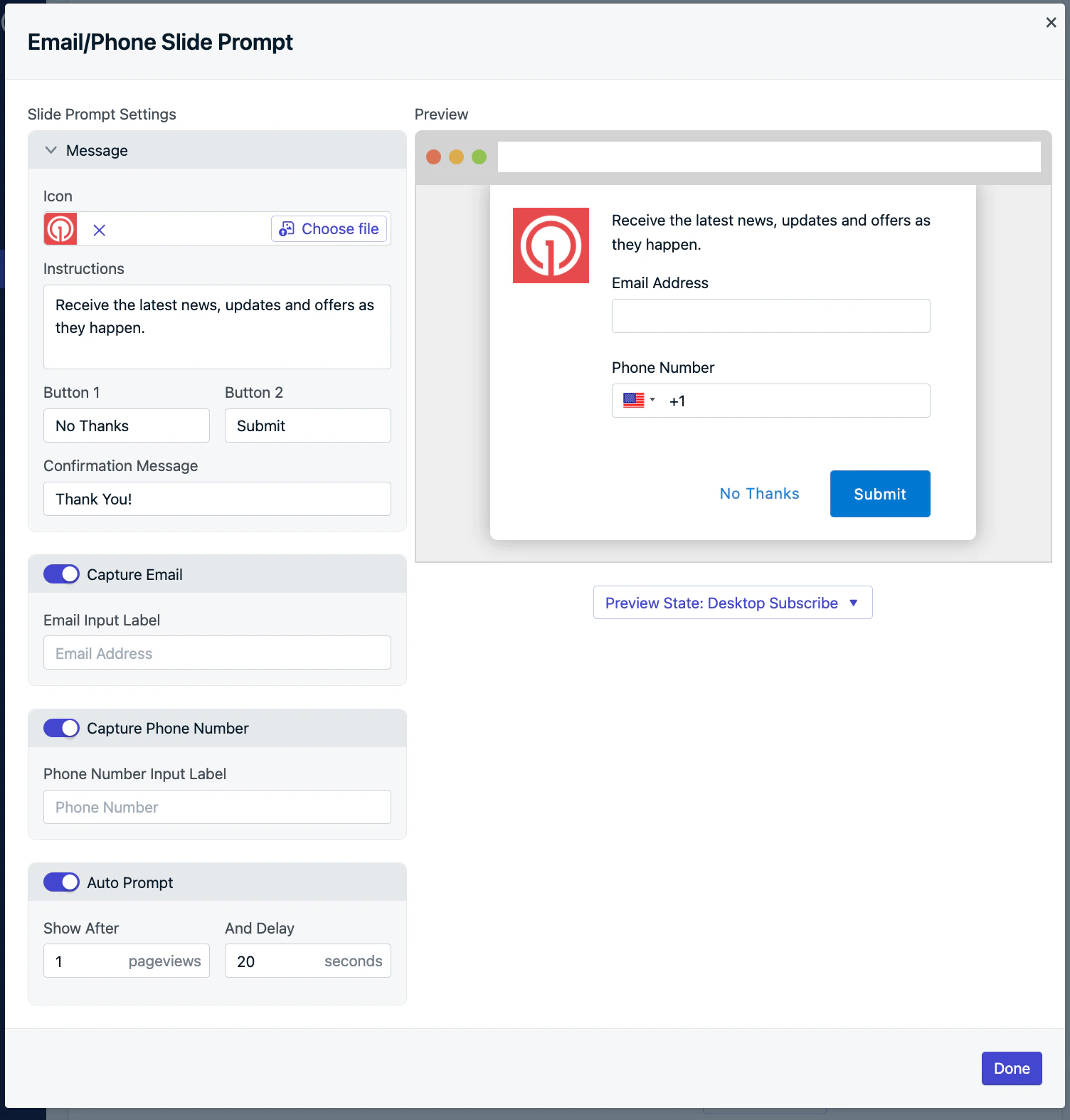
The Email & Phone Prompt collects optional user contact information directly within a Slidedown. Each field has built-in validation to ensure correct formatting.
Once submitted:
* New Email and/or SMS subscriptions are created for the user
* You can start messaging them across these channels
To add this prompt:
* Navigate to **Settings > Push & In-App > Web Settings > Permission Prompt Setup > Add Prompt > Email/Phone Prompt**.
Customize which input fields are shown, the text labels, and the auto-prompt delay.
When finished, press **Done** and **Save** again on the next page to see this go into effect.
For Custom Code setup, within your OneSignal `init` code's `promptOptions` object add the `type` to be either `email`, `sms`, or `smsAndEmail`. See [Web SDK Reference](./web-sdk-reference) for more details.
For details on triggering the prompt, see [Auto prompt & display settings](#auto-prompt-%26-display-settings).
***
### Subscription bell prompt
The Subscription Bell Prompt is a small, persistent widget that appears in the bottom corner of your website. When clicked by an unsubscribed user, it triggers the [Native Browser Prompt](./permission-requests).
Because of its minimal footprint, the bell can be left visible at all times, making it a passive yet effective option for ongoing opt-in opportunities. It does not require dismissal and provides users with control over when to subscribe.
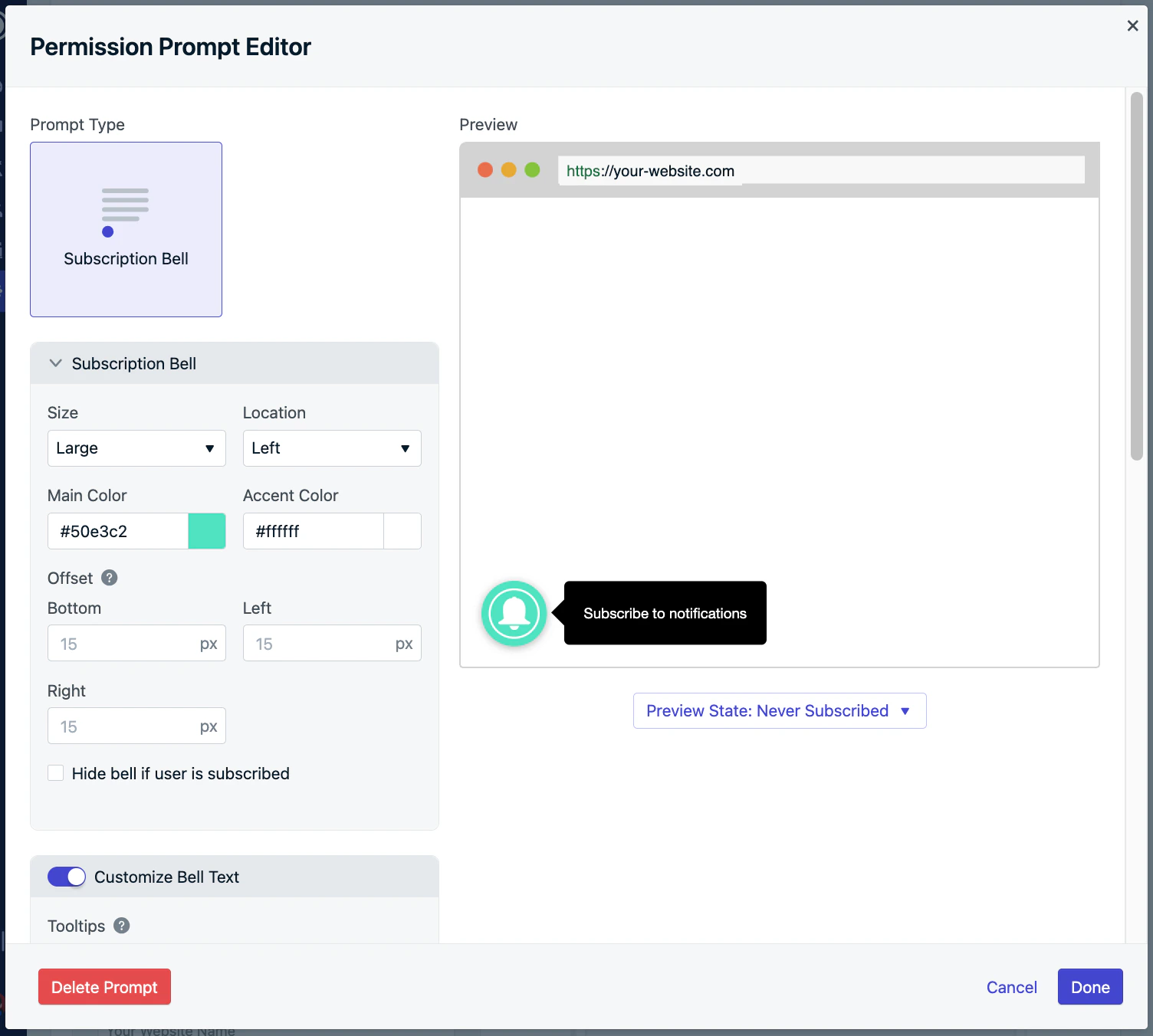
You can customize the OneSignal Bell Prompt's color, size, bottom position, text, and more.
You cannot currently change the icon image or place the bell in the top corners.
Navigate to: **Settings > Push & In-App > Web Settings > Permission Prompt Setup > Add Prompt > Subscription Bell Prompt**
You can customize the bell’s:
* Color
* Size
* Bottom position (left or right)
* Text and labels
After setup, click **Done**, then **Save** to apply changes.
Use the `notifyButton` parameter in your web SDK initialization options. You may toggle between different examples for Bell Prompt customizations.
**Hiding:** To hide the subscription bell after a user subscribes or only show it on certain pages, be sure to return the value `false` *or* a `Promise` that resolves to the value `false` in the `displayPredicate` function during initialization. This function is evaluated before the subscription bell is shown. You may return any other value to show the subscription bell.
```javascript Text & Basic Options theme={null}
// Your other init options here
notifyButton: {
enable: true, /* Required to use the Subscription Bell */
size: 'medium', /* One of 'small', 'medium', or 'large' */
theme: 'default', /* One of 'default' (red-white) or 'inverse" (white-red) */
position: 'bottom-right', /* Either 'bottom-left' or 'bottom-right' */
offset: {
bottom: '0px',
left: '0px', /* Only applied if bottom-left */
right: '0px' /* Only applied if bottom-right */
},
showCredit: false, /* Hide the OneSignal logo */
text: {
'tip.state.unsubscribed': 'Subscribe to notifications',
'tip.state.subscribed': "You're subscribed to notifications",
'tip.state.blocked': "You've blocked notifications",
'message.prenotify': 'Click to subscribe to notifications',
'message.action.subscribed': "Thanks for subscribing!",
'message.action.resubscribed': "You're subscribed to notifications",
'message.action.unsubscribed': "You won't receive notifications again",
'dialog.main.title': 'Manage Site Notifications',
'dialog.main.button.subscribe': 'SUBSCRIBE',
'dialog.main.button.unsubscribe': 'UNSUBSCRIBE',
'dialog.blocked.title': 'Unblock Notifications',
'dialog.blocked.message': "Follow these instructions to allow notifications:"
}
}
```
```javascript Colors theme={null}
// Your other init options here
notifyButton: {
enable: true, // Required to use the Subscription Bell
// Your other Subscription Bell settings here
colors: { // Customize the colors of the main button and dialog popup button
'circle.background': 'rgb(84,110,123)',
'circle.foreground': 'white',
'badge.background': 'rgb(84,110,123)',
'badge.foreground': 'white',
'badge.bordercolor': 'white',
'pulse.color': 'white',
'dialog.button.background.hovering': 'rgb(77, 101, 113)',
'dialog.button.background.active': 'rgb(70, 92, 103)',
'dialog.button.background': 'rgb(84,110,123)',
'dialog.button.foreground': 'white'
},
}
```
```javascript Hiding theme={null}
// Your other init options here
notifyButton: {
/* Your other Subscription Bell settings here ... */
enable: true,
displayPredicate: function() {
/* The user is subscribed, so we want to return "false" to hide the Subscription Bell */
return !OneSignal.Notifications.permission
},
}
```
```html Full example theme={null}
```
***
### Custom link prompt
The Custom Link Prompt is a user-triggered button or link you can embed anywhere on your website. When clicked, it displays the [Native Browser Prompt](./permission-requests) for push notifications.
Common use cases:
* Below a blog post: “Like this article? Get updates as soon as we post!”
* In your site footer
* In a sticky header or floating toolbar
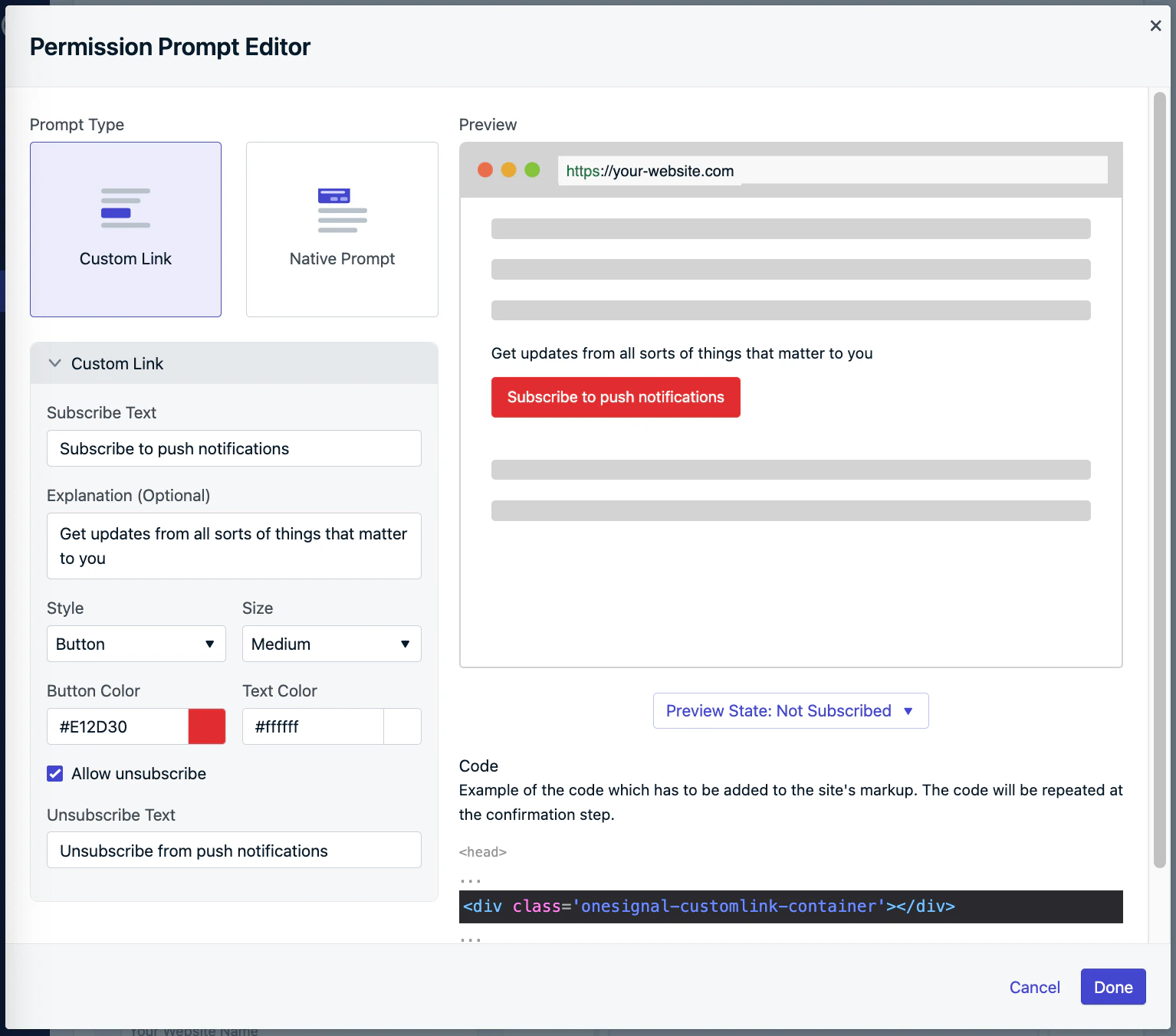
Navigate to: **Settings > Push & In-App > Web Settings > Permission Prompt Setup > Add Prompt > Custom Link**.
Add the provided HTML on your page where you want the widget to render.
Configure your options, then click **Done** and **Save** to activate.
Within your OneSignal `init` code's `promptOptions` object, add the `customlink` object and its available properties.
```javascript theme={null}
// Your other init options here
promptOptions: {
customlink: {
enabled: true, /* Required to use the Custom Link */
style: "button", /* Has value of 'button' or 'link' */
size: "medium", /* One of 'small', 'medium', or 'large' */
color: {
button: '#E12D30', /* Color of the button background if style = "button" */
text: '#FFFFFF', /* Color of the prompt's text */
},
text: {
subscribe: "Subscribe to push notifications", /* Prompt's text when not subscribed */
unsubscribe: "Unsubscribe from push notifications", /* Prompt's text when subscribed */
explanation: "Get updates from all sorts of things that matter to you", /* Optional text appearing before the prompt button */
},
unsubscribeEnabled: true, /* Controls whether the prompt is visible after subscription */
}
}
```
To render the prompt on your site, insert the following HTML where you want the widget to appear:
```html html theme={null}
```
To change the appearance of the widget at any time all elements have a special class `onesignal-reset` that removes any prior styling from the element to make sure there are no conflict with our internal styles and that it looks exactly as you've defined it in the dashboard.
If you ever find yourself in need to redefine any OneSignal styles, here is a short reference of the classes used in the Custom Link widget
| Class Name | Applies to |
| -------------------------------- | ----------------------------------------------------------------------------------- |
| onesignal-customlink-container | Main container |
| onesignal-customlink-subscribe | Action button |
| onesignal-customlink-explanation | Paragraph with a custom explanation text |
| state-subscribed | All components internal to the main container |
| state-unsubscribed | All components internal to the main container |
| button | Action button if in button mode |
| link | Action button if in link mode |
| small | All components internal to the main container |
| medium | All components internal to the main container |
| large | All components internal to the main container |
| hide | All components internal to the main container if unsubscribeEnabled is set to false |
To override any of them you have to create a CSS rule with higher specificity, combining the class name with the parent element id should be enough. But beware of the conflicts, our internal styles may change.
***
## Native permission prompt
The native permission prompt is the browser-controlled dialog that users must accept to subscribe to push notifications from your website. This prompt is:
* Required for subscription
* Automatically triggered after OneSignal soft prompts
* Not customizable in appearance, text, or behavior
### Browser native prompt behavior
Different browsers impose unique behaviors and restrictions to reduce spammy permission requests. In an effort to combat spam and poor user experience, OneSignal will automatically default to the Slide Prompt in certain cases listed below.
**If you do not want to show the Slide Prompt and would like to use the native permission prompt directly, you must turn off the Auto Prompt options and use our [Web SDK `requestPermission()` method](./web-sdk-reference#requestpermission).** Displaying the native permission prompt directly may not work in all browsers as described below.
#### Chrome
[Chrome 80+](https://blog.chromium.org/2020/01/introducing-quieter-permission-ui-for.html?m=1) may display a quieter UI instead of the full prompt:
* Automatically applies to users who frequently deny prompts
* Also applies to sites with a high rate of denials
Chrome implements back-off logic if the user clicks the "X" on the native prompt:
* You have 3 attempts to prompt
* After the 3rd dismissal, the prompt is suppressed for 7 days ([source](https://chromestatus.com/feature/6443143280984064)).
Using the Typical Site & WordPress Setup to configure the native permission prompt will automatically show the Slide Prompt on Chrome for mobile devices.
We deliberately added the double prompt on Android because the native Permission Prompt on Chrome for Android is a very user-unfriendly pop-up that takes over the entire screen of your site and this prevents your users from having a bad experience while visiting your site.
If you do not want to show the Slide Prompt, you must turn off the Auto Prompt switch in the Prompt Editor (don't forget to press the **Save** button), then use the [Web SDK `requestPermission()` method](./web-sdk-reference#requestpermission).
#### Firefox
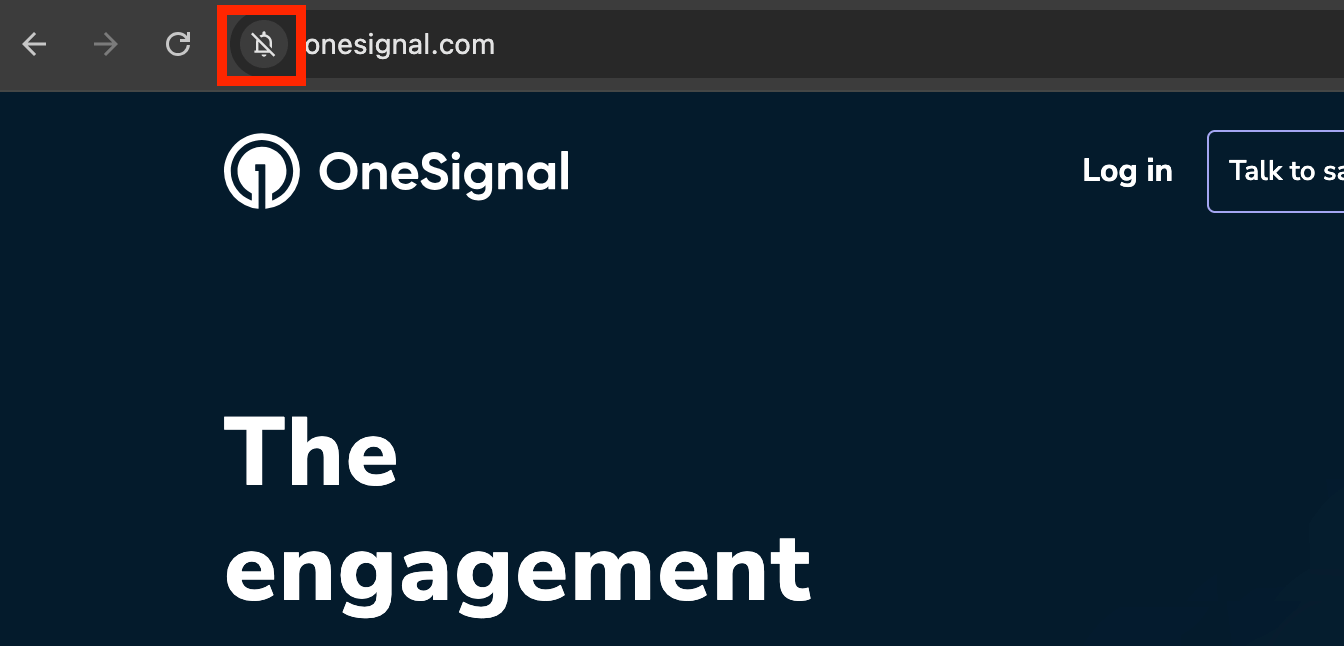
[Firefox 72+](https://blog.mozilla.org/futurereleases/2019/11/04/restricting-notification-permission-prompts-in-firefox/) started requiring a user gesture to trigger the native permission prompt. If you try to automatically show the native permission prompt on Firefox, you will see an icon within the browser like this, requiring the user to click the icon to show the native permission prompt.
Using the Typical Site & WordPress Setup to configure the native permission prompt will automatically show the Slide Prompt on Firefox.
We deliberately added the double prompt on Firefox because it requires a 2-step opt-in in either case and the Slide prompt is a more eye-catching way to increase engagement.
If you do not want to show the Slide Prompt, you must turn off the Auto Prompt switch in the Prompt Editor (don't forget to press the **Save** button), then use the [Web SDK `requestPermission()` method](./web-sdk-reference#requestpermission).
#### Safari
[Safari 12.1+](https://developer.apple.com/documentation/safari_release_notes/safari_12_1_release_notes) started requiring a user gesture to trigger the native permission prompt.
Using the Typical Site & WordPress Setup to configure the native permission prompt will not work for Safari because of this user gesture requirement.
We deliberately added the Slide Prompt on Safari because it requires a 2-step opt-in.
#### Edge
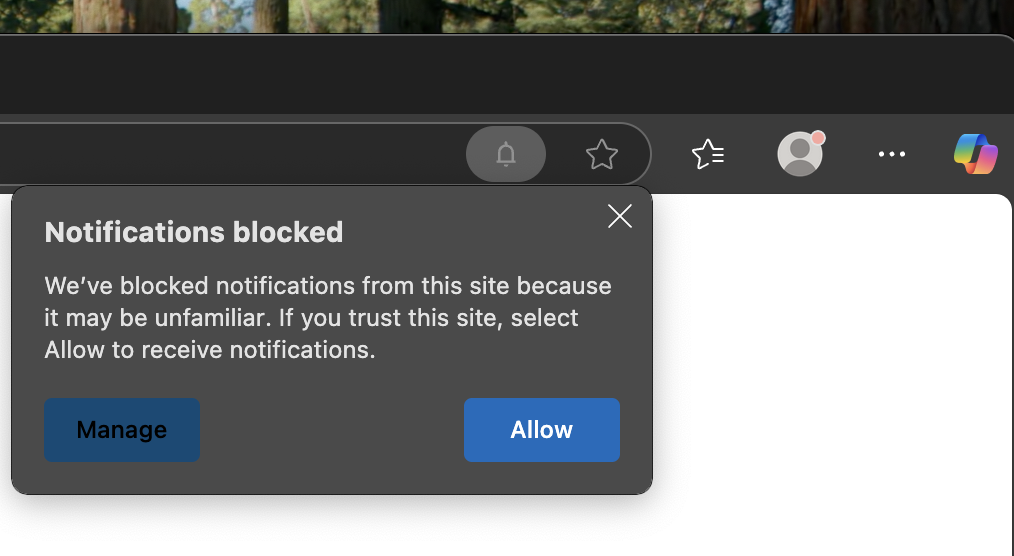
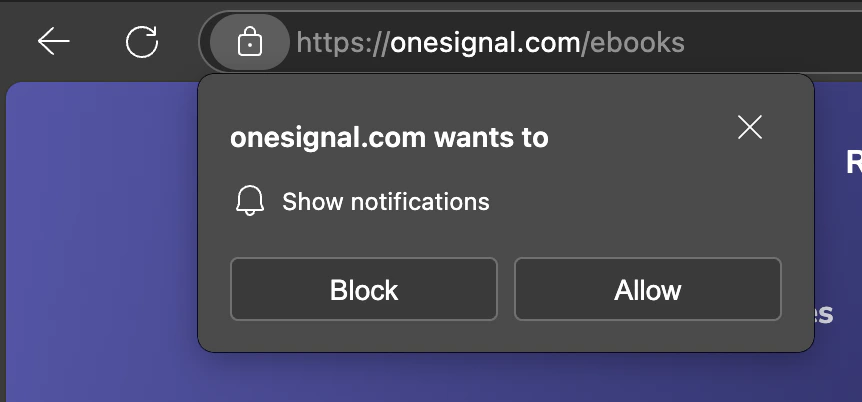
[Edge](https://blogs.windows.com/msedgedev/2023/07/06/fighting-notification-spam-microsoft-edge/) uses a trust-based model:
* If the site is untrusted, the prompt is suppressed and replaced by a bell icon in the browser bar:
* If the site is trusted, the native prompt appears normally:
***
## Auto prompt & display settings
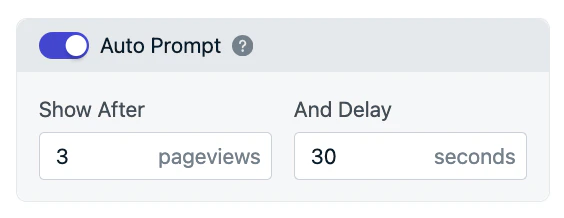
To maximize engagement and avoid disrupting your users, it’s best to delay showing prompts until after they've spent some time on your site. OneSignal allows you to automatically display prompts based on user behavior using two delay conditions:
* **Page Views:** Number of times the user loads any page on your site
* **Seconds on Page:** Amount of time the user must spend on the page
These delays are applied using an **AND** condition, meaning both must be satisfied before the prompt appears.
**Example:** If you set the delay to 3 page views and 30 seconds, the prompt will display on the third page load, after 30 seconds have passed. If the user doesn't interact with the prompt, it will continue showing on each page load (after 30 seconds) until it’s clicked or dismissed.
* Navigate to: **Settings > Push & In-App > Web Settings > Permission Prompt Setup**
* Choose a prompt or create a new one
* Enable Auto Prompt
* Set your delay preferences (page views and time delay)
* Click Done, then Save
If you want to trigger the prompt programmatically, keep Auto Prompt disabled and use the [Web SDK Prompt prompt methods](./web-sdk-reference).
Within your OneSignal `init` code's `promptOptions` object use the `autoPrompt` and `delay` options. There are also methods to trigger the desired slidedown or native prompts directly. See [Web SDK Reference](./web-sdk-reference) for more details.
If you want more control over when prompts are shown—for example, only on specific pages or after specific actions:
1. Disable Auto Prompt
2. Use the SDK's Slidedown or Native Prompt methods to show the prompt via code
### Slidedown prompt back-off logic
Once a Slidedown (Push, Category, or Email/Phone) prompt is shown and dismissed (via Allow, Cancel, or closing the dialog), it will back off and reappear on a defined schedule:
| Interaction Outcome | Next Prompt Timing |
| :-----------------------------------------: | :----------------: |
| First Dismissal | Wait 3 days |
| Second Dismissal | Wait 7 days |
| Third and later dismissals (not subscribed) | Wait 30 days |
For example, if the user clicks "Allow" on the Slidedown but then clicks "X" on the browser's native prompt (without subscribing), the Slidedown will follow the back-off cycle above.
This logic applies to Push, Category, and Email/Phone Slidedown prompts. You can bypass the backoff logic using our [Web SDK Slidedown prompt methods](./web-sdk-reference#slidedown-prompts).
For native prompt back-off logic, see [Browser native prompt behavior](#browser-native-prompt-behavior). You cannot bypass the backoff logic for the native prompt because this is controlled by the browser.
If the user clears cookies or browser data, the back-off cycle resets and the prompt may appear again as if for the first time.
***
## Best practices for requesting web push permissions
Getting users to grant web push permissions requires timing, trust, and user-friendly design. Follow these best practices to maximize opt-in rates while maintaining a positive on-site experience.
### Be strategic with when you ask
Timing matters more than frequency. Display permission prompts when users are already engaged or showing intent. For example:
* After they add an item to their cart or engage on a post or comment
* When they update their profile or sign in to their account
* Upon completing an action that shows commitment to your brand
Prompting users at these moments increases acceptance rates because they’re more invested in your content and value.
If your site has a profile or preference center, include push (and other channel) opt-in controls there. This reinforces transparency and gives users more control over how they receive updates. See our [Preference Center](./preference-center) guide for more details.
### Use the Subscription Bell Prompt
The [Bell Prompt](#subscription-bell-prompt) is a persistent, non-intrusive way for users to subscribe at any time. This floating bell icon is ideal for long-term engagement because it:
* Keeps the subscription option visible without disrupting browsing.
* Allows users to subscribe when they choose.
* Builds trust by not forcing immediate permission requests.
The Bell Prompt is especially effective for returning visitors and users who initially dismissed permission requests.
### Let users personalize their subscriptions with Categories
The [Category Prompt](#categories) lets users choose which topics or message types they want—like "Sales", "Product Updates", or "Blog Posts". This approach:
* Makes the prompt feel less intrusive and more relevant
* Improves engagement and message click-through rates
* Reduces opt-outs later by setting expectations early
Personalized opt-ins lead to higher long-term retention because users feel in control of the experience.
### Test and optimize over time
Don’t rely on a single strategy. Test different prompt types, messages, and timings to see what resonates with your audience.
Try this approach:
* Start with the native browser prompt for a few months to measure your baseline opt-in rate.
* After gathering data, experiment with the slidedown prompt or custom prompt flows to improve conversions across browsers and audience segments.
* Track performance using our SDK's [`permissionPromptDisplay` and `permissionChange` events](./web-sdk-reference#addeventlistener-notifications) and [`slidedown` events](./web-sdk-reference#addeventlistener-slidedown).
Opt-in behavior can vary by season, device type, and region—so test regularly to find the right balance between engagement and user comfort.
***
## FAQ
### Prompt display issues
A browser's native permission prompt may not show if any of the following conditions are true:
**1. The browser blocked the prompt from showing.**
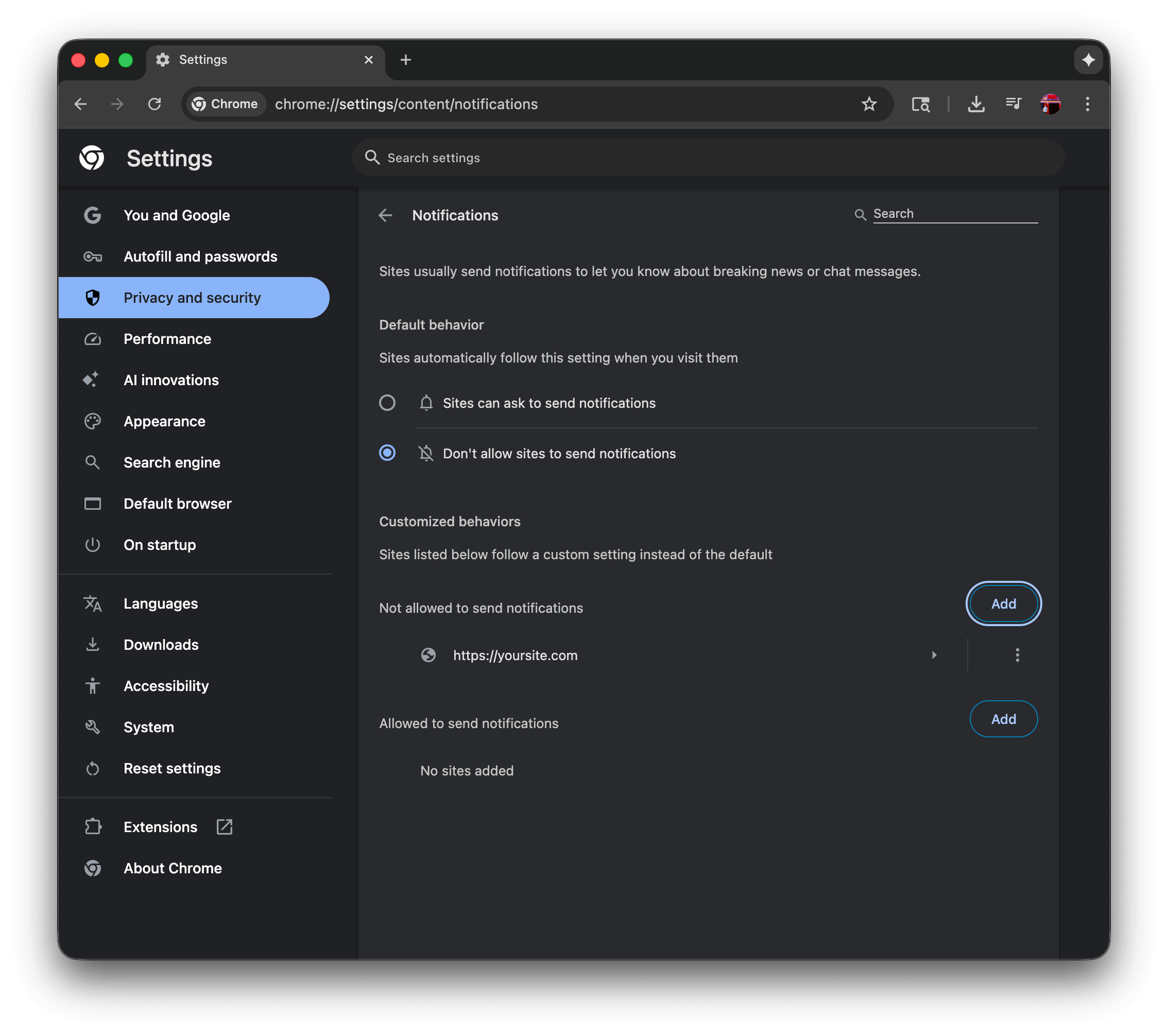
Navigate to your browser's settings and check the "Notifications" permission setting. Chrome example: `chrome://settings/content/notifications`
In this example:
* The user has selected "Don't allow sites to send notifications" which will prevent the native permission prompt from showing. This must show "Sites can ask to send notifications" to allow the native permission prompt to show.
* The user has added `https://yoursite.com` to the "Not allowed to send notifications" list, which will prevent the native permission prompt from showing. This must be removed from the list to allow the native permission prompt to show.
**Browser specific documentation:**
* [Chrome](https://support.google.com/chrome/answer/3220216) - This page explains how to manage notifications in Chrome by going to Settings > Privacy and security > Site Settings > Notifications, where you can control default behavior and manage permissions for individual websites.
* [Firefox](https://support.mozilla.org/en-US/kb/push-notifications-firefox) - This guide covers Firefox's Web Push notifications, explaining how to manage notification permissions through Settings > Privacy & Security > Notifications, and how to control permissions for specific sites through the address bar's site information icon.
* [Safari](https://support.apple.com/guide/safari/customize-website-notifications-sfri40734/mac) - This Apple guide explains how to customize Safari notifications on Mac through Safari > Preferences > Websites > Notifications, where you can manage which sites can send notifications and control notification behavior through System Preferences.
* [Edge](https://support.microsoft.com/en-us/microsoft-edge/manage-website-notifications-in-microsoft-edge-0c555609-5bf2-479d-a59d-fb30a0b80b2b) - This article details how to manage Edge notifications by navigating to Settings > Privacy, search, and services > Site permissions > Notifications, or by clicking the site information icon in the address bar.
**2. The user has already allowed notifications or already subscribed.**
In the browser's settings, check if your site URL is listed in the "Allowed to send notifications" list.
**3. You are in Incognito Mode, Private Browser mode or Guest Browser mode.**
The native Permission Prompt will not show while in Incognito Mode, Private Browser mode or Guest Browser mode. Users cannot subscribe to notifications in these modes.
**4. You are using a browser and device that does not support web push notifications.**
Make sure you are [using a browser and device that supports web push](./web-push-setup-faq#browser-support-by-operating-system).
**5. iOS/iPadOS requirements are not met.**
For iOS, there are some additional requirements to prompt users for their subscription. More information can be seen in the [Mobile Web Push for iOS/iPadOS](./web-push-for-ios) guide.
If you are still having trouble, see our [Web push troubleshooting guide](./troubleshooting-web-push).
### How do I show prompts in a social media app webview?
Webviews used by social media apps (Instagram, TikTok, Facebook, etc.) do not support web push notifications. The app must open your website in a full browser that supports web push.
### Why does the slide prompt keep showing up?
There are two common causes:
1. You are in incognito mode, private browser mode, or guest browser mode.
2. You are triggering the prompt programmatically without using the Auto Prompt option. See the [Web SDK Reference](./web-sdk-reference) and check the prompting methods you are using.
### After dismissing a prompt, when does it show again?
For OneSignal prompts, see [Slidedown prompt back-off logic](#slidedown-prompt-back-off-logic). For the native permission prompt, see [Browser native prompt behavior](#browser-native-prompt-behavior).
### Why do I see the slide prompt instead of the native browser prompt?
Certain browsers require a user gesture before showing the native prompt. OneSignal automatically shows a slide prompt first in these cases. See [Browser native prompt behavior](#browser-native-prompt-behavior) for details.
### How do I translate or localize the prompt?
Use the [Custom Code Setup](./web-push-custom-code-setup) to programmatically detect the user's browser language and initialize the OneSignal SDK with different text. The native permission prompt automatically translates to the browser's set language.
### Can I A/B test prompts?
Yes. Using the [Custom Code Setup](./web-push-custom-code-setup), you can initialize OneSignal with different prompting options. You need to set up your own method to trigger the A/B tests. Use the [Subscription Change](./web-sdk-reference#addeventlistener-push-subscription) event to detect when a user subscribes and add [Tags](./add-user-data-tags) based on which variant won.
### Can I segment subscriptions based on the page they subscribed?
Yes. See the [Auto-Segment By Subscription Page](./auto-segment-users-by-page-visit#tag-at-subscription-one-time-web-only) guide.
### Can I change the bell icon?
No. You cannot change the bell image, but you can customize the colors, text, and position (bottom-left or bottom-right).
### Can I change the categories based on page?
Yes, in two ways. To show different category checkboxes on different pages, use [Custom Code Setup](./web-push-custom-code-setup) and configure the `categories` `promptOptions` per page. To automatically apply `cat_` Tags as readers browse (without showing a prompt), see [Tag users by page topic](./auto-segment-users-by-page-visit#tag-by-page-topic-every-visit) — the auto-tag pattern uses the same Tag namespace as the Category Prompt, so the two approaches combine cleanly.
### How do I track slide prompt events?
The OneSignal Web SDK provides [Slide Prompt Event Methods](./web-sdk-reference#addeventlistener-slidedown) to detect when the prompt shows, closes, or receives an "Allow" or "Cancel" action.
### How can I show the prompt on only certain pages?
[Disable **Auto Prompt**](#auto-prompt-%26-display-settings), then use the [Slidedown prompt](./web-sdk-reference#slidedown-prompts) SDK method on the specific pages where you want prompts to appear. The Bell prompt cannot be disabled on a per-page basis.
### Why do I see the slide prompt on mobile instead of the native prompt?
Chrome for Android displays a full-screen native prompt that disrupts the browsing experience. OneSignal shows a slide prompt first to provide a better user experience. To bypass this, turn off Auto Prompt in the Prompt Editor and use the [Web SDK `requestPermission()` method](./web-sdk-reference#requestpermission).
***
## Related pages
Full API reference for prompt methods, events, and initialization options.
Additional setup steps required for iOS and iPadOS web push support.
Diagnose and resolve common web push notification issues.
Let users manage their notification preferences and channel opt-ins.
 ***
## Permission prompt setup
Configure the prompts you want to display on your site. In your OneSignal dashboard, navigate to: **Settings > Push & In-App > Web Settings > Permission Prompt Setup**.
From there, click **Add Prompt** to choose from OneSignal’s available prompt types. You can also edit any existing prompts already shown in the list.
***
## Permission prompt setup
Configure the prompts you want to display on your site. In your OneSignal dashboard, navigate to: **Settings > Push & In-App > Web Settings > Permission Prompt Setup**.
From there, click **Add Prompt** to choose from OneSignal’s available prompt types. You can also edit any existing prompts already shown in the list.
 Each prompt type has different use cases and display behaviors. You can use them individually or in combination to guide users through the subscription process in a way that fits your website's UX.
Available prompts are:
* [Slidedown](#slidedown-%26-category): A visually prominent prompt used for push notifications and optional category selection.
* [Email/Phone prompt](#email-%26-phone-number-prompt): Used to collect user email addresses, phone numbers, or both.
* [Subscription bell prompt](#subscription-bell-prompt): A persistent floating widget for push subscriptions, typically placed in the bottom corner of your site.
* [Custom link prompt](#custom-link-prompt): A customizable button or link embedded in your site that triggers the native browser prompt.
* [Native permission prompt](#native-permission-prompt): The required browser-level prompt that must be accepted for users to receive push notifications.
***
### Slidedown & category
The Slide and Category prompts appear prominently at the top center of the screen on desktop and bottom center on mobile. These are high-visibility, soft prompts shown before the required [native permission prompt](#native-permission-prompt). They do not subscribe the user on their own but help initiate the subscription flow and capture user interest.
Each prompt type has different use cases and display behaviors. You can use them individually or in combination to guide users through the subscription process in a way that fits your website's UX.
Available prompts are:
* [Slidedown](#slidedown-%26-category): A visually prominent prompt used for push notifications and optional category selection.
* [Email/Phone prompt](#email-%26-phone-number-prompt): Used to collect user email addresses, phone numbers, or both.
* [Subscription bell prompt](#subscription-bell-prompt): A persistent floating widget for push subscriptions, typically placed in the bottom corner of your site.
* [Custom link prompt](#custom-link-prompt): A customizable button or link embedded in your site that triggers the native browser prompt.
* [Native permission prompt](#native-permission-prompt): The required browser-level prompt that must be accepted for users to receive push notifications.
***
### Slidedown & category
The Slide and Category prompts appear prominently at the top center of the screen on desktop and bottom center on mobile. These are high-visibility, soft prompts shown before the required [native permission prompt](#native-permission-prompt). They do not subscribe the user on their own but help initiate the subscription flow and capture user interest.
 To add a Slide Prompt, follow the steps below:
**Typical Site & WordPress Setup:**
1. Go to **Settings > Push & In-App > Web Settings > Permission Prompt Setup**
2. Select **Add Prompt > Push Prompt > Push Slide Prompt**
**Custom Code Setup:**
Use the `slidedown` property in your OneSignal `init` code's `promptOptions` object. See [Web SDK Reference](./web-sdk-reference) for more details.
To add a Slide Prompt, follow the steps below:
**Typical Site & WordPress Setup:**
1. Go to **Settings > Push & In-App > Web Settings > Permission Prompt Setup**
2. Select **Add Prompt > Push Prompt > Push Slide Prompt**
**Custom Code Setup:**
Use the `slidedown` property in your OneSignal `init` code's `promptOptions` object. See [Web SDK Reference](./web-sdk-reference) for more details.
 When finished, click **Done** and **Save** again on the next page to see this go into effect.
 When finished, click **Done** and **Save** again on the next page to see this go into effect.
 Customize which input fields are shown, the text labels, and the auto-prompt delay.
 When finished, press **Done** and **Save** again on the next page to see this go into effect.
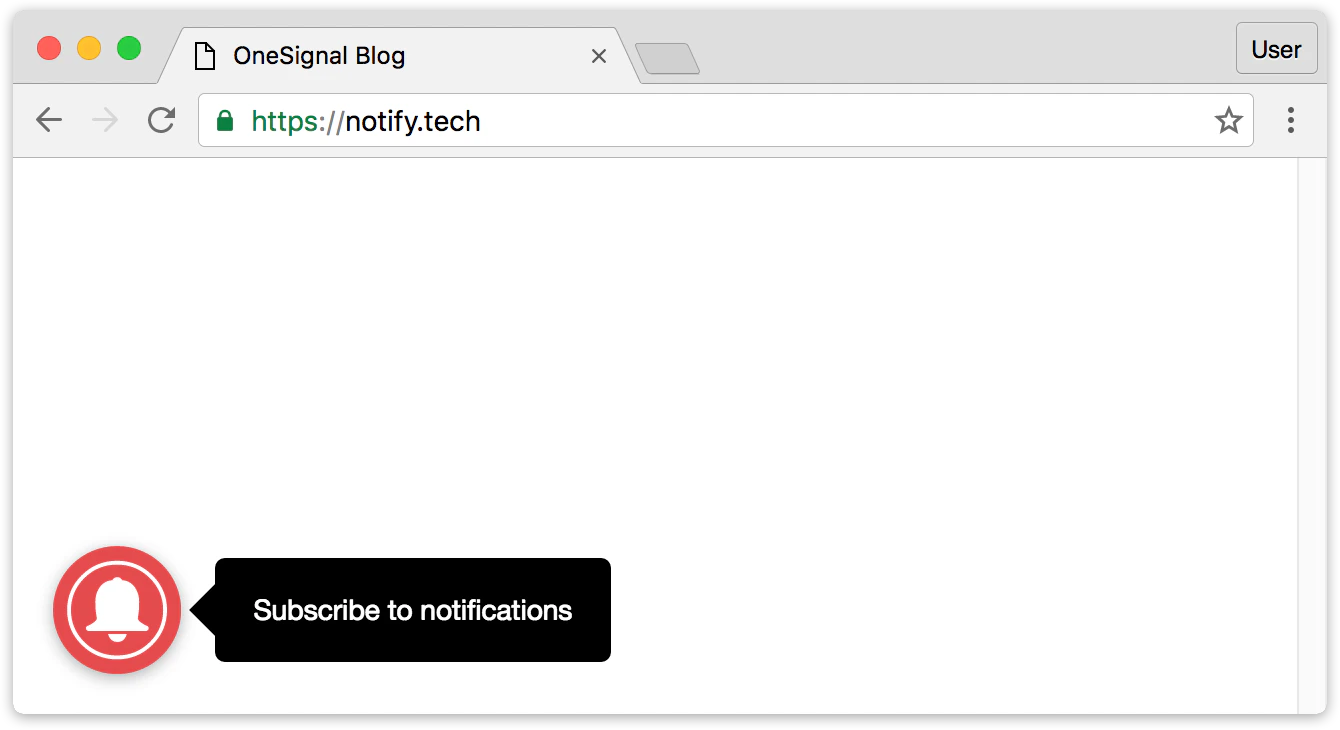 You can customize the OneSignal Bell Prompt's color, size, bottom position, text, and more.
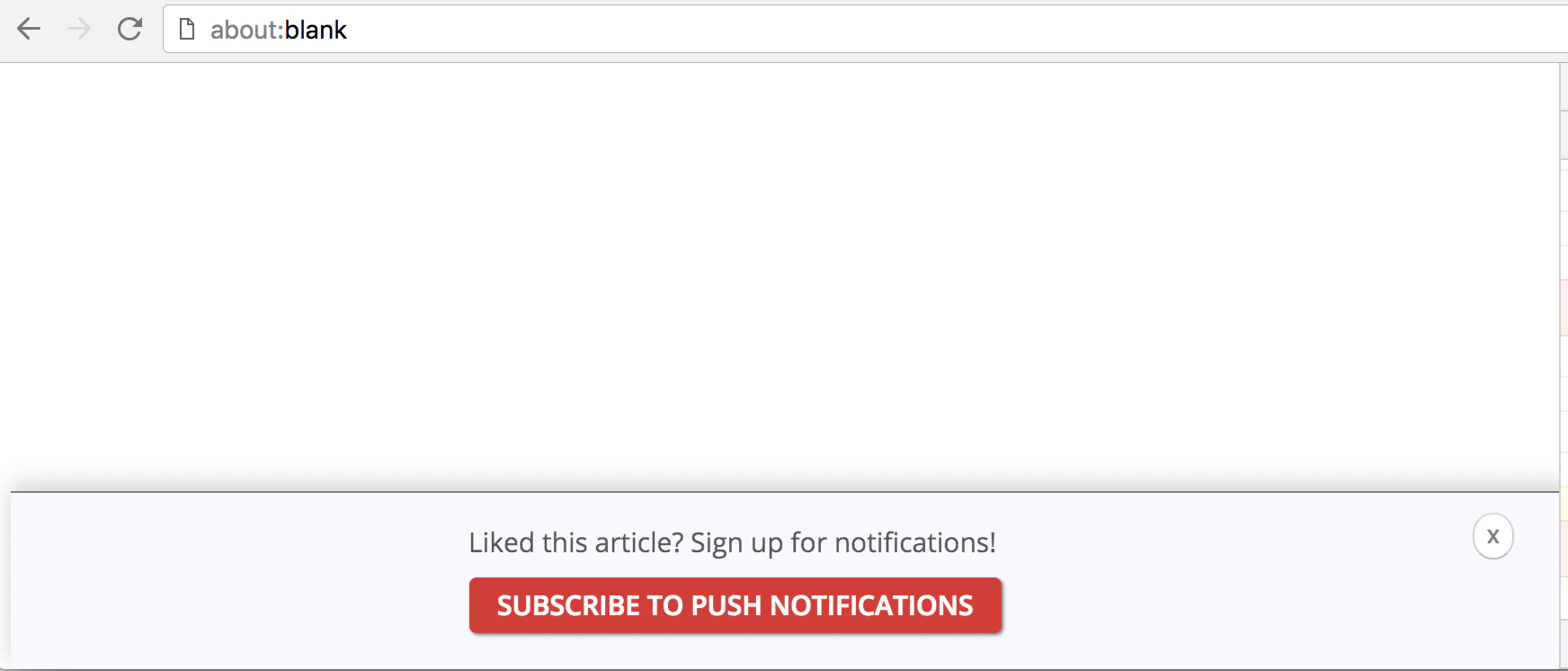 Common use cases:
* Below a blog post: “Like this article? Get updates as soon as we post!”
* In your site footer
* In a sticky header or floating toolbar
Common use cases:
* Below a blog post: “Like this article? Get updates as soon as we post!”
* In your site footer
* In a sticky header or floating toolbar
 ### Browser native prompt behavior
Different browsers impose unique behaviors and restrictions to reduce spammy permission requests. In an effort to combat spam and poor user experience, OneSignal will automatically default to the Slide Prompt in certain cases listed below.
**If you do not want to show the Slide Prompt and would like to use the native permission prompt directly, you must turn off the Auto Prompt options and use our [Web SDK `requestPermission()` method](./web-sdk-reference#requestpermission).** Displaying the native permission prompt directly may not work in all browsers as described below.
#### Chrome
[Chrome 80+](https://blog.chromium.org/2020/01/introducing-quieter-permission-ui-for.html?m=1) may display a quieter UI instead of the full prompt:
* Automatically applies to users who frequently deny prompts
* Also applies to sites with a high rate of denials
### Browser native prompt behavior
Different browsers impose unique behaviors and restrictions to reduce spammy permission requests. In an effort to combat spam and poor user experience, OneSignal will automatically default to the Slide Prompt in certain cases listed below.
**If you do not want to show the Slide Prompt and would like to use the native permission prompt directly, you must turn off the Auto Prompt options and use our [Web SDK `requestPermission()` method](./web-sdk-reference#requestpermission).** Displaying the native permission prompt directly may not work in all browsers as described below.
#### Chrome
[Chrome 80+](https://blog.chromium.org/2020/01/introducing-quieter-permission-ui-for.html?m=1) may display a quieter UI instead of the full prompt:
* Automatically applies to users who frequently deny prompts
* Also applies to sites with a high rate of denials
 Chrome implements back-off logic if the user clicks the "X" on the native prompt:
* You have 3 attempts to prompt
* After the 3rd dismissal, the prompt is suppressed for 7 days ([source](https://chromestatus.com/feature/6443143280984064)).
Chrome implements back-off logic if the user clicks the "X" on the native prompt:
* You have 3 attempts to prompt
* After the 3rd dismissal, the prompt is suppressed for 7 days ([source](https://chromestatus.com/feature/6443143280984064)).

 * If the site is trusted, the native prompt appears normally:
 ***
## Auto prompt & display settings
To maximize engagement and avoid disrupting your users, it’s best to delay showing prompts until after they've spent some time on your site. OneSignal allows you to automatically display prompts based on user behavior using two delay conditions:
* **Page Views:** Number of times the user loads any page on your site
* **Seconds on Page:** Amount of time the user must spend on the page
These delays are applied using an **AND** condition, meaning both must be satisfied before the prompt appears.
**Example:** If you set the delay to 3 page views and 30 seconds, the prompt will display on the third page load, after 30 seconds have passed. If the user doesn't interact with the prompt, it will continue showing on each page load (after 30 seconds) until it’s clicked or dismissed.
***
## Auto prompt & display settings
To maximize engagement and avoid disrupting your users, it’s best to delay showing prompts until after they've spent some time on your site. OneSignal allows you to automatically display prompts based on user behavior using two delay conditions:
* **Page Views:** Number of times the user loads any page on your site
* **Seconds on Page:** Amount of time the user must spend on the page
These delays are applied using an **AND** condition, meaning both must be satisfied before the prompt appears.
**Example:** If you set the delay to 3 page views and 30 seconds, the prompt will display on the third page load, after 30 seconds have passed. If the user doesn't interact with the prompt, it will continue showing on each page load (after 30 seconds) until it’s clicked or dismissed.
 * Click Done, then Save
 In this example:
* The user has selected "Don't allow sites to send notifications" which will prevent the native permission prompt from showing. This must show "Sites can ask to send notifications" to allow the native permission prompt to show.
* The user has added `https://yoursite.com` to the "Not allowed to send notifications" list, which will prevent the native permission prompt from showing. This must be removed from the list to allow the native permission prompt to show.
**Browser specific documentation:**
* [Chrome](https://support.google.com/chrome/answer/3220216) - This page explains how to manage notifications in Chrome by going to Settings > Privacy and security > Site Settings > Notifications, where you can control default behavior and manage permissions for individual websites.
* [Firefox](https://support.mozilla.org/en-US/kb/push-notifications-firefox) - This guide covers Firefox's Web Push notifications, explaining how to manage notification permissions through Settings > Privacy & Security > Notifications, and how to control permissions for specific sites through the address bar's site information icon.
* [Safari](https://support.apple.com/guide/safari/customize-website-notifications-sfri40734/mac) - This Apple guide explains how to customize Safari notifications on Mac through Safari > Preferences > Websites > Notifications, where you can manage which sites can send notifications and control notification behavior through System Preferences.
* [Edge](https://support.microsoft.com/en-us/microsoft-edge/manage-website-notifications-in-microsoft-edge-0c555609-5bf2-479d-a59d-fb30a0b80b2b) - This article details how to manage Edge notifications by navigating to Settings > Privacy, search, and services > Site permissions > Notifications, or by clicking the site information icon in the address bar.
**2. The user has already allowed notifications or already subscribed.**
In the browser's settings, check if your site URL is listed in the "Allowed to send notifications" list.
**3. You are in Incognito Mode, Private Browser mode or Guest Browser mode.**
The native Permission Prompt will not show while in Incognito Mode, Private Browser mode or Guest Browser mode. Users cannot subscribe to notifications in these modes.
**4. You are using a browser and device that does not support web push notifications.**
Make sure you are [using a browser and device that supports web push](./web-push-setup-faq#browser-support-by-operating-system).
**5. iOS/iPadOS requirements are not met.**
For iOS, there are some additional requirements to prompt users for their subscription. More information can be seen in the [Mobile Web Push for iOS/iPadOS](./web-push-for-ios) guide.
In this example:
* The user has selected "Don't allow sites to send notifications" which will prevent the native permission prompt from showing. This must show "Sites can ask to send notifications" to allow the native permission prompt to show.
* The user has added `https://yoursite.com` to the "Not allowed to send notifications" list, which will prevent the native permission prompt from showing. This must be removed from the list to allow the native permission prompt to show.
**Browser specific documentation:**
* [Chrome](https://support.google.com/chrome/answer/3220216) - This page explains how to manage notifications in Chrome by going to Settings > Privacy and security > Site Settings > Notifications, where you can control default behavior and manage permissions for individual websites.
* [Firefox](https://support.mozilla.org/en-US/kb/push-notifications-firefox) - This guide covers Firefox's Web Push notifications, explaining how to manage notification permissions through Settings > Privacy & Security > Notifications, and how to control permissions for specific sites through the address bar's site information icon.
* [Safari](https://support.apple.com/guide/safari/customize-website-notifications-sfri40734/mac) - This Apple guide explains how to customize Safari notifications on Mac through Safari > Preferences > Websites > Notifications, where you can manage which sites can send notifications and control notification behavior through System Preferences.
* [Edge](https://support.microsoft.com/en-us/microsoft-edge/manage-website-notifications-in-microsoft-edge-0c555609-5bf2-479d-a59d-fb30a0b80b2b) - This article details how to manage Edge notifications by navigating to Settings > Privacy, search, and services > Site permissions > Notifications, or by clicking the site information icon in the address bar.
**2. The user has already allowed notifications or already subscribed.**
In the browser's settings, check if your site URL is listed in the "Allowed to send notifications" list.
**3. You are in Incognito Mode, Private Browser mode or Guest Browser mode.**
The native Permission Prompt will not show while in Incognito Mode, Private Browser mode or Guest Browser mode. Users cannot subscribe to notifications in these modes.
**4. You are using a browser and device that does not support web push notifications.**
Make sure you are [using a browser and device that supports web push](./web-push-setup-faq#browser-support-by-operating-system).
**5. iOS/iPadOS requirements are not met.**
For iOS, there are some additional requirements to prompt users for their subscription. More information can be seen in the [Mobile Web Push for iOS/iPadOS](./web-push-for-ios) guide.