> ## Documentation Index
> Fetch the complete documentation index at: https://documentation.onesignal.com/llms.txt
> Use this file to discover all available pages before exploring further.
# Personalize messages with API custom_data
> Send dynamic, message-specific data through the Create Message API using custom_data. Reference values in templates with Liquid syntax for real-time personalization.
Use the `custom_data` field in the [Create Message API](/reference/create-message) to send dynamic data from your backend and render it inside templates using [Liquid syntax](./using-liquid-syntax).
`custom_data`:
* Is **message-specific**
* Is **not stored**
* Exists only during the API request
* Must be used with a `template_id`
Reference values in templates with:
```liquid Liquid theme={null}
{{ message.custom_data.key_name }}
```
`custom_data` is ephemeral. Data is not saved to user profiles and cannot be reused in future messages. If you need persistent data, see [Message personalization](./message-personalization).
***
## When to use `custom_data`
Use `custom_data` when you need:
* Data changes per message (order totals, cart items, balances)
* You need arrays (product lists, line items, recommendations)
* Data should not persist (one-time codes, temporary URLs)
* You send backend-triggered messages
* You want bulk personalization in one API request
***
## How `custom_data` personalization works
Adding `custom_data` to messages requires a few steps:
Create a Push, Email, or SMS [Template](./templates) in the dashboard or via [Create Template API](/reference/create-template).
Insert references using the required prefix:
```liquid Liquid theme={null}
Hi {{ message.custom_data.first_name }},
Order {{ message.custom_data.order_id }} is confirmed.
```
Call the [Create Message API](/reference/create-message) with:
* `template_id` - The ID of the template
* `custom_data` - The data object
* Audience targeting (`include_player_ids`, `include_aliases`, or segments)
OneSignal renders the template at send time using your data.
If Liquid syntax is invalid or keys don't exist, those fields render as empty strings, but the message still sends.
***
## Data patterns
Common examples of data patterns you can use with `custom_data`.
### Flat JSON example
Use simple key-value pairs for basic personalization like names, IDs, URLs, or any single-value data.
**Use case:** Transactional messages (invoices, receipts, confirmations) where each field contains a single value.
**Template:**
```liquid Liquid theme={null}
Invoice {{ message.custom_data.invoice_id }} for {{ message.custom_data.product_name }} is ready.
```
**API request:**
```json JSON theme={null}
{
"app_id": "YOUR_APP_ID",
"template_id": "YOUR_TEMPLATE_ID",
"include_email_tokens": ["user@example.com"],
"custom_data": {
"invoice_id": "463246732",
"product_name": "Widget"
}
}
```
**What the customer sees:**
```liquid Text theme={null}
Invoice 463246732 for Widget is ready.
```
***
### Array data example
Pass arrays of objects to work with multiple items like cart products, order line items, or recommendations. Arrays enable both direct access (indexing) and iteration (loops).
**Use case:** Displaying product lists, leaderboards, order summaries, or any multi-item data.
**Indexing template (accessing first item):**
```liquid Liquid theme={null}
Your {{message.custom_data.cart_items[0].item_name}} is waiting for you!
Image: {{message.custom_data.cart_items[0].img_url}}
```
**Array indexing starts at 0**, not 1. The first item is `[0]`, second is `[1]`, etc. Accessing an index that doesn't exist returns empty (no error thrown).
**Looping template (accessing all items):**
```liquid Liquid theme={null}
{% for item in message.custom_data.cart_items %}
- {{ item.item_name }} — {{ item.img_url }}
{% endfor %}
```
**API request:**
```json JSON theme={null}
{
"app_id": "YOUR_APP_ID",
"template_id": "YOUR_TEMPLATE_ID",
"include_email_tokens": ["user@example.com"],
"custom_data": {
"cart_items": [
{
"item_name": "sweater",
"img_url": "https://.../sweater.png"
},
{
"item_name": "socks",
"img_url": "https://.../socks.png"
}
]
}
}
```
**What the customer sees:**
```liquid Text theme={null}
Your sweater is waiting for you!
Image: https://.../sweater.png
- sweater — https://.../sweater.png
- socks — https://.../socks.png
```
**Useful array properties:**
* `{{message.custom_data.cart_items.size}}` — Number of items in array (returns `2` in this example)
* `{{message.custom_data.cart_items.first.item_name}}` — First item's name (equivalent to `[0]`)
* `{{message.custom_data.cart_items.last.item_name}}` — Last item's name
***
### Bulk personalization example
Send a single API request to multiple users where each recipient sees personalized content based on their `external_id`.
**How it works:**
1. Structure `custom_data` as an object where **keys are external\_ids** and **values are user-specific data**
2. In the template, use `subscription.external_id` to look up the current recipient's data
3. OneSignal renders the template once per recipient with their specific data
**Template:**
```liquid Liquid theme={null}
{% assign user = message.custom_data.users[subscription.external_id] %}
Hi {{ user.first_name }}, you have {{ user.points }} points. Your level is {{ user.level }}.
```
**What's happening:**
* `subscription.external_id` contains the current recipient's external\_id (e.g., "user123")
* `message.custom_data.users[subscription.external_id]` looks up that user's data from the custom\_data object
* `user` becomes a shorthand variable for that user's data
* Each recipient only sees their own personalized content
**API request:**
```json JSON theme={null}
{
"app_id": "YOUR_APP_ID",
"template_id": "YOUR_TEMPLATE_ID",
"include_aliases": {
"external_id": ["user123", "user456"]
},
"custom_data": {
"users": {
"user123": { "first_name": "John", "points": "150", "level": "Gold" },
"user456": { "first_name": "Sarah", "points": "200", "level": "Platinum" }
}
}
}
```
**What each user sees:**
* **John** (user123): "Hi John, you have 150 points. Your level is Gold."
* **Sarah** (user456): "Hi Sarah, you have 200 points. Your level is Platinum."
**Requirements for bulk personalization:**
* All recipients must have an `external_id` set in OneSignal
* Each `external_id` in `include_aliases` must have a matching key in `custom_data.users`
* If a recipient's external\_id is missing from `custom_data`, their message will have empty fields
***
## Example: Abandoned cart with custom\_data
How to build abandoned cart messages for both email and push using `custom_data`.
**When to use this approach:**
* Your server detects cart abandonment (e.g., 1 hour after last activity)
* Real-time cart data is in your database
* You want to display multiple products with images, names, prices
* Each user may have different items and quantities
* You want to orchestrate the message from your backend.
### Example `custom_data` payload
This is the [Create Message API](/reference/create-message) request for this example.
```json JSON theme={null}
{
"custom_data": {
"cart_url": "https://yourdomain.com/cart",
"cart": [
{
"product_name": "24 Pack of Acorns",
"product_image": "https://i.imgur.com/ssPCfbC.png",
"product_price": "$12.99",
"product_quantity": "1"
},
{
"product_name": "Fancy Sweater",
"product_image": "https://i.imgur.com/8QWTfV4.png",
"product_price": "$9.99",
"product_quantity": "1"
}
]
},
"app_id": "YOUR_APP_ID",
"template_id": "YOUR_TEMPLATE_ID",
"include_aliases": {
"external_id": ["YOUR_EXTERNAL_ID"]
}
}
```
**Field explanations:**
| Field | Type | Purpose |
| ------------------ | ------ | --------------------------------------------------------------- |
| `cart_url` | string | Customer's unique cart link (for buttons/launch URLs) |
| `cart` | array | List of products—supports counting, looping, and detail display |
| `product_image` | string | Product image (per item in array) |
| `product_name` | string | Product name (per item) |
| `product_quantity` | string | Quantity (per item) |
| `product_price` | string | Price with formatting (per item) |
You can name fields anything you want—just ensure your template's Liquid syntax matches.
**Stay under 2KB:** If you have large carts, consider limiting to the first 3-5 items or sending only essential fields to avoid exceeding the size limit.
### Email template
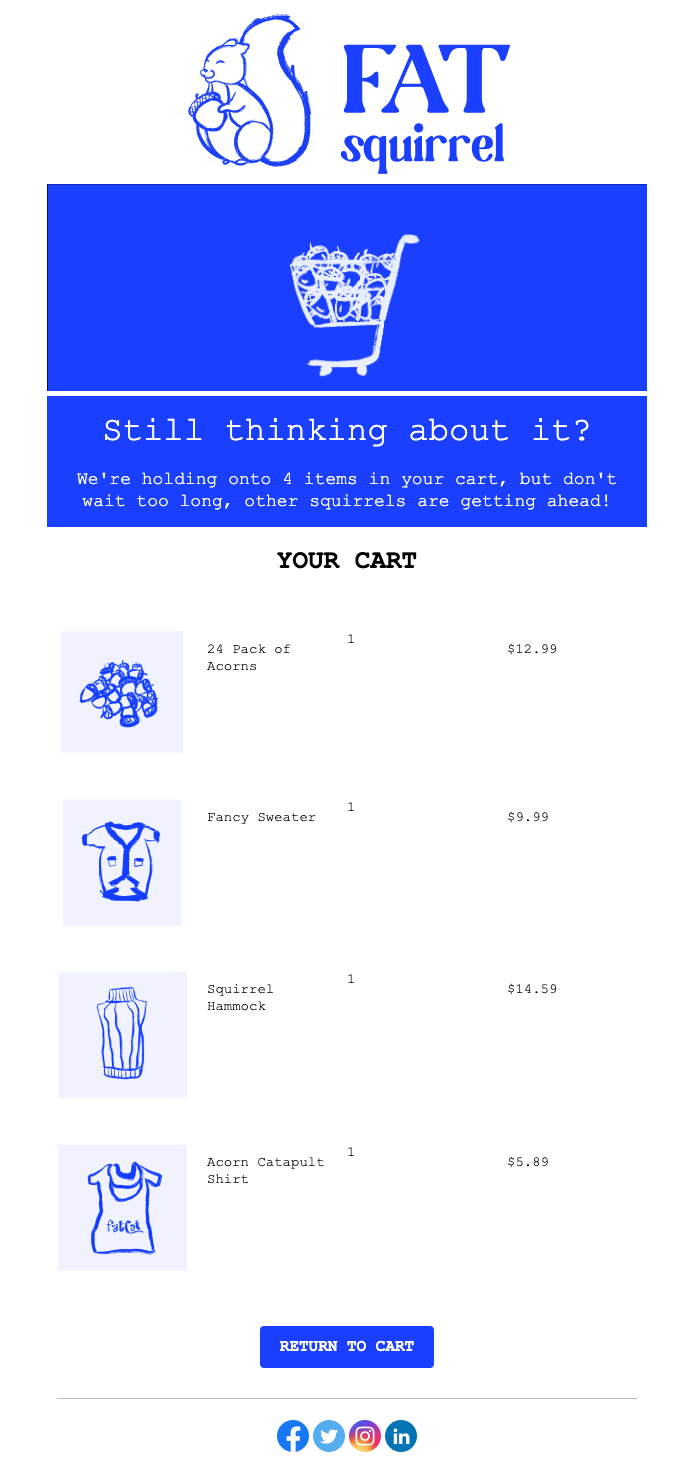
This example shows how to build an email template that displays:
* The cart item count
* Each product with image, name, quantity, and price using a for-loop
* A button that links to the customer's unique cart URL
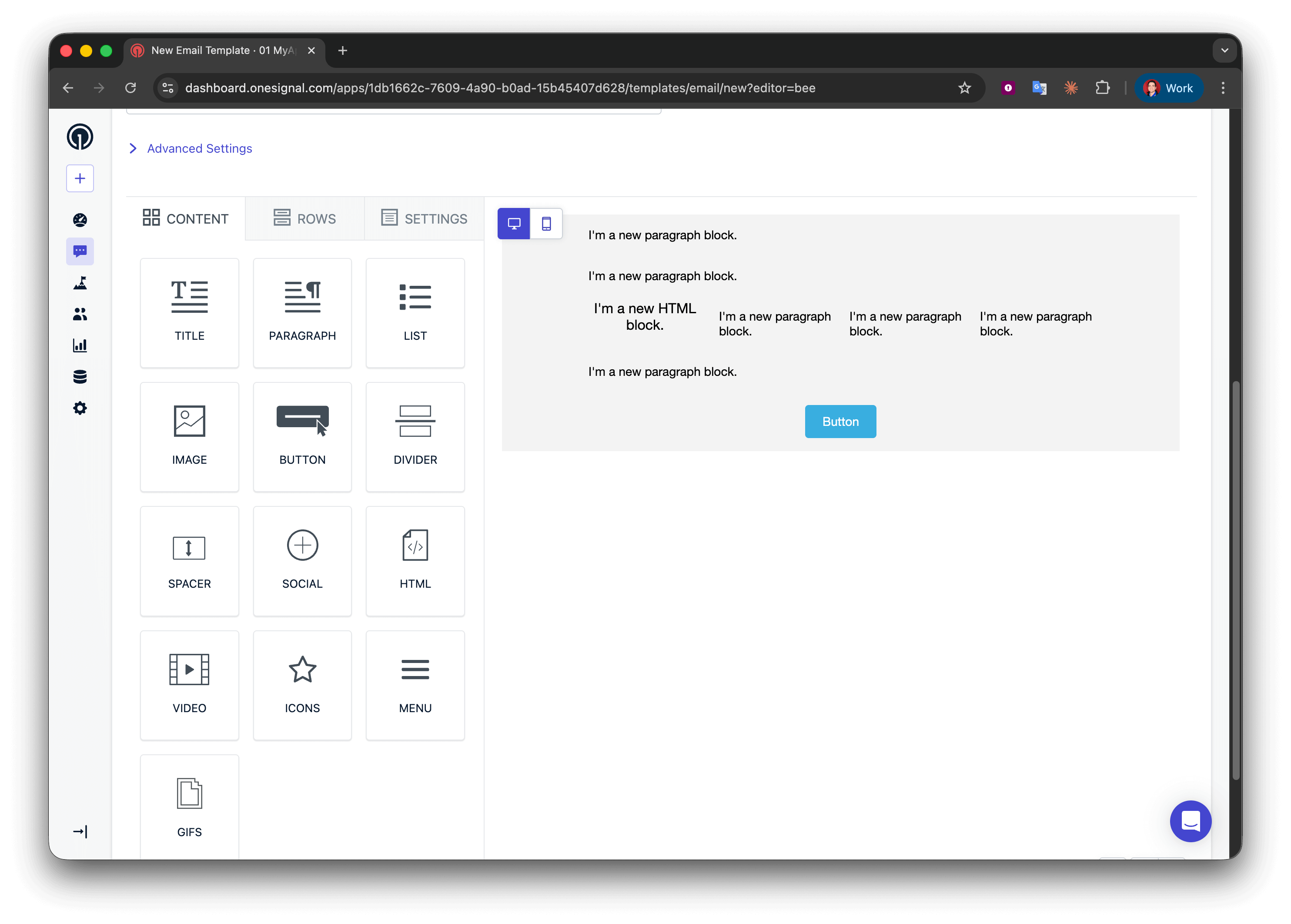
 Navigate to **Messages > Templates > New Email Template** and open the Drag & Drop Editor.
Create five rows:
* Rows 1, 2, and 4: one column with a **Paragraph** block
* Row 3: four columns with **HTML | Paragraph | Paragraph | Paragraph**
* Row 5: one column with a **Button** block
Navigate to **Messages > Templates > New Email Template** and open the Drag & Drop Editor.
Create five rows:
* Rows 1, 2, and 4: one column with a **Paragraph** block
* Row 3: four columns with **HTML | Paragraph | Paragraph | Paragraph**
* Row 5: one column with a **Button** block
 In row 1, add:
```liquid Liquid theme={null}
We're holding onto {{message.custom_data.cart.size}} items in your cart, but don't wait too long, other squirrels are getting ahead!
```
For better grammar, you could use a conditional to say "1 item" vs "2 items", but for abandoned cart emails, plural is usually acceptable.
```liquid Liquid theme={null}
{% assign cart = message.custom_data.cart %}
{% assign item_count = cart.size | plus: 0 %}
{% if item_count == 1 %}
We're holding onto {{item_count}} item in your cart, but don't wait too long, other squirrels are getting ahead!
{% endif %}
{% if item_count > 1 %}
We're holding onto {{item_count}} items in your cart, but don't wait too long, other squirrels are getting ahead!
{% endif %}
```
Use a [for-loop](./using-liquid-syntax#for-loops) to repeat the product display row for each cart item.
In row 2 (loop start), add:
```liquid Text theme={null}
{% for product in message.custom_data.cart %}
```
**What this does:**
* Begins a loop that iterates over each object in the `cart` array
* Creates a temporary variable called `product` that represents the current item
* Everything between `{% for %}` and `{% endfor %}` repeats once per cart item
* You can name `product` anything (e.g., `item`, `cartItem`)—just stay consistent
For-loop placement: Make sure the `{% for %}` syntax is in its own Text block row. Don't put it inside a multi-column row with other content, as this can break email rendering in some clients.
This 4-column row shows image, name, quantity, and price. Because it's inside the loop, it repeats for every cart item.
In row 3 (product details), configure:
**Column 1 - HTML block** (product image):
```html HTML theme={null}
In row 1, add:
```liquid Liquid theme={null}
We're holding onto {{message.custom_data.cart.size}} items in your cart, but don't wait too long, other squirrels are getting ahead!
```
For better grammar, you could use a conditional to say "1 item" vs "2 items", but for abandoned cart emails, plural is usually acceptable.
```liquid Liquid theme={null}
{% assign cart = message.custom_data.cart %}
{% assign item_count = cart.size | plus: 0 %}
{% if item_count == 1 %}
We're holding onto {{item_count}} item in your cart, but don't wait too long, other squirrels are getting ahead!
{% endif %}
{% if item_count > 1 %}
We're holding onto {{item_count}} items in your cart, but don't wait too long, other squirrels are getting ahead!
{% endif %}
```
Use a [for-loop](./using-liquid-syntax#for-loops) to repeat the product display row for each cart item.
In row 2 (loop start), add:
```liquid Text theme={null}
{% for product in message.custom_data.cart %}
```
**What this does:**
* Begins a loop that iterates over each object in the `cart` array
* Creates a temporary variable called `product` that represents the current item
* Everything between `{% for %}` and `{% endfor %}` repeats once per cart item
* You can name `product` anything (e.g., `item`, `cartItem`)—just stay consistent
For-loop placement: Make sure the `{% for %}` syntax is in its own Text block row. Don't put it inside a multi-column row with other content, as this can break email rendering in some clients.
This 4-column row shows image, name, quantity, and price. Because it's inside the loop, it repeats for every cart item.
In row 3 (product details), configure:
**Column 1 - HTML block** (product image):
```html HTML theme={null}
 ```
**Columns 2–4 - Text blocks** (product name, quantity, price):
* Column 2: `{{product.product_name}}`
* Column 3: `{{product.product_quantity}}`
* Column 4: `{{product.product_price}}`
**How the loop works:**
* On the first iteration, `product` = first object in the cart array
* `{{product.product_image}}` gets the first item's image URL
* On the second iteration, `product` = second object
* Row repeats automatically for all cart items
**Field name matching:** Keys like `product_image` must exactly match your event payload (case-sensitive). Mismatches render as empty strings.
Close the loop to mark where repetition stops.
In row 4 (loop end), add:
```liquid Liquid theme={null}
{% endfor %}
```
Every `{% for %}` must have a matching `{% endfor %}`. Missing this will break email rendering.
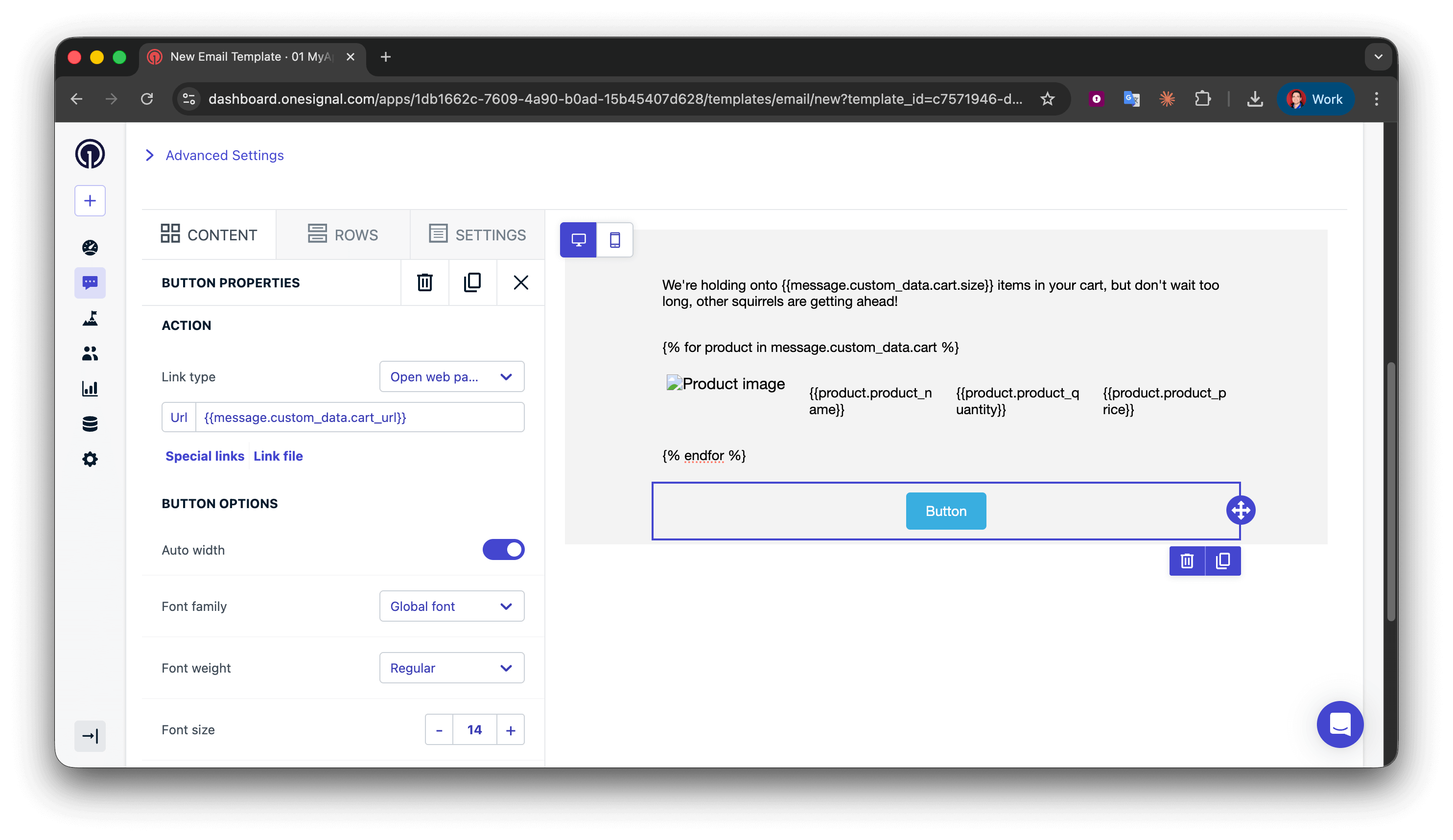
In the row 5 **Button** block, set the Action URL to:
```liquid Text theme={null}
{{message.custom_data.cart_url}}
```
```
**Columns 2–4 - Text blocks** (product name, quantity, price):
* Column 2: `{{product.product_name}}`
* Column 3: `{{product.product_quantity}}`
* Column 4: `{{product.product_price}}`
**How the loop works:**
* On the first iteration, `product` = first object in the cart array
* `{{product.product_image}}` gets the first item's image URL
* On the second iteration, `product` = second object
* Row repeats automatically for all cart items
**Field name matching:** Keys like `product_image` must exactly match your event payload (case-sensitive). Mismatches render as empty strings.
Close the loop to mark where repetition stops.
In row 4 (loop end), add:
```liquid Liquid theme={null}
{% endfor %}
```
Every `{% for %}` must have a matching `{% endfor %}`. Missing this will break email rendering.
In the row 5 **Button** block, set the Action URL to:
```liquid Text theme={null}
{{message.custom_data.cart_url}}
```
 * Setup your API request using the [Example `custom_data` payload](#example-custom-data-payload)
* Send yourself the email.
* Verify the data displays correctly.
Success! Now you can apply your own styling to the template. See [Design emails with drag-and-drop](./design-emails-with-drag-and-drop).
### Push template
Push notifications have character limits and operating system restrictions, so instead of showing all items, display the first product and indicate the total count with proper grammar.
Here is an example push notification we will build:
* Setup your API request using the [Example `custom_data` payload](#example-custom-data-payload)
* Send yourself the email.
* Verify the data displays correctly.
Success! Now you can apply your own styling to the template. See [Design emails with drag-and-drop](./design-emails-with-drag-and-drop).
### Push template
Push notifications have character limits and operating system restrictions, so instead of showing all items, display the first product and indicate the total count with proper grammar.
Here is an example push notification we will build:
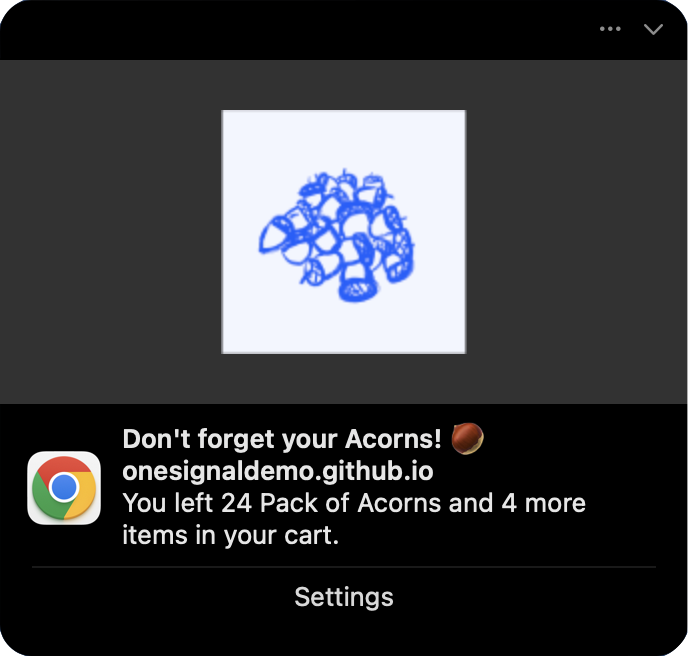 **Message field:**
```liquid Liquid theme={null}
{% assign cart = message.custom_data.cart %}
{% assign item_count = cart.size | plus: 0 %}
{% if item_count == 1 %}
You left {{cart.first.product_name}} in your cart.
{% endif %}
{% if item_count == 2 %}
You left {{cart.first.product_name}} and {{item_count | minus: 1}} more item in your cart.
{% endif %}
{% if item_count > 2 %}
You left {{cart.first.product_name}} and {{item_count | minus: 1}} more items in your cart.
{% endif %}
```
See [Using Liquid syntax](./using-liquid-syntax#if-elsif-else) for more information.
**Image field:**
```liquid Liquid theme={null}
{{message.custom_data.cart.first.product_image | default: "https://i.imgur.com/ssPCfbC.png"}}
```
See [Notification images & rich media](./rich-media) for more information.
**Launch URL field:**
```liquid Liquid theme={null}
{{cart_url | default: "https://yourdomain.com/cart"}}
```
Success! Save the template and use its `template_id` in your [Create message](/reference/create-message) API request with the `custom_data` property to test.
***
## Troubleshooting & best practices
* **Keep it simple**: Only include data you'll actually use in the template
* **Stay under 2KB**: Monitor your payload size, especially with arrays
* **Use consistent naming**: Stick to `snake_case` or `camelCase` throughout
* **Validate before sending**: Check for null values, empty arrays, and required fields
**Template design:**
* **Always use default filters** for optional fields:
```liquid Liquid theme={null}
{{message.custom_data.user_name | default: "there"}}
```
* **Check array size before looping**:
```liquid Liquid theme={null}
{% if message.custom_data.items.size > 0 %}
{% for item in message.custom_data.items %}
{{item.name}}
{% endfor %}
{% endif %}
```
* **Test with edge cases**: empty arrays, missing fields, maximum item counts
**Error handling:**
* Log API responses server-side to catch validation errors
* Monitor message delivery rates—sudden drops may indicate Liquid errors
* Keep fallback templates ready for critical transactional messages
**Performance:**
* **Pre-format complex data** in your backend rather than using complex Liquid logic
* **Cache templates** and reuse them across many API calls
* Consider separating high-volume transactional messages from marketing campaigns
**Cause:** Liquid syntax errors or mismatched field names
**Solutions:**
* Verify field names match exactly between `custom_data` and template (case-sensitive)
* Check for typos: `{{message.custom_data.name}}` not `{{message.custm_data.name}}`
* Use [default filters](./using-liquid-syntax#default) to catch missing fields
* Test templates with the actual `custom_data` structure before production
**Cause:** `custom_data` exceeds 2KB limit
**Solutions:**
* Remove unnecessary fields from your payload
* Shorten field names and values where possible
* Limit arrays to first 3-5 items
* Move large static content (like full HTML) to your template instead
***
## Related pages
Overview of all personalization options in OneSignal, including Tags, user attributes, and segmentation.
Complete API reference for sending messages with custom\_data, targeting options, and all available fields.
Full Liquid syntax reference including filters, conditionals, loops, and string manipulation.
Create and manage reusable message templates for Push, Email, SMS, and In-App channels.
Need help?
Chat with our Support team or email `support@onesignal.com`
Please include:
* Details of the issue you're experiencing and steps to reproduce if available
* Your OneSignal App ID
* The External ID or Subscription ID if applicable
* The URL to the message you tested in the OneSignal Dashboard if applicable
* Any relevant [logs or error messages](/docs/en/capturing-a-debug-log)
We're happy to help!
***
**Message field:**
```liquid Liquid theme={null}
{% assign cart = message.custom_data.cart %}
{% assign item_count = cart.size | plus: 0 %}
{% if item_count == 1 %}
You left {{cart.first.product_name}} in your cart.
{% endif %}
{% if item_count == 2 %}
You left {{cart.first.product_name}} and {{item_count | minus: 1}} more item in your cart.
{% endif %}
{% if item_count > 2 %}
You left {{cart.first.product_name}} and {{item_count | minus: 1}} more items in your cart.
{% endif %}
```
See [Using Liquid syntax](./using-liquid-syntax#if-elsif-else) for more information.
**Image field:**
```liquid Liquid theme={null}
{{message.custom_data.cart.first.product_image | default: "https://i.imgur.com/ssPCfbC.png"}}
```
See [Notification images & rich media](./rich-media) for more information.
**Launch URL field:**
```liquid Liquid theme={null}
{{cart_url | default: "https://yourdomain.com/cart"}}
```
Success! Save the template and use its `template_id` in your [Create message](/reference/create-message) API request with the `custom_data` property to test.
***
## Troubleshooting & best practices
* **Keep it simple**: Only include data you'll actually use in the template
* **Stay under 2KB**: Monitor your payload size, especially with arrays
* **Use consistent naming**: Stick to `snake_case` or `camelCase` throughout
* **Validate before sending**: Check for null values, empty arrays, and required fields
**Template design:**
* **Always use default filters** for optional fields:
```liquid Liquid theme={null}
{{message.custom_data.user_name | default: "there"}}
```
* **Check array size before looping**:
```liquid Liquid theme={null}
{% if message.custom_data.items.size > 0 %}
{% for item in message.custom_data.items %}
{{item.name}}
{% endfor %}
{% endif %}
```
* **Test with edge cases**: empty arrays, missing fields, maximum item counts
**Error handling:**
* Log API responses server-side to catch validation errors
* Monitor message delivery rates—sudden drops may indicate Liquid errors
* Keep fallback templates ready for critical transactional messages
**Performance:**
* **Pre-format complex data** in your backend rather than using complex Liquid logic
* **Cache templates** and reuse them across many API calls
* Consider separating high-volume transactional messages from marketing campaigns
**Cause:** Liquid syntax errors or mismatched field names
**Solutions:**
* Verify field names match exactly between `custom_data` and template (case-sensitive)
* Check for typos: `{{message.custom_data.name}}` not `{{message.custm_data.name}}`
* Use [default filters](./using-liquid-syntax#default) to catch missing fields
* Test templates with the actual `custom_data` structure before production
**Cause:** `custom_data` exceeds 2KB limit
**Solutions:**
* Remove unnecessary fields from your payload
* Shorten field names and values where possible
* Limit arrays to first 3-5 items
* Move large static content (like full HTML) to your template instead
***
## Related pages
Overview of all personalization options in OneSignal, including Tags, user attributes, and segmentation.
Complete API reference for sending messages with custom\_data, targeting options, and all available fields.
Full Liquid syntax reference including filters, conditionals, loops, and string manipulation.
Create and manage reusable message templates for Push, Email, SMS, and In-App channels.
Need help?
Chat with our Support team or email `support@onesignal.com`
Please include:
* Details of the issue you're experiencing and steps to reproduce if available
* Your OneSignal App ID
* The External ID or Subscription ID if applicable
* The URL to the message you tested in the OneSignal Dashboard if applicable
* Any relevant [logs or error messages](/docs/en/capturing-a-debug-log)
We're happy to help!
***