> ## Documentation Index
> Fetch the complete documentation index at: https://documentation.onesignal.com/llms.txt
> Use this file to discover all available pages before exploring further.
# Fallback messages: Ensuring delivery across channels
> Implement a fallback strategy with OneSignal to ensure critical messages are delivered via email or SMS when push notifications fail. Learn how to set up cross-channel messaging using Journeys, APIs, and segmentation for reliable user engagement.
## Why use a fallback method?
A message may not always be sent or received through a given channel. Common reasons include:
* The user doesn’t have that channel available (e.g., no email address or phone number, or has not subscribed to push)
* The message failed to send due to delivery errors or invalid tokens
* Users disabling or revoking permissions
* Devices being offline or in restricted states (e.g., iOS Focus Mode)
* Uninstalled apps or expired push tokens
OneSignal supports fallback across **all channels**—Push, In-App, Email, and SMS—so you can ensure that critical communications still reach users, regardless of the original channel.
***
## Fallback strategy overview
Attempt to deliver the message through your preferred channel (e.g., Push, Email, or SMS).
Use delivery data or event-based logic to determine whether the message was successfully delivered, clicked or opened. In Journeys, this happens automatically using [Wait Until nodes](./journeys-actions#wait-until).
If the message did not report a [Confirmed receipt](./confirmed-delivery) or was not clicked/opened, send the same message via another available channel (e.g., Email, SMS, or Push).
***
## Requirements
* [External ID](./users#external-id)
* Users must have at least one valid [subscription](./subscriptions) for each channel (email, phone, push token)
***
## Example setups
### Option 1: OneSignal Journeys
Use [OneSignal Journeys](./journeys-overview) to visually automate fallback logic with no code.
* Drag-and-drop interface
* Supports delivery confirmation (with [Confirmed receipt](./confirmed-delivery))
* Combines Push, In-App, Email, and SMS
* Automates fallback without API integration
#### Recommended setup
Instead of yes/no branching, use a [**Wait Until**](./journeys-actions#wait-until) node:
Configure it to **wait until the message is delivered**\
*(confirmed receipt applies to push only)*, **clicked**, or **opened** *(email only)*.
* Set an **expiration period** to avoid indefinite waits
* After expiration, send the fallback message via another channel
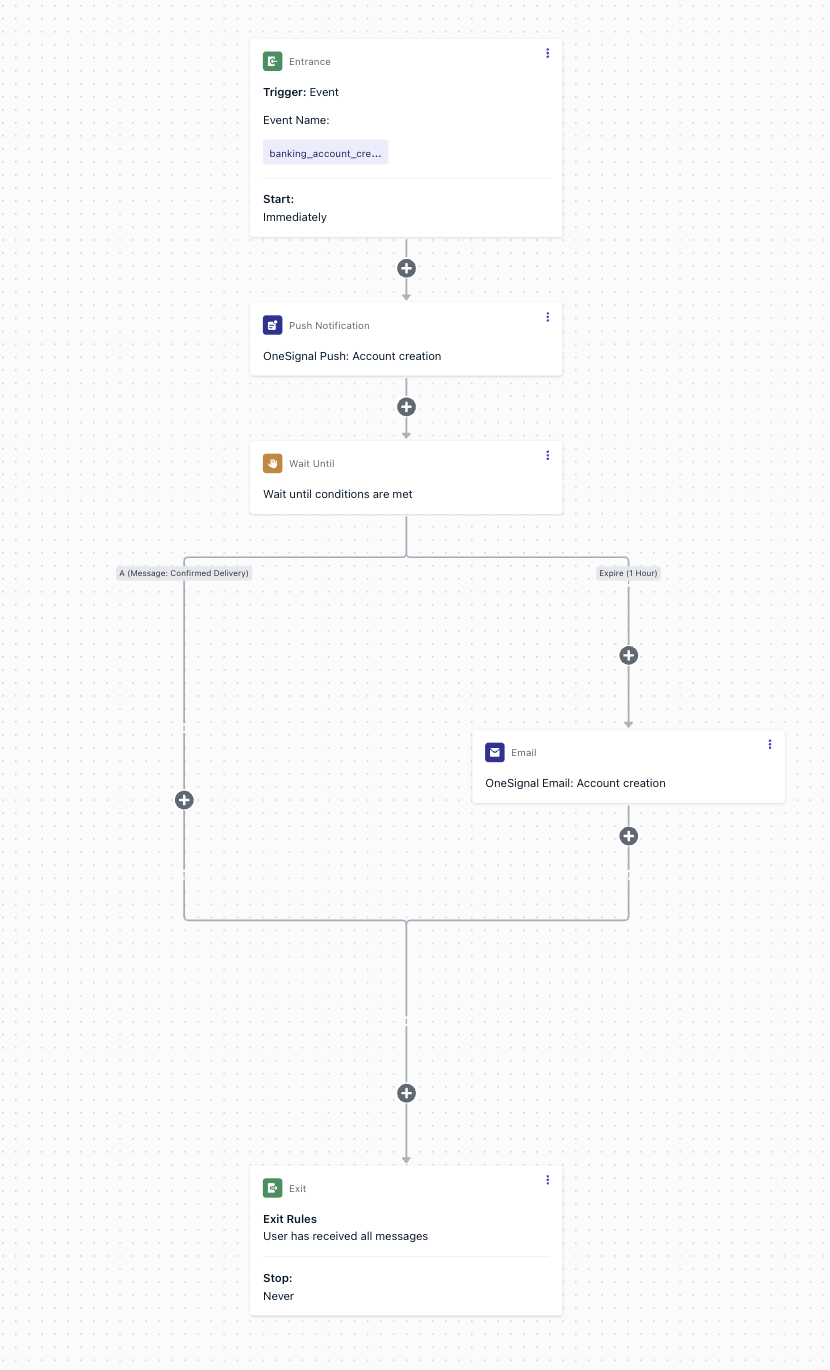 confirmed receipt must be enabled per platform. See [Confirmed receipt](./confirmed-delivery).
***
### Option 2: Custom fallback workflow (Advanced)
You can build a fallback system using the [OneSignal REST API](/reference/create-message) and [View Message API](/reference/view-message), but it requires careful implementation.
Send a notification to a single user using their `external_id` and target channel.
```json json theme={null}
POST https://onesignal.com/api/v1/notifications
{
"include_aliases": {
"external_id": ["user123"]
},
"target_channel": "push",
"contents": { "en": "Your order has shipped!" }
}
```
Query the [View Message API](/reference/view-message) using the `notification_id` to determine if it was delivered.
```json json theme={null}
GET https://onesignal.com/api/v1/notifications/{notification_id}
```
If the message failed or shows `"received": 0`, prepare to resend through another channel.
Before resending, check the user’s available channels by retrieving their record (via [View User API](/reference/view-user)).\
Then send the message again through the next available channel (Email, SMS, or Push).
This method is complex and **not recommended** for most use cases. It requires message-level tracking, user lookups, and managing fallback logic manually.
***
### Option 3: Event Streams
Use [Event Streams](./event-streams) to monitor message events in real time. This allows external systems to react automatically when a message fails.
Common flow:
1. Send a push or email notification
2. Capture `notification_failed` or `delivery_failed` events via Event Streams
3. Determine whether the user can receive another channel (by checking their available and opted-in subscriptions via [View User API](/reference/view-user)
4. Send a fallback message via the next available channel
> Event Streams provide real-time delivery insights but do not emit an event for “not sent,” since unsent messages have no event. Use this only for handling failures, clicks, opens and unsubscibes.
***
### Option 4: Detect and segment unsubscribed users
You can tag users who have unsubscribed from specific channels and manually retarget them via another.
Use the SDK observer [`addPermissionObserver()`](./mobile-sdk-reference#addpermissionobserver-push) to detect push permission changes.
When permission is revoked, tag the user (e.g., `unsubscribed_from_push: true`).
In the OneSignal dashboard, create a segment:
* `unsubscribed_from_push = true`
* AND has email or SMS subscription\
Then target that segment with your fallback campaign.
> This is a manual option and not ideal for automation, but it works for periodic fallback campaigns.
***
## Best practices
* **Choose the fallback channel based on message priority.**
* Use **SMS** for urgent alerts (e.g., security or downtime).
* Use **Email or In-App** for non-urgent updates.
* **Journeys are the easiest and most reliable** method for managing fallback.
* **Add expirations** to Wait Until nodes to avoid indefinite waits.
* **confirmed receipt** is required to trigger true delivery-based fallback.
* **Avoid multi-channel duplicates** by ensuring fallback messages reference delivery status.
***
## Example use cases
### Security alert
If a security alert push fails, send an SMS alert immediately.
### Order delivery update
Send a push with tracking info. If undelivered, send the same update via Email.
### Payment failure notification
If a push fails, send an SMS urging the user to retry payment.
### Event reminder
If an email reminder isn’t delivered, send a Push notification instead.
### System downtime alert
If push fails, fallback to SMS ensures users stay informed in real time.
### Billing notice
If email delivery fails, send a push or SMS reminder.
### Flash sale notification
If push isn’t delivered, send an SMS with promo details and a link to shop.
Need help?
Chat with our Support team or email `support@onesignal.com`
Please include:
* Details of the issue you're experiencing and steps to reproduce if available
* Your OneSignal App ID
* The External ID or Subscription ID if applicable
* The URL to the message you tested in the OneSignal Dashboard if applicable
* Any relevant [logs or error messages](/docs/en/capturing-a-debug-log)
We're happy to help!
***
confirmed receipt must be enabled per platform. See [Confirmed receipt](./confirmed-delivery).
***
### Option 2: Custom fallback workflow (Advanced)
You can build a fallback system using the [OneSignal REST API](/reference/create-message) and [View Message API](/reference/view-message), but it requires careful implementation.
Send a notification to a single user using their `external_id` and target channel.
```json json theme={null}
POST https://onesignal.com/api/v1/notifications
{
"include_aliases": {
"external_id": ["user123"]
},
"target_channel": "push",
"contents": { "en": "Your order has shipped!" }
}
```
Query the [View Message API](/reference/view-message) using the `notification_id` to determine if it was delivered.
```json json theme={null}
GET https://onesignal.com/api/v1/notifications/{notification_id}
```
If the message failed or shows `"received": 0`, prepare to resend through another channel.
Before resending, check the user’s available channels by retrieving their record (via [View User API](/reference/view-user)).\
Then send the message again through the next available channel (Email, SMS, or Push).
This method is complex and **not recommended** for most use cases. It requires message-level tracking, user lookups, and managing fallback logic manually.
***
### Option 3: Event Streams
Use [Event Streams](./event-streams) to monitor message events in real time. This allows external systems to react automatically when a message fails.
Common flow:
1. Send a push or email notification
2. Capture `notification_failed` or `delivery_failed` events via Event Streams
3. Determine whether the user can receive another channel (by checking their available and opted-in subscriptions via [View User API](/reference/view-user)
4. Send a fallback message via the next available channel
> Event Streams provide real-time delivery insights but do not emit an event for “not sent,” since unsent messages have no event. Use this only for handling failures, clicks, opens and unsubscibes.
***
### Option 4: Detect and segment unsubscribed users
You can tag users who have unsubscribed from specific channels and manually retarget them via another.
Use the SDK observer [`addPermissionObserver()`](./mobile-sdk-reference#addpermissionobserver-push) to detect push permission changes.
When permission is revoked, tag the user (e.g., `unsubscribed_from_push: true`).
In the OneSignal dashboard, create a segment:
* `unsubscribed_from_push = true`
* AND has email or SMS subscription\
Then target that segment with your fallback campaign.
> This is a manual option and not ideal for automation, but it works for periodic fallback campaigns.
***
## Best practices
* **Choose the fallback channel based on message priority.**
* Use **SMS** for urgent alerts (e.g., security or downtime).
* Use **Email or In-App** for non-urgent updates.
* **Journeys are the easiest and most reliable** method for managing fallback.
* **Add expirations** to Wait Until nodes to avoid indefinite waits.
* **confirmed receipt** is required to trigger true delivery-based fallback.
* **Avoid multi-channel duplicates** by ensuring fallback messages reference delivery status.
***
## Example use cases
### Security alert
If a security alert push fails, send an SMS alert immediately.
### Order delivery update
Send a push with tracking info. If undelivered, send the same update via Email.
### Payment failure notification
If a push fails, send an SMS urging the user to retry payment.
### Event reminder
If an email reminder isn’t delivered, send a Push notification instead.
### System downtime alert
If push fails, fallback to SMS ensures users stay informed in real time.
### Billing notice
If email delivery fails, send a push or SMS reminder.
### Flash sale notification
If push isn’t delivered, send an SMS with promo details and a link to shop.
Need help?
Chat with our Support team or email `support@onesignal.com`
Please include:
* Details of the issue you're experiencing and steps to reproduce if available
* Your OneSignal App ID
* The External ID or Subscription ID if applicable
* The URL to the message you tested in the OneSignal Dashboard if applicable
* Any relevant [logs or error messages](/docs/en/capturing-a-debug-log)
We're happy to help!
***