> ## Documentation Index
> Fetch the complete documentation index at: https://documentation.onesignal.com/llms.txt
> Use this file to discover all available pages before exploring further.
# Push overview
> Send and manage mobile and web push notifications with OneSignal using the dashboard or API, with targeting, personalization, and scheduling.
Push notifications re-engage users with timely, personalized content across devices, even when they aren't actively using your app or website.
Watch how push notifications drive the highest engagement, or skip ahead to get started.
OneSignal provides a complete platform to manage push notifications across mobile, web, and desktop:
* **Send campaigns and transactional messages** from the [dashboard](#send-push-notifications) or [API](/reference/create-message).
* **Automate multi-channel flows** with [Journeys](./journeys-overview).
* **Target users precisely** using [Segments](./segmentation), filters, or user data.
* **[A/B test](./ab-testing) and optimize** message performance.
* **Personalize content** with user attributes and [dynamic content](./message-personalization).
* **Integrate with your stack:** HubSpot, Mixpanel, Amplitude, Zapier, and [more](./integrations).
***
## Push setup
Before sending push notifications, complete the platform setup, configure permission prompts, and enable the features you need.
### Platform setup guides
End-to-end setup for iOS, Android, Huawei, and Amazon push notifications.
Enable push for Chrome, Firefox, Safari, and Edge.
Integrate the OneSignal SDK into your mobile app.
Integrate the OneSignal SDK into your website.
Migration steps from Firebase, Airship, Braze, and other providers.
Configure OneSignal for macOS apps.
Configure OneSignal for Windows desktop apps.
Add OneSignal to Apple Watch and Wear OS devices.
### Permissions
A well-designed opt-in experience maximizes your push audience.
Build pre-permission prompts and best practices for mobile apps.
Customize prompt timing and messaging for web push.
Deliver silent notifications to the notification center before prompting for full permission.
Let Android users customize how they receive notifications from your app.
### Features and advanced use cases
Add dynamic content to personalize messages for each user.
Send push notifications in each user's preferred language.
Control notification delivery speed for large audiences.
Limit the number of push notifications per user.
Send data-only notifications for background tasks.
Send VoIP-specific push notifications for calling apps.
***
## Send push notifications
You can send messages in several ways. The best option depends on your use cases.
Compose a message quickly within the dashboard.
Send messages programmatically using the REST API.
Build automated, multi-step, and multi-channel flows.
Test up to 10 message variants to optimize performance.
### Send from the dashboard
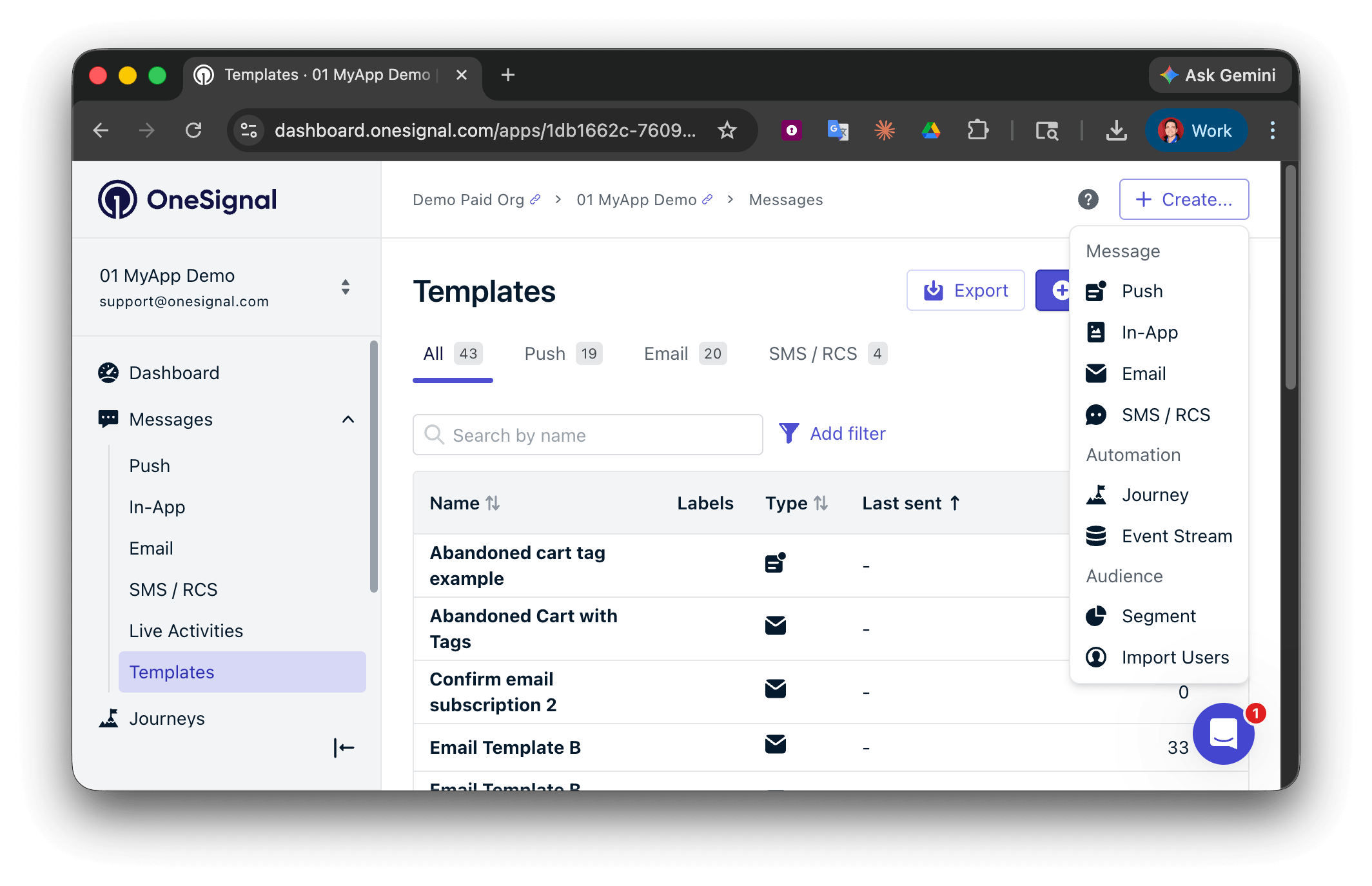
Select **Create...** then choose your message channel. You can also navigate to **Messages** or **Templates** to view previous messages.
* Start from scratch or use the [AI message composer](./ai-message-composer).
* Use a pre-built [template](./templates).
Add internal metadata for tracking and reporting. API equivalent: `name`.
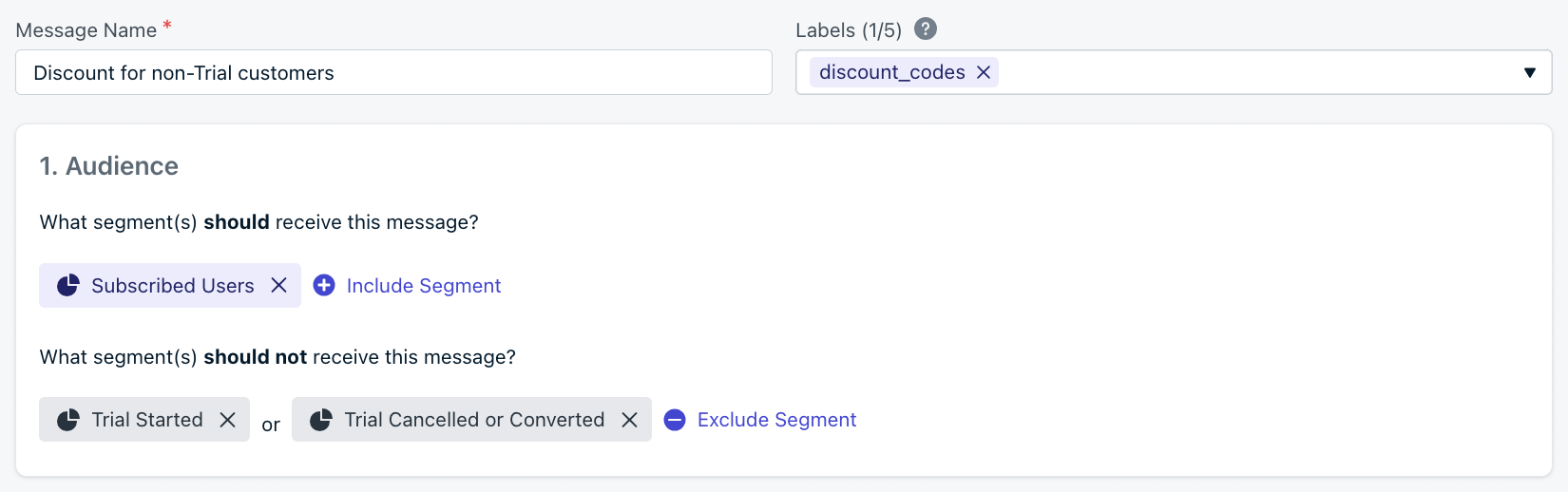
Choose which users receive the message. You can include and exclude [segments](./segmentation) to target specific groups. Defaults to all "Subscribed Users" if no segment is set.
| Targeting method | Dashboard | API |
| --------------------------------------------------- | :-------: | :-: |
| [**Segments**](./segmentation) | Yes | Yes |
| **Filters** ([API only](/reference/create-message)) | No | Yes |
| **Aliases** ([API only](/reference/create-message)) | No | Yes |
Compose the notification using the [design properties](#design-properties) and [feature properties](#feature-properties) below. Then send immediately or set a [delivery schedule](#delivery-schedule-and-optimization).
### Delivery schedule and optimization
See how timing impacts push notification performance.
Choose when OneSignal evaluates audience membership and begins delivering the message.
| Option | Description | API field |
| -------------------- | -------------------------------------------------- | ------------ |
| **Send immediately** | Start sending to all users in the audience now. | (none) |
| **Scheduled** | Send at a specific time, up to 30 days in advance. | `send_after` |
The send time determines the audience cutoff. OneSignal evaluates audience membership at that moment, and anyone in the audience receives the message regardless of per-user optimization settings.
**Per-user delivery time:**
Set when each user in the audience receives the message.
| Option | Description | API field |
| ----------------------------- | ------------------------------------------------------------------------ | -------------------------------------------------- |
| **Everyone at the same time** | All recipients receive the message at once. Best for urgent messages. | (none) |
| **Intelligent Delivery** | Sends at the optimal time for each user based on their session activity. | `delayed_option: last-active` |
| **Custom time per timezone** | Sends at a set local time in each user's timezone. | `delayed_option: timezone`, `delivery_time_of_day` |
**Delivery overrides:**
Override the app-level delivery defaults for this message only.
| Setting | Description | API field |
| ----------------------------------------------------- | ------------------------------------------- | -------------------------- |
| **Override [Throttling](./throttling)** | Change the throttle rate for this message. | `throttle_rate_per_minute` |
| **Override [Frequency capping](./frequency-capping)** | Disable frequency capping for this message. | `enable_frequency_cap` |
With Intelligent Delivery or Custom time per timezone, delivery spans a 24-hour period so every record in the audience can receive the message. If it is already 10 AM for a recipient when a 9 AM local-time message sends, they receive it at 9 AM the following day.
### Design properties
Push messages can either display user-facing content or perform background operations.
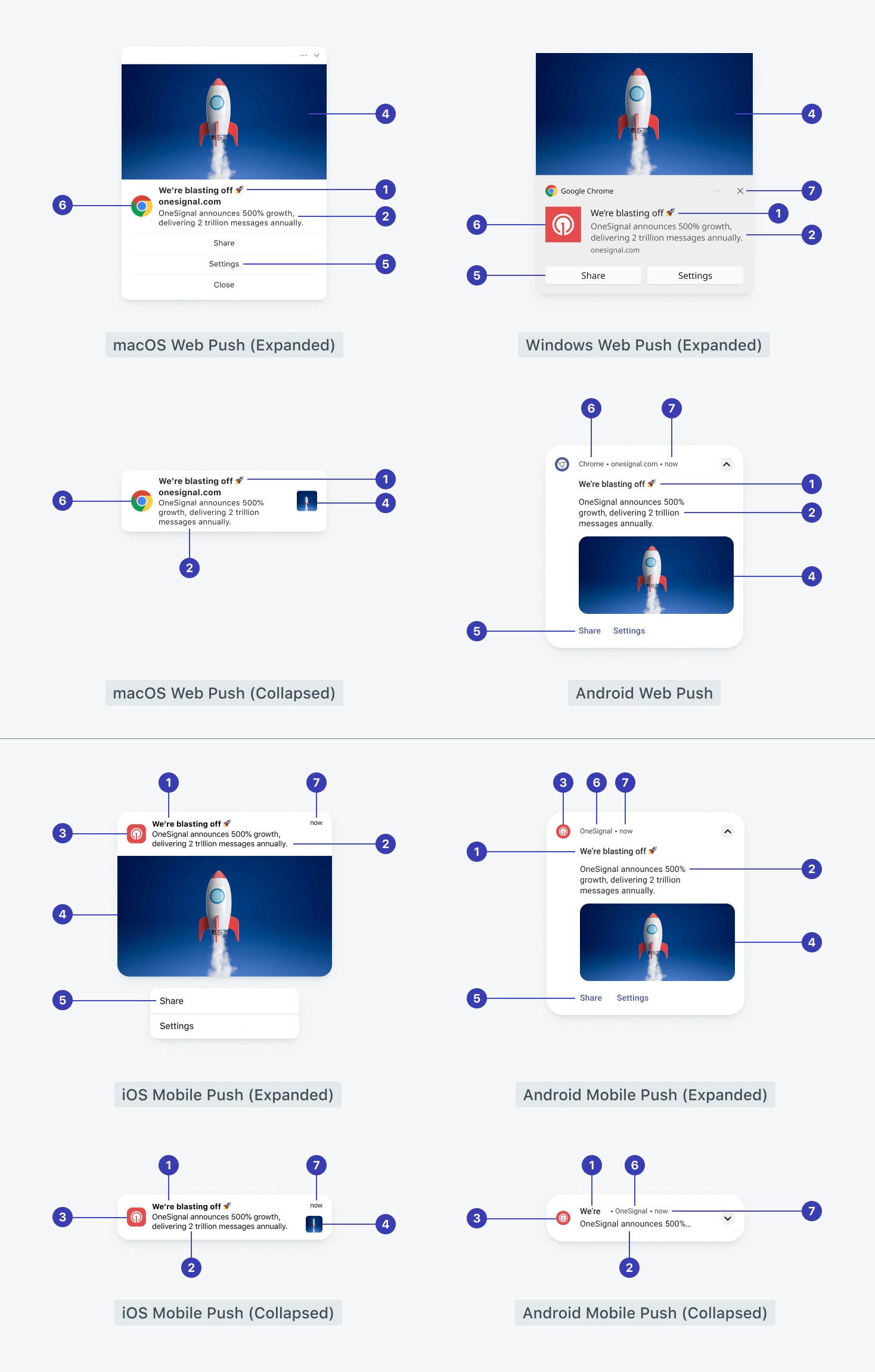
* **Display notifications**: Require a [message](#message) and may include a title, image, action buttons, and other visual elements.
* **Background/data-only notifications**: Omit the message, set [`content_available`](./data-notifications) (iOS) or omit `headings`/`contents` (Android), and optionally include [additional data](#additional-data).
**Legend:** 1 Title, 2 Message, 3 Icon, 4 Image, 5 Action buttons, 6 App name or browser, 7 Timestamp received.
Use the [AI message composer](./ai-message-composer) to quickly generate notification titles and body text. Adjust tone and content to match your brand in a few clicks.
#### Title
Top-most customizable text of the notification. Text appearance is controlled by the operating system.
* Required for **web push** and **Huawei**
* Defaults to site name on web if not set
* Recommended limit: 25–50 characters (mobile), 60–80 (web)
* Supports: [AI message composer](./ai-message-composer), emojis, [message personalization](./message-personalization), [multi-language messaging](./multi-language-messaging)
* API: `headings`
#### Subtitle
Secondary text supported on iOS and macOS only (via APNs). Not available on Android or web.
* Recommended limit: 25–50 characters
* Supports: emojis, [message personalization](./message-personalization), [multi-language messaging](./multi-language-messaging)
* API: `subtitle`
#### Message
Main content of the notification. Does not support custom fonts or styling. Style is set by the operating system.
* Required unless sending a background notification
* Supports: [AI message composer](./ai-message-composer), emojis, [message personalization](./message-personalization), [multi-language messaging](./multi-language-messaging)
* Recommended limit: \~150 characters
* API: `contents`
#### Icons
Customize small and large icons on Android and web. iOS always uses the app icon.
* See [Notification icons](./notification-icons)
#### Image
Add a large image to notifications on Android, iOS, and Chrome for Windows/Android.
* Recommended size: `1024×512px` (2:1 aspect ratio)
* Max size: 1 MB, max width: 2000 px
* Not supported on Safari (macOS/iOS) or macOS Notification Center
* Must be tapped or expanded on mobile to view
* Supported formats: `PNG`, `JPG`, `GIF` (animated only on iOS)
* API: `ios_attachments` (iOS), `big_picture` (Android), `chrome_web_image` (Chrome web)
* See [Images and rich media](./rich-media)
#### App name
The name of the app displaying the notification.
* **iOS**: Set in Xcode under *Display Name*; requires device restart to update
* **Android/Amazon/Huawei**: Set in `AndroidManifest.xml` under ``
* **Web**: Shows the site name and/or browser
### Feature properties
#### Action buttons
Add interactive buttons to the push notification.
* Supported on Android 4.1+ and iOS 8.0+
* See [Action buttons](./action-buttons)
#### Launch URL
Control where users go when tapping the notification.
* API: `url` (single universal URL), `app_url` (deep link, e.g. `your-app://screen`), `web_url` (http/https web link)
* See [URLs, links, and deep links](./links)
#### Badges
Show dots or badge numbers on app icons.
* **iOS**: Red numeric badge; can set, increment, or clear. API: `ios_badgeType`, `ios_badgeCount`
* **Android**: Requires [notification categories](./android-notification-categories)
* **Huawei**: Badge displayed as a number or dot. API: `huawei_badge_class`, `huawei_badge_set_num`, `huawei_badge_add_num`
* **Web (Chrome/Android)**: Icon shown in Android status bar; must be a 72×72 alpha PNG. API: `chrome_web_badge`
* See [Badges](./badges)
#### Sound
Play a sound when the push is delivered.
* **iOS**: Set with `sound`
* **Android**: Set via [notification categories](./android-notification-categories)
* **Web**: Not available
#### Additional data
Add custom key-value pairs to the payload for SDK handling.
* Used by [mobile service extensions](./service-extensions) and click listeners in the [mobile SDK](./mobile-sdk-reference) and [web SDK](./web-sdk-reference)
* Dashboard supports only simple key-value data; use the API with `data` to send nested JSON
* Max total payload: \~4 KB; `data` field: up to 2048 bytes
* See [Notification payload reference](./osnotification-payload)
#### Collapse ID (mobile push)
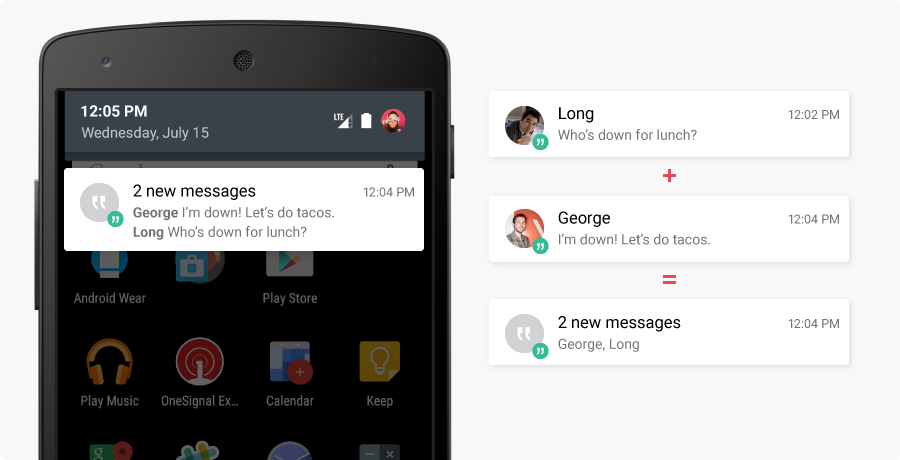
Replace earlier notifications with a newer one if they share the same `collapse_id`. Max length: 64 characters. API: `collapse_id`
For example, a weather app sends three alerts. If the user opens their device after all three, only the last message displays.
#### Web push topic (web push)
Avoid replacing older web notifications by using unique `web_push_topic` values. Notifications with different topics remain visible independently. Max length: 64 characters. API: `web_push_topic`
#### Priority
Set the urgency of the push, especially in battery-saving modes.
* **High** (`10`, default and recommended): Immediate, alert-based messages.
* **Normal** (`5`): Recommended for background and data-only notifications.
* API: `priority`
* Platform docs: [APNs priority](https://developer.apple.com/documentation/usernotifications/setting_up_a_remote_notification_server/sending_notification_requests_to_apns), [FCM priority](https://firebase.google.com/docs/cloud-messaging/android/message-priority).
#### Time to live (TTL)
How long to keep a message if the device is offline. Default: 3 days. Range: 0–2,419,200 seconds (28 days). API: `ttl`
If a user is offline and the TTL expires, the message is discarded. Set `ttl: 0` for messages that should never be delivered late.
**iOS limitation**: APNs stores only the most recent notification while the device is offline. Earlier notifications are dropped. [Learn more](https://developer.apple.com/library/archive/documentation/NetworkingInternet/Conceptual/RemoteNotificationsPG/APNSOverview.html#//apple_ref/doc/uid/TP40008194-CH8-SW5).
#### Notification grouping
Android and iOS automatically group notifications after a device receives 4 or more from your app.
* **iOS**: Use `thread_id` in the API to group messages together.
* **Android**: Use `android_group` in the API, or set the "Group Key" in the dashboard. For advanced customization, see [Android notification service extension](./service-extensions#android-notification-service-extension) and [Android's group notify guide](https://developer.android.com/training/notify-user/group).
***
## Cancel push notifications
Cancel a message if it has not been **Delivered** yet. OneSignal stops sending the message to all Subscriptions not already in the queue. This does not remove the message from devices that already received it.
In the [Message Report](./push-notification-message-reports), select **Actions > Cancel**, or use the [Cancel Message API](/reference/cancel-message).
### Remove a push notification from a device
Once delivered, you can only replace a push notification if you set a [Collapse ID](#collapse-id-mobile-push) or [Web push topic](#web-push-topic-web-push). Without one of these, the notification cannot be replaced or removed.
***
## Analytics
Track message performance and engagement.
Message-level delivery, open rate, and click-through reporting.
All analytics options available in OneSignal.
Stream push events to your data warehouse or BI tools in real time.
Pull message analytics programmatically via the REST API.
***
## FAQ
### What platforms does OneSignal push support?
OneSignal supports push on iOS (APNs), Android (FCM), Huawei (HMS), Amazon (ADM), web browsers (Chrome, Firefox, Safari, Edge), macOS, and Windows. See the [platform setup guides](#platform-setup-guides) above.
### How do I test push notifications before sending to users?
Set up [Test users](./test-users) to verify delivery, rendering, and deep links without affecting real users. You can also send to a single-user segment for quick testing.
### Why are my push notifications not showing?
Common causes include missing or expired platform credentials, users not granting permission, or device-level settings like Do Not Disturb. See [Notifications not shown or delayed](./notifications-show-successful-but-are-not-being-shown) for a full troubleshooting checklist.
### What is the maximum push notification payload size?
The total payload size is approximately 4 KB across all platforms. The `data` field supports up to 2048 bytes. Exceeding these limits may cause notifications to be truncated or rejected.
 | Targeting method | Dashboard | API |
| --------------------------------------------------- | :-------: | :-: |
| [**Segments**](./segmentation) | Yes | Yes |
| **Filters** ([API only](/reference/create-message)) | No | Yes |
| **Aliases** ([API only](/reference/create-message)) | No | Yes |
| Targeting method | Dashboard | API |
| --------------------------------------------------- | :-------: | :-: |
| [**Segments**](./segmentation) | Yes | Yes |
| **Filters** ([API only](/reference/create-message)) | No | Yes |
| **Aliases** ([API only](/reference/create-message)) | No | Yes |
 **Legend:** 1 Title, 2 Message, 3 Icon, 4 Image, 5 Action buttons, 6 App name or browser, 7 Timestamp received.
 ***
## Cancel push notifications
Cancel a message if it has not been **Delivered** yet. OneSignal stops sending the message to all Subscriptions not already in the queue. This does not remove the message from devices that already received it.
In the [Message Report](./push-notification-message-reports), select **Actions > Cancel**, or use the [Cancel Message API](/reference/cancel-message).
### Remove a push notification from a device
Once delivered, you can only replace a push notification if you set a [Collapse ID](#collapse-id-mobile-push) or [Web push topic](#web-push-topic-web-push). Without one of these, the notification cannot be replaced or removed.
***
## Analytics
Track message performance and engagement.
***
## Cancel push notifications
Cancel a message if it has not been **Delivered** yet. OneSignal stops sending the message to all Subscriptions not already in the queue. This does not remove the message from devices that already received it.
In the [Message Report](./push-notification-message-reports), select **Actions > Cancel**, or use the [Cancel Message API](/reference/cancel-message).
### Remove a push notification from a device
Once delivered, you can only replace a push notification if you set a [Collapse ID](#collapse-id-mobile-push) or [Web push topic](#web-push-topic-web-push). Without one of these, the notification cannot be replaced or removed.
***
## Analytics
Track message performance and engagement.